This chapter walks you through preparing a complete Node.js development setup, from installing Node.js itself to choosing a code editor, configuring version control and deployment tools, and taking your first steps in the interactive REPL. It emphasizes keeping up with current Node.js releases, using the terminal as your primary workspace, and understanding how your system’s PATH environment variable lets the shell locate executables. By the end, you’ll have a working toolchain and the confidence to verify and experiment with your installation.
You begin by installing the latest stable Node.js, which includes npm, and verifying the setup in terminal with simple version checks. A version manager such as NVM is recommended to juggle multiple Node.js versions and test upgrades safely, with alternative managers available on Windows. After confirming Node and npm are reachable on your PATH, you install a text editor—Atom is suggested, though an IDE like Visual Studio Code also works—so you have a comfortable place to write code. The chapter then sets up software configuration management and deployment basics: install Git to snapshot code (init, add, commit) and the Heroku CLI, sign in, and prepare to deploy projects to the cloud later in the book.
Finally, you test-drive Node via the Read–Evaluate–Print Loop by entering node in terminal to open an interactive shell. In REPL you can evaluate expressions, print results, define variables with modern ES6 syntax, and even create simple classes, exiting with .exit or Ctrl-C. Core Node modules are available, and REPL offers handy commands like .help, .editor, .load, .save, and .break to streamline quick experiments. Exploring REPL gives you a fast feedback loop for learning Node.js and verifying ideas before committing them to files.
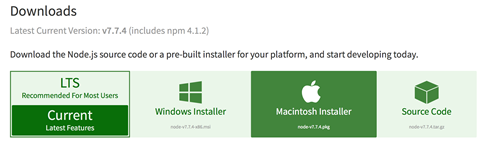
Node.js installer page
Node.js writing to your machine
Installing Git from the downloads page
Summary
In this lesson, you installed the Atom text editor and Node.js. You also verified that your Node.js environment is ready to evaluate JavaScript code by running some commands in REPL. In the next lesson, you learn how to use Node.js and terminal to build and launch an application.
FAQ
How do I choose which Node.js version to install?Install the latest stable version from https://nodejs.org. New releases arrive frequently, and staying current ensures you get modern JavaScript (ES6/ES2015+) features and fixes.What’s the simplest way to install Node.js?Download the installer for your operating system from https://nodejs.org/en/download/ and follow the prompts. The installer sets up Node.js and npm for macOS, Windows, or Linux.What is a Node Version Manager (NVM), and why use it?NVM lets you install and switch among multiple Node.js versions on one machine. This is useful for testing new releases while keeping older, stable versions for existing projects. On Unix-like systems, install NVM from https://github.com/creationix/nvm, then use commands like: nvm list, nvm ls-remote, nvm install <version>, node -v. On Windows, use nvm-windows or nodist.Does Node.js come with npm?Yes. Installing Node.js also installs npm, the package manager for Node’s ecosystem. Verify with: node -v and npm -v.How do I confirm Node.js installed correctly (and troubleshoot errors)?Run node -v and npm -v in your terminal. If you see version numbers, you’re set. If you get errors or no output, reinstall or search the exact error message for solutions. Also ensure Node’s install directory is on your PATH.What is the PATH, and how do I find where Node and npm are installed?The PATH is an environment variable listing directories your system searches for executables. Find locations with which node and which npm (Windows: where node and where npm). If terminal can’t find Node, add its install directory to your PATH.Which editor or IDE should I use?The chapter recommends Atom (https://atom.io), a free, extensible editor with Node.js-friendly plugins. You can also use an IDE like Visual Studio Code (https://code.visualstudio.com) for built-in terminal, debugging, and IntelliSense.How do I set up Git and why do I need it?Git is version control for tracking changes and deploying to Heroku later. Check with git --version; if missing, install from https://git-scm.com/downloads. Basic workflow: git init, git add <files> (or git add .), git commit -m "message".How do I install the Heroku CLI and log in?Create a free Heroku account at https://signup.heroku.com. Install the CLI: macOS (brew install heroku/brew/heroku or use the installer), Windows (download installer), Linux (run the install script from Heroku docs). Then run heroku login and enter your credentials.What is the Node.js REPL and how do I use it?The REPL (Read–Evaluate–Print Loop) is an interactive shell to test JavaScript/Node code. Start it with node; you’ll see a > prompt. Exit with .exit or press Ctrl-C twice. Handy commands include:
- .help — list available commands
- .editor — enter multi-line mode (Ctrl-D to finish)
- .break or .clear — exit a stuck block
- .load filename — load code from a file
- .save filename — save the current session to a file
pro $24.99 per month
access to all Manning books, MEAPs, liveVideos, liveProjects, and audiobooks!


 Get Programming with Node.js ebook for free