2 Getting started with Streamlit
This chapter introduces the practical setup and workflow needed to begin building Streamlit apps. It emphasizes that learning Streamlit is not only about writing app code, but also about becoming productive with a reliable development environment. The chapter recommends installing a supported Python version, using pip to install Streamlit, and preparing core tools such as Git for version control, a capable code editor or IDE, and virtual environments to manage project dependencies safely.
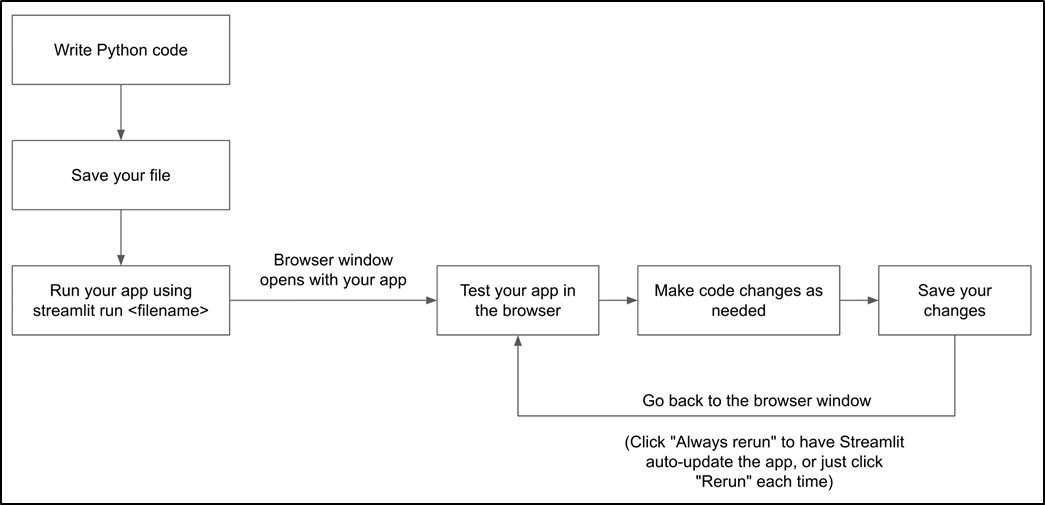
The chapter then explains what Streamlit development feels like in practice. After running the built-in streamlit hello demo, readers see how Streamlit can quickly produce interactive browser-based apps with animations, charts, maps, tables, and visible source code. The development cycle is presented as an iterative loop: write Python code, save the file, run it with streamlit run, test the app in the browser, revise the code, save again, and rerun or automatically refresh the app. Streamlit monitors source files and can update the browser view when changes are made, making the edit-test cycle fast and interactive.
The main hands-on project is a password checker app. The app accepts a password from the user, checks it against several conditions, and displays whether each condition passes or fails using Streamlit status messages. The chapter walks through importing Streamlit, defining password rules with Python functions, collecting input with a password text field, triggering evaluation with a button, and showing results with success or error messages. It also demonstrates how to modify the app by adding a new password rule, explains the local server output produced by Streamlit, and shows how to stop and restart the Streamlit server when development is finished.
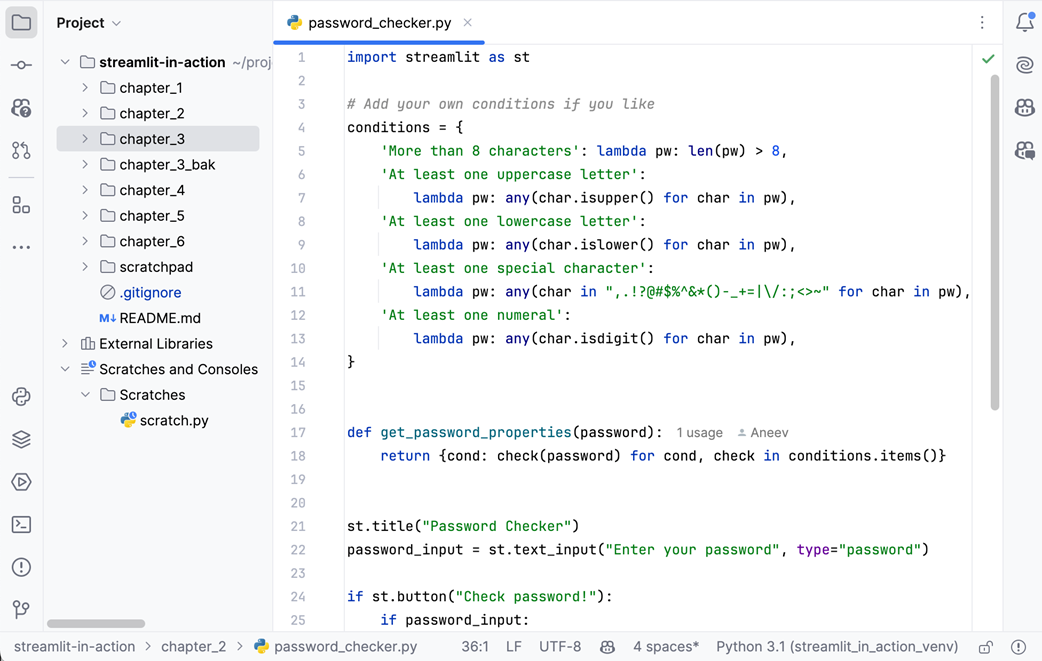
The project editor window in PyCharm Community Edition.
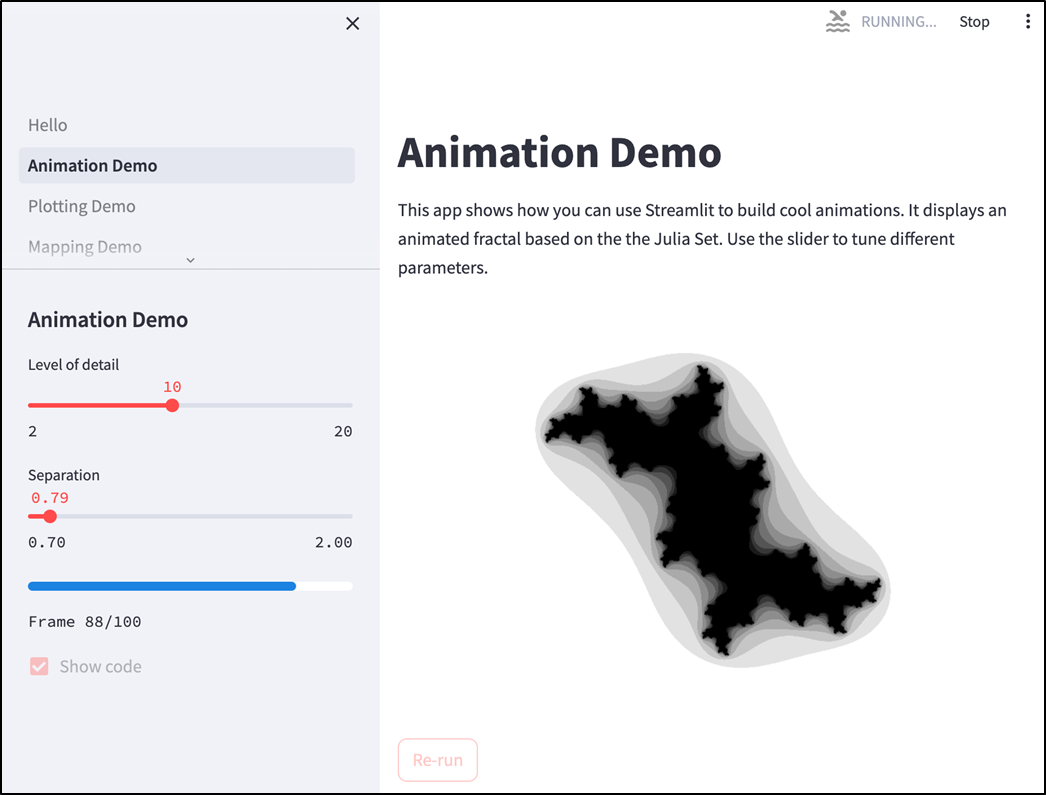
Animation Demo from streamlit hello.
DataFrame Demo from streamlit hello.

The Streamlit development workflow.
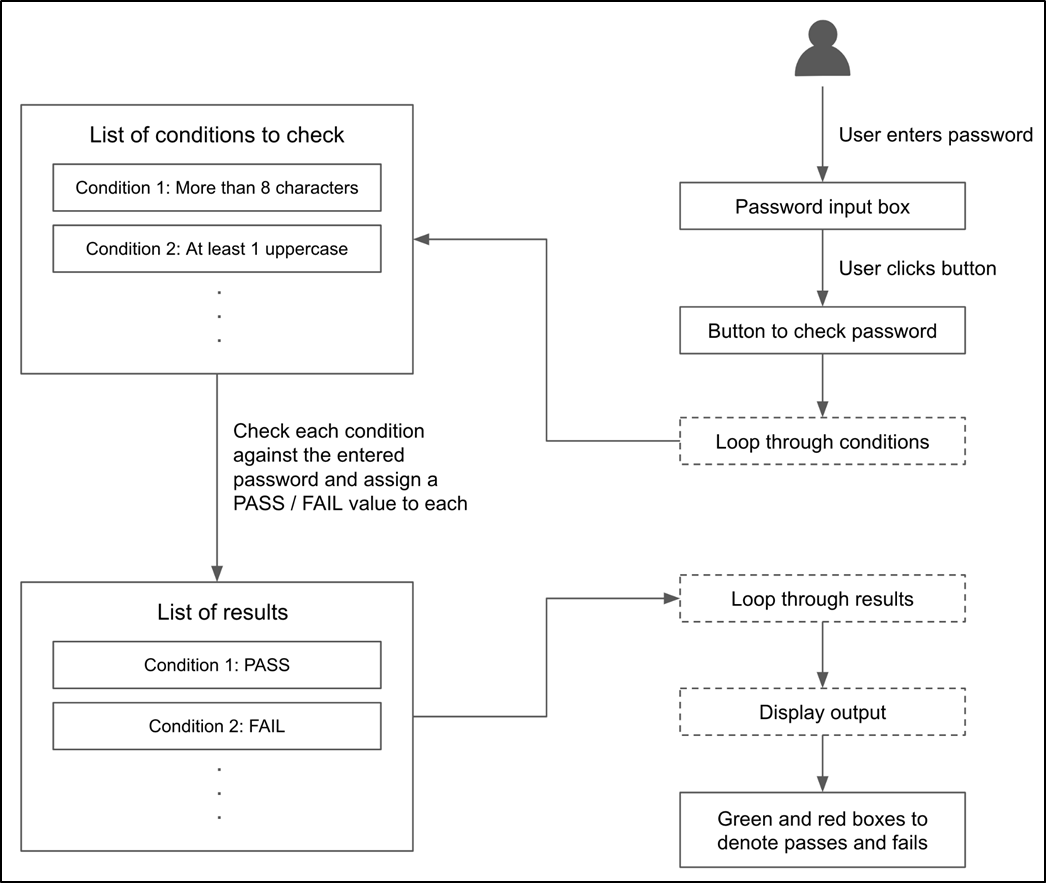
The flow of logic in our password checker app.
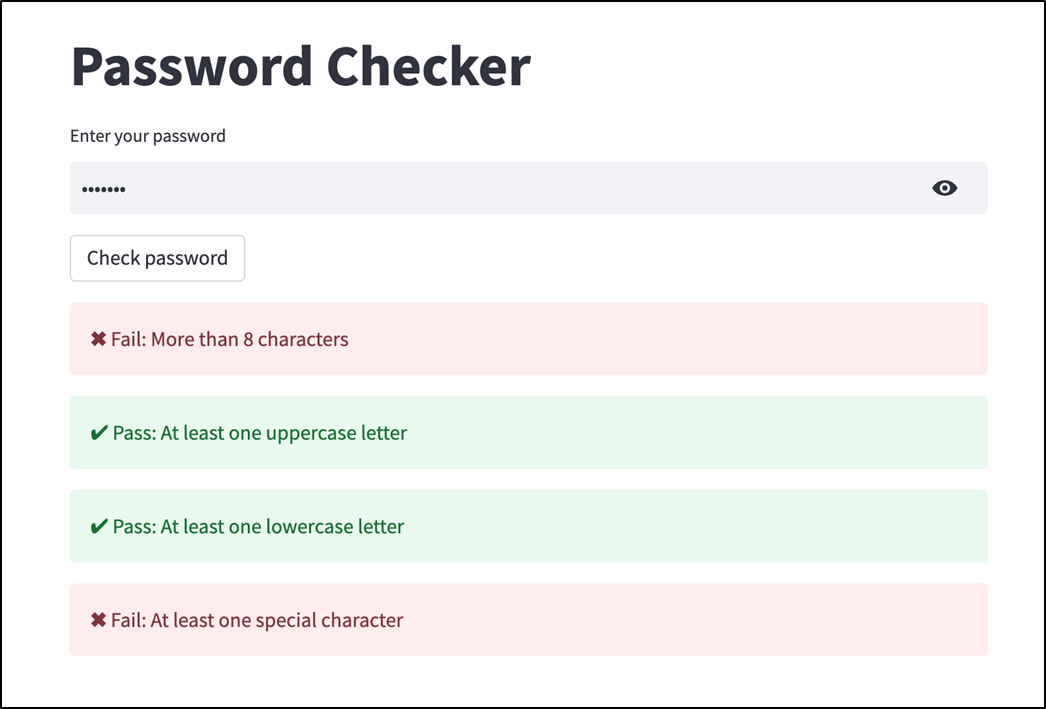
Our password checker app.
Streamlit displays a message on your app when the source changes.

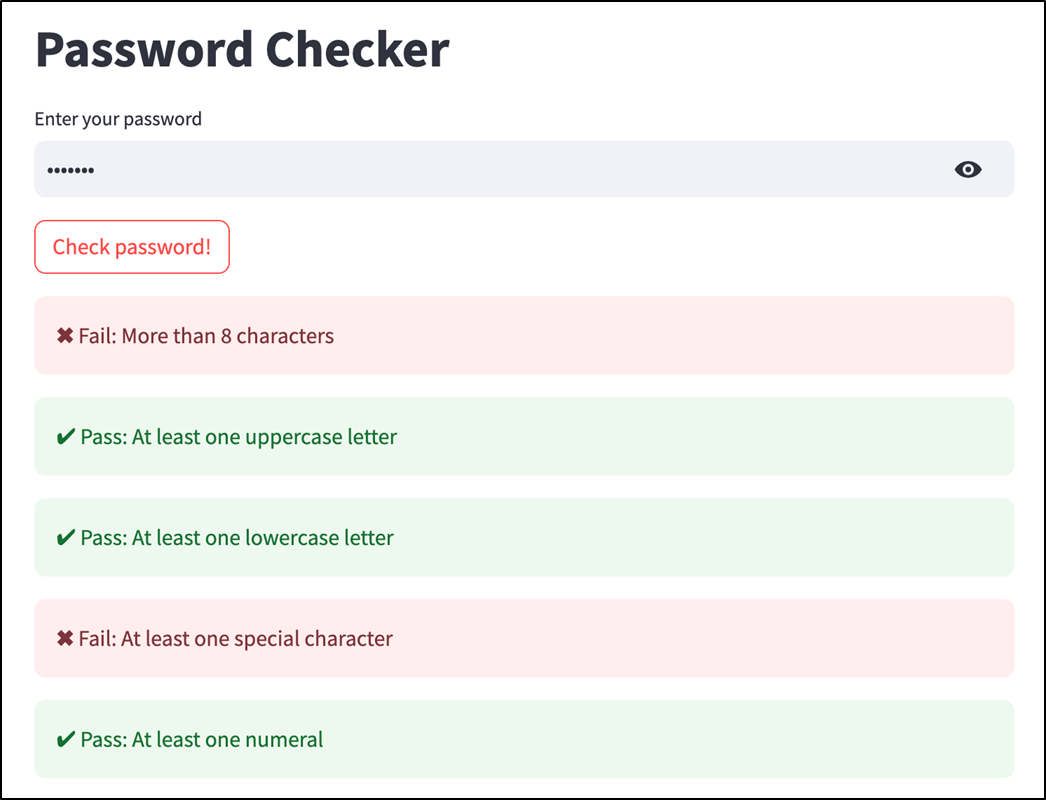
The password checker app with our newly added changes
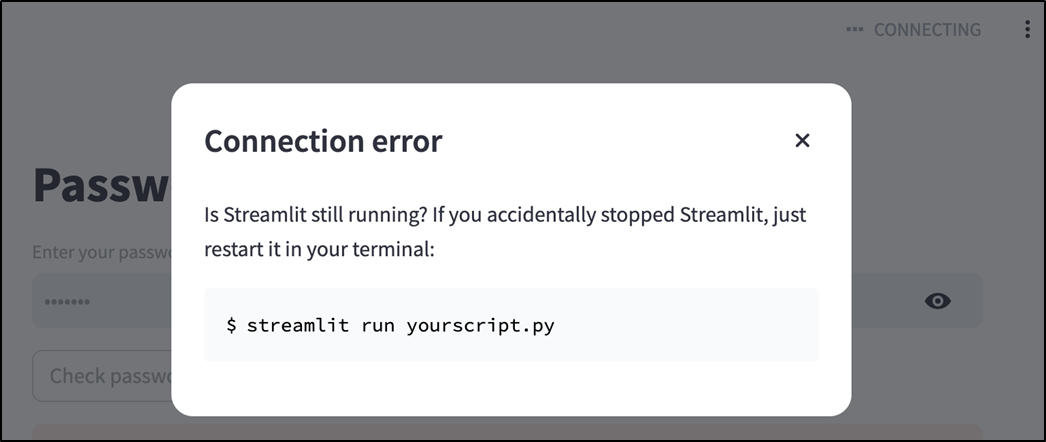
When you shut down the Streamlit server, the frontend app can't run.
Summary
- Streamlit requires Python 3.9 or above to run.
- Git is a form of version control that helps you track and manage changes to your code.
- Advanced code editors like VS Code and IDEs like PyCharm make you more productive through syntax highlighting, debugging tools, code navigation, autocomplete, and more.
- Virtual environments allow you to isolate the libraries and dependencies of each project you work on.
- You run Streamlit apps using streamlit run <file_name>, which opens a web browser window with your app.
- You can configure Streamlit to always rerun your app whenever the source code changes, providing a seamless development experience.
FAQ
What does chapter 2 of Build Python Web Apps with Streamlit cover?
Chapter 2 focuses on getting started with Streamlit. It covers setting up a development environment, understanding the Streamlit development workflow, running Streamlit for the first time, and building a first app: a password checker.
What do I need before installing and using Streamlit?
You need a supported version of Python and pip. Streamlit currently supports Python 3.9 and above, though the chapter recommends installing Python 3.11 or later. Once Python and pip are ready, you can install Streamlit with pip install streamlit.
How do I install Streamlit?
You install Streamlit from the terminal using pip:
pip install streamlitThe chapter also points readers to Appendix A for a more detailed installation guide.
Why does the chapter recommend using Git?
Git is recommended because it acts like a “time machine” for your code. It lets you track changes, revert to earlier versions, experiment with different designs, switch between versions, and document why changes were made. This is especially useful for larger projects and collaboration, but it is valuable even for solo developers.
Which code editor should I use for Streamlit apps?
Streamlit apps are Python scripts, so any text editor can work. However, the chapter recommends using a proper code editor or IDE for productivity features like syntax highlighting, debugging, and code navigation. It mentions PyCharm and Visual Studio Code as popular choices, while noting that tools like Sublime Text and Notepad++ are also viable.
What are virtual environments, and why are they important?
A virtual environment is an isolated Python setup with its own libraries and dependencies. The chapter recommends using one virtual environment per project so that changing or updating libraries in one project does not break another. Tools related to virtual environments include venv, pipenv, pyenv, and poetry.
How can I run Streamlit for the first time?
After installing Streamlit, you can run Streamlit’s built-in demo app by typing:
streamlit helloThis opens a browser window showing example Streamlit features such as animations, maps, tables, and graph plotting. The sidebar lets you explore different demos and view the source code using the “Show code” checkbox.
What is the basic Streamlit development workflow?
The Streamlit workflow is iterative: write Python code, save the file, run it with streamlit run <filename>, test the app in the browser, make changes, save again, and rerun or allow Streamlit to rerun automatically. Streamlit watches for source file changes and gives you options such as “Rerun” and “Always rerun.”
How do I run my own Streamlit app?
Save your app as a Python file with a .py extension. Then, in the terminal, navigate to the directory containing the file and run:
streamlit run <filename>For example, if your file is named password_checker.py, run:
streamlit run password_checker.pyStreamlit will start a local server and usually open the app in your web browser.
What does the password checker app do?
The password checker app lets a user enter a password and click a button to evaluate it against several conditions. The initial checks include whether the password is more than 8 characters long, contains at least one uppercase letter, contains at least one lowercase letter, and contains at least one special character. The app displays passing conditions with st.success and failing conditions with st.error.
What Streamlit elements are introduced in the password checker app?
The chapter introduces several basic Streamlit elements:
- st.title displays a large title.
- st.text_input creates a text input field; using type="password" makes it suitable for password entry.
- st.button displays a clickable button.
- st.success shows a green success-style message.
- st.error shows a red error-style message.
- st.write writes general text or output to the app.
How do I stop and restart a running Streamlit app?
The Streamlit server runs in the terminal window where you executed streamlit run. To stop it, close the terminal window or press Ctrl+C. When the server stops, the browser app can no longer interact with it and may show a connection error. To restart it, run streamlit run <filename> again.

 Build Python Web Apps with Streamlit ebook for free