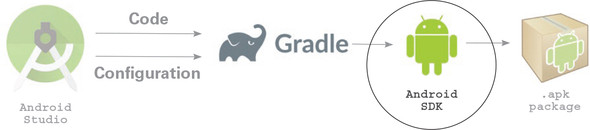
This appendix offers a concise, practical primer to developing on Android. It frames Android as a Java-and-XML platform packaged into APKs, highlights Android Studio (based on IntelliJ) as the primary IDE, and notes Gradle and the Android SDK as the backbone of the build and tooling pipeline. The goal is to get you up and running quickly on Windows or Mac while providing just enough platform orientation—what projects look like, how apps are launched, and how UI building blocks fit together—to follow the book’s examples with confidence.
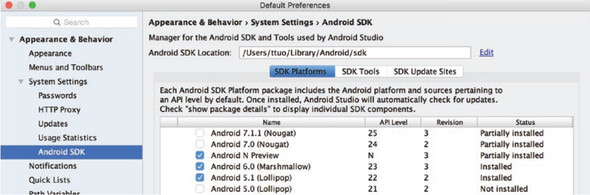
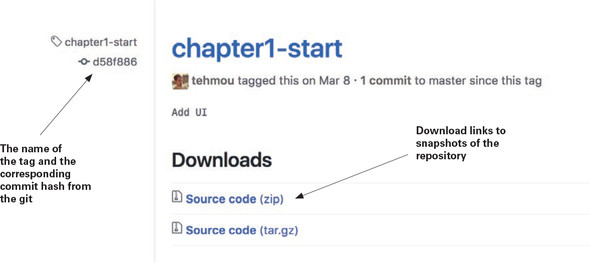
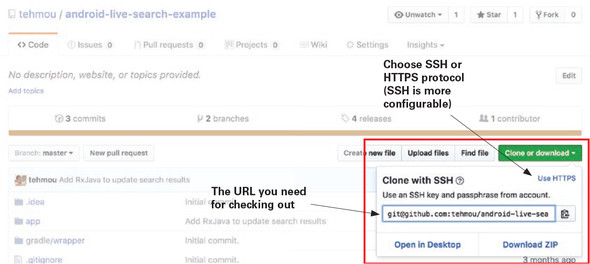
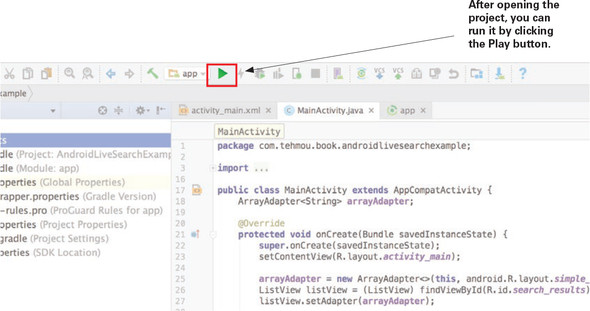
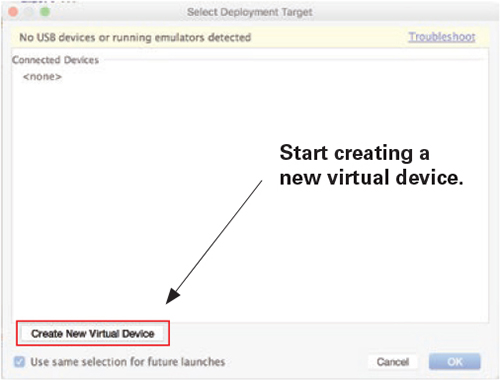
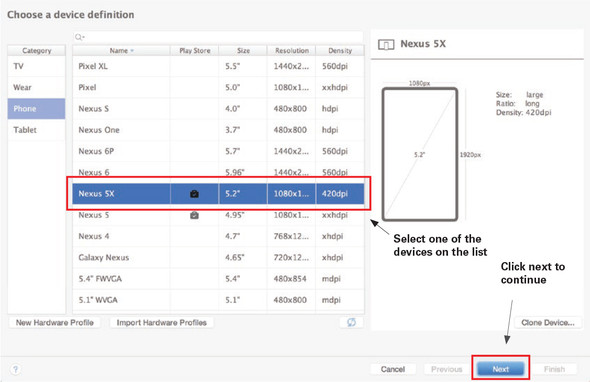
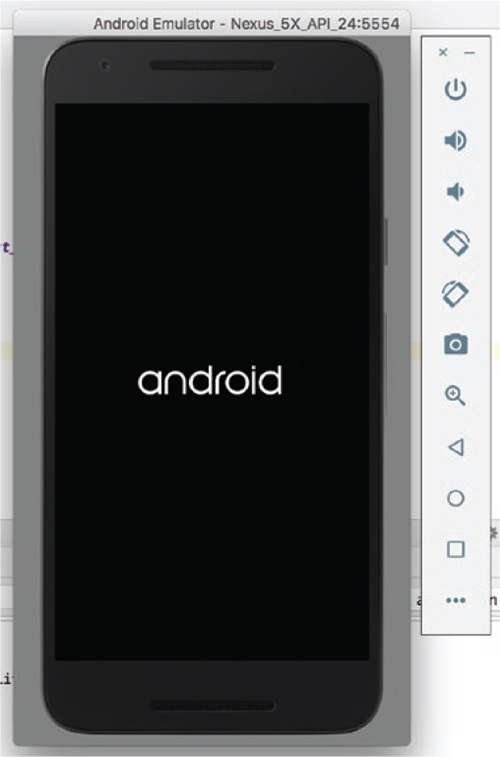
You’re guided through installing Android Studio and the required SDK components (the defaults generally suffice), then fetching the book’s example projects either via direct downloads or by cloning with Git, where tags mark start and end states for each exercise. After opening a project in Android Studio, you can run it as-is, create an Android Virtual Device with the AVD Manager when no physical device is connected, and complete any image downloads or defaults needed to boot an emulator. Deployment is handled by ADB, which detects emulators and devices; if a target doesn’t appear, restarting the ADB daemon typically resolves it. The emulator includes useful controls (like rotation) for testing behavior.
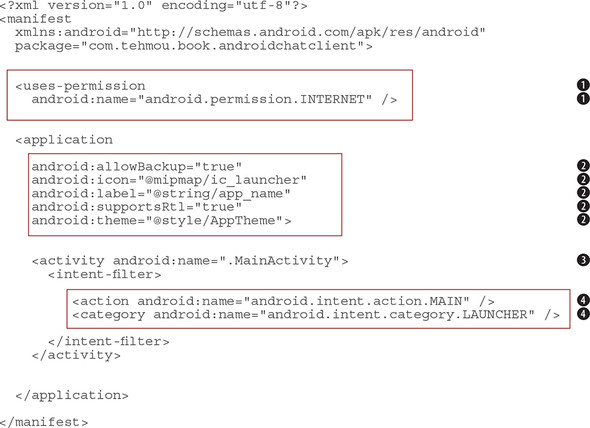
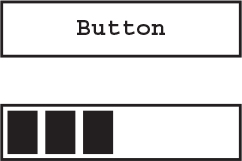
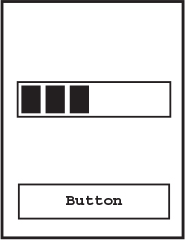
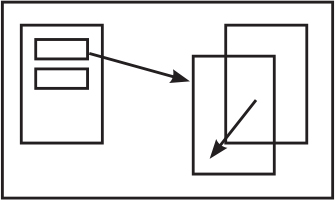
The project structure tour covers where code and assets live and how builds are configured. Source code is under app/src/main/java, while app/src/main/res holds UI layouts, images, and resource values such as strings and colors. Builds are driven by Gradle with both project- and app-level build.gradle files, and the app’s AndroidManifest.xml declares permissions, app metadata, and the launcher activity. The platform’s UI hierarchy is sketched from views (buttons, text, images) to activities (task-focused screens with a context) and the Application class (a lightweight container for app-wide initialization), with fragments noted as optional modular pieces. Altogether, this equips you to install tools, run examples, and navigate Android projects as you progress through the book.
FAQ
What tools do I need to follow the Android appendix, and on which platforms?You need Android Studio (IntelliJ-based), the Android SDK, and Gradle (bundled with Studio). The setup works on both Windows and macOS with essentially the same steps.How do I install Android Studio, and does the version matter?Download the installer from https://developer.android.com/studio and follow the prompts. Using the latest stable version is fine; older projects may prompt for automatic migration when opened.What is Gradle and do I have to configure it manually?Gradle is the build system Android uses. Sample projects are preconfigured, so you rarely need to touch it. When you do, there are two main files: the project build.gradle and the app-level build.gradle.How do I install Android SDK components and which Android versions should I target?Use the SDK Manager that Android Studio provides and accept the defaults to start. Post–Android 4, APIs are relatively stable; most apps can support Android 4.x and above unless you need specific newer features.Where can I get the example projects and how do I download them?Examples are on GitHub at https://github.com/tehmou/Grokking-Reactive-User-Interfaces. You can download tagged snapshots as ZIPs or clone the repository with Git to get the full history.How do I clone the repository with Git?Copy the clone URL from the repo’s “Code/Clone or Download” button, then run: cd your-directory and git clone <clone-url>. On Windows 10+, you can use the Ubuntu shell or any Git client.How do I open and run a project in Android Studio?Open the project folder in Android Studio. If prompted to update Gradle or plugins, you can try running first as-is. Click the Run/Play button and choose a target device or emulator.How do I create and configure an Android emulator (virtual device)?When running for the first time, choose “Create New Virtual Device” to open AVD Manager. Pick a device profile (for example, a Nexus 5X), download a system image if prompted, accept defaults, and finish. AVDs are local emulator instances with their own virtual disk and memory.What is ADB and how do I fix devices that aren’t showing up?ADB (Android Debug Bridge) discovers emulators and connected devices and installs apps on them. If a device doesn’t appear, restart the ADB daemon (for example, by restarting ADB or Android Studio), reconnect the device, and try again.What is the typical Android project structure and what does the manifest do?Key locations: app/src/main/java for source, app/src/main/res for resources, build.gradle at both project and app levels, and app/src/main/AndroidManifest.xml. The manifest declares permissions, app metadata (icon, name), and the launch activity.What are the main Android UI/platform components I should know?Views are the basic UI elements (buttons, text, images). Activities provide a screen with a context to access system resources. The Application class initializes the app and manages activities. Fragments are optional, reusable UI modules between views and activities.
pro $24.99 per month
access to all Manning books, MEAPs, liveVideos, liveProjects, and audiobooks!




 RxJava for Android Developers ebook for free