5 Containerizing applications
Modern applications rely on the internet and many third-party dependencies, which makes consistent, cross-platform execution challenging. This chapter presents containers as the solution: they bundle code with system-level dependencies into immutable images that run wherever a container runtime is available. Using Docker, you learn to install and verify the tooling, run official images, publish container ports to the host, and open an interactive shell. The chapter underscores containers’ isolated-by-default model and the key principle that containers are ephemeral and stateless; you don’t persist changes inside a running container, you rebuild the image to capture them.
From there, you design your own images with Dockerfiles. Starting from a base image, you add layers via RUN and COPY and define a startup command with CMD. An Ubuntu-plus-NGINX example illustrates why images are rebuilt to persist changes. You then containerize a Python app by choosing a precise base tag, setting a working directory, copying source, installing OS packages, creating a virtual environment, installing requirements, and serving content. To keep images lean and safe, you use a .dockerignore. Finally, you introduce an entrypoint script that launches gunicorn with Uvicorn workers, honors a PORT environment variable with a default, and pairs with host-to-container port mappings for access.
The same pattern is applied to Node.js: select a specific Node tag, copy src and package manifests, run npm install, add an executable entrypoint that starts the app, and run with configurable ports and environment variables. The chapter concludes by pushing images to a registry: authenticate, tag builds with both semantic versions and latest, and push. It explains image layers and build caching, the value of tagging for reproducibility, and platform differences (ARM versus x86) that may require specifying a build platform or delegating builds to Linux-based CI. Mastering build, run, and push makes applications portable and version-controlled, setting the stage for orchestration with Kubernetes.
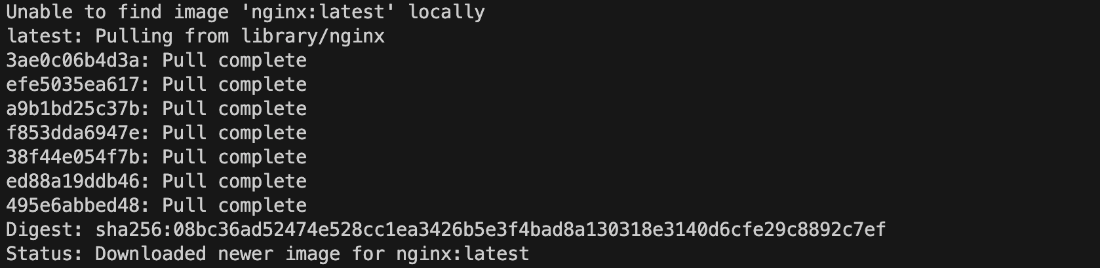
First container run output
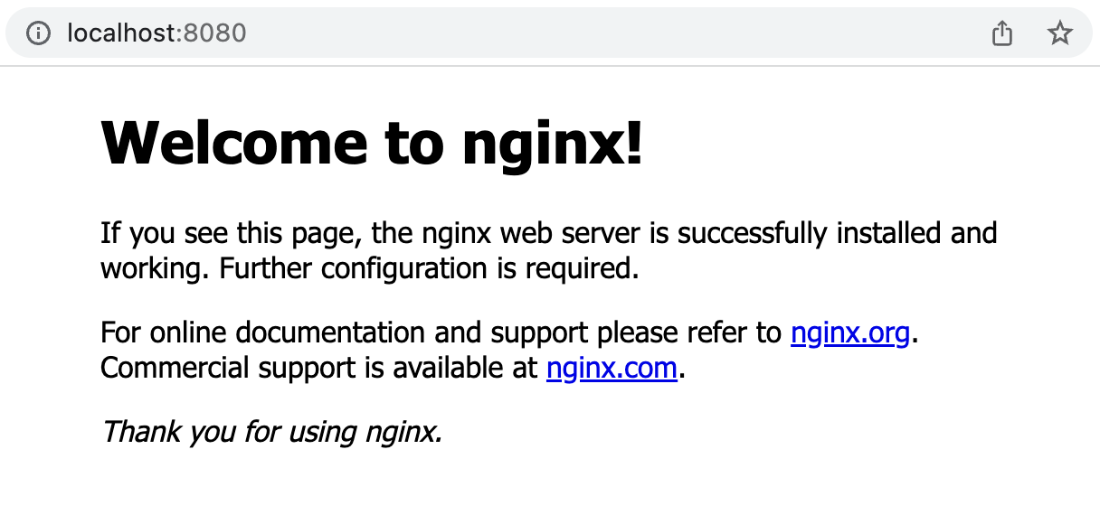
Visiting port 80 in the NGINX container image on localhost:8080
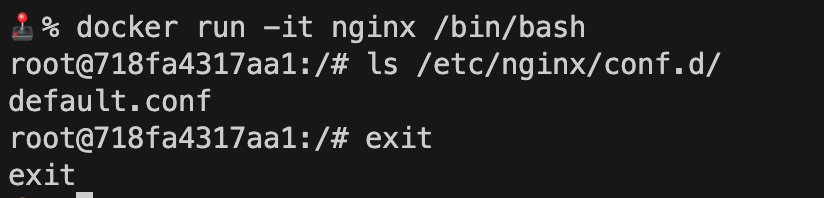
Entering the NGINX container image’s bash shell
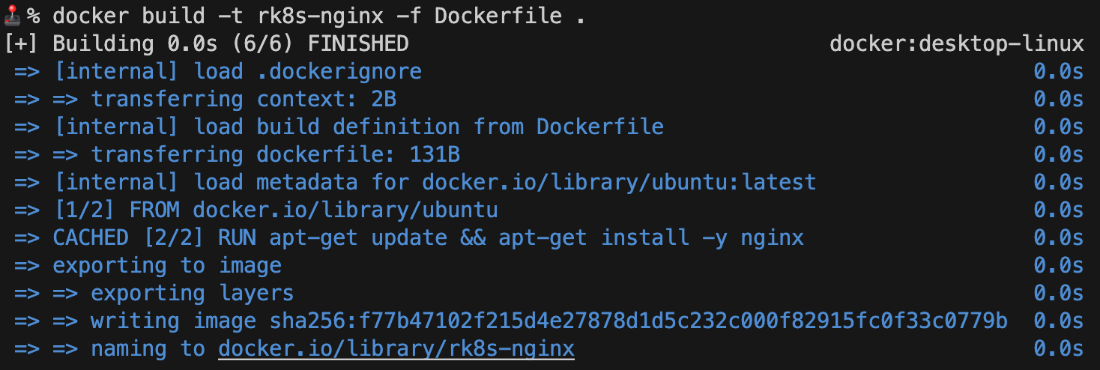
Building your first container image from a Dockerfile
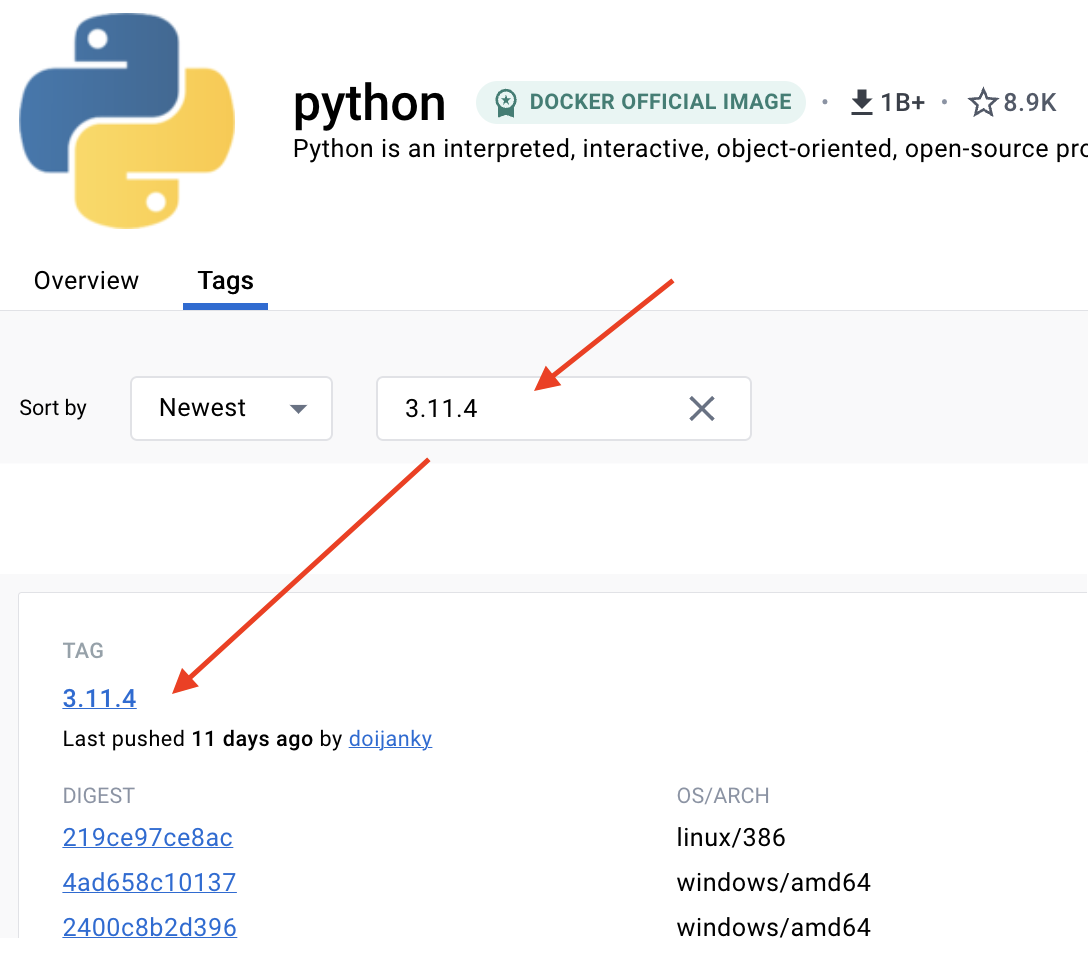
Docker Hub Python tags
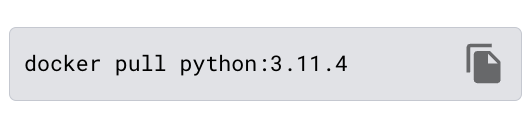
Docker Hub screenshot of the pull command
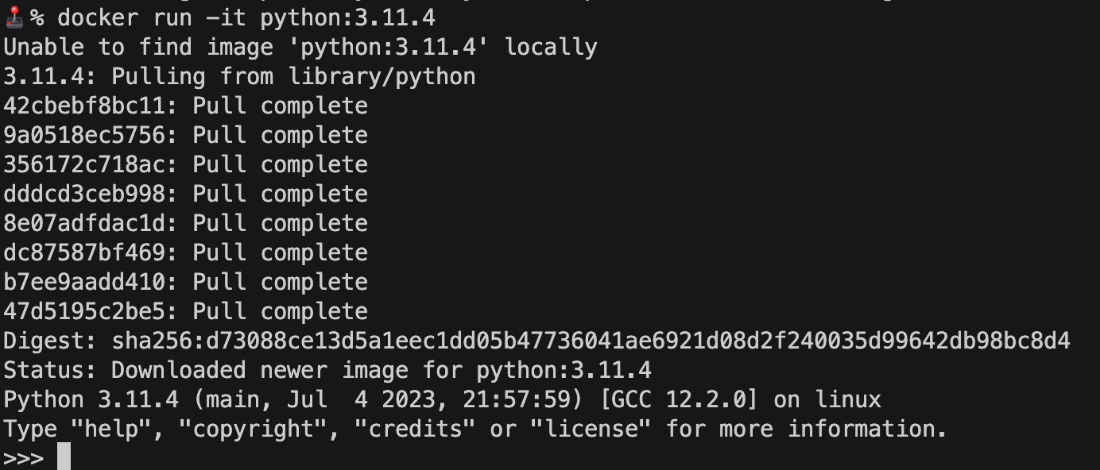
Running the Python container image
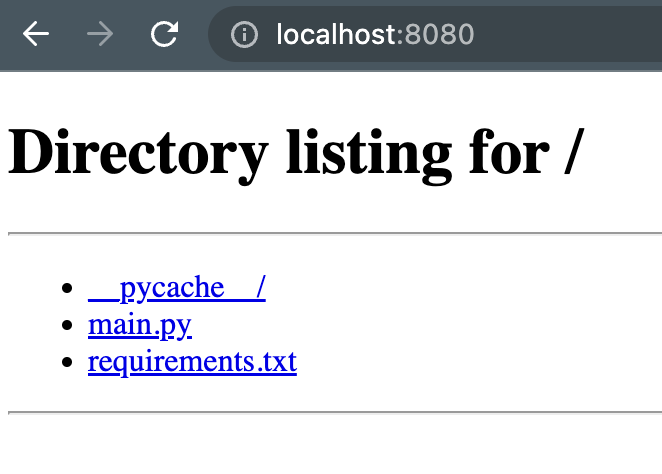
Browsing the Python Dockerfile output
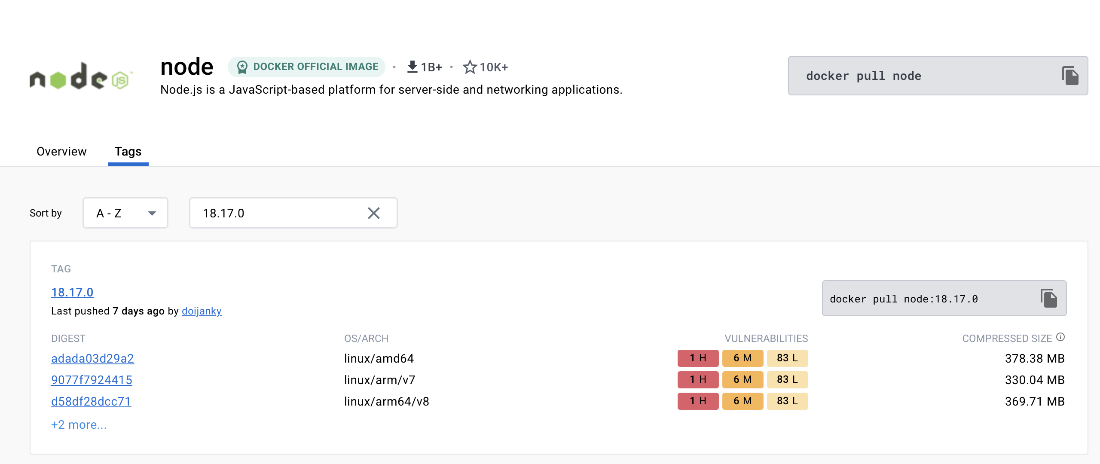
Docker Hub Node.js tags
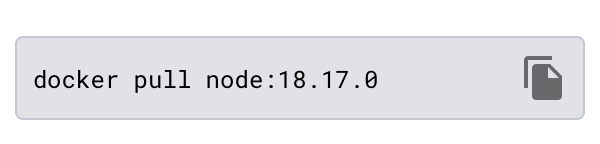
Docker Hub node pull command
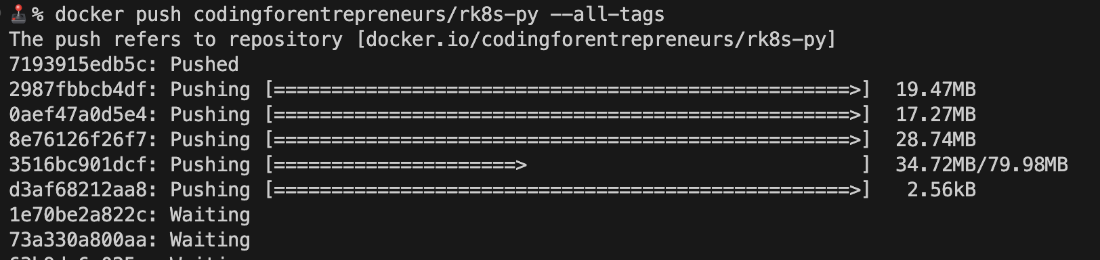
Pushing our Python container image to Docker Hub
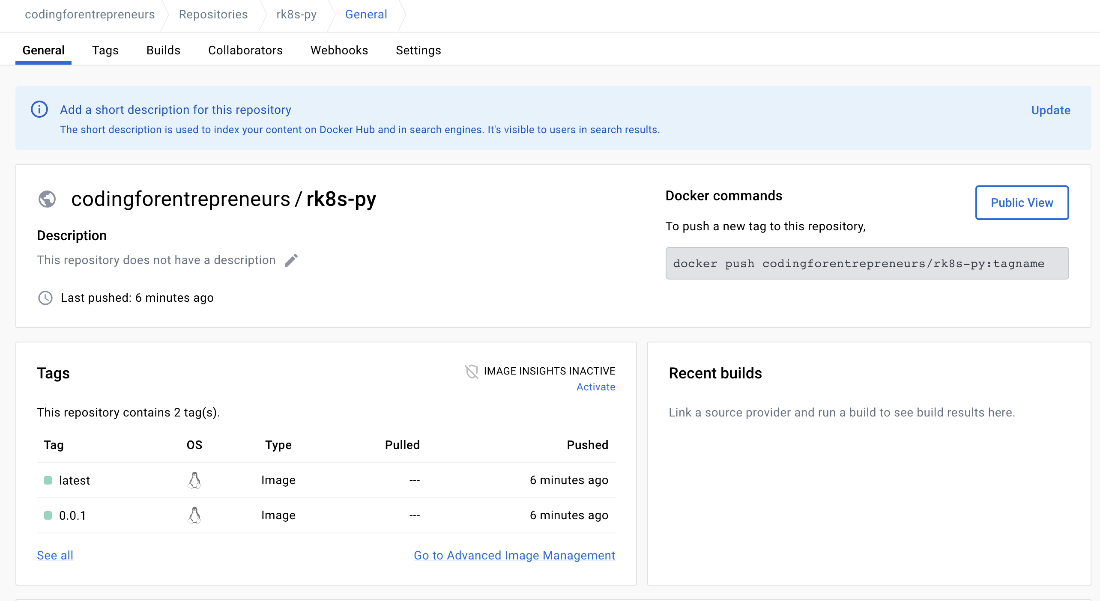
Docker Hub rk8s Python container image
Summary
- Containers are mini-Linux machines, and we have a lot of flexibility in how we can use them.
- Containers unlock portability for nearly any kind of application, especially open-source ones.
- The pattern of instructions for containers uses a logical method of copying and installing the software any given application might need.
- Containers are stored in a container registry like Docker Hub so they can then be distributed to production systems.
- Building containers is essentially identical regardless of the application, except for what goes into the Dockerfile.
- The container is responsible for running the containerized application or applications through what’s declared in the Dockerfile (or as an additional argument).
- Containers force consistency in how we package our final application.
- A containerized application can run differently based on the environment variables passed at runtime.
FAQ
What problem do containers solve, and how do images differ from containers?
Containers bundle your app code with all system-level dependencies into a portable unit called a container image. A container is a running instance of that image, started by a container runtime (e.g., Docker). If Docker is installed on any system, the same image will run consistently without re-installing language runtimes or OS packages. This portability and consistency reduce “works on my machine” issues.How do I install Docker and verify it’s working?
- Install Docker Desktop for your OS from https://docs.docker.com/desktop/. Windows users can use WSL; Windows Pro is required if not using WSL. After installation, open a terminal and run:docker --version. If it prints a version, Docker is ready.How do I run my first container (NGINX) and access it in the browser?
Rundocker run nginx. Docker will pull the image from Docker Hub the first time if it’s not present locally. To reach NGINX in your browser, map a host port to the container’s port 80: docker run -p 8080:80 nginx, then visit http://localhost:8080.What does port mapping (-p) mean, and how do I pick the right ports?
The-p flag maps a host port to a container port using -p <host>:<container>. The container port must match what the app inside the image expects (e.g., NGINX uses 80). Examples: docker run -p 8080:80 nginx, docker run -p 6543:5432 postgres, docker run -p 3001:8080 codingforentrepreneurs/try-iac. Choose any free host port; keep the container port aligned with the app.How do I open a shell inside a container, and when should I do it?
Start an interactive shell with:docker run -it <image> /bin/bash (e.g., docker run -it nginx /bin/bash). You can inspect files (e.g., ls /etc/nginx/conf.d/) and then exit. This is useful for exploration and debugging, but remember changes made this way are ephemeral.Why are containers considered stateless, and why shouldn’t I “apt-get install” inside a running container?
Containers are designed to be disposable. If you install packages interactively and stop/remove the container (e.g., with--rm), your changes are lost on the next run. Persist modifications by defining them in a Dockerfile so they’re baked into a new image. Use external storage (volumes) for data that must persist (beyond this chapter’s scope).How do I write a basic Dockerfile and build/run an image?
A minimal NGINX-on-Ubuntu Dockerfile:FROM ubuntu, RUN apt-get update && apt-get install -y nginx, CMD ["nginx","-g","daemon off;"]. Build and tag it: docker build -t rk8s-nginx -f Dockerfile .. Run and expose it: docker run -p 8080:80 rk8s-nginx. The key Dockerfile directives are FROM, RUN, and CMD.How do I containerize a Python app, manage dependencies, and start it?
- Base image: use a specific tag, e.g.,FROM python:3.11.4. - Set WORKDIR /app and COPY your src/. - Install OS deps and create a venv in /opt/venv; upgrade pip; pip install -r requirements.txt. - Use a .dockerignore (e.g., ignore __pycache__/ and *.env). - Add an entrypoint script (e.g., runs gunicorn with UvicornWorker) and chmod +x it; set CMD ["./entrypoint.sh"]. - Run with port/env: docker run -p 8080:8080 -e PORT=8080 rk8s-py.How do I containerize a Node.js (Express) app?
- Base image/tag:FROM node:18.17.0. - WORKDIR /app. - COPY ./src /app/src/, plus COPY package.json and package-lock.json. - RUN npm install. - Add a simple entrypoint (e.g., node /app/src/main.js), chmod +x, and CMD ["./entrypoint.sh"]. - .dockerignore: ignore node_modules/ and *.env. - Run: docker run -p 3000:3000 rk8s-js or override with -e PORT=3001 and map accordingly.How do tags work, and why use both “latest” and versioned tags?
A tag identifies a specific build of an image, likepython:3.11.4 or yourname/app:0.0.1. If you omit a tag when running, Docker uses :latest by default. Tagging both a version and latest lets you pin environments reproducibly while also having a moving default. Example build: docker build -t yourname/rk8s-py:0.0.1 -t yourname/rk8s-py:latest -f Dockerfile ..How do I push images to Docker Hub and handle different CPU architectures?
- Create a Docker Hub account anddocker login. - Tag with your username/repo: docker build -t yourname/rk8s-py:0.0.1 -t yourname/rk8s-py:latest -f Dockerfile .. - Push: docker push yourname/rk8s-py:0.0.1 and/or docker push yourname/rk8s-py --all-tags. - On Apple Silicon/Raspberry Pi (ARM) but targeting common Linux servers (x86), build with: docker build --platform=linux/amd64 ... to avoid architecture mismatches.
 Road to Kubernetes ebook for free
