3 Manual deployment with virtual machines
This chapter walks through a hands-on, manual path to deploying applications on virtual machines to build foundational operations skills before embracing automation. Using a cloud VM as the target, it frames deployment as a Git-driven workflow: push code to a server, run scripts to update what’s running, and learn the basic web stack components that make production work. Along the way it emphasizes portability across providers, the value of understanding the HTTP request/response model and the command line, and the mindset of treating servers as ephemeral rather than precious infrastructure.
The journey starts by provisioning an Ubuntu VM and connecting via SSH, then installing and using NGINX to serve a static site as a gentle on-ramp to web server fundamentals. It then replaces ad‑hoc file transfer with a self-hosted, private bare Git repository, wiring a post-receive hook to automatically check out code into a working directory, install dependencies, and refresh processes. Two apps are deployed: a Python FastAPI service using a venv, pip, and gunicorn/uvicorn; and a Node.js Express app installed with nvm and npm. Both are turned into background services with Supervisor for reliable start/stop/restart behavior, while NGINX is promoted to a reverse proxy that routes requests to each app without exposing high-numbered ports. Finally, the setup is hardened by allowing only essential ingress (SSH, HTTP, HTTPS) via an uncomplicated firewall and encouraging SSH keys over passwords.
Beyond the mechanics, the chapter stresses good practices and trade-offs: avoid FTP in favor of Git, favor absolute paths for predictability, automate repeatable steps with hooks, and assume VMs can be destroyed and recreated. While the result is a functional, production-like stack on a single host, it is also a clear single point of failure and not easily scalable, which motivates breaking responsibilities apart, adopting Infrastructure as Code and CI/CD, and ultimately moving toward containers and Kubernetes. The outcome is both a working deployment and a solid mental model for why higher-level orchestration becomes valuable as systems grow.
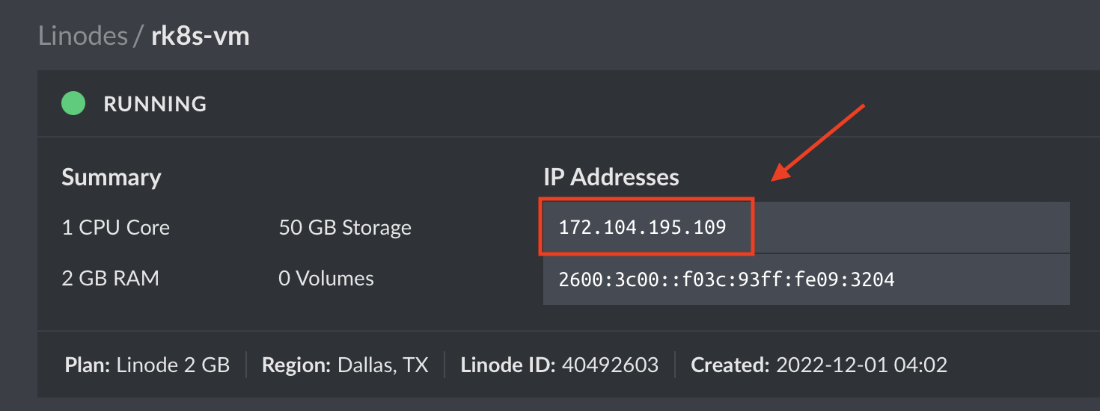
Linode VM provisioned with an IP address
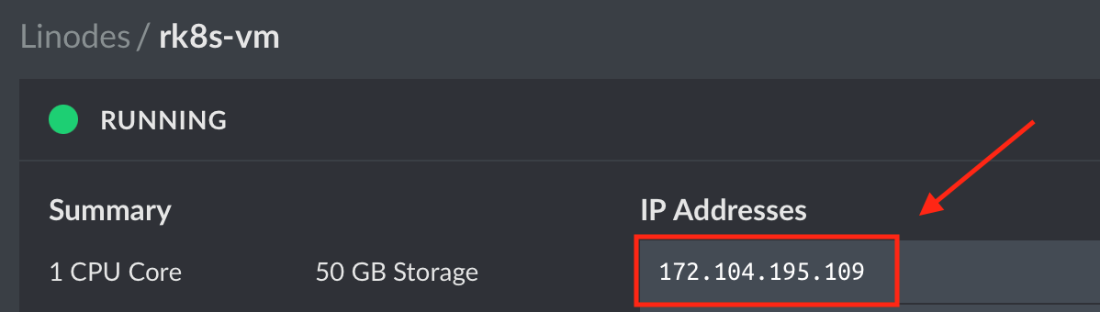
Our current host IP address
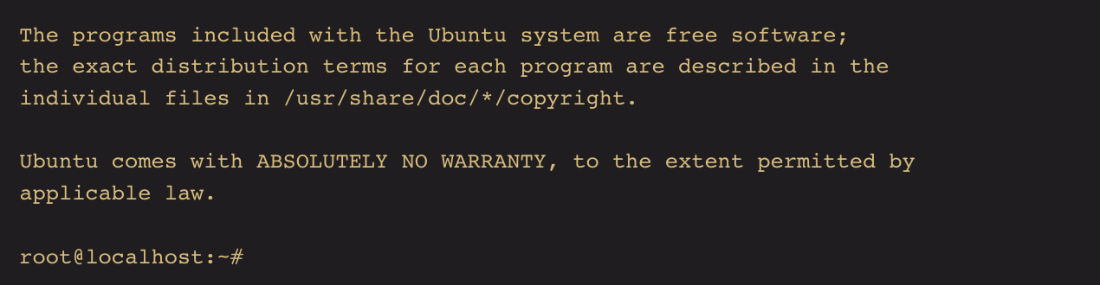
Akamai console SSH connection example

Verifying the authenticity of host confirmation

Remote host command line first entry
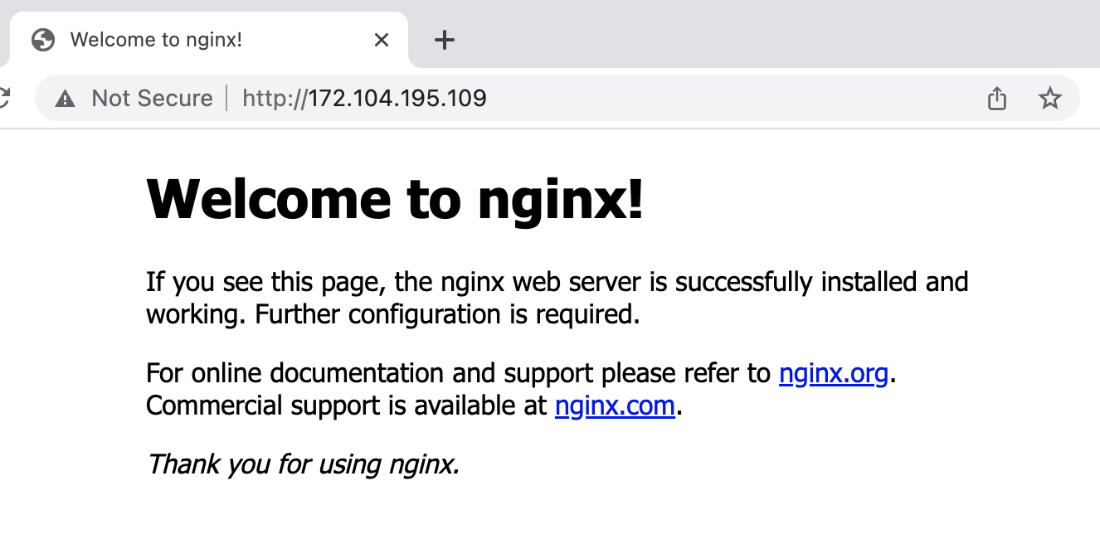
NGINX installed and displaying the default page
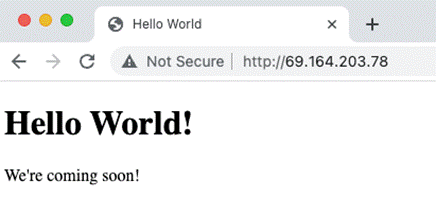
Verifying our new web page
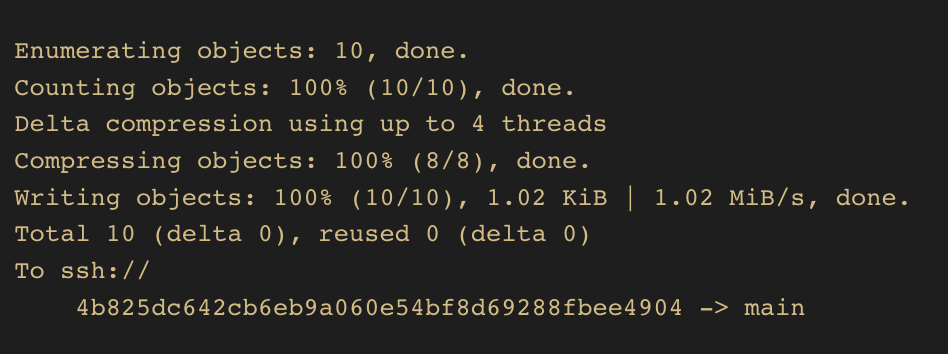
Successful push to remote repo
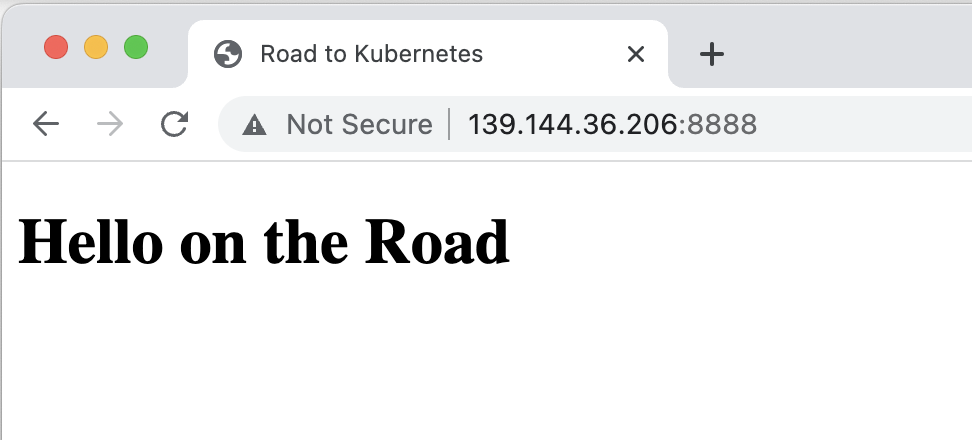
Running the Python application output

Python server running on port 8888.
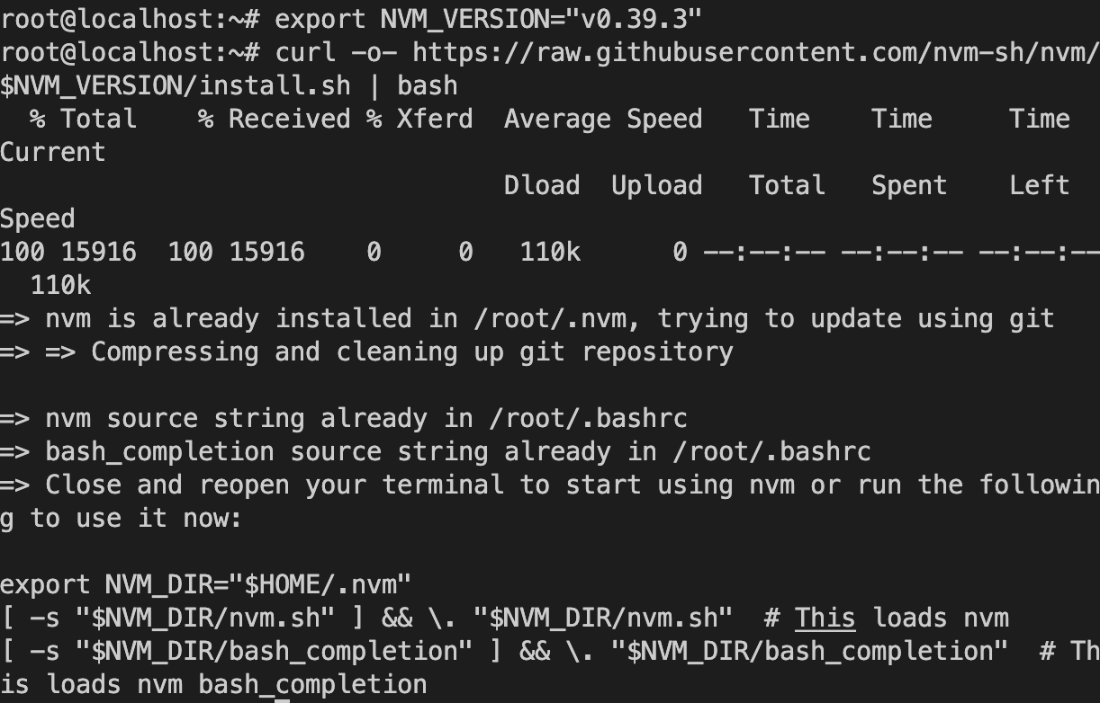
Installing the Node Version Manager output
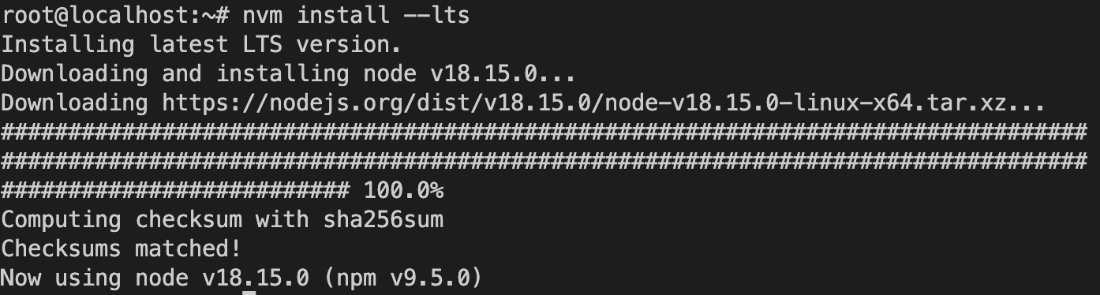
Installing Node.js via nvm output
Express.js Hello World

Supervisor processes added

Supervisor status output

Summary
- SSH is a powerful way to access and manage remote machines nearly anywhere in the world.
- NGINX is a tool that enables static website hosting, as well as more robust features like reverse proxies and load balancers.
- Installing and configuring software manually on a remote machine gives us a deeper insight into how to use the software and what the expected results are.
- Python and Node.js web applications are typically not run directly but rather through a web server like NGINX.
- Web applications should run as background processes to ensure they are always running with tools like Supervisor.
- Configuring a private host for our code is a great way to have redundant backups as well as a way to deploy code into production.
- Firewalls are an easy way to block specific ports from having unwanted access to our machine.
FAQ
How do I provision a VM for this chapter on Akamai Connected Cloud (Linode)?
- Create an ACC account and log in.
- Choose Create → Linode.
- Use:
Ubuntu 22.04 LTS, nearest region (e.g., Dallas), Plan: Shared CPU → Linode 2 GB (or larger). - Set a strong root password and add your SSH key (recommended).
- Click Create Linode and wait for the VM’s public IP to appear.
How do I SSH into the VM for the first time and handle the authenticity prompt?
- Connect:
ssh root@<your-ip> - When prompted with “authenticity of host,” type
yesto add it to~/.ssh/known_hosts. - Authenticate with your root password or SSH key.
- If you don’t see the prompt, check your username/IP, SSH key setup, firewall rules, or remove an old entry from
~/.ssh/known_hosts.
Where does NGINX serve files by default and how do I replace the default page?
- Default web root:
/var/www/html - Remove the default page:
sudo rm /var/www/html/index.nginx-debian.html - Create your page (example):
cat <<EOF > /var/www/html/index.html
<h1>Hello World!</h1>
EOF - Open
http://<your-ip>to verify.
What does it mean to treat VMs as “ephemeral,” and how can I reset NGINX quickly?
- Ephemeral VMs: assume servers are disposable—never rely on them for permanent data or ad‑hoc file edits. Use Git for code, not FTP.
- To reset: either destroy/recreate the VM, or remove NGINX via APT, e.g.:
sudo apt purge nginx -y && sudo apt autoremove -y
What is a bare Git repository and how do I push code from my laptop to the server?
- Bare repo = Git history only, no working directory (ideal as a remote target).
- On the server:
mkdir -p /var/repos/roadtok8s/py.git && cd $_
git init --bare
git symbolic-ref HEAD refs/heads/main
(repeat forjs.git) - Remote URL pattern:
ssh://root@<your-ip>/var/repos/roadtok8s/py.git - On your laptop, add remote and push:
git remote add vm ssh://root@<your-ip>/var/repos/roadtok8s/py.git
git push vm main - Common errors: missing remote, no permissions, or wrong branch name (rename with
git branch -m master main).
How do I auto-deploy on push with a Git post-receive hook?
- Create a working directory:
mkdir -p /opt/projects/roadtok8s/py - Add hook in the bare repo:
/var/repos/roadtok8s/py.git/hooks/post-receive - Example hook to checkout latest code:
#!/bin/bash
WORK_TREE=/opt/projects/roadtok8s/py
GIT_DIR=/var/repos/roadtok8s/py.git
git --work-tree=$WORK_TREE --git-dir=$GIT_DIR checkout HEAD -f - Make executable:
chmod +x .../post-receive; test withbash .../post-receive.
How do I install and run the Python (FastAPI) app in production?
- Install deps:
sudo apt update && sudo apt install -y python3 python3-pip python3-venv build-essential - Create venv:
python3 -m venv /opt/venv - Install requirements with absolute paths:
/opt/venv/bin/python -m pip install -r /opt/projects/roadtok8s/py/src/requirements.txt - Run with Gunicorn + Uvicorn worker:
/opt/venv/bin/gunicorn --worker-class uvicorn.workers.UvicornWorker \
--chdir /opt/projects/roadtok8s/py/src main:app --bind 0.0.0.0:8888 \
--pid /var/run/roadtok8s-py.pid - Stop via Ctrl+C, reboot, or
kill -9 $(cat /var/run/roadtok8s-py.pid).
How do I install Node.js with nvm and run the Express app?
- Install nvm:
export NVM_VERSION=v0.39.3
curl -o- https://raw.githubusercontent.com/nvm-sh/nvm/$NVM_VERSION/install.sh | bash
source ~/.bashrc - Install Node.js:
nvm install --lts - Install app deps:
cd /opt/projects/roadtok8s/js
npm install -g npm@latest
npm install - Run app (example):
PORT=5000 node /opt/projects/roadtok8s/js/src/main.js
How do I keep both apps running in the background and restart them after deploys?
- Install Supervisor:
sudo apt update && sudo apt install -y supervisor - Create configs in
/etc/supervisor/conf.d/for each app (setdirectory,command,autostart, logs). - Apply configs:
sudo supervisorctl update, check:sudo supervisorctl status - In post-receive hooks, after installing deps, add:
sudo supervisorctl restart roadtok8s-pyorroadtok8s-js
How do I put NGINX in front of the apps and lock down ports with a firewall?
- Reverse proxy config (
/etc/nginx/sites-available/roadtok8s):
-location /→proxy_pass http://localhost:8888;
-location /js/→proxy_pass http://localhost:3000/; - Enable site and restart NGINX:
sudo ln -s /etc/nginx/sites-available/roadtok8s /etc/nginx/sites-enabled/roadtok8s
sudo rm /etc/nginx/sites-enabled/default
sudo systemctl restart nginx - UFW firewall:
sudo apt install -y ufw; allow rules:sudo ufw allow ssh
sudo ufw allow 'Nginx Full'
sudo ufw enable
Important: allow SSH before enabling to avoid locking yourself out.

 Road to Kubernetes ebook for free
