Appendix C Setting up SSH keys for password-less server entry
This appendix introduces Secure Shell (SSH) as a way to open a command-line session on a remote computer, whether another machine on your network or a cloud-hosted virtual machine. It explains that SSH access commonly targets Linux-based systems, so commands may differ slightly for Windows users compared to macOS and Linux. Authentication can use either a username/password or SSH keys, and the focus here is on SSH keys to enable password-less logins. The key pair model is clarified: a shareable public key that identifies you and a private key that must be kept secret, with installation options ranging from manual placement to tools and cloud provider automation.
The chapter walks through cross-platform key generation and management with the standard tools: ssh for connections, ssh-keygen to create keys, and ssh-copy-id to install public keys on remote hosts. It recommends working in the ~/.ssh directory, generating a strong RSA key (optionally protected by a passphrase), and shows both interactive and noninteractive ways to create keys. Readers verify the resulting files, understand the difference between public and private keys, practice overwriting or deleting keys safely, and learn simple ways to copy the public key to the clipboard for sharing. Emphasis is placed on routinely rotating keys and safeguarding the private key.
To enable password-less entry, the public key must be installed on the remote system. The appendix provides two approaches: manually pasting the public key into the authorized_keys file on the server, or using ssh-copy-id to copy it automatically after a password-based login. It also notes that many cloud providers can attach your public key to new virtual machines during provisioning. Once installed, you connect with ssh using the private key file (not the .pub file), and you may be prompted for a passphrase if one was set. Until an SSH config is added, the specific key file should be supplied explicitly; if keys fail, a username/password fallback may still be available, and multiple keys can be managed across machines and provider accounts.
Figure C.1 SSH key example in the Linode console
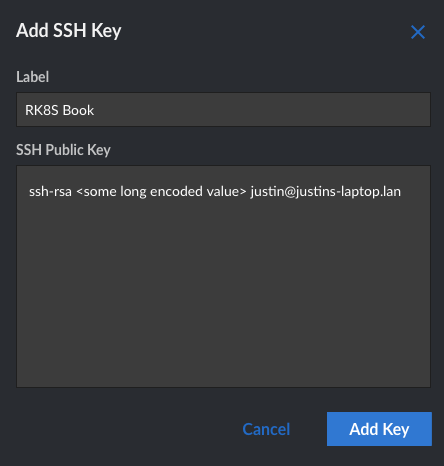
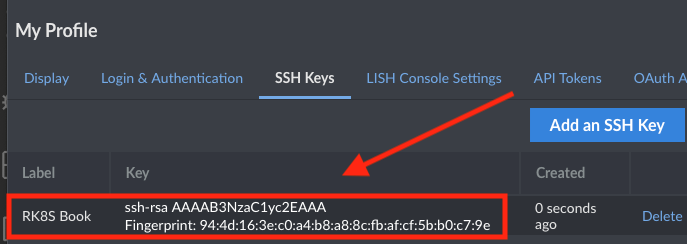
Figure C.2 SSH keys store in the Linode console
C.6 Updating or creating SSH config
Writing our private key every time we need to connect to the same server gets old really fast. Sure, if we used the default SSH key. ~/.ssh/id_rsa, we could omit -i ~/.ssh/id_rsa_rk8s altogether, but that might mean we’re using the same public key everywhere, and that’s not great for security.
Instead, let’s update our ssh config file so we can ensure the specific remote IP address uses the same key every time. Using an admin user, open or edit ~/.ssh/config:
Host rk8s-book-vm                     #A
    Hostname <your_linode_ip_address> #B
    User root                         #C
    IdentityFile ~/.ssh/id_rsa_rk8s   #D

Host <your_linode_ip_address>         #A
    Hostname <your_linode_ip_address> #B
    User root                         #C
    IdentityFile ~/.ssh/id_rsa_rk8s   #D
Once ~/.ssh/config is updated, we can now connect to our remote host using the nickname we created or the IP address without the -i flag for our private key:
ssh root@rk8s-book-vm
ssh root@<your_linode_ip_address>
FAQ
What is SSH and why use it for remote access?
Secure Shell (SSH) is a protocol that lets you open a command-line session on a remote computer securely. You can authenticate with a username/password or, preferably, with SSH keys for password-less, stronger authentication.What’s the difference between a public and a private SSH key?
An SSH key pair has two parts: the public key (shareable; placed on remote servers to recognize you) and the private key (kept secret on your machine; proves to the server that the public key is yours). Never share your private key.How do I check that SSH tools are installed on my system?
Run:command -v ssh, command -v ssh-keygen, and command -v ssh-copy-id. Most systems have these by default. On some older Windows machines you may need to install OpenSSH or a tool like PuTTY.Where are SSH keys stored and how do I prepare that folder?
By default, keys and config live in~/.ssh. Create and enter it with: mkdir -p ~/.ssh and cd ~/.ssh.How do I generate a new SSH key pair (interactive), and should I use a passphrase?
Runssh-keygen -t rsa -b 4096, choose a filename (for example, id_rsa_rk8s), and optionally set a passphrase for extra security. Leaving the passphrase blank is simpler but less secure.How can I generate keys non-interactively on macOS/Linux and Windows?
- macOS/Linux:ssh-keygen -t rsa -b 4096 -C "" -f ~/.ssh/id_rsa_k8s -q -N ""- Windows:
ssh-keygen -b 2048 -t rsa -f ~/.ssh/id_rsa_k8s -q -N '""'Replace filenames with the one you prefer (e.g.,
id_rsa_rk8s).How do I verify the keys were created and which file is which?
List files withls ~/.ssh. The private key (e.g., id_rsa_rk8s) must be kept safe. The public key has a .pub suffix (e.g., id_rsa_rk8s.pub) and is what you install on servers or share with services like GitHub or your cloud provider.What if a key already exists—can I overwrite or delete it?
Yes. Re-runssh-keygen, choose the same filename, and answer “y” when asked to overwrite. To delete a pair: rm ~/.ssh/id_rsa_rk8s and rm ~/.ssh/id_rsa_rk8s.pub. It’s common to rotate keys periodically.How do I install my public key on a remote server (manual or automatic)?
- Manual: Copy your public key, SSH in with a password, ensure~/.ssh exists, add the key to ~/.ssh/authorized_keys, save, and exit.- Automatic: Use
ssh-copy-id -i ~/.ssh/id_rsa_rk8s.pub user@<server_ip> and enter the password once.- Cloud (e.g., Linode): Upload your public key in the provider’s console and select it when creating VMs to auto-install the key.
How do I connect using my key, and why might I still see a prompt?
Usessh -i ~/.ssh/id_rsa_rk8s user@<server_ip>. If you set a passphrase on the key, SSH will prompt for that passphrase (not the server password). Use the private key file with -i, not the .pub file. You may need -i until you add host entries to your SSH config.
 Road to Kubernetes ebook for free
