This appendix equips readers to get Python installed and ready for development before building a web application that will later be deployed to Kubernetes. It focuses on macOS and Windows and emphasizes using the official Python installers so you can control exact versions and run multiple versions side by side without conflict. The guidance targets Python 3.10 (with a minimum of 3.8) and keeps customization to a minimum to ensure a reliable, repeatable setup.
On macOS, the recommendation is to avoid third-party package managers in favor of the official installer to ensure version consistency. You first determine your desired Python version and your machine’s processor (Apple Silicon or Intel). Apple Silicon users should choose the macOS 64-bit universal2 installer, while Intel users can use universal2 or the Intel-only build. After downloading and running the installer with default options, you verify the installation in Terminal using commands like python3.10 -V and python3 -V. While building Python from source is acknowledged as an option for precise control, it is intentionally left out to keep the process straightforward.
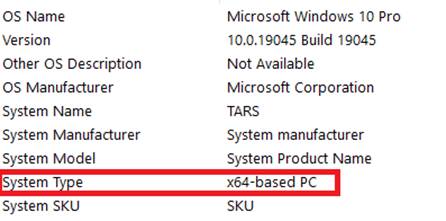
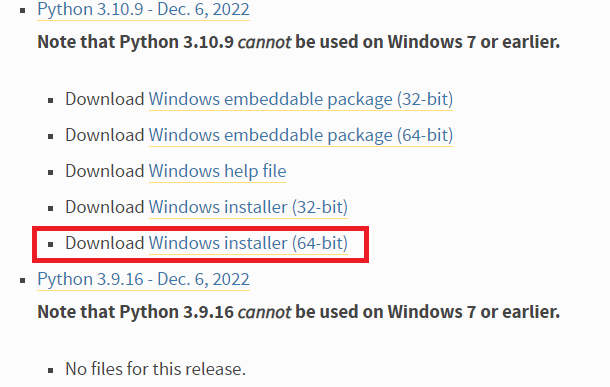
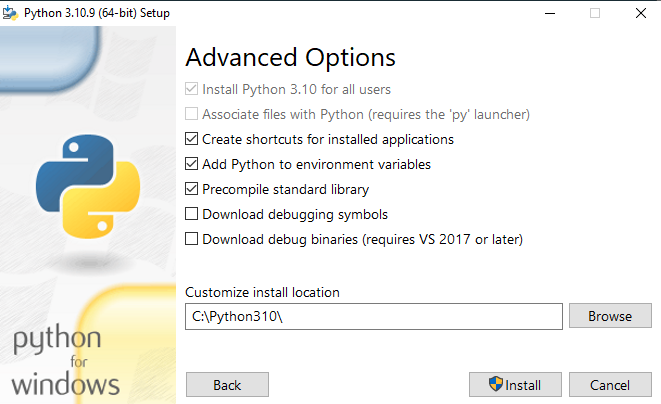
On Windows, you begin by confirming whether the system is 64-bit or 32-bit, then download the matching Python 3.10.x installer. During installation, add Python to PATH only if it is your first Python install, select Customize Installation to include pip, and in Advanced Options choose settings such as Install for all users, Add to environment variables, create shortcuts, and precompile the standard library; installing to a versioned folder like C:\Python310 is recommended to simplify running multiple versions. You verify with python -V or by calling specific executables (for example, C:\Python39\python.exe -V and C:\Python310\python.exe -V). The appendix also introduces virtual environments with venv, showing how to create one in a project directory, activate it differently on macOS/Linux and Windows, use python -m pip to install packages, and deactivate or reactivate environments as you switch projects.
Figure A.1 Windows system information
Figure A.2 Python 64-bit Windows installer on Python 3.10.9
Figure A.3 Advanced Python installation options.
FAQ
Which Python version should I install for this book?Use Python 3.10 (latest 3.10.x). The minimum supported version is 3.8. You can have multiple Python versions installed side by side.On macOS, should I use Homebrew/MacPorts or the official Python installer?The book recommends the official installer from python.org to ensure you get the exact version you need when you need it. You can still keep multiple versions installed without issues.How do I tell if my Mac has Apple Silicon or Intel?Click the Apple icon → About This Mac → look for “Chip.” It will say Apple (M1, M2, M3, etc.) or Intel.Which macOS installer do I download (universal2 vs Intel-only)?If you have Apple Silicon, choose the macOS 64-bit universal2 installer. If you have Intel, you can use universal2 or the macOS 64-bit Intel-only installer. Note that some older Python versions may not support newer Macs.How do I download and verify Python on macOS?Go to python.org/downloads/macos, pick the latest 3.10.x with the macOS 64-bit universal2 installer, download and run it with defaults. Verify in Terminal with: python3.10 -V (or) python3 -V.On Windows, how do I check if my system is 64-bit or 32-bit?Open Start → type “System Information” → Enter → check “System Type.” x64-based PC = 64-bit, x86-based PC = 32-bit.Which Windows installer should I choose and where do I get it?Go to python.org/downloads/windows, pick Python 3.10.x, and download the Windows installer that matches your system type (64-bit or 32-bit).What Windows installer options should I select?If this is your first Python install, you may check “Add Python 3.10 to PATH.” Choose “Customize installation,” include pip, then in Advanced Options select: Install for all users, Add to environment variables, Create shortcuts, Precompile standard library. Optionally set install location to C:\Python310. Click Install.How can I have and use multiple Python versions on Windows?Install each version in its own folder (e.g., C:\Python39 and C:\Python310). Run a specific version by calling its full path, for example: C:\Python39\python.exe -V or C:\Python310\python.exe -V.How do I create, activate, and deactivate a virtual environment (and use pip correctly)?Create: python -m venv venv. Activate on macOS/Linux: source venv/bin/activate. Activate on Windows: .\venv\Scripts\activate. Deactivate: deactivate. Preferred pip usage: python -m pip install package (avoids pointing pip at the wrong Python).
pro $24.99 per month
access to all Manning books, MEAPs, liveVideos, liveProjects, and audiobooks!

 Road to Kubernetes ebook for free