Chapter 8. Video and audio: playing media in the browser
HTML5 changed the browser from a text-and-image environment into a place where audio and video can be played natively, without relying on plug-ins. This chapter uses that shift to build a video jukebox and telestrator, showing how media can be embedded directly in markup, controlled from JavaScript, and combined with other page content. The overall goal is practical: understand how to make media playback work across browsers and then use that foundation to create something interactive and visually richer than a standard player.
The core of the chapter is the HTML media API. It starts with the basics of the video element, including attributes for setting the source, showing controls, and sizing the display, then moves into the shared interface used by both video and audio. With properties and methods such as src, play(), currentSrc, currentTime, duration, and playbackRate, the reader learns how to select media, start playback, switch between items in a playlist, and respond to loading events. The chapter also explains how to watch media state through network and readiness values so applications can react more intelligently while content loads.
Because browser support for media formats is inconsistent, the chapter emphasizes using multiple sources and understanding what each browser can play. It describes how to provide fallback formats with source elements, how to identify the chosen file type, and how to convert media with transcoding tools when needed. After that, the chapter shows how the canvas element turns video frames into editable image data, making it possible to layer graphics, change composition, adjust opacity, apply grayscale processing, and capture mouse-driven annotations. The final result is a custom player that demonstrates both media playback and real-time visual manipulation inside the browser.
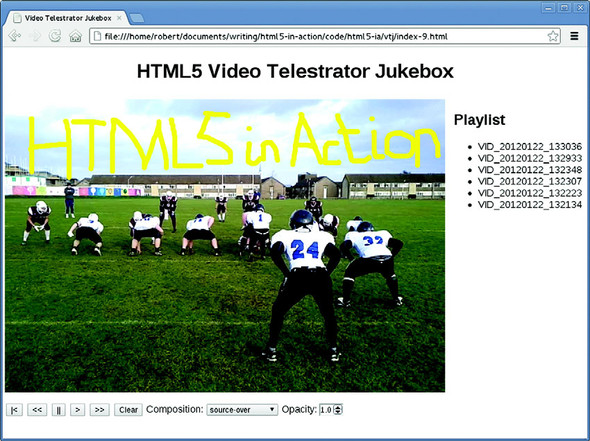
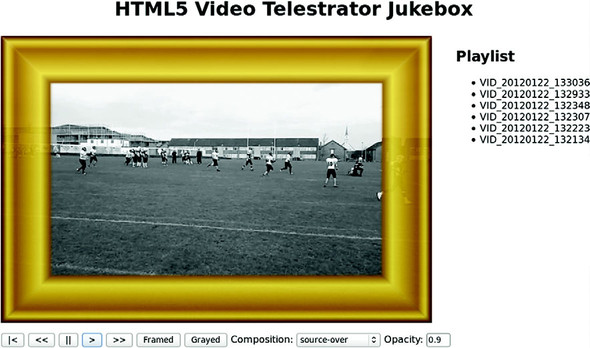
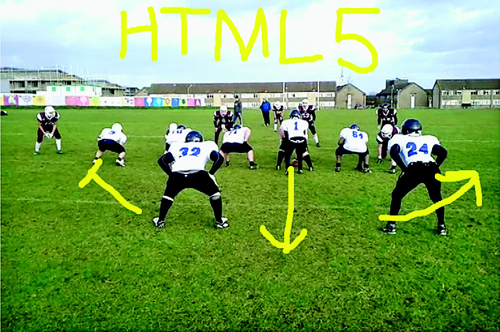
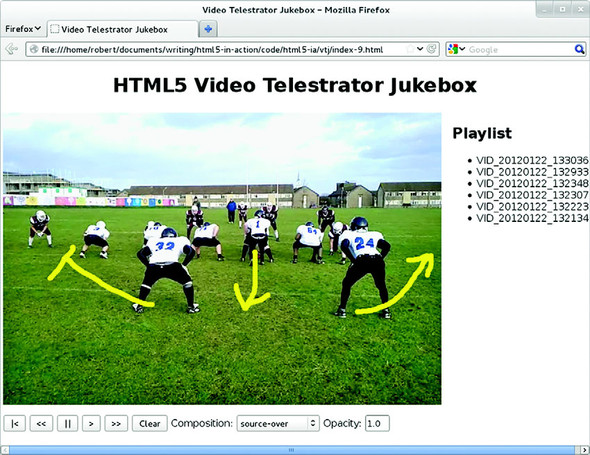
The finished telestrator jukebox application, showing a video, some artistic telestration, a playlist of videos to choose from, and, underneath the video, a toolbar for controlling the playback
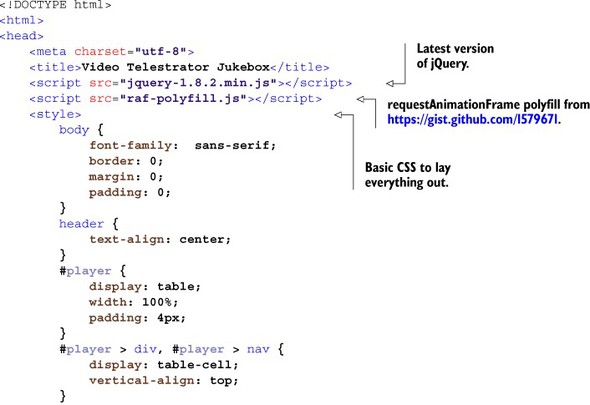
Listing 8.1. index.html—Basic jukebox layout
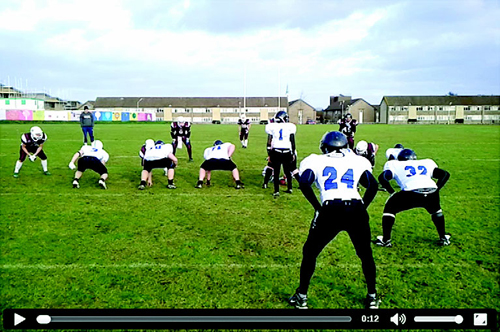
Basic HTML5 video player in Chrome
Listing 8.2. index.html—Embed a video
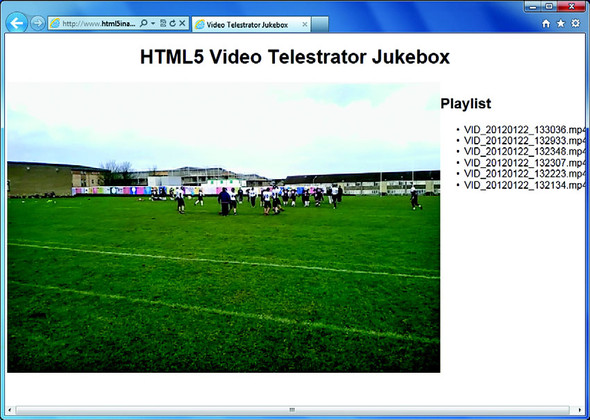
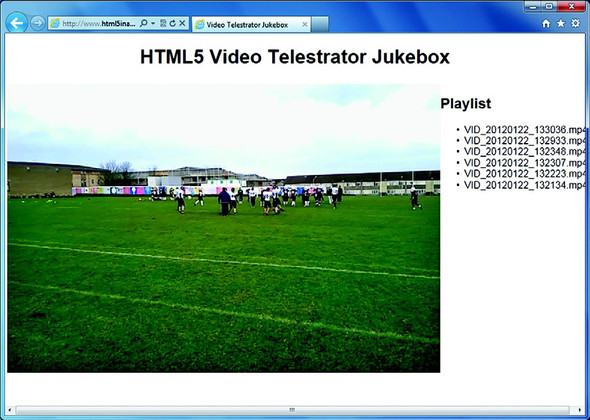
A video playing in IE9 selected from the playlist. The videos have been taken directly off of author Rob Crowther’s mobile phone, default names included.
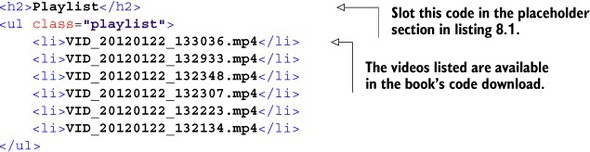
Listing 8.3. index.html—Markup for the video playlist
Step 3: Change between videos
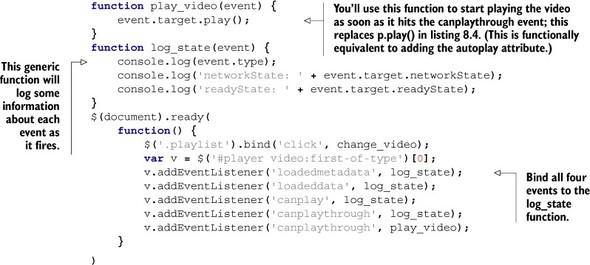
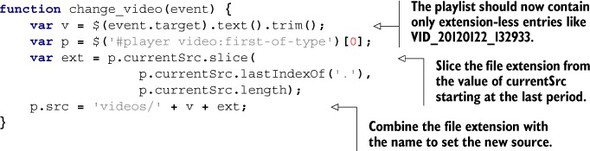
Listing 8.4. index.html—Handling the user clicking the playlist
What your app should look like in the browser at this point
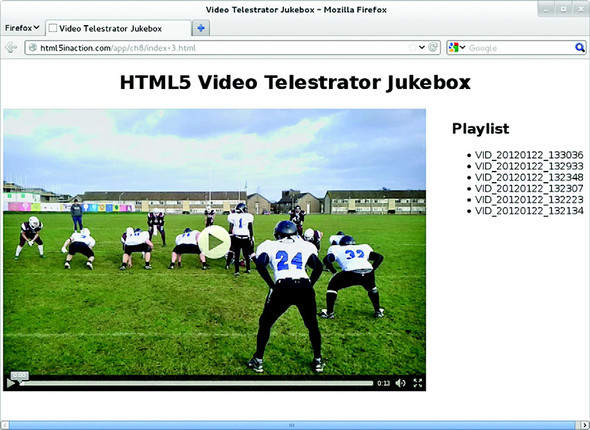
An MP4 video in Firefox, where video format or MIME type isn’t supported
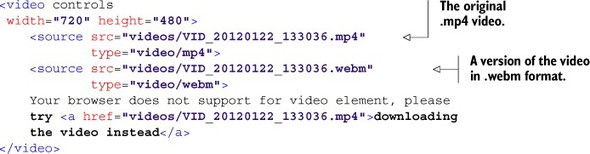
<video> element in Firefox with multiple sources
Step 5: Provide multiple video formats to support all browsers
Listing 8.7. index.html—Adding the <source> element
Listing 8.8. index.html—Using currentSrc to determine the video type
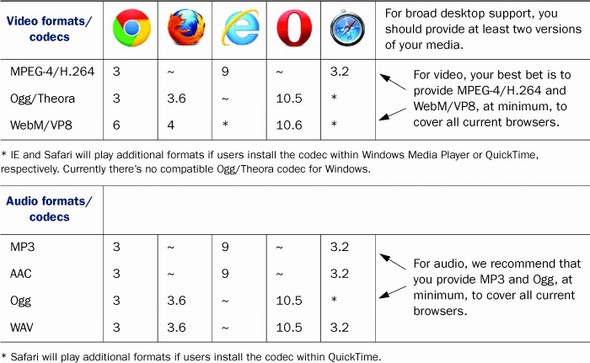
Table 8.5. Browser video and audio format support
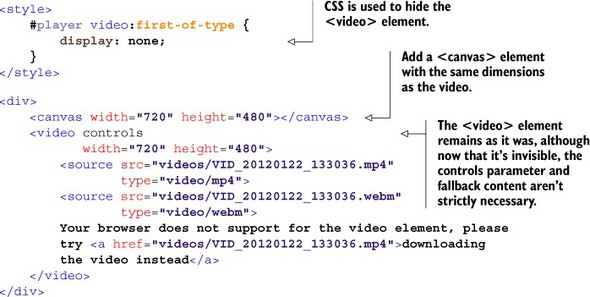
Listing 8.9. index.html—Adding a <canvas> element to display video
Step 2: Grab and display image data
Listing 8.10. index.html—Adjusting the draw() function to use the <canvas> element
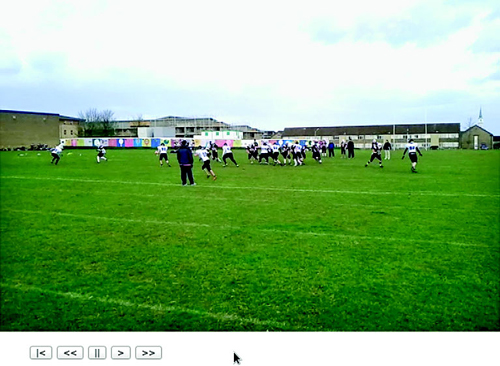
Custom playback buttons in Opera
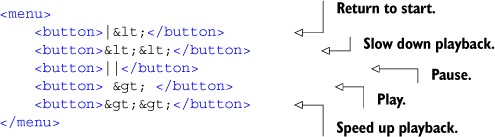
Listing 8.11. index.html—Creating video player controls
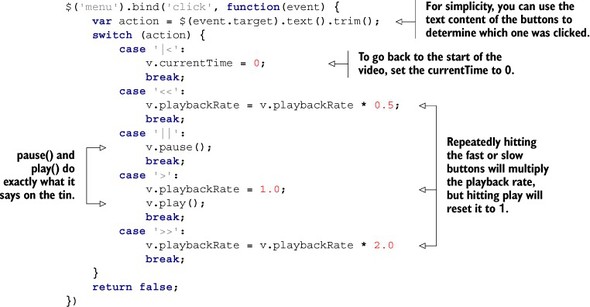
Listing 8.12. index.html—Handler function for the control menu
Grayscale video playback through canvas combined with an image at 90 percent opacity
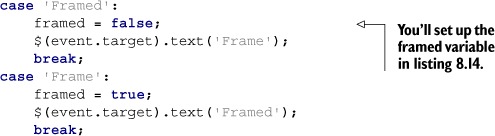
Listing 8.13. index.html—Handler for the Frame button
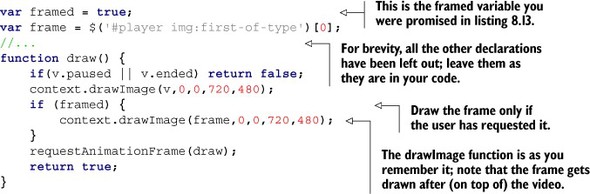
Listing 8.14. index.html—Adjust the draw() function to show the frame
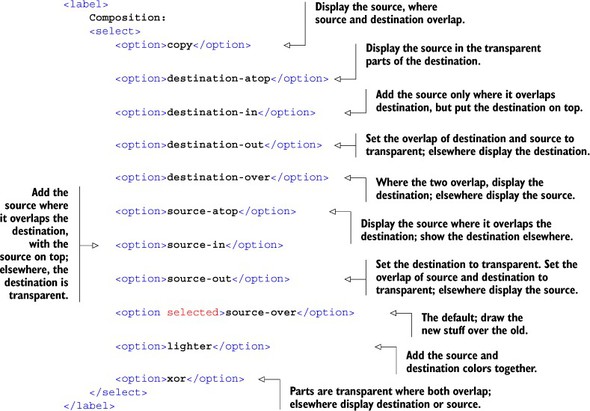
Step 2: Adjust how the frame and video combine on the Canvas
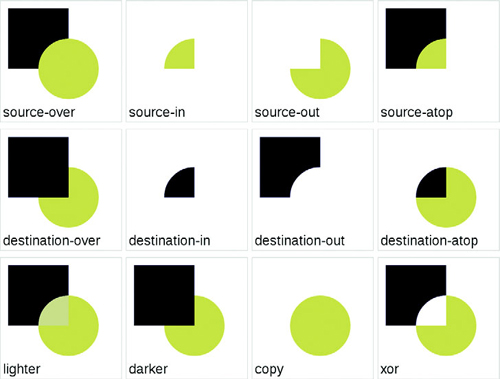
Canvas composition modes. The code used to generate this figure is in the source code download in a file called canvas-compositionmodes.html.
Listing 8.15. index.html—<select> element for composition mode
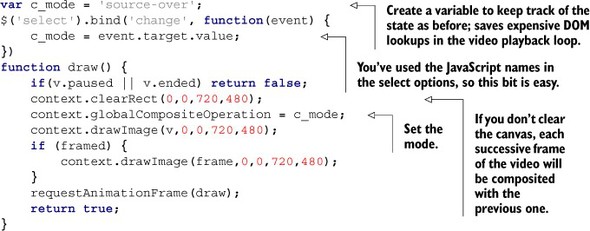
Listing 8.16. index.html—Change the composition mode in the draw() function
step 3: Adjust the opacity of the video
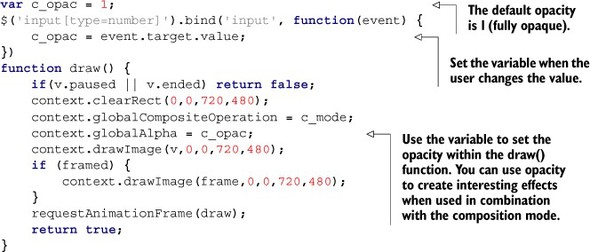
Listing 8.17. index.html—Change the opacity in the draw() function
Step 4: Grayscale the video being played back
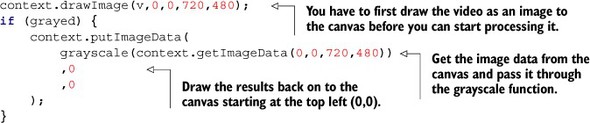
Listing 8.19. index.html—Use the grayscale() function within draw()
After working through this final section, you’ll be ready to telestrate!
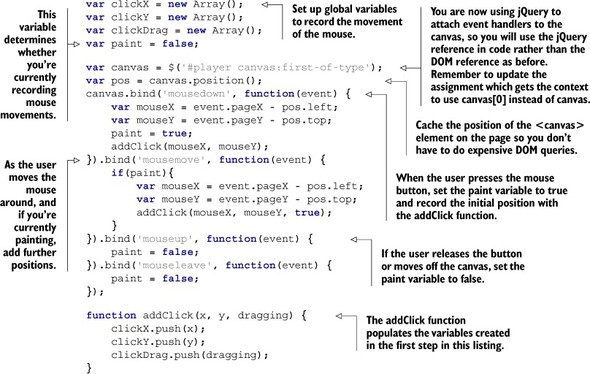
Listing 8.20. index.html—Capturing the mouse movement
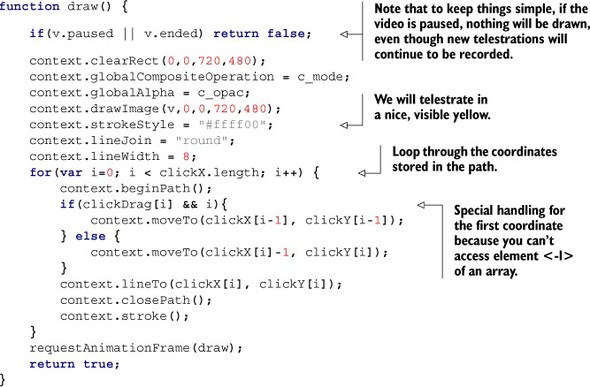
Listing 8.21. index.html—Modifying the draw() function to show the path
Listing 8.22. index.html—Process the clear action
The finished application in Firefox
FAQ
What is the main purpose of the HTML5 The <video> element lets you embed and play video directly in a web page without relying on plug-ins. It makes video a first-class part of HTML content and allows the browser to handle playback natively.Which common attributes are used with the The chapter highlights src, controls, width, and height. src points to the video file, controls enables built-in browser controls, and width and height set the video dimensions.Why would you use the element inside a video element?The <source> element lets you provide multiple versions of the same media in different formats. The browser tries each source in order and plays the first one it supports, which helps with cross-browser compatibility.What is the HTMLMediaElement interface?The HTMLMediaElement interface is the shared JavaScript API for both <video> and <audio> elements. It provides properties and methods for controlling playback, changing the source, reading playback status, and more.How do you start playback of a media element with JavaScript?You can call the play() method on the media element. In the chapter, this is used after setting the src property so a selected video begins playing immediately.What does the currentSrc property tell you?The currentSrc property returns the filename or URL of the media resource the browser has currently chosen to play. This is useful when multiple <source> elements are provided and you need to know which one was selected.Why are media events like loadedmetadata and canplaythrough useful?These events tell you how far the browser has progressed in loading the media. They let you wait for the video to be ready before starting playback and give users feedback such as loading indicators or status messages.What is the difference between networkState and readyState?networkState describes the media element’s current network loading state, while readyState describes how much data is available for playback. Together, they help you understand whether the media is loading, ready, or fully buffered.How can canvas be used with video in this chapter?The chapter uses <canvas> to draw video frames as image data, which allows you to modify the video as it plays. This makes it possible to add overlays, adjust opacity, apply grayscale processing, and draw telestrations on top of the video.Why does the chapter recommend providing multiple video formats?Different browsers support different media formats, so no single format works everywhere. For broad support, the chapter recommends at least WebM and MP4 for video, and MP3 and OGG for audio.
pro $24.99 per month
access to all Manning books, MEAPs, liveVideos, liveProjects, and audiobooks!








 HTML5 in Action ebook for free