Chapter 6. 2D Canvas: low-level, 2D graphics rendering
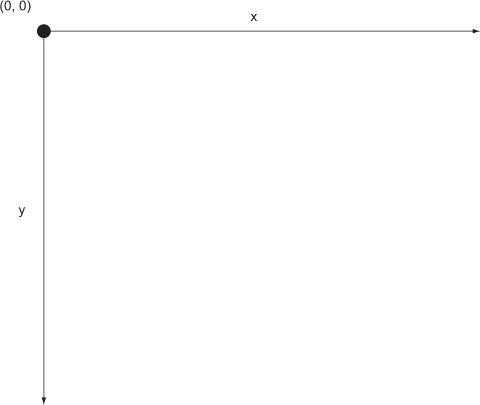
HTML5 Canvas provides a powerful way to draw interactive 2D graphics directly in the browser without plugins, making it especially useful for games and other rich web experiences. The chapter introduces the essentials of setting up a canvas, obtaining a drawing context, and understanding its coordinate system, where the origin begins in the top-left and the y-axis increases downward. It also emphasizes browser support checks and explains why Canvas is better suited to dynamic animation and interactivity than to static infographics or simple charts.
To demonstrate these ideas, the chapter walks through building a Breakout-style game by creating a small engine and a set of visual assets: bricks, a ball, and a paddle. Along the way, it shows how to draw rectangles, circles, gradients, images, and paths, while also using animation timing strategies that favor requestAnimationFrame over basic timers for smoother motion. The game structure is organized around reusable objects and methods, with careful attention to rendering order, clearing the canvas between frames, and keeping code contained to avoid global conflicts.
Once the static scene is in place, the chapter focuses on gameplay: moving objects, detecting collisions, keeping the ball and paddle within bounds, removing bricks when hit, and responding to keyboard, mouse, and touch input. It then adds game polish with score tracking, level progression, a welcome screen, and a game-over screen, showing how simple interface elements can make a game feel complete and engaging. The chapter closes by noting the strengths and limits of Canvas, suggesting that libraries or mobile conversion tools can help in larger projects, while also reminding readers that SVG may be better for some kinds of graphics work.
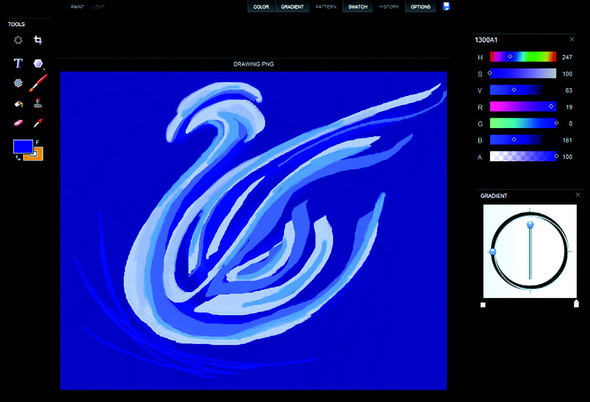
Sketchpad (http://mudcu.be/sketchpad/) is a robust drawing application that features gradients, textures, swatches, shape creation, and more. You’ll be using a lot of these drawing features during your game’s creation process.
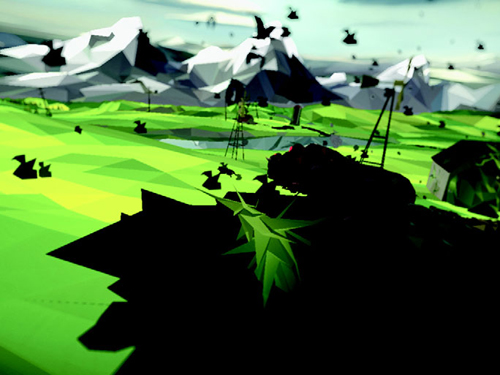
“3 Dreams of Black” is an interactive music video created exclusively for Google Chrome. You can experience Chris Milk’s masterpiece at http://ro.me and download the source code!
The invisible Cartesian graph where Canvas drawings are created. Notice that the x and y coordinates begin in the top left and the y-axis increments downward.
Listing 6.1. index.html—Default Canvas HTML
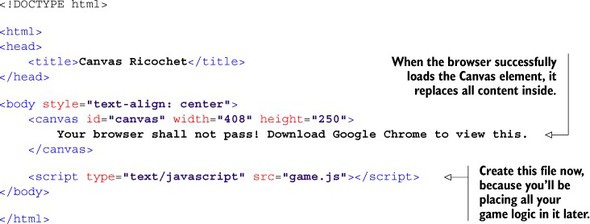
Verifying browser support

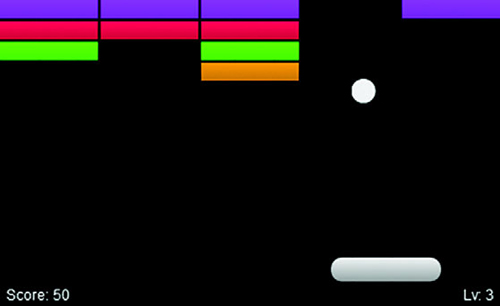
Canvas Ricochet’s objective is to bounce a ball via a paddle to break bricks. When the ball goes out of bounds, the game shuts down. You can play the game now at http://html5inaction.com/app/ch6/ and download all the files needed to complete your own Canvas Ricochet game from www.manning.com/crowther2/.
Step 1: Create the main engine components
Listing 6.2. game.js—Default JavaScript

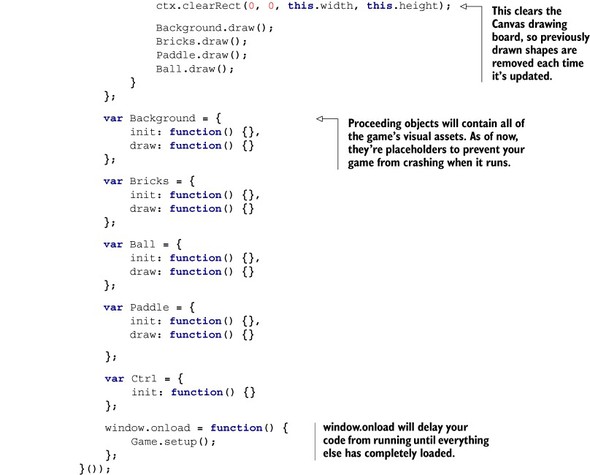
Listing 6.3. game.js—Animating Canvas Ricochet
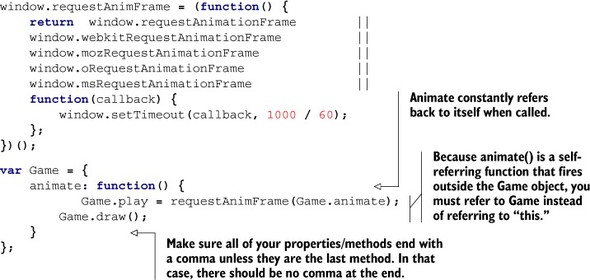
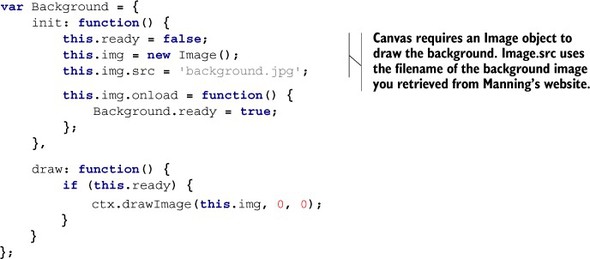
Step 3: Display a background image
Listing 6.4. game.js—Default JavaScript
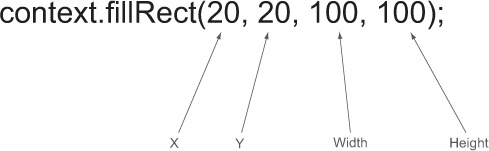
Creating a rectangle requires four different parameters. The current figure would create a 100 x 100 pixel square at the 20-pixel x and y position. Currently, rectangles are the only universally supported basic shape component in Canvas. To create items that are more complex, you’ll need to use paths or images.
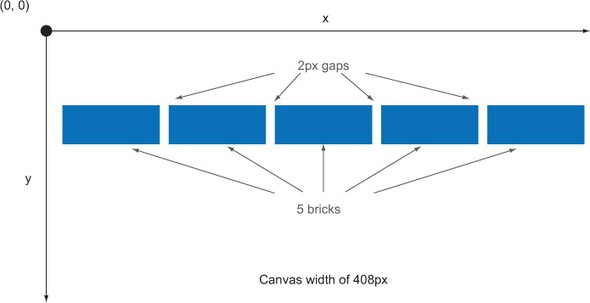
Include four gaps at 2px each. You’ll need to subtract 8px from the <canvas> width, leaving 400px. Distribute the remaining width to each brick, leaving 80px for each (400px / 5 bricks = 80px).
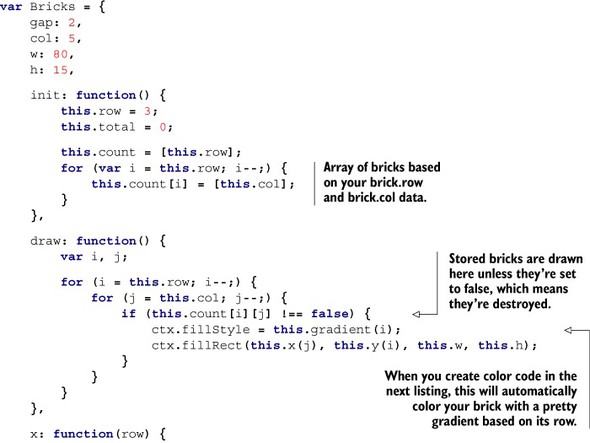
Listing 6.5. game.js—Brick array creation

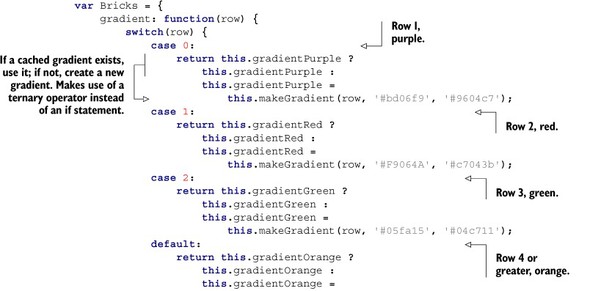
Step 5: Color the bricks
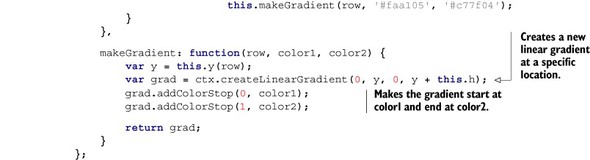
Listing 6.6. game.js—Coloring bricks
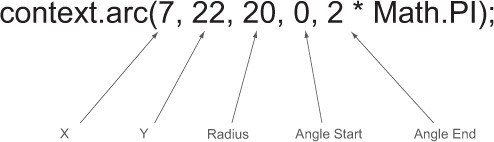
An arc with these parameters creates a shape at 7, 22 (x, y) on a graph. Because the angle starts from 0 and goes to 2pi, it creates a full circle. If you were to make the end angle 1pi, it would produce half a circle.
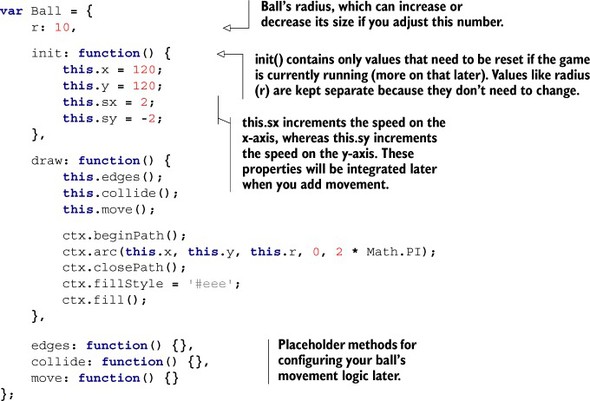
Listing 6.7. game.js—Ball creation
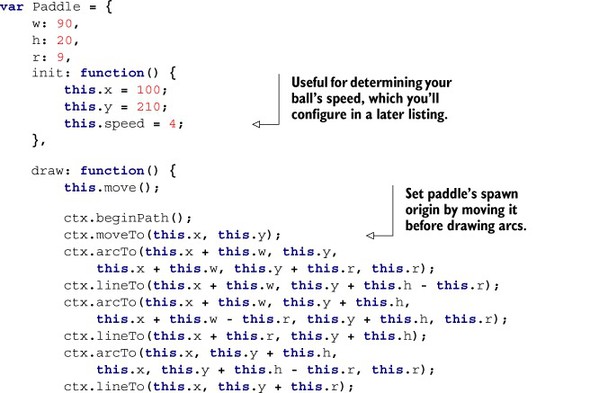
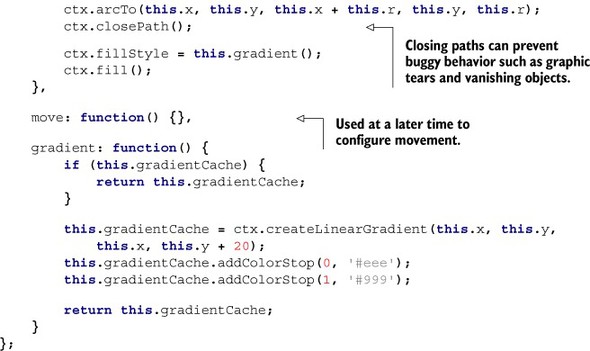
Listing 6.8. game.js—Paddle creation
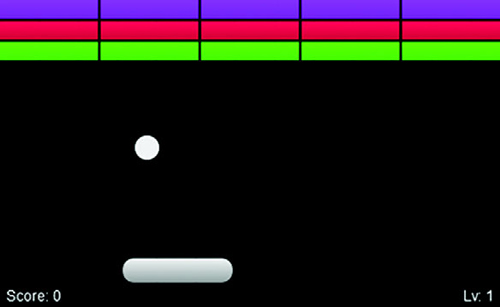
Using previous code snippets, you created a ball, paddle, and bricks with gradients. After refreshing your browser, the current result should look like this.
Step 1: Move the paddle horizontally
Step 3: Enable edge detection for the paddle and ball
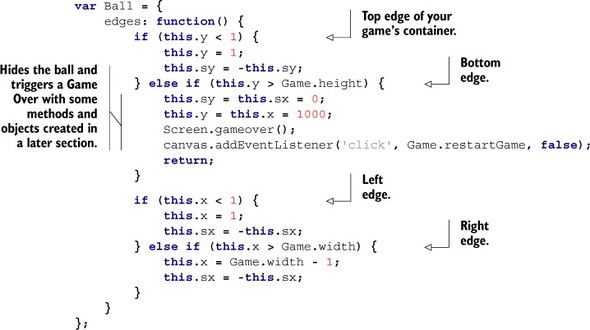
Listing 6.9. game.js—Ball edge detection
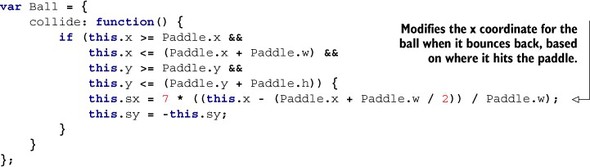
Listing 6.10. game.js—Ball touching paddle
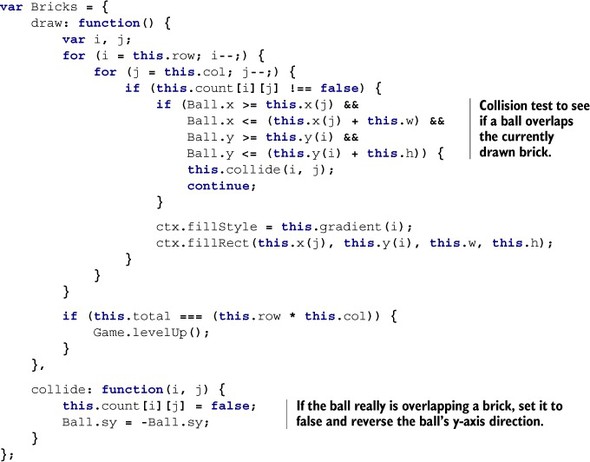
Listing 6.11. game.js—Removing bricks
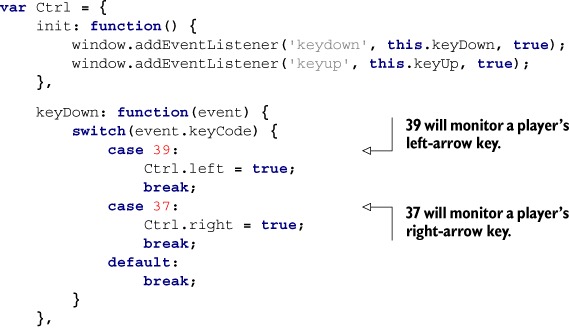
Step 1: Create a keyboard listener
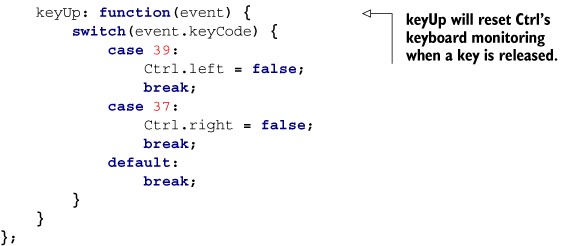
Listing 6.12. game.js—Keyboard listeners
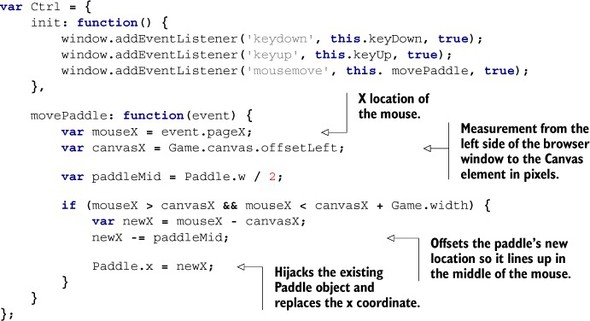
Listing 6.13. game.js—Mouse controls
Step 3: Add touch support
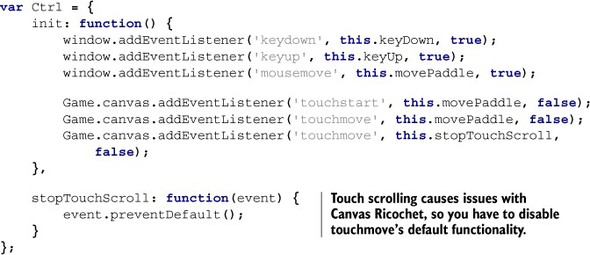
Listing 6.14. game.js—Touch controls
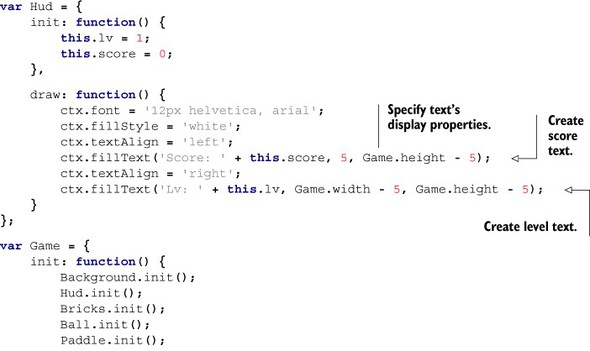
Listing 6.15. game.js—Score and level output
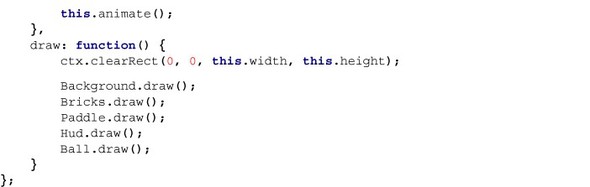
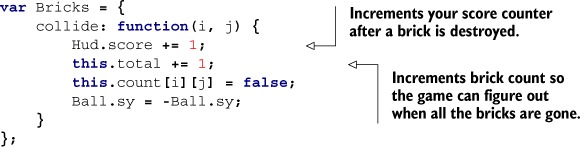
Listing 6.16. game.js—Adjusting brick destruction
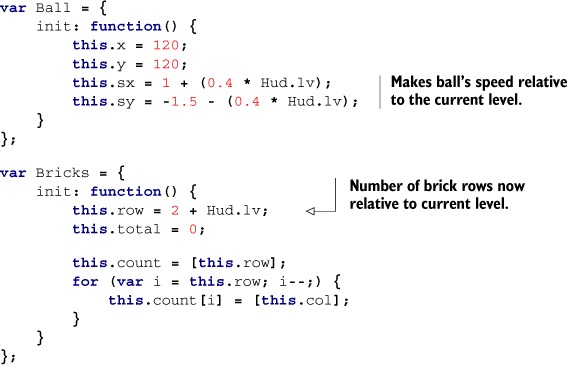
Listing 6.17. game.js—Ball and brick upgrades
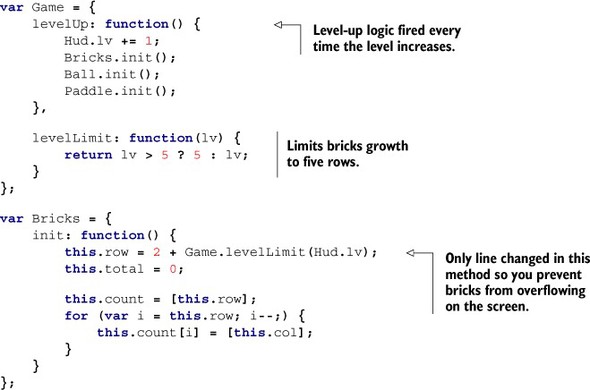
Listing 6.18. game.js—Game upgrades
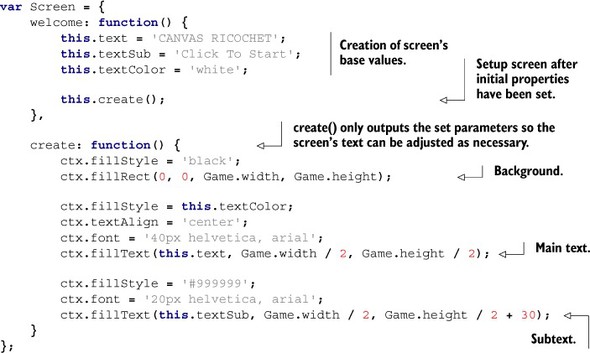
A simple Welcome screen that initiates gameplay through a click listener. All text and coloring are created through Canvas.

Step 3: Create a Welcome screen
Listing 6.19. game.js—Creating the Welcome screen and listener
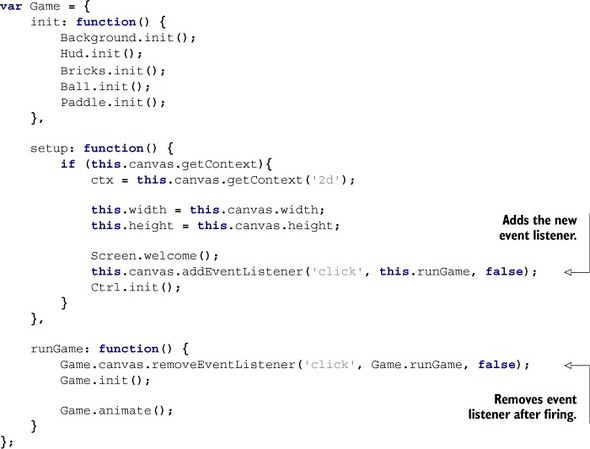
Listing 6.20. game.js—Creating the Welcome screen and new event listener
Game Over screen with a second chance at life. Letting users easily try again allows them to continue playing without a page refresh.

Code libraries like ImpactJS allow you to create complex games in significantly less time than coding a game from scratch.
FAQ
What is the Canvas API used for in Chapter 6?
The Canvas API is used to draw 2D graphics directly in the browser without a plug-in. In this chapter, it’s used to build a simple game by drawing shapes, images, gradients, and text, then animating and interacting with them using JavaScript.How do you get a Canvas rendering context?
You first select the<canvas> element with JavaScript, then call getContext('2d') on it. For example: var canvas = document.getElementById('canvas'); var context = canvas.getContext('2d');Why does the chapter emphasize checking for browser support?
Not all browsers support Canvas equally well, especially older ones. The chapter recommends feature detection by checking bothcanvas.getContext and canvas.getContext('2d') so the game only runs when the API is available.Why should the <canvas> element have explicit width and height values?
If you don’t declare the size in HTML, CSS, or JavaScript, the browser uses a default Canvas size. Setting width and height explicitly ensures the drawing area matches the game’s intended layout and calculations.How does Canvas differ from SVG for graphics?
Canvas is better suited to complex animations and interactive scenes, while SVG is better for simple visuals like logos, graphs, and infographics. SVG also offers built-in features such as resizing and CSS support that Canvas lacks.Why does the chapter recommend requestAnimationFrame() instead of setInterval()?
requestAnimationFrame() is better for animation because it syncs drawing with the browser’s refresh cycle and helps reduce wasted work. setInterval() is less suitable for smooth, processor-intensive animation loops.How are bricks created in the game?
The bricks are created as rectangles arranged in a two-dimensional array. The chapter calculates brick width from the canvas size and gaps between bricks, then loops through row and column data to position each brick.How is the ball drawn in Canvas Ricochet?
The ball is drawn usingarc(x, y, radius, startAngle, endAngle). Because the arc starts at the center, using a start angle of 0 and an end angle of 2π creates a complete circle.
 HTML5 in Action ebook for free