Chapter 5. Mobile applications: client storage and offline execution
HTML5 makes mobile web applications far more capable by giving them practical ways to store data locally and keep working without a live network connection. The chapter centers on a sample app built for mobile use, showing how client-side storage can replace constant server dependence and improve speed, responsiveness, and reliability in low-connectivity situations.
The first major focus is on organizing the app itself and managing simple user preferences with the Web Storage API. Using a single-page structure with multiple views, the app switches between task list, task entry, and settings screens by changing the page state with the URL hash and showing or hiding sections with CSS. Local storage is then used to save and restore settings such as the user’s name and color scheme, and to clear that data when needed.
The chapter then moves to richer client-side data management with IndexedDB, using a task database to support adding, searching, updating, and deleting records. It explains how to detect browser support, create a database and object store, use indexes and cursors for searching, and provide a fallback for browsers that lack IndexedDB. Finally, it introduces the application cache manifest so the entire app can be cached for offline use, and shows how to detect manifest changes and trigger updates automatically when a newer version is available.
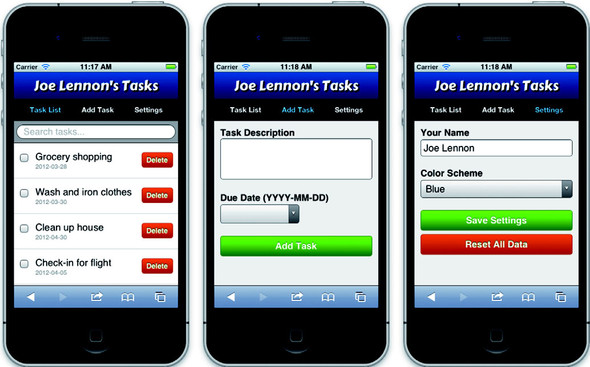
The three main views of the My Tasks application: Task List, Add Task, and Settings. To select a view, the application includes a navigation bar near the top.
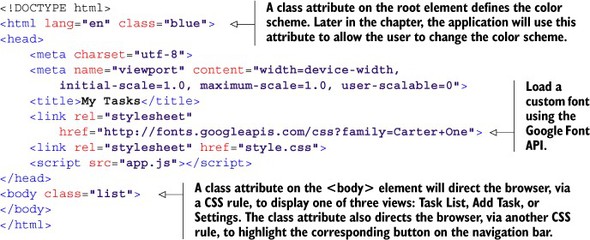
Listing 5.1. index.html—Application HTML structure
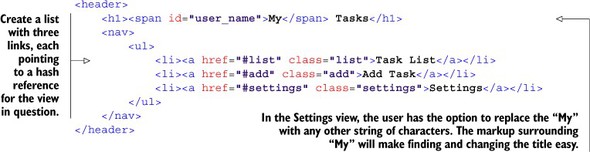
Listing 5.2. index.html—Adding a navigation bar
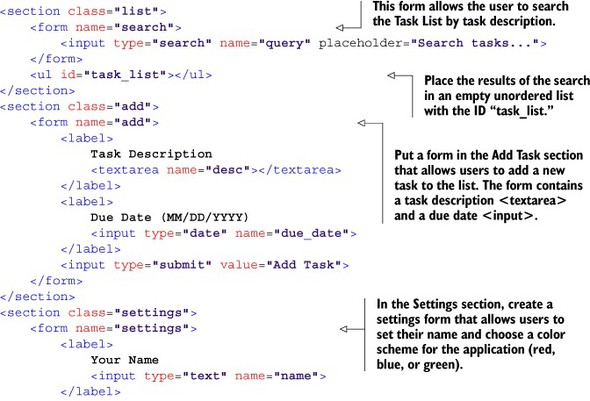
Listing 5.3. index.html—Main application views
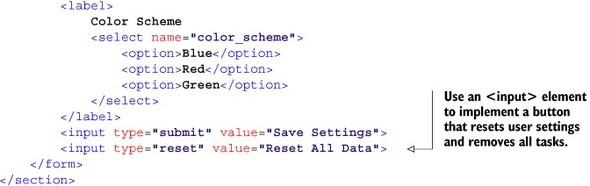
Listing 5.4. app.js—Foundation JavaScript code for the application
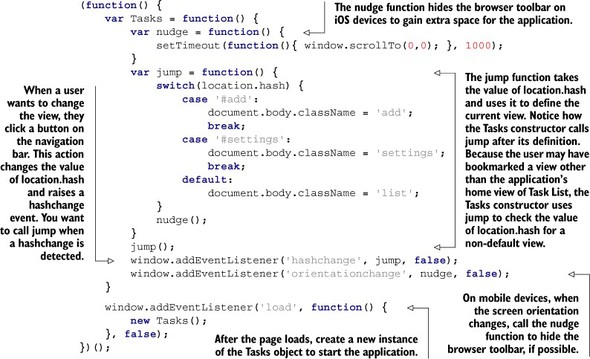
The application highlights the current view by displaying a navigation button with a darker background and blue text.
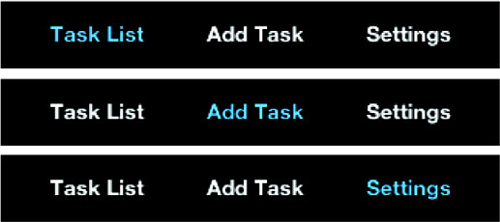
Step 1: Reading application settings from localStorage

Listing 5.5. app.js—Reading data from localStorage
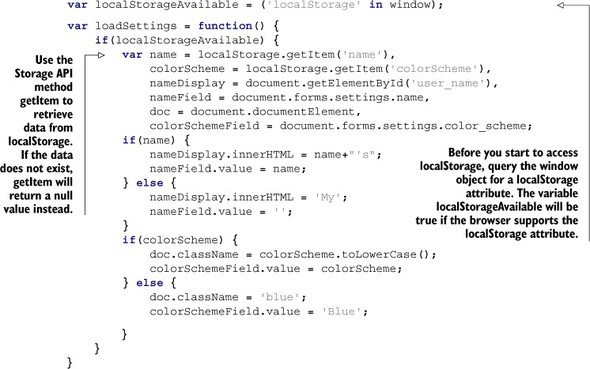
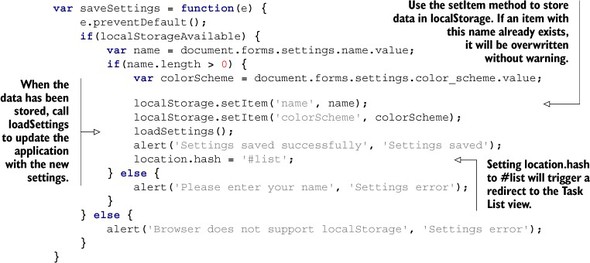
Listing 5.6. app.js—Saving data to localStorage
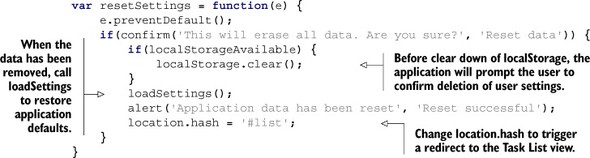
Listing 5.7. app.js—Clearing data from localStorage
Listing 5.8. app.js—Connecting the UI to the localStorage functions

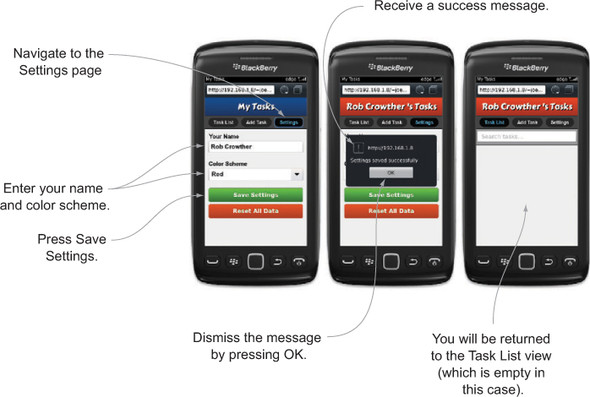
The user fills out the Settings form and presses the Save Settings button. When the data has been saved to localStorage, the settings are reloaded, and a message is displayed to the user. When the user dismisses this message, they are taken back to the Task List view (which is empty for now).
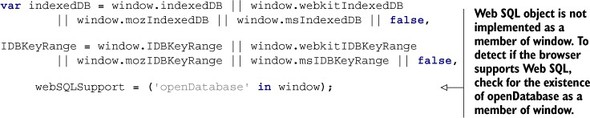
Listing 5.9. app.js—Feature detection for database-related objects
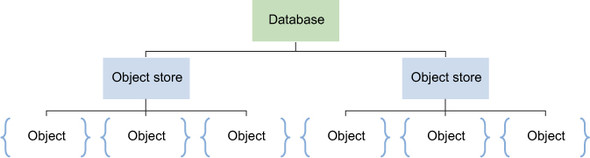
Hierarchical structure of an IndexedDB database. Each database can have many object stores, which themselves can contain many objects. The object is the structure for a data record, equivalent to a row in a relational database.
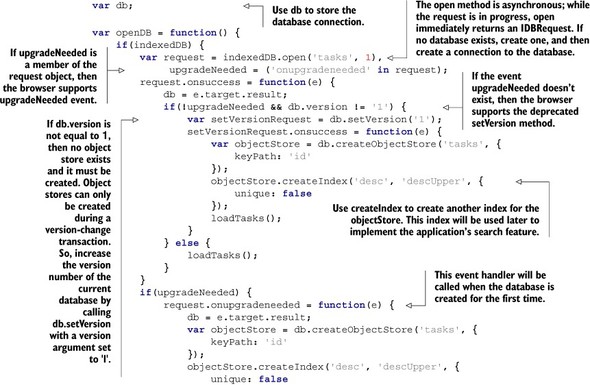
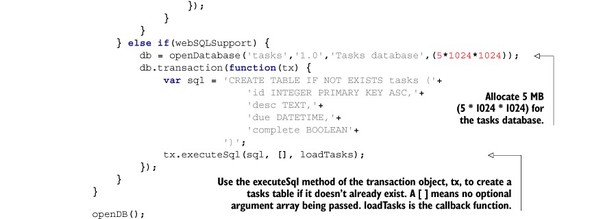
Listing 5.10. app.js—Connecting to and configuring the database
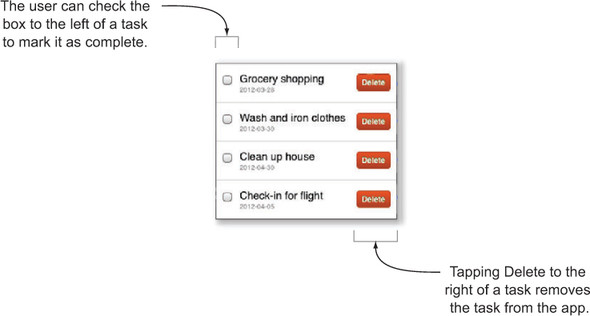
Each task item has two components that allow the user to update the task list. Checking the box on the left-hand side will mark the task as complete, whereas pressing the red Delete button on the right-hand side will remove the task.
Listing 5.11. app.js—Generating the markup for task items
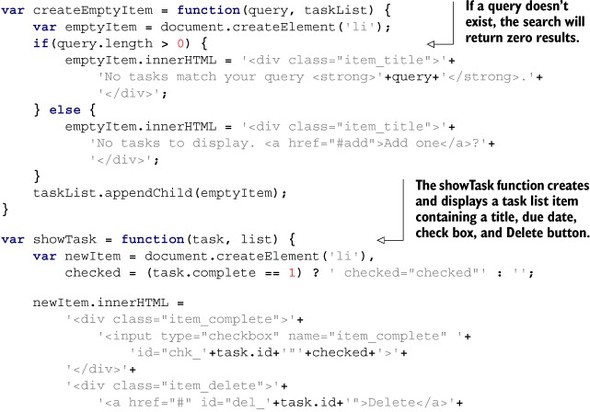
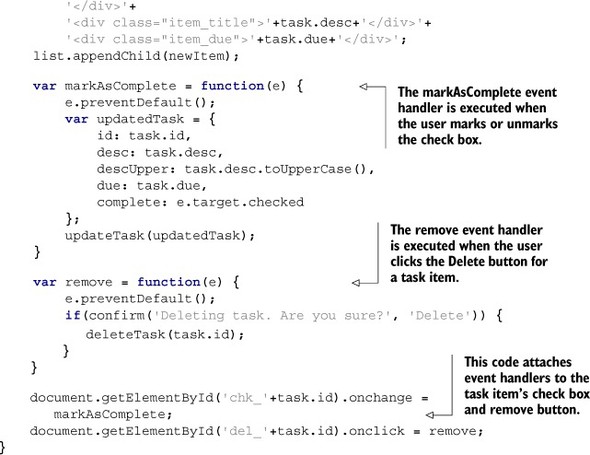
Listing 5.12. app.js—Searching the database and displaying the resulting tasks

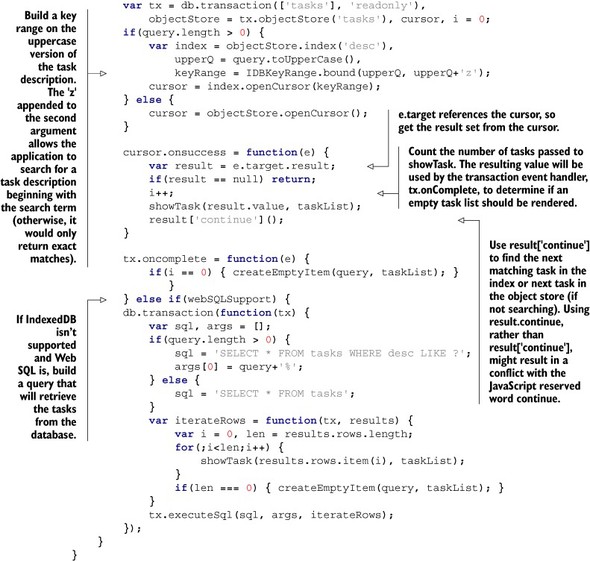
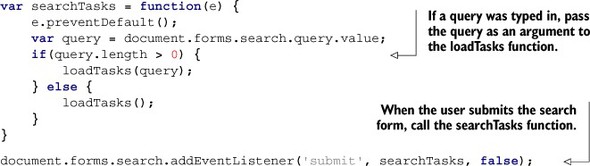
Listing 5.13. app.js—Searching for tasks
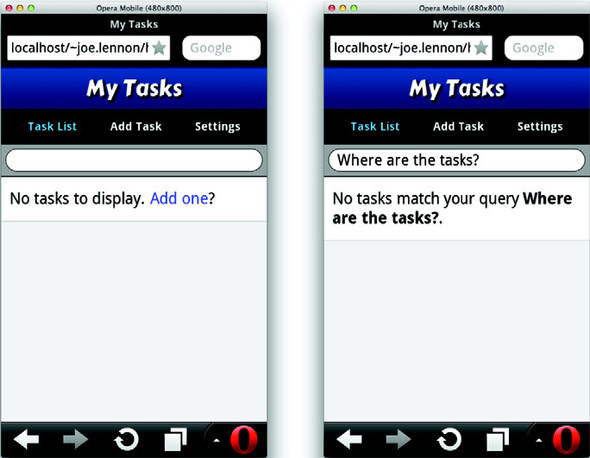
In the left screenshot, the application finds no tasks in the database. Therefore, it displays a message and links the question “Add one?” to the Add Task form. In the right screenshot, if you try to search for a task, you’ll see that no tasks match your query, no matter what you enter.
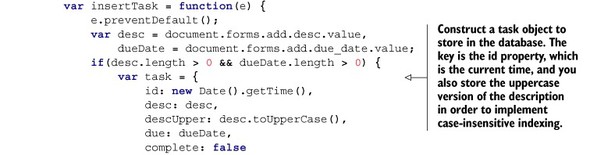
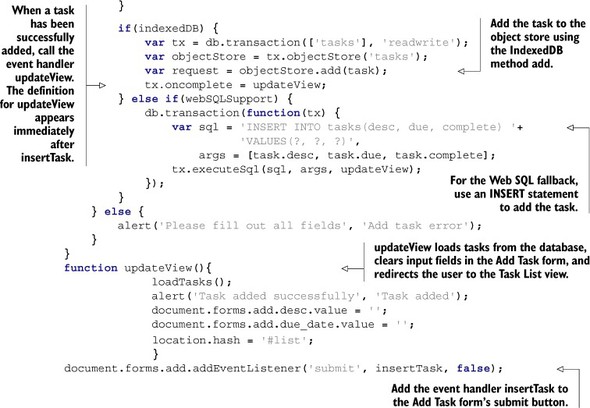
Listing 5.14. app.js—Adding new tasks
Listing 5.15. app.js—Updating and deleting tasks

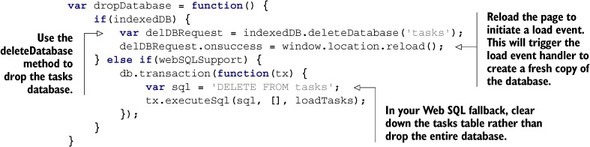
Listing 5.16. app.js—Dropping the database
Listing 5.17. tasks.appcache—Defining resources that are available offline

Step 3: Detect changes in the My Tasks application cache manifest file
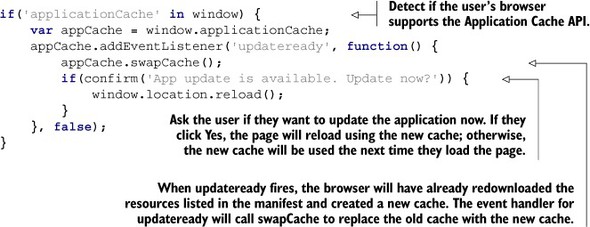
Listing 5.18. app.js—Automatic update detection and loading
My Tasks application running offline. You’ll notice the airplane icon in the top left indicating that the phone has no network access. You may also notice that the jazzy font we used in the heading is no longer showing; this font was loaded from the Google Font API, which isn’t available when you’re offline.

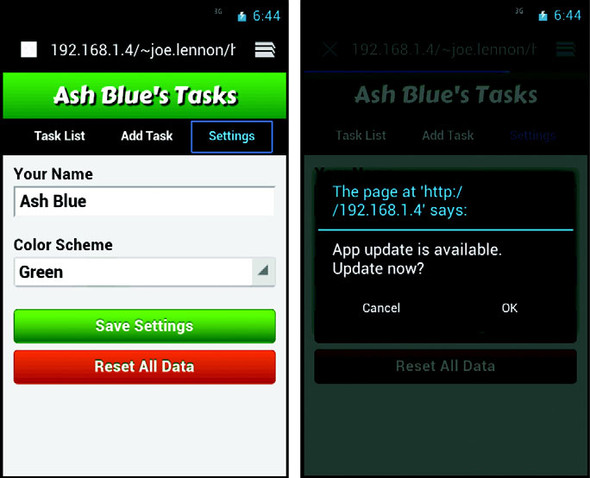
When the manifest file has been updated and a new application cache has been created, the updateready event is fired. The application attaches a handler to this event that swaps the old cache for the new cache, then asks the user if they want to update the application (this simply reloads the page, which loads the latest application version from the new cache).

 HTML5 in Action ebook for free