Chapter 3. File editing and management: rich formatting, file storage, drag and drop
This chapter presents HTML5 as a platform for building desktop-like web applications, using a client-side HTML editor as the main example. The sample app combines a visual rich-text editor with a raw markup editor, lets users create and organize files locally, and adds location-aware content so the editor can insert a map based on the user’s current position.
At a high level, the chapter shows how to structure the application into browser and editor views, manage navigation, and keep editing state consistent as users move between modes. It explains how editable documents work with designMode and how execCommand can power formatting controls such as bold, italic, links, lists, and images. It also introduces geolocation as a practical enhancement, showing how a user’s coordinates can be requested and turned into a map inserted directly into the document.
The chapter then focuses on local file management by using HTML5 file-related APIs to create a sandboxed filesystem, request storage quota, list files, load file contents, and support viewing, editing, deleting, creating, importing, saving, and previewing HTML documents. Finally, it extends the app with drag-and-drop so users can bring files into the application and export them back out again, tying together rich editing, local storage, and intuitive file transfer into a complete browser-based editing workflow.
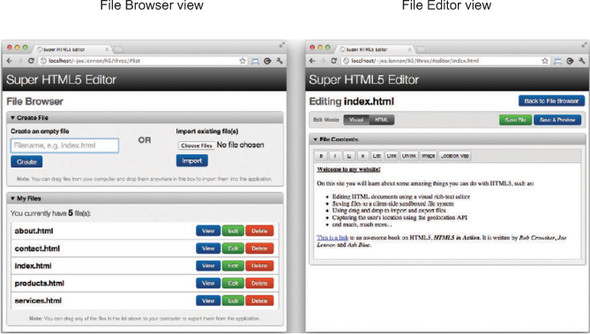
The two views of the Super HTML5 Editor application are shown. The File Browser view (left) allows users to manipulate the files stored in the app; the File Editor view (right) enables the file to be modified using rich-text editing controls or directly using HTML markup.
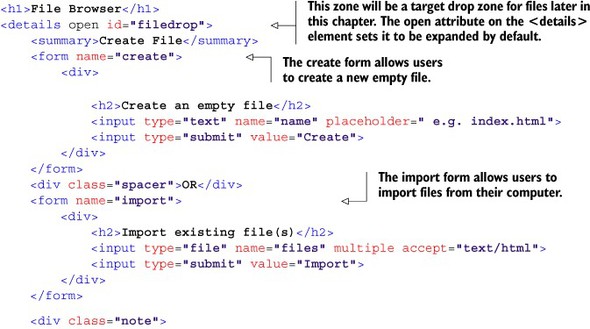
Listing 3.1. index.html—Application HTML structure
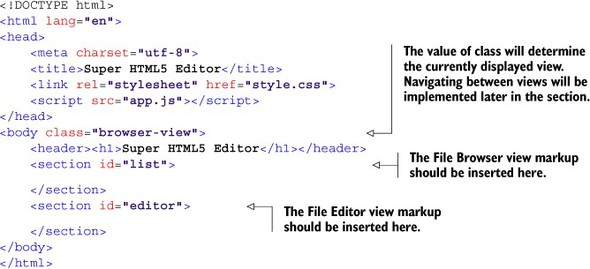
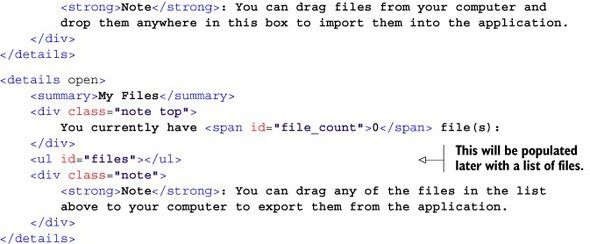
Listing 3.2. index.html–File Browser view markup
Listing 3.3. index.html–File Editor view markup
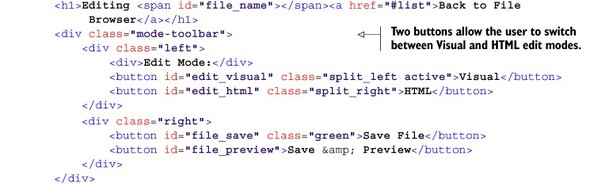
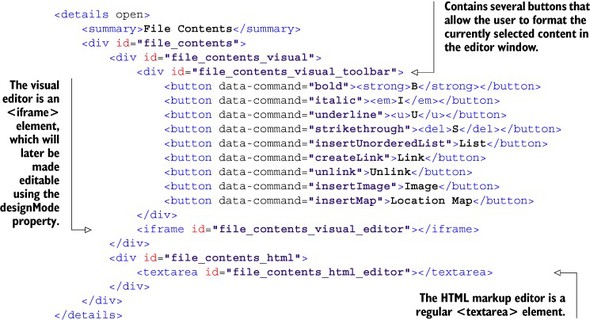
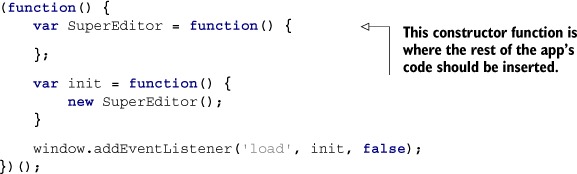
Listing 3.4. app.js–Application initialization code
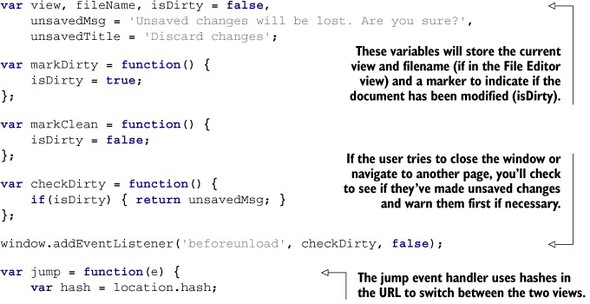
Listing 3.5. app.js—View navigation and state management code
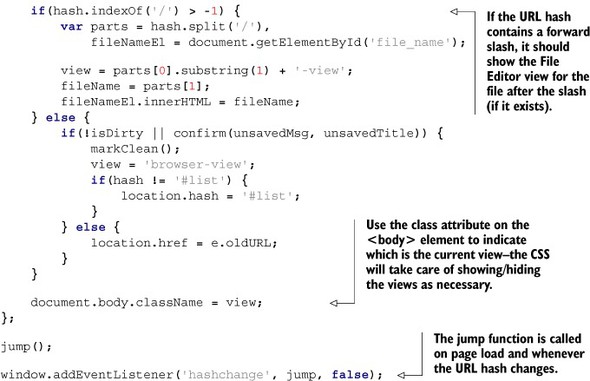
When you load the application right now, a hash value #list will be appended to the end of the URL. To navigate to the editor view manually, change this to #editor/index.html as shown.

Listing 3.6. app.js—Enabling designMode and connecting the two editors
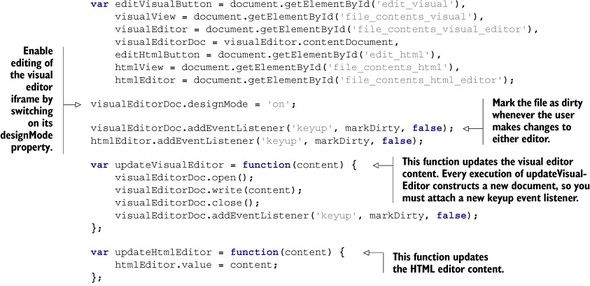
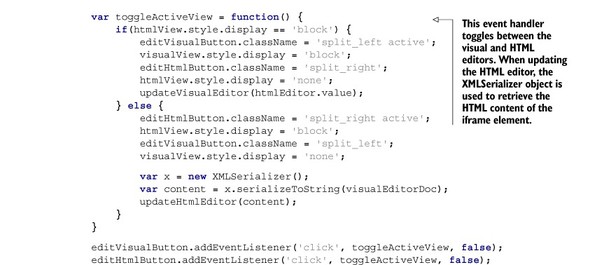
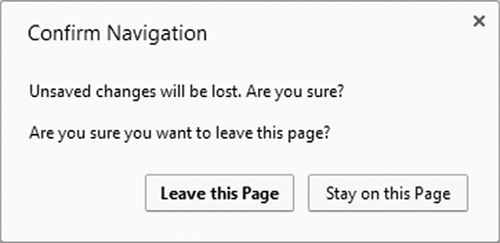
The isDirty variable we created earlier allows the application to keep track of whether the user has made changes to the document. If they’ve made changes and try to close the window without saving, they’ll be shown this warning message to confirm they want to leave the page.
Listing 3.7. app.js–Implementing the rich-text editing toolbar in the visual editor
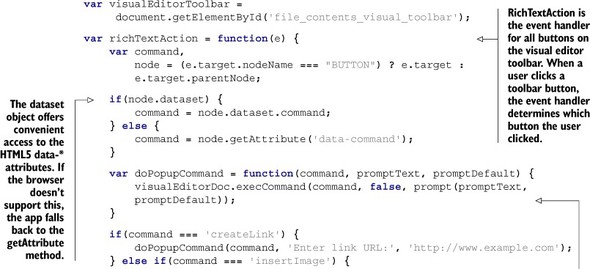
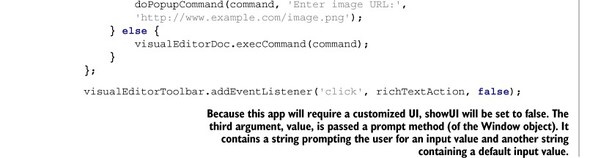
Try it out—and challenge yourself!

Listing 3.8. app.js–Using geolocation to insert a map of the user’s location
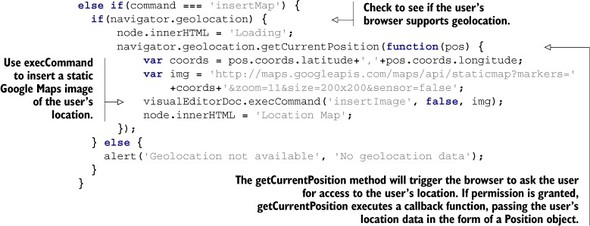
The browser will request the user’s permission to enable the Geolocation API. If access is denied, the browser will behave as though it doesn’t support geolocation.

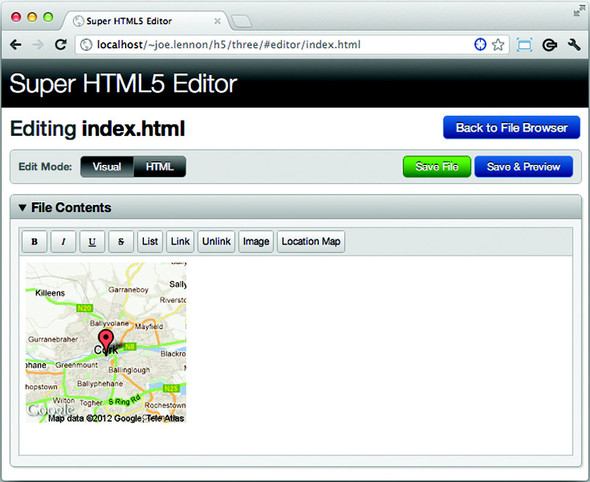
A map of the user’s location will be added to the editor. This map is actually an image generated by the Google Maps Static API. Easy, huh?
Step 1: Create a persistent filesystem
Listing 3.9. app.js–Creating a persistent filesystem


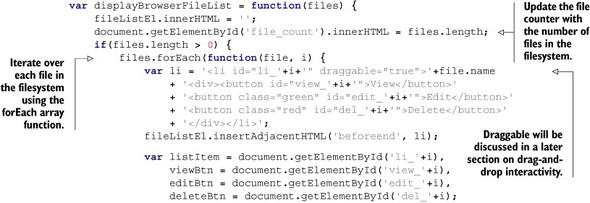
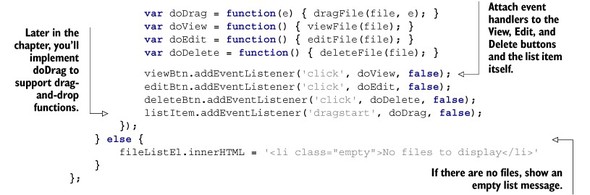
Listing 3.10. app.js—Building the file list UI from an array of files
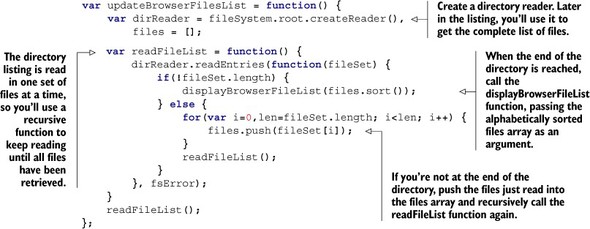
Listing 3.11. app.js—Reading the file list using the directory reader
Step 3: Load files in the File Editor view using the File API
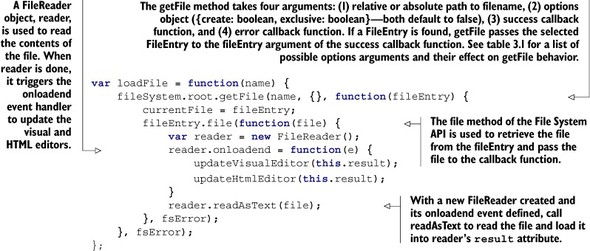
Listing 3.12. app.js—Loading files in the File Editor view
Step 4: View, edit, and delete files in the filesystem
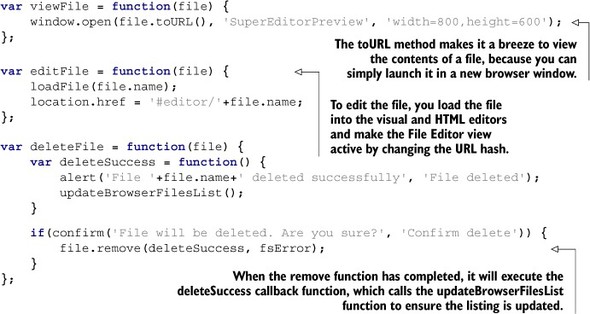
Listing 3.13. app.js—Viewing, editing, and deleting files
Listing 3.14. aapp.js—Creating a new empty file
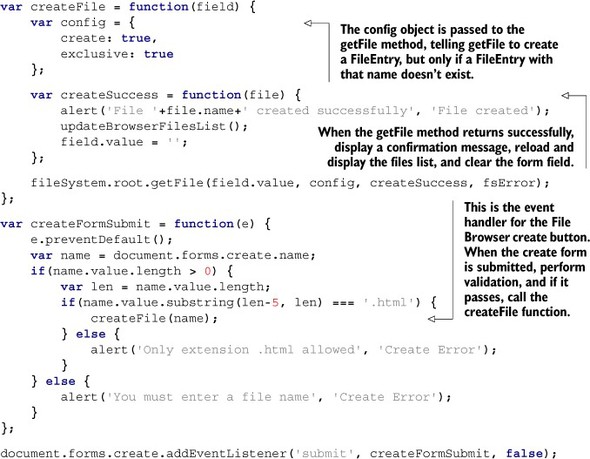
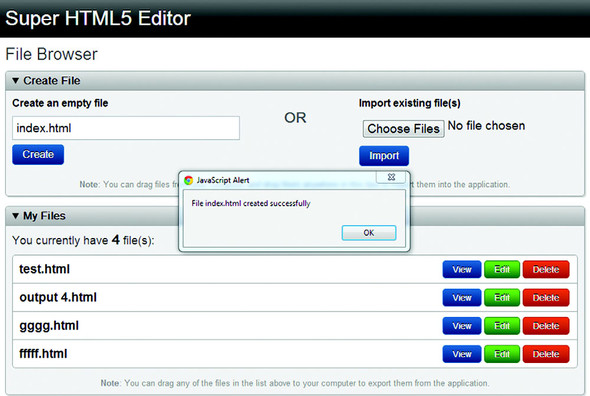
The file index.html has been successfully created!
Step 6: Import existing files from the user’s computer
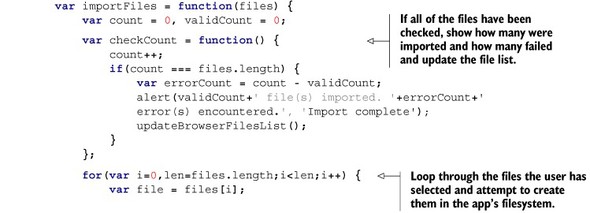
Listing 3.15. app.js—Importing files from the user’s computer

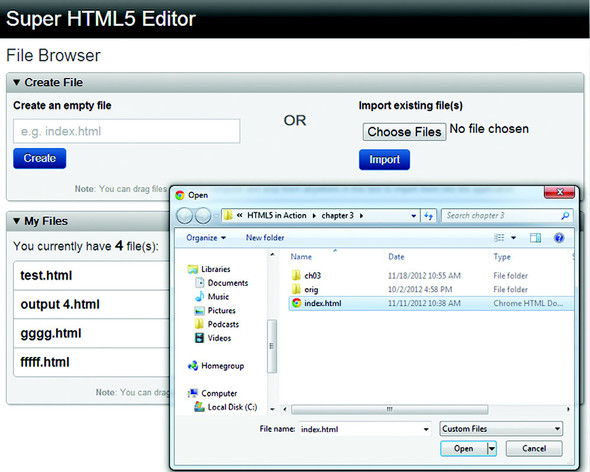
After the user clicks the Choose Files button, a dialog window pops up.
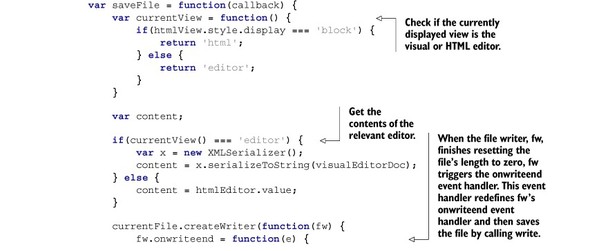
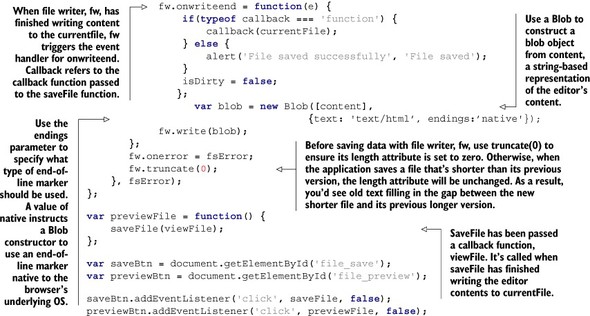
Listing 3.16. app.js—Saving files using the File Writer API
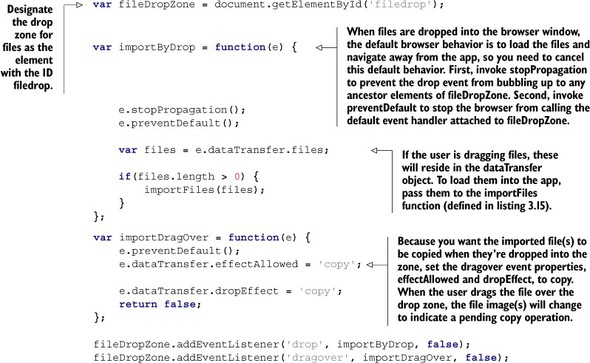
Listing 3.17. app.js—Allowing users to import files by dropping them in the application
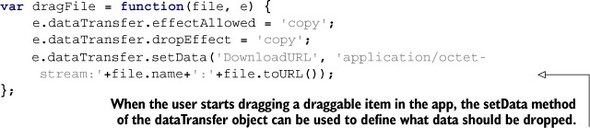
Listing 3.18. app.js—Allowing users to export files by dragging them out of the app

 HTML5 in Action ebook for free