Chapter 2. Form creation: input widgets, data binding, and data validation
This chapter shows how HTML5 makes form development richer, simpler, and more user-friendly by adding specialized input types, validation features, and data-binding tools. The goal is to build a practical order form that captures customer details, login information, product quantities, and payment data while taking advantage of browser-native widgets and checks wherever possible. Along the way, the text emphasizes that these features reduce JavaScript boilerplate and improve the experience on supported browsers.
The form is assembled in stages, beginning with its basic document structure and then adding fields that use the newer email, tel, number, and month input types. It also introduces attributes such as required, placeholder, autofocus, min, max, and pattern to improve usability and enforce constraints. For the order section, the chapter uses data-* attributes to store product prices directly in the markup and the output element to display subtotals and totals, while special submit controls allow the user to save incomplete progress without triggering validation.
The later part of the chapter focuses on calculation, custom validation, and compatibility. JavaScript reads numeric input with valueAsNumber, retrieves stored prices from dataset, and updates calculated totals live as quantities change. The Constraint Validation API is then used to define custom rules and error messages, detect invalid submissions, and style fields with CSS pseudo-classes. Because browser support is uneven, the chapter closes by showing how Modernizr and polyfills can detect missing features and provide fallbacks, including basic validation behavior for older browsers.
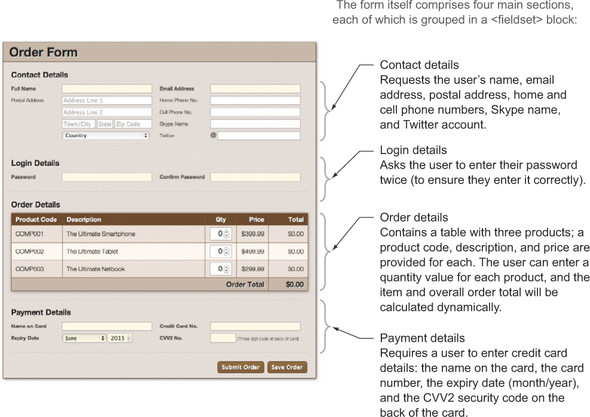
The order form running in Google Chrome. The user is given two options when submitting the form: Submit Order or Save Order. The Submit Order button performs validation and processes a user’s order, whereas the Save Order button bypasses the validation and saves the details, so users can come back later and finish filling out their order.
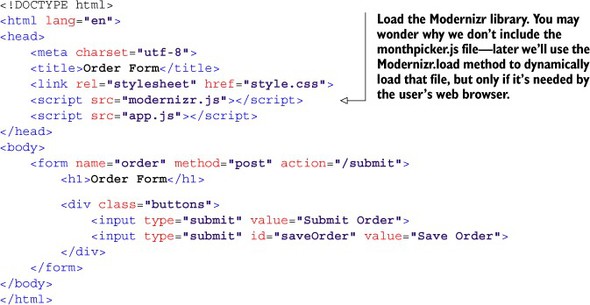
Listing 2.1. index.html—HTML document structure

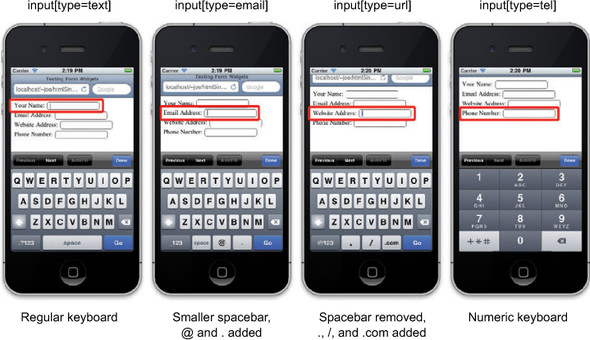
Different virtual keyboards are displayed on an iPhone for different input types—from left to right: text, email, url, and tel. Notice how symbols are added and removed for the email and url input types. An entirely different keyboard is displayed for the number input type.
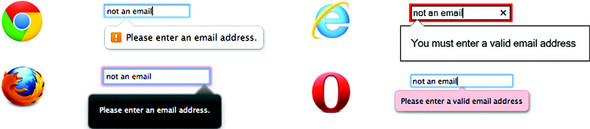
Each web browser vendor implements a different style when presenting input validation errors to the user. As more websites begin to use HTML5 form validation, users will become more familiar with the standard style of error message displayed by their browser of choice.
Demonstration of the placeholder attribute. This example displays a search input field, with the placeholder text “What are you looking for?” When the user enters a value, the placeholder text is replaced with that value.

Listing 2.2. index.html—The Contact Details form section
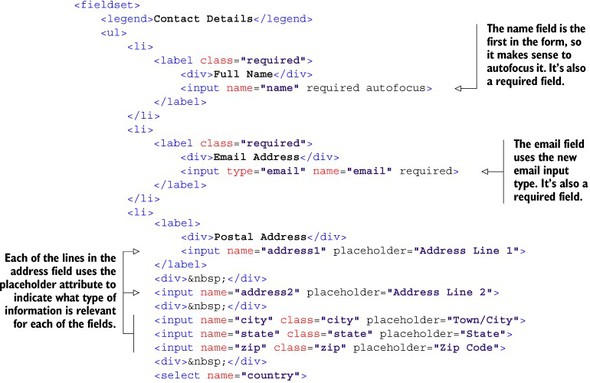
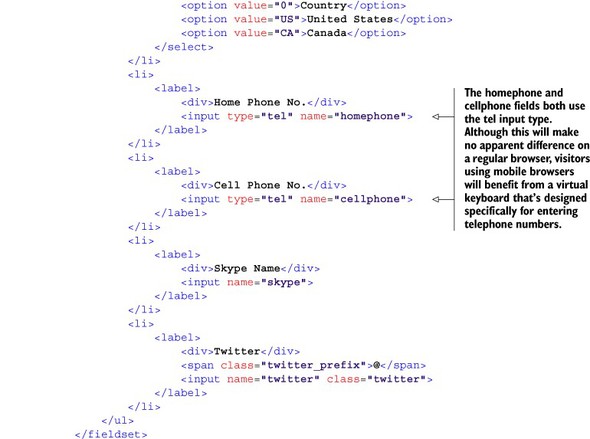
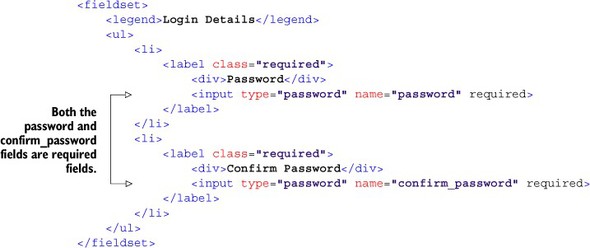
Listing 2.3. index.html—The Login Details form section
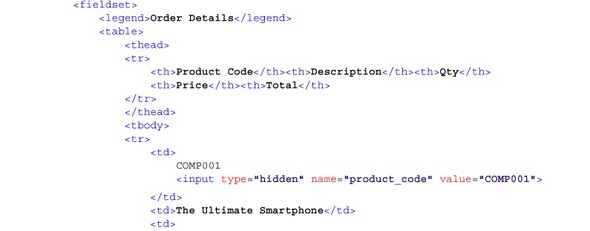
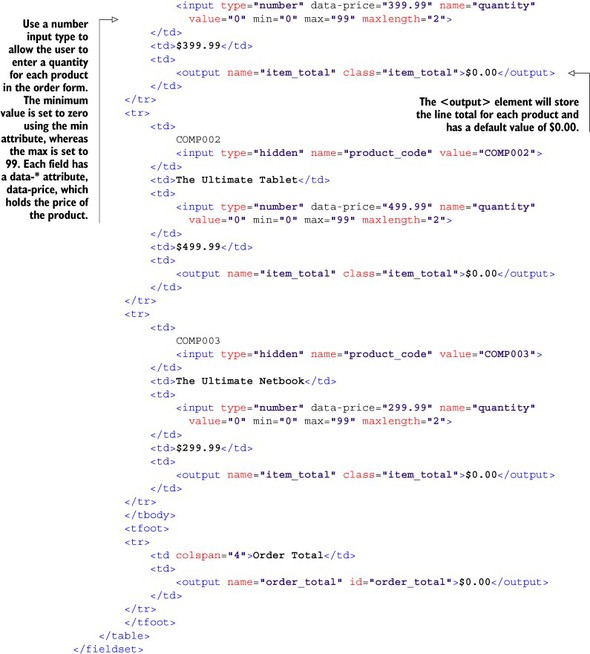
There’s more going on here than meets the eye. This simple-looking form uses several HTML5 features: the number input type, min and max attributes, data-* attributes, and the <output> element.

The number input type allows the user to increment and decrement the field value using the up and down buttons in the spinbox on the right-hand side of the field. The user can also change the value by typing a numeric value into the text field itself.

Data-* attributes
The <output> element
Listing 2.4. index.html—The Order Details form section
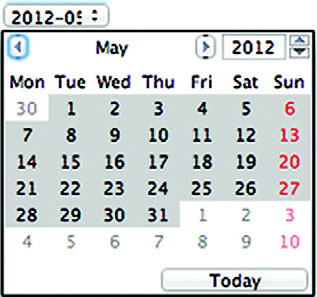
The Opera date-picker widget is used for all date/time input types, including month, as shown in this screenshot. When the date picker is used to select a month, clicking any day in the month will select that month.
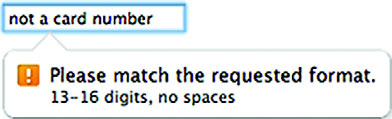
When the pattern matching fails, the browser will pick up extra information about the format required from the title attribute. If it’s provided, tag it onto the end of the error message displayed to the user.
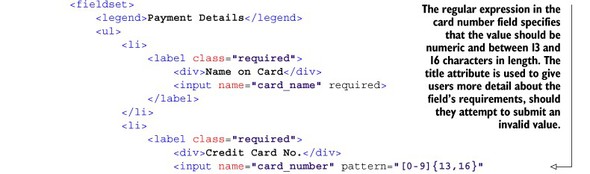
Listing 2.5. index.html—The Payment Details form section
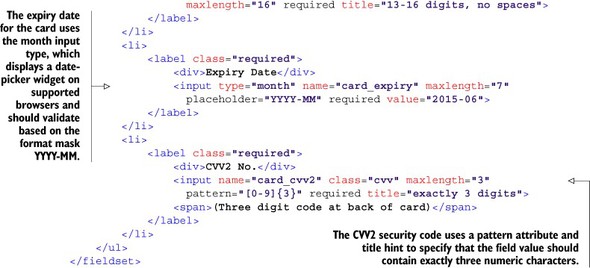
Listing 2.6. app.js—Changing the form action in older browsers
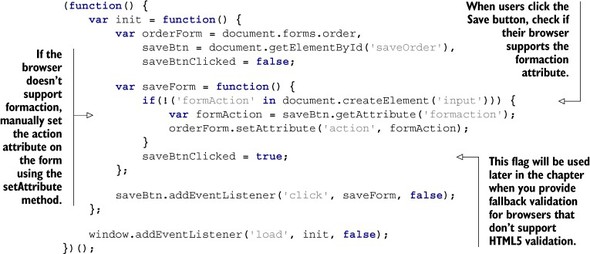
Listing 2.7. app.js—Functions to calculate total values

The valueAsNumber property
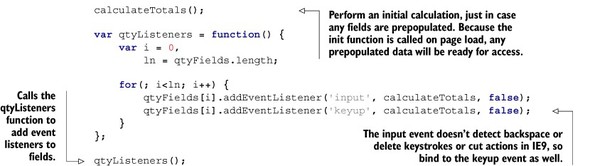
Listing 2.8. app.js—Getting the value of the quantity input fields

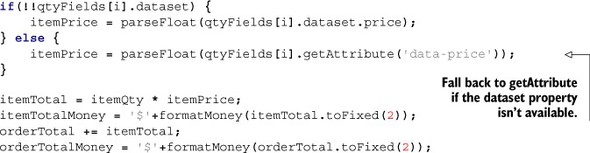
Listing 2.9. app.js—Getting the price values using data-* attributes
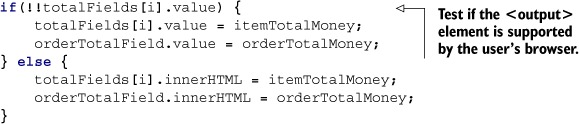
Listing 2.10. app.js—Displaying updated totals using the <output> element
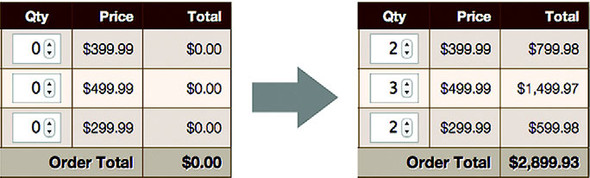
When the user enters a quantity for an item, the application multiplies it by the price for that item to get the total, then adds up all totals to get the overall order total.
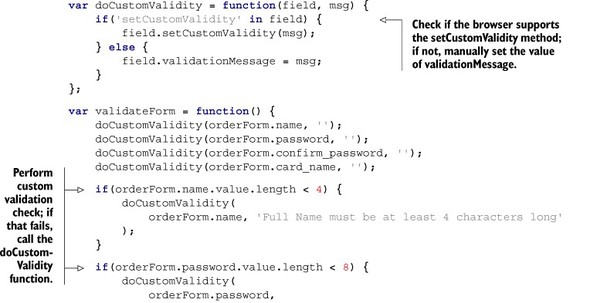
2.4.1. Creating custom validation tests and error messages with the setC- CustomValidity method and the validationMessage property
Listing 2.11. app.js—Performing custom validation
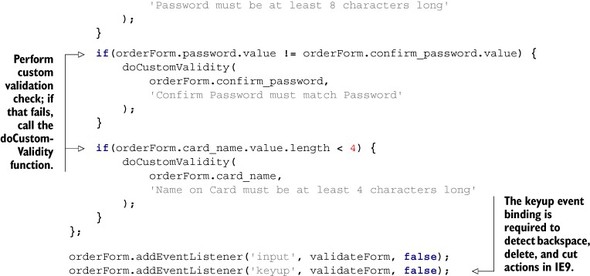
A demonstration of custom validation in action. In this case, the user has entered a valid password (at least eight characters in length), but they’ve entered a value in the Confirm Password field that doesn’t match the value in the Password field. This causes the error “Confirm Password must match Password” to be displayed.

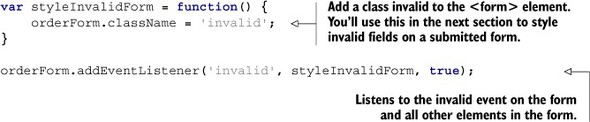
Listing 2.12. app.js—Listening to the invalid event
The required fields are styled with a light yellow background (left), as you can see in the Name on Card and Expiry Date fields. The invalid fields are styled with a light red background and a maroon border (right), as shown in the Credit Card No. and CVV2 No. fields.

Listing 2.13. app.js—Using the month-picker polyfill

Before the polyfill has been loaded, the Expiry Date field is represented merely by a text input. After the polyfill has been loaded, the field has been replaced with a month drop-down and a year number input field. The polyfill listens for changes to these fields and populates a hidden field, which stores the month in YYYY-MM format. This hidden field will be sent to the server when the form is submitted.

Listing 2.14. app.js—Preventing an invalid form from submitting in Safari 5.1
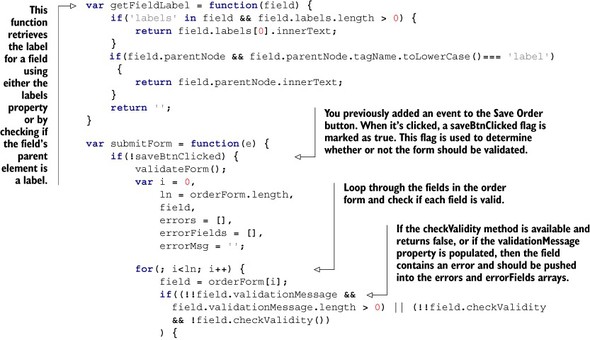
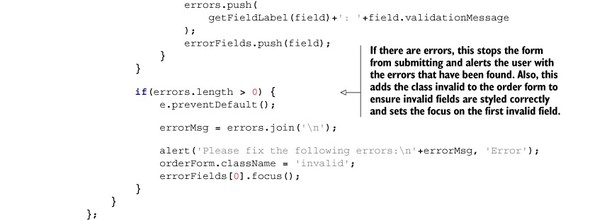
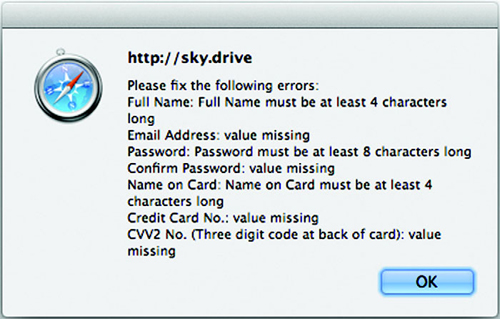
Safari now validates the form, displaying a generic alert dialog box with a list of errors that the user needs to correct. You’ll notice that for each invalid field, the field’s label has been picked up along with the relevant error message that’s to be displayed to the user.
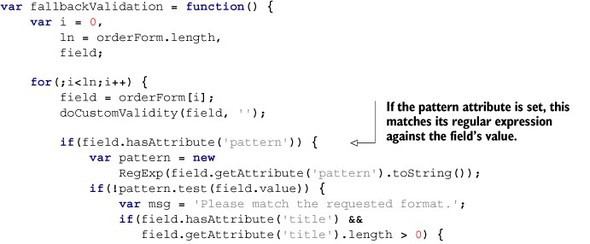
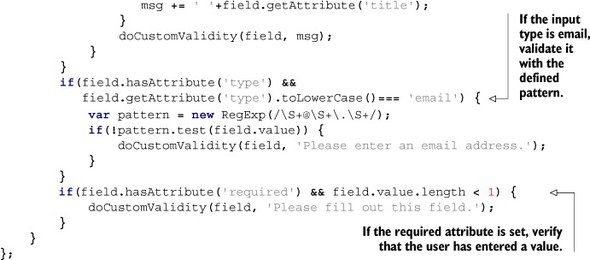
Listing 2.15. app.js—Fallback validation in IE9
FAQ
What HTML5 input types are introduced in Chapter 2 for building the order form?
HTML5 input types highlighted in the chapter includeemail, tel, number, and month. These provide better widgets and built-in validation in supported browsers.What do the required, pattern, autofocus, and placeholder attributes do?
required makes a field mandatory, pattern validates input against a regular expression, autofocus focuses a field on page load, and placeholder shows hint text when a field is empty.Why use the email and tel input types if they look like normal text fields?
On many devices, especially mobile browsers, they can trigger more appropriate virtual keyboards. The email type can also validate that the entered value is a properly formatted email address.How does the number input type improve the Order Details section?
The number type provides a numeric input widget, often with spinner controls, and works well with validation for quantity fields. It helps users enter values more accurately than a plain text field.What are min and max used for in the form?
They define the allowable numeric range for inputs such as quantity fields. Browsers that support them can prevent values outside the specified bounds.What are data-* attributes used for in the chapter’s order form?
data-* attributes store custom key/value data on elements, such as a product price. The JavaScript code reads this data to calculate totals without needing hidden fields or separate lookup tables.What does the valueAsNumber property do?
valueAsNumber returns the value of a numeric input as a floating-point number instead of a string. It can also be assigned a number directly, making calculations simpler than using parseFloat in many cases.How is the <output> element used in the form?
The <output> element displays calculated values such as line totals and the overall order total. Its value property can be updated by JavaScript, or innerHTML can be used as a fallback in browsers without native support.How can users save an incomplete form without triggering validation?
The chapter uses theformnovalidate attribute on the Save Order button to bypass validation. It also uses formaction to send saved data to a different URL, such as /save, instead of the normal submit endpoint.What is the Constraint Validation API used for?
The Constraint Validation API lets you create custom validation rules, set custom error messages withsetCustomValidity, inspect messages with validationMessage, and detect failed validation with the invalid event.
 HTML5 in Action ebook for free