5 Sharing your apps with the world
After building a Streamlit app locally, the next step is making it available to others. The chapter explains that deployment means running the Streamlit server somewhere users can access it, rather than only through localhost on your own machine. It compares several deployment options: sharing over a local network, running a dedicated server, using a general cloud provider, and publishing through Streamlit Community Cloud. For learning and lightweight public sharing, Streamlit Community Cloud is presented as the best fit because it is free, designed specifically for Streamlit apps, and simple to use, though it has resource limits and may put inactive apps to sleep.
The chapter then walks through deploying a to-do list app using GitHub and Streamlit Community Cloud. The process requires setting up Git, creating a GitHub repository, pushing the app files to that repository, connecting GitHub to Streamlit Community Cloud, and telling Community Cloud which repository, branch, and app file to run. Once deployed, the app receives a public URL that anyone can visit. The chapter also introduces the normal update workflow: after making changes locally, you commit and push them to GitHub, and Streamlit Community Cloud picks up the updated code automatically.
The chapter expands the example by adding an external API feature: a joke-of-the-day fetched from a Dad Jokes API using the Python requests library. It explains basic API concepts, including HTTP requests, headers, status codes, and JSON responses, then shows how to integrate the API result into the Streamlit app while using st.session_state to avoid unnecessary repeated API calls. Because API keys and credentials must never be committed to public code, the chapter introduces st.secrets, local secrets.toml files, and Community Cloud secrets configuration. It also covers dependency management with requirements.txt and protecting secret files with .gitignore, giving readers the essential practices needed to safely deploy real-world Streamlit apps.
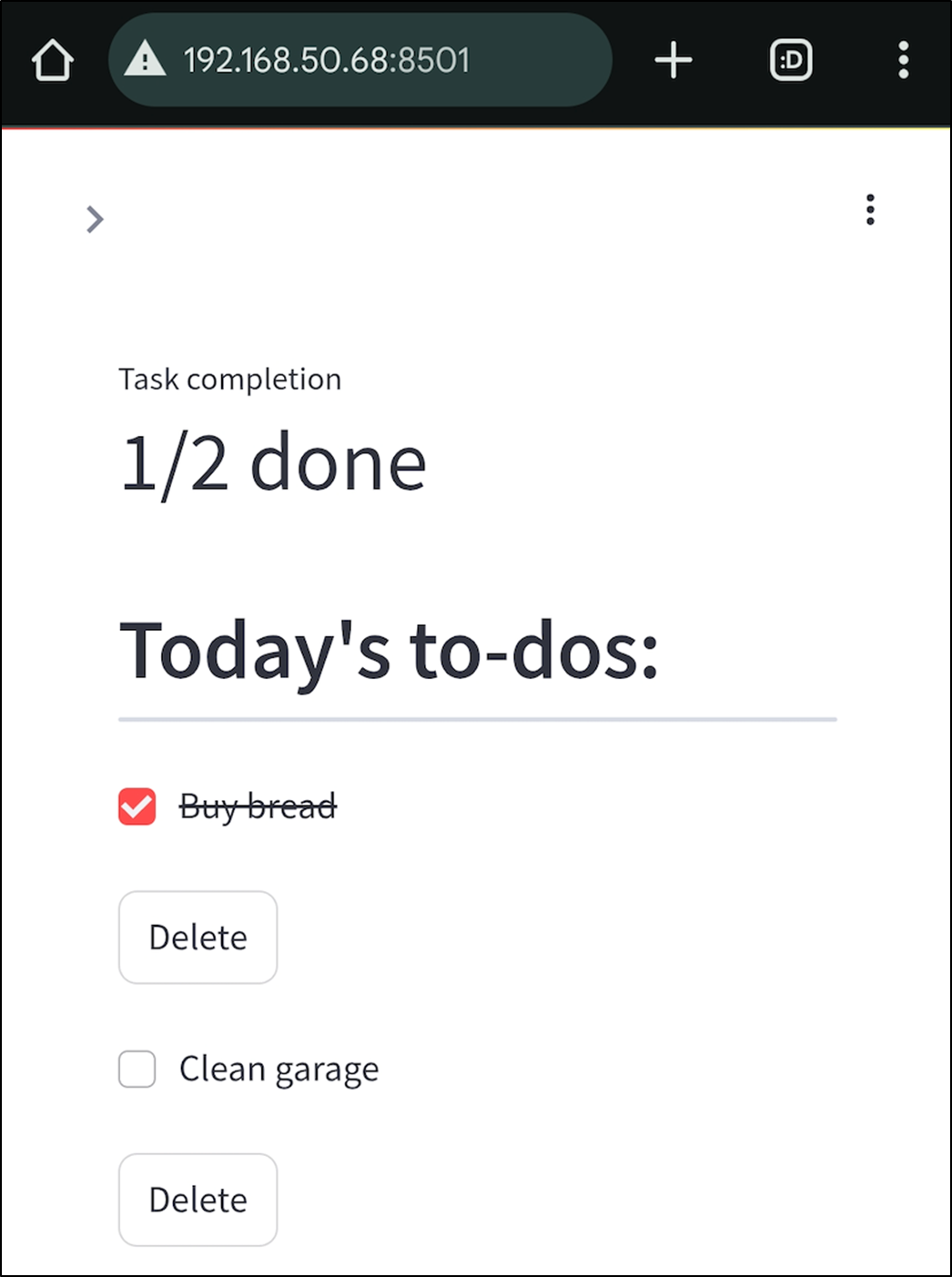
Using the network URL of your Streamlit app to access it from a different device connected to the same network.
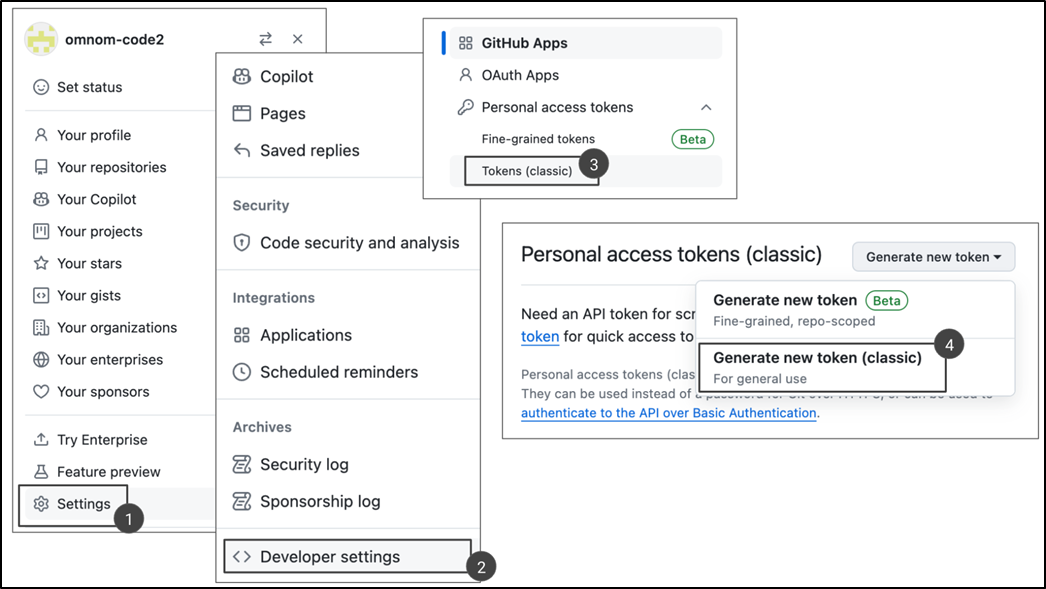
How to get to the Personal Access Token generation page on GitHub.
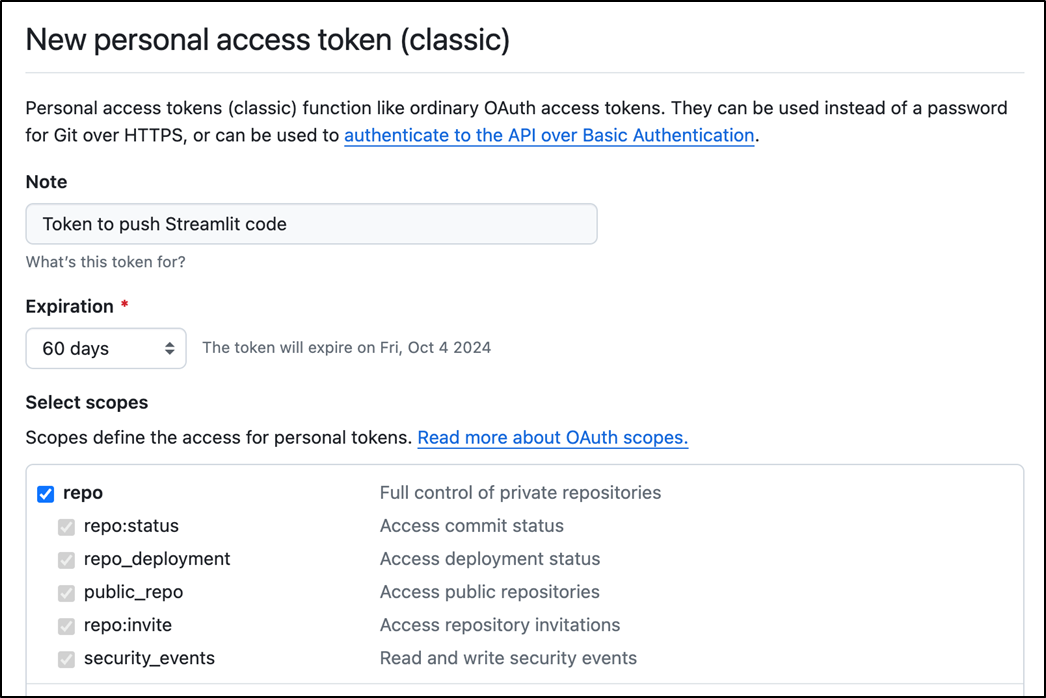
The PAT creation screen on GitHub; make sure to select the "repo" scope.
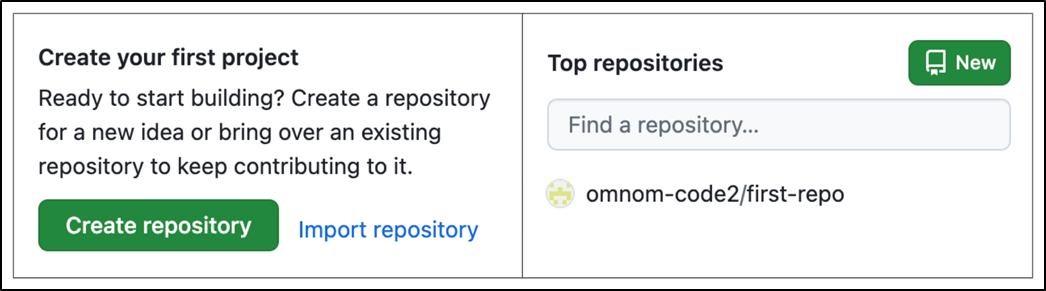
Buttons to create a new repo on GitHub.
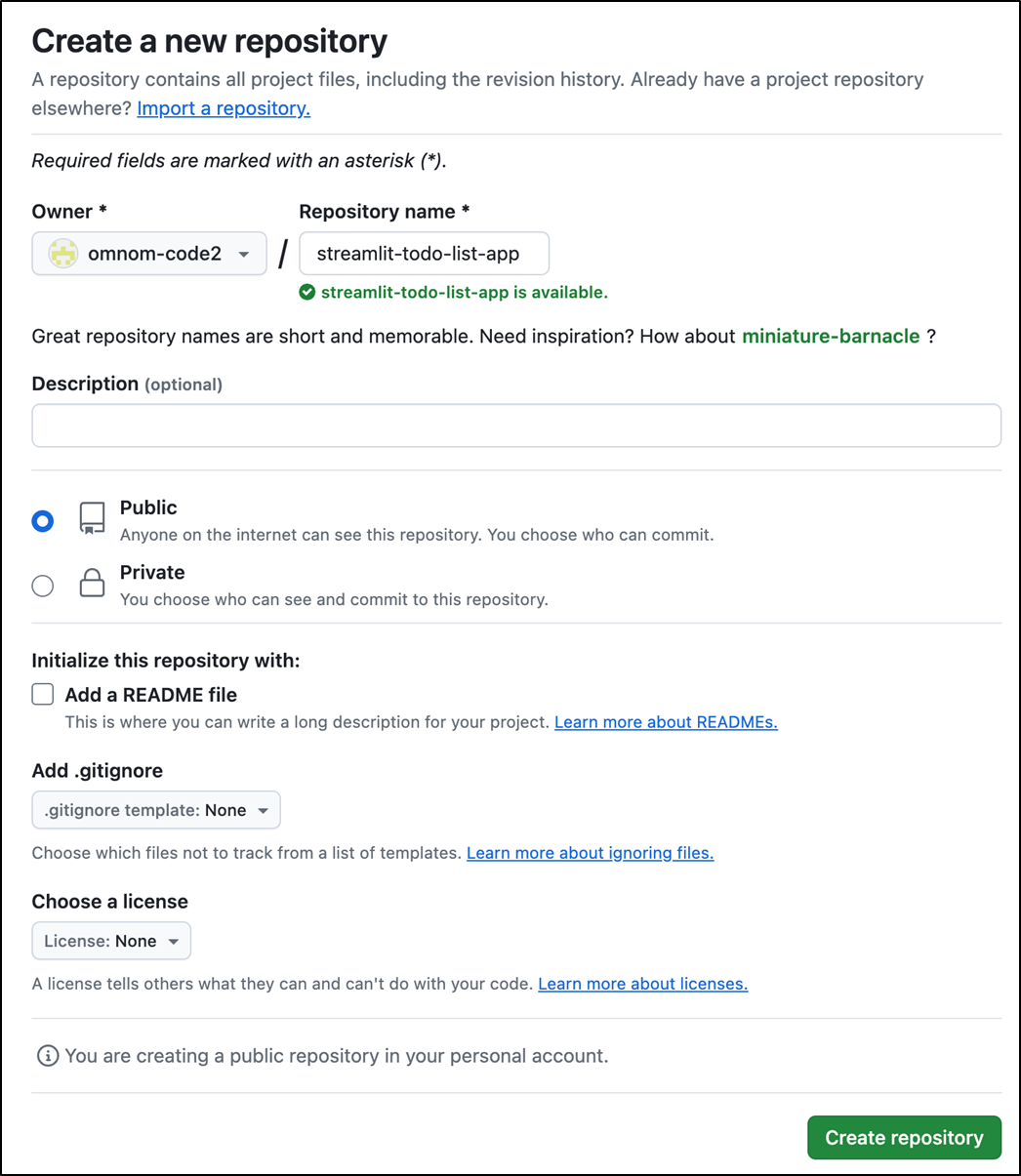
The repository creation screen on GitHub.
Your repo URL.

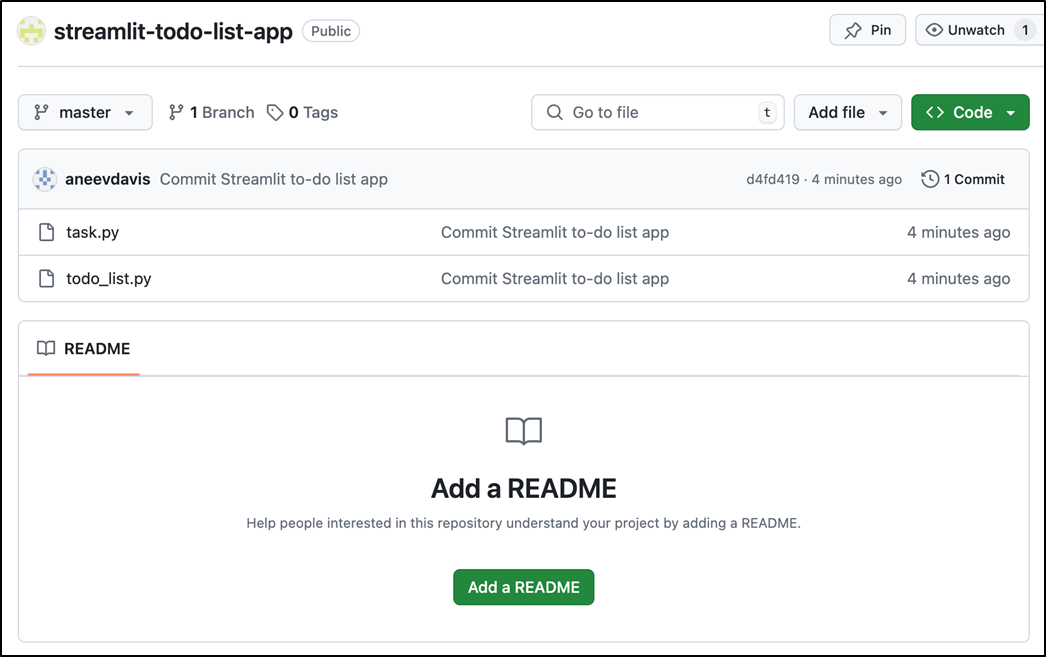
Your repo in GitHub after pushing your code.
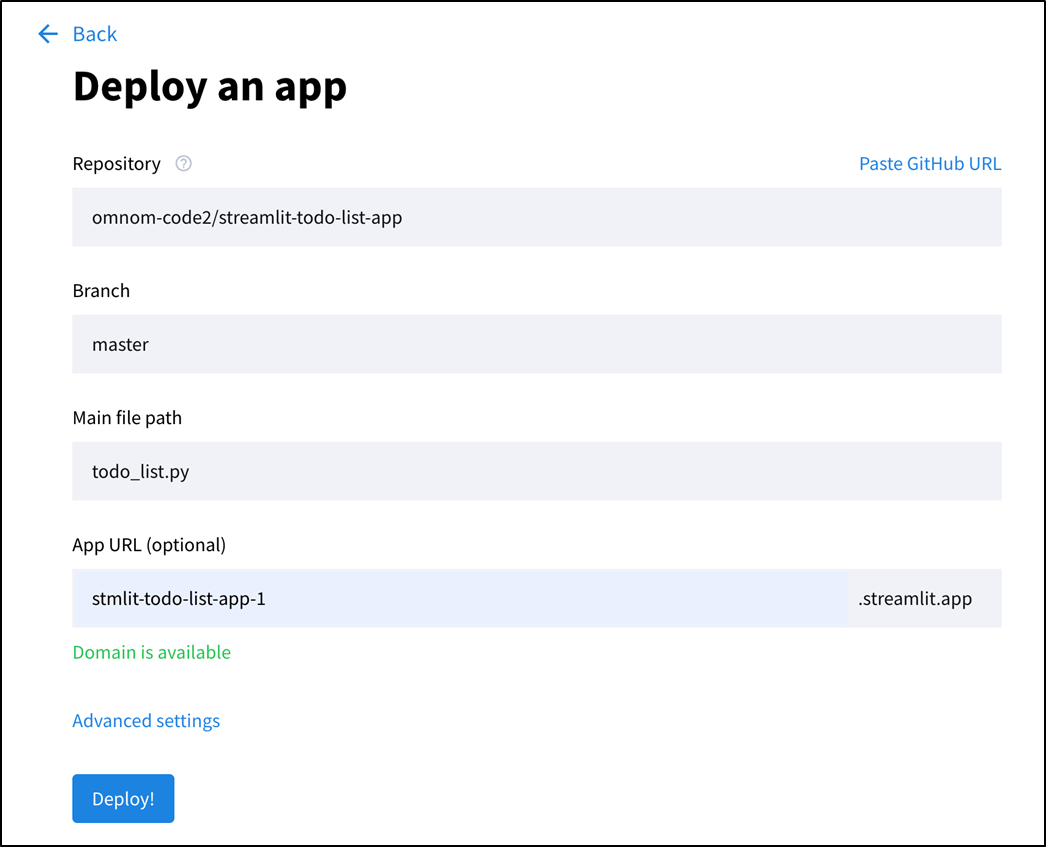
The app deployment screen on Streamlit Community Cloud.
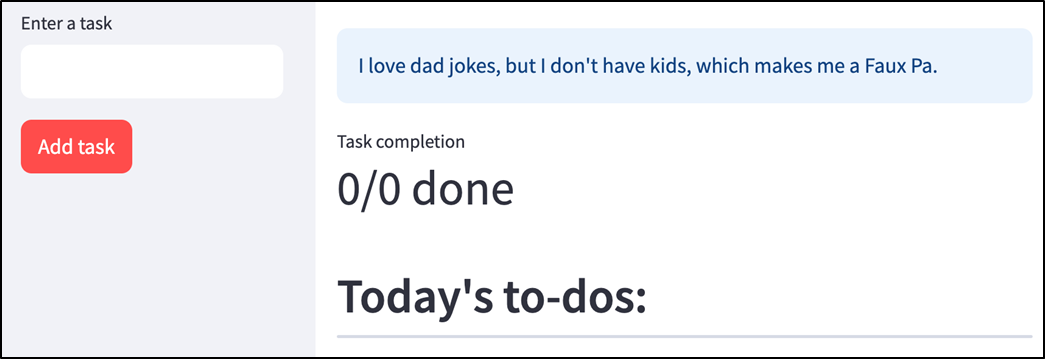
Joke-of-the-day in our to-do list app.
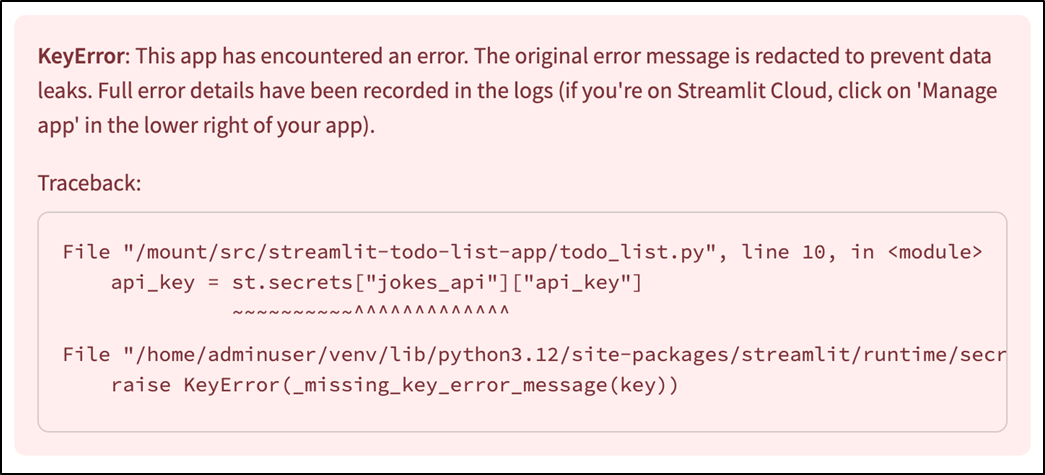
Our app throws an error since it's unable to access an API key
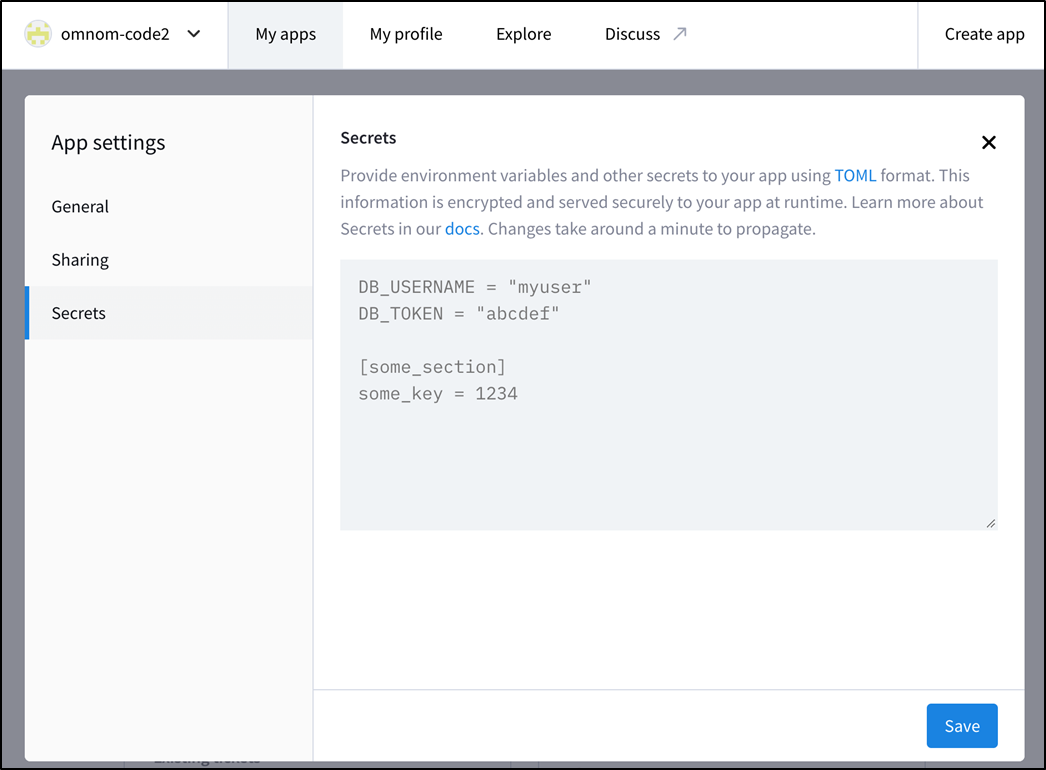
The secrets configuration screen on Streamlit Community Cloud.
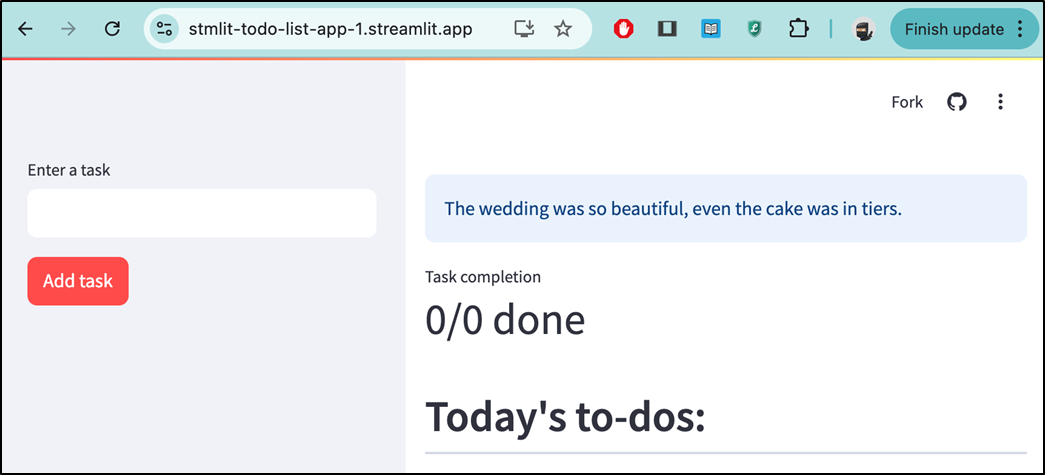
Your fully-functional app deployed to production.
Summary
- Deployment is the process of hosting and setting up your app so your intended users can access it.
- There are multiple ways to deploy an app—you could simply run a server over your local network, set up a dedicated server, or use a cloud provider.
- You can deploy an unlimited number of apps to Streamlit Community Cloud for free, subject to some resource usage limits.
- Deploying to Community Cloud involves creating a GitHub account, pushing your local code to a remote GitHub repo, and telling Community Cloud where to find your code.
- You can connect to external services through the HTTP protocol using a library called requests.
- In conjunction with a secrets.toml file located within a .streamlit folder, st.secrets can be used to keep your credentials safe.
- Never commit your secrets.toml file—prevent accidents by adding it to .gitignore. Instead, use the App settings page on Streamlit Community Cloud to hold in production the information you store in secrets.toml locally.
- You can use a requirements.txt file to specify the versions of various Python libraries your app depends on.
- Deploying any changes you make to an already-deployed app on Community Cloud is as simple as pushing the changes to your remote GitHub repo.
FAQ
What does it mean to deploy a Streamlit app?
Deploying a Streamlit app means hosting it somewhere other people can access it. A Streamlit app runs through a backend server and a browser-based frontend. When you run streamlit run locally, users access the app through a URL such as localhost:8501. Deployment means keeping that Streamlit server running somewhere reachable by your intended audience, usually through a public URL.
What are the main options for sharing a Streamlit app?
The chapter describes several deployment options:
- Local network deployment: Run the app on your computer and let other devices on the same Wi-Fi or LAN access the network URL.
- Dedicated server: Run the app on a physical or virtual server that you manage yourself.
- Cloud deployment: Use a provider such as AWS, Azure, or Google Cloud for scalable hosting.
- Streamlit Community Cloud: A free, Streamlit-focused hosting service run by Snowflake.
For the chapter’s examples, Streamlit Community Cloud is used because it is free and easy to set up.
What are the limitations of running a Streamlit app over a local network?
Running a Streamlit app over a local network is simple, but it has important limitations. The app only works while the computer running the Streamlit server is turned on and connected to the network. It is also only available to devices on that same local network, not to the general public. Firewalls or network rules may also block access from other devices.
Why use Streamlit Community Cloud for deployment?
Streamlit Community Cloud is a good choice for learning and sharing Streamlit apps because it is free, easy to use, and built specifically for Streamlit apps. It lets you publish an app to a public URL without managing your own server infrastructure. However, it has resource limits for compute power, memory, and storage, so very popular or resource-heavy apps may eventually need a paid cloud provider.
What do I need before deploying an app to Streamlit Community Cloud?
To deploy an app to Streamlit Community Cloud, you need:
- Python and Streamlit installed
- git
- A GitHub account
- A Streamlit Community Cloud account
- Your GitHub account connected to Community Cloud
Streamlit Community Cloud expects your app’s code to be stored in a GitHub repository.
What are the basic steps to deploy a Streamlit app to Community Cloud?
The basic deployment process has three main steps:
- Create a GitHub repository for your app.
- Push your local app code to that repository using Git.
- Tell Streamlit Community Cloud where to find the repository, branch, and app file.
For example, if your app file is todo_list.py in the root of your repo, you provide that path when creating the app in Community Cloud.
How do I push my Streamlit app code to GitHub?
From the folder containing your app files, you can initialize a Git repo, add your files, commit them, connect to your GitHub repository, and push the code:
git init
git add .
git commit -m "Commit Streamlit to-do list app"
git remote add origin <repo-url>
git push -u origin master
Some Git installations use main instead of master. If master gives an error, try:
git push -u origin mainHow can a Streamlit app connect to an external API?
A Streamlit app can connect to an external API by sending HTTP requests from Python. The chapter uses the requests library to call the API Ninjas Dad Jokes API. The app sends a GET request to:
https://api.api-ninjas.com/v1/dadjokesThe API key is passed through an HTTP header named X-Api-Key. The response is returned as JSON, which can be parsed with response.json().
Why should API keys not be stored directly in Python code?
API keys, passwords, and other credentials should never be stored directly in code, especially if the code will be pushed to a public GitHub repository. Anyone who can view the repository could copy the key and use your API account. This could exhaust free quotas, expose private services, or create unexpected costs if the API is paid.
How should secrets and dependencies be managed before deploying to Streamlit Community Cloud?
Secrets and dependencies require special handling:
- Secrets: Store API keys locally in .streamlit/secrets.toml and access them with st.secrets. Do not commit this file to GitHub.
- .gitignore: Add .streamlit/ to .gitignore so Git does not track your local secrets file.
- Production secrets: In Streamlit Community Cloud, open the app settings, go to Secrets, and paste the same TOML content there.
- Dependencies: Add a requirements.txt file listing packages such as streamlit and requests, optionally with exact versions like requests==2.31.0.
Streamlit Community Cloud reads requirements.txt to install needed packages and uses the configured secrets to populate st.secrets in production.

 Build Python Web Apps with Streamlit ebook for free
