4 Streamlit's execution model
This chapter introduces Streamlit’s execution model through the construction of a daily to-do list app. The app is designed to let users add tasks, view them, mark them done or not done, delete them, and see completion progress, while intentionally avoiding persistence beyond a single browser session. Rather than focusing only on successful implementation, the chapter uses bugs and unexpected behavior as learning opportunities, showing how troubleshooting reveals the way Streamlit actually runs applications.
A central lesson is that Streamlit re-runs the entire Python script from top to bottom whenever the app first loads or whenever the user interacts with a widget. This explains why ordinary variables, such as a task list initialized with an empty list, are reset on each interaction. The chapter demonstrates how to inspect app state during debugging and explains the relationship between the Streamlit server and browser frontend. It also introduces widget keys, which Streamlit uses to distinguish interactive elements, especially when multiple widgets have the same label or are generated inside loops.
The chapter then shows how to preserve data across re-runs with st.session_state, using it as the app’s memory for the task list. It also explains how st.rerun can force Streamlit to restart execution after state-changing actions, such as deleting a task or updating a checkbox, so the display immediately reflects the latest state. Along the way, it warns about infinite rerun loops and demonstrates how to prevent them by only calling state-changing functions when a task’s stored value actually needs to change. The final app combines session state, unique widget keys, controlled reruns, checkbox status updates, delete buttons, strikethrough formatting, and a completion metric into a functional Streamlit to-do list.
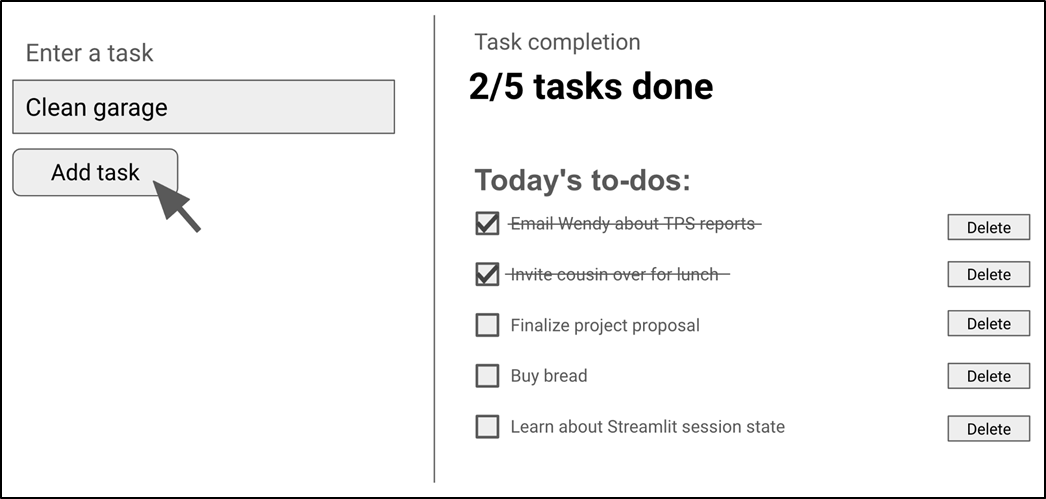
The mock UI design for our daily to-do list app
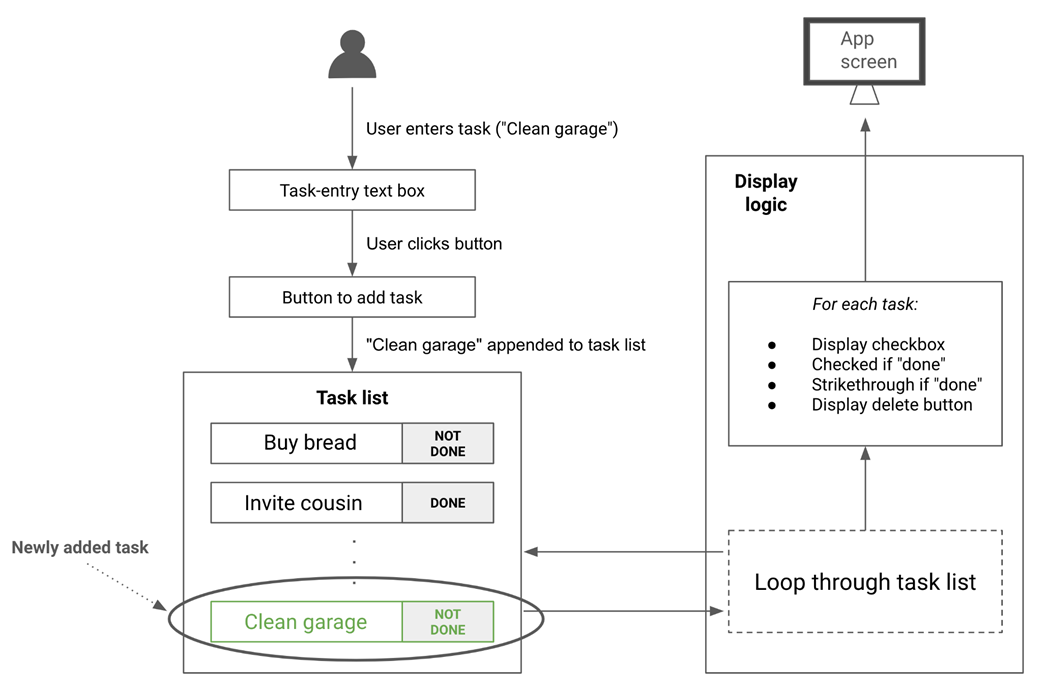
Adding a task appends an item to the task list, and the display logic renders the updated task list.
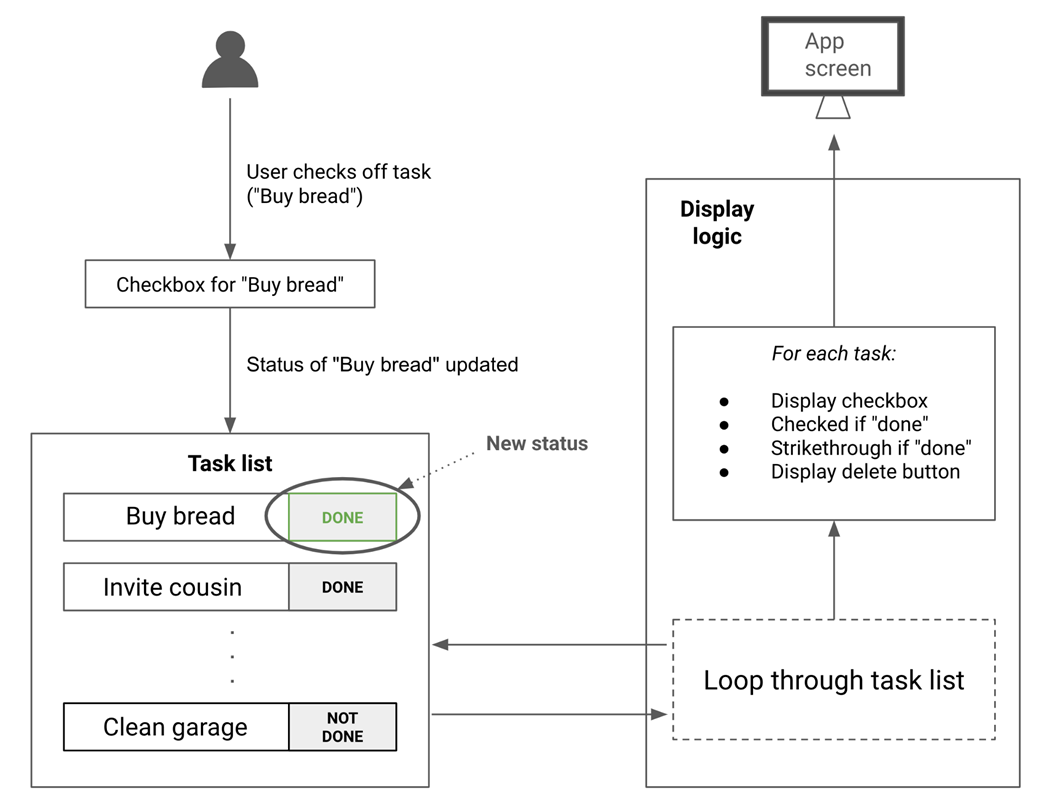
Checking off a task updates the item's status in the task list, and the same display logic re-renders the updated task list.
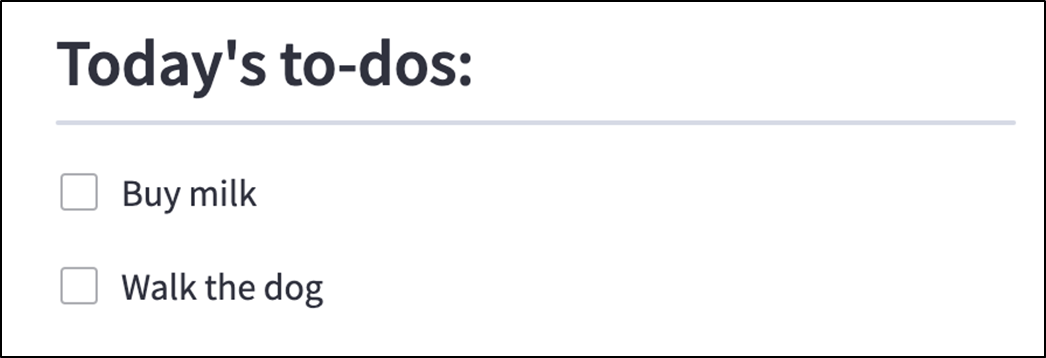
st.header with a divider

Using st.checkbox in a loop to display one for each task
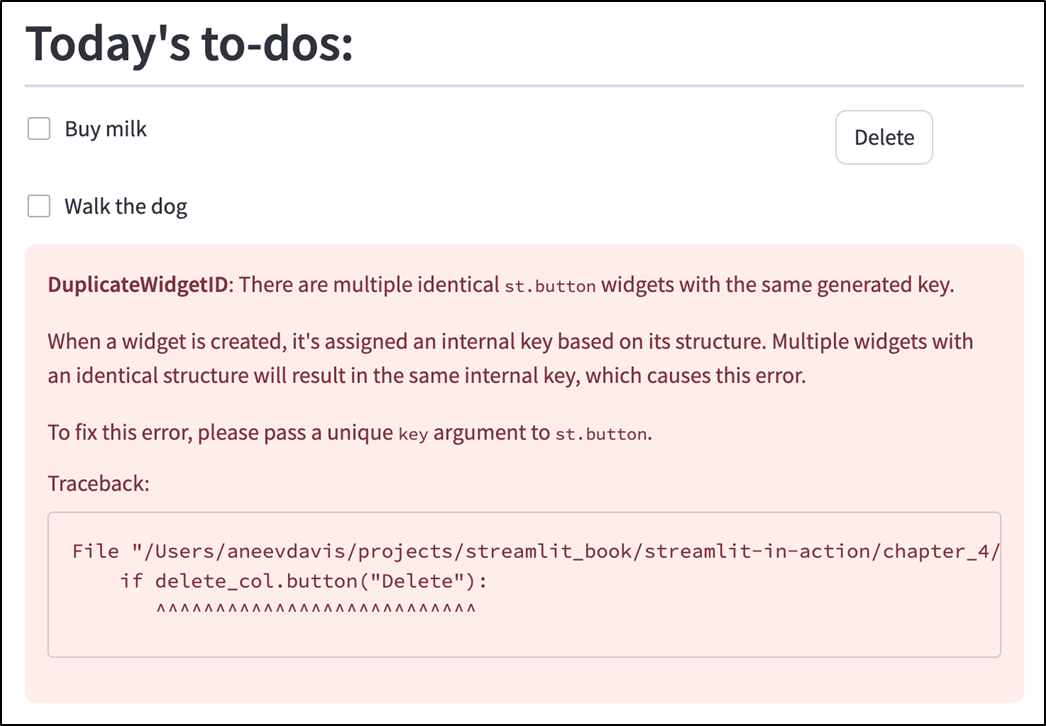
Streamlit throws an error when there are multiple identical widgets.
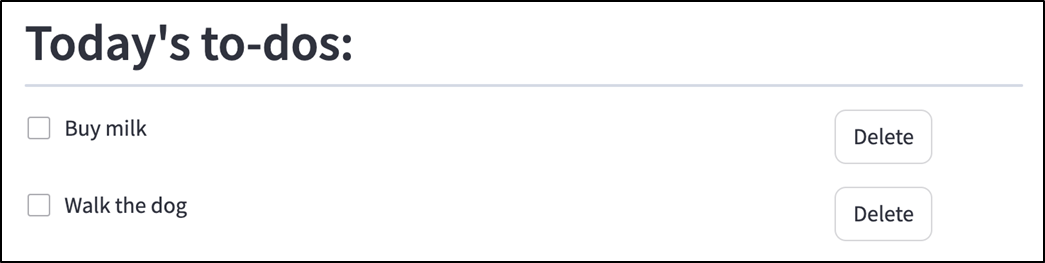
Passing a unique key to each button allows Streamlit to distinguish between otherwise identical buttons
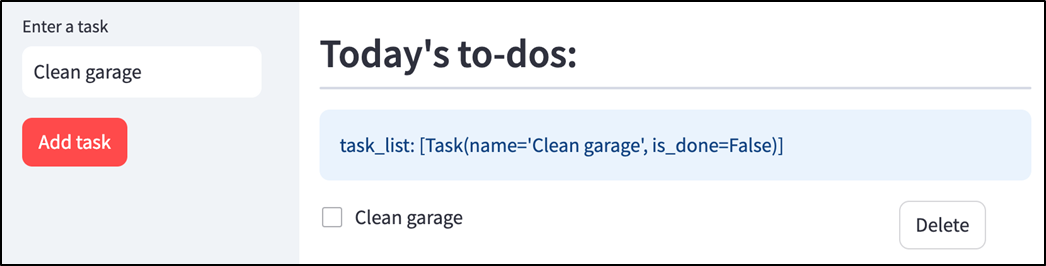
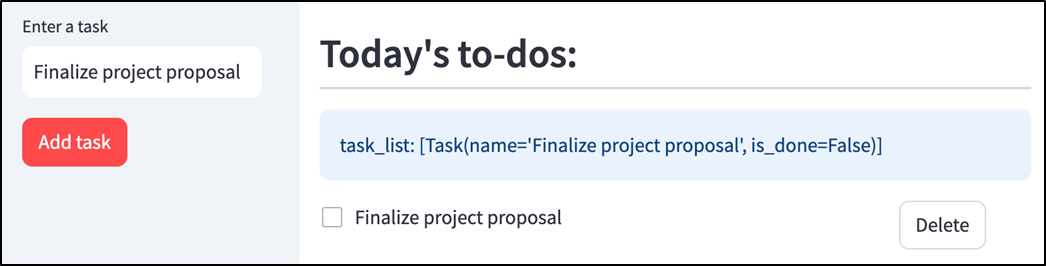
To-do list app with one to-do added.

When a new task is added, the old one disappears

Clicking "Delete" removes the task even though we didn't hook it up to anything.

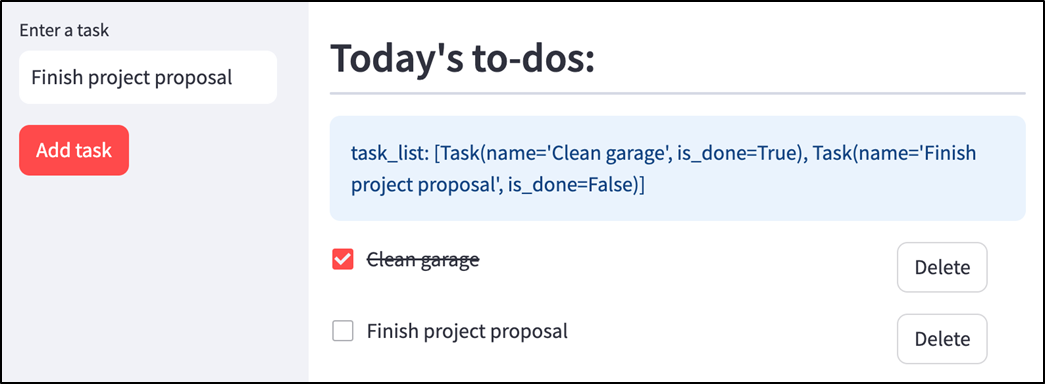
task_list contains a single Task instance
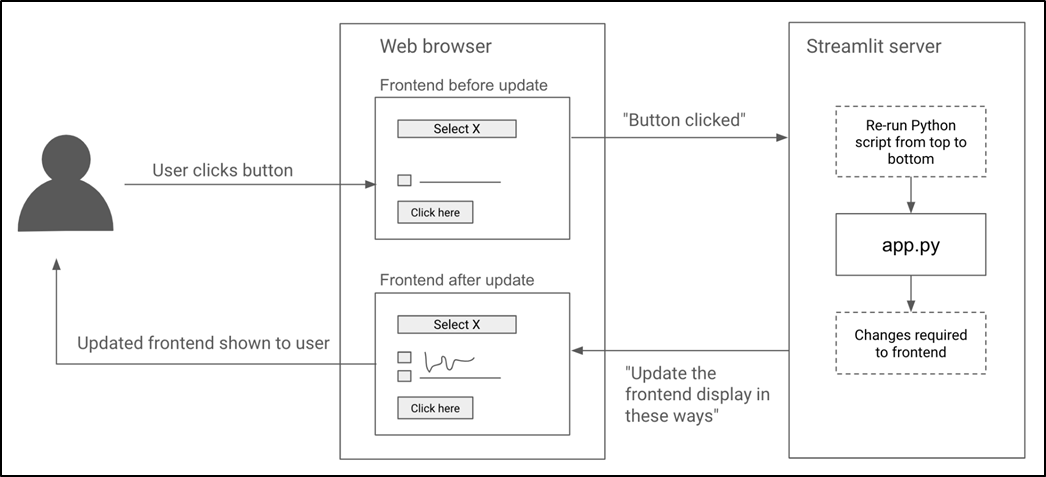
Every time the user interacts with the app, the Python script is re-run
When the user clicks "Add task,” st.button evaluates to True and task_list has a task.
When the user adds a different task, st.button evaluates to True again, and "Finalize project proposal" is added to task_list, which was empty at the start.
st.session_state can be used to save and retrieve values between re-runs
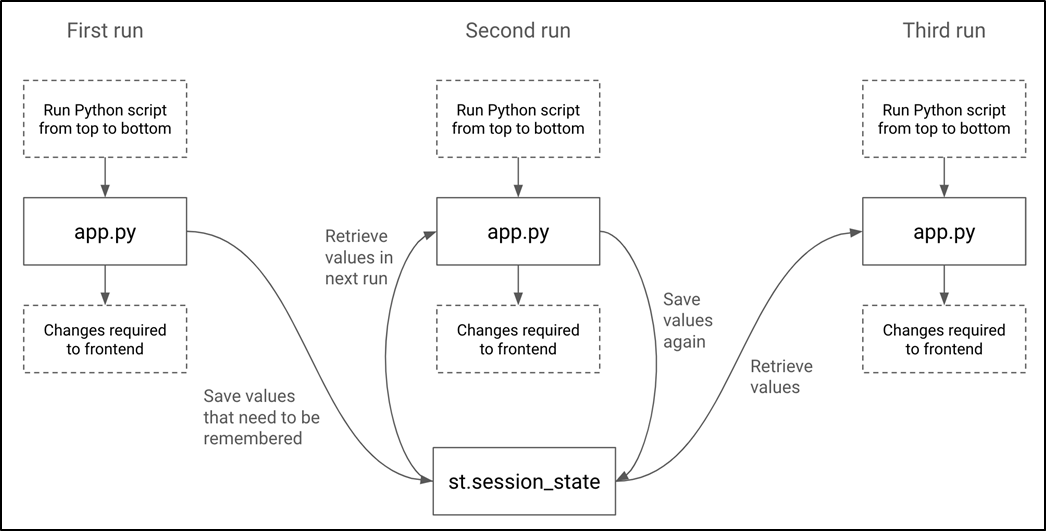
A toy Streamlit app using st.session_state to keep track of and increment a number

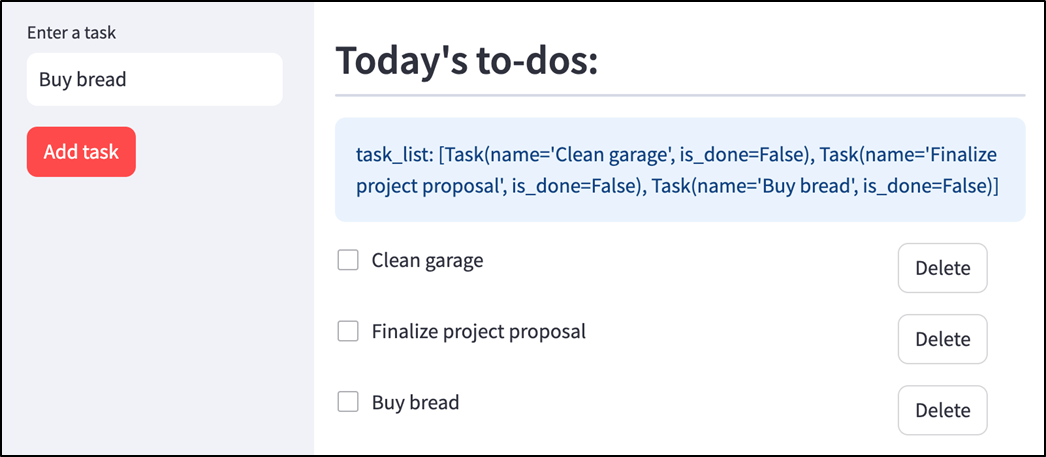
With st.session_state, Streamlit remembers our old tasks
Step-by-step app execution: the delete button evaluates to True in the second run, but the task and button are displayed before delete_task is called.
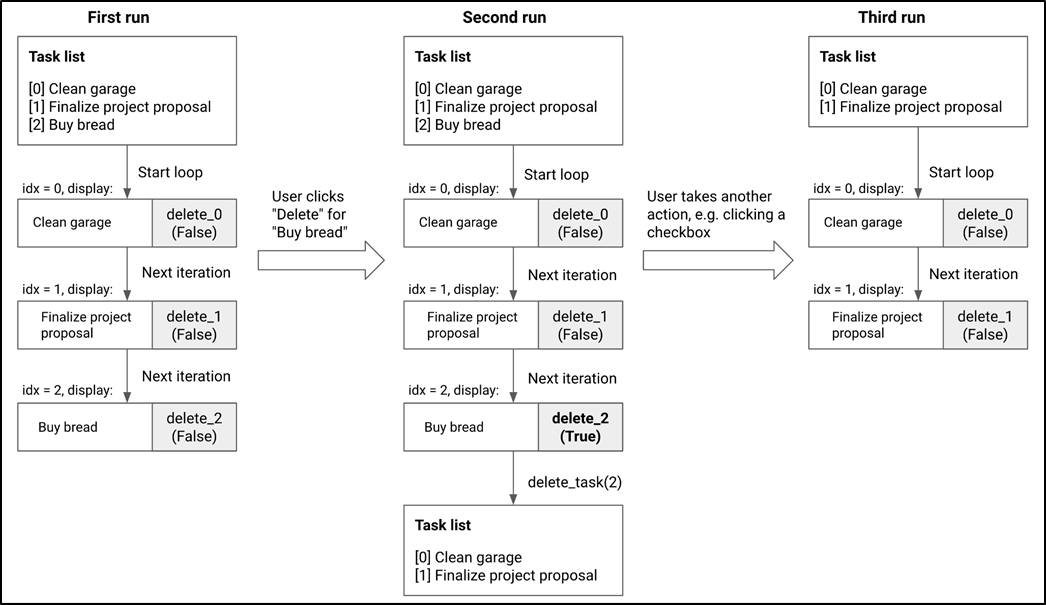
Pressing "Delete" works as expected with st.rerun
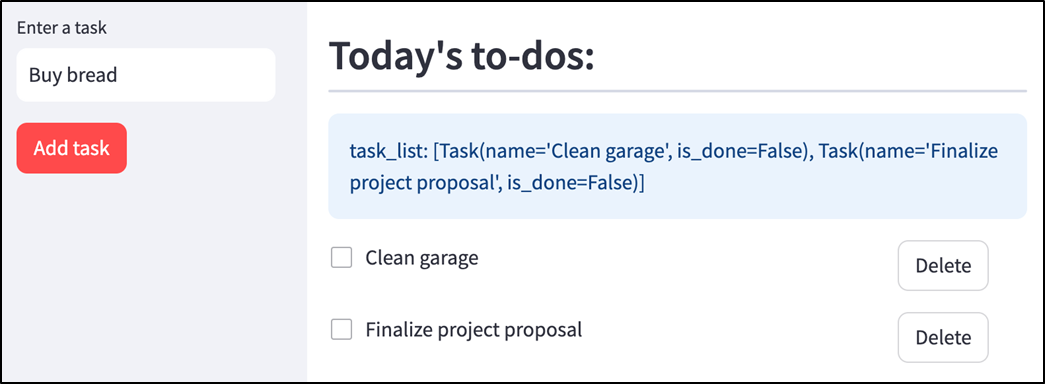
Checking a task doesn't immediately work as expected
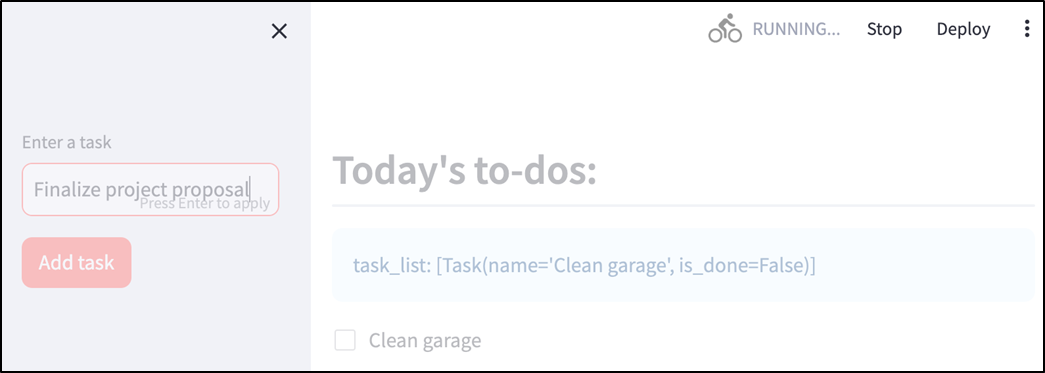
Our app hangs and never stops loading
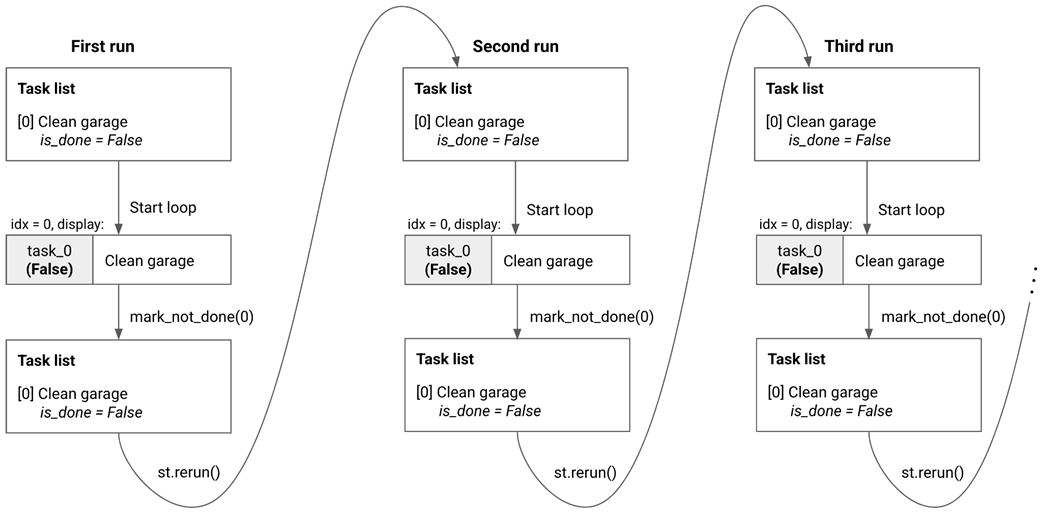
Step-by-step app execution: A chain of st.reruns leads to an infinite loop.
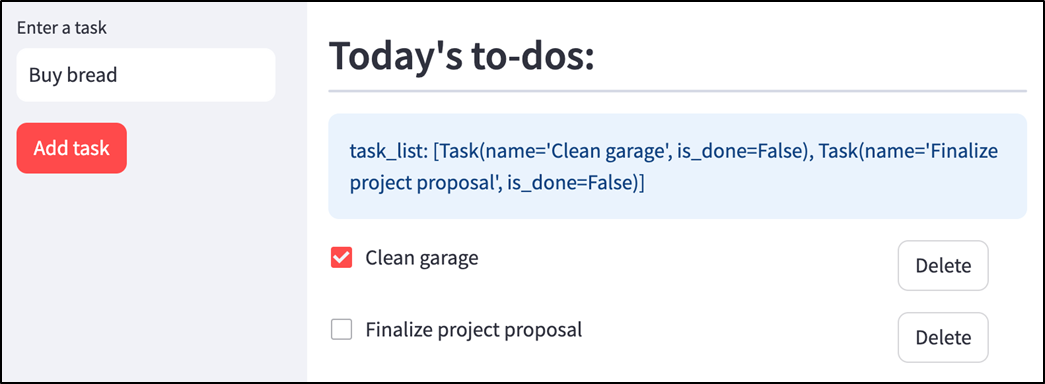
Our checkboxes now work as expected
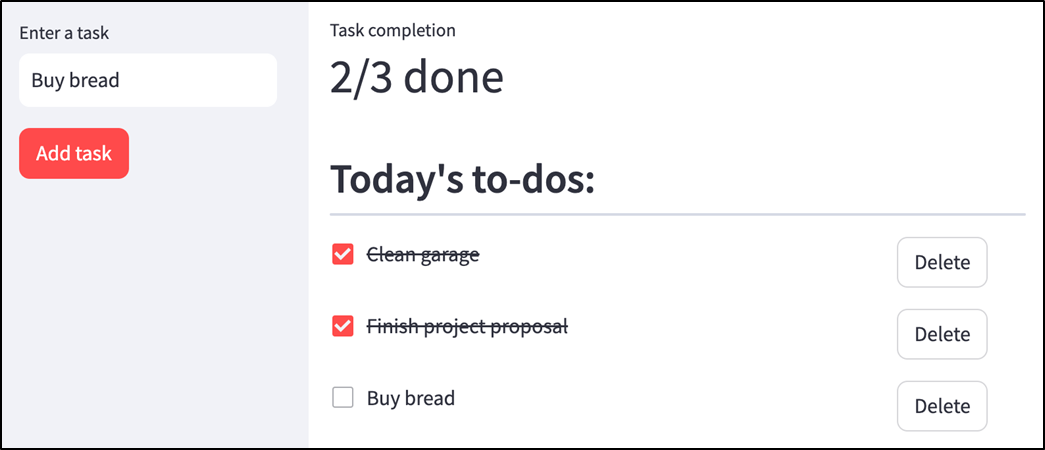
The final to-do list app
Summary
- The development process is not smooth; much of your time will be spent troubleshooting things that don't work as expected.
- st.header is used to display headings in a large font.
- Streamlit identifies UI widgets using a unique widget key based on their characteristics.
- When two widgets are identical in every respect, you must manually specify a widget key to enable Streamlit to tell them apart.
- A good way to keep track of the values of variables as the app executes is to display them on the app's screen using st.info.
- Whenever the page needs to change, the Streamlit server re-runs your Python code from top to bottom.
- Re-runs reset all the regular variables in your app.
- st.session_state stores variables that you want Streamlit to remember between re-runs.
- It's a good idea to step through the app's execution when you see unexpected results.
- You can trigger a re-run of your app using st.rerun.
- If you don't provide a path for your script to exit while using st.rerun, your app may end up in an infinite re-run loop.
FAQ
What is Streamlit’s execution model?
Streamlit runs your Python script from top to bottom to produce the app’s frontend. Whenever the page needs to change—such as when a user clicks a button, checks a checkbox, changes a text input, selects from a dropdown, or moves a slider—Streamlit reruns the entire script.
Why did the to-do list lose previously added tasks?
The original app stored tasks in a regular Python variable:
task_list = []Because Streamlit reruns the whole script after each interaction, this line reset task_list to an empty list every time. As a result, previously added tasks disappeared when the user added another task, clicked a checkbox, or clicked a button.
What is st.session_state used for?
st.session_state stores values that should persist across Streamlit reruns during a user’s session. It acts much like a dictionary and is useful for remembering app state, such as a task list, a counter value, or user selections.
Example:
if "task_list" not in st.session_state:
    st.session_state.task_list = []

task_list = st.session_state.task_list
Why do we check whether a key already exists in st.session_state before initializing it?
If you set a session state value unconditionally on every run, you will overwrite the saved value each time the app reruns. The check ensures initialization happens only once, usually on the first run of the session.
if "number" not in st.session_state:
    st.session_state.number = 0
Without this check, number would be reset to 0 every time the app reran.
How is a task represented in the chapter’s to-do list app?
Each task is represented using a Python dataclass with two fields: a task name and a completion status.
from dataclasses import dataclass

@dataclass
class Task:
    name: str
    is_done: bool = False
The name field stores the task text, and is_done stores whether the task has been completed. It defaults to False.
Why do Streamlit widgets sometimes need unique keys?
Streamlit uses widget keys to identify widgets such as buttons, checkboxes, and text inputs. If multiple widgets have the same label or otherwise appear identical, Streamlit may generate duplicate internal keys and raise an error.
For example, multiple “Delete” buttons need unique keys:
if delete_col.button("Delete", key=f"delete_{idx}"):
    delete_task(idx)
Similarly, checkboxes can use keys like task_0, task_1, and so on, so duplicate task names do not cause widget-key conflicts.
What does st.rerun() do?
st.rerun() tells Streamlit to stop the current script run and immediately start again from the top. It is useful when app state has changed after some display logic has already run, and you need the UI to reflect the updated state right away.
if delete_col.button("Delete", key=f"delete_{idx}"):
    delete_task(idx)
    st.rerun()
Why did deleting a task appear to lag until another user action happened?
The delete button was inside the loop that displayed tasks. When the user clicked “Delete,” Streamlit reran the script and displayed the task before the deletion function was called. The task list was updated, but the UI had already been rendered using the old list.
Calling st.rerun() immediately after deleting the task fixed the lag by forcing Streamlit to rerun the script and render the updated task list.
How can an infinite rerun loop happen in Streamlit?
An infinite rerun loop can happen when st.rerun() is called every time the script runs, even when no state change is needed. In the chapter, this occurred when checkbox logic called st.rerun() in both the checked and unchecked branches.
The fix was to call st.rerun() only when the checkbox value actually changed the task’s stored status:
checked = task_col.checkbox(label, task.is_done, key=f"task_{idx}")

if checked and not task.is_done:
    mark_done(task)
    st.rerun()
elif not checked and task.is_done:
    mark_not_done(task)
    st.rerun()
How does the final app show completed tasks and overall progress?
Completed tasks are displayed with a markdown strikethrough by wrapping the task name in double tildes when task.is_done is True:
label = f"~~{task.name}~~" if task.is_done else task.nameThe app also uses st.metric to show completion progress:
total_tasks = len(task_list)
completed_tasks = sum(1 for task in task_list if task.is_done)
metric_display = f"{completed_tasks}/{total_tasks} done"

st.metric("Task completion", metric_display, delta=None)
 Build Python Web Apps with Streamlit ebook for free
