3 Taking an app from concept to code
The text presents app development as a process that begins well before writing code. It emphasizes that planning, requirements, design, implementation, and iteration all contribute to building useful Streamlit applications. Using a unit converter as the example, it introduces a six-step workflow: state the concept, define requirements, visualize the user experience, brainstorm the implementation, write code, and refine the result based on testing and feedback.
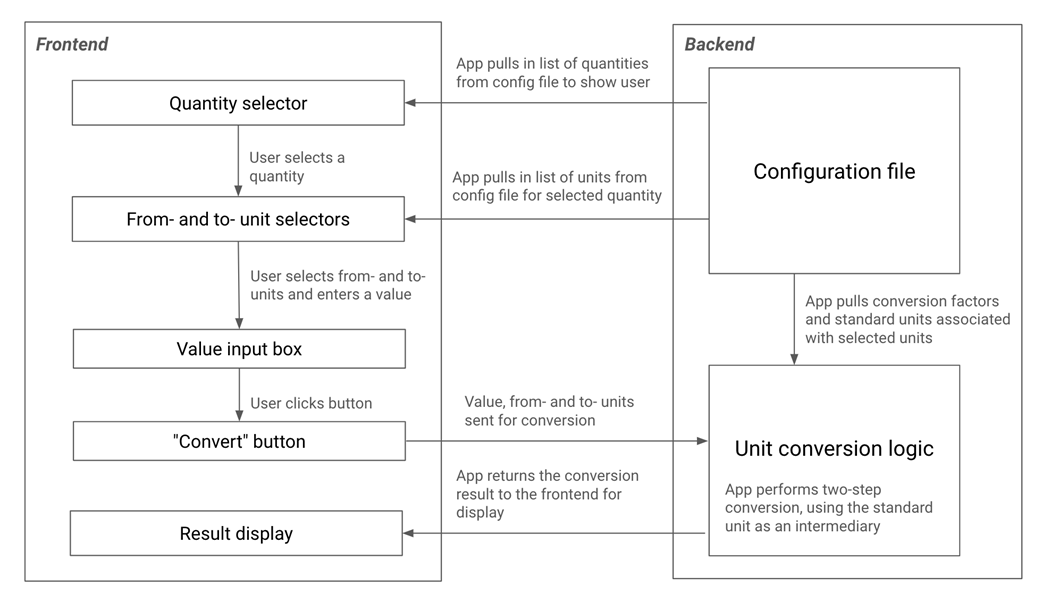
The example app is scoped carefully: users should be able to enter a numeric value, choose compatible source and target units, and see the converted result, while unrelated features such as logging, visualizations, or currency conversion are excluded. The design starts from the user experience, with a simple interface containing a quantity selector, value input, unit dropdowns, and output display. The implementation is then planned around a frontend for interaction, a backend for conversion logic, and a configuration structure that stores supported quantities, units, abbreviations, and conversion factors in a maintainable way.
The coding portion builds the Streamlit interface with widgets such as radio buttons, sidebars, text inputs, select boxes, columns, buttons, metrics, number inputs, and checkboxes. The backend is organized into modules and dataclasses for units, quantities, and conversion results, with a small API that lets the frontend list quantities, list units, and convert values. Finally, the app is improved through iteration: results are formatted with commas and optional rounding, the rounding controls are shown only when needed, and the convert button is removed so conversions update immediately, producing a smoother user experience.
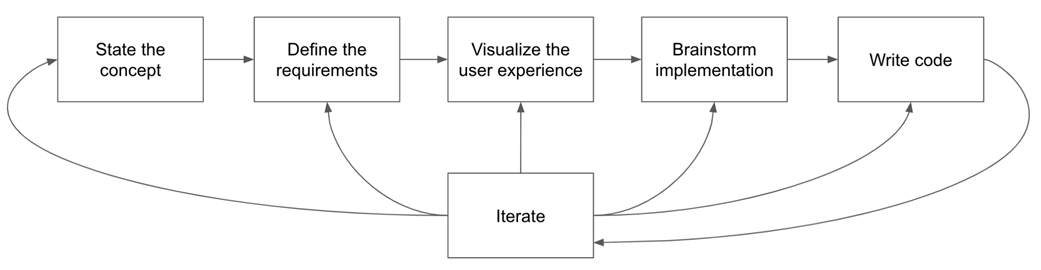
The six-stage app development flow
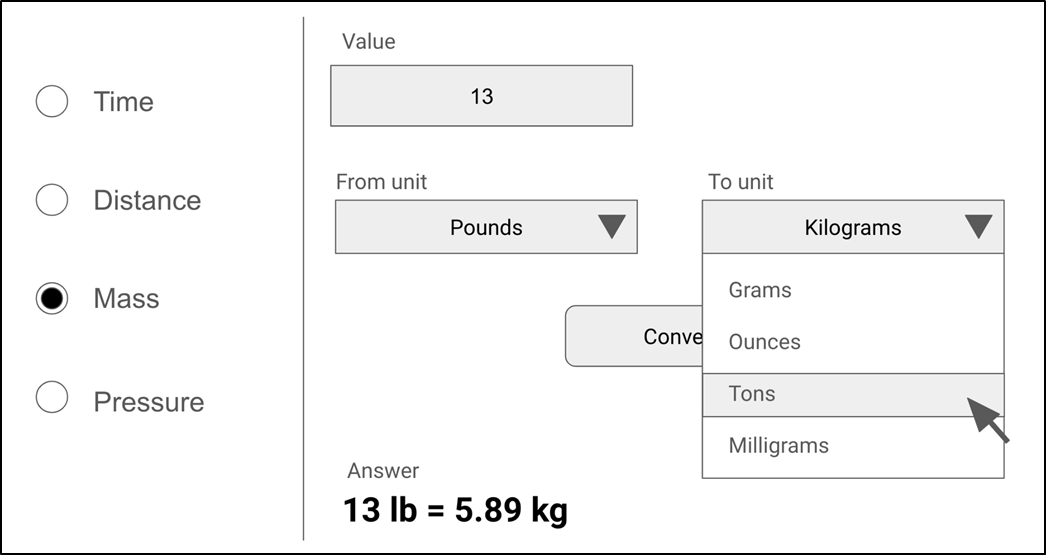
A mock-up of the unit conversion app.
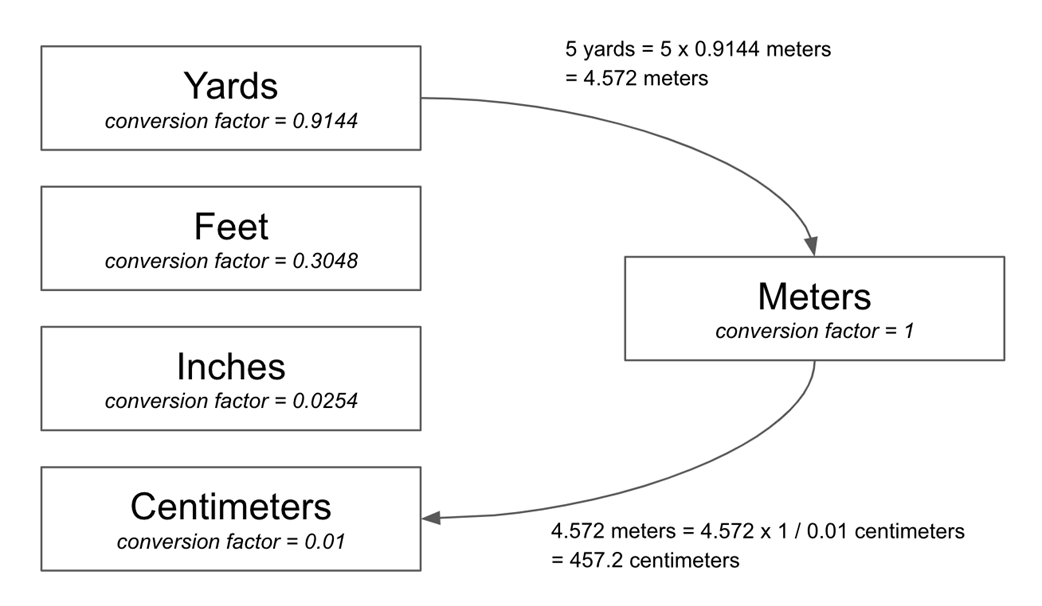
Converting from yards to centimeters using meters as a standard intermediate unit.
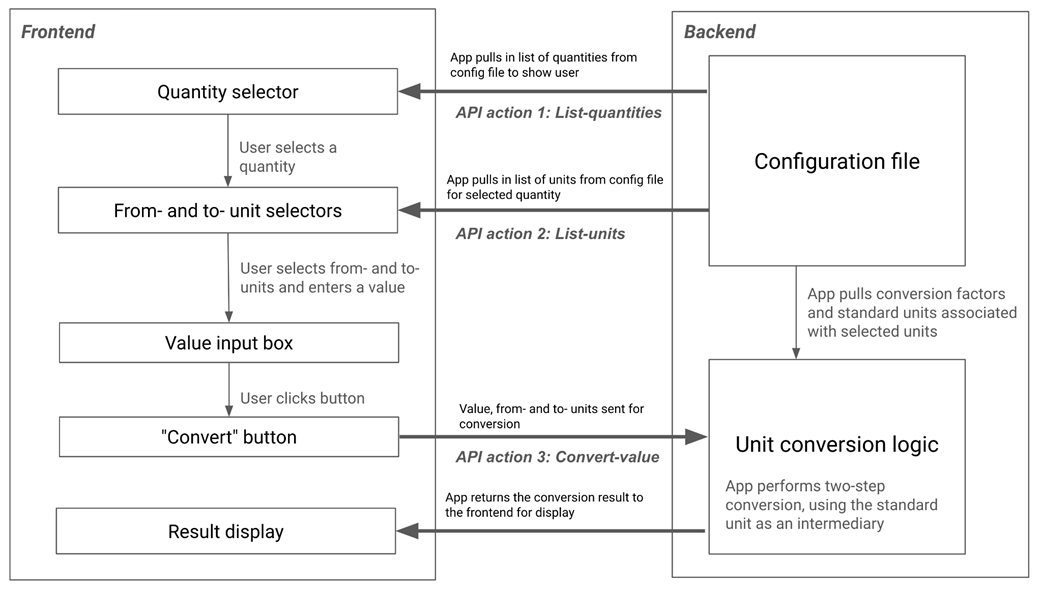
Overall design and logic flow for our unit conversion app.
Quantity selector radio buttons from our mocks
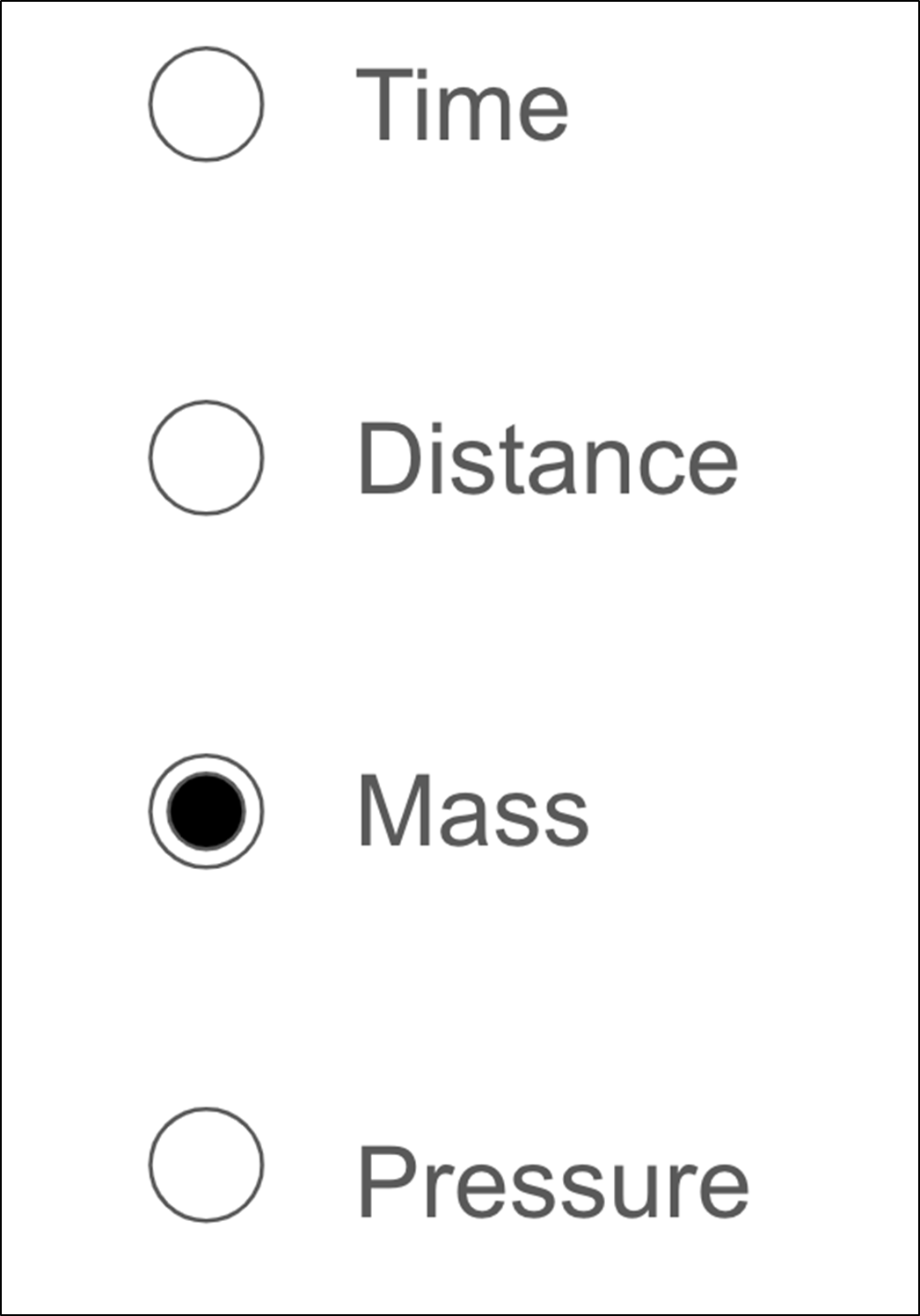
The UI visualization for our unit converter app for reference
An example output for st.radio

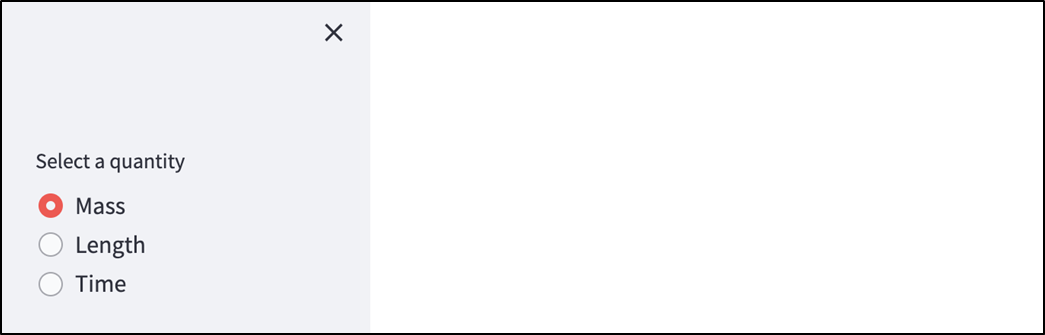
st.sidebar in action with a set of radio buttons inside.
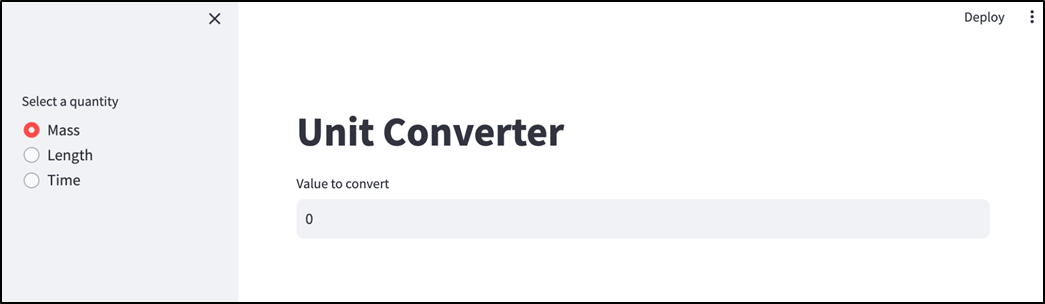
Unit Converter app after adding a title and text input.
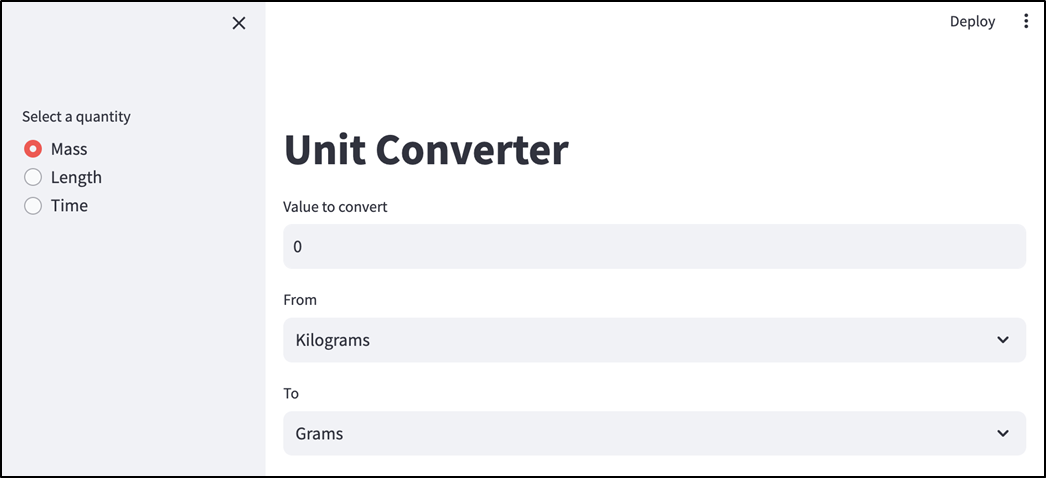
Unit Converter app after adding from- and to-unit dropdowns.
Unit Converter app with side-by-side from- and to-unit dropdowns.
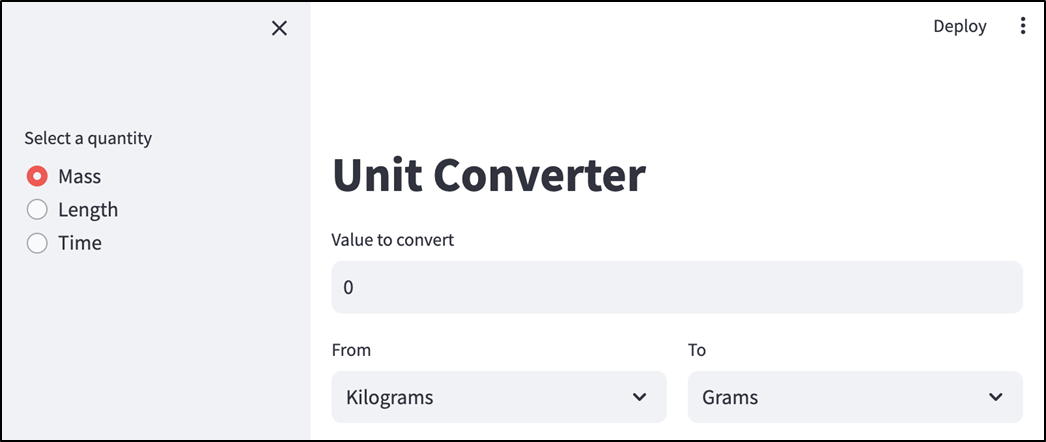
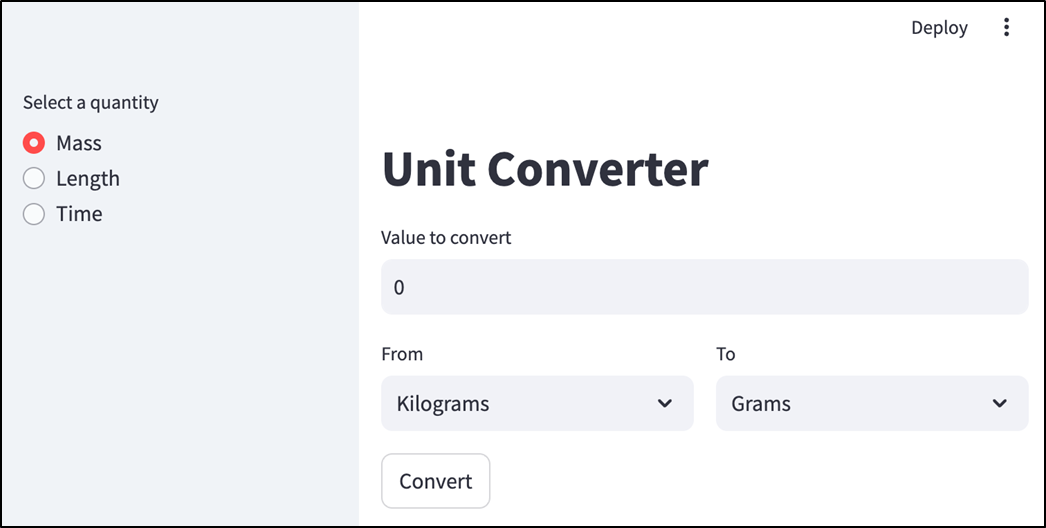
Unit converter app with a dummy frontend.
Flow diagram for our app with the API actions highlighted
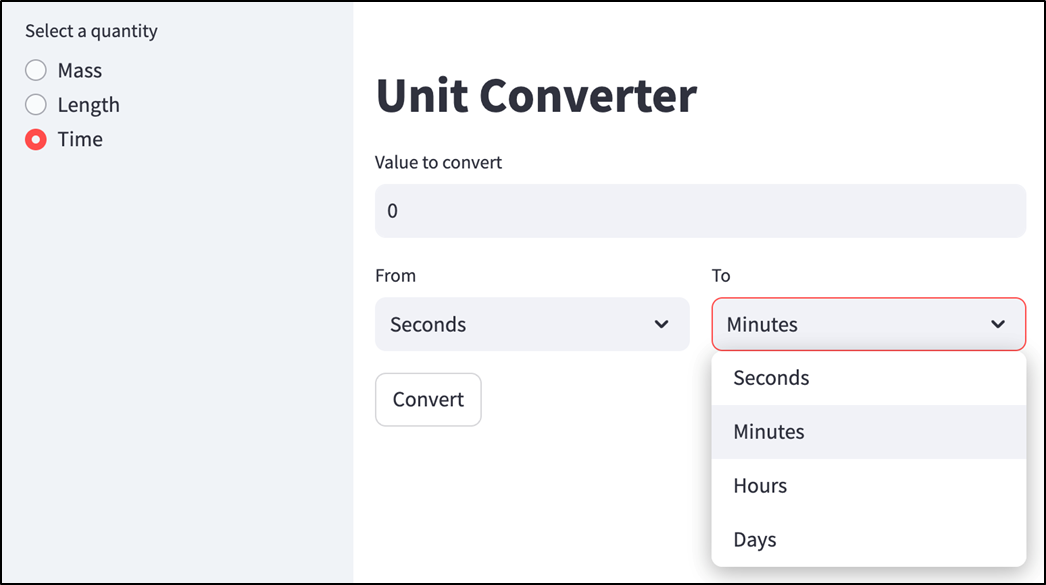
With the backend wired up, choosing a different quantity updates the unit dropdowns.
Our completed unit converter app.
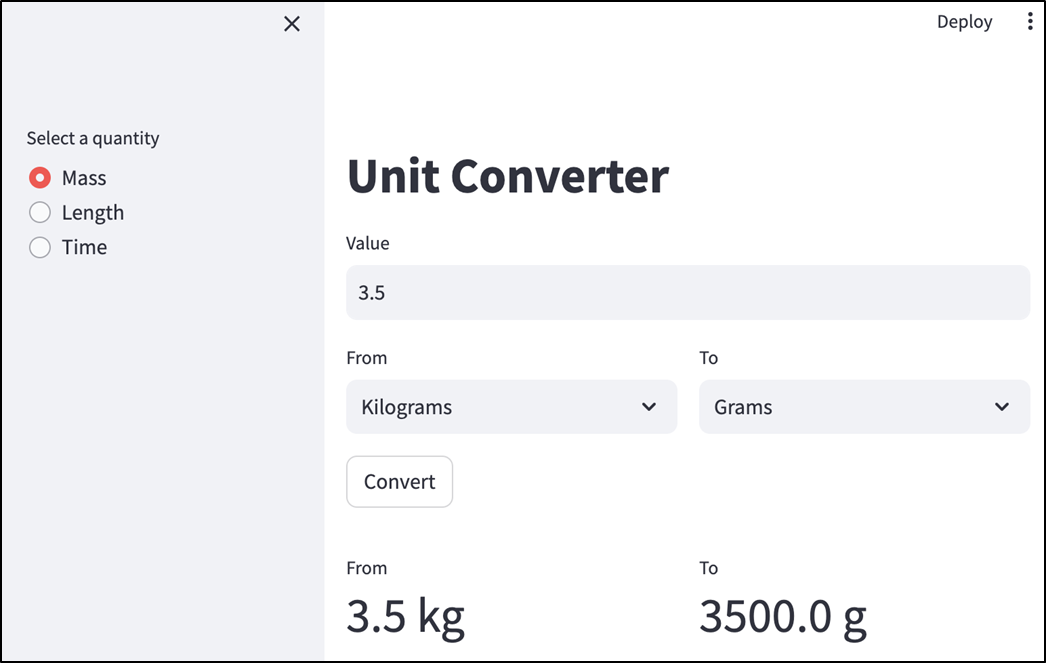
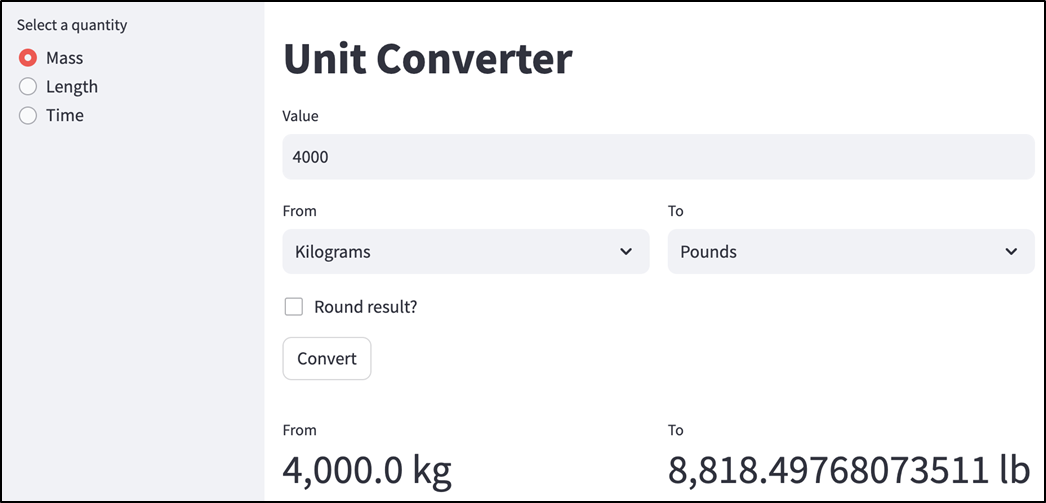
A metric-to-imperial conversion that shows why we should be rounding.
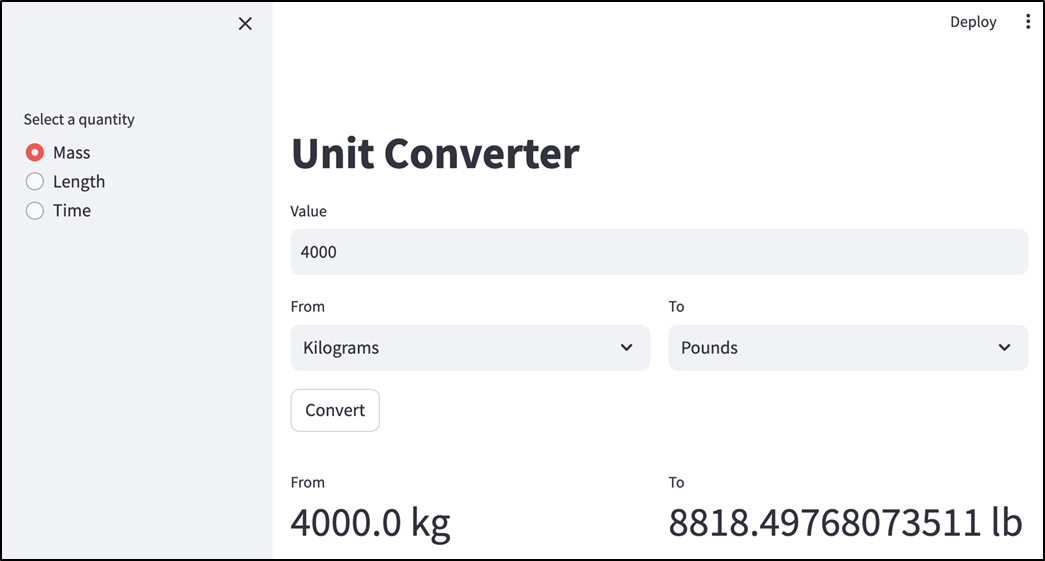
st.number_input

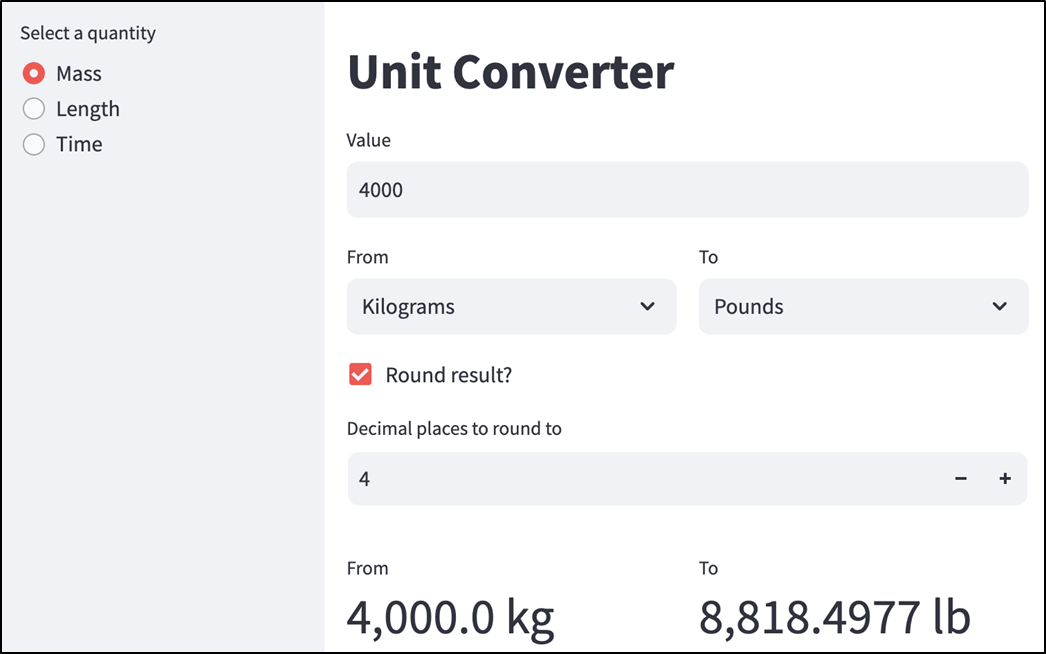
Unit converter app with a decimal places input.
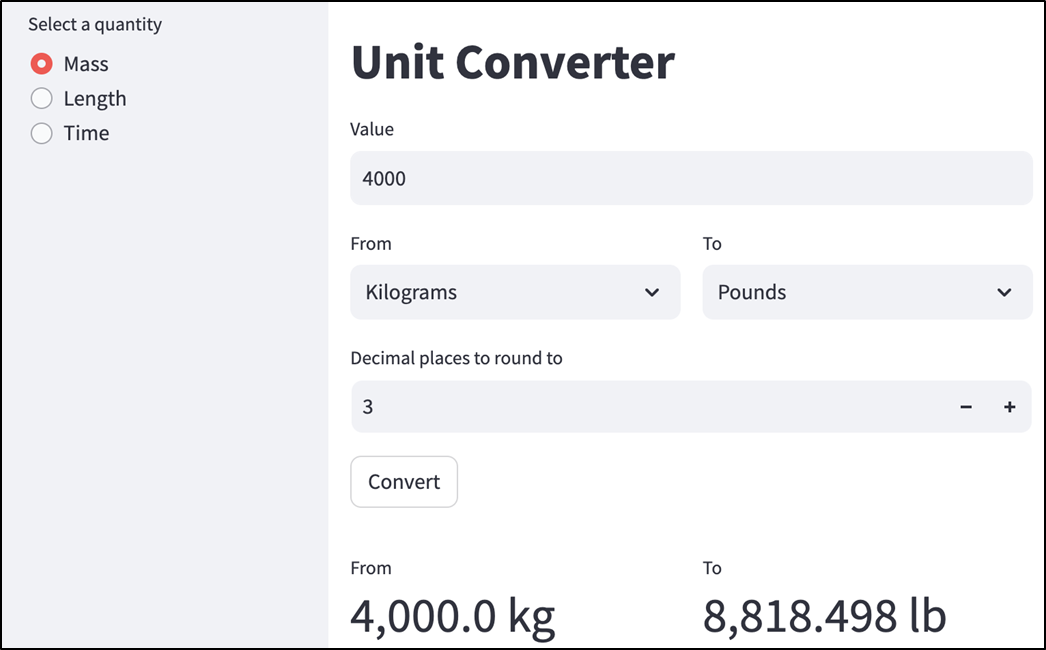
Unit converter app with rounding enabled.
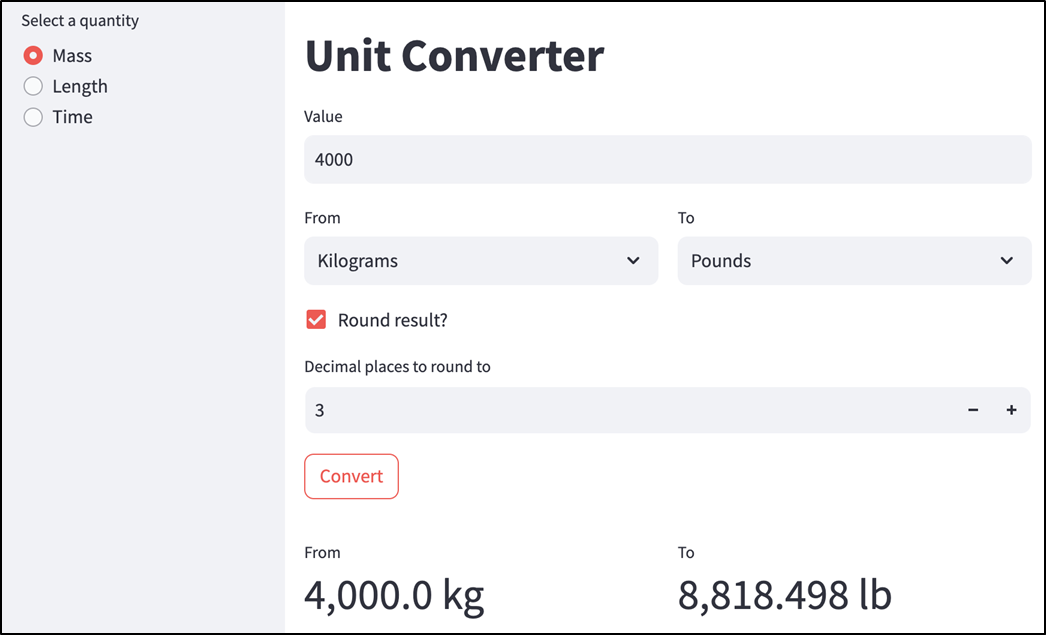
Unit converter app with rounding disabled.
Unit converter app with the "Convert" button removed.
Summary
- Building an app from a concept involves much more than writing code.
- The steps for creating a Streamlit app in the real world are: state the concept, define the requirements, visualize the user experience, brainstorm implementation, write code, and iterate.
- Requirements can come from your users or non-user stakeholders.
- It's a good idea to visualize the user experience at the start by sketching mocks so you have something to work towards. Brainstorming the implementation involves analyzing tradeoffs and mapping the flow of logic.
- Separating your frontend and backend code and defining an API for the two to interact is a great way to organize your app.
- st.text_input and st.number_input allow users to input text and numeric values.
- st.radio and st.selectbox let users select a value from a list.
- st.sidebar and st.columns are layout elements that let you break the natural top-to-bottom way that Streamlit renders UI elements.
- st.button and st.checkbox are both conditional elements.
FAQ
What is the six-step process for taking a Streamlit app from concept to code?
The chapter recommends breaking app development into six stages:
- State the concept: Describe the problem or app idea succinctly.
- Define the requirements: Decide what the app must do and what it will not do.
- Visualize the user experience: Sketch or mock up how users will interact with the app.
- Brainstorm implementation: Identify frontend, backend, configuration, and logic flow.
- Write code: Implement the app.
- Iterate: Test, refine, and improve the app based on use and feedback.
Why should I define requirements before writing Streamlit code?
Requirements turn a high-level concept into concrete goals. They describe what stakeholders need the app to do, such as accepting a numeric value, selecting compatible units, and displaying the converted result. Good requirements avoid implementation details like specific widgets or technologies, keeping the focus on user and stakeholder needs rather than on how the solution will be built.
What was the example app built in this chapter?
The chapter builds a unit converter app. Its concept is a Streamlit app that lets users effortlessly convert between units of measurement such as distance, mass, and time. The app supports conversions within systems, such as meters to centimeters, and across systems, such as feet to meters.
Why is it important to define what an app will not do?
Defining what is out of scope prevents misunderstandings and keeps the project manageable. For the unit converter, features like usage tracking, logging, visualizations, and currency conversions were excluded. Currency conversions were considered out of scope because exchange rates change frequently and would require an external data source or API.
Why does the chapter recommend working backward from the user experience?
Working backward from the user experience keeps the user’s needs central to the design. By sketching the UI first, you can identify what inputs, outputs, and interactions the app needs before worrying about code. In the unit converter, the mock UI included a quantity selector, a numeric input, from-unit and to-unit dropdowns, and an area to display the conversion result.
How does the unit converter avoid storing conversion factors for every possible unit pair?
Instead of storing a conversion factor for every pair of units, the app chooses one standard unit for each quantity. For example, meters can be the standard unit for length. To convert from unit X to unit Y, the app first converts X to the standard unit, then converts the standard unit to Y. This means the app only needs to store one conversion factor per unit.
Why does the app use a configuration file for units and quantities?
The configuration file keeps all supported quantities, units, abbreviations, and conversion factors in one obvious place. This makes the app easier to maintain. To add a new unit, the developer only needs to add an entry to the configuration instead of searching through UI or backend code. The rest of the app reads from the configuration instead of hard-coding specific units like meters, pounds, or seconds.
What Streamlit widgets are introduced in this chapter?
The chapter introduces several common Streamlit widgets and layout tools:
st.radiofor selecting one option from a listst.sidebarfor placing controls in a left-side panelst.titlefor displaying the app titlest.text_inputfor collecting a text valuest.selectboxfor dropdown menusst.columnsfor side-by-side layoutst.buttonfor triggering an actionst.metricfor displaying important numeric outputst.number_inputfor numeric inputs with bounds and step controlsst.checkboxfor optional user choices
What is the backend API for the unit converter app?
The backend exposes three main actions to the frontend:
- List quantities: Return the supported quantity names, such as Mass, Length, and Time.
- List units: Given a quantity, return the units available for that quantity.
- Convert value: Given a quantity, from-unit, to-unit, and value, return the converted result.
This separation keeps the frontend focused on user interaction and the backend focused on conversion logic.
Why was the Convert button removed in the final version of the app?
The Convert button was removed to make the app feel more immediate and intuitive. Since Streamlit reruns the script when inputs change, the app can always display the current conversion result based on the selected quantity, units, value, and rounding options. This eliminates an unnecessary click and lets users see updated results instantly.

 Build Python Web Apps with Streamlit ebook for free
