7 Templating your content with HTML
This chapter reframes how to build Web Components with an HTML-first mindset. It revisits the early, now-deprecated HTML Imports approach—once used to bring HTML, CSS, and component logic in through imported documents—and uses it to motivate modern practices. While HTML Imports survive only behind a polyfill, their core idea endures: define markup and styles in HTML, then programmatically stamp them into custom elements at runtime, a pattern now centered on the template tag.
The heart of the chapter is the pairing of the <template> element and document fragments. Templates hold inert DOM that doesn’t render until you access template.content (a DocumentFragment), clone it, and append it to the live DOM—preferably via cloneNode(true) so the original remains reusable. The chapter demonstrates using templates to drive entire component layouts (for example, swapping designs via an observed “layout” attribute and attributeChangedCallback), keeping templates in index.html or loading them on demand from separate files, and organizing them inside the component. When templates live within a component, classes are used instead of IDs to avoid page-wide uniqueness conflicts, and stable containers are separated from swappable content for clean updates.
To inject dynamic values without rewriting HTML, the chapter introduces the Shadow DOM and slots. By attaching a shadow root, components get an encapsulated DOM, and named <slot> elements act as placeholders that accept external content (with sensible defaults), enabling fine-grained projection like firstname, title, phone, and more; unnamed slots support simple, single-target cases. Because outer innerHTML doesn’t penetrate the Shadow DOM, slots become the deliberate entry points for consumer-provided content. Combined, templates provide reusable structure and styling while slots supply flexible data, yielding maintainable, performance-friendly, and framework-agnostic Web Components.
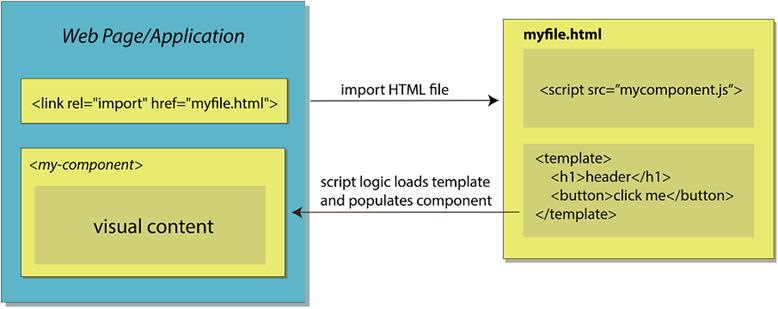
HTML Imports allow Web Components to be loaded via an HTML file
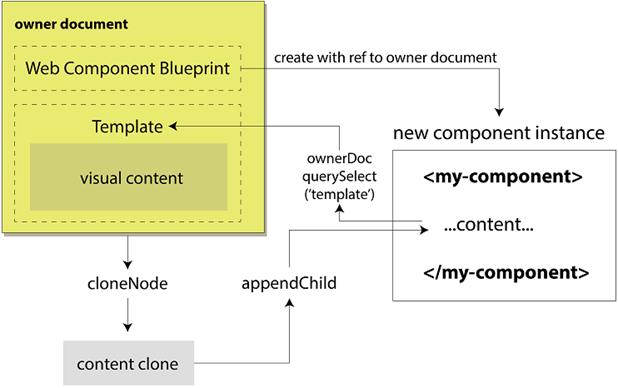
A typical HTML Import flow. The owner document contains our Web Component definition and a template of the desired HTML/CSS. The component is responsible for cloning this template and inserting the clone as its content.
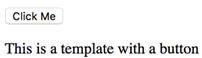
Output from our simple HTML Import-driven component
Inspecting the template tag in Chrome

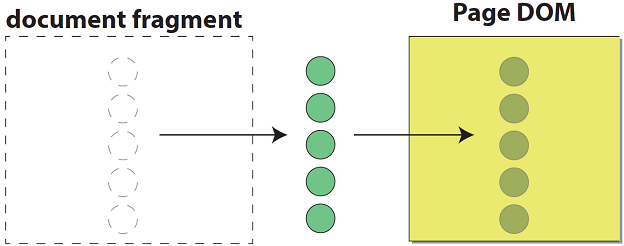
Adding elements to the DOM via a document fragment
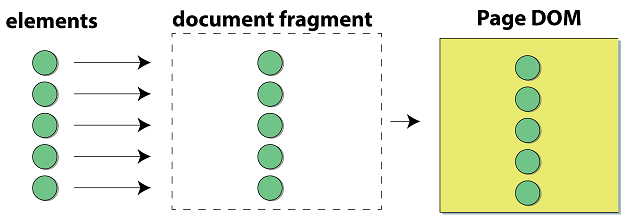
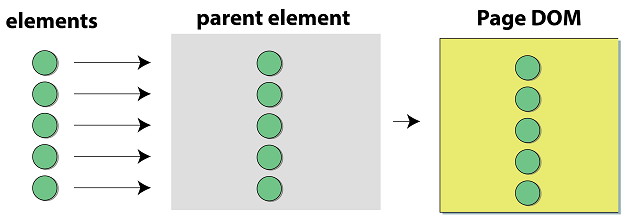
Adding elements to a parent element before adding to the page DOM
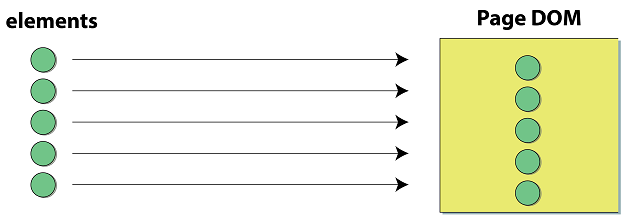
Adding elements one by one to the page DOM, with the unfortunate effect of re-rendering the DOM each time
One of our sample templates added to the browser
Appending to the page’s DOM from a document fragment within a template means that these elements are actually moving out of the template/fragment.
Three different business card layouts (starting with a blank one)
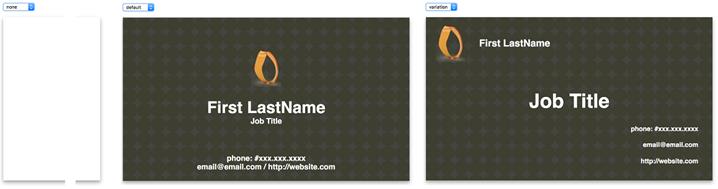
Template-driven business card creator
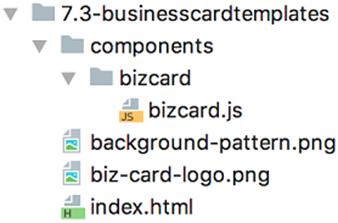
Starting with an empty/blank card layout

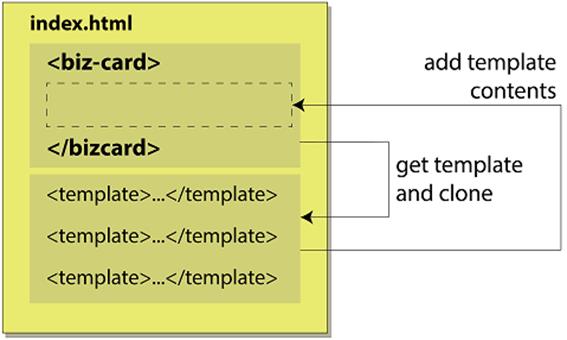
Component reaching out to HTML page and getting template by ID
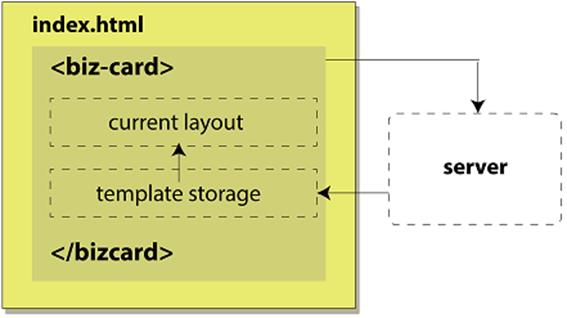
Reaching out to a server to fetch templates for our Web Component
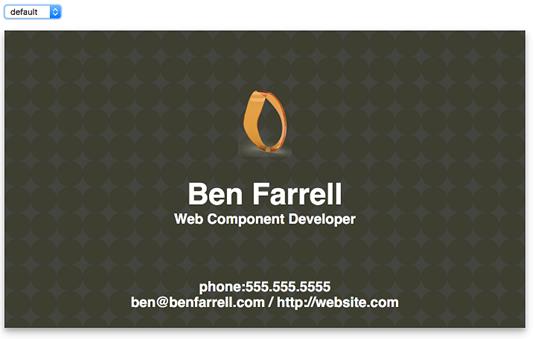
Business card using a templated layout and slots to insert custom values
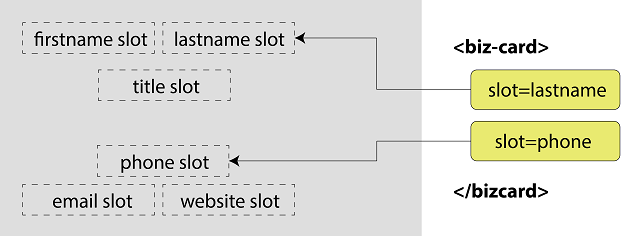
Using named slots as placeholders in the business card Web Component
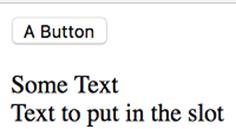
Browser screen to complement listing 7.17 using unnamed slots
Summary
Whether you plan to use templates or not, it’s great to have one more tool in our toolbelts. I’ve personally had some great experiences using template literals to hold HTML/CSS in my JS, as we’ve discussed in previous chapters, but not every situation is the same. This business card creator is a great example of where templates can really help, especially when we want to create loads of interchangeable templates and not force front-enders on our team who might not know JS that well to help us out.
In this chapter, you learned
- How to work with HTML Imports despite them not being on a standards track anymore, along with a breakdown of how they work, which can be relevant to modern Web Component development
- A full explanation of the <template> tag, how you’ll get repeated use from these tages when cloning their contents first, and how document fragments are the main driver behind them
- How to use templates with a hands-on example in which we completely swap out HTML and CSS to introduce brand new layouts and style in the same component, loaded from either the index.html page or remotely via a server
- Replacing specific and multiple placeholder contents in the same component with the named <slot> tag, or a single placeholder in the <slot> tag, but without using names
FAQ
What does the HTML template tag do, and why doesn’t its content render immediately?
The template tag stores inert markup in a DocumentFragment (accessible viatemplate.content). Its contents are not rendered until you clone or move them into the live DOM. This lets you define reusable HTML/CSS snippets without affecting the page until you need them.How do I use a template’s content multiple times?
Always clone the fragment before appending:const clone = template.content.cloneNode(true); parent.appendChild(clone);. Cloning preserves the original so you can reuse it. Appending template.content directly moves its nodes, emptying the template after the first use.What is a DocumentFragment, and why is it useful?
A DocumentFragment is a lightweight container for DOM nodes that isn’t attached to the main document. You can build complex structures in it and append them in one operation, reducing reflow/repaint churn. When you append a fragment, its children move into the DOM and the fragment becomes empty.What happened to HTML Imports, and can I still try them?
HTML Imports were only ever implemented in Chrome and are now deprecated. You can experiment using the v1 polyfill (webcomponents/html-imports) plus patterns like HTMLImports.whenReady(...), but modern workflows favor ES modules + templates (and/or dynamic fetch) instead.In an HTML Import, how do I access the imported document (owner document)?
Use the polyfill API:const ownerDoc = HTMLImports.importForElement(document.currentScript);. Then query the template in that document, clone its content, and append it in connectedCallback after HTMLImports.whenReady(...).How can I switch a component’s layout using templates and attributes?
Watch an attribute (e.g.,layout) via observedAttributes and attributeChangedCallback, clear the current content, select the matching template, clone it, and append: const t = getTemplateFor(newValue); this.innerHTML = ''; this.appendChild(t.content.cloneNode(true));.Should my templates use IDs or classes?
Use IDs when templates live at the document level and are globally unique (e.g., in index.html). If you keep templates inside each component (to avoid global collisions), prefer classes and query within a component-scoped container (e.g.,this.templates.querySelector('template.' + layout)).How do I load templates from the network instead of hardcoding them in the page?
Fetch an external HTML file (e.g., viaXMLHttpRequest as shown, or fetch) in connectedCallback, set a hidden/container element’s innerHTML to the response, then select and clone the desired <template>. Example flow: request → this.templates.innerHTML = response → populateCard().What are slots, and how do named vs. unnamed slots work?
Slots are placeholders inside a component’s Shadow DOM where external (“light DOM”) content is projected. Named slots (<slot name="email">default</slot>) accept children with a matching slot attribute; unnamed slots (<slot>) accept all remaining nodes. If no matching content is provided, the slot’s default content is shown.Why do slots require the Shadow DOM, and what happens to innerHTML?
Projection via slots works only with a shadow root (attachShadow({ mode: 'open' })). With Shadow DOM, the element’s outer innerHTML doesn’t render directly inside the component; only nodes assigned to slots penetrate the boundary. This separation makes it clear what renders (shadow) vs. what is projected (slotted content).
 Web Components in Action ebook for free
