Google Assistant is presented as a major voice platform alongside Alexa, with “actions” (grouped into “apps”) extending its capabilities across smart speakers and Android devices. Unlike Alexa’s tight coupling to a single NLU, Assistant apps can use different NLU services, with Dialogflow recommended for most cases, while the Actions SDK supports custom or existing NLUs. The platform supports implicit invocation, allowing Google to route relevant user requests to an app without a named invocation, and provides developers access to the raw spoken utterance for analytics and custom processing. Building for Assistant also means considering multimodal use: voice-only and voice-plus-screen interactions.
The chapter walks through creating a Dialogflow-powered conversational app, emphasizing the separation between Assistant configuration and the NLU agent. In Dialogflow, an agent houses the interaction model built from intents, training phrases, and entities, with event-based matching (for launches) and a fallback intent for unmatched requests. Responses can be authored directly in Dialogflow, varied for naturalness, tailored per platform, and configured to end or continue the conversation, but should follow VUI best practices for brevity, clarity, and guidance. The example “Office Guide” app demonstrates crafting custom intents, curating training phrases for both spoken and typed input, and testing via the Assistant simulator while navigating the platform’s modular tooling.
To handle logic beyond static replies, the chapter introduces parameters and entities (akin to Alexa slots and types), including synonyms and automatic expansion for broader coverage, and shows how to surface parameter values in responses. It then adds fulfillment with Cloud Functions for Firebase and the Actions on Google library to register intent handlers, compose dynamic replies using extracted parameters, deploy the webhook, and switch Dialogflow intents to call the webhook. The end-to-end flow concludes with simulator testing, configuring implicit intents in the Assistant console, and setting a real invocation name, yielding a working Assistant app that cleanly separates NLU, fulfillment logic, and platform configuration.
Figure 9.1. Flow of data in a request when using Dialogflow
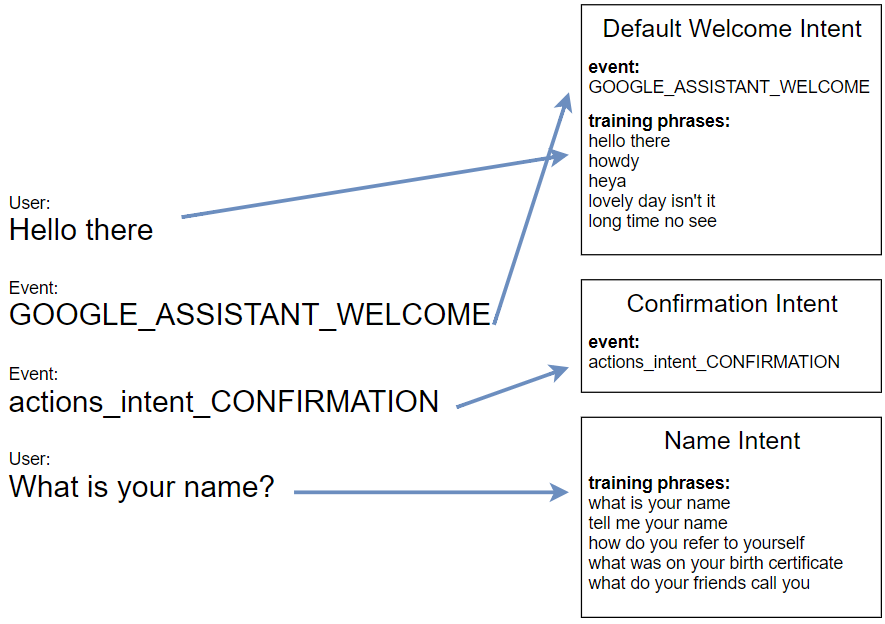
Figure 9.2. Intent matching on events and user utterances
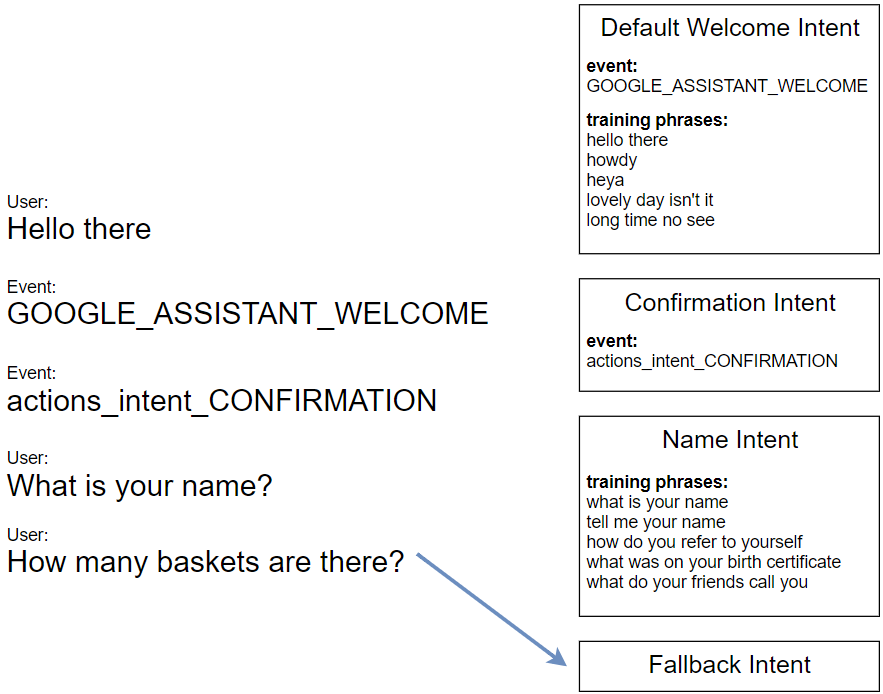
Figure 9.3. When Dialogflow can’t match, it send the request to the fallback intent
Figure 9.4. Dialogflow can be the terminus for requests, building the response itself
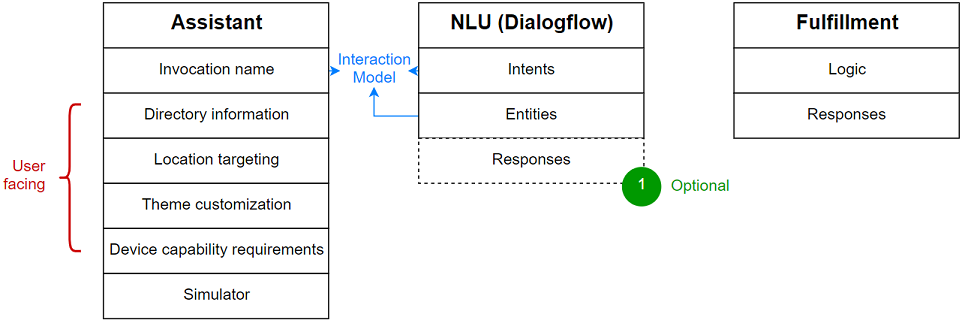
Figure 9.5. Google Assistant is a highly modular platform
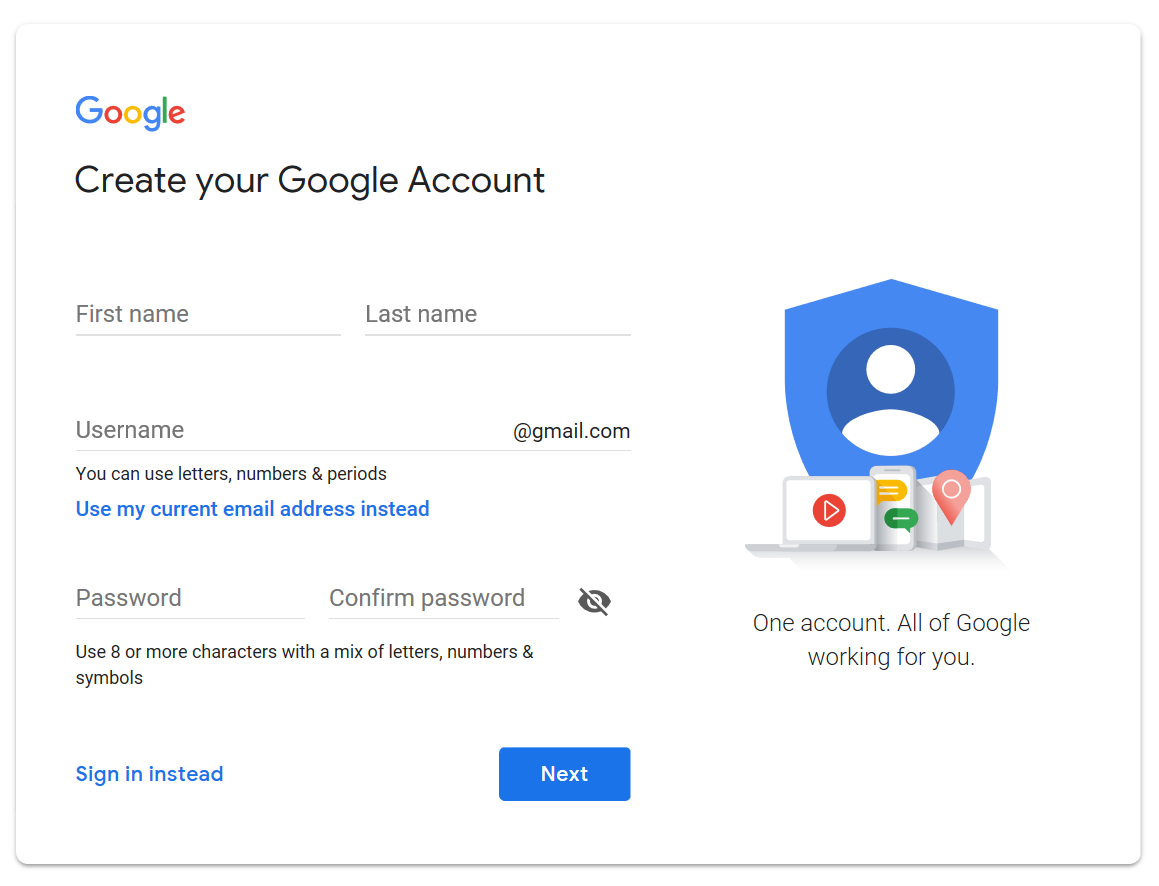
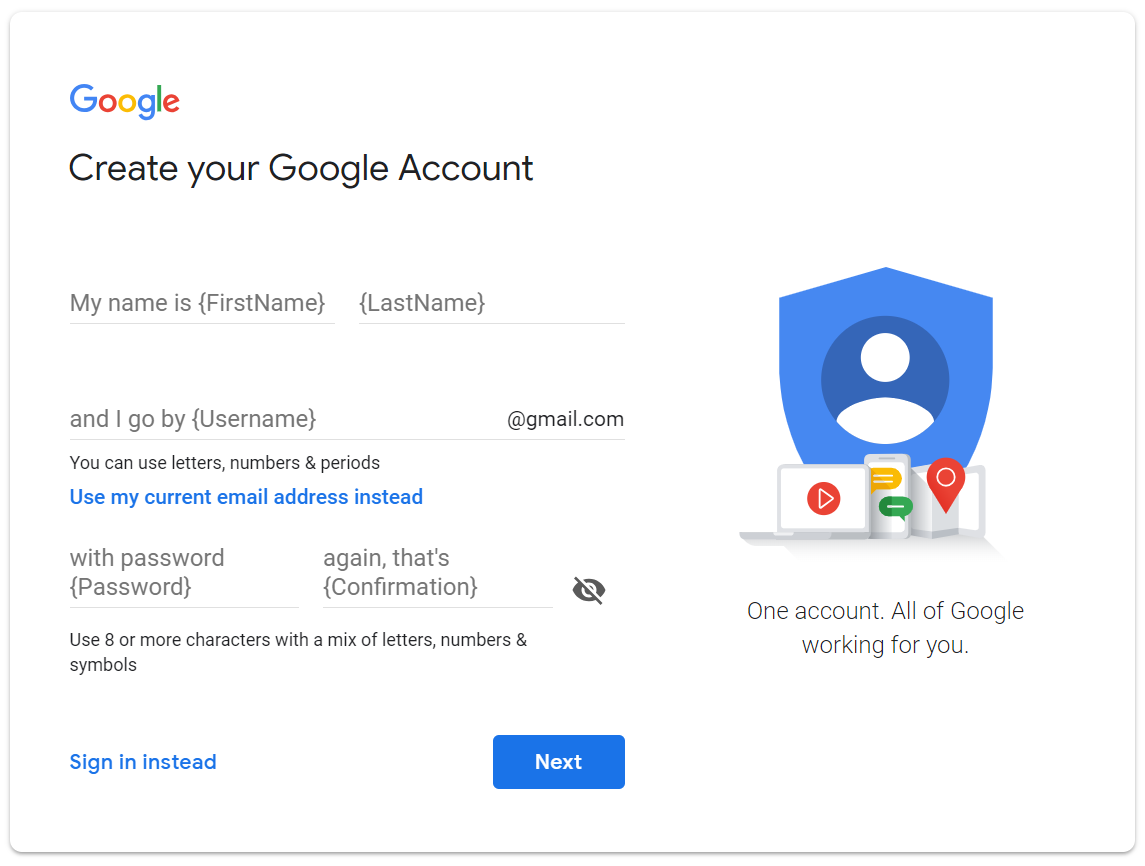
Figure 9.6. Google’s sign-up form
Figure 9.7. Google’s sign-up form imagined conversationally
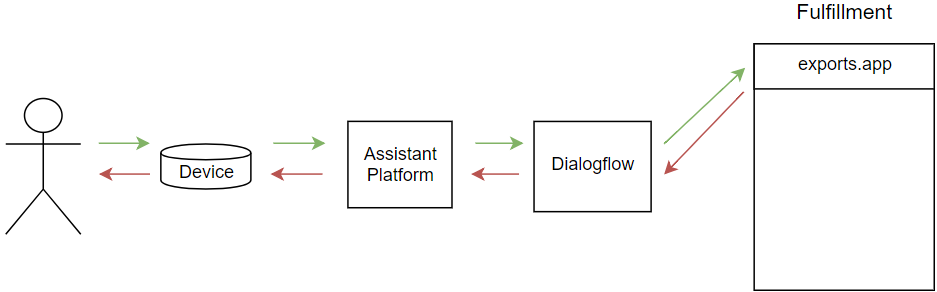
Figure 9.8. There is one entry and exit point for the fulfillment
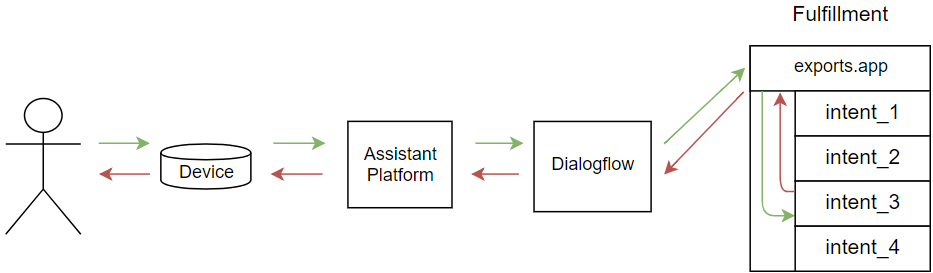
Figure 9.9. Information flows within the fulfillment, too
Figure 9.10. The Assistant platform manages the invocation name
Summary
A Google Assistant application contains actions, which map intents with fulfillment
The Actions SDK is available for developers who want to use their own NLU tool
Dialogflow is Google’s preferred NLU tool to create Assistant applications
Information flows from the user through Assistant, on to Dialogflow, and to fulfillment, before sending a response back to the user in the same order
FAQ
How is building for Google Assistant different from building for Alexa?Google Assistant is more modular: you can choose the NLU (Dialogflow is recommended, but optional), and Google forwards the raw spoken utterance to your fulfillment. Assistant also runs across voice-first devices and phones, so you should plan for both spoken and typed input as well as screen-based responses. In addition, Assistant supports implicit invocation, where Google can route relevant user requests to your app without an explicit invocation phrase.What’s the difference between an “action” and an “app” on Google Assistant?An action is a combination of an intent (what the user wants) plus its fulfillment (your response/behavior). An app is a collection of actions under one project. In practice, an app on Assistant is conceptually similar to an Alexa skill.When should I use Dialogflow vs the Actions SDK?Use Dialogflow for the fastest, easiest path: it manages your agent, intent matching, entities, and can even return static responses without code. Use the Actions SDK (or another NLU) if you have specialized needs, want full control over NLU, or already have an existing NLU. Even without Dialogflow, Google still sends you the raw utterance, which you can process, log, and analyze as you like.What is implicit invocation and why do I define intents in the Assistant console?Implicit invocation lets Google route a user’s request to your app when it looks like your app can answer, even if the user didn’t say your app’s name. To enable this, you declare “actions” in the Assistant console by choosing the intents your app can handle. Google uses those declarations to decide when to send traffic to your app.What is a Dialogflow agent, and how does intent matching work?A Dialogflow agent contains your entire interaction model. Intents can match via training phrases (example user utterances) or via events that Assistant sends (for example, a launch/welcome event). When you create a Dialogflow agent from the Assistant console, the linkage back to your Assistant project is set up automatically.How do the Welcome and Fallback intents work, and how should I use them?The Welcome intent is triggered on launch (via a special event) or by greeting-like phrases; it should guide users with clear next steps. The Fallback intent triggers when Dialogflow can’t match any other intent and should help the user recover. Unlike Alexa’s Unhandled handler (which triggers after a matched intent lacks a handler), Dialogflow’s fallback occurs when no intent matches at all.What are parameters and entities in Dialogflow, and how do synonyms and automatic expansion help?Entities define sets of possible values (like “room” names), while parameters are the specific values extracted from what the user says. Provide canonical values with synonyms (for example, “meeting room,” “conference room”) so your code can use a single normalized value. Automatic expansion can generalize beyond your list, but works best when you seed it with many solid examples; don’t try to be exhaustive or add questionable variants that can confuse the NLU.When should I put responses directly in Dialogflow vs using fulfillment code?Use Dialogflow responses for static replies that don’t require logic; you can even vary them by adding multiple options and target platform-specific responses. For logic-based responses (for example, using a parameter value to choose instructions), use a webhook fulfillment. You can reference parameters in Dialogflow responses with $parameterName and choose whether the intent ends the conversation or keeps the mic open.How do I test my app in the simulator, and what account settings are required?The simulator lives in the Assistant console (not in Dialogflow). To use it, your Google account must have Web & App Activity, Device Information, and Voice & Audio Activity enabled. Start with “Talk to my test app,” which uses a temporary name until you set your invocation; the initial welcome you hear comes from your Dialogflow Welcome intent.How do I set up fulfillment with Firebase Cloud Functions and connect it to Dialogflow?Install the Firebase CLI, initialize a Functions project, and add the Actions on Google library. Deploy your function to get a public HTTPS URL, then enable Dialogflow’s webhook and paste that URL. For any intent you want handled in code, enable “Use webhook” (or “Enable webhook call for this intent”). After that, test in the simulator; redeploying with the same function name keeps the URL stable.
pro $24.99 per month
access to all Manning books, MEAPs, liveVideos, liveProjects, and audiobooks!



 Voice Applications for Alexa and Google Assistant ebook for free
