This chapter explains how to extend voice experiences beyond speech by combining modes—voice, display, and physical inputs—into coherent multimodal interactions. It contrasts voice-only, voice-first, and voice-added approaches, and stresses that each mode has strengths: voice excels at short, low-precision exchanges, while screens handle dense or precise information better. Designers should build flows that work entirely through voice, then enhance them with additional modes when they make tasks faster, clearer, or safer. Real-world patterns—from ambient device signals and smart home feedback to buttons for multi-user input—show how complementary modes reduce friction and improve clarity.
On Google Assistant, multimodality is enabled through paired spoken and on-screen responses. Developers can tailor concise speech while providing richer on-screen content using simple responses and rich responses such as cards, media, lists, and link-outs for depth. Lists shine for presenting options and disambiguation, while suggestion chips guide users without overloading speech. Because touch and typing are first-class inputs, apps must handle screen selections and typed requests alongside spoken input. Dialogflow routes both speech-driven and event-driven interactions (for example, list option selections), so apps should register and fulfill the relevant events, all while ensuring spoken responses stand on their own if no screen is present.
Since devices vary, responses should adapt to surface capabilities (for example, whether a screen or browser is available). The app can conditionally include visual elements, avoid leaving the mic open when visuals can’t be shown, and use Dialogflow capability contexts when appropriate. Beyond adapting on a single device, Assistant supports multi-surface conversations: if the current device lacks a screen, the app can check the user’s other available surfaces and, with permission, hand off to a phone or smart display. Taken together, capability checks, conditional responses, and thoughtful handoffs let users fluidly switch among voice, touch, and text—using whatever mode is most effective at each moment.
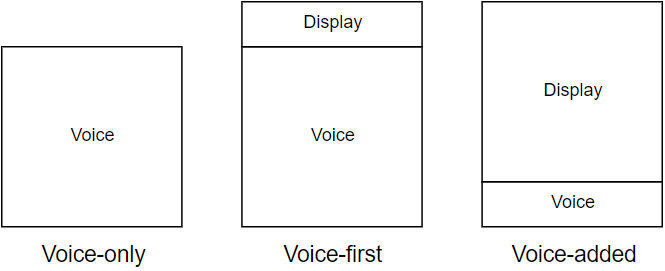
Figure 10.1. The difference between voice-only, voice-first, and voice-added hinges often on how "active" a screen is in the interaction
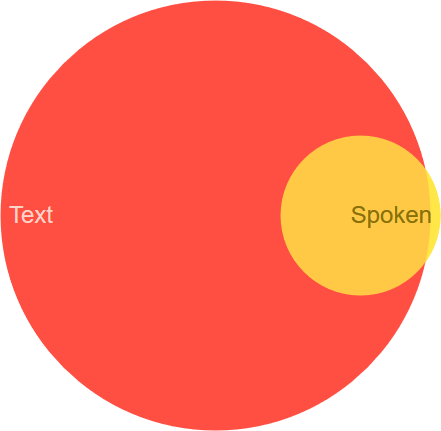
Figure 10.2. A text response covers most of the same material as the spoken response, but with more depth
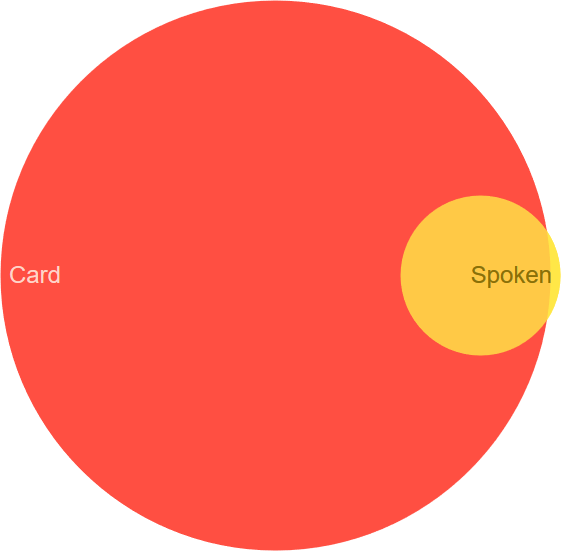
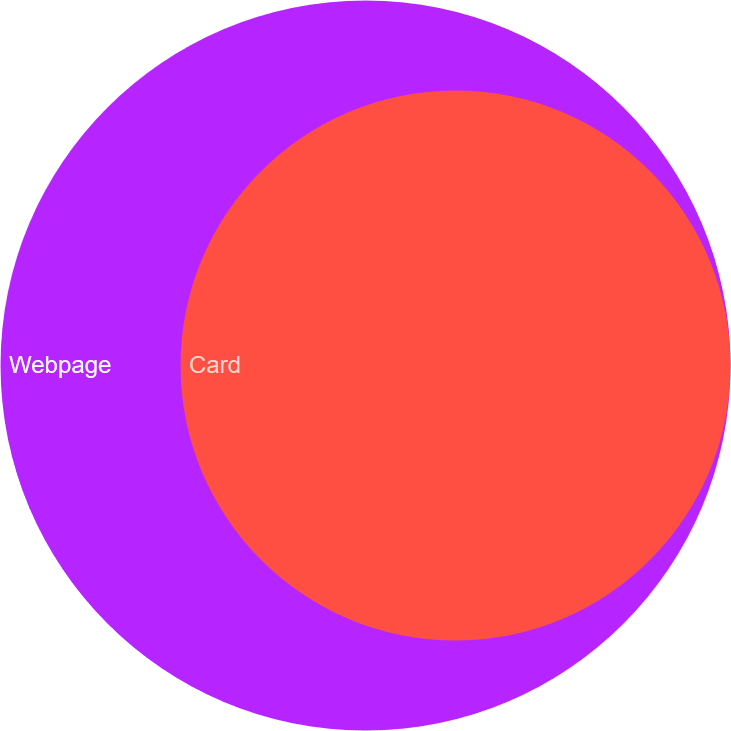
Figure 10.3. A webpage in turn will almost always provide more information than a card
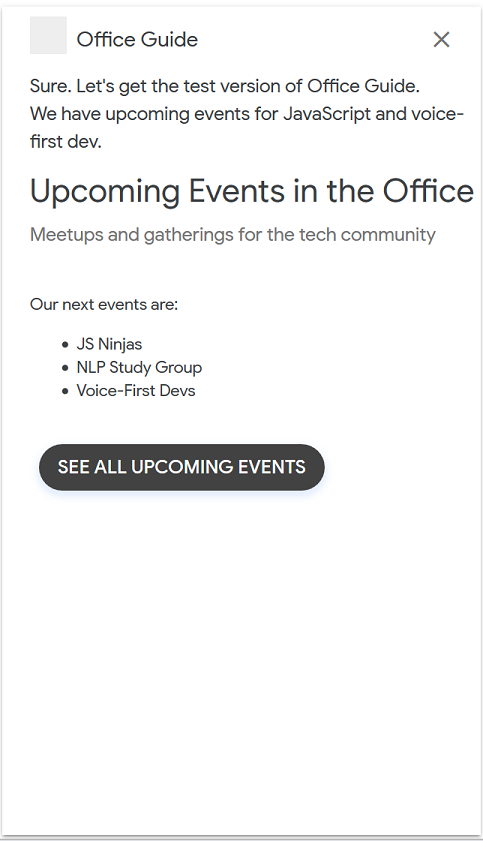
Figure 10.4. A card with a button, from the simulator
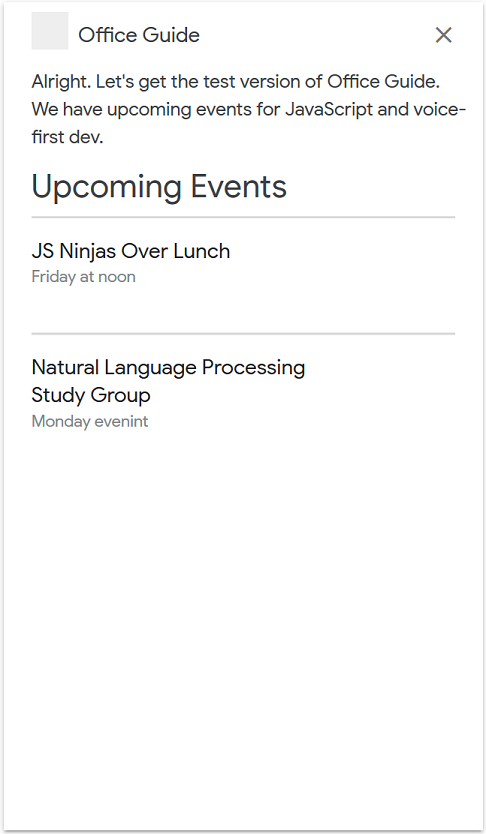
Figure 10.5. A card can provide even more information than a simple response
Figure 10.6. A list, from the simulator
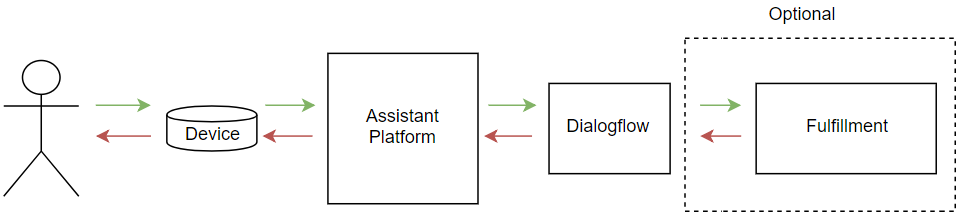
Figure 10.7. The request goes to Dialogflow before the fulfillment
Summary
Multi-modal applications combine voice with other inputs and outputs, like a display
A response on a display is generally more in-depth than a spoken response
A spoken response and a visual response will have overlap, but the spoken response will be tailored to listening
Assistant has the capability to hand off a conversation between surfaces
FAQ
What do “voice-only,” “voice-first,” and “voice-added” mean?Voice-only uses speech for all input and output. Voice-first uses voice as the primary mode but adds other inputs/outputs (for example, a screen) when helpful. Voice-added layers voice onto an existing non-voice experience to enhance, not replace, what users can already do.What are “modes” and what makes an app multimodal?Modes are input or output mechanisms such as voice, display, or physical inputs (like buttons). A multimodal app combines modes to play to their strengths. Even a smart speaker can be multimodal—for example, Google Home uses lights as a visual output in addition to speech.When should I use a screen versus voice?Use voice for short, low-precision exchanges (turning lights on/off, rolling a die). Use a display when precision or larger amounts of information are required (passwords, credit card numbers, long lists). Design so the experience works via voice alone and is enhanced—not dependent—on the screen.How do I provide different spoken and displayed responses in Google Assistant?Use a SimpleResponse with separate speech and text values so the screen can show more detail than the spoken reply. Keep speech concise and conversational; let on-screen text elaborate without overwhelming. Do not rely on the screen to answer the question entirely—voice should stand on its own.Which rich responses should I consider (cards, lists, suggestion chips), and when?Cards present formatted text and/or images and can include a title, subtitle, and a link button—great for answers users should read. Lists present multiple similar options and support touch selection, ideal for disambiguation. Suggestion chips nudge users with next steps or link-outs and help guide the conversation without verbose prompts. If you don’t want follow-up interaction, use a table/card rather than a list that implies selection.How do I handle user selections from a list?Lists support tap selection; handle the event with the actions.intent.OPTION intent in your fulfillment. In Dialogflow, create an intent triggered by the actions_intent_OPTION event and enable webhook fulfillment. Without this, Dialogflow will fall back to its default fallback intent and your selection won’t reach your code.How do I adapt responses to device surface capabilities?Check capabilities at runtime (for example, actions.capability.SCREEN_OUTPUT) and conditionally include lists, chips, or media. Provide a voice-only alternative when a screen isn’t available, and avoid leaving the conversation open if visual UI can’t be shown. You can also gate Dialogflow intents using capability contexts (screen, audio, media, web browser), but it’s often better to explain limitations and suggest a suitable device.What is a multi-surface conversation and how do I hand off to another device?A multi-surface conversation moves the interaction from one device to another (for example, speaker to phone). Check conv.available.surfaces for the needed capability, then request a handoff with NewSurface, providing context, notification text, and required capabilities. Handle the user’s response via actions.intent.NEW_SURFACE and present the appropriate UI on the new device.What are suggestion chips and how should I use them?Suggestion chips appear on screen to guide users: one kind sends text back into the conversation, the other opens a URL. They reduce spoken verbosity by showing options visually. Use them as additive hints, not as the only way to proceed, and pair them with a complete spoken response.What design tips help when going multimodal?Add modes only when they make the task easier. Always support voice-only use, provide fallbacks, and don’t force a specific mode. Expect typing and touch on phones, and handle event-driven intents as first-class interactions. Keep speech concise, put details on screen, and be mindful of context (for example, users who can’t look at a display while driving or cooking).
pro $24.99 per month
access to all Manning books, MEAPs, liveVideos, liveProjects, and audiobooks!

 Voice Applications for Alexa and Google Assistant ebook for free
