10 Investigating memory issues with heap dumps
This chapter explains how to investigate memory problems when profiling isn’t possible or the application crashes with an OutOfMemoryError. It introduces heap dumps as snapshots of the JVM heap that capture all objects and their relationships at a moment in time, making them ideal for diagnosing leaks, runaway collections, and retention paths that prevent garbage collection. The guidance emphasizes a practical, failure-first mindset: when an app can’t be profiled or dies under memory pressure, freeze the state with a heap dump and analyze it to find what is using memory and why it isn’t being reclaimed.
You learn several ways to obtain heap dumps: configuring the JVM to write one automatically on OutOfMemoryError with HeapDumpOnOutOfMemoryError and HeapDumpPath, using a profiler like VisualVM for local processes, and using command-line tools such as jmap (with jps to find the PID) in restricted environments; some frameworks can even generate dumps programmatically. Operational advice includes writing dumps to persistent storage (for example, in containerized deployments) and ensuring sufficient disk space. For analysis, the chapter uses VisualVM: start with the summary to verify the dump and environment, then switch to the Objects view, sort by instance count and retained size, and focus on application types rather than primitives and strings. By drilling into referrers and referees, you can uncover retention chains—for example, a static collection holding millions of Product instances—then correlate findings with code to confirm and fix the root cause.
For large or comparative investigations, the chapter introduces OQL (Object Query Language) to query heap contents precisely: selecting instances by type, projecting attributes, filtering (e.g., by name length), and using functions like referrers() and unique() to identify objects that keep others alive—quickly surfacing potential leaks when many instances share a small set of referrers. Queries are reusable across dumps, making them valuable for regression checks and iterative diagnostics. The chapter also discusses using AI as a helper to craft or refine OQL queries and to brainstorm next steps, while cautioning that full-dump analysis is often impractical due to size; the recommended workflow is to narrow the data with a profiler and queries, then consult AI on targeted excerpts.
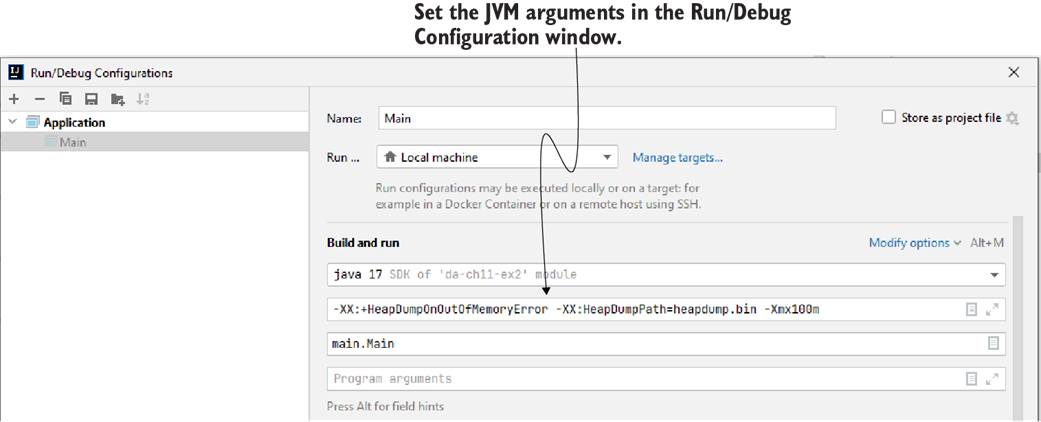
You can configure the JVM arguments from your IDE. Add the values in the Run/Debug Configurations before starting the application.
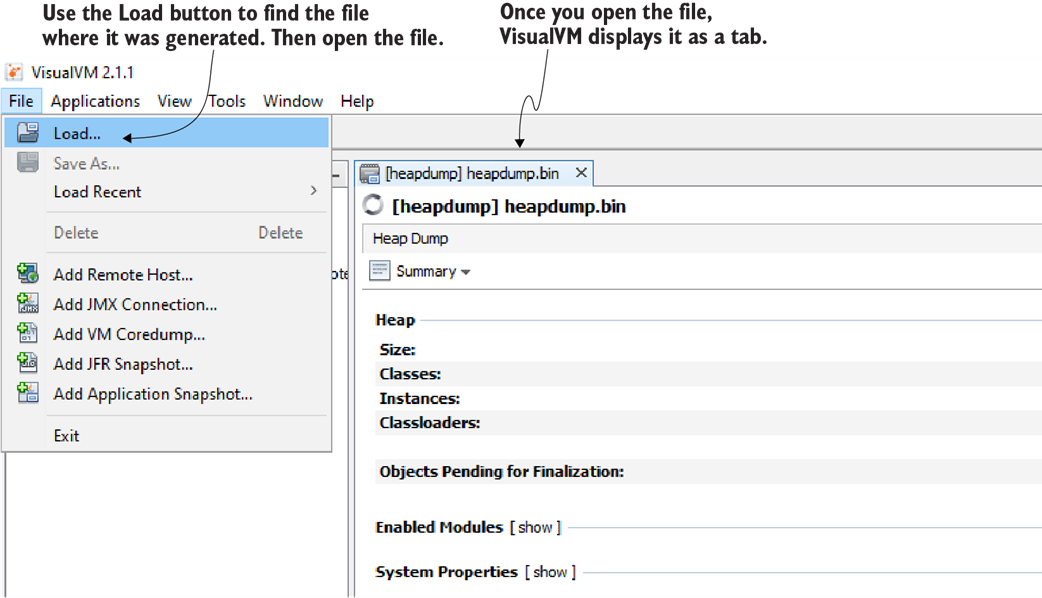
You can use VisualVM to open the heap dump file for analysis. Use the Load button in the menu to find the file. Open the file, and VisualVM will display the heap dump as a tab.
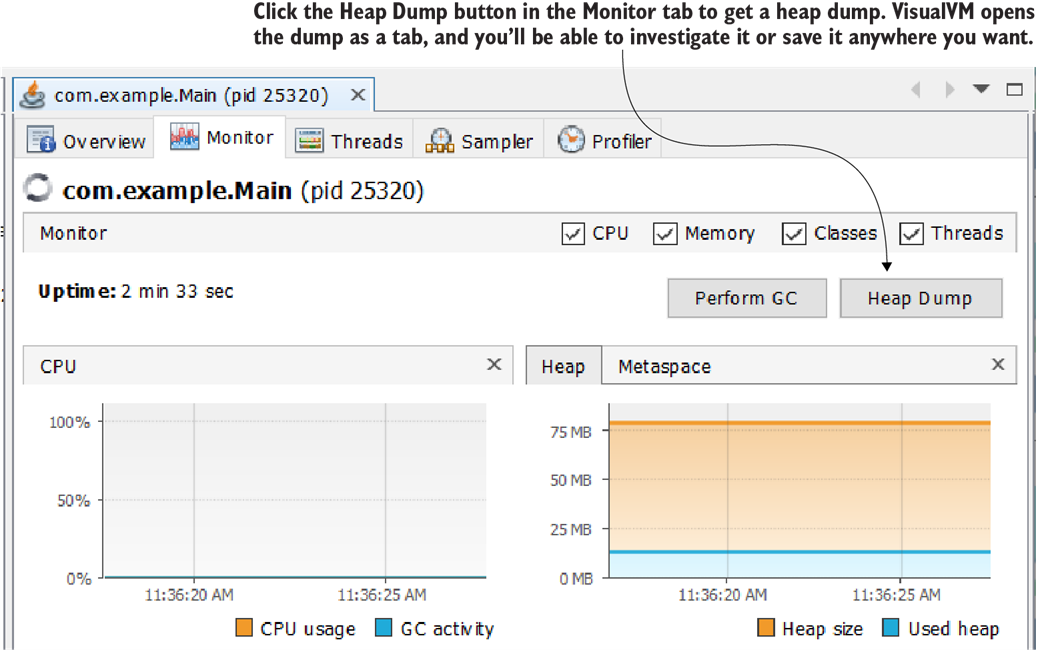
Press the Heap Dump button in VisualVM’s Monitor tab to get a heap dump for the selected process. VisualVM opens the dump as a tab, and you can further investigate it or save it anywhere you want.
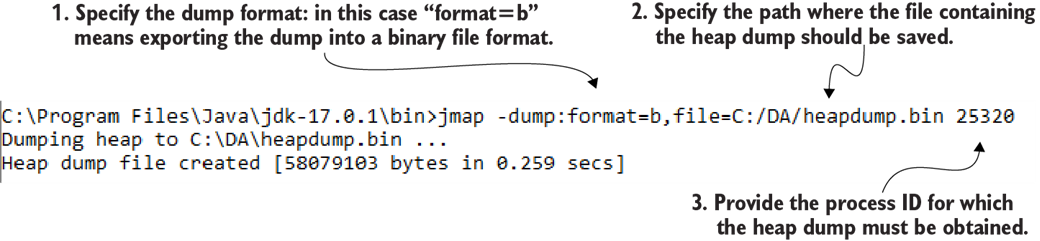
Using jmap in the command line to get a heap dump. You need to specify the path where the file containing the dump will be saved and the process ID for which you generate the dump. The tool saves the heap dump as a binary file in the requested location.

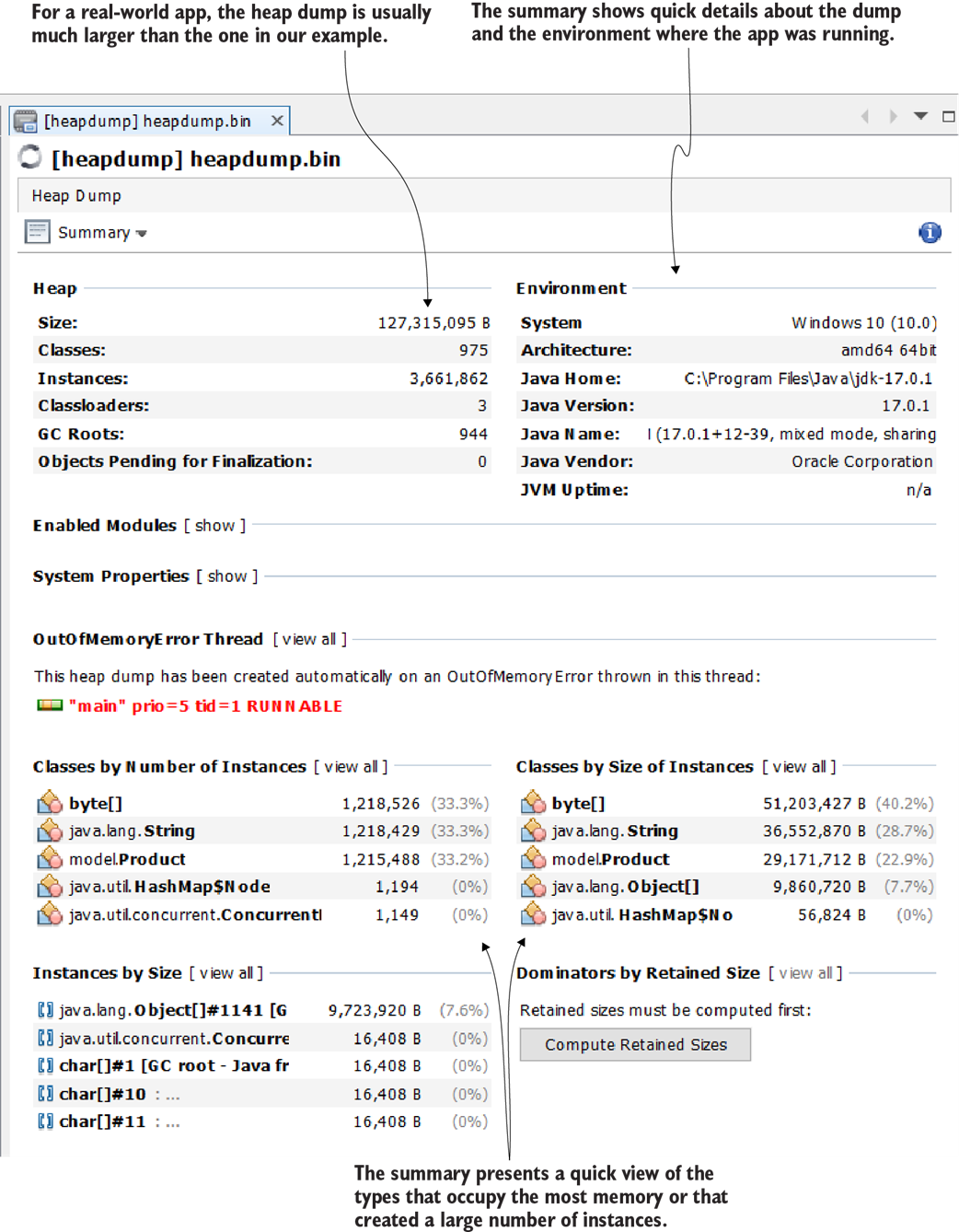
In the initial screen after opening a heap dump, VisualVM provides a summary of the heap dump, which includes information about the dump itself and the system where the app was running. The view also shows the types that occupy the largest amount of memory.
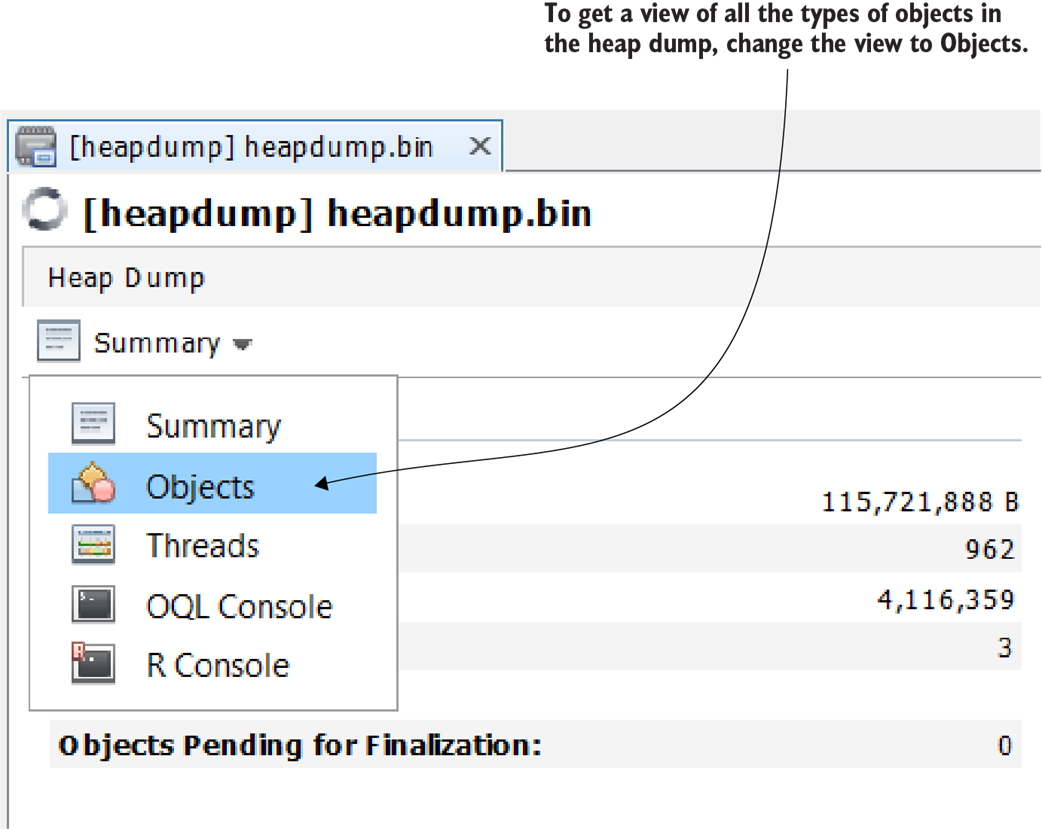
You can switch to the Objects view, which makes it easier to investigate the instances in the heap dump.
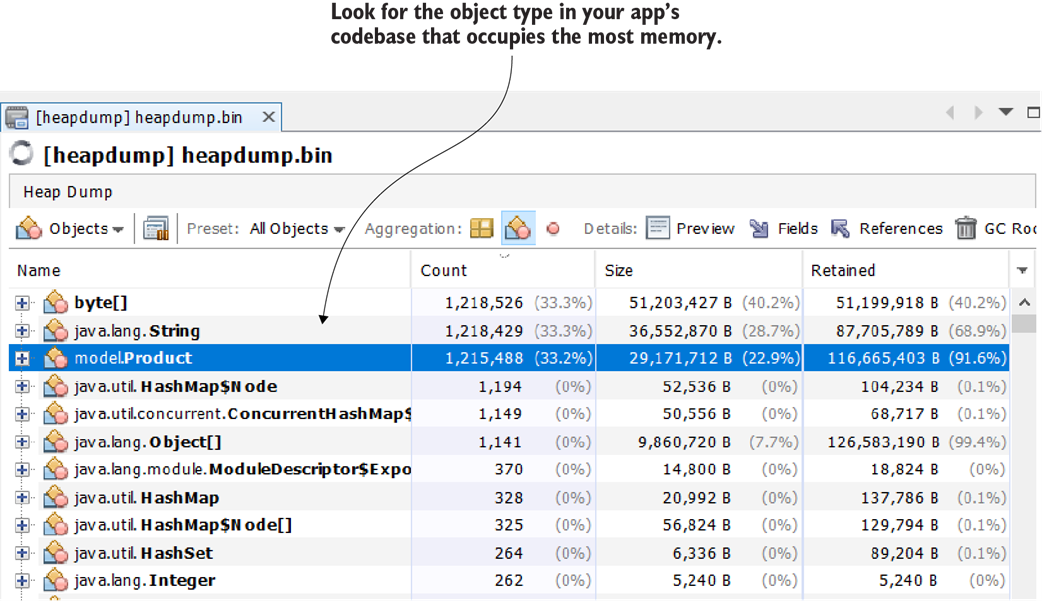
Use sorting on columns to identify which type created a large number of instances or takes up a lot of space. Always look for the first object in your app codebase. In this case, both in number of instances and size, the Product type is the first in the list.
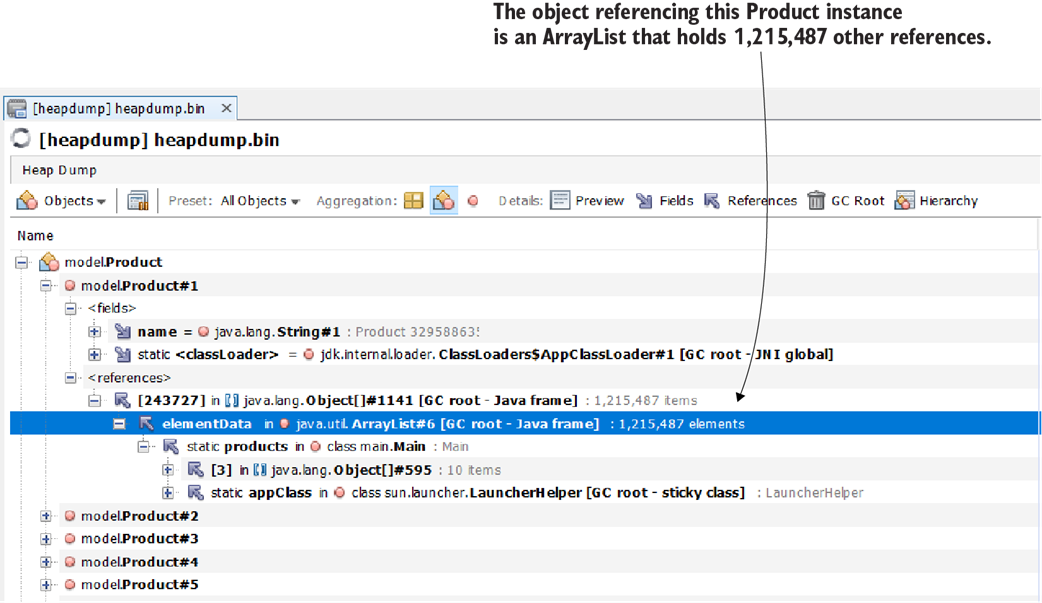
References to an instance. By using the heap dump, you can find, for each instance, what other instances were being referenced at the time the dump was generated. The profiling tool also tells you where a given reference is stored in the code. In this case, ArrayList, which holds over one million references, is a static variable in the Main class.
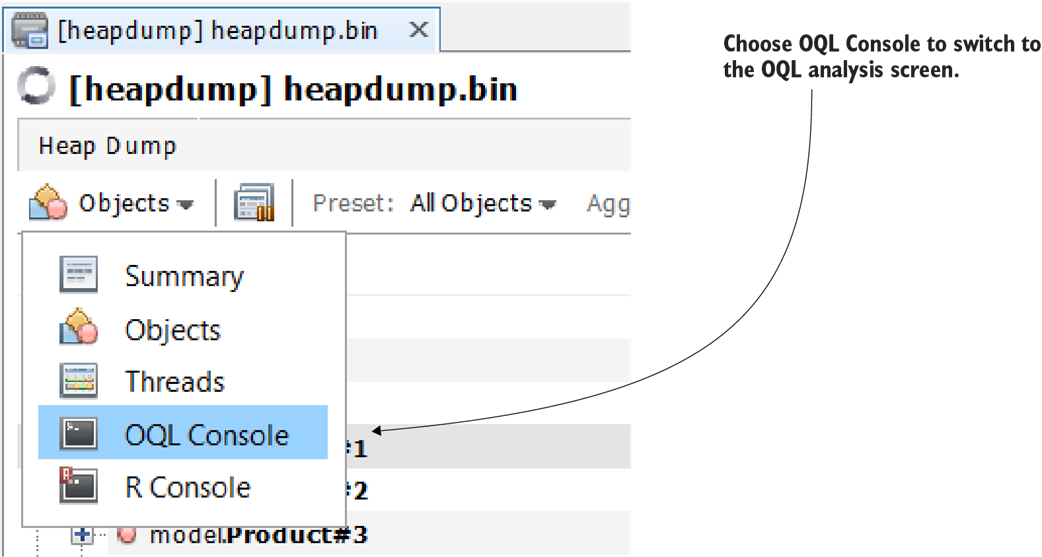
To switch to the OQL view in VisualVM, choose OQL Console from the drop-down menu in the upper-left corner of the heap dump tab.

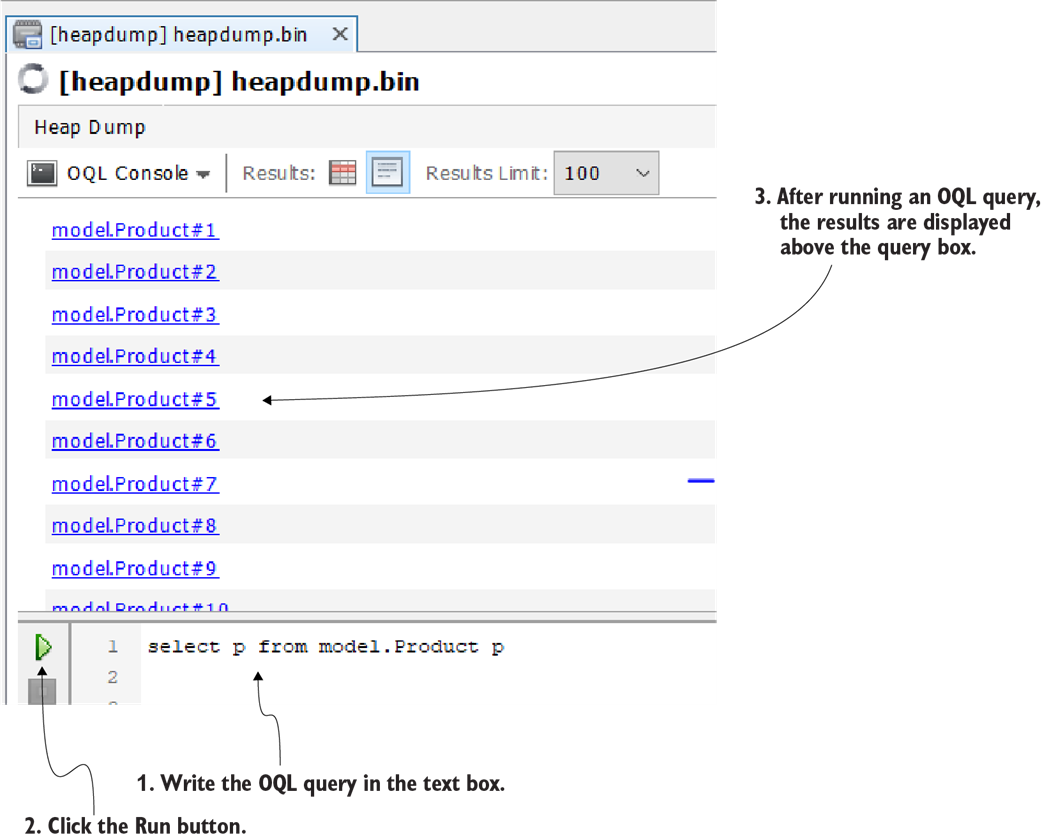
Running an OQL query with VisualVM. In the OQL console, write the OQL query in the textbox on the bottom of the window and click the Run button (the green arrow on the left of the text box) to run the query. The results will appear above the text box.

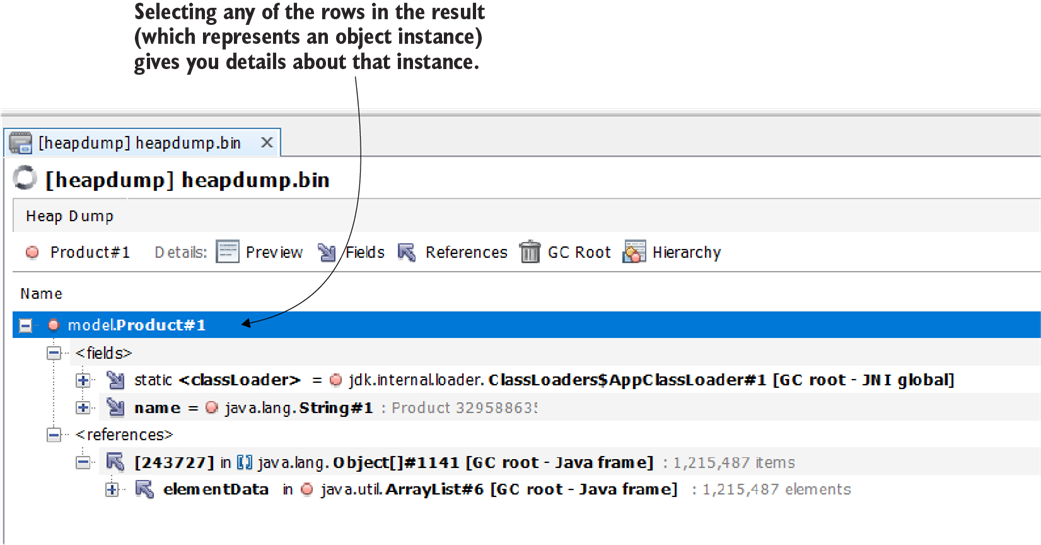
You can access the details about a queried instance (referees and referrers) by clicking it.
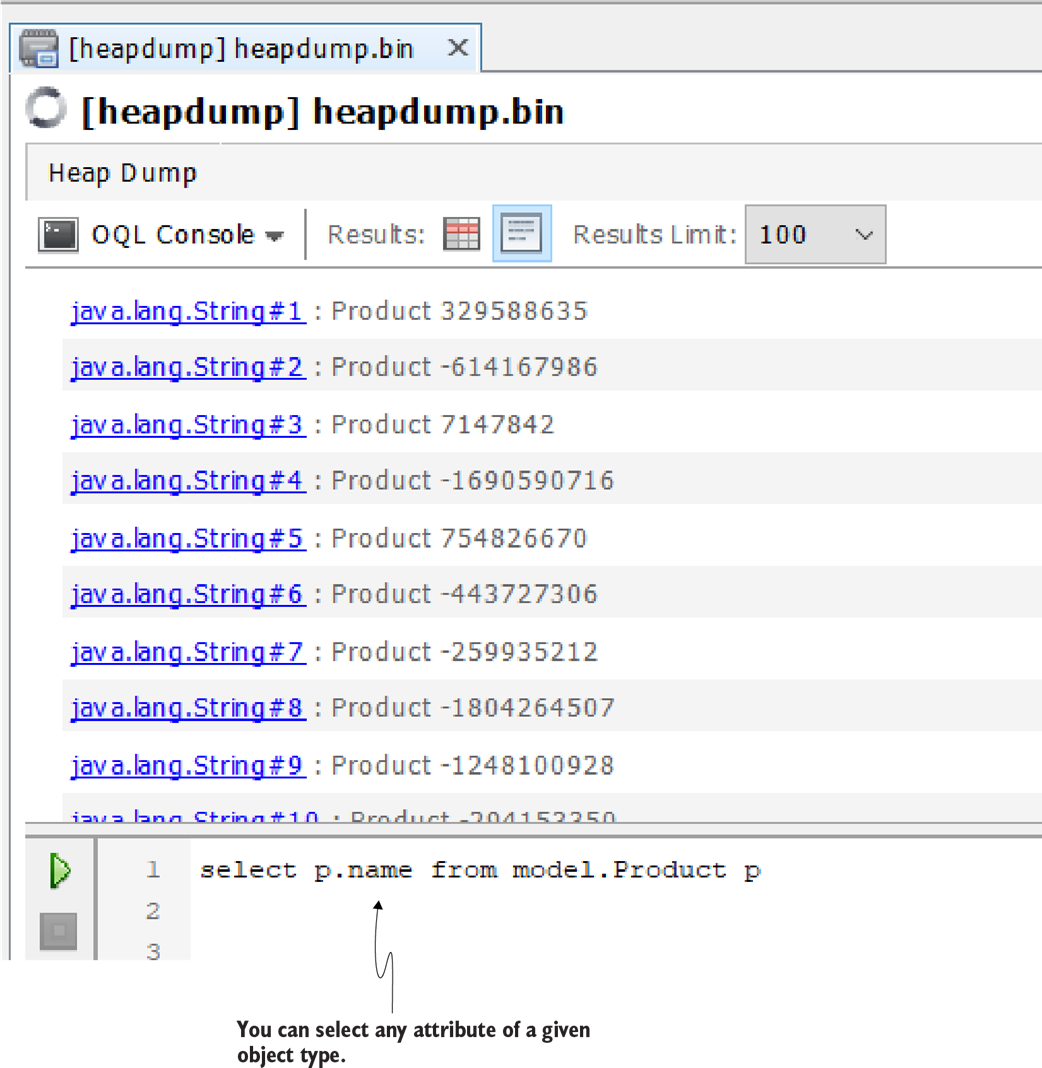
Selecting an attribute of a given object type. Just as in Java, you can use the standard dot operator to refer to an attribute of an instance.
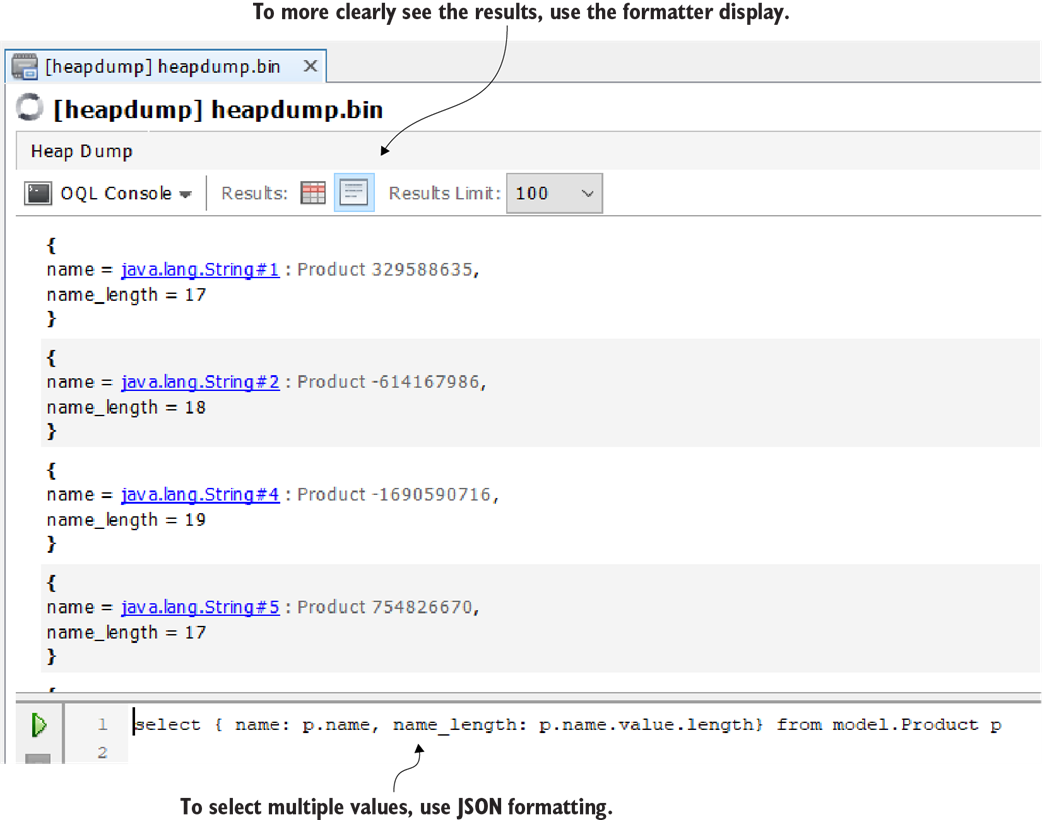
Selecting multiple values. You can use JSON formatting to obtain multiple values with one query.
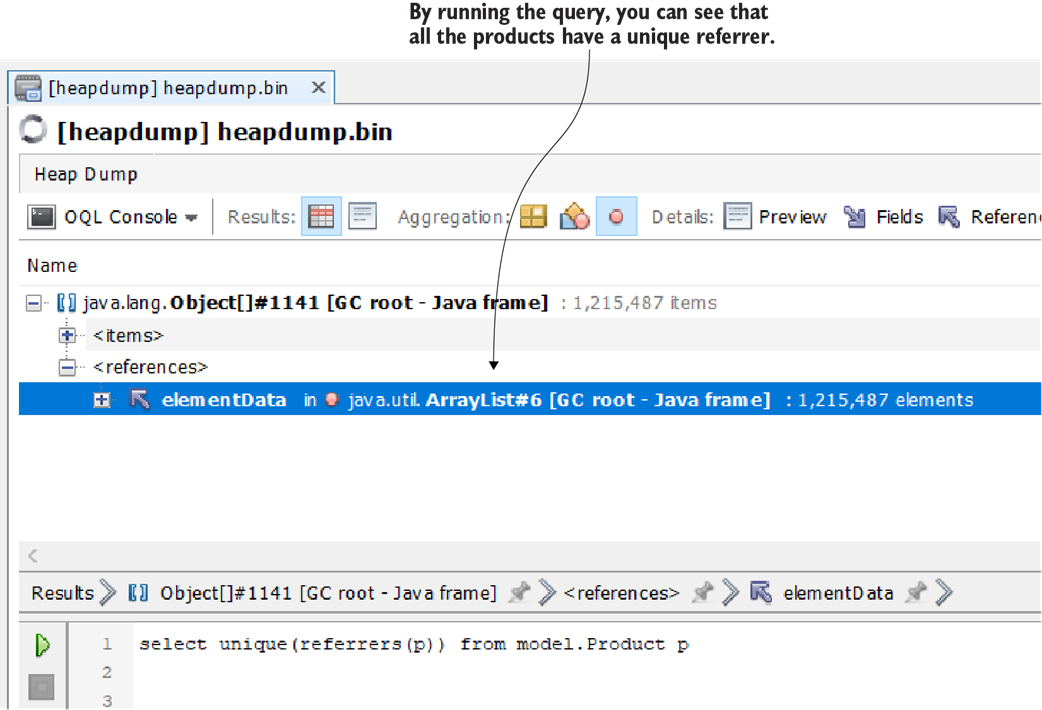
Selecting all the unique referrers for instances of a type shows you if there’s one object that prevents the GC from removing the instances from memory. This can be a quick way to identify a memory leak.
Summary
- A heap dump captures the entire memory state at a given moment. Analyzing it helps diagnose memory leaks, excessive object retention, and inefficient data structures.
- The JVM can be configured to generate a heap dump automatically when an OutOfMemoryError occurs. This makes post-crash investigations much easier.
- Heap dumps can be manually created using profiling tools like VisualVM or command-line utilities like jmap. These tools help you capture and inspect memory usage at any time.
- Loading a heap dump into VisualVM allows you to explore object instances, references, and relationships. This helps pinpoint performance bottlenecks and memory leaks.
- OQL (Object Query Language) enables you to filter and analyze heap dump data efficiently. Instead of manually browsing through thousands of objects, you can retrieve specific information using queries.
- AI assistants like ChatGPT or Gemini can help analyze heap dumps by generating OQL queries, summarizing data, and suggesting optimizations. While AI won’t replace manual analysis, it can significantly speed up the process.
FAQ
What is a heap dump?
A heap dump is a snapshot of an application’s heap at a specific moment in time. It contains all live objects and their relationships (who references whom), letting you inspect memory usage and retention to diagnose problems such as leaks or uncontrolled growth.When should I use a heap dump instead of a profiler?
Use a heap dump when you can’t profile the running process—typically after a crash or when you don’t have access to attach a profiler. It’s ideal for investigating memory allocation issues and OutOfMemoryError events by freezing the state at failure time.How do I configure the JVM to automatically create a heap dump on OutOfMemoryError?
Start the app with these JVM flags:-XX:+HeapDumpOnOutOfMemoryError and -XX:HeapDumpPath=heapdump.bin. Ensure the path is writable and has enough disk space. In containers, write to a persistent volume, not the classpath. Tip: for reproductions, you can add -Xmx100m (or similar) to keep the dump smaller.How can I capture a heap dump from a running process using VisualVM?
Open VisualVM, select the target process, go to the Monitor tab, and click the Heap Dump button. VisualVM opens the dump in a new tab where you can analyze it or save it to disk.How can I capture a heap dump from a running process using the command line?
1) Find the process ID:jps -l. 2) Generate the dump: jmap -dump:format=b,file=/path/heapdump.bin <PID>. Then open the resulting file in VisualVM. (You can also use jcmd on newer JDKs.)What’s the first thing to check when opening a heap dump in VisualVM?
Review the Summary to verify you have the right file (size, JVM/OS info, class and instance counts). Then switch to the Objects view to begin investigation; the summary alone usually isn’t enough to draw conclusions.How do I spot suspicious objects that cause memory pressure?
In the Objects view, sort by instance count and retained size. Focus on your application classes first (not primitives, strings, or primitive arrays). Expand a suspect type to inspect individual instances, then review their referrers to see what’s keeping them alive (e.g., a large list, cache, or static field).How can I determine why the GC isn’t collecting certain objects?
Select an instance and inspect both what it refers to and its referrers. If a small number of collections or static fields hold references to many instances (e.g., a large ArrayList in a static variable), they prevent GC from reclaiming memory—often a sign of a leak or an unbounded data structure.What is OQL and how do I run basic queries on a heap dump?
OQL (Object Query Language) lets you query heap dumps like a database. In VisualVM, open the OQL Console from the heap dump tab. Examples: select instances:select p from model.Product p; select a field: select p.name from model.Product p; select multiple values as JSON: select { name: p.name, name_length: p.name.value.length } from model.Product p.How can OQL help me identify memory leaks quickly?
Use referrer queries to see what keeps objects alive. Example:select unique(referrers(p)) from model.Product p highlights shared referrers; a single referrer holding many instances is a red flag. You can also count per-instance referrals: select { product: p.name, count: count(referrers(p)) } from model.Product p. These patterns help pinpoint leaking collections or caches.
 Troubleshooting Java, Second Edition ebook for free
