This appendix outlines how to open and run the sample Java applications that accompany the book. The projects target Java 17 and serve as a basis for demonstrating various techniques and tools. Before starting, you should have an IDE installed—such as IntelliJ IDEA, Eclipse, or NetBeans—and a JDK version 17 or newer; any distribution, including OpenJDK, will work.
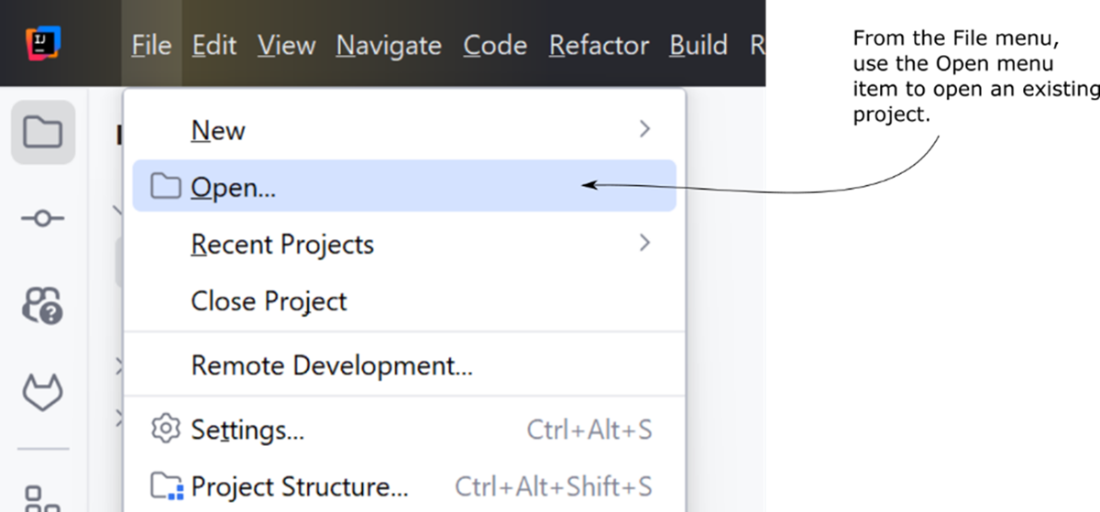
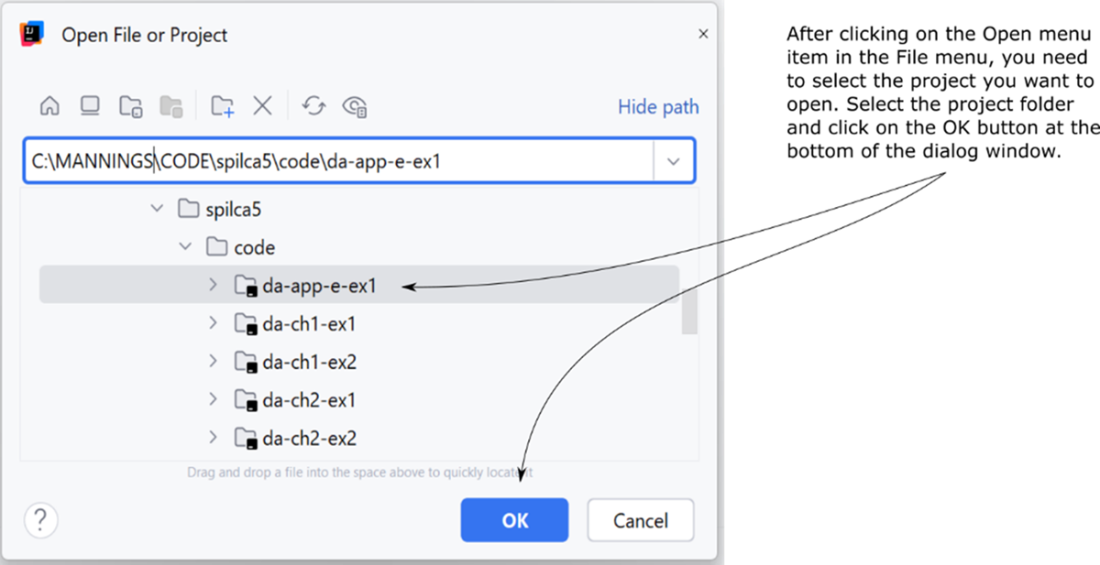
To open a project in IntelliJ IDEA, use the File menu and choose Open, then navigate to and select the project directory in the file chooser. The general flow is straightforward and similar across other IDEs: locate the project on your file system and import or open it so the IDE can index and configure it.
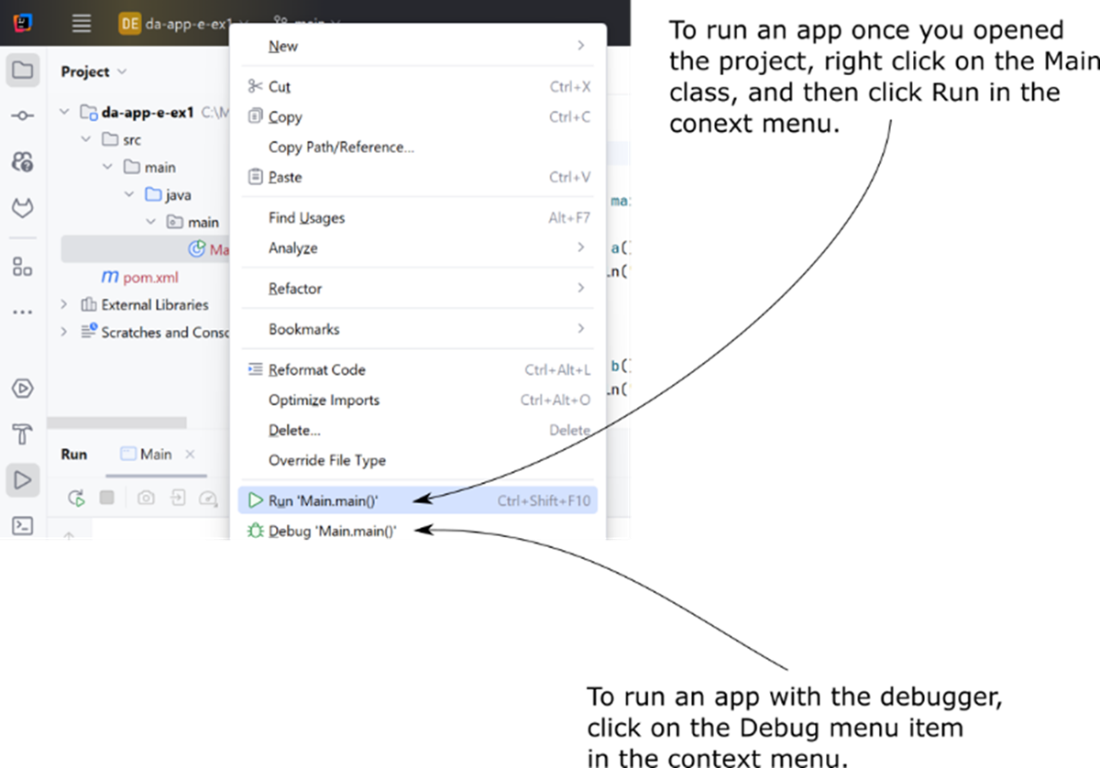
Once the project is open, run the application by locating the class that contains the main method—these examples use a class named Main—then right-click it and choose Run. If you prefer to inspect execution step by step, use the Debug option instead to start the program under the debugger.
Figure B.1 To open an existing project in IntelliJ IDEA, select Open in the File menu.
Figure B.2 After selecting Open in the File menu, a pop-up window appears. In this window, select the project you want to open from the file system and click the OK button.
Figure B.3 Once you open an app, you can run it. To run the app, right-click the Main class and select the Run menu item. If you want to run the app with a debugger, click Debug.
FAQ
What do I need installed before opening the sample projects?You need a Java IDE (such as IntelliJ IDEA, Eclipse, or Apache NetBeans) and a JDK version 17 or newer. The book’s projects are Java 17 applications.Which IDE is used in the examples?The appendix demonstrates the steps with IntelliJ IDEA. You can download it from https://www.jetbrains.com/idea/download/.Which Java version do the projects require?Install JDK 17 or higher. Any Java distribution works; for example, OpenJDK is available at https://jdk.java.net/17/.Can I use any Java distribution?Yes. The projects run on any JDK 17+ distribution. The author uses OpenJDK as an example.How do I open an existing project in IntelliJ IDEA?Start IntelliJ IDEA, choose File > Open, select the project directory in the file chooser, and confirm to load it.Where is the application’s entry point?The entry point is a class that defines the main() method. In the provided projects, it’s in a class named Main.How do I run the application in IntelliJ IDEA?In the Project view, right-click the Main class (the one with main()) and choose Run.How do I start the application under the debugger?Right-click the Main class and choose Debug to launch it with the debugger attached.Can I use Eclipse or NetBeans instead of IntelliJ IDEA?Yes. Any modern Java IDE will work. The exact menu names differ, but the workflow—opening the project and running the class with main()—is similar.What should I do if the project won’t run due to Java version issues?Install and configure JDK 17 or newer, then retry. If needed, download a JDK from https://jdk.java.net/17/ and point your IDE to use that JDK for the project.
pro $24.99 per month
access to all Manning books, MEAPs, liveVideos, liveProjects, and audiobooks!

 Troubleshooting Java, Second Edition ebook for free
