Kaggle is presented as a beginner-friendly platform for learning data science and machine learning because it combines practical coding, accessible datasets, and a supportive community. It lets users run Python notebooks in the cloud with free GPU time, reducing setup barriers and making it easier to experiment with the techniques used throughout the book. The text also notes that Google Colab is a useful alternative, but Kaggle is especially recommended because of its social and educational ecosystem.
The appendix explains how to get started with Kaggle notebooks, or kernels, by searching for relevant tutorials, opening a rendered notebook, and then copying and editing it to run the code yourself. It emphasizes that the copied notebook preserves the original environment and dependencies, while creating a brand-new notebook may use newer defaults that can make reproduction harder. The workspace includes controls for running code, enabling GPUs, managing internet access, attaching datasets, saving versions, and choosing whether to keep notebooks private or public.
Beyond notebooks, Kaggle is shown as a place to learn from real-world competitions, where organizations present valuable technical problems and provide data, prizes, and public leaderboards. Just as important are the discussion forums, where users share tips, answer questions, post starter notebooks, and help one another troubleshoot, making participation a social learning experience. The appendix closes by highlighting Kaggle’s blog as another source of tutorials and interviews, encouraging readers to explore the platform broadly and learn through experimentation and community engagement.
Figure A.1 The best place to start learning about Kaggle kernels and launching a relevant notebook to learn something new. Go to https://www.kaggle.com/kernels, and search for the topic you are interested in. In the diagram, we show the result list of such a query for a beginner starting out with Python. Select the best-fitting one to proceed. Or create a new notebook using the New Notebook button.
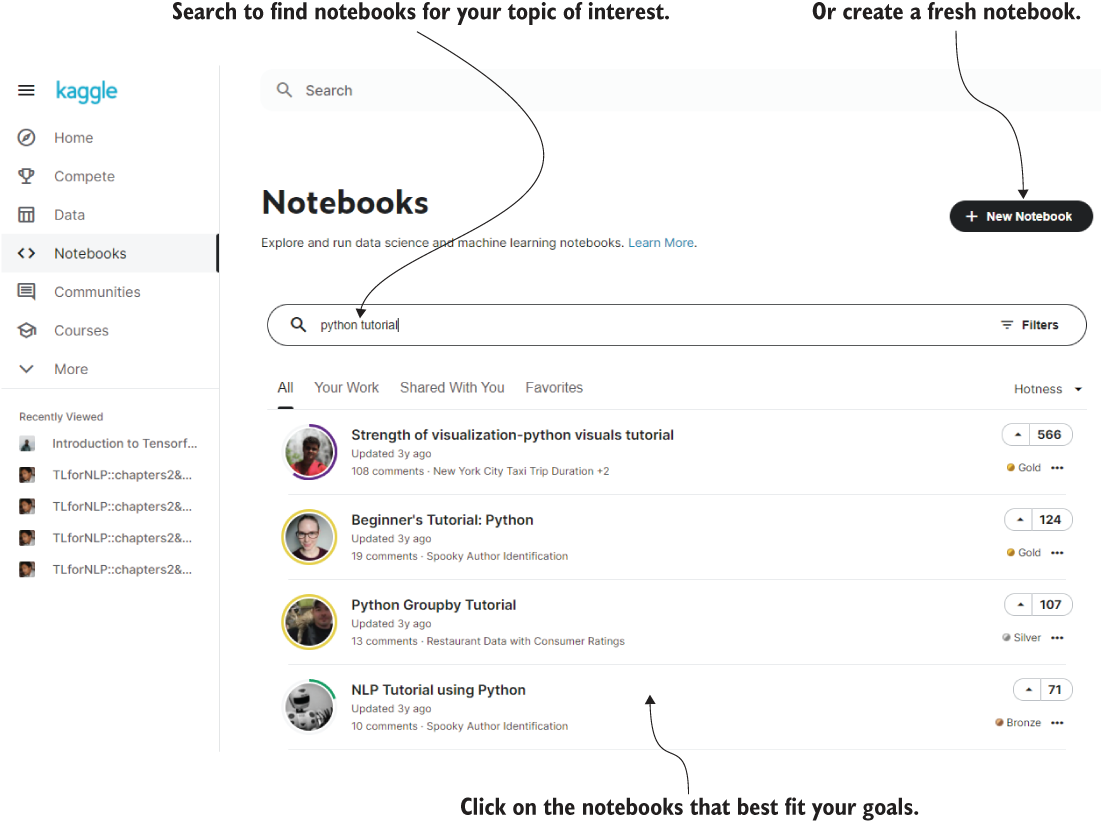
Figure A.2 A view of the rendered notebook, with some key actions that can be performed highlighted
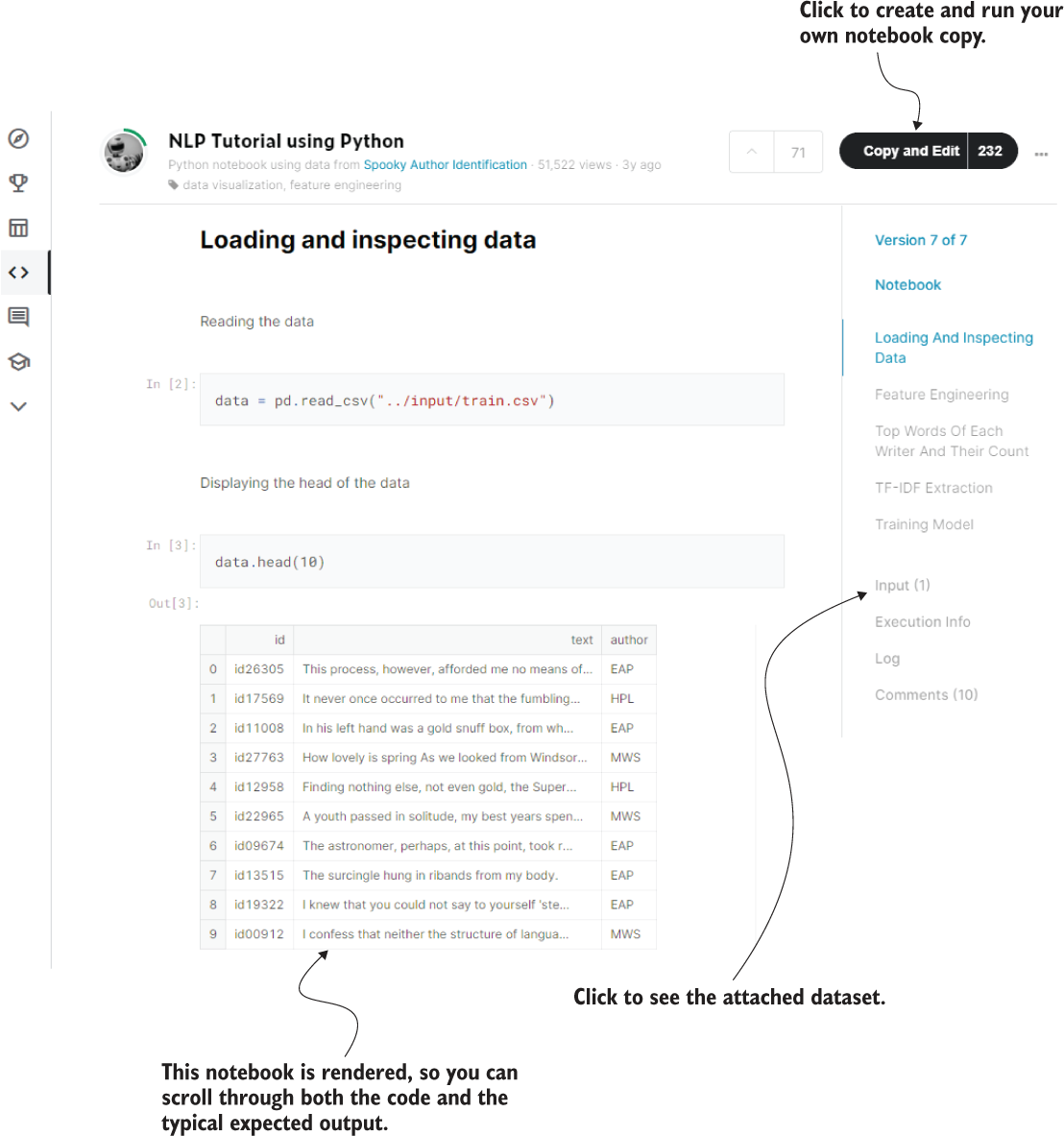
Figure A.3 The main workspace when using Kaggle kernels. In the top left corner, buttons for running the notebook. In the top right, options to share, save, restart, and turn off the notebook. The right panel houses options for connecting to the internet (for installing packages or downloading data), enabling/disabling GPU acceleration for the current notebook, and adding data.
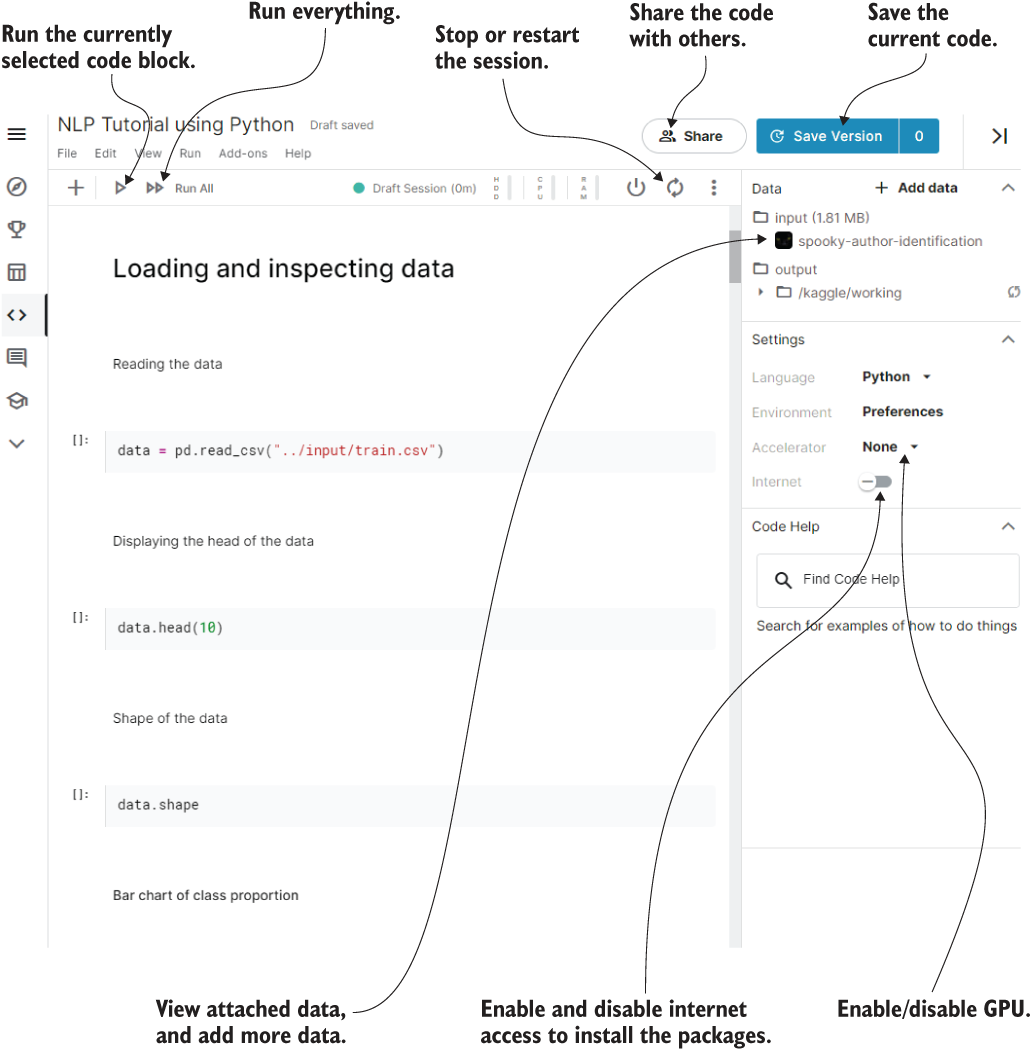
Figure A.4 Save options for notebook. You can either commit the code and have it run noninteractively for inspection later or quick-save the code and current output directly.
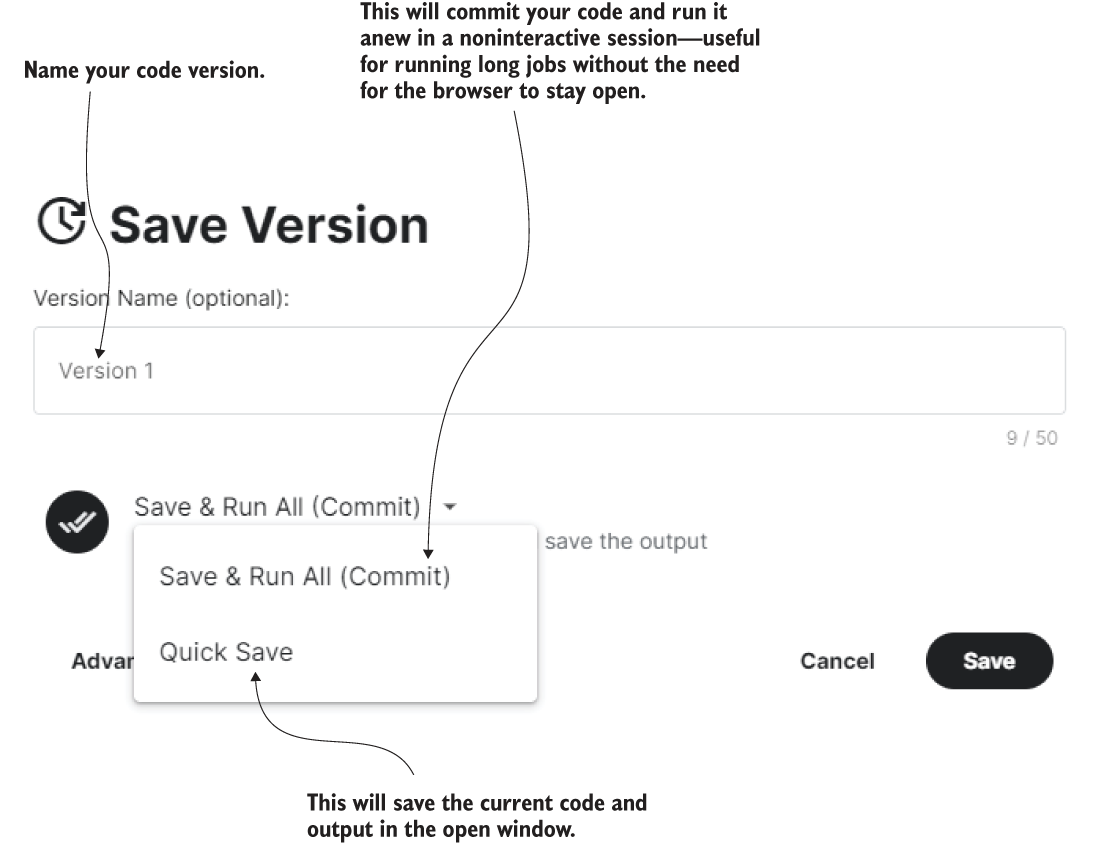
Figure A.5 Inspection of the recent runs/saves can typically be carried out at the personalized URL www. kaggle.com/<username>/notebooks, where <username> is your username (shown here for my username azunre).
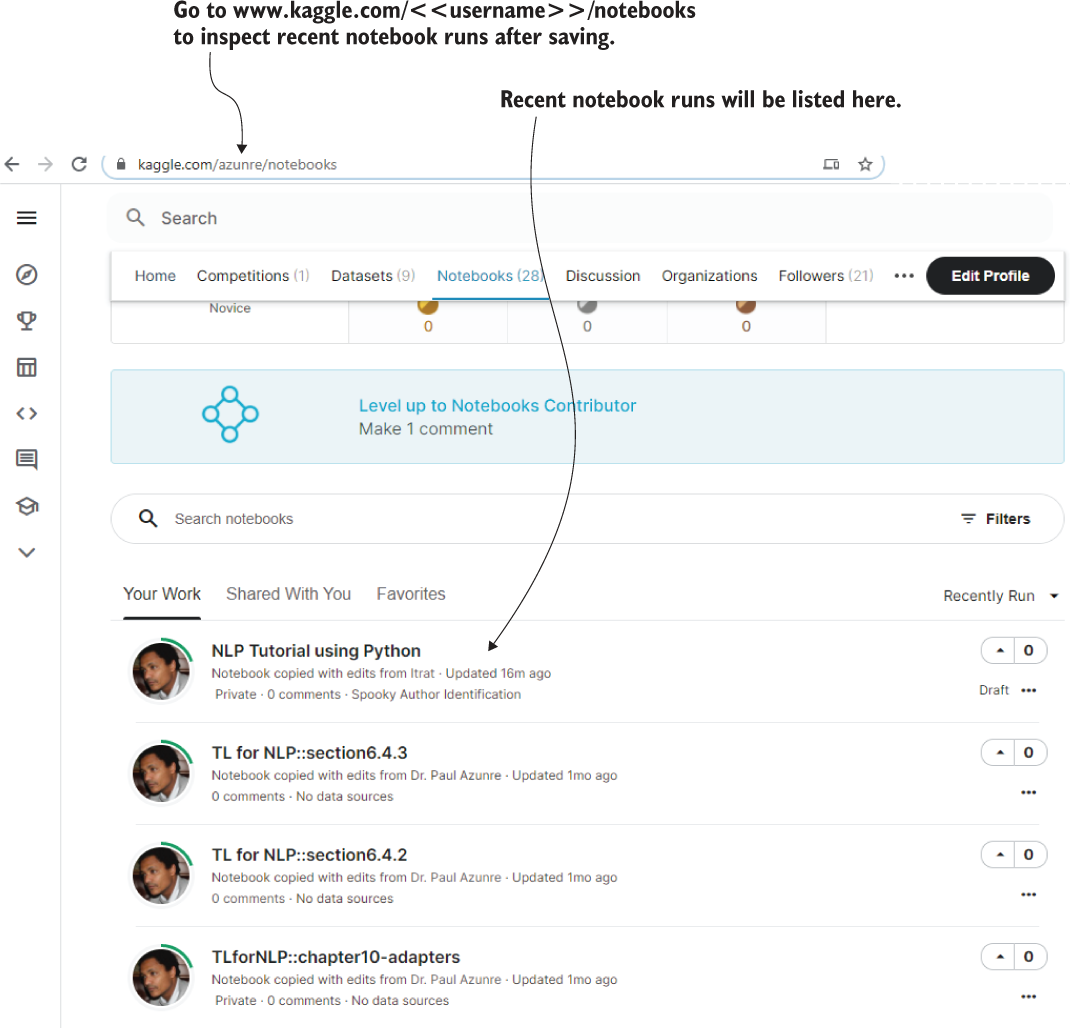
Figure A.6 Go to the competitions page by selecting the trophy icon on the left panel of any Kaggle page. We can see that one competition is offering $100,000 in total prizes—that problem is likely quite valuable to that industry to motivate such an investment!
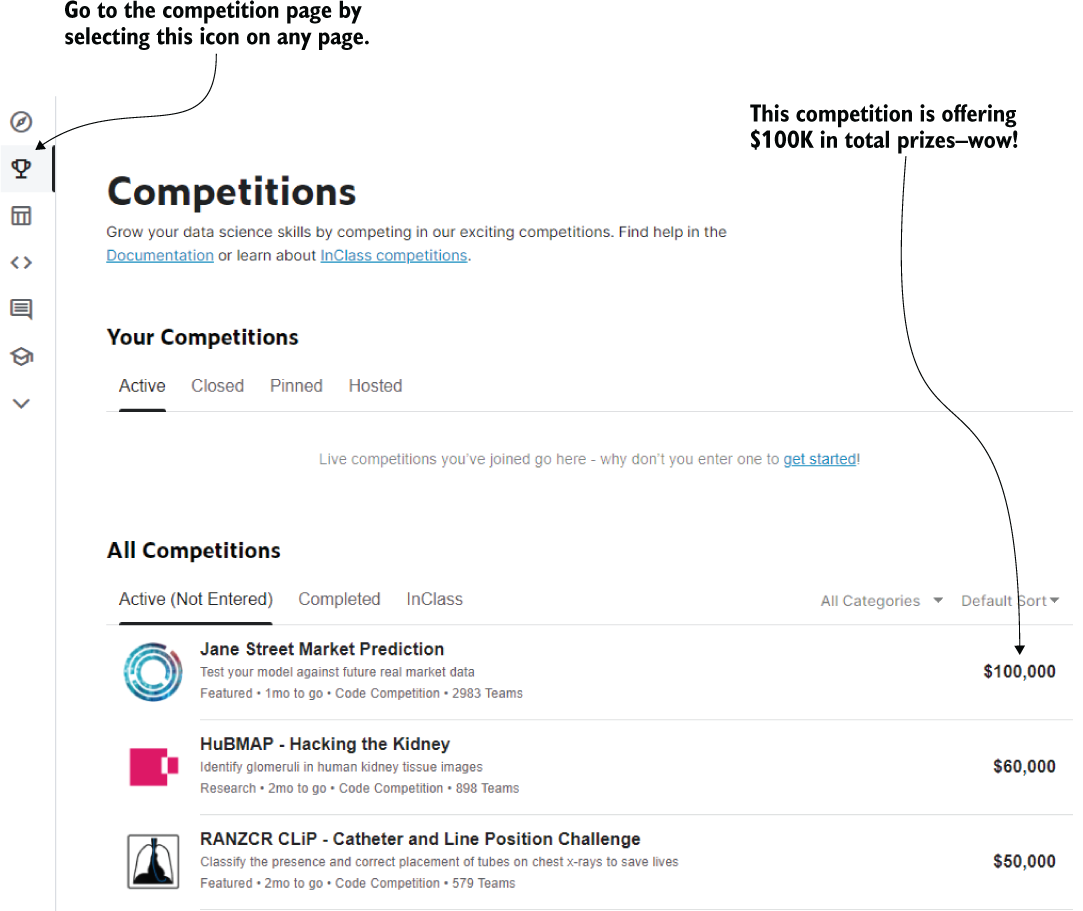
Figure A.7 The discussion feature enables you to engage with other members of the Kaggle community on specific topics of interest to you. Chat and build your network!


 Transfer Learning for Natural Language Processing ebook for free