Appendix E. Installing MySQL and creating a database
This appendix explains how to prepare a local relational database for the book’s later Spring examples, which rely on an external DBMS. It emphasizes that while many database technologies are available, the specific choice does not affect the Java or Spring code used in the lessons, and MySQL is selected mainly because it is free, lightweight, and easy to install.
The setup process begins by installing a DBMS on your computer and then installing a matching client application to manage it. In the book’s walkthrough, that means installing MySQL and MySQL Workbench, using the appropriate installer for your operating system and keeping any credentials created during installation, since they are needed to connect later.
After both tools are installed, you connect the client to the local database server using those credentials, test the connection, and then create a new database from the client interface. Once the database appears in the client’s list, it is ready for use by the Spring application examples in the later chapters.
Figure E.1 Once you open MySQL Workbench, click on the plus icon near the label “MySQL Connections” to add a new connection.
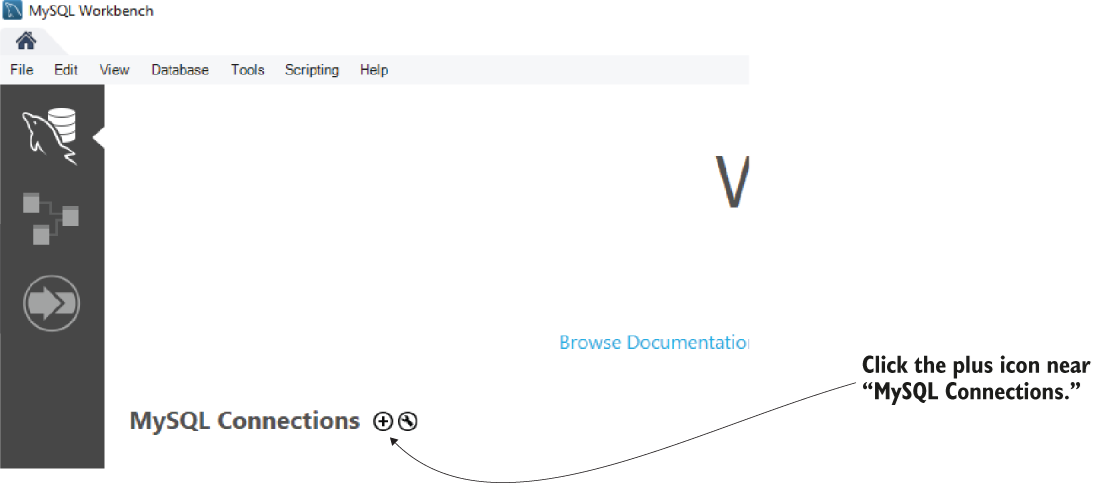
Figure E.2 Give the connection a name and fill in the credentials you configured when installing the DBMS. Then, click on the “Test Connection” button to verify that MySQL Workbench can connect to the database.
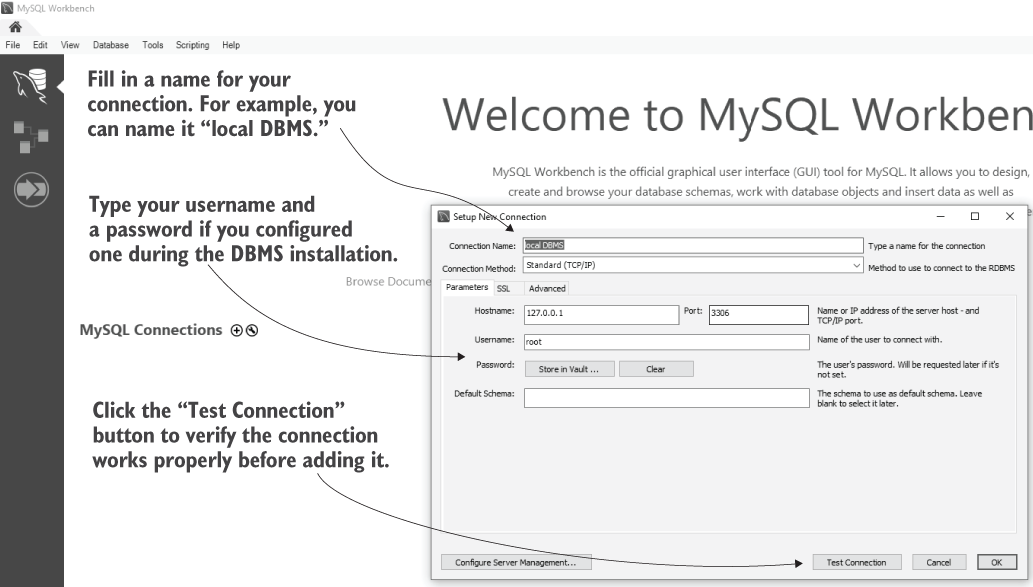
Figure E.3 Sometimes MySQL Workbench displays a warning message. This warning won’t affect the way you implement the examples in the book. You can click on the “Continue Anyway” button if such a message is displayed.
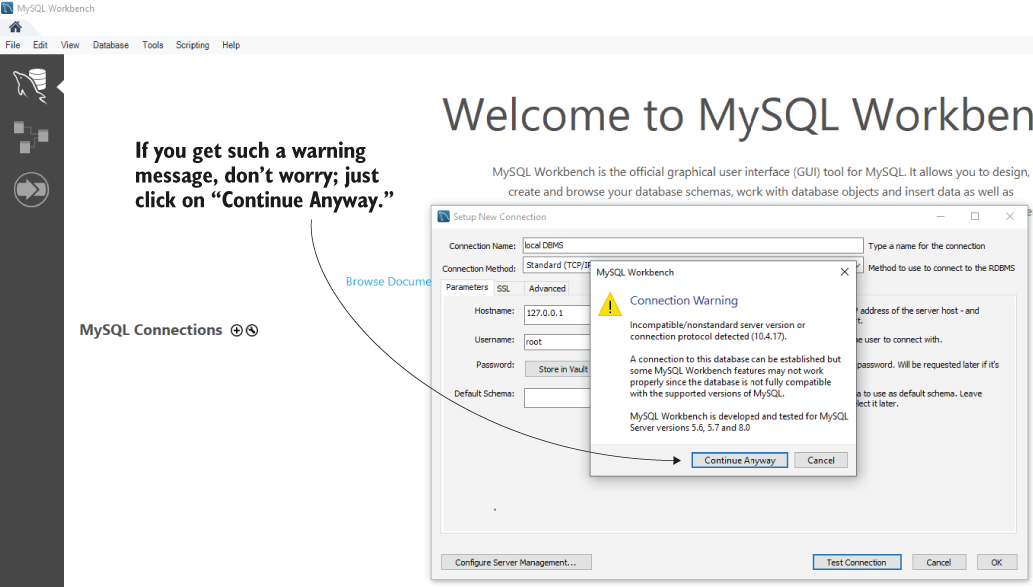
Figure E.4 If MySQL Workbench connected to the local DBMS, it displays a “Successfully made the MySQL connection” message in a pop-up dialog.
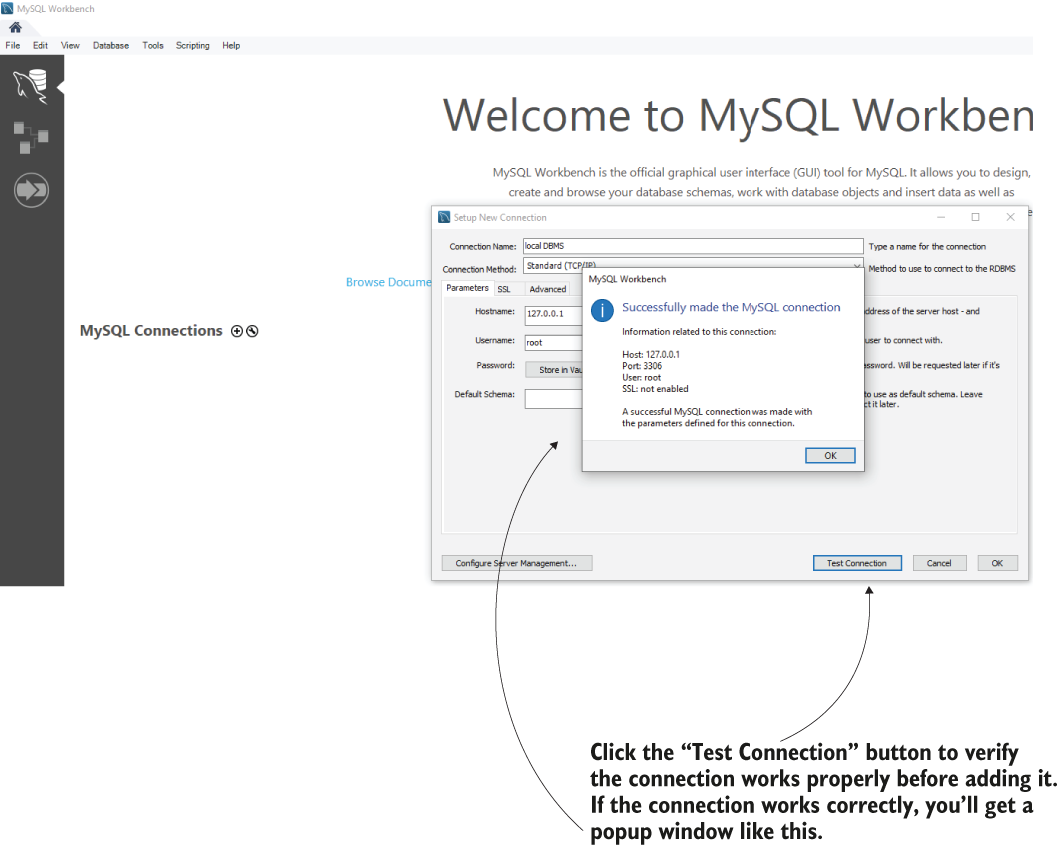
Figure E.5 In the MySQL Workbench main screen, you can now see the connection you added. The connection is displayed as a gray rectangle, and it has the connection’s name.
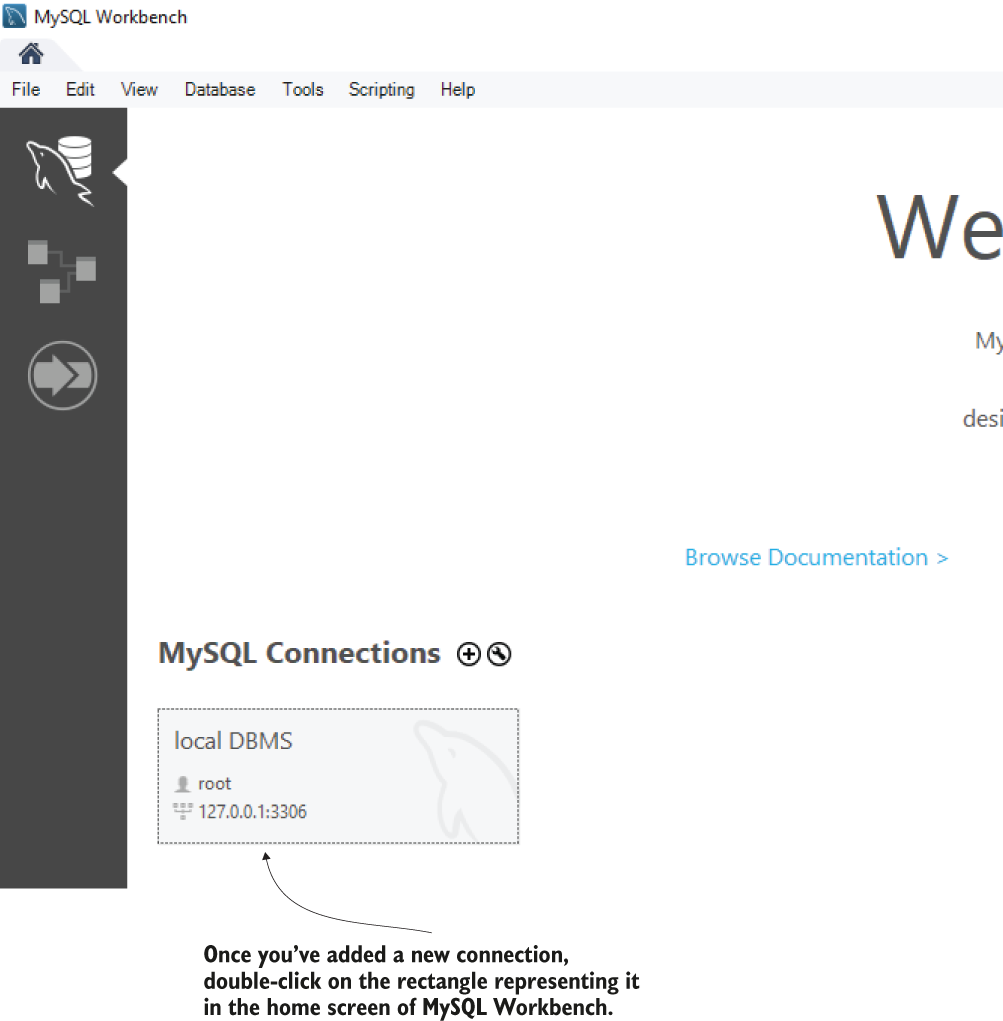
Figure E.6 After connecting to the DBMS, you can add a new database by clicking on the toolbar's small cylinder icon.
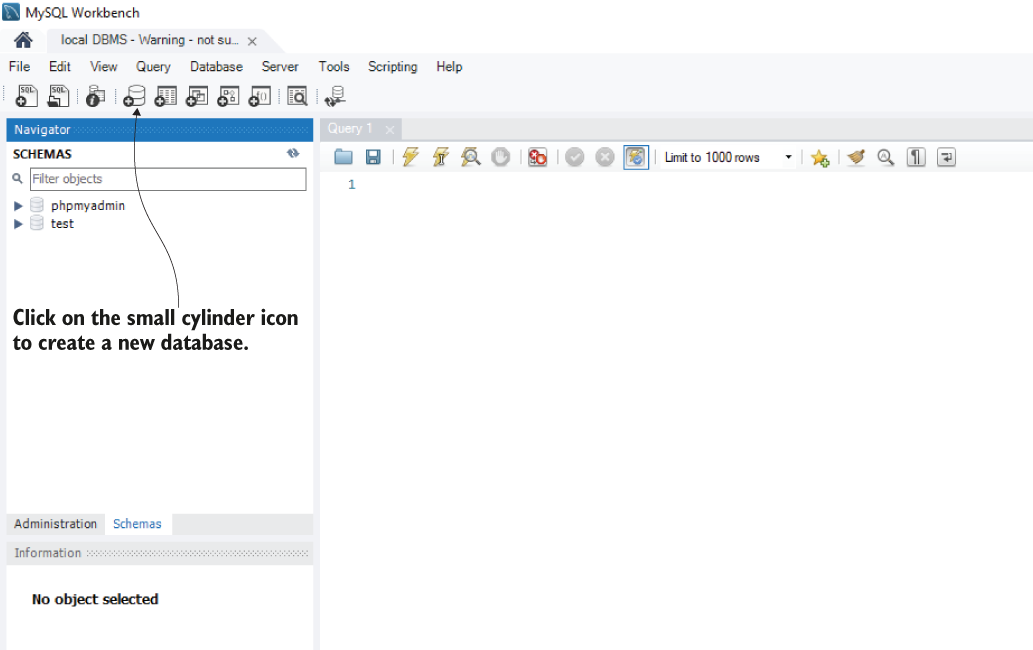
Figure E.7 Give the database a name. Our examples use “spring quickly.” Click on the Apply button to create the database.
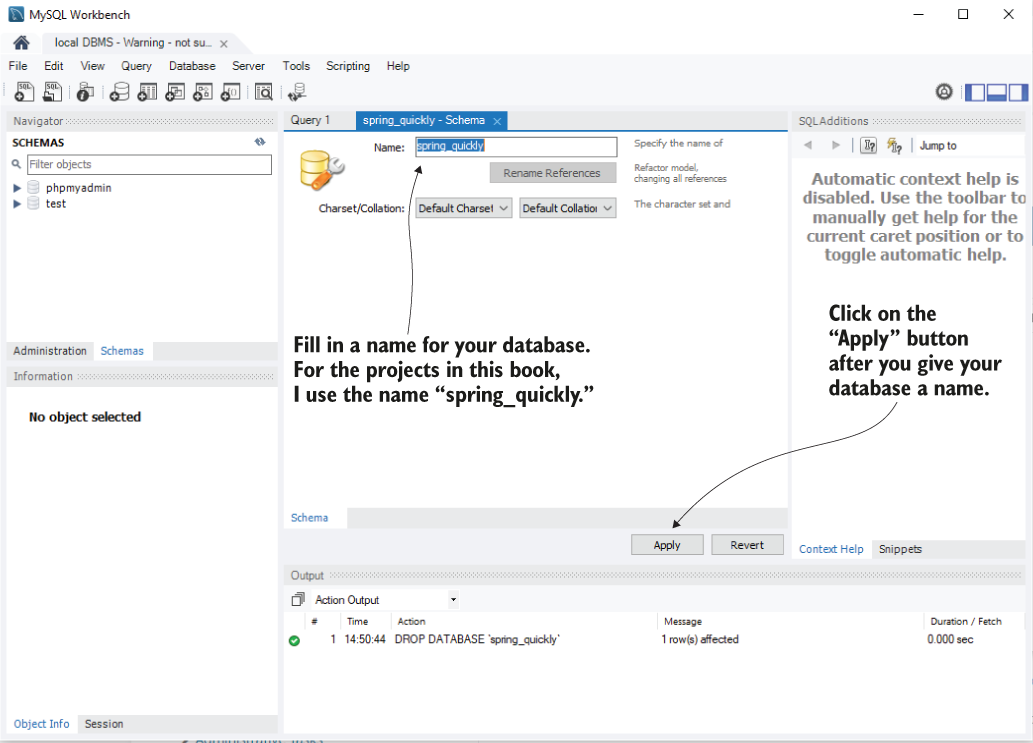
Figure E.8 You need to again confirm the creation of the database. In this screen, you also see the query MySQL Workbench sends to the DBMS to create the new database. Click the Apply button to execute the query and create the new database.
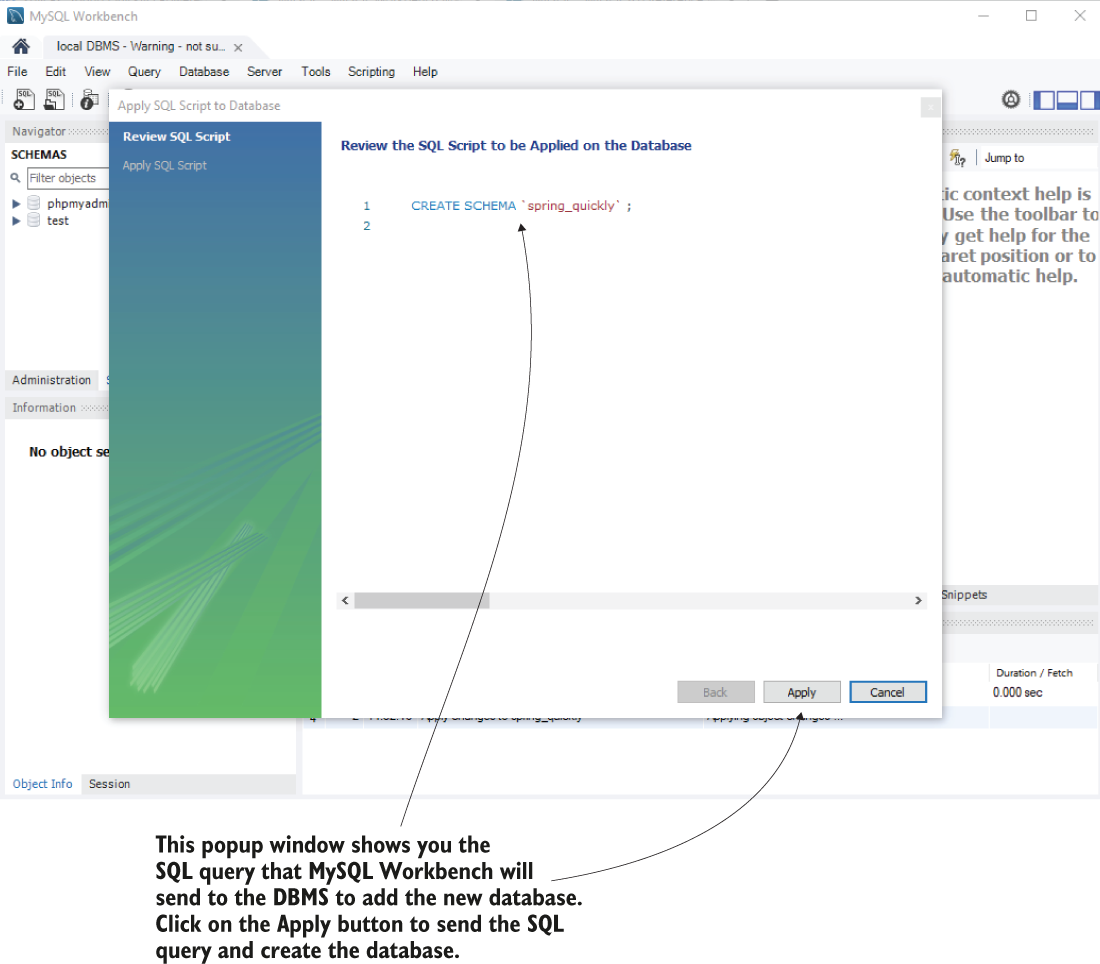
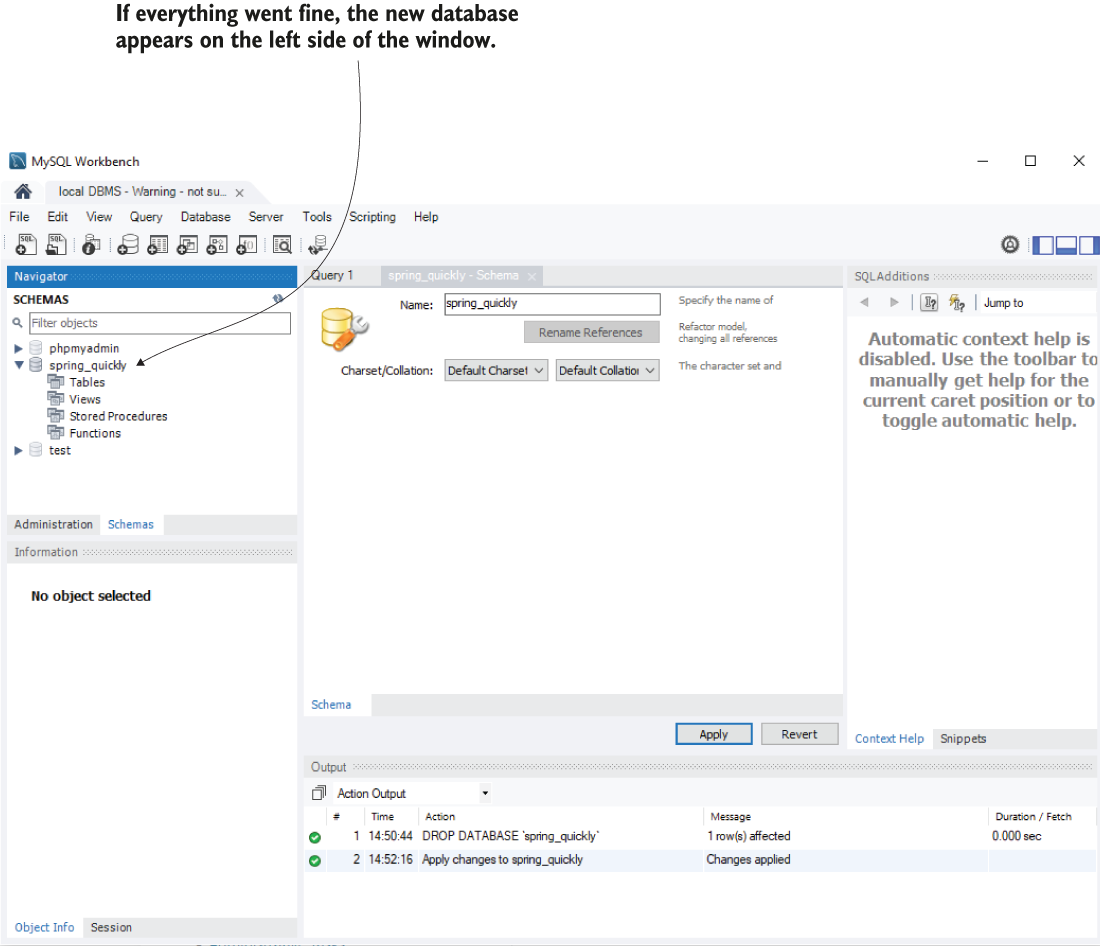
Figure E.9 The new database appears on the left side of the window. If you can see it there, it means you successfully created a new database.

 Spring Start Here, Second Edition ebook for free
