Appendix B. Working with the book’s projects
This appendix explains how to use the book’s projects and how to create your own so you can follow along with the examples. The main goal is to make setup straightforward, not to turn you into an expert in the tools themselves.
You can use IntelliJ IDEA or any other modern IDE that supports Maven or Gradle projects, so you are free to choose the environment you know best. The book’s examples are shown with Maven, but Gradle is also acceptable if that is your preference. To get started, open an existing project or create a new standard Java project, then select a build tool, name the project, and choose the Java version used in the book.
The appendix emphasizes that you only need basic project skills: opening projects, creating new ones, and adding dependencies when an example requires them. Maven is used mainly to manage dependencies, with the pom.xml file containing the list of needed libraries. Once you can set up and run the projects, you can focus on the Spring concepts, experiment with the code, and treat mistakes as part of the learning process.
Figure B.1 Create a new project using New Project or open an existing project using Open in the IntelliJ IDEA welcome screen.
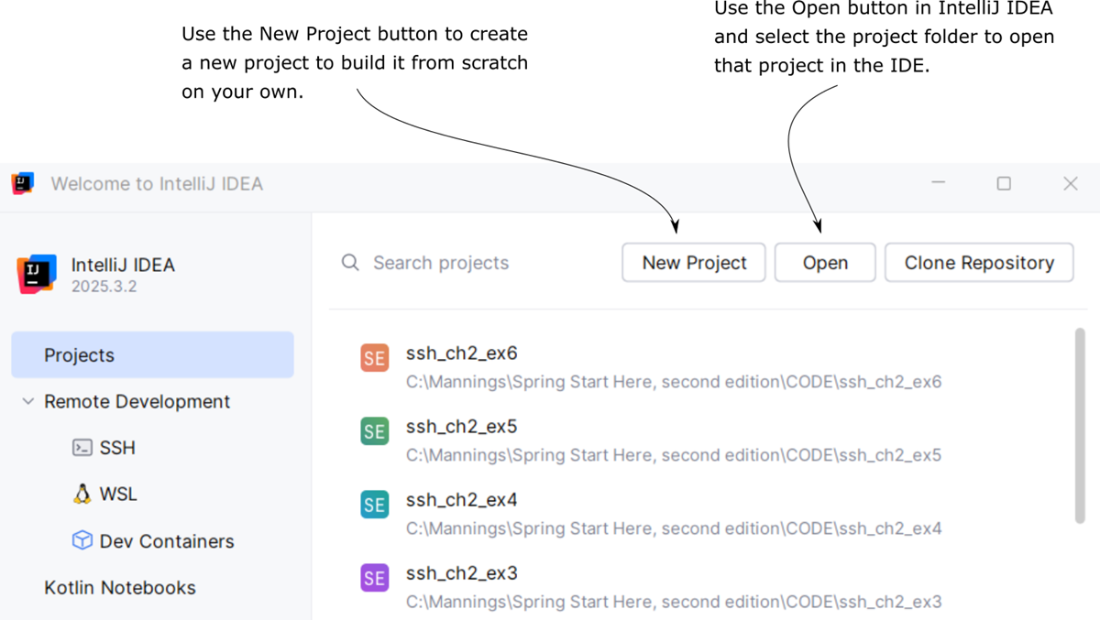
Figure B.2 After you open a project, IntelliJ IDEA shows the project structure on the left and the project files in the main editor area, so you can start working on the code.
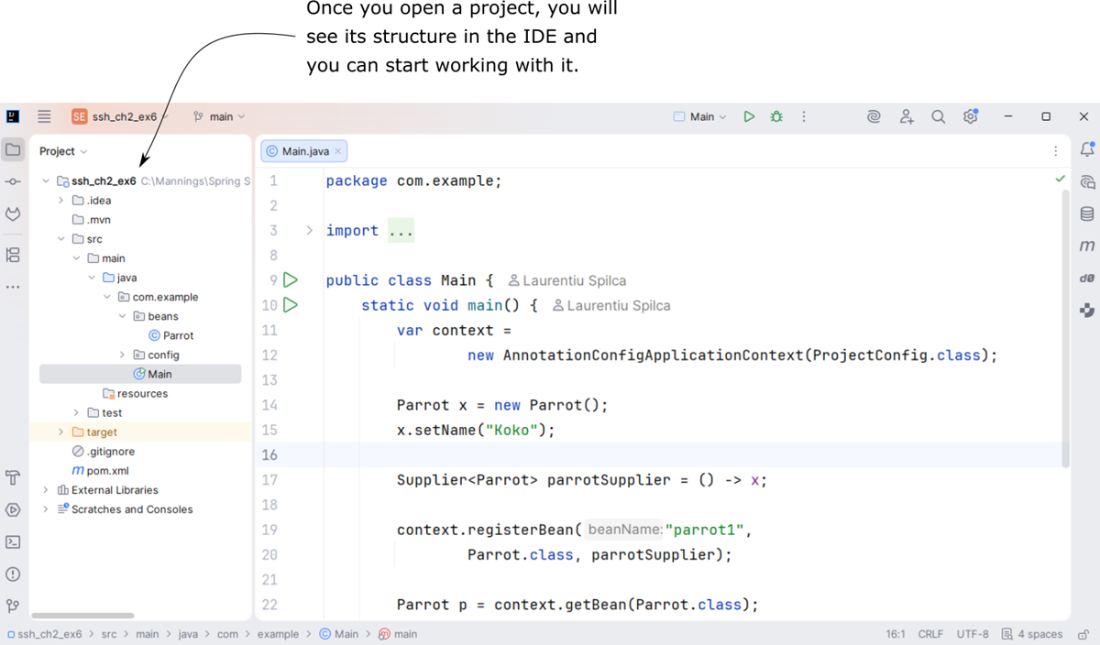
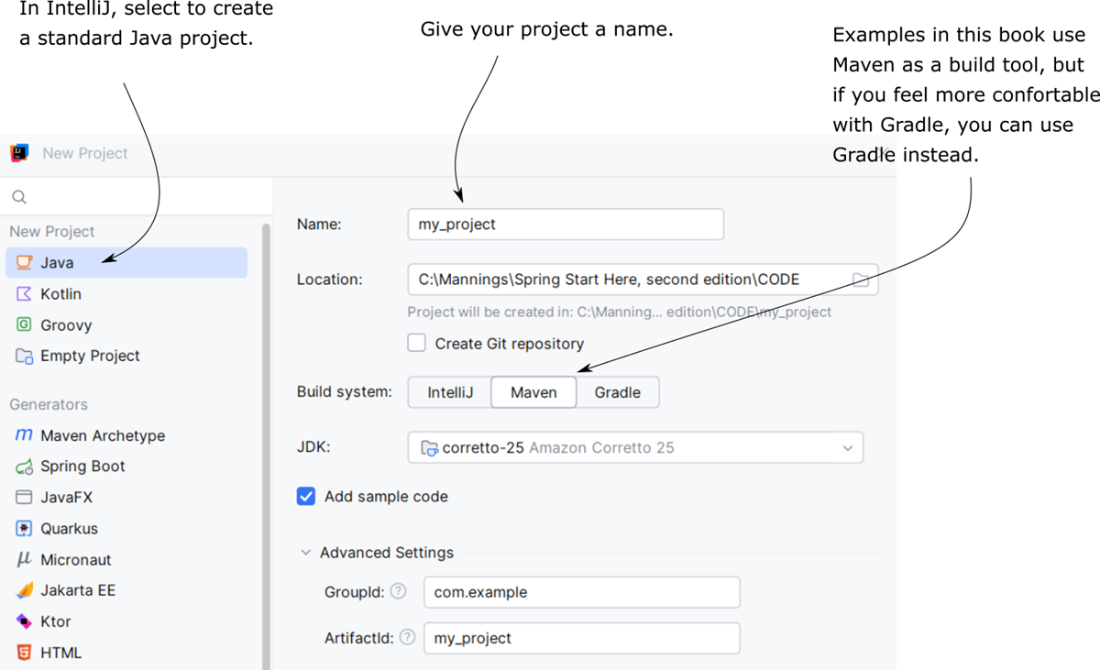
Figure B.3 When creating a new project, choose Java, set a project name, select Maven or Gradle as the build tool, and choose the Java version used in the book.
FAQ
What is the purpose of Appendix B in the book?
Appendix B explains how to work with the book’s projects and how to create your own projects from scratch so you can follow along with the examples in the book.Do I have to use IntelliJ IDEA to follow the book?
No. The book uses IntelliJ IDEA in the examples, but you can use any modern IDE that can open and create Maven or Gradle projects, such as Eclipse.Should I use Maven or Gradle for the example projects?
You can use either. The book uses Maven in the examples, but if you are more comfortable with Gradle, you can use Gradle instead.How do I open an existing project in IntelliJ IDEA?
On the IntelliJ IDEA welcome screen, click the Open button and select the folder of the project you want to open.How do I create a new project in IntelliJ IDEA?
On the IntelliJ IDEA welcome screen, click New Project, then choose a standard Java project and set the project details such as name, build tool, and Java version.What build tool should I select when creating a new project?
Select Maven or Gradle so you can manage the dependencies needed for the book’s examples.What Java version should I use for the projects?
The projects in the book use Java 25, so you should choose that version when creating your project.Do I need to be a Maven expert to use the projects?
No. You only need to know how to add dependencies. The book uses Maven mainly as a simple way to manage dependencies.Where is the pom.xml file located in a Maven project?
Thepom.xml file is in the root folder of the Maven project.What should I do if an example in the book requires additional libraries?
You should add the required dependencies to your project’spom.xml file so you can reproduce the behavior shown in the example.
 Spring Start Here, Second Edition ebook for free
