3 Using Virtual Machines
Virtual machines (VMs) in Azure are a core Infrastructure-as-a-Service building block that provide full control of an operating system without managing physical hardware. They suit a wide range of workloads, from custom apps to legacy software, and support many Windows and Linux images from the Azure Marketplace. Azure abstracts the hardware, offers pay-as-you-go pricing, and charges separately for data egress, while ingress is free. You can connect and administer VMs using RDP (commonly for Windows), SSH (preferred for Linux), or Azure Bastion for private, browser-based access without exposing the VM to the public internet. Although you own the software lifecycle on the VM, services like Azure Automanage and managed identities help apply best practices, reduce operational overhead, and securely authenticate to other Azure resources without secrets.
Creating a VM in the Azure Portal involves choosing a subscription/resource group, region, availability options (zones or sets), an OS image (for example, Ubuntu LTS), and a right-sized SKU to balance performance and cost. Region choice affects pricing, features, and availability options; Azure Resource Mover can help relocate resources later. You configure secure admin access (SSH keys are recommended), open only required inbound ports, select disk types (HDD/SSD) and encryption, and attach data disks as needed. Networking requires a VNet (and optionally a public IP), with traffic filtered by Network Security Groups; load distribution can be added later via Azure Load Balancer or Application Gateway. Cost optimizations include auto-shutdown, Spot VMs for interruptible workloads, and reserved instances for 1–3 year commitments. The same deployment can be scripted quickly via Azure CLI once you understand the choices.
Operating VMs effectively means scaling vertically (resize) or horizontally (scale sets), designing for resilience with availability zones/sets, and enforcing governance with Azure Policy (for images, regions, managed disks, and more). For secure administration, Bastion minimizes public exposure. Observability is delivered by Azure Monitor, which collects metrics, logs, and traces, surfaces VM Insights, and integrates with Log Analytics for KQL-based investigations. Alerts can be driven by metrics, logs, activity events, or dynamic thresholds (“smart alerts”) that learn normal behavior and reduce noise. The Azure Monitor Agent, configured with Data Collection Rules and deployable at scale via Azure Policy, standardizes telemetry from Windows and Linux guests. Together, these practices help you optimize performance, reliability, and cost throughout a VM’s lifecycle.
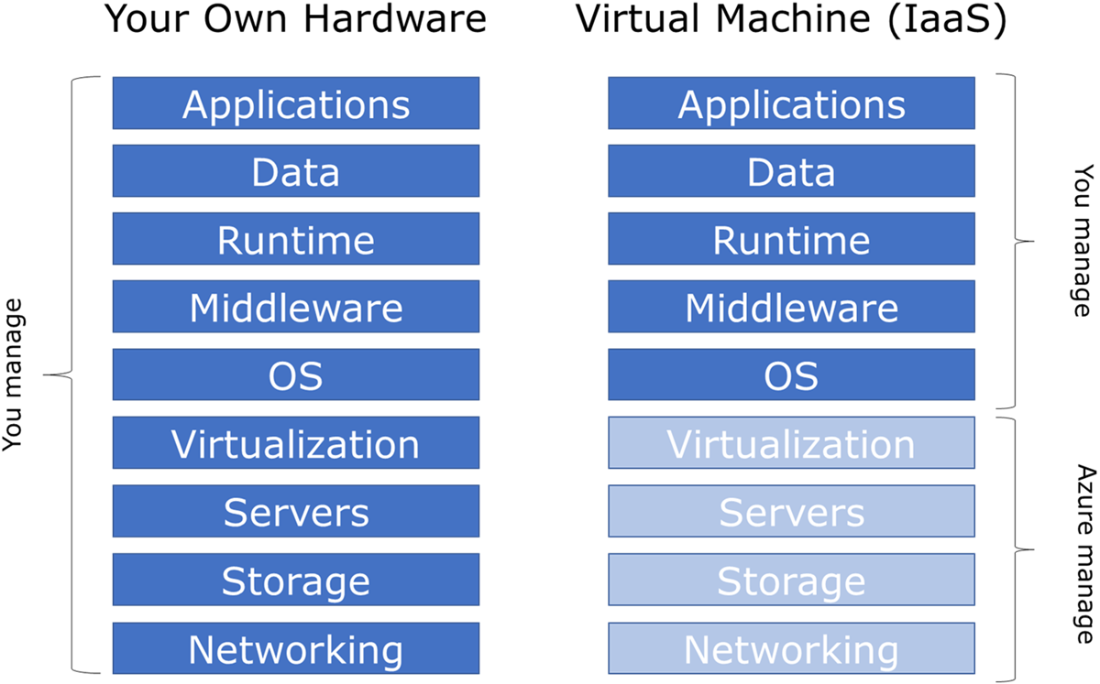
Azure abstracts all the hardware layers when using a VM.
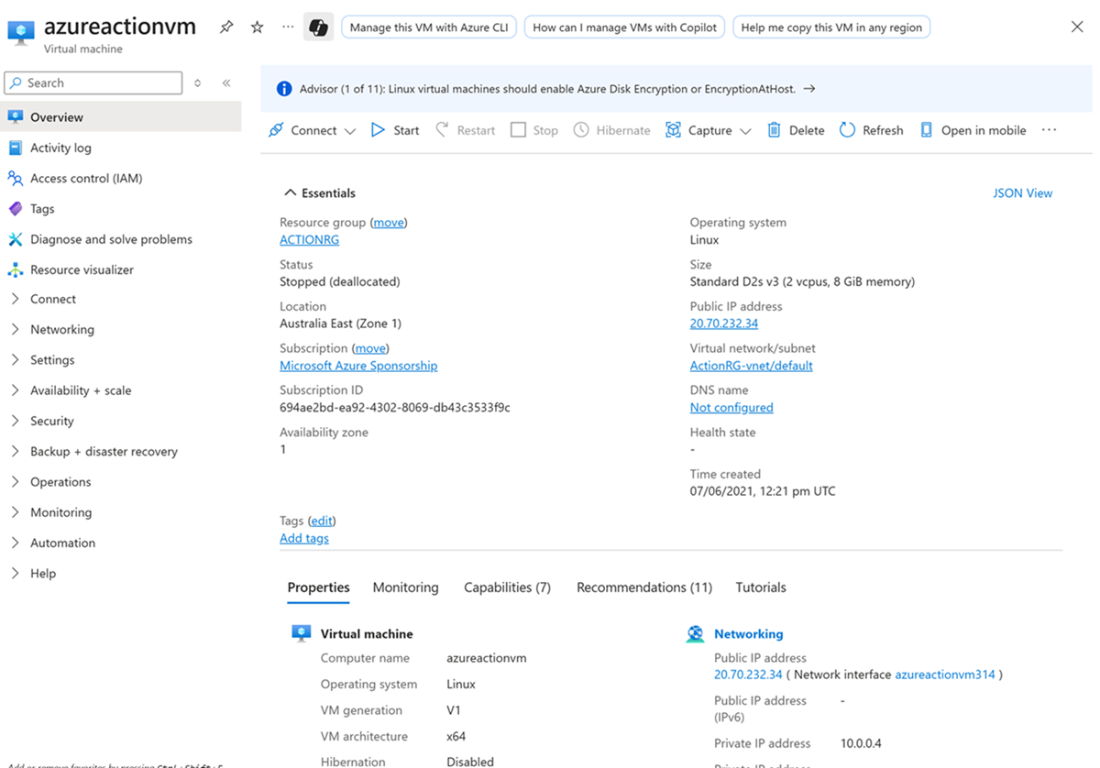
Azure virtual machine overview.
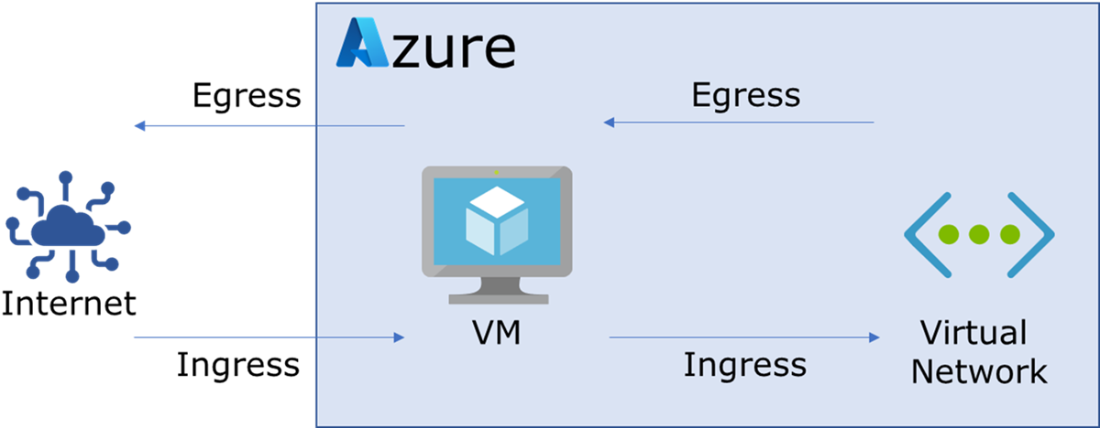
Ingress and egress traffic.
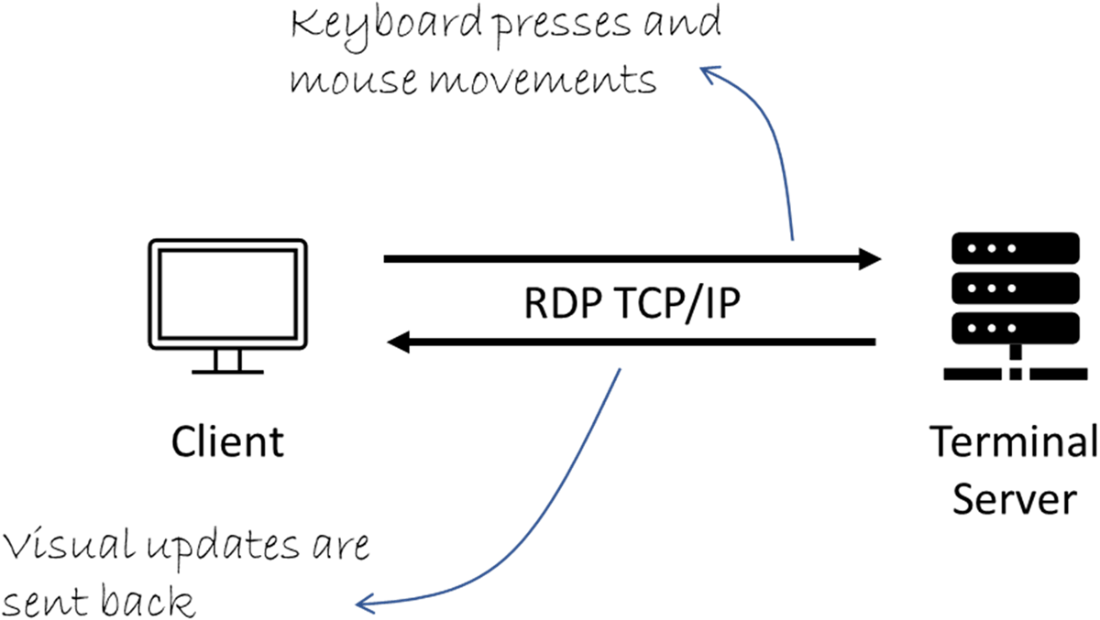
Remote Desktop data flow.
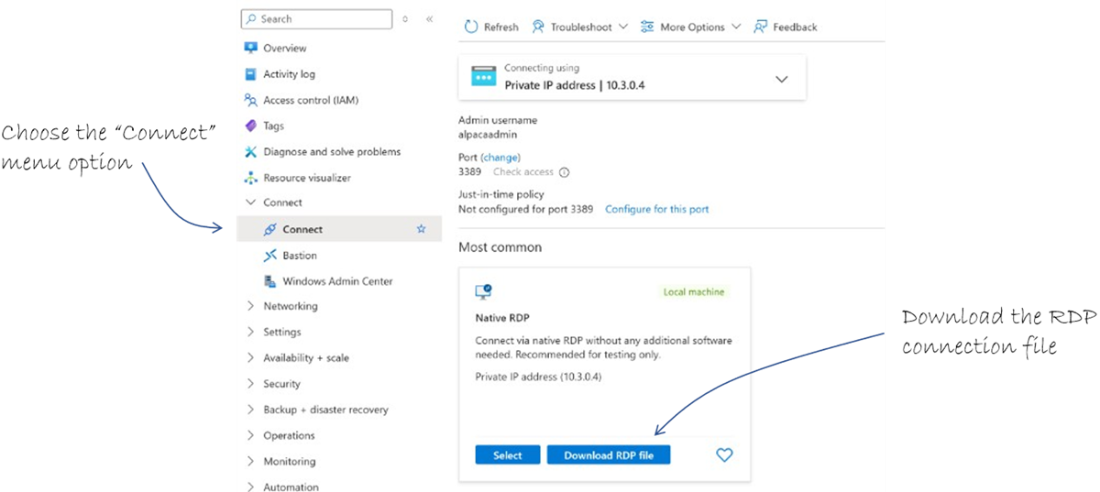
Downloading an RDP connection file for an Azure VM.
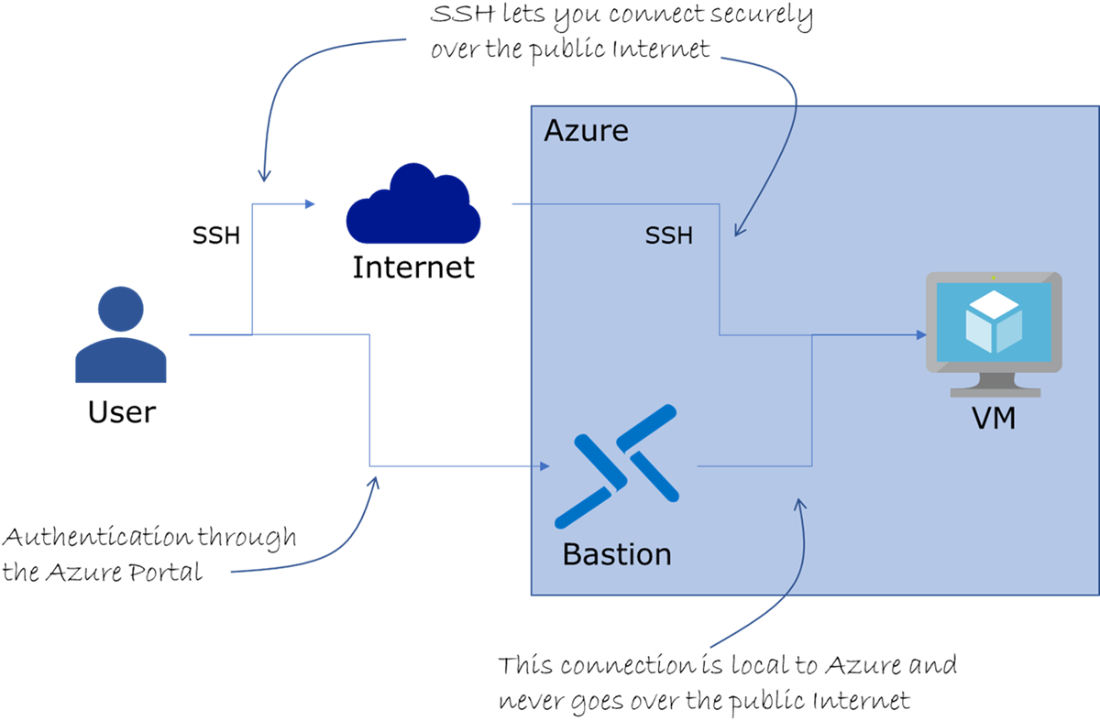
Using either SSH or Bastion to connect to a VM.
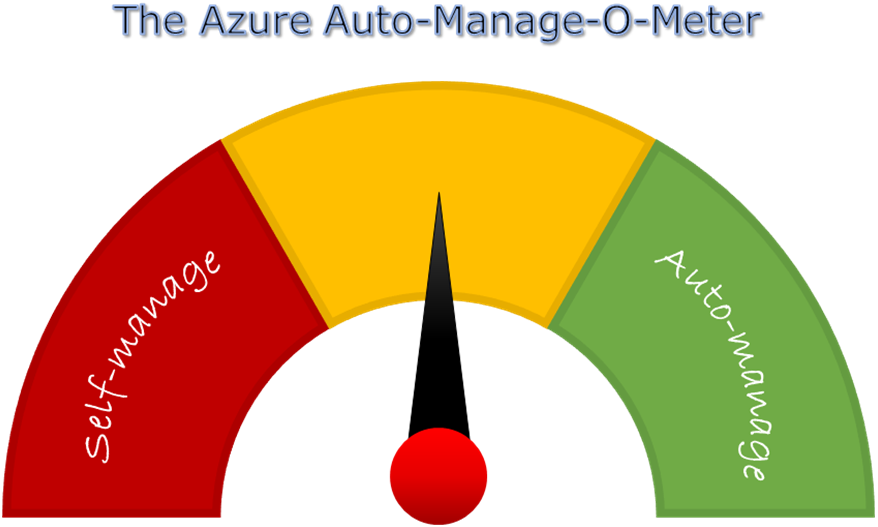
Self-manage your VM and be in charge of policies and configurations, or use Azure Automanage to let Azure apply update patches and apply security best practices.
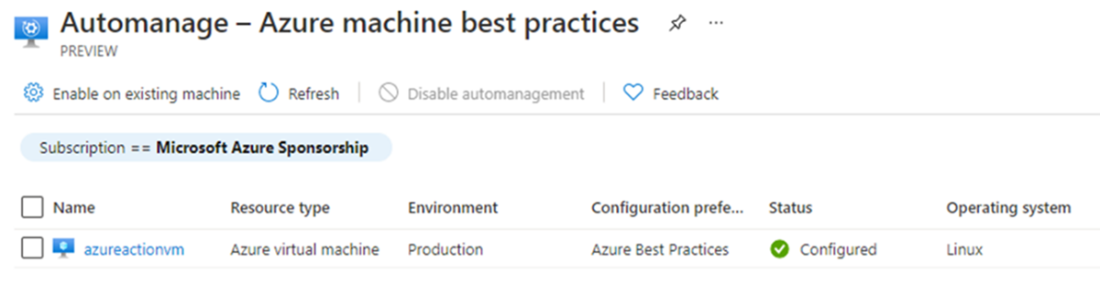
Azure Automanage configured for a VM.
Create a new Virtual Machine.
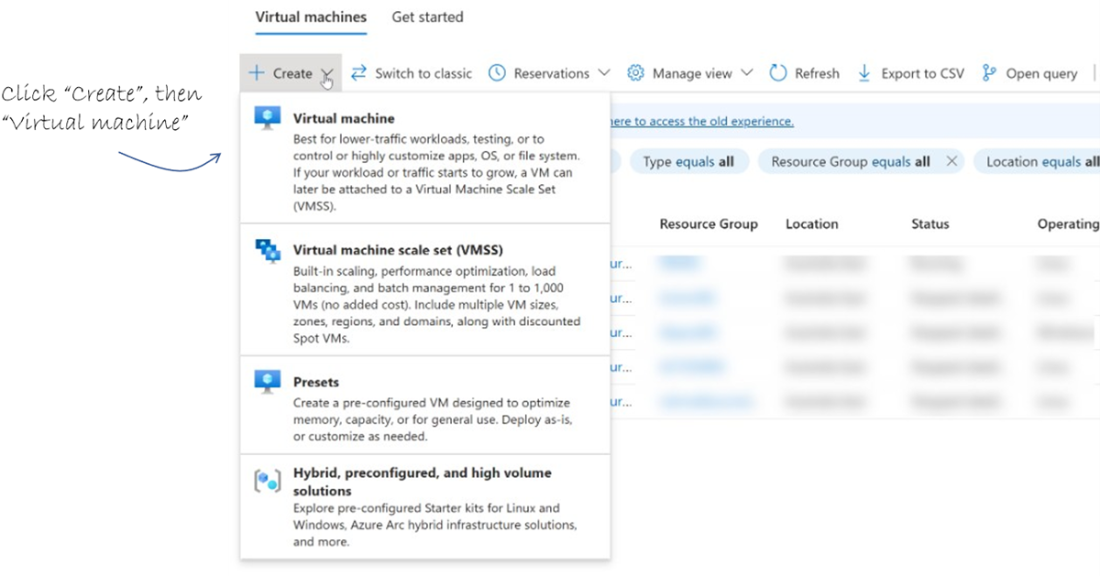
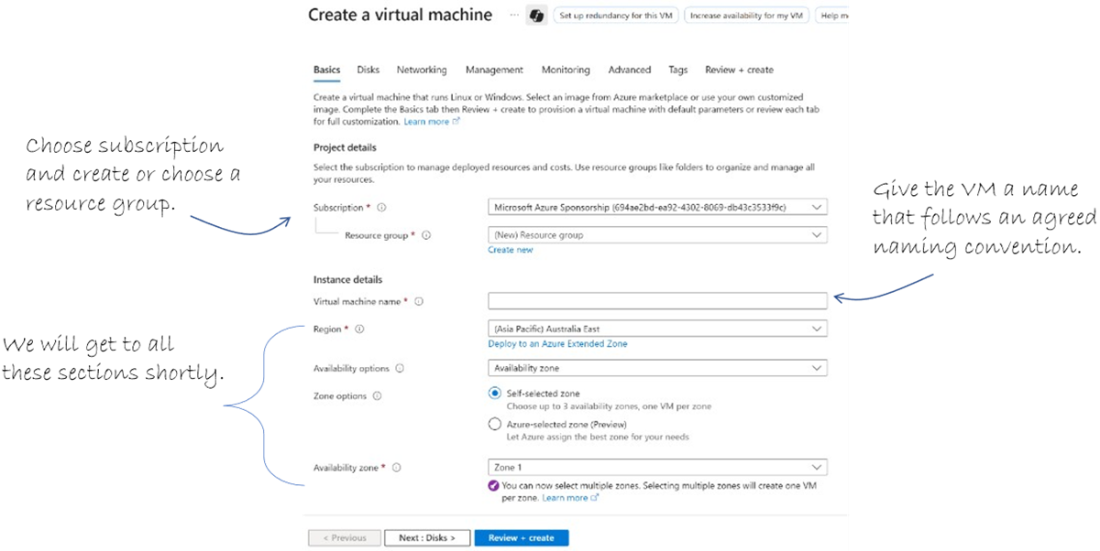
The first part of the wizard for creating a new VM.
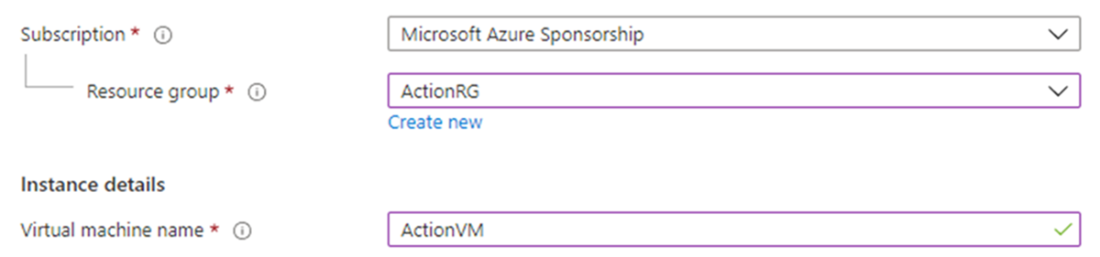
Set resource group and name for the VM.
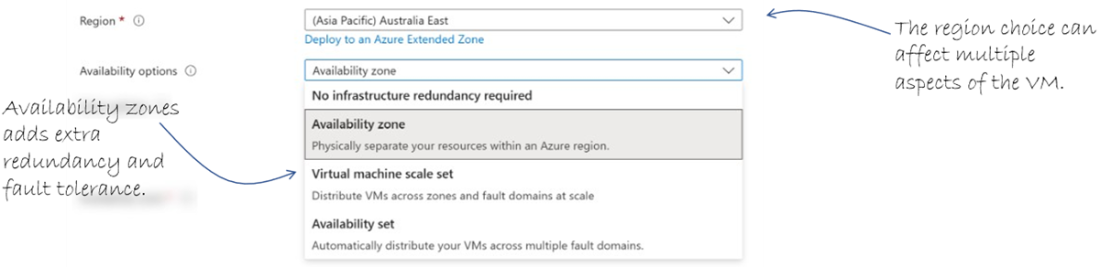
Choose region and availability options.
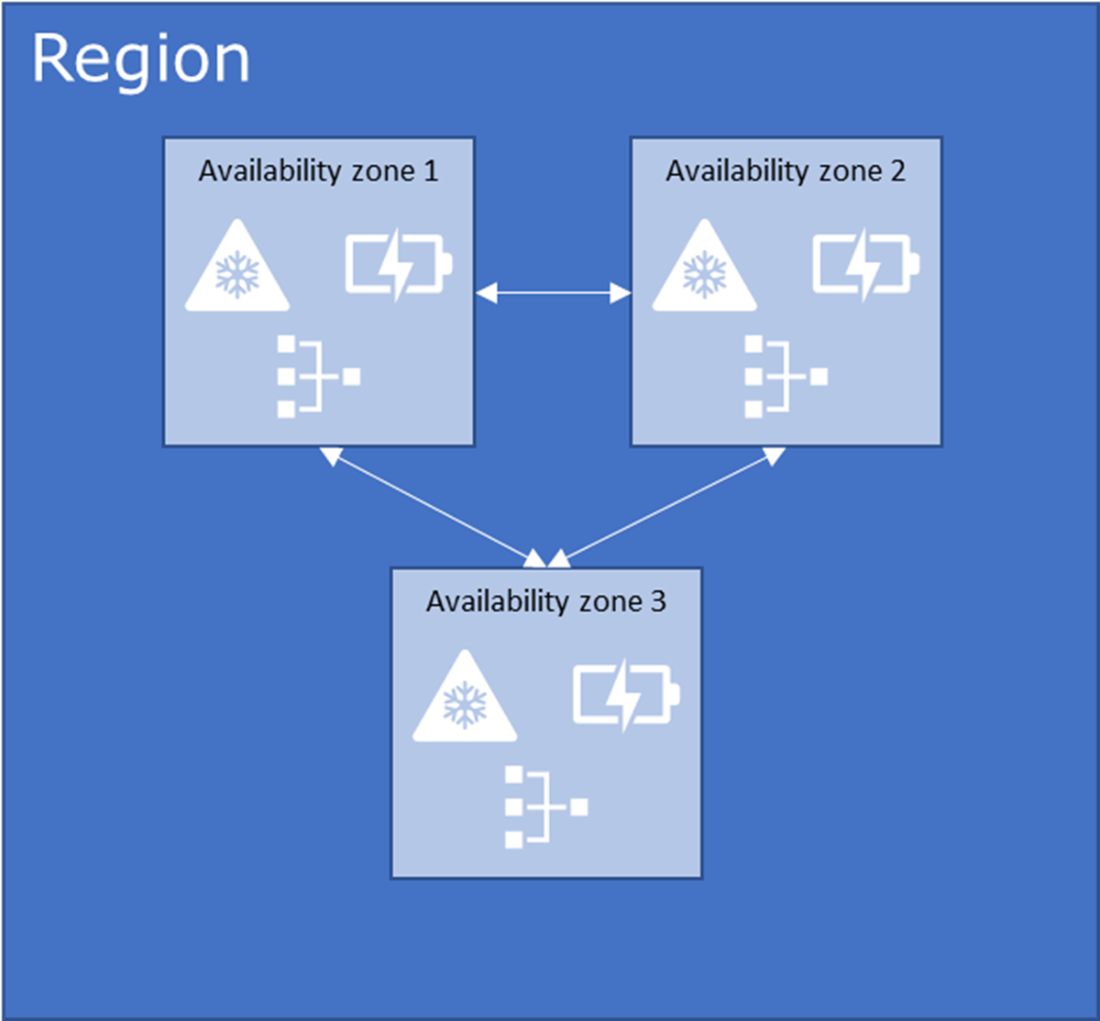
Azure availability zones with separate cooling, power, and network.
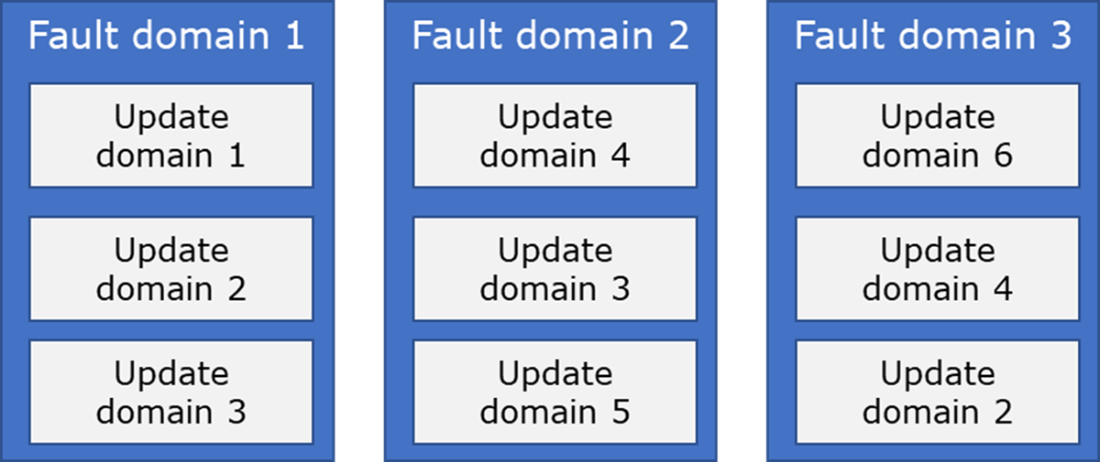
An availability set with 9 VMs, 6 update domains and 3 fault domains.
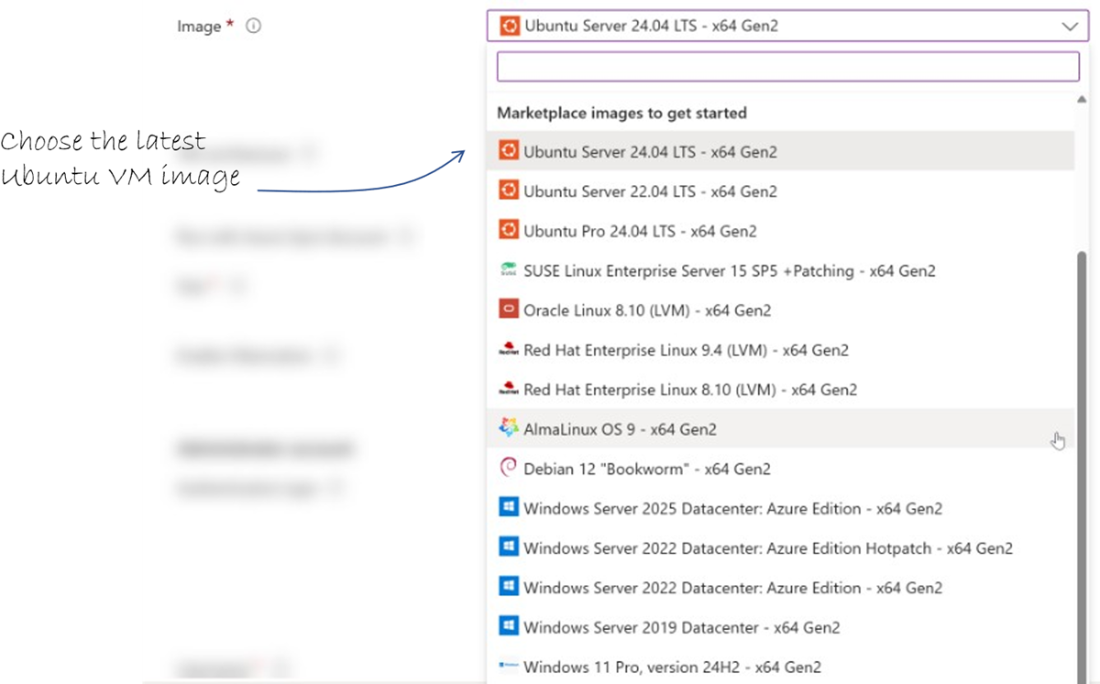
Choose the latest Ubuntu LTS version as VM image.
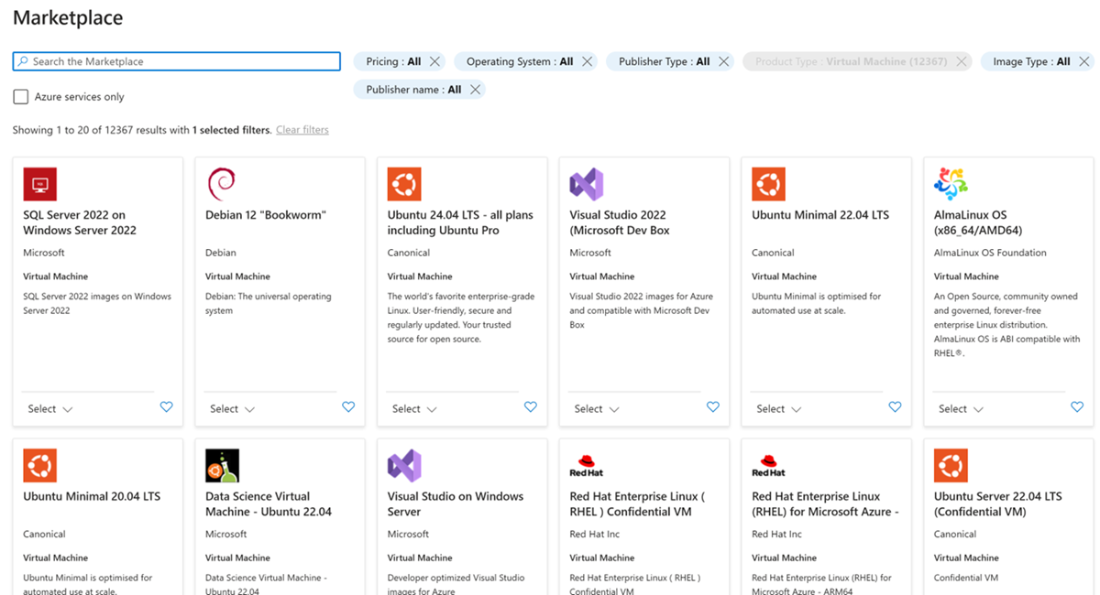
Azure Marketplace options for VM images.
Balance the need for compute resources with the cost.
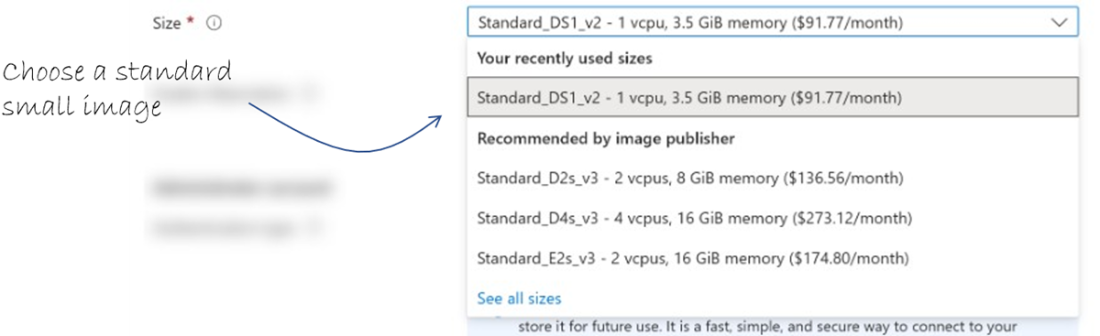
Select a small relatively inexpensive VM size, such as Standard_DS1_v2.
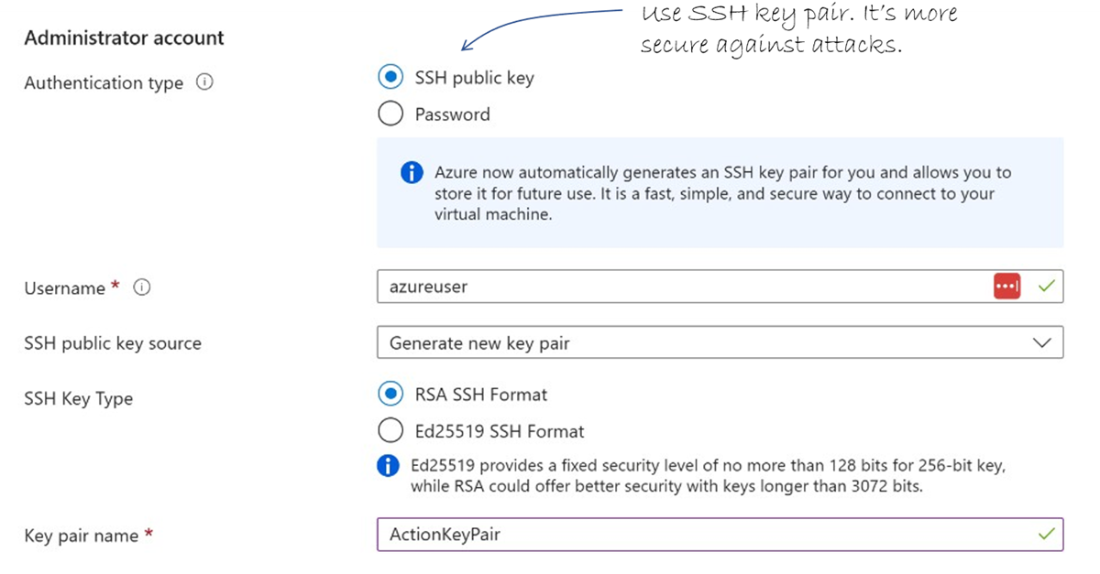
Use the SSH key pair as authentication to improve security.
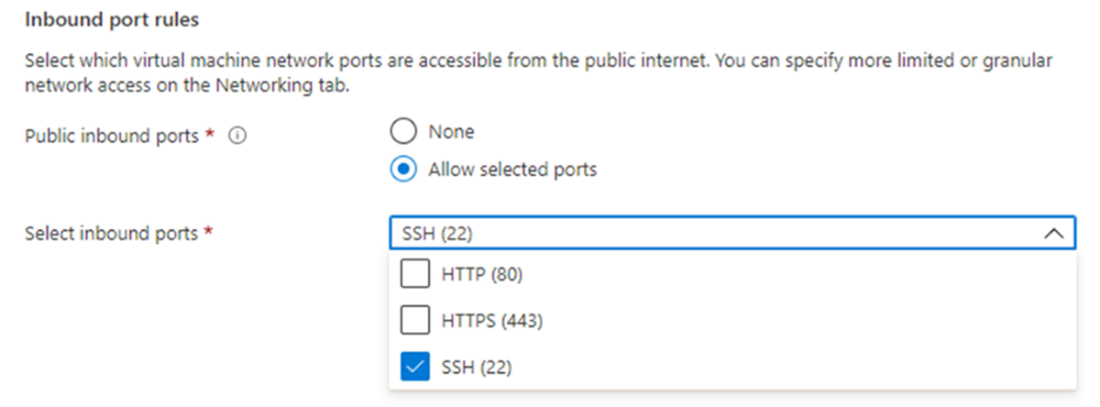
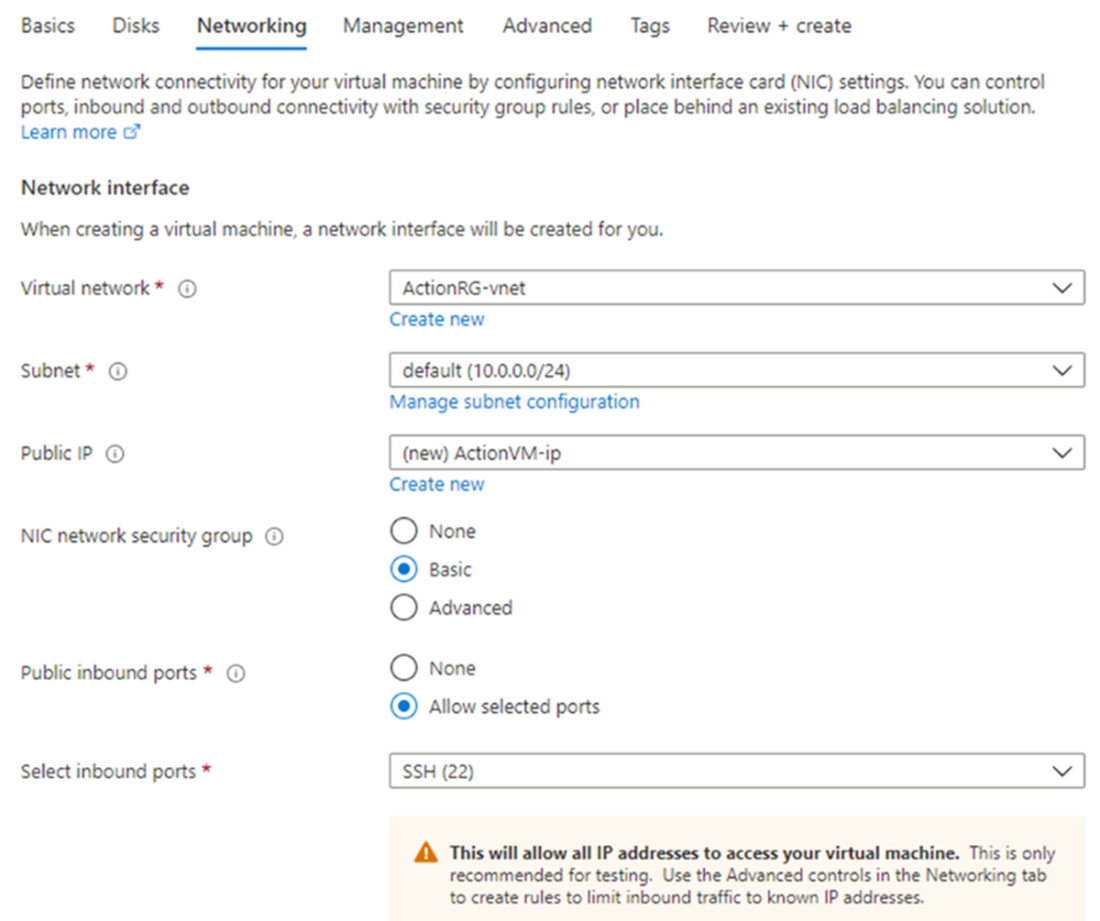
Select the ports you want to open on the new VM.
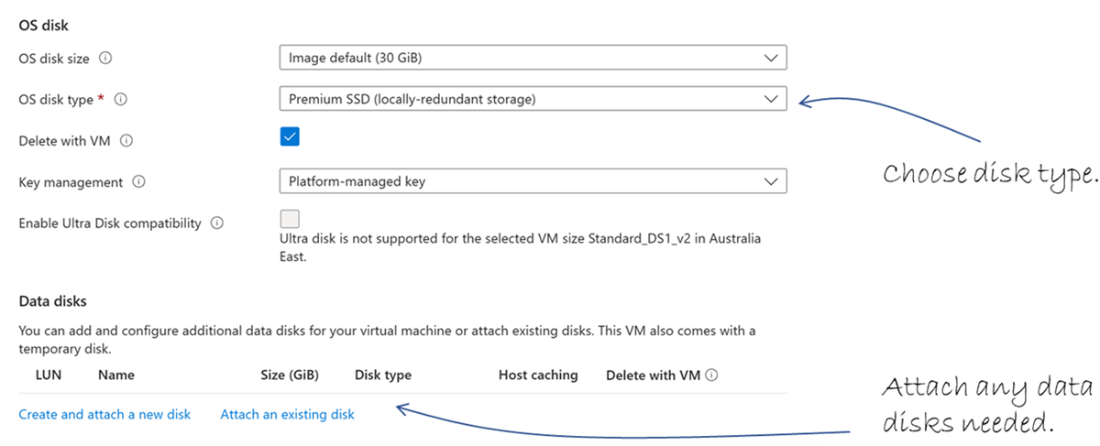
Create OS and data disks for the VM.
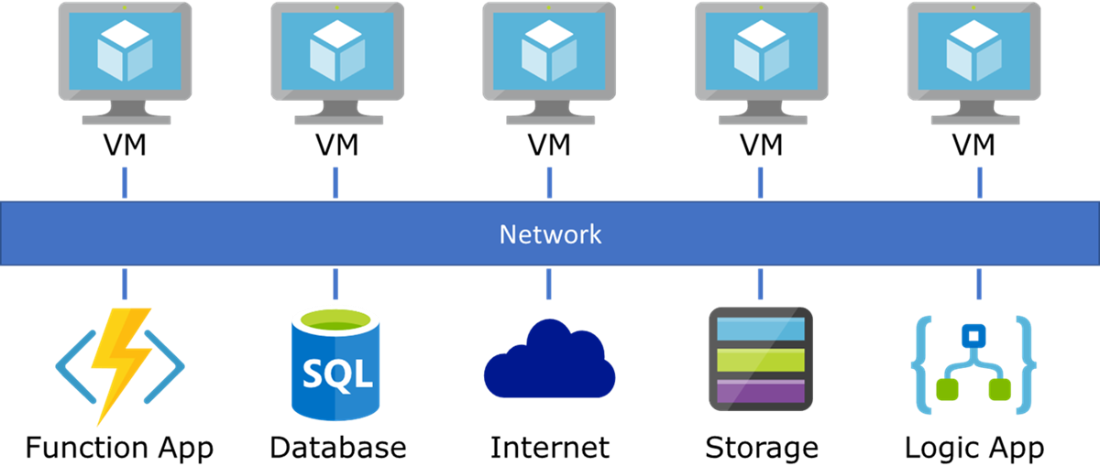
VMs need to connect to a network to access the Internet and other Azure services.
The networking tab for the VM.
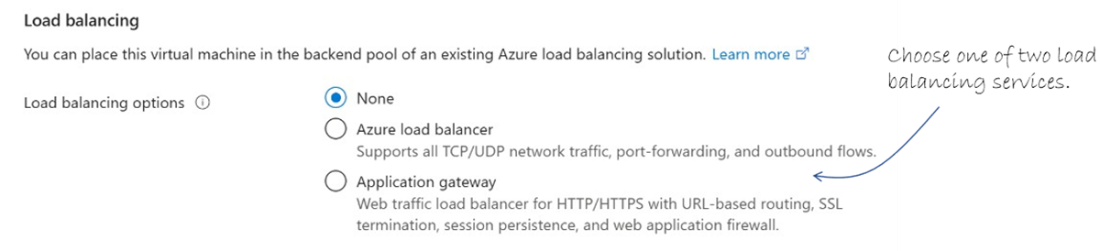
Choose one of two load balancing options, if required.
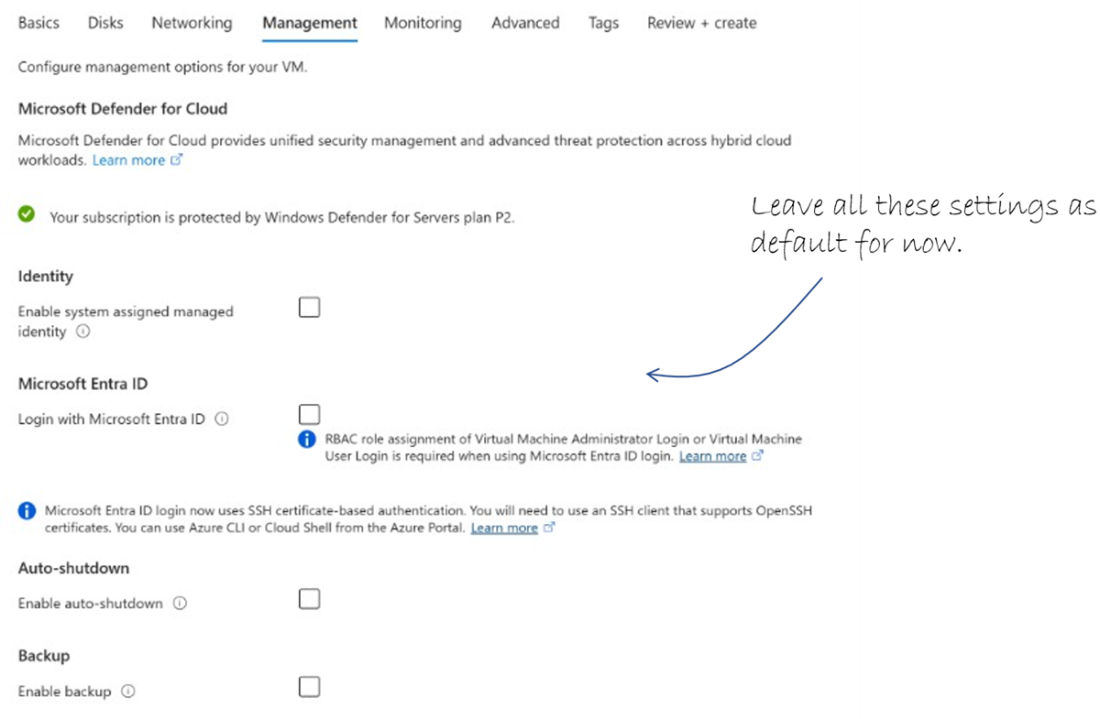
The first part of the Management tab properties.
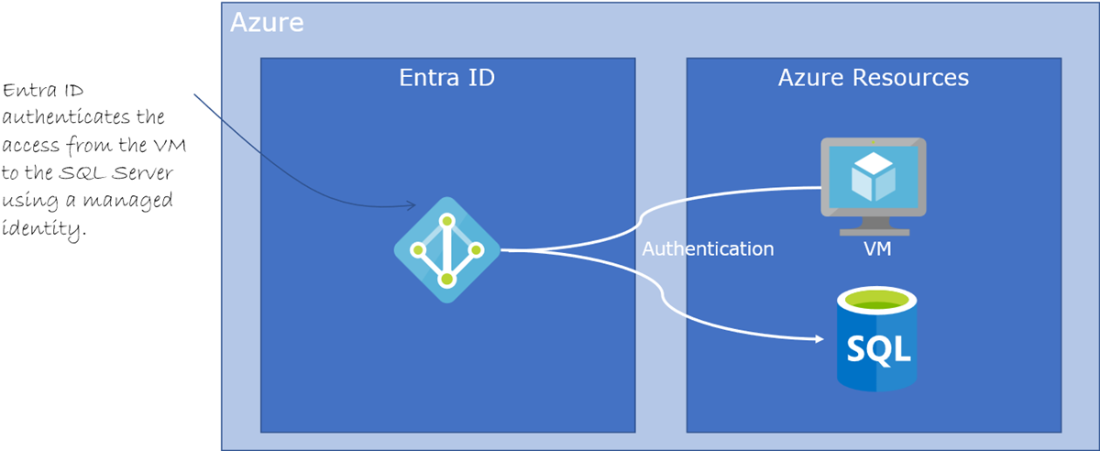
Using a managed identity to authenticate access between Azure resources.
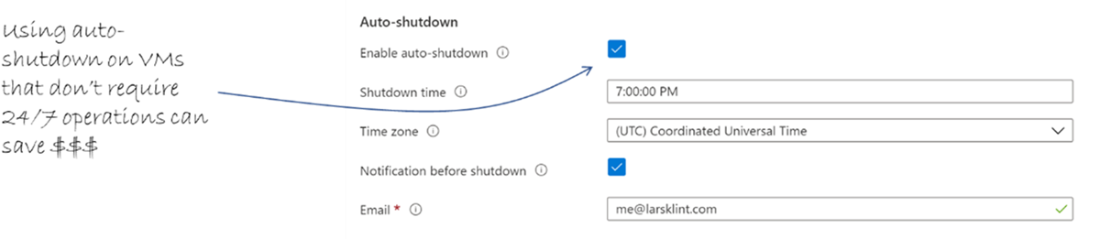
Use auto-shutdown whenever you can.
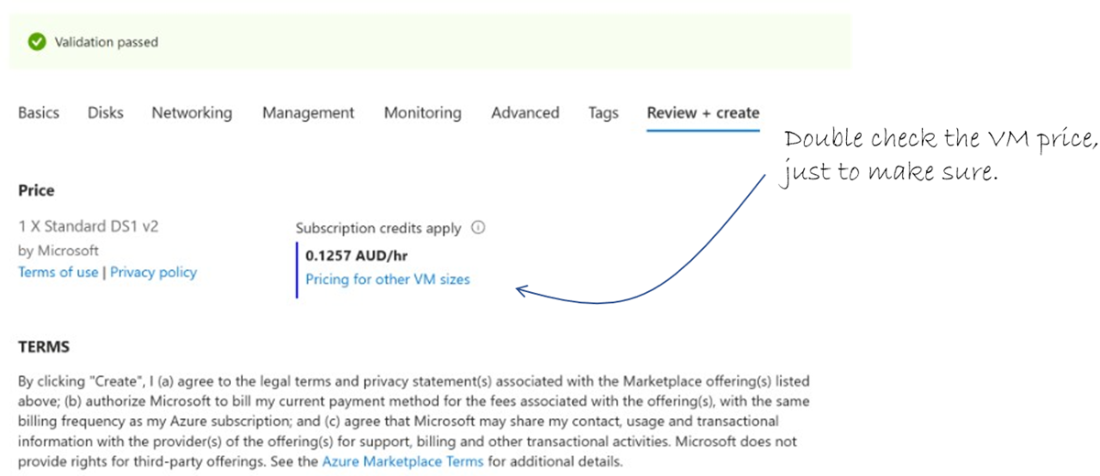
Always double-check the VM price is right.
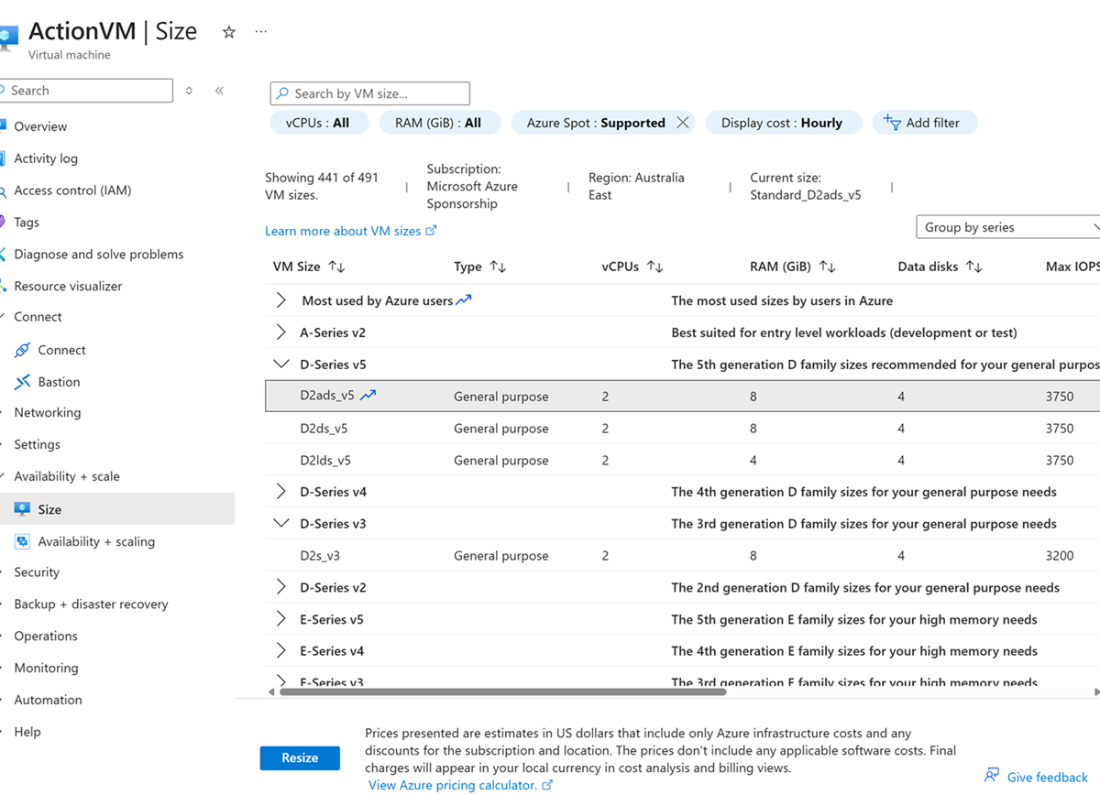
The Portal page for changing VM size and type.
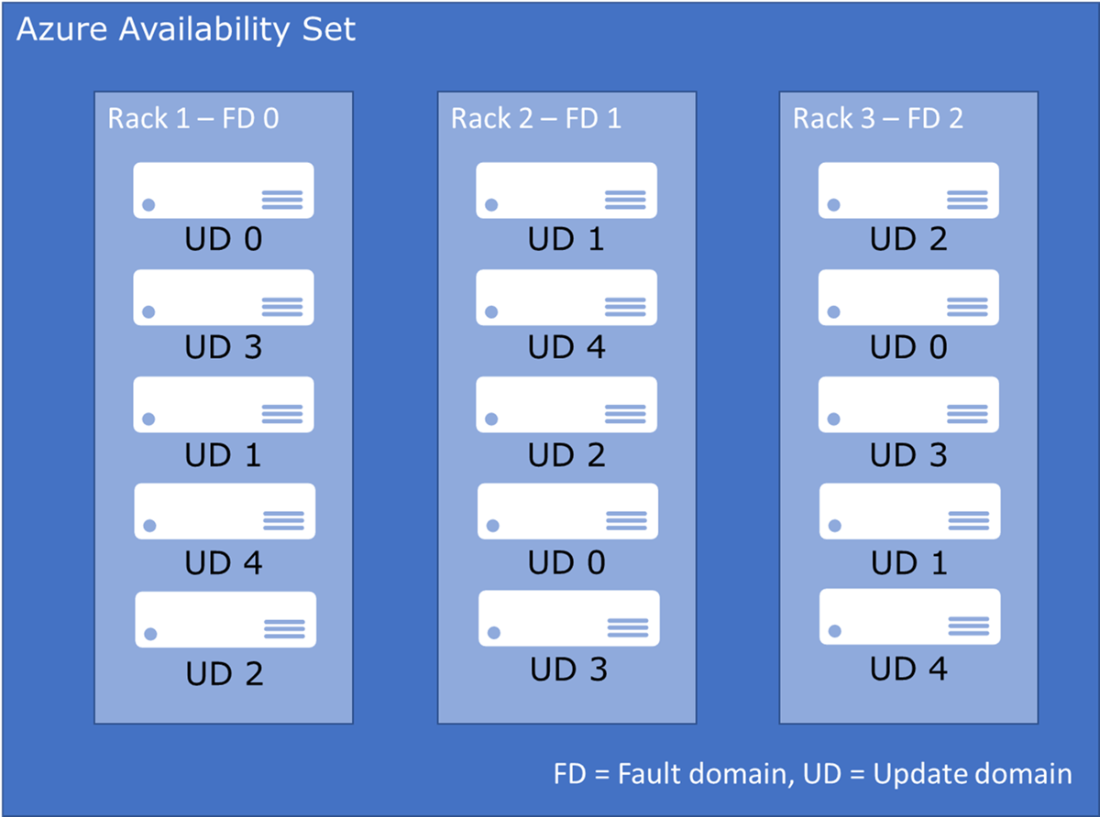
An Azure availability set with 3 fault domains and 5 update domains.
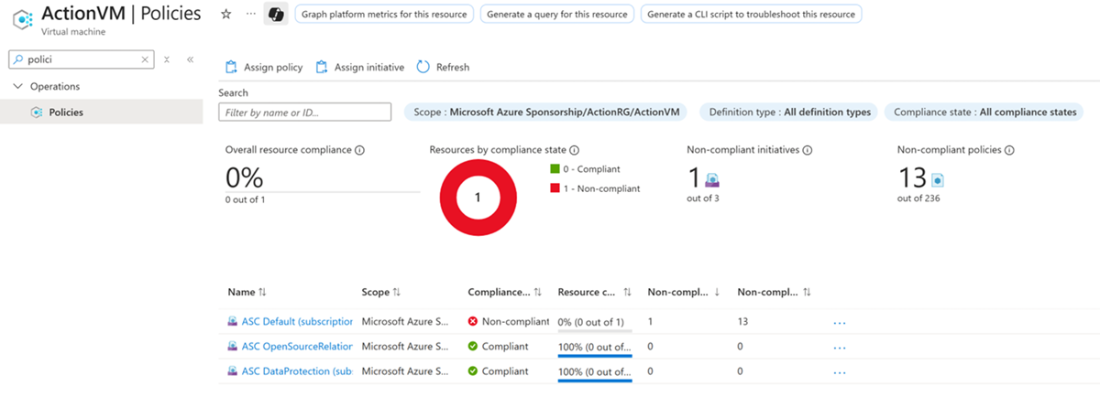
The single policy assigned to the new ActionVM.
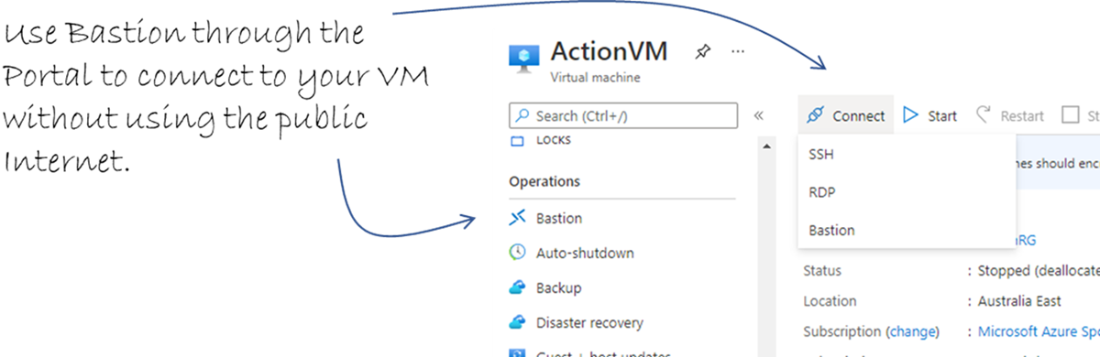
Connect to the VM only using the Microsoft Azure network.
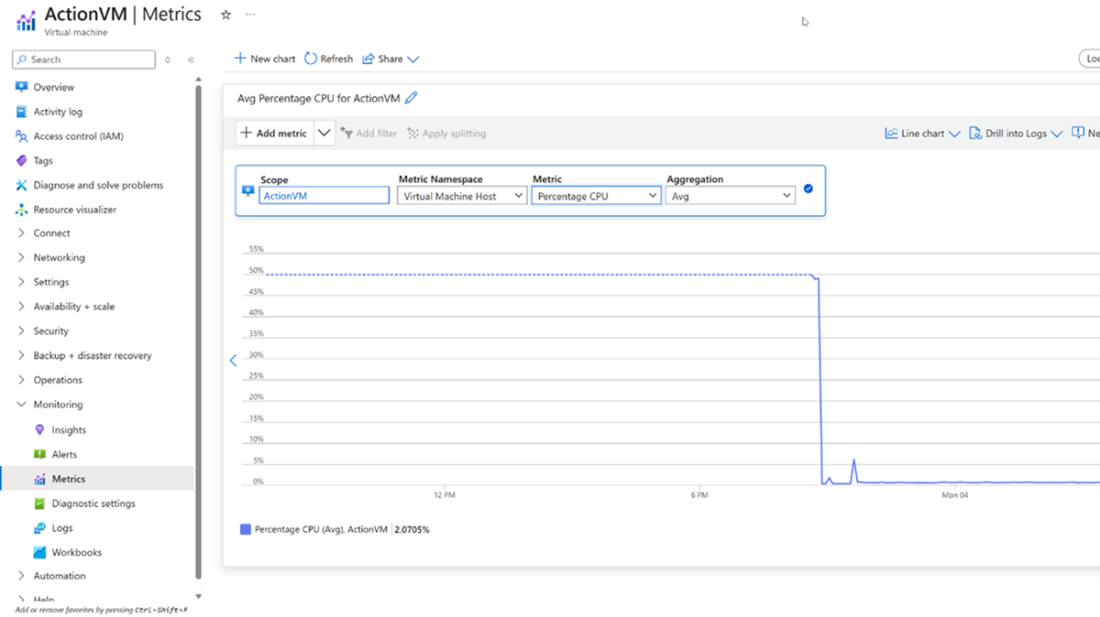
Percentage CPU usage shown as a graph for the ActionVM in the Metrics dashboard
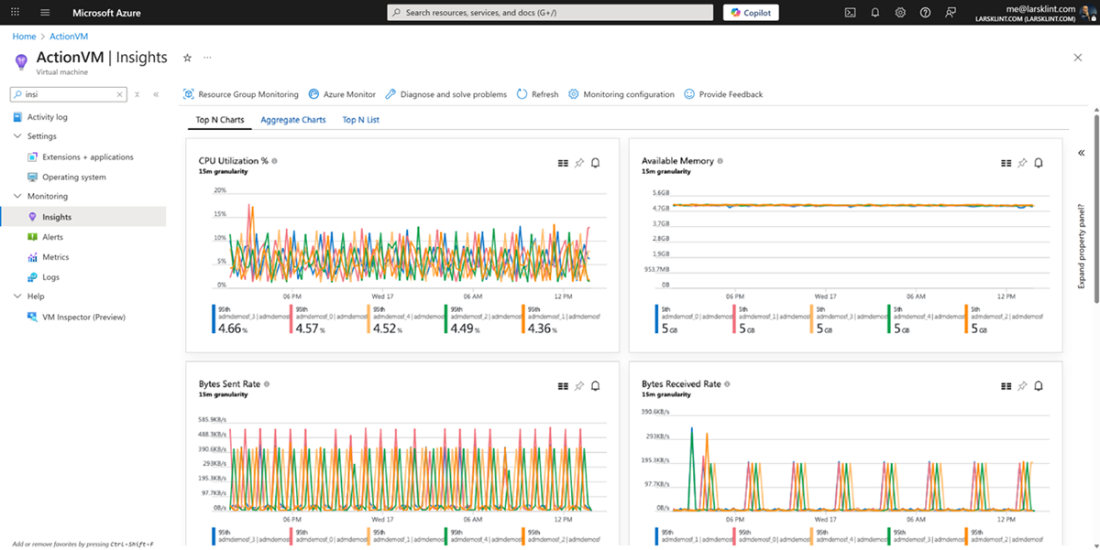
Azure Insights for the ActionVM
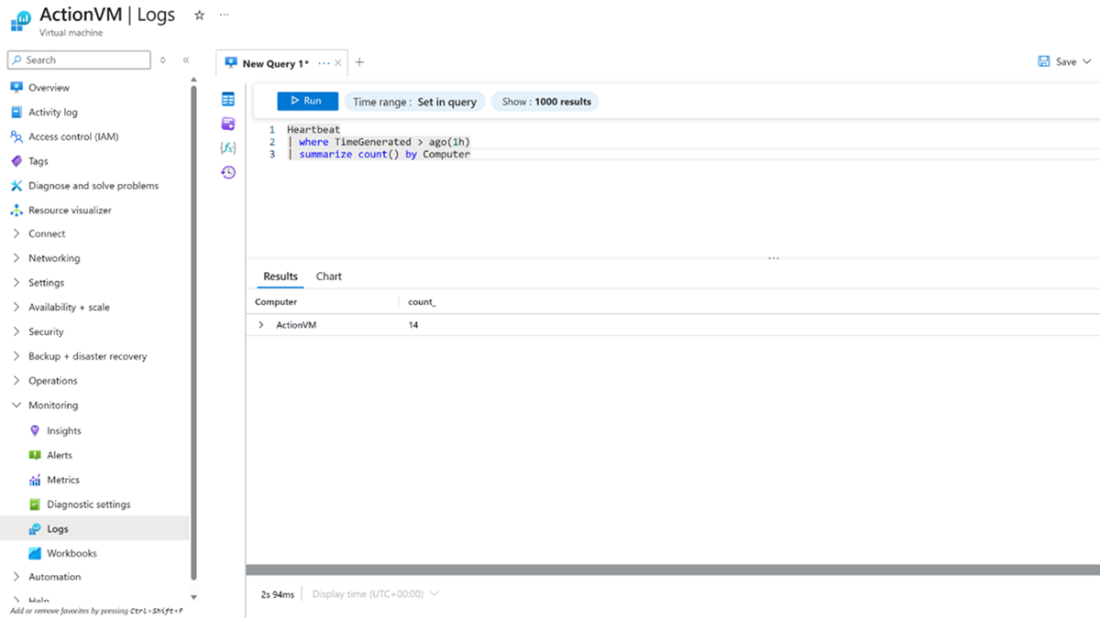
An example KQL query in the Azure Log Analytics workspace for the ActionVM
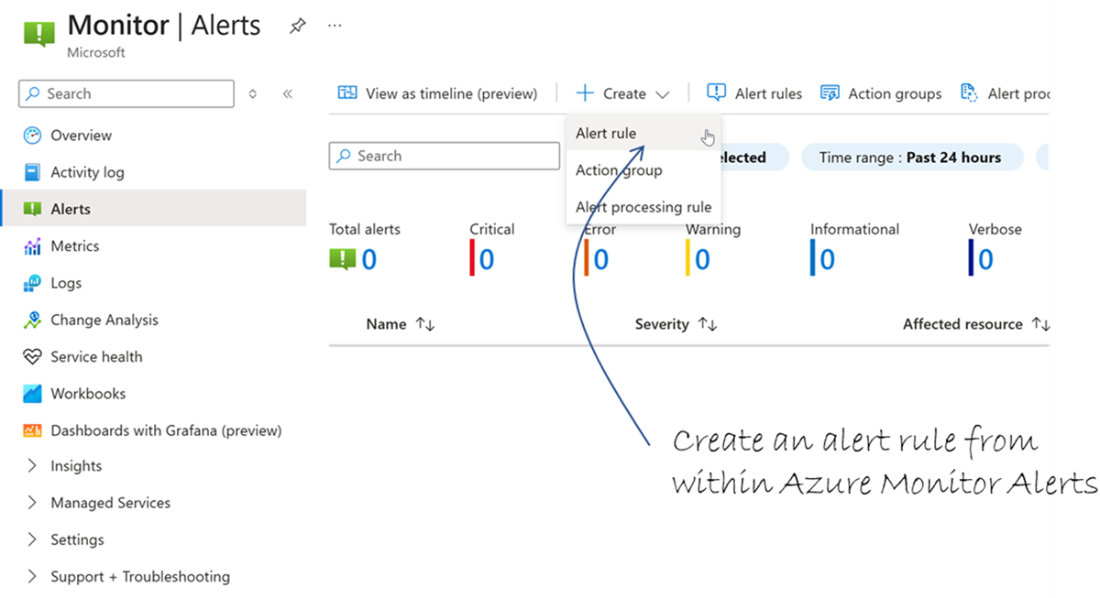
Create an alert rule in Azure Monitor Alerts
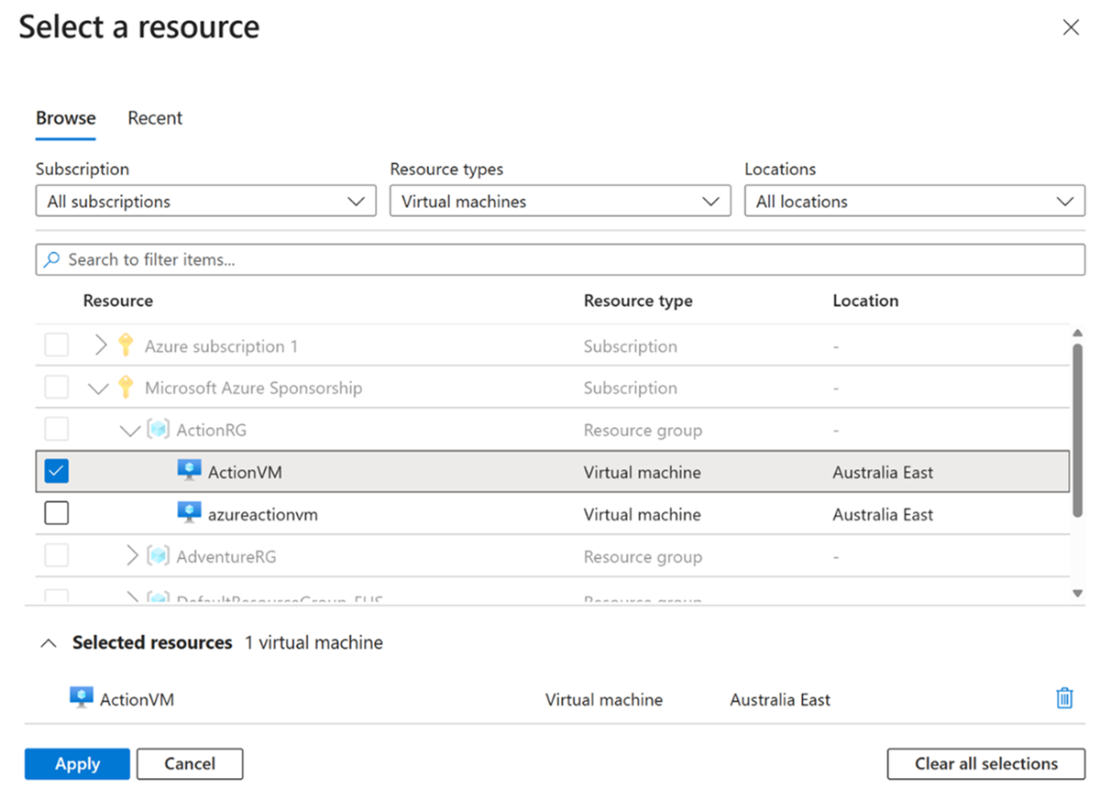
Select the resource for the Alert, in this case our ActionVM
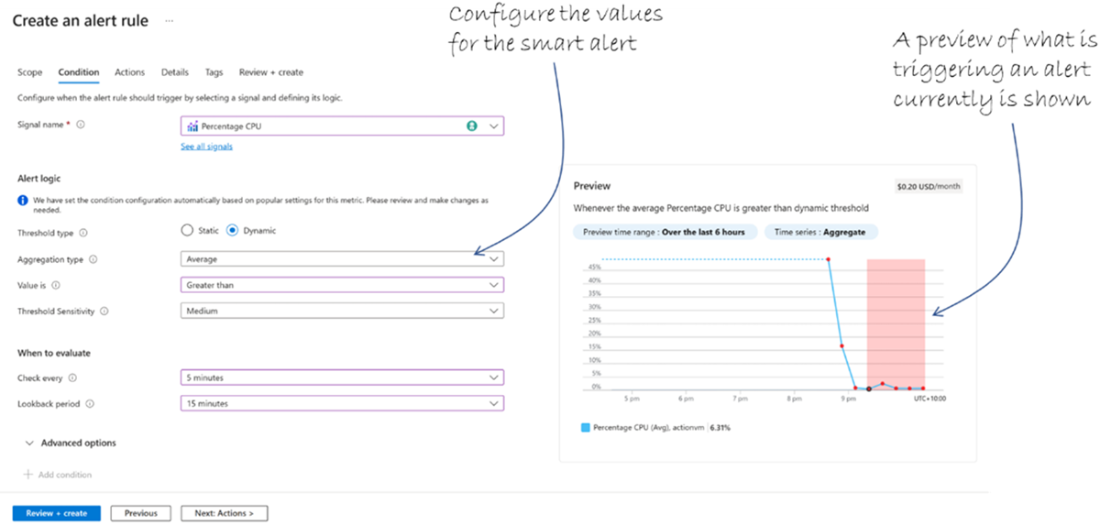
Smart alert configuration when creating it
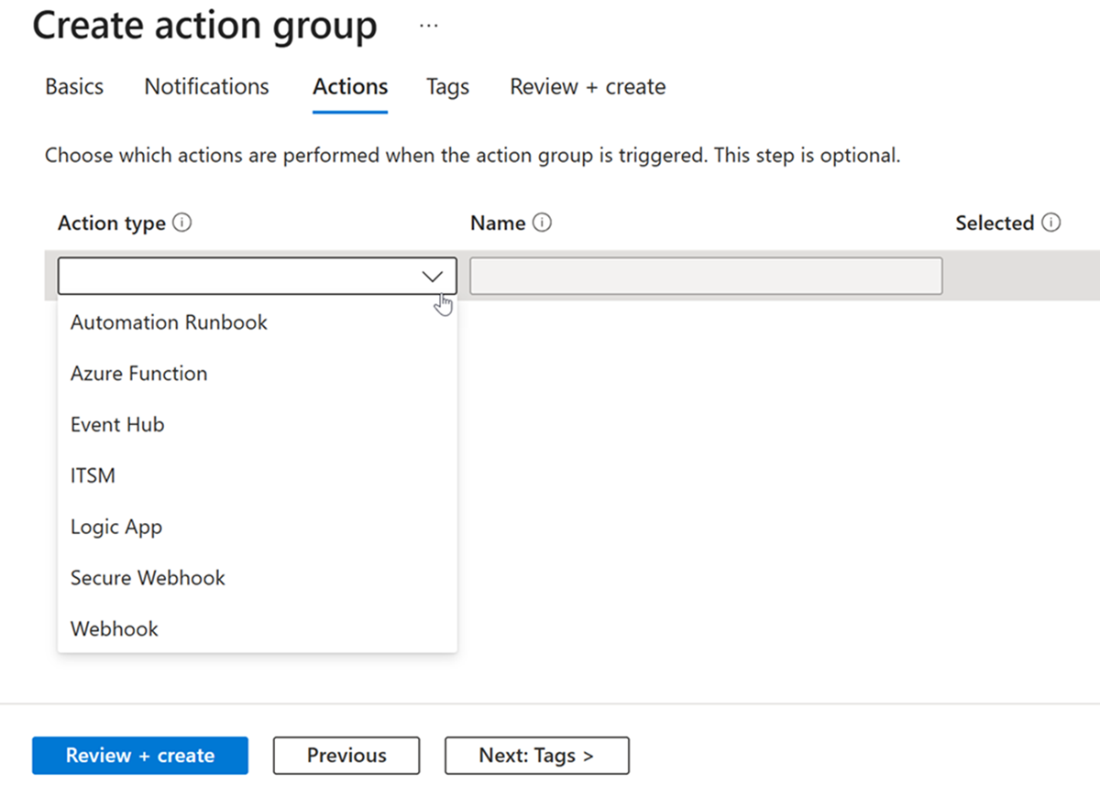
Create a new action group with an action type
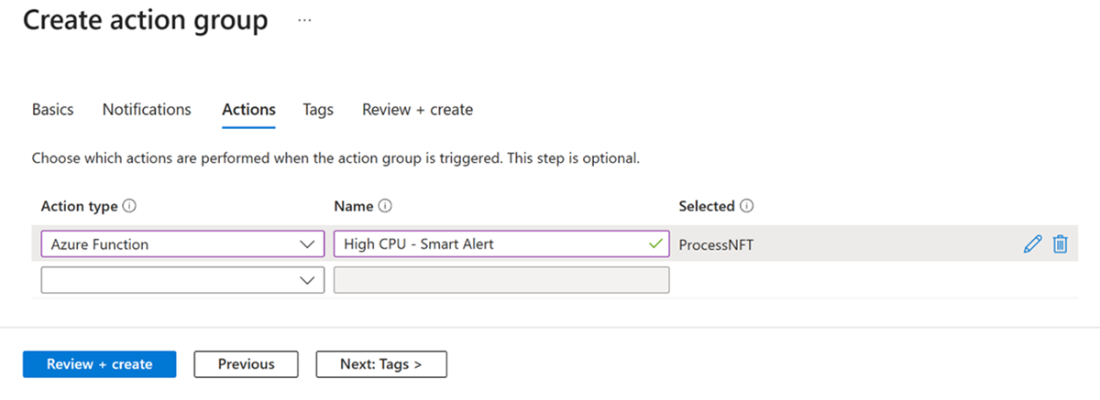
Choose the action type and give the alert a name
Summary
- Virtual machines (VMs) are core to Azure’s Infrastructure-as-a-Service (IaaS) offerings and give you full control over your compute environment without buying any hardware.
- You can create VMs using the Azure Portal, Azure CLI, PowerShell, or templates, depending on your preference and level of automation.
- Choosing the right region for your VM affects price, performance, and availability options—pick wisely or prepare to meet the Azure Resource Mover.
- Azure VMs support a wide range of operating systems and specialized images from the marketplace, from Ubuntu to blockchain-ready setups.
- The size of a VM determines its cost and capacity—start small and scale as needed to avoid spending your entire budget on idle CPU cycles.
- VMs need a network to function; attaching them to a virtual network (VNet) ensures connectivity to the internet, services, and other resources.
- Opening ports like SSH or RDP during setup allows remote access—but don’t forget to lock things down with a network security group (NSG).
- Load balancers and application gateways let you distribute traffic across multiple VMs for better performance and availability.
- You can connect to a VM using RDP, SSH, or Azure Bastion depending on your OS and security posture.
- Azure Automanage helps reduce manual effort by automatically applying best practices around updates, monitoring, backup, and security.
- Auto-shutdown is your best friend when it comes to saving money—turn off your VMs when they’re not in use.
- Spot instances let you run workloads at massive discounts, but be prepared for Azure to reclaim the VM at any time.
- Reserved instances offer significant savings if you can commit to running a VM for one or three years.
- Azure Monitor collects real-time metrics like CPU, memory, and network usage, helping you detect problems before users do.
- Log Analytics gives you powerful querying capabilities to investigate issues across all your VM logs using Kusto Query Language (KQL).
- Smart alerts help you respond to problems quickly with notifications based on metrics, logs, or even AI-powered dynamic thresholds.
- Azure logs include activity logs, diagnostics, and guest OS logs, each offering a different view into what’s happening inside and around your VM.
- With a few simple KQL queries, you can investigate everyday issues like unexpected reboots or login failures across multiple VMs.
- The Azure Monitor Agent (AMA) is the modern way to collect telemetry, and it can be deployed manually or automatically using Azure Policy.
- Without monitoring agents, your VMs are silent. With them, you gain full visibility and control over performance, reliability, and cost.

 Microsoft Azure in Action ebook for free
