Appendix A. Installation and setup
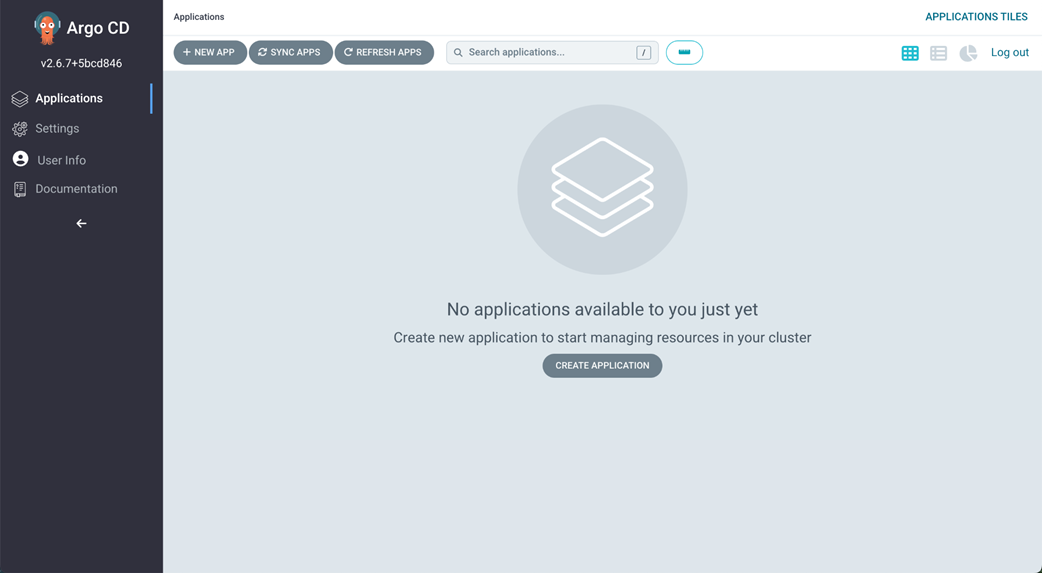
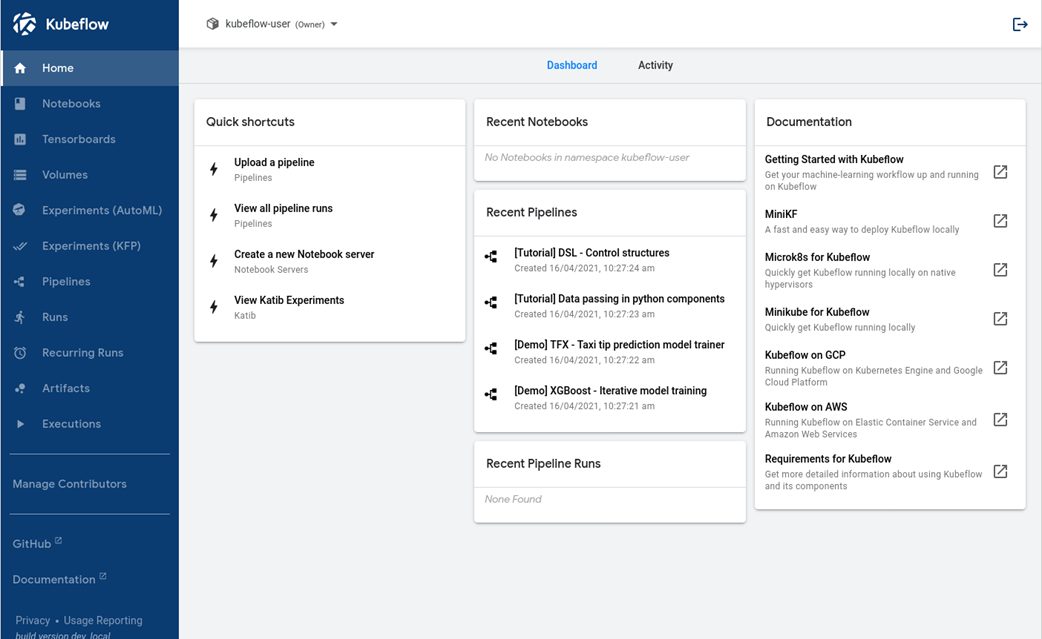
This appendix provides a practical, command-focused path to standing up a full MLOps stack on Kubernetes, beginning locally and scaling to the cloud. It starts by installing essential CLI tools (yq for YAML processing, kustomize for configuration management, and kubectl for cluster operations), then guides you to choose a lightweight Kubernetes distribution: k3s for Linux or microK8s for macOS (via Multipass). Resource baselines are called out (at least 4 CPU, 12 GB RAM, and 50–100 GB disk), along with setup steps to configure kubeconfig, fix common permissions issues, enable DNS (for microK8s), and verify the cluster. On top of this base, Argo CD is introduced to enable GitOps-driven deployments; after installing and logging in with the initial admin secret, Kubeflow is deployed and accessed through the Istio ingress gateway, with notes on first-time readiness delays and default credentials.
When local resources become a bottleneck, the chapter recommends moving to a managed Kubernetes service (such as those from major cloud providers) and stresses cost monitoring with billing alerts. It then shows how to add MLflow as a tracking server and model registry using a Postgres backend (installed via Helm in a dedicated namespace) and the MinIO artifact store already present from Kubeflow. You build and push a minimal MLflow image, apply Kubernetes manifests for a Deployment and Service in an mlflow namespace, and use port forwarding to reach the UI—tying together artifact storage, metadata persistence, and cluster-native operations.
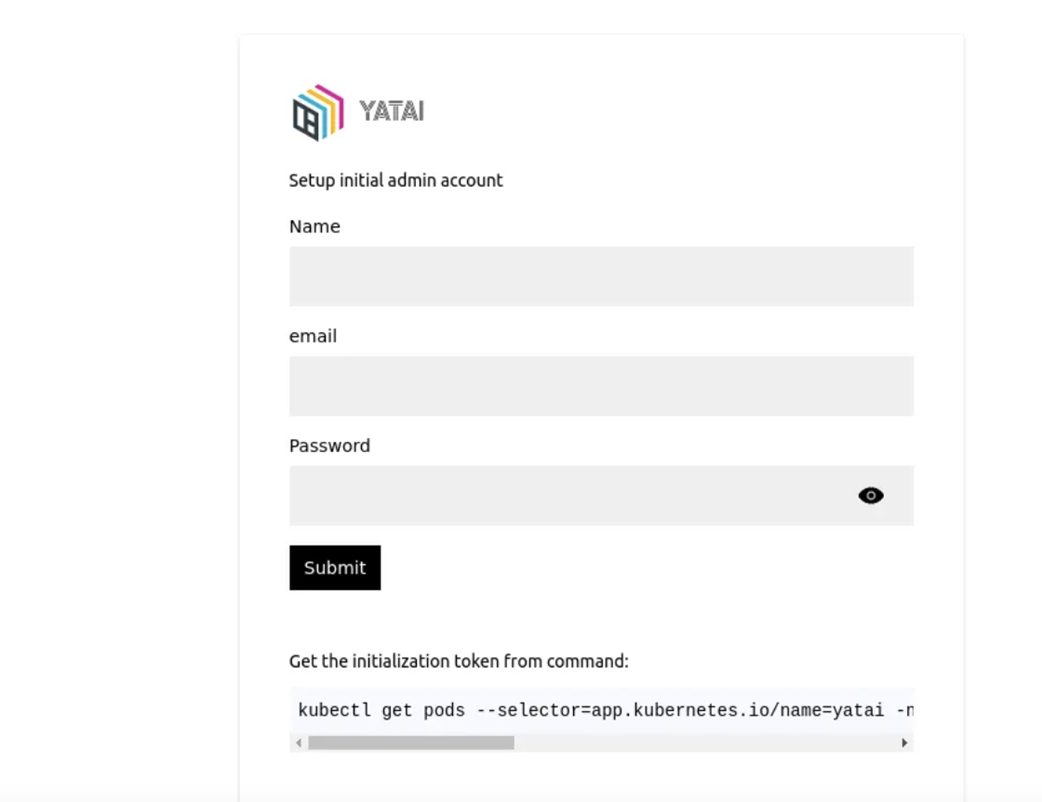
To round out the platform, the appendix covers installing Redis via Helm for use as Feast’s online store and setting up BentoML’s Yatai with Helm in its own namespace, including generating an initialization link to create the admin account for managing deployments. Finally, it packages an Evidently UI image and deploys it with straightforward Kubernetes manifests (Namespace, Deployment, Service) to visualize data drift reports within the cluster. By the end, you have a cohesive, reproducible installation recipe that layers GitOps, Kubeflow, MLflow, Redis, BentoML/Yatai, and Evidently on Kubernetes—ready for experimentation on a laptop and promotion to managed clusters as workloads grow.
FAQ
What command-line tools should I install before setting up Kubernetes and Kubeflow (Mac/Linux)?
Install these first: - yq (YAML processor) - Linux:export VERSION=v4.2.0
export BINARY=yq_linux_amd64
wget "https://github.com/mikefarah/yq/releases/download/${VERSION}/${BINARY}" -O /usr/bin/yq && chmod +x /usr/bin/yqbrew install yqcurl -s "https://raw.githubusercontent.com/kubernetes-sigs/kustomize/master/hack/install_kustomize.sh" | bash
mv kustomize /usr/local/binbrew install kustomizecurl -LO "https://dl.k8s.io/release/$(curl -L -s https://dl.k8s.io/release/stable.txt)/bin/linux/amd64/kubectl"
chmod +x kubectl
mv kubectl /usr/local/binWhat are the recommended local machine resources for running a single-node Kubernetes cluster?
Minimum recommended: - CPU: 4 cores - Memory: 12 GB RAM - Disk: 50 GB free (100 GB ideal) These specs help ensure a smoother experience when running tools like Kubeflow, MLflow, and supporting services locally.Which local Kubernetes distribution should I use: k3s or microK8s?
Both are lightweight and work well: - Use k3s for Linux-based installations (simple, minimal moving parts). - Use microK8s for macOS (via a Multipass-backed Ubuntu VM) or Linux. If you’re new to K8s, start locally (k3s or microK8s), then move to cloud once workloads grow.How do I install k3s on Linux and configure kubectl? (Plus a fix for “Config not found”)
Install and configure: - Install k3s:curl -sfL https://get.k3s.io | INSTALL_K3S_VERSION="v1.26.3+k3s1" INSTALL_K3S_EXEC="server --no-deploy=traefik" K3S_KUBECONFIG_MODE="644" sh -smkdir -p ~/.kube
cp /etc/rancher/k3s/k3s.yaml ~/.kube/config
export KUBECONFIG="$HOME/.kube/config"sudo chmod 644 /etc/rancher/k3s/k3s.yamlsource ~/.bashrckubectl get nodes~/.kube/config has permission 644 and try using the absolute path.How do I install microK8s on macOS and connect it to my kubectl?
Steps on macOS: - Install microK8s (uses Multipass VM):brew install ubuntu/microk8s/microk8smicrok8s install --cpu 4 --mem 12 --disk 50 --channel 1.26microk8s status --wait-readymicrok8s enable dnscd "$HOME"
mkdir -p .kube
cd .kube
microk8s config > config
echo 'export KUBECONFIG="$HOME/.kube/config"' >> ~/.bashrc # or ~/.zshrc
# reload your shell and verify:
kubectl get pods~/.kube/config has permission 644.How do I install and access Argo CD locally?
Install and log in: - Clone repo and deploy:git clone https://github.com/vmallya-123/kubeflow-argo
cd kubeflow-argo
kubectl apply -k argocd/kubectl get po -n argocd -wkubectl -n argocd get secret argocd-initial-admin-secret -o jsonpath="{.data.password}" | base64 -dkubectl port-forward svc/argocd-server -n argocd 8080:443admin
- Password: value from the secret aboveHow do I deploy Kubeflow with Argo CD and reach the UI?
From the cloned repo: - Apply the Kubeflow app:kubectl apply -f kubeflow.yamlkubectl get svc istio-ingressgateway -n istio-systemEXTERNAL-IP (preferred) or CLUSTER-IP using HTTPS (e.g., https://<EXTERNAL-IP>).
- Default Kubeflow credentials:
- Username: user@kubeflow.org
- Password: 12341234Can I use a managed (cloud) Kubernetes service instead of local, and how do I control costs?
Yes—recommended when local resources are insufficient. Options and guides: - GKE (Google Kubernetes Engine): https://cloud.google.com/kubernetes-engine/docs/how-to/creating-an-autopilot-cluster - New GCP users may get ~$300 in credits: https://cloud.google.com/free/docs/free-cloud-features#free-trial - AWS EKS: https://docs.aws.amazon.com/eks/latest/userguide/create-cluster.html - DigitalOcean Kubernetes: https://docs.digitalocean.com/products/kubernetes/getting-started/ Cost control: - Set up billing alerts/budgets in your cloud account. - Tear down unused clusters and workloads promptly.How do I deploy MLflow on Kubernetes with a Postgres backend and MinIO artifact store?
High-level steps: - Install Postgres via Helm in apostgres namespace: helm repo add bitnami https://charts.bitnami.com/bitnami
helm repo update
kubectl create namespace postgres
helm install postgres-release bitnami/postgresql --namespace postgres
export POSTGRES_PASSWORD=$(kubectl get secret --namespace postgres postgres-release-postgresql -o jsonpath="{.data.postgres-password}" | base64 -d)docker build . -t varunmallya/mlflow:v1
docker push varunmallya/mlflow:v1mlflow namespace and ensure a MinIO bucket named mlflow-artifacts exists (from the Kubeflow install).
- Use a Deployment that:
- Sets env: AWS_ACCESS_KEY_ID=minio, AWS_SECRET_ACCESS_KEY=minio123, AWS_ENDPOINT_URL=http://minio-service.kubeflow.svc.cluster.local:9000
- Runs MLflow server with: --default-artifact-root s3://mlflow-artifacts and --backend-store-uri postgresql+psycopg2://postgres:<POSTGRES_PASSWORD>@postgres-release-postgresql.postgres.svc.cluster.local:5432/postgres
- Expose via a Service on port 5000 and port-forward locally: kubectl port-forward svc/mlflow-service -n mlflow 5000:5000How do I build and deploy the Evidently UI on Kubernetes?
Steps: - Build and push an image that runsevidently ui (example): # Dockerfile uses python:3.9-slim-buster and ends with:
ENTRYPOINT ["evidently","ui"]docker build . -t varunmallya/evidently-ui:latest
docker push varunmallya/evidently-ui:latestevidently
- Deployment using varunmallya/evidently-ui:latest exposing container port 8000
- ClusterIP Service on port 8000
- (Optional) Access locally via port-forward: kubectl port-forward svc/evidently-ui -n evidently 8000:8000How do I install BentoML’s Yatai on Kubernetes and create the admin account?
Install with Helm inyatai-system:
- Add repo and install: helm repo add bentoml https://bentoml.github.io/helm-charts
helm repo update bentoml
kubectl create ns yatai-system
helm install yatai-test bentoml/yatai --set ingress.enabled=false --set service.type=LoadBalancer -n yatai-system --create-namespaceexport YATAI_INITIALIZATION_TOKEN=$(kubectl get secret yatai-env --namespace yatai-system -o jsonpath="{.data.YATAI_INITIALIZATION_TOKEN}" | base64 --decode)
export SERVICE_IP=$(kubectl get svc --namespace yatai-system yatai --template "{{ range (index .status.loadBalancer.ingress 0) }}{{.}}{{ end }}")
echo "Create admin account at: http://$SERVICE_IP:80/setup?token=$YATAI_INITIALIZATION_TOKEN"
 Machine Learning Platform Engineering ebook for free
