8 Building Advanced Workflows with ComfyUI
The chapter introduces ComfyUI as a more powerful but initially more complex way to build Stable Diffusion image-generation workflows. It begins by contrasting ComfyUI with the earlier A1111 process, especially for img2img upscaling, where repeated manual steps make it difficult to generate many variations efficiently. ComfyUI is presented as a visual, node-based system that preserves the logic of diffusion models while making workflows easier to reproduce, modify, and reuse once they are built.
It then walks through constructing a basic text-to-image workflow from scratch: loading a checkpoint, adding prompt-conditioning nodes for positive and negative text, creating an empty latent image, and wiring everything into a KSampler, VAE Decode, and Save Image node. Along the way, the chapter explains how nodes exchange inputs and outputs, how colors help indicate compatible connections, and how grouping and labeling nodes can keep complex setups manageable. The result is a simple but complete generation pipeline that mirrors the core Stable Diffusion process in visual form.
From there, the chapter expands the workflow to support hi-res fixing and img2img upscaling. It shows how to add latent upscaling, duplicate and reconnect nodes, and save both low-resolution and high-resolution outputs for comparison in a single pass. It also emphasizes the value of using existing shared workflows, including drag-and-drop image metadata workflows, to avoid rebuilding everything manually. The overall message is that ComfyUI has a steeper learning curve than A1111, but it rewards that effort with far greater flexibility, faster iteration, and a stronger foundation for advanced diffusion tasks.
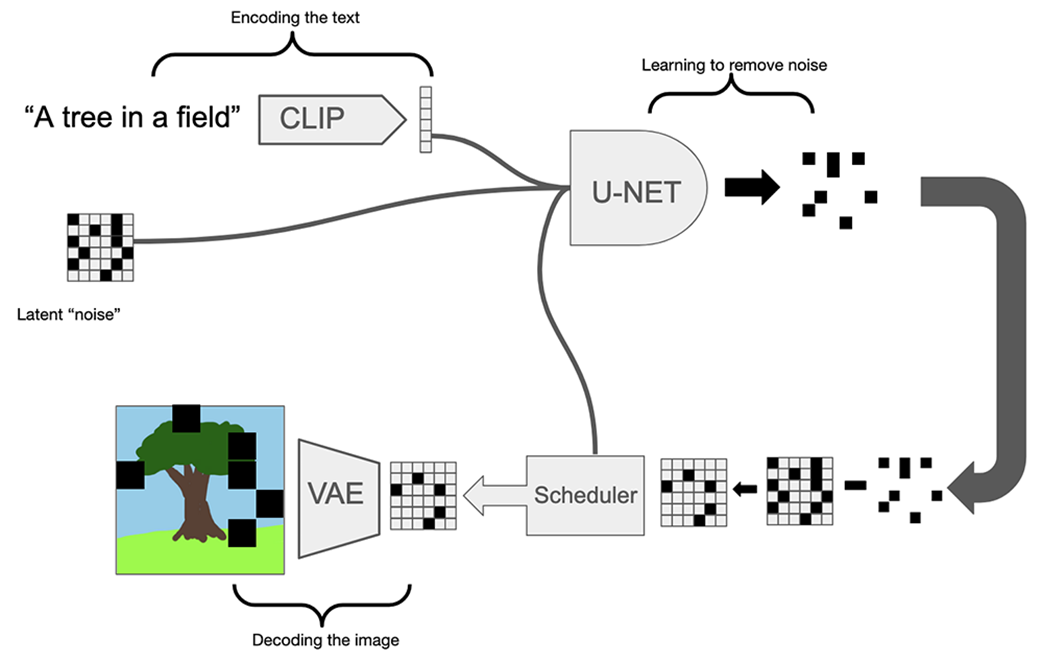
Diagram of how Stable Diffusion works.
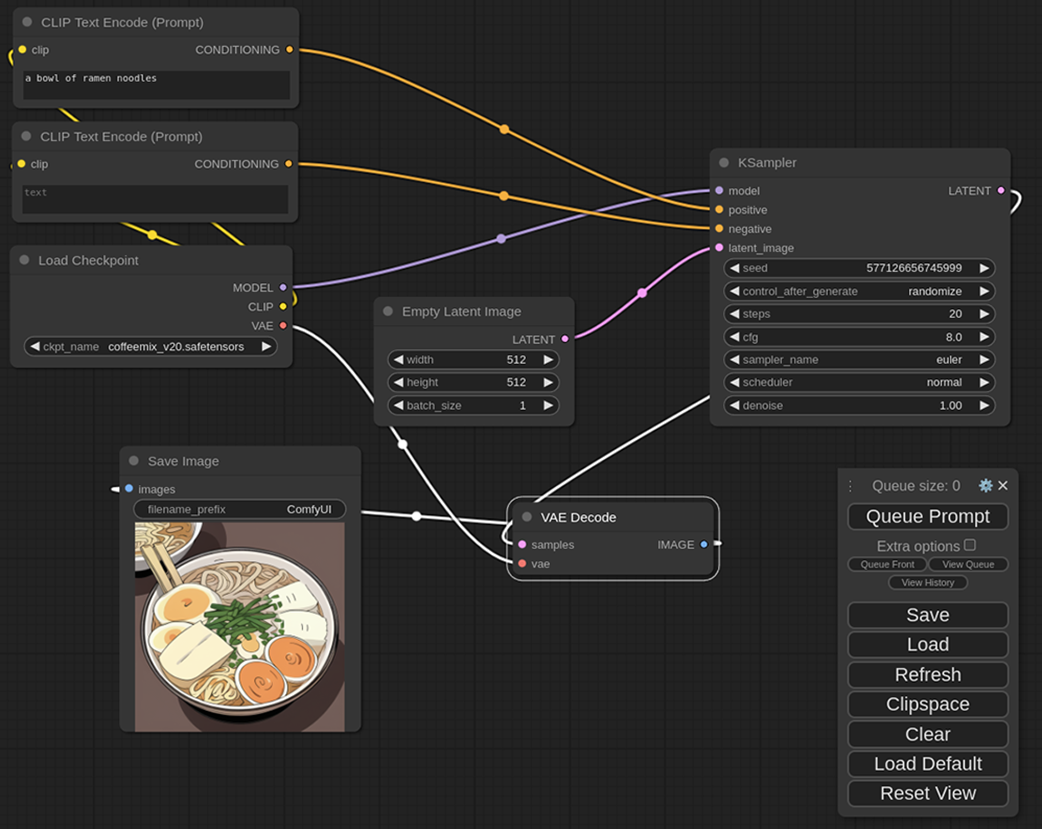
ComfyUI allows us to build workflows by connecting components.
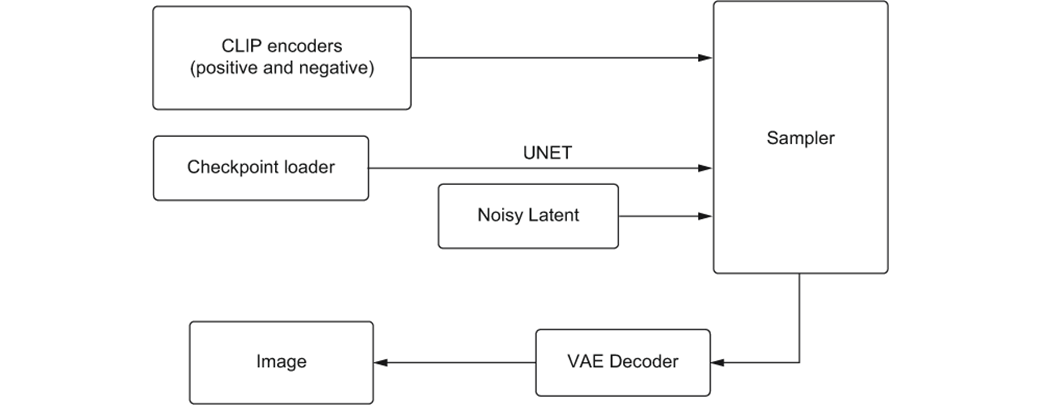
Simplified illustration of the ComfyUI workflow.
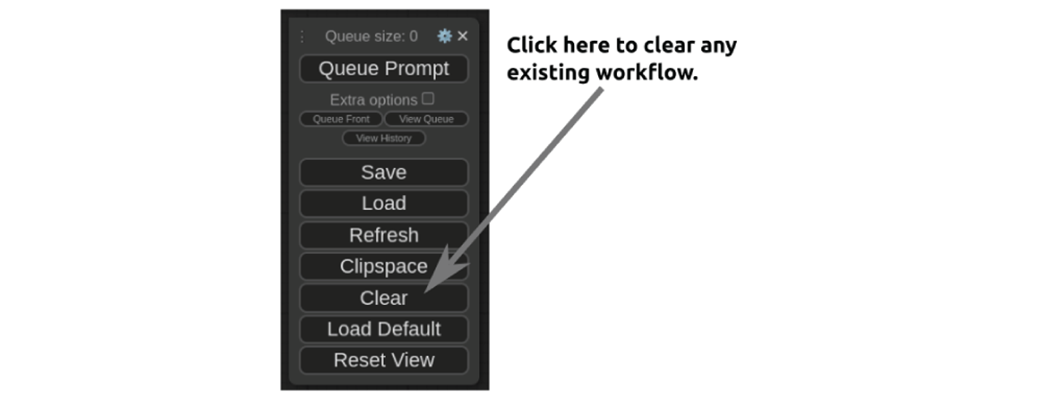
ComfyUI menu.
ComfyUI allows us to build workflows by connecting components.
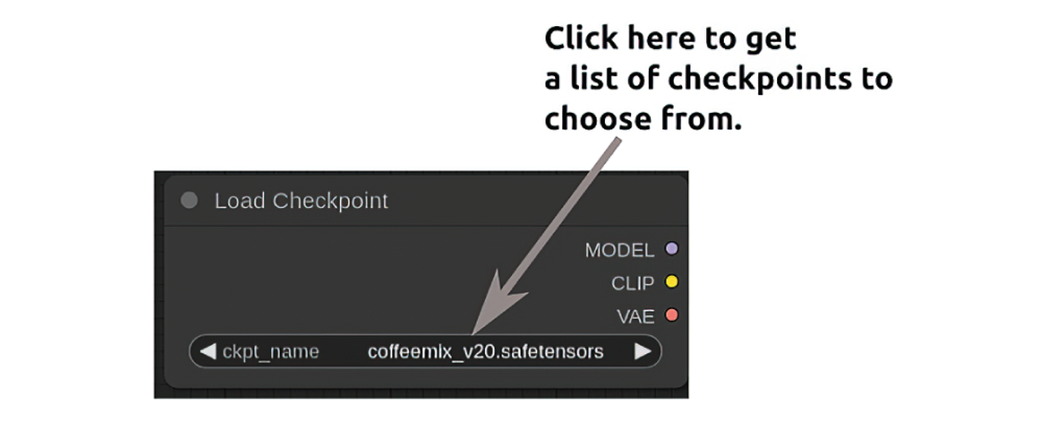
The Load Checkpoint node.
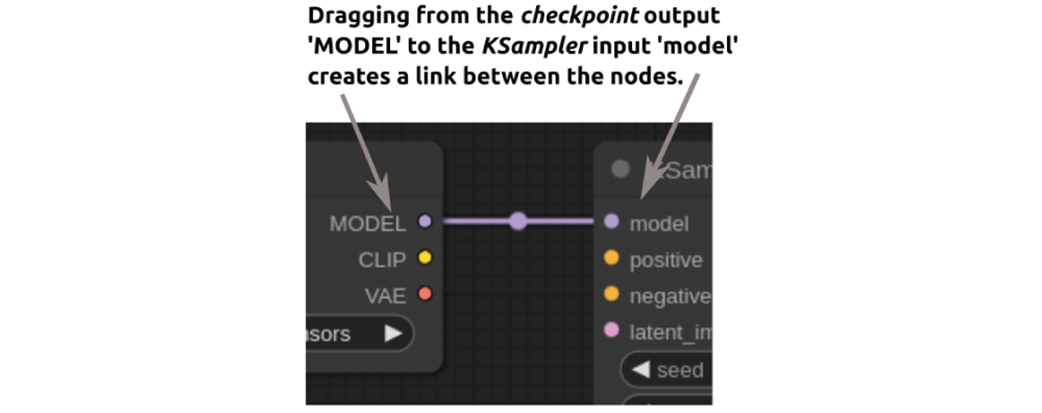
Connecting the Load Checkpoint node to the KSampler node.
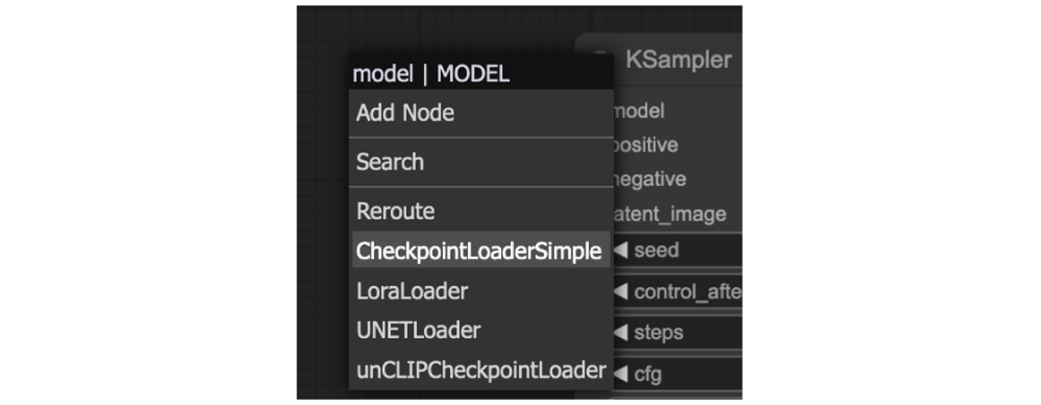
Helpful content menu that appears if you drag from the input to an empty space.
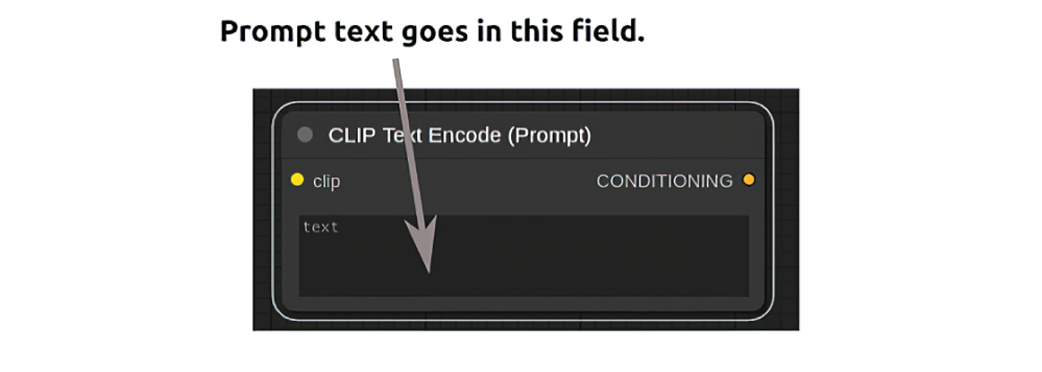
A CLIP Text Encode node.
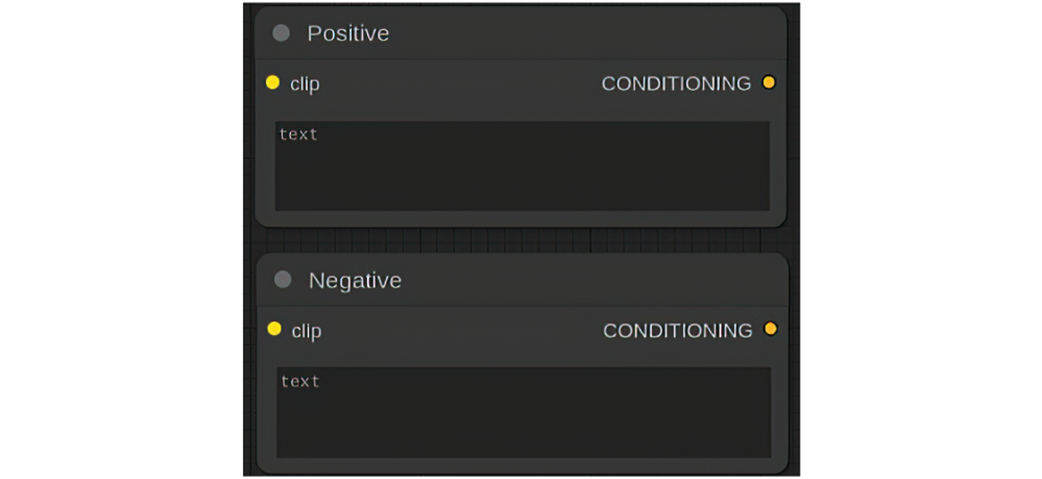
Workflows can get complex fast, so custom labels can be a big help.
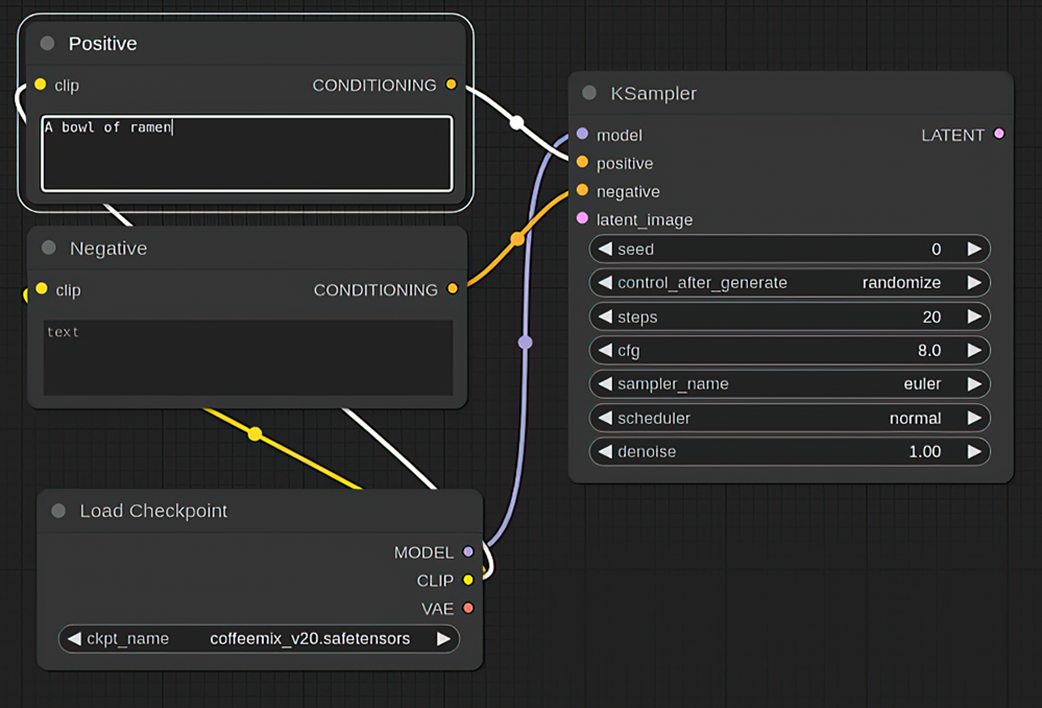
Connecting our positive and negative prompts.
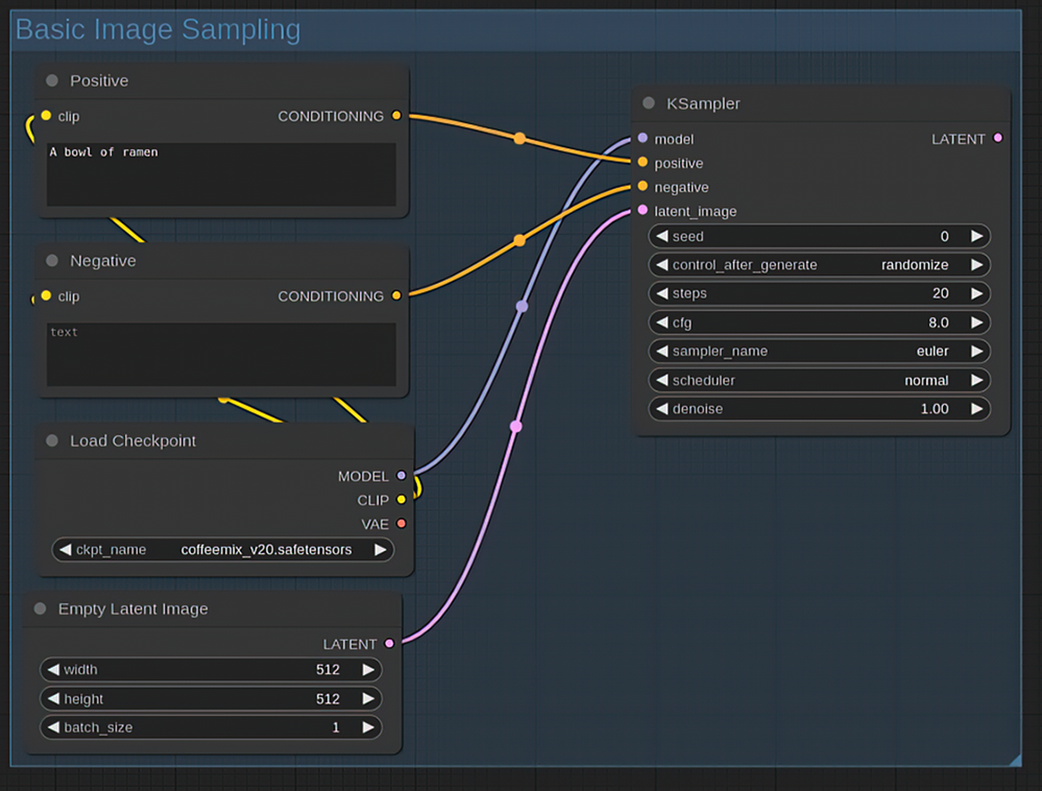
The Empty Latent Images is where we specify image dimensions and batch size.

Groups can be essential to organizing complex workflows in ComfyUI.
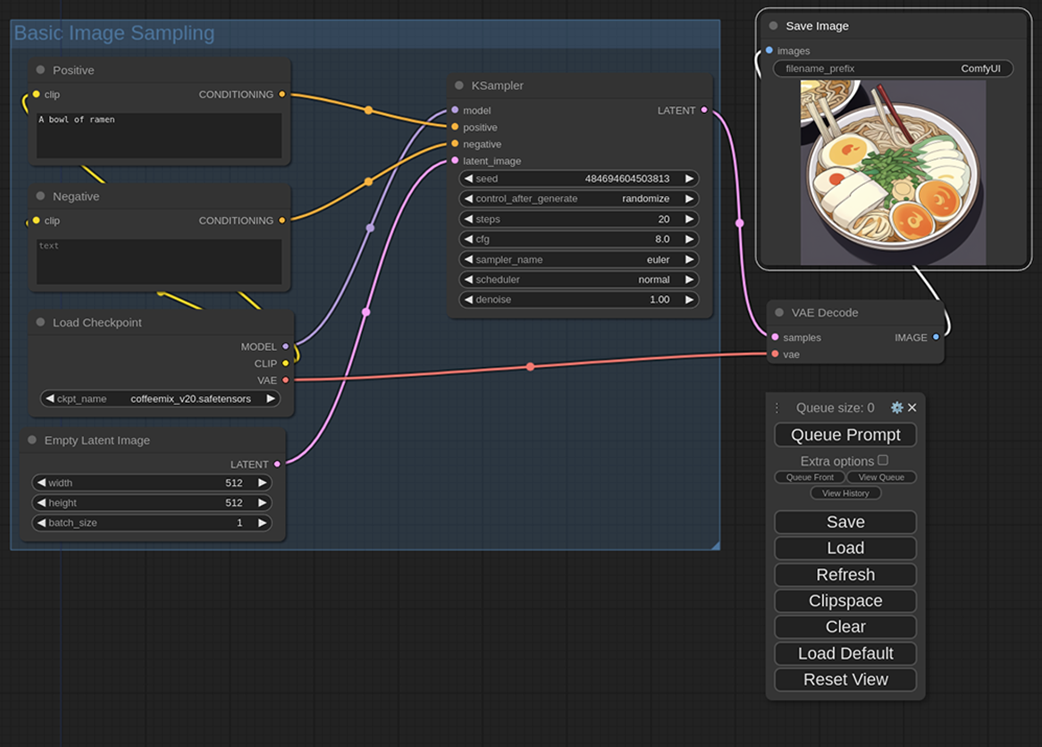
The VAE Decode node.

The complete workflow for generating a single image using ComfyUI.
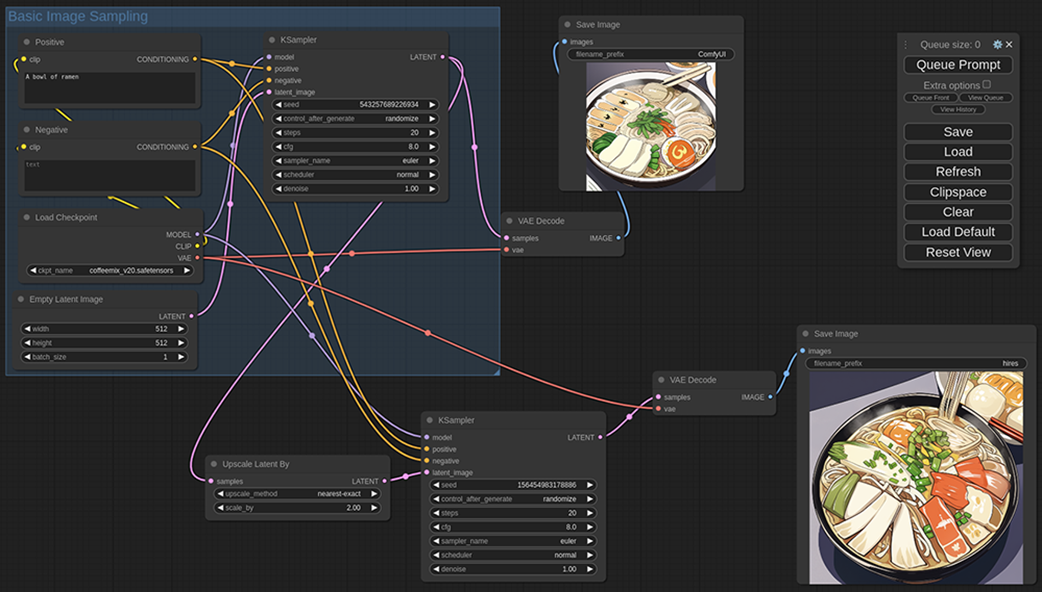
The Upscale Latent By node.

Extending our basic image sampling to support hi-res fix behavior.
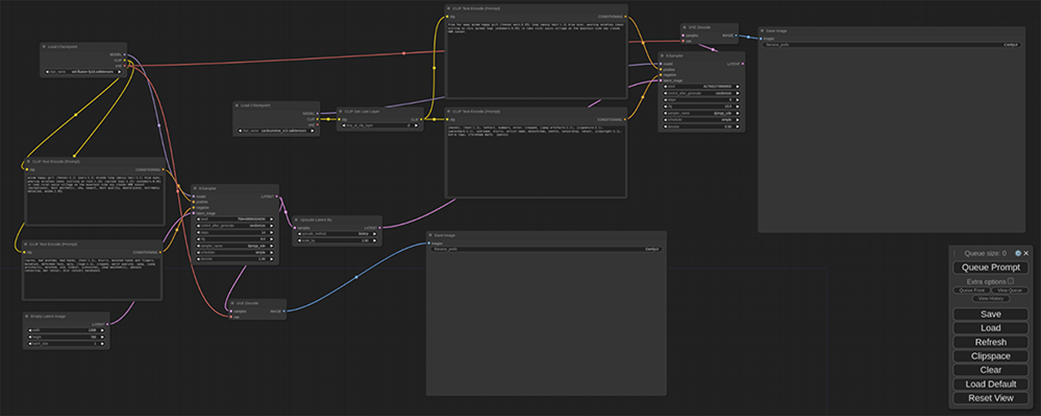
This image contains the entire workflow used to create it.

Large workflows can be difficult to see in a single image.
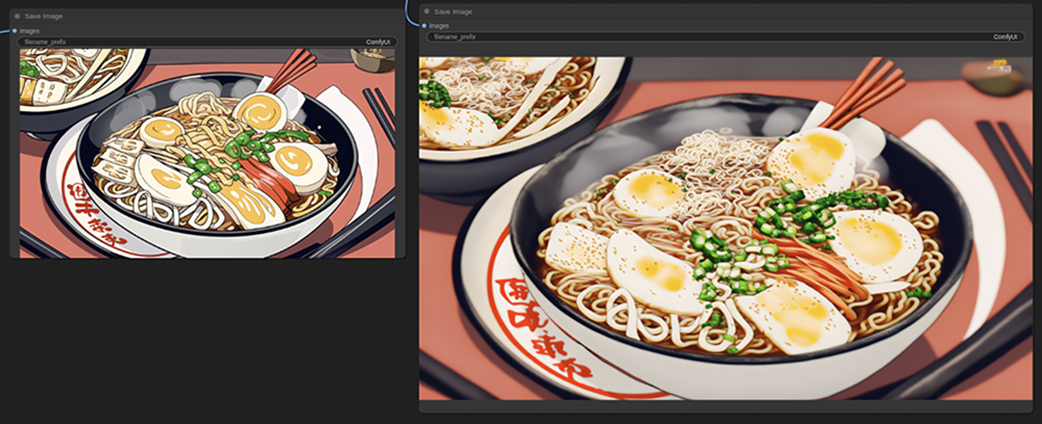
Anime ramen rendered slightly more realistically.
Summary
- ComfyUI works by creating custom workflows from the individual components of Stable Diffusion.
- While the initial setup is more time consuming, ComfyUI makes it easy to run complex workflows repeatedly.
- All nodes in a workflow must have their inputs fulfilled, but their outputs don’t need to be used.
- Outputs from one node can go to multiple other inputs, but each input can only have a single output as a source.
- Workflows can be saved as files but are also stored in the generated image.
- Exploring existing workflows is a great way to understand more possible options when building complex Stable Diffusion workflows.
FAQ
What is ComfyUI, and why is it useful for advanced image generation workflows?
ComfyUI is a visual, node-based interface for building Stable Diffusion workflows. It is useful because it makes complex generation pipelines easier to reuse, extend, and automate, especially when you want to generate many images or chain multiple steps together.
Why is ComfyUI often harder to learn at first than A1111?
ComfyUI is more complex because you build workflows by connecting individual nodes manually. That can feel intimidating at first, but the payoff is greater flexibility and much better control over how images are generated.
What problem does ComfyUI solve compared with the A1111 img2img workflow?
In A1111, repeating an img2img upscaling workflow requires many manual steps each time, which becomes tedious when generating multiple variations. ComfyUI solves this by letting you create the workflow once and then run it repeatedly with far less manual effort.
What are the main components needed for a basic ComfyUI diffusion workflow?
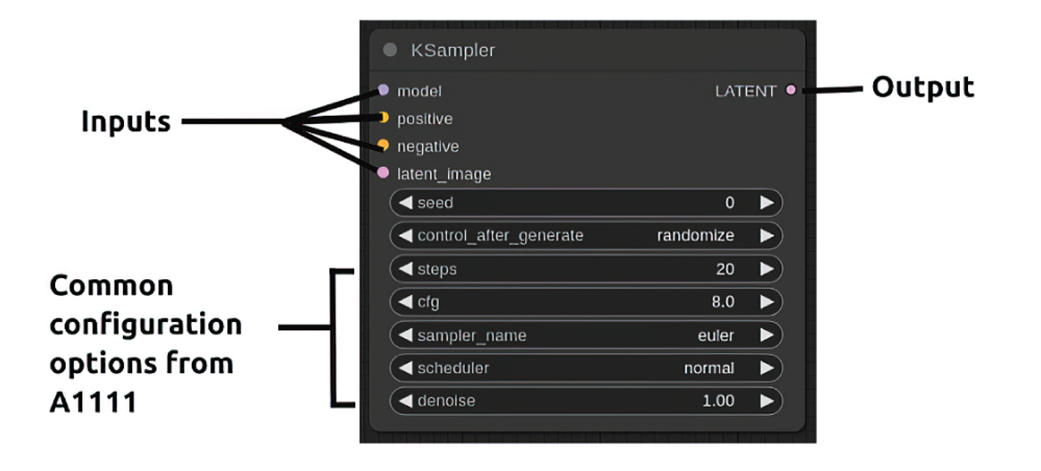
A basic workflow typically includes a Load Checkpoint node, positive and negative text conditioning nodes, an Empty Latent Image node, a KSampler node, a VAE Decode node, and a Save Image node.
What does the Load Checkpoint node provide in ComfyUI?
The Load Checkpoint node loads a checkpoint model and outputs three components: MODEL, CLIP, and VAE. These are then connected to other nodes that need them in the workflow.
Why do positive and negative prompt nodes both need to be connected, even if the negative prompt is empty?
The KSampler requires both conditioning inputs to be present before it can run. Even if you do not want to use a negative prompt, the input still has to be fulfilled, so an empty negative prompt node is still necessary.
What is the purpose of the Empty Latent Image node?
The Empty Latent Image node creates the latent noise space that diffusion starts from. It also sets key image settings like width, height, and batch size.
How do you add hi-res fix behavior in ComfyUI?
You add an Upscale Latent By node between the first sampling stage and the second decode stage. This lets you upscale the latent output, sample again, and then decode a higher-resolution image.
How can you save both the low-res and hi-res versions in the same workflow?
By adding a second VAE Decode node and a second Save Image node, you can save the original low-res output and the upscaled hi-res output separately. This makes comparison easier without needing two separate generations.
What is the easiest way to use an existing ComfyUI workflow?
You can either save and load workflows from the menu or drag and drop an image that contains workflow metadata into ComfyUI. The latter is especially convenient because it can recreate the workflow automatically from the image file.

 Local Image Generation ebook for free
