7 Creating High Resolution Images
Stable Diffusion can create striking images, but its standard output size is too small for many practical uses like printing, high-resolution displays, or detailed editing. This chapter explains why simply asking the model for bigger images often fails: larger generations demand more VRAM, and more importantly, the model was trained mostly on lower-resolution images, so it tends to produce strange repetition and distorted detail when pushed too far beyond its comfort zone.
To work around these limits, the chapter presents upscaling methods in A1111. It begins with a low-resolution image and then explores hires-fix and different upscalers, showing how scale factor and denoising strength affect the result. Smaller scaling steps and moderate denoising usually preserve the original composition better, while overly aggressive settings can blur details or reshape the image too much. The key idea is that upscaling is not just a technical enlargement; it can also add believable detail when tuned carefully.
The chapter then expands into image-to-image generation, which gives even more control over hi-res output. By sending an image into img2img, changing the seed, switching checkpoints, repeating the process, or even adjusting the prompt, the image can evolve into new styles rather than merely being enlarged. This makes hi-res creation a creative workflow as much as a scaling workflow, allowing the same base image to be refined, stylized, or transformed into something new and useful for wallpapers, prints, or other polished final outputs.
Even when you can generate hi-res images, the results look a bit off.
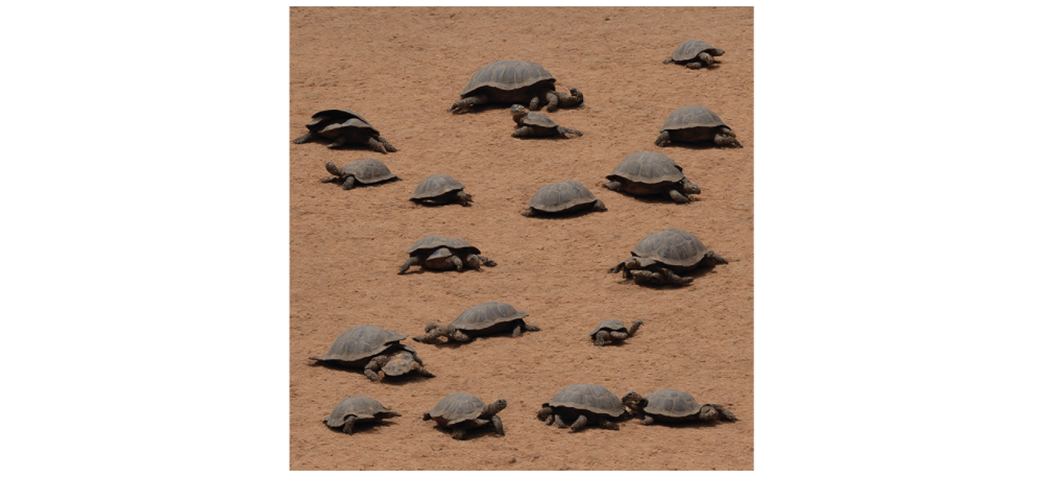
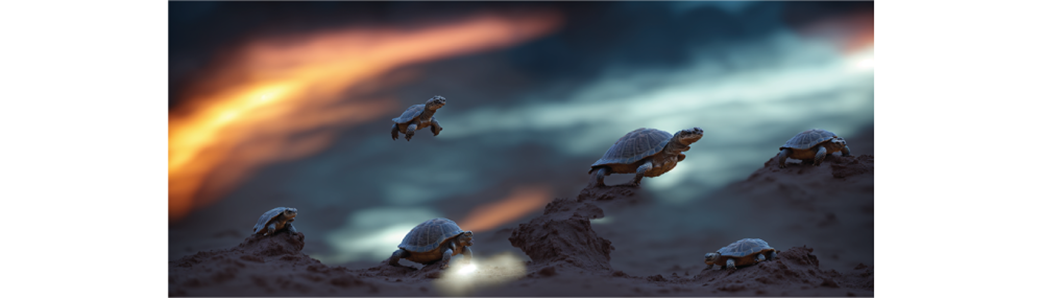
Low-res image that will be the basis of all other images we create.
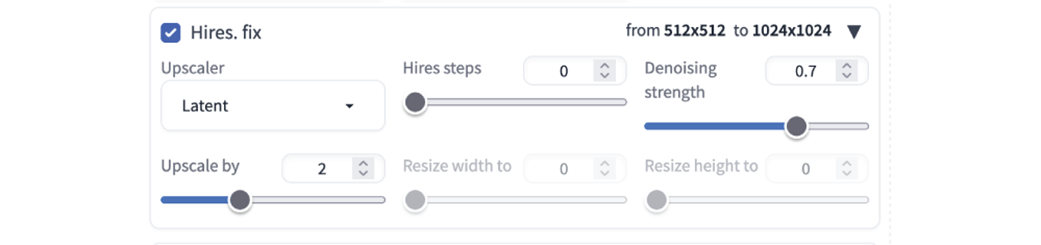
Selecting Hires. fix and viewing the configuration options.
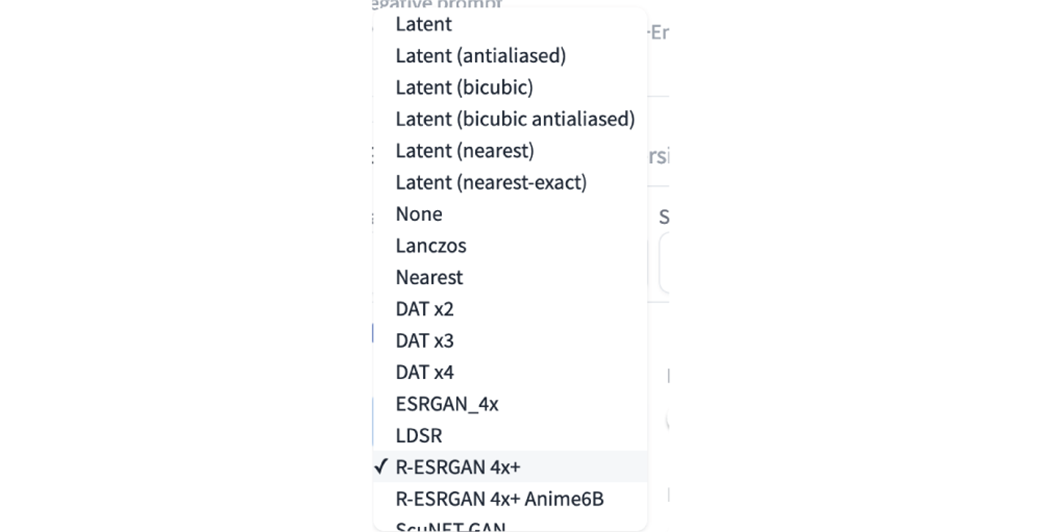
There are many upscaler options in A1111.
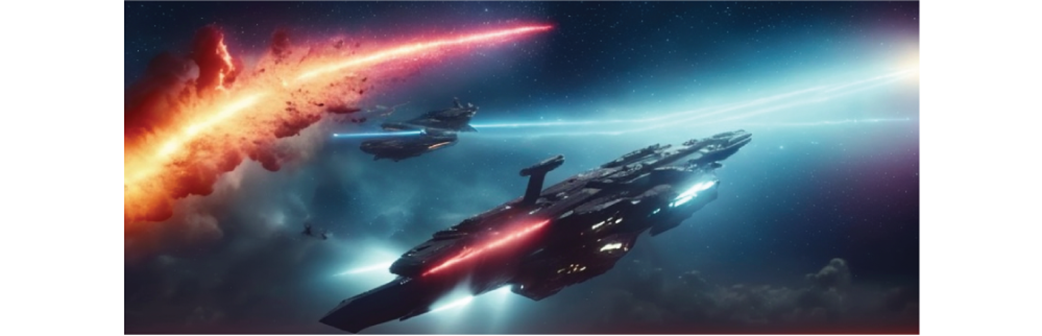
Even at a scale factor of 2, our image is notably changed.
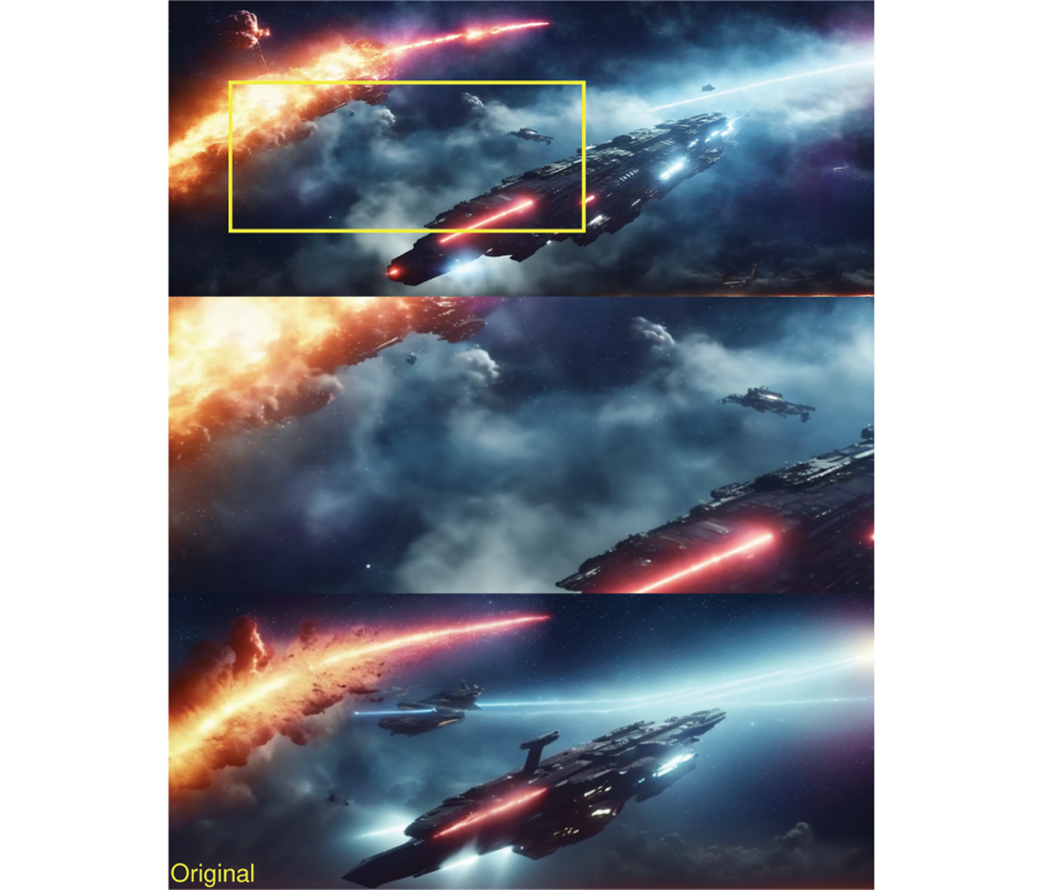
Scaling by a factor of four our image starts to look a bit strange.
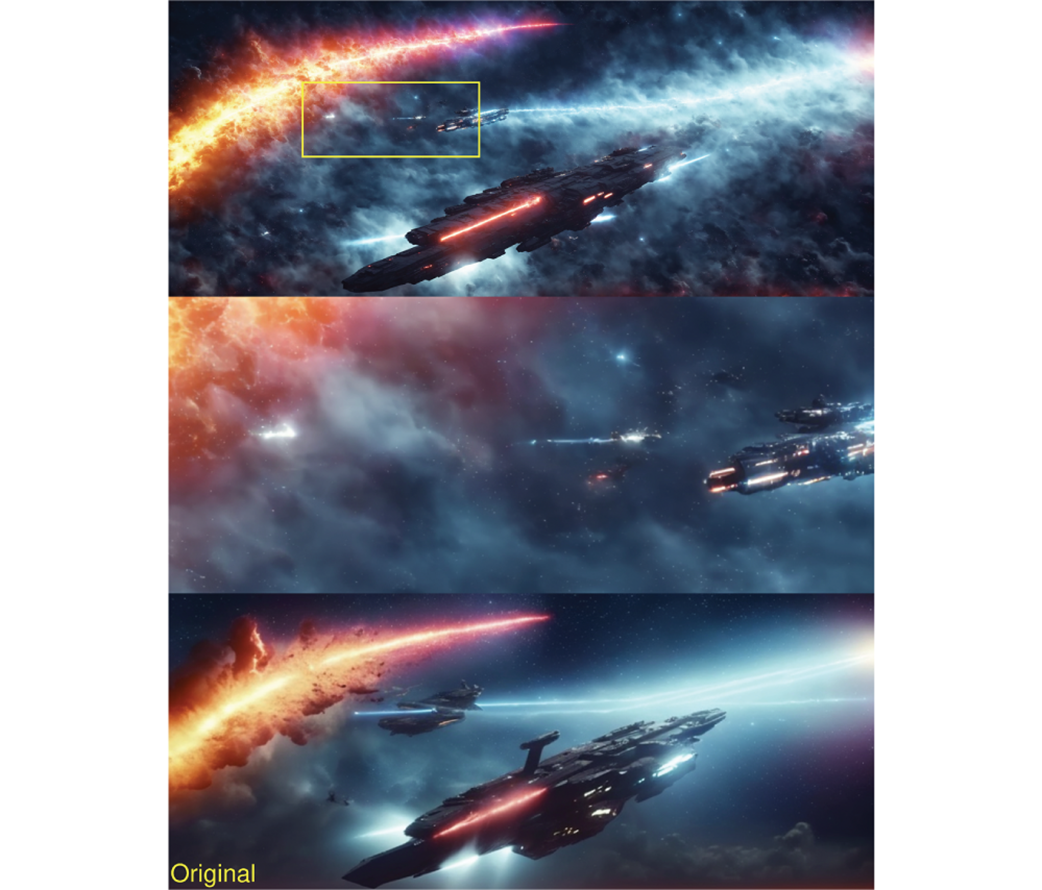
Scaling by a factor of 2 with a denoising strength of 0.5.
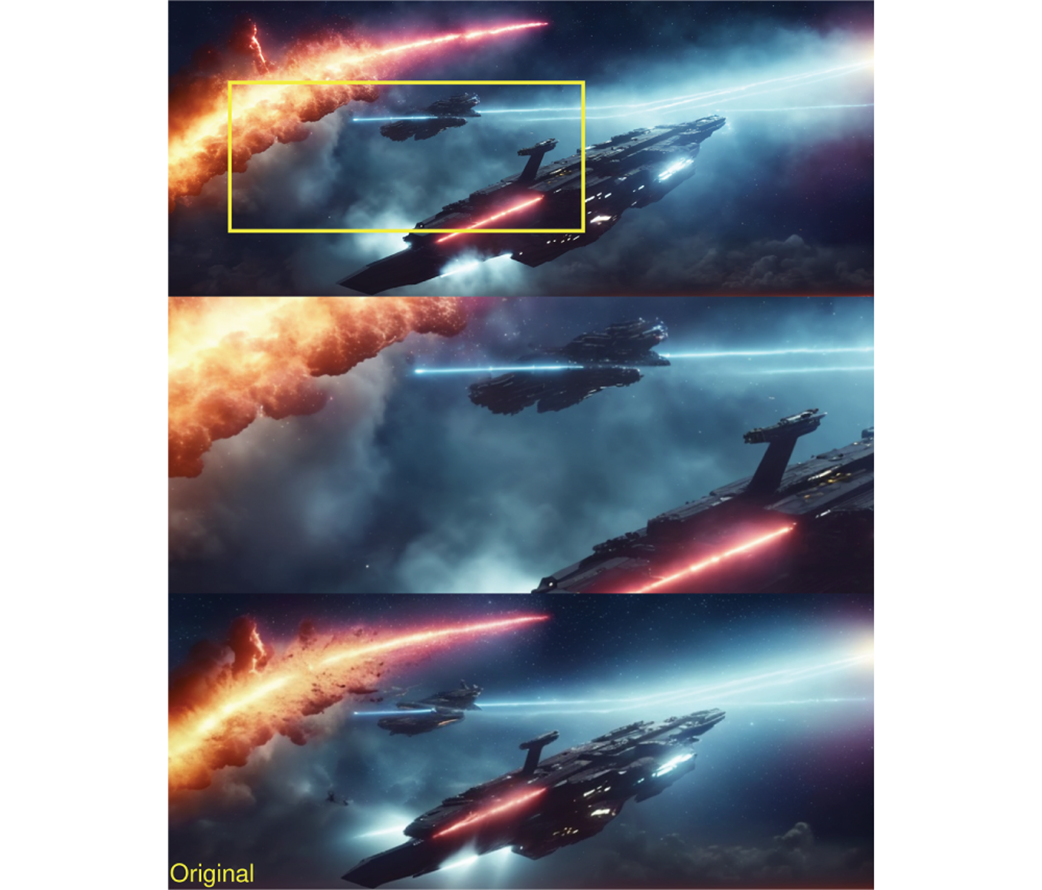
Scaling by a factor of 4 with a denoising strength of 0.5.
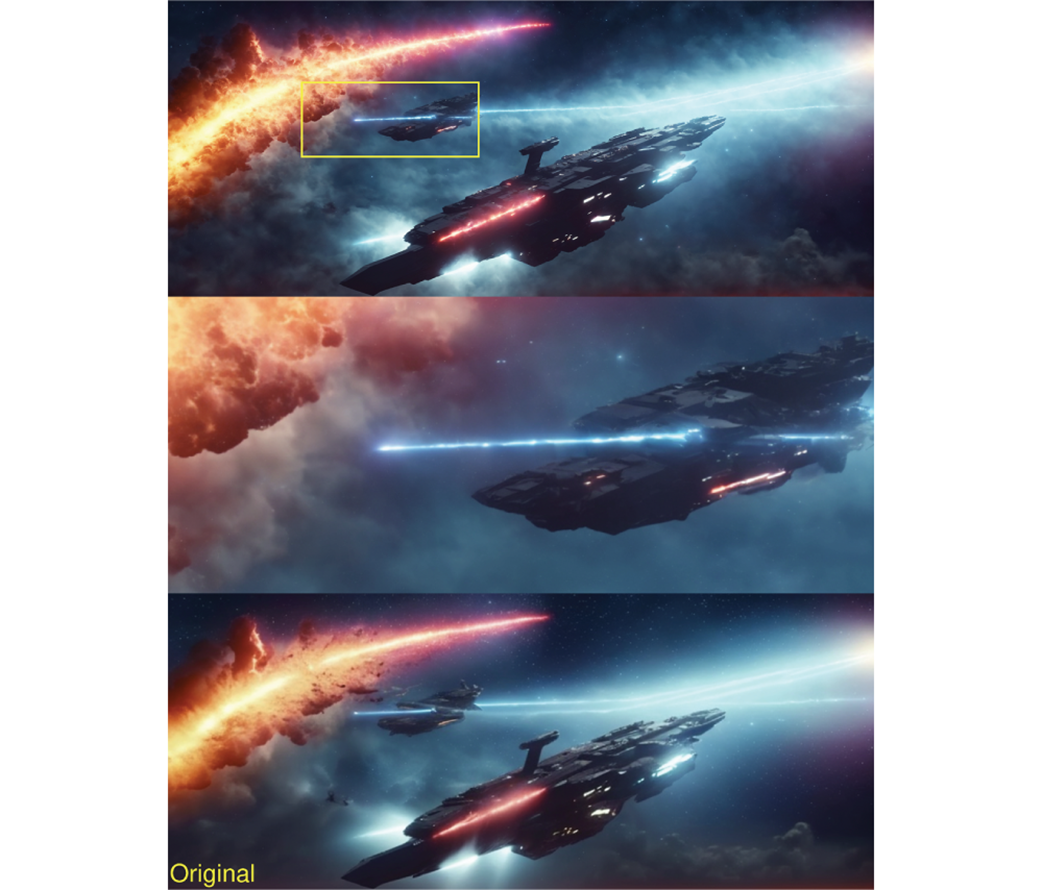
Scaling by a factor of 2 with a denoising strength of 0.3.
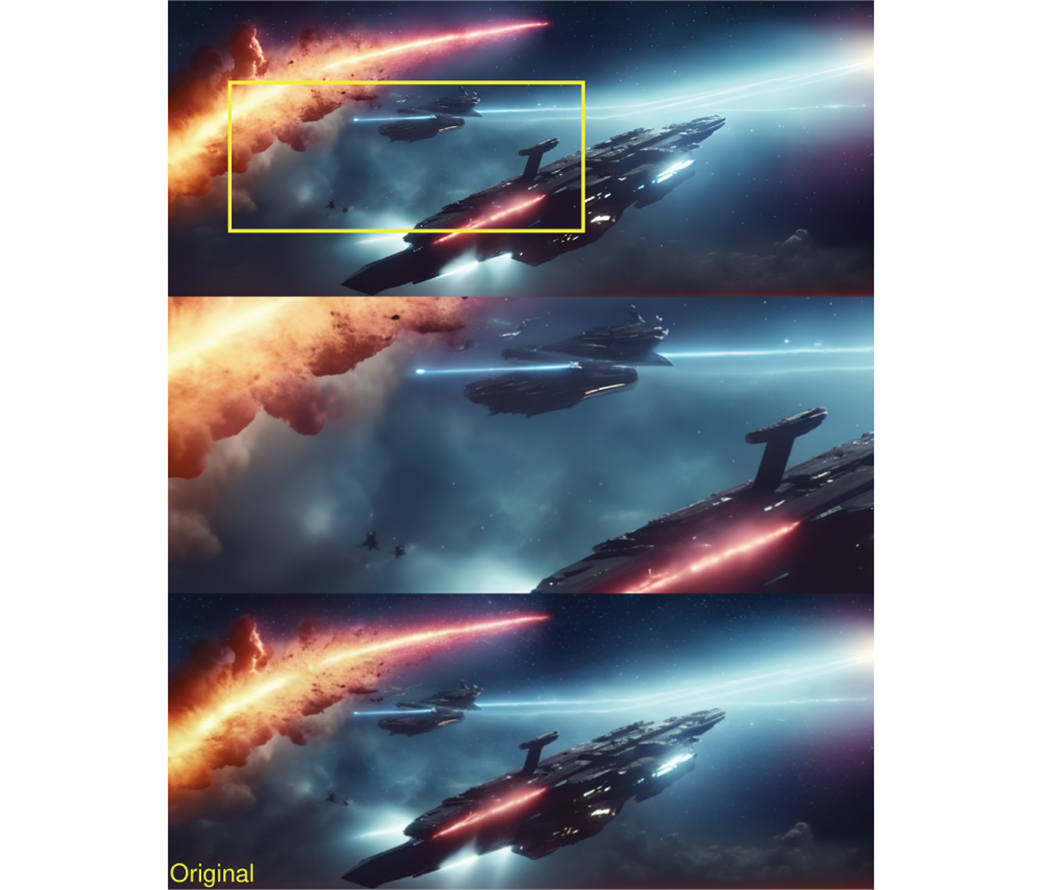
Scaling by a factor of 4 with a denoising strength of 0.3.
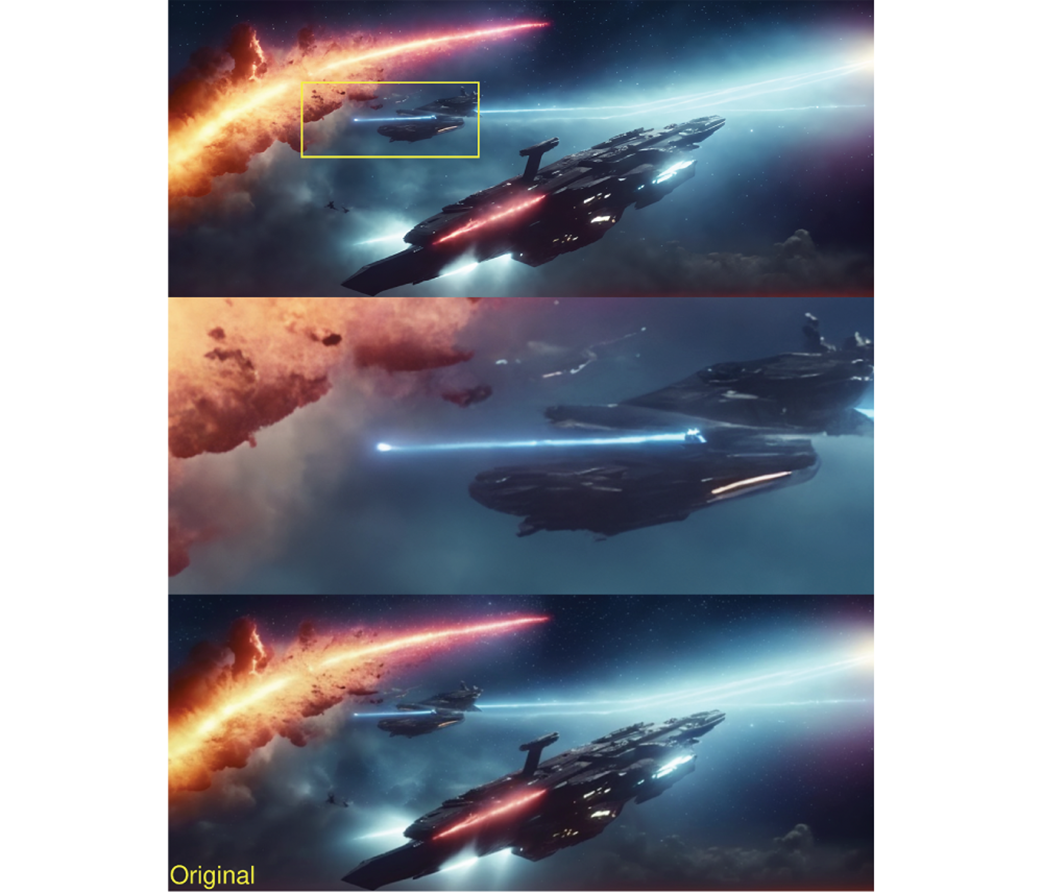
Intentionally using less steps than desired to let the upscaler finish the job.
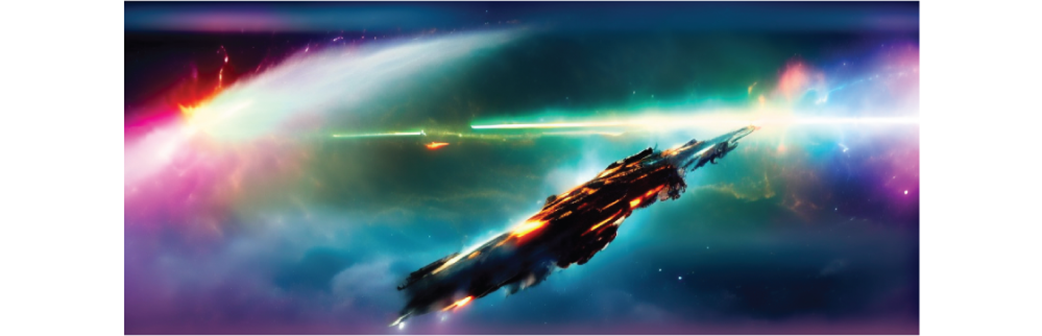
Letting the upscaler do most of the work for our image generation.
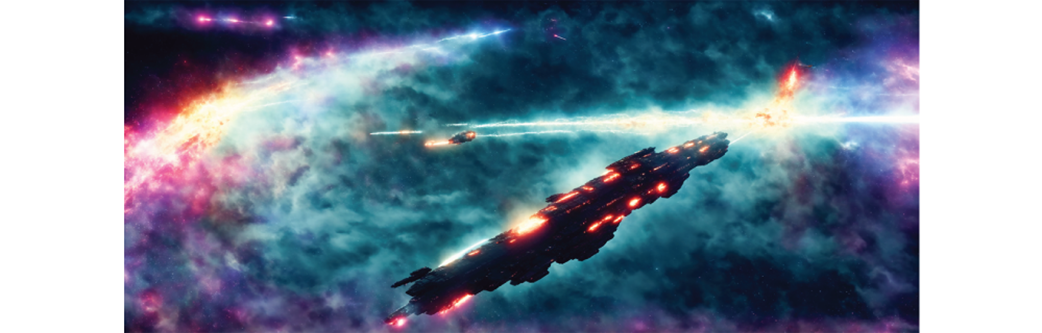
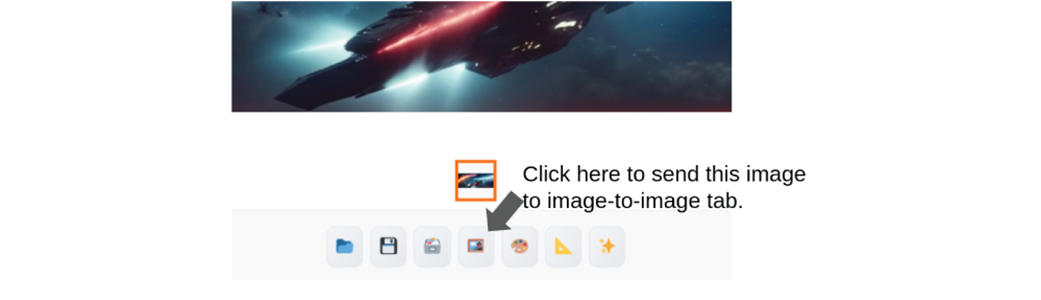
The Send to img2img tab option.
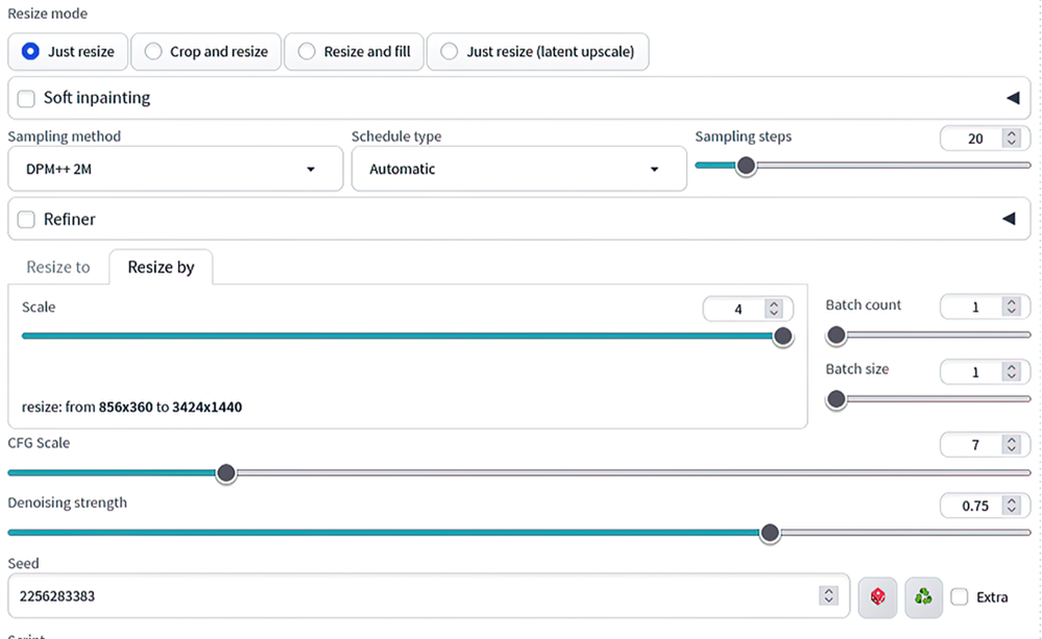
Configuration options for img2img.
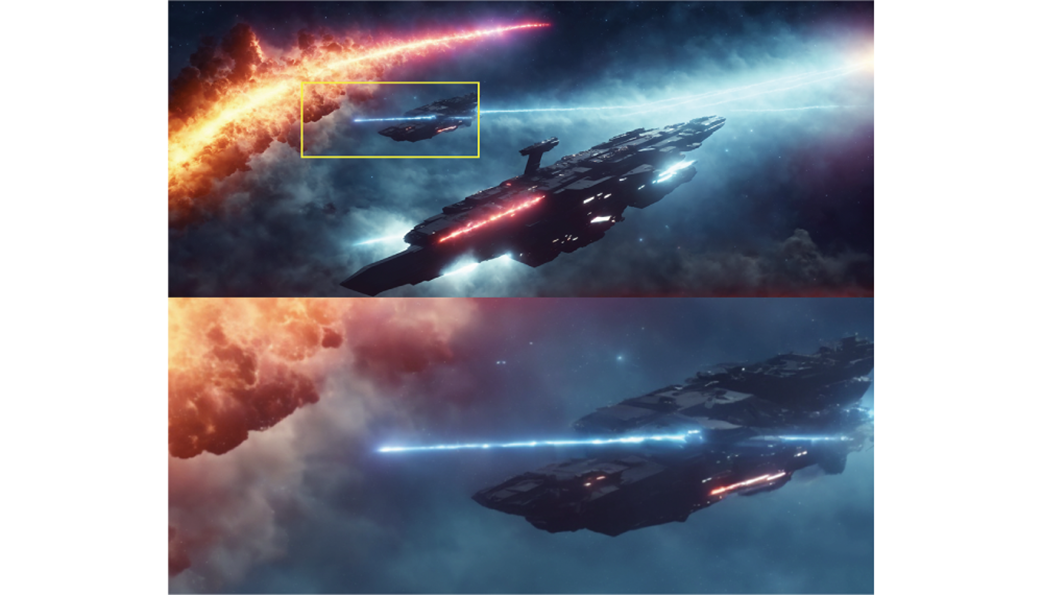
Img2img upscaling by a factor of 4.
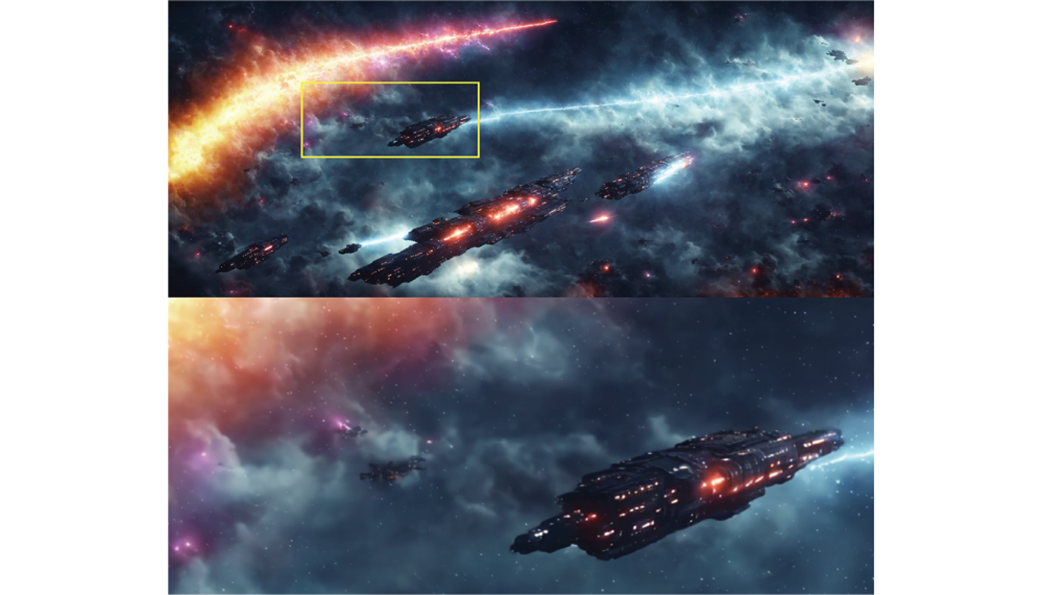
Img2img generation changing the seed to 1337.
Using CoffeeMix 2.0 for upscaling.
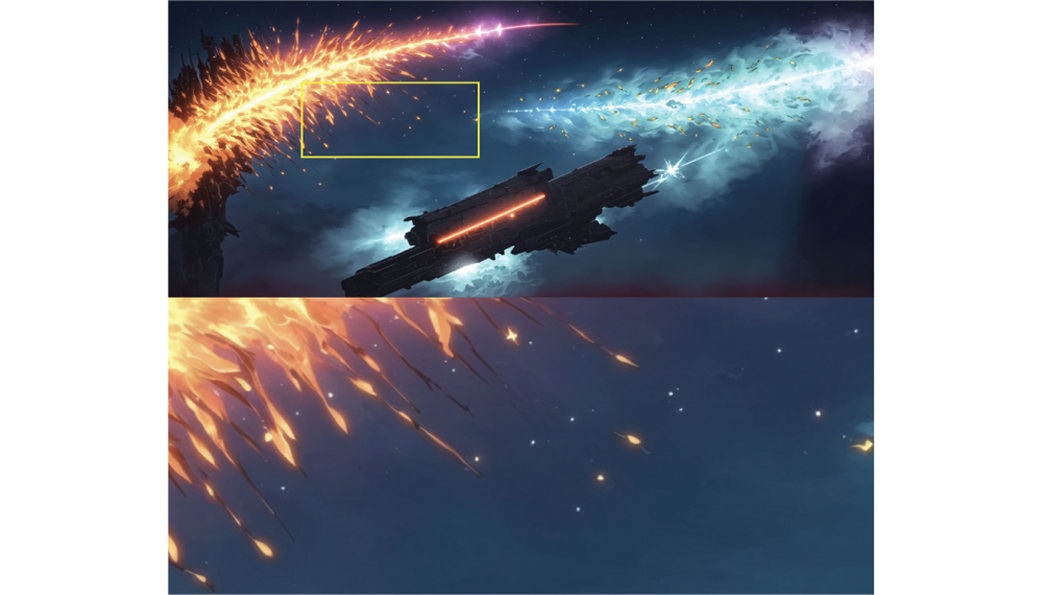
Using CoffeeMix 2.0 for upscaling.
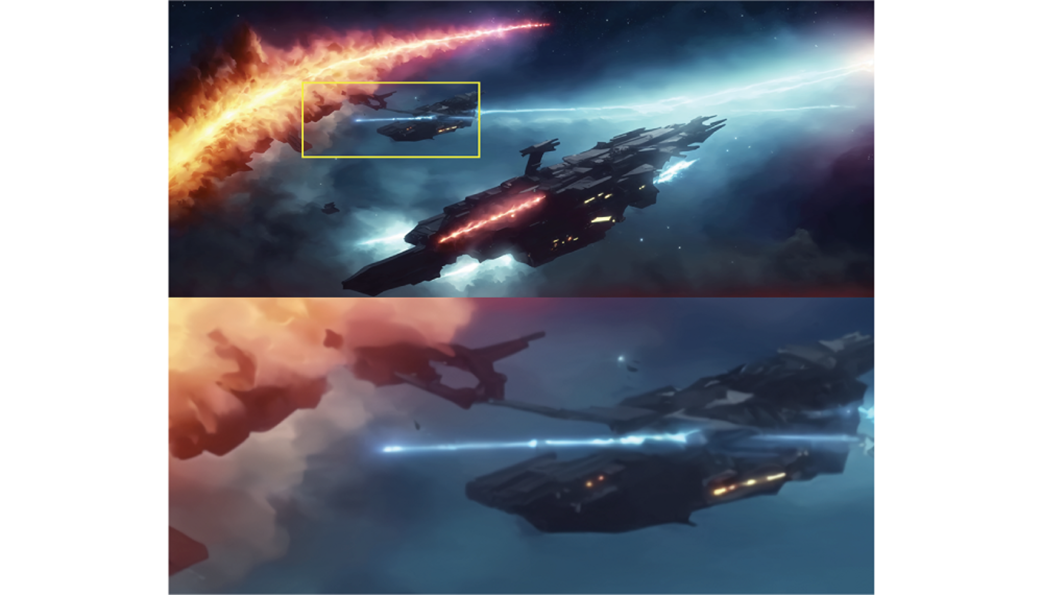
Sending the result of our Img2img back to the Img2img tab.
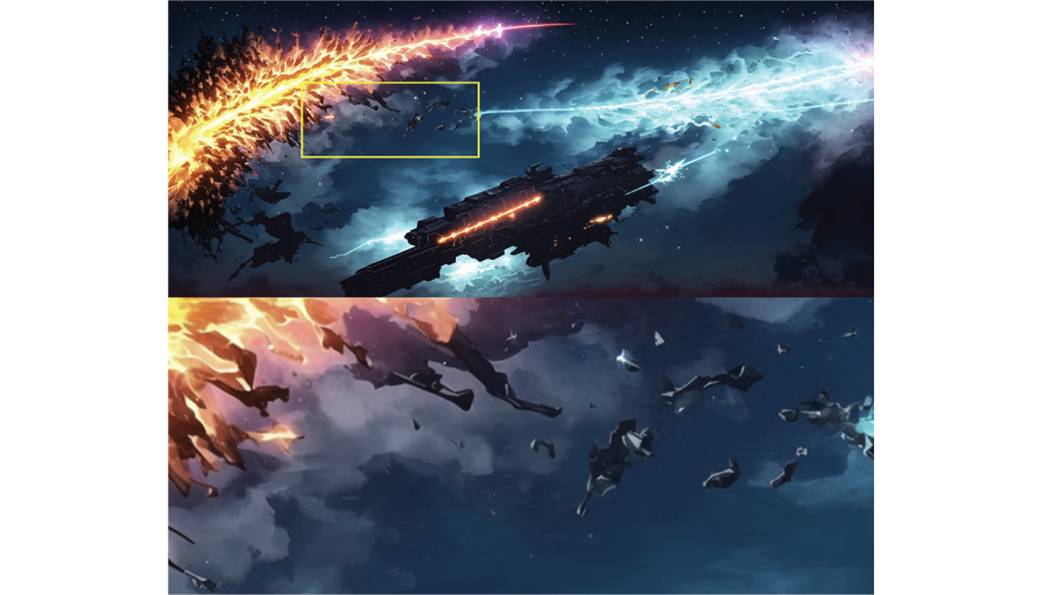
Top - once more through the loop. Bottom- once more again!
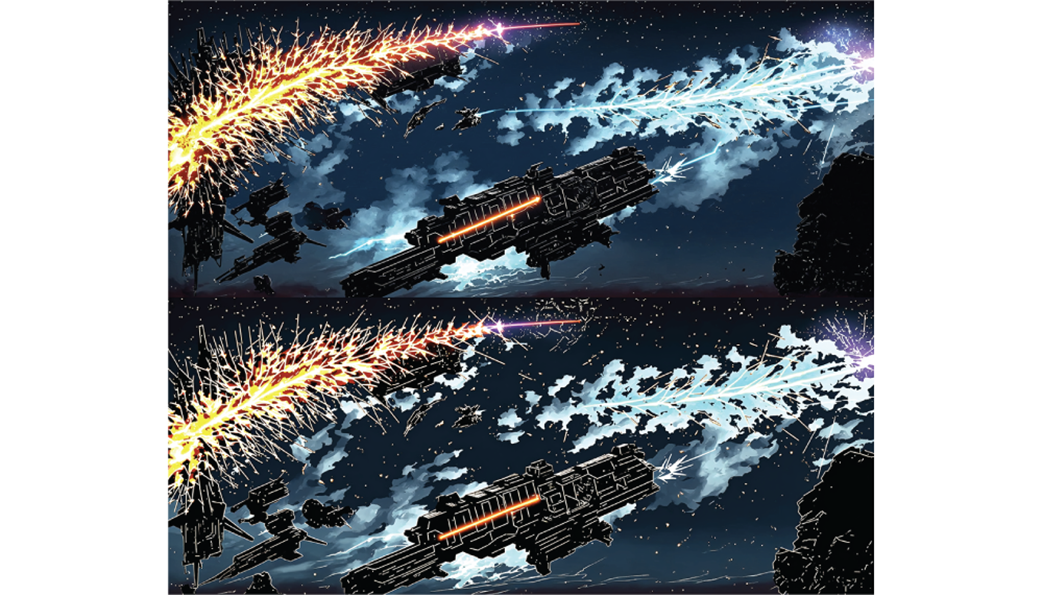
Changing the prompt when doing Img2img upscaling can dramatically change the result.
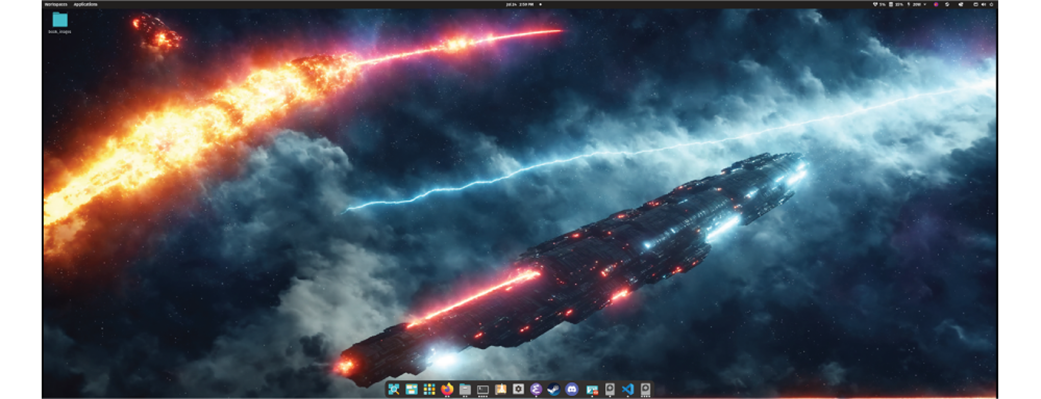
A screenshot of the final desktop wallpaper in use!
Summary
- Latent upscaling in Hires. fix is a good default when first attempting to create hi-res images.
- The R-ESRGAN upscalers can work well for photo realistic generation or Anime specific images.
- Upscaling 2x and 4x can create images that look a bit strange, and differ unintentionally from the original image. This can be resolved by tweaking the Denoising Strength.
- Stable Diffusion’s Image-to-image can offer a superior alternative for upscaling.
- Image-to-image means the upscaling works just like regular text-to-image allowing for endless configuration changes to get the right result.
- Changing checkpoints in Image-to-image generation opens up a wide range of possibilities for unique visual styles we can generate.

 Local Image Generation ebook for free
