5 Using Custom Checkpoints for Better Images
This chapter introduces custom checkpoints as a major way to improve Stable Diffusion image quality and style, building on the earlier use of community tools like A1111 and diffusers. It explains the key ideas behind models, fine-tuning, and checkpoints, emphasizing that while training Stable Diffusion from scratch was enormously expensive, adapting an existing model with extra training is far more practical for home users. The chapter frames custom U-NET checkpoints as the part of the system most capable of delivering dramatic visual improvements.
To show the difference in practice, the chapter compares the base Stable Diffusion 1.5 checkpoint against community-made models from CivitAI and Hugging Face using the same poetic prompt. The base model produces rough, blended results, while custom checkpoints such as epiCPhotoGasm generate clearer landscapes with richer detail, and prompt tweaks borrowed from model pages can improve results further. The chapter highlights that model pages are not just download sources but also valuable references for prompts, negative prompts, and settings that help users get the most from each checkpoint.
The chapter also covers how to obtain and use checkpoints in both A1111 and Hugging Face workflows. It explains downloading `.safetensors` files, placing them in the correct folders, refreshing the checkpoint list, and selecting the new model, as well as changing the model path in diffusers code to swap one checkpoint for another. With examples like Deliberate v5 and a pixel art XL model, the chapter shows that choosing the right checkpoint can transform the same prompt into very different outputs, reinforcing the open-source advantage of community-driven model customization.
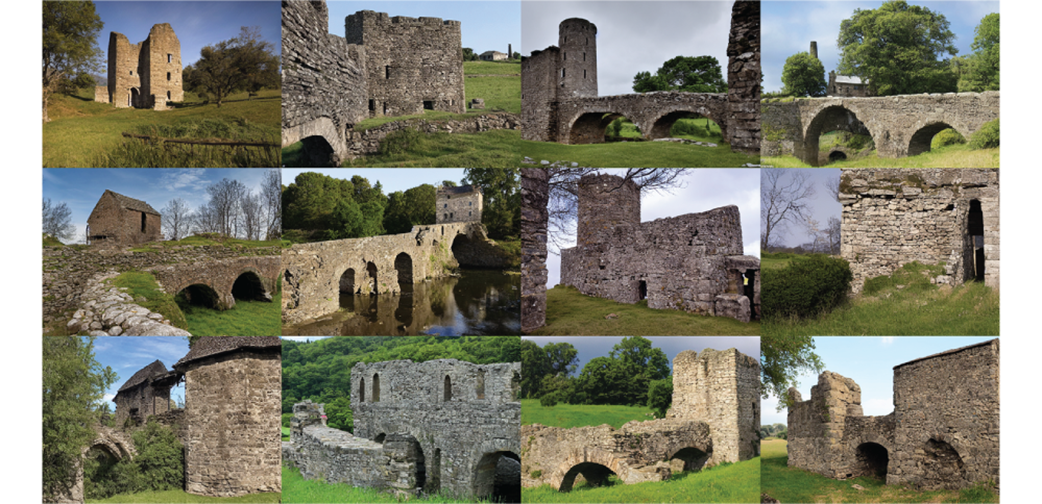
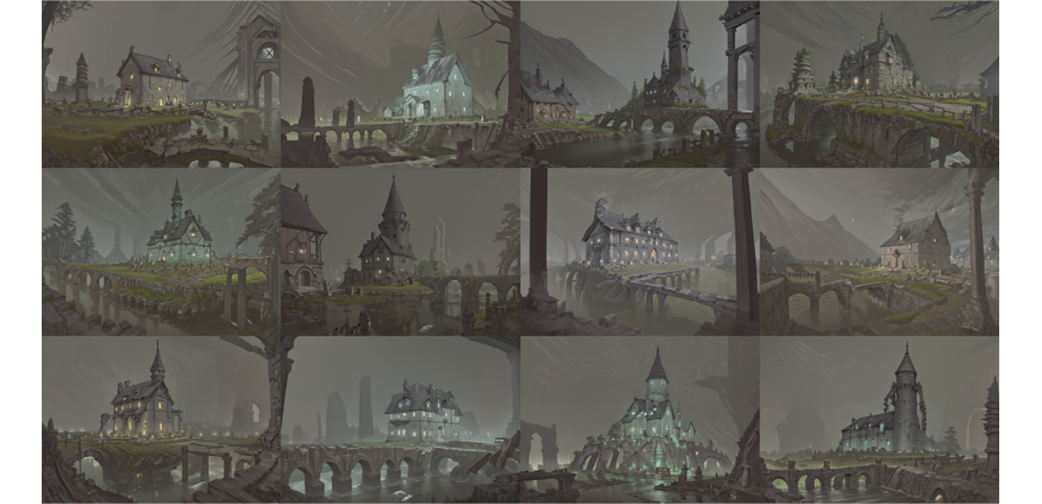
12 images created by our prompt using base Stable Diffusion 1.5
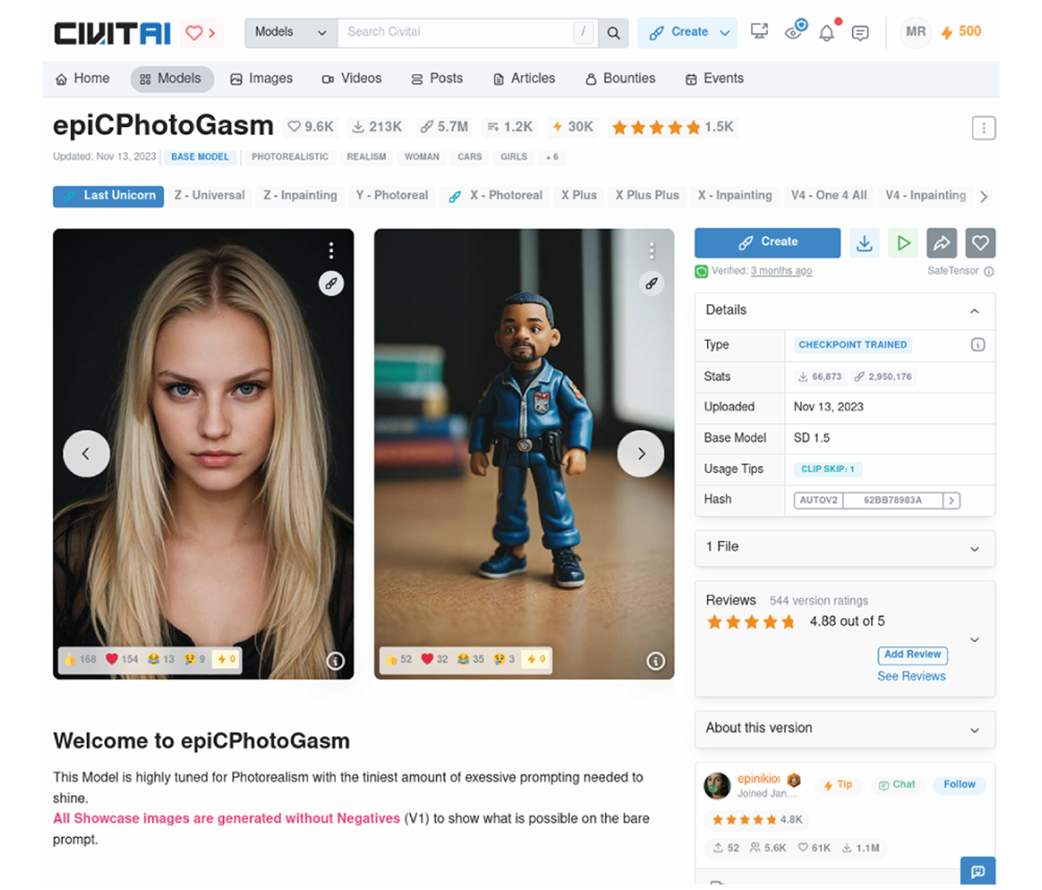
Page for the epiCPhotoGasm page on CivitAI
Make sure to refresh after adding a new checkpoint the first time.

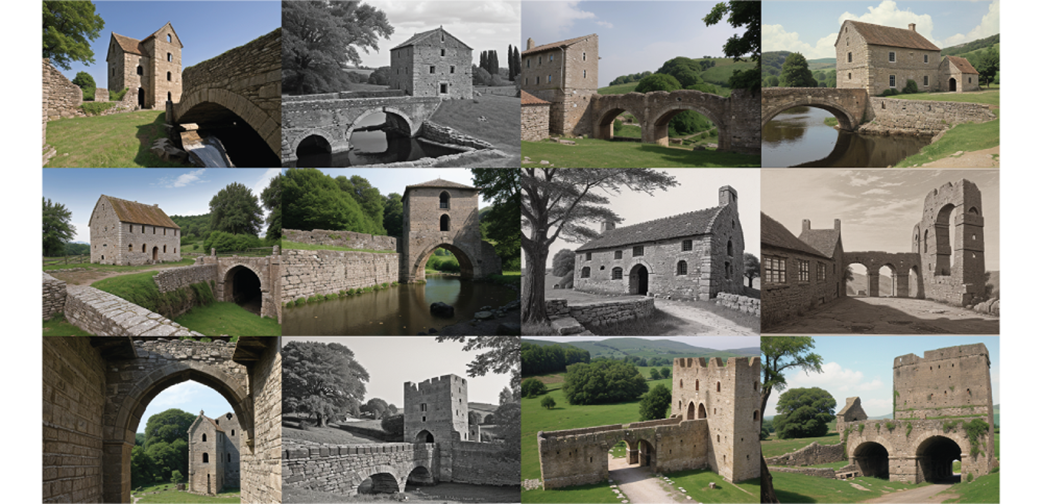
Images generated by epiCPhotoGasm
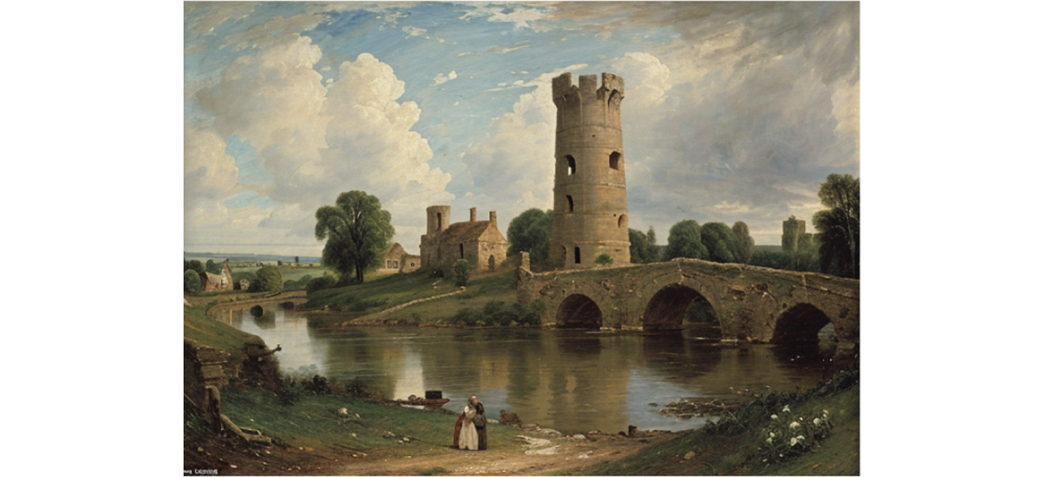
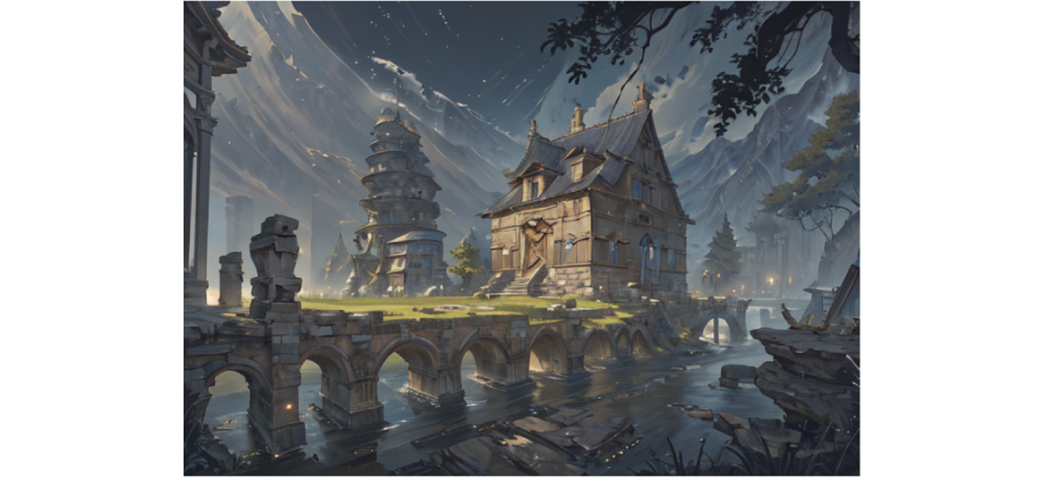
Combining better models with some prompting tricks from earlier.
Store Bought Gyoza creates very anime inspired images.
Model pages provide information that can be as valuable as the model.
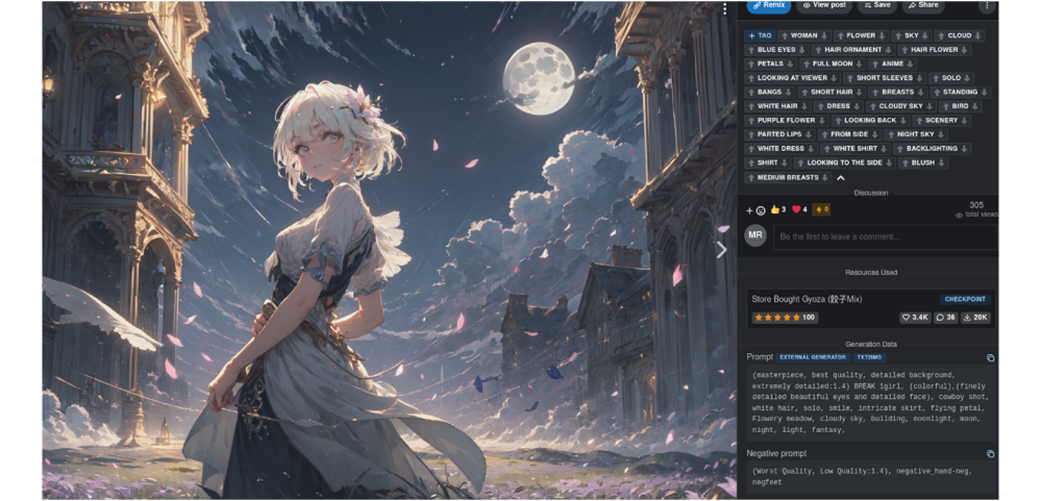
Using techniques we learned from the model page to build our prompt.
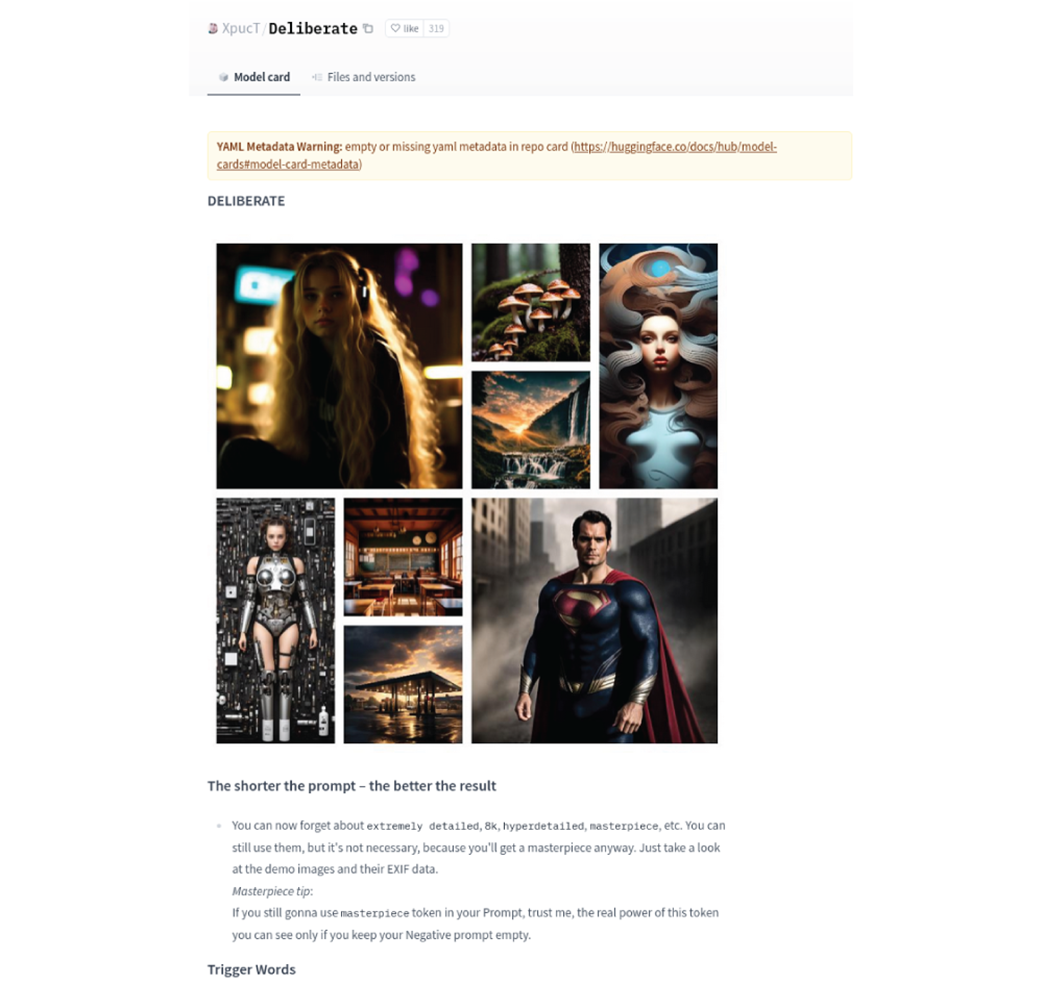
Deliberate Hugging Face model card.
There are many versions of Deliberate you can download.
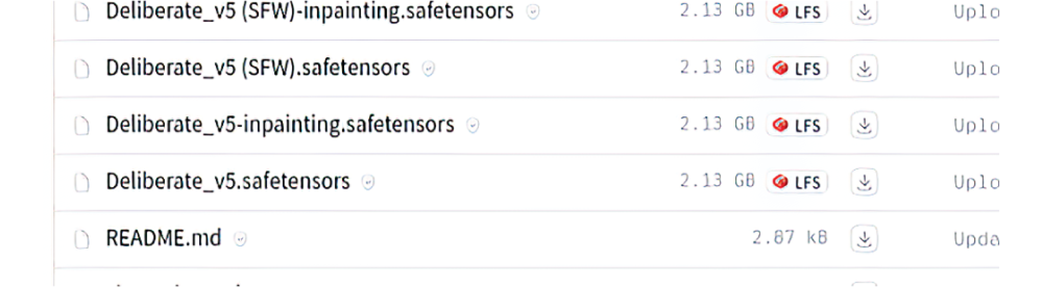
Images generated using deliberate v5.
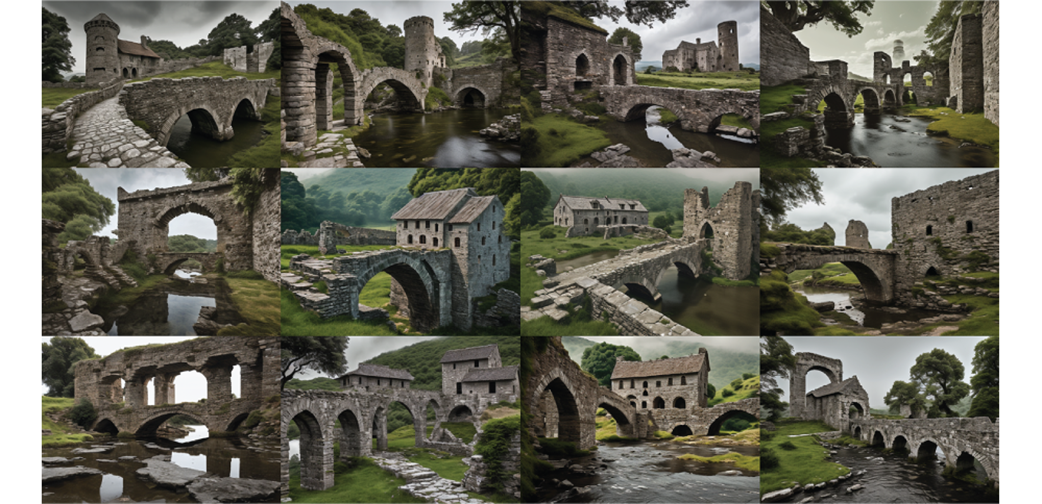
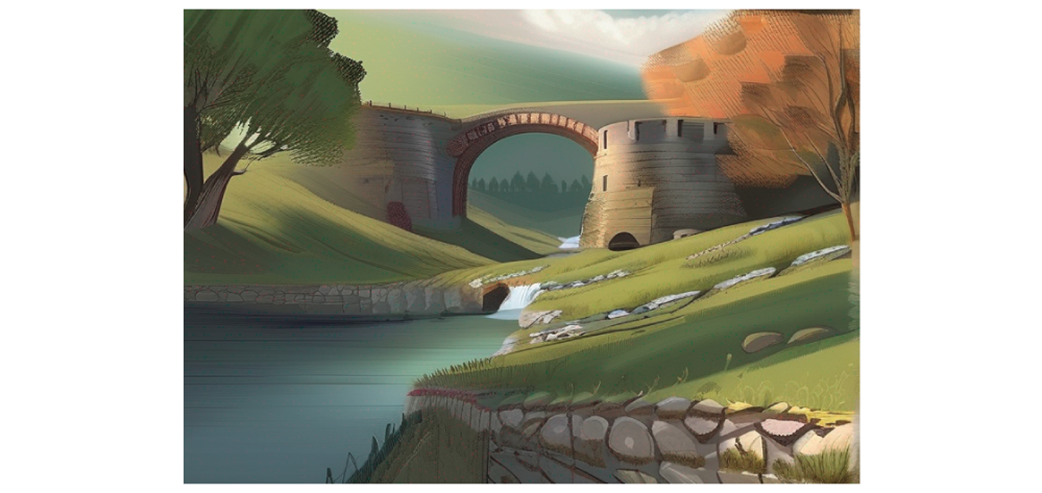
Image generated using Stable Diffusion XL through Diffusers.
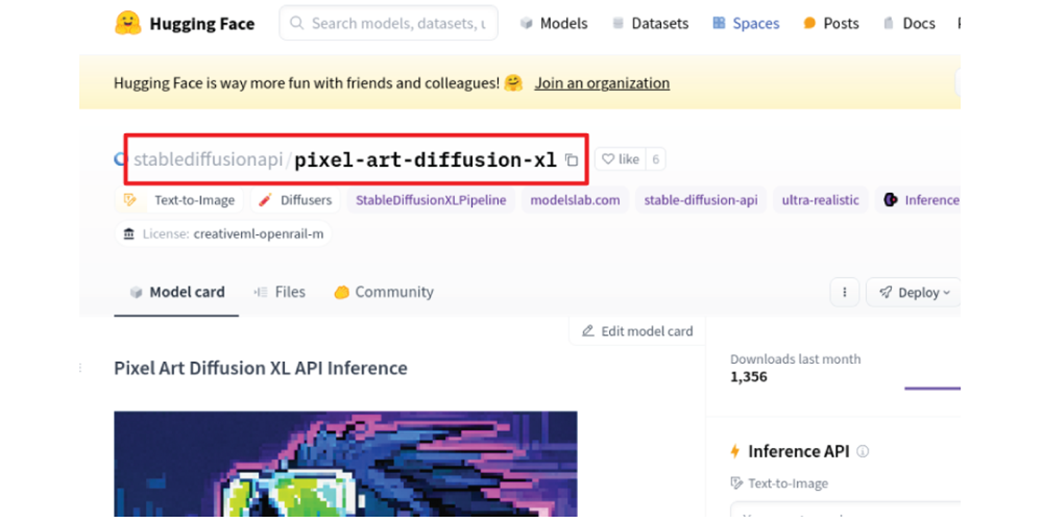
Showing model path
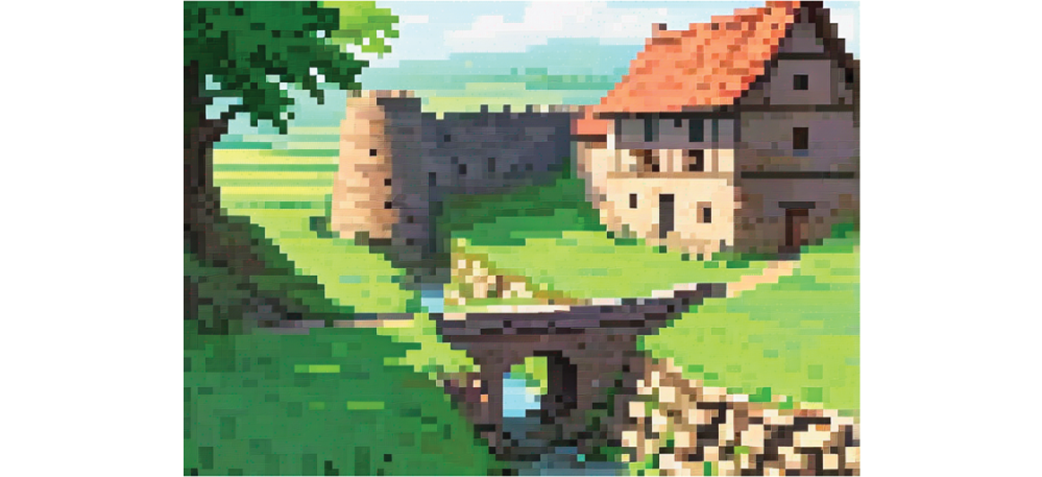
A pixel art style image of Yeats’ poem.
Summary
- Models can be fine-tuned much faster and cheaper than they can be trained from scratch.
- The Stable Diffusion community creates and shares a large variety of checkpoints, which are a model fine-tuned.
- CivitAI and Hugging Face are good places to find and download custom checkpoints.
- Model pages on CivitAI also provide a lot of information about how people prompt particular checkpoints.
- Combining the techniques from the first part of the book with custom checkpoints can result in dramatic improvement in the quality of output from Stable Diffusion.
FAQ
What is the difference between a model, fine-tuning, and a checkpoint?
A model is a broad term for a trained mathematical system such as the VAE, CLIP encoder, or U-NET in Stable Diffusion. Fine-tuning means continuing training on an existing base model with new images to improve performance in a specific area. A checkpoint is the saved result of that fine-tuning at a particular stopping point.
Why does using custom checkpoints improve image quality so much?
Custom checkpoints are community-trained U-NETs that can significantly change how Stable Diffusion denoises images. Because the U-NET has many of the model’s learned weights, replacing it can dramatically improve both image quality and style.
Do I need to train a model from scratch to customize Stable Diffusion?
No. The chapter explains that you usually only need to fine-tune an existing Stable Diffusion model rather than train one from scratch. This is much cheaper and more practical than building a model using massive GPU resources.
Where can I find custom checkpoints to download?
The chapter highlights CivitAI and Hugging Face as two major sources. CivitAI is especially useful for browsing many community-created checkpoints visually, while Hugging Face is another place to find downloadable model files.
How do I install a downloaded checkpoint in A1111?
Download the .safetensors file, then place it in the stable-diffusion-webui/models/Stable-diffusion folder. If A1111 is already open, refresh the checkpoint list and select the new model from the dropdown.
What kind of results did the base Stable Diffusion 1.5 checkpoint produce?
Using the base v1.5 checkpoint with the Yeats prompt produced images that were recognizable but still blurry and blob-like. The chapter notes that the towers, bridge, farmhouse, and wall were not very distinct.
What makes epiCPhotoGasm useful?
epiCPhotoGasm produced much sharper, more detailed images than the base checkpoint. The chapter shows that it improved structure definition, reflections in water, and overall visual quality, especially when paired with prompt improvements.
Why is it helpful to study example prompts on model pages?
Model pages often reveal prompt and negative prompt techniques used to create the preview images. Studying them helps you learn which keywords and formatting a checkpoint responds to best, improving your own generations.
How do Hugging Face checkpoints work with A1111?
They work the same way as checkpoints downloaded from CivitAI. You download the .safetensors file from the Hugging Face model page and place it in the A1111 Stable-diffusion models folder.
How do you change checkpoints when using Hugging Face diffusers in Python?
You usually only need to change the model path in DiffusionPipeline.from_pretrained(). For example, replacing the base Stable Diffusion XL path with another Hugging Face model path lets you generate images with a different checkpoint.

 Local Image Generation ebook for free
