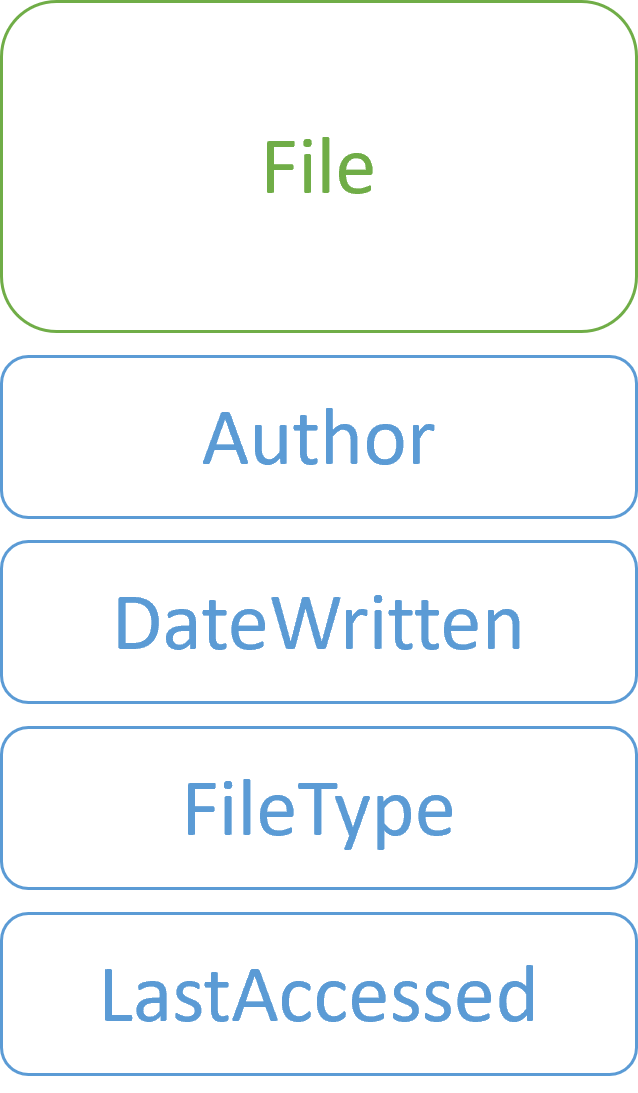
This chapter reframes PowerShell output as objects—data by another name—encouraging you to picture each command’s results as an in-memory table. Each row is an object, columns are properties, and actions attached to each row are methods; the whole set is a collection. PowerShell shows only a curated subset of properties by default, but the pipeline carries the full, rich objects from start to finish, and formatting to on-screen text happens only at the end. With this mental model, you can reason about what’s flowing through the pipeline and why a command produces the results it does.
Using objects instead of text avoids the fragility and overhead of parsing columns and regex, a common pain in text-centric shells. Objects remain stable regardless of screen formatting, letting you target property names instead of column positions. Get-Member (gm) reveals an object’s members and its TypeName, a crucial clue for understanding behavior and formatting. Most everyday work is property-focused; methods exist (for example, a process’s Kill), but the book encourages leaning on cmdlets like Stop-Process rather than invoking methods directly. PowerShell’s Extensible Type System adds conveniences such as AliasProperty and ScriptProperty, making objects more consistent and discoverable without changing how you use them.
Practically, you sort with Sort-Object (and -Descending), and you shape output with Select-Object to pick properties or keep only the first or last N items. Select-Object creates lightweight custom PSObjects so you can emit just the properties you care about; that change in type also affects how PowerShell formats the final output. Throughout, the pipeline can hold different types at different stages, so using gm at any point helps you stay oriented. Common pitfalls include expecting Help to list properties (use gm instead), confusing Select-Object with Where-Object, and overlooking careful pipeline spacing. The chapter closes with hands-on exercises that reinforce discovery, sorting, selecting, and exporting object data for real-world tasks.
What are objects, properties, methods, and collections in PowerShell?Objects are the individual items that flow through the pipeline (like a single process). Properties are the pieces of data on an object (like Name, Id, CPU). Methods are actions an object can perform (like Kill on a process). A collection is the whole set of objects (all the rows), similar to an in-memory table.Why does Get-Process only show a few columns, and how can I see everything?PowerShell formats output using built-in views, showing only commonly useful properties. The full objects still contain many more properties. To see more, use tools like Get-Process | Select-Object * or export to HTML with Get-Process | ConvertTo-Html | Out-File processes.html.How do I discover all properties and methods of an object?Pipe objects to Get-Member (alias gm). Example: Get-Process | gm. Get-Member lists members (properties, methods, events) and shows the TypeName, which identifies the object type.What’s the advantage of objects over plain text output?Objects eliminate brittle text parsing. You refer to data by property name instead of character positions, so your commands are resilient to formatting changes and you can focus on the task rather than parsing text.How do I sort objects by one or more properties?Use Sort-Object. Examples: Get-Process | Sort-Object CPU -Descending and Get-Process | Sort-Object CPU,Id -Descending. The -Property parameter is positional and accepts multiple properties.How do I choose which properties to display, and what does Select-Object output?Use Select-Object with the properties you need, for example: Get-Process | Select-Object Name,Id,CPU. Select-Object creates a new custom object (a PSObject) containing only the selected properties, which can change how the final output is formatted.What’s the difference between Select-Object and Where-Object?Select-Object chooses columns (properties) to include and can keep an arbitrary number of rows using -First or -Last. Where-Object filters rows based on a condition. They solve different problems: Select = columns; Where = rows by criteria.When should I call object methods versus using cmdlets?Prefer cmdlets because they’re task-focused and simpler. For example, Stop-Process -Name Code or Get-Process -Name Code | Stop-Process instead of invoking a process object’s Kill() method directly.What does “objects until the end of the pipeline” mean, and why does it matter?PowerShell keeps objects in the pipeline until the last command requires formatting or output (like Out-File or the console). Only then does it format based on type-specific views. If you change the object type mid-pipeline (for example with Select-Object), you also change how the final output is formatted.What are common beginner mistakes with objects and the pipeline?- Looking in Get-Help for object properties (use Get-Member instead).
- Adding | gm to pipelines that don’t output anything.
- Forgetting spaces around the pipeline character (use spaces for readability).
- Confusing Select-Object with Where-Object.
- Not tracking which object type is in the pipeline at each step; use gm to check.
pro $24.99 per month
access to all Manning books, MEAPs, liveVideos, liveProjects, and audiobooks!

 Learn PowerShell in a Month of Lunches, Fourth Edition ebook for free
