6 The pipeline: connecting commands
PowerShell’s distinctive power comes from its pipeline, which lets you connect commands so the output of one becomes the input of the next, enabling compact, task-focused one-liners. Unlike traditional text-based shells, this pipeline passes rich objects, making downstream processing more precise and flexible. You learn to chain commands for viewing, exporting, converting, formatting, and even modifying system state, all by composing small, single-purpose cmdlets. The result is a clear model: gather data, transform or format it, and direct it to a destination.
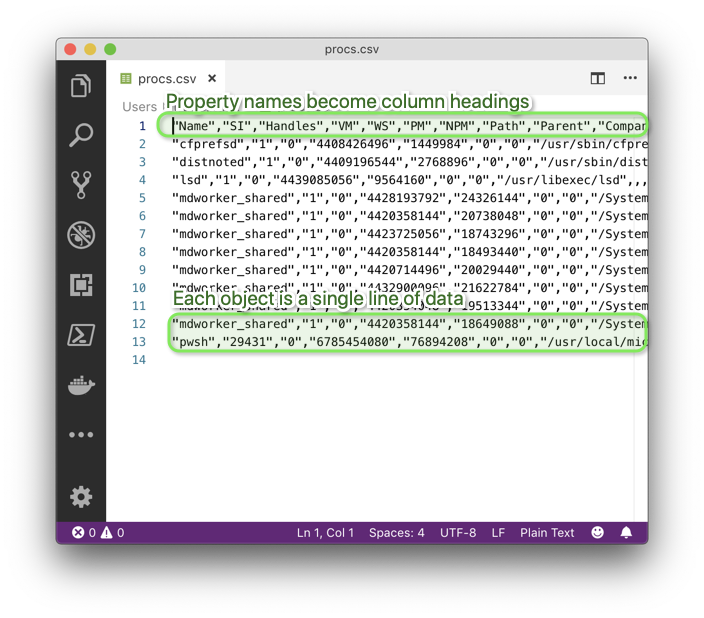
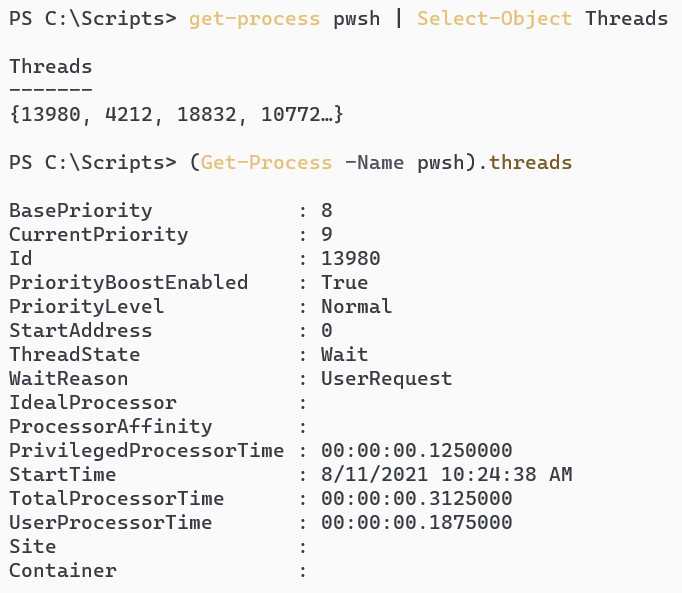
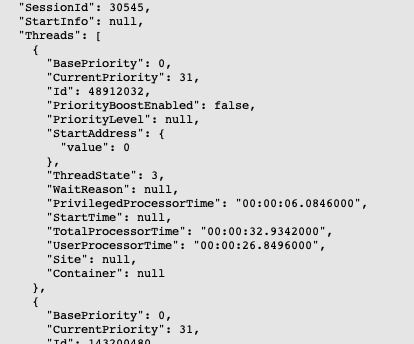
The chapter shows practical exporting patterns: use Export-CSV to capture flat object data, then Import-CSV to bring it back as objects (contrasting that with Get-Content, which returns raw text). When nested properties matter (for example, process Threads), ConvertTo-Json and ConvertFrom-Json preserve structure, though the returned objects won’t be the original types. Export-Clixml and Import-Clixml keep type fidelity so PowerShell can reconstruct original objects, at the cost of larger, PowerShell-specific files and potential encryption of sensitive data on Windows. With these formats you can create snapshots, share them, and compare states using Compare-Object, focusing on relevant properties (such as Name) to avoid noisy differences.
You also learn how to redirect and format output: > is shorthand for piping to Out-File, which supports width and encoding controls; Out-Default routes to Out-Host when you don’t specify otherwise. ConvertTo-Html produces browser-friendly reports that you save with Out-File, and similar ConvertTo-* cmdlets (CSV, XML) convert without writing files, whereas Export-* both convert and save. Pipelines can drive action too, such as passing Get-Process results to Stop-Process, with safety features like -Confirm, -WhatIf, and the $ConfirmPreference impact model. The chapter clears common confusions (for example, why Import-CSV, not Get-Content, is used to read CSV data) and highlights useful parameters like IncludeTypeInformation, delimiter customization, and culture-aware settings—reinforcing that the pipeline is about composing reliable, readable building blocks to get real work done.

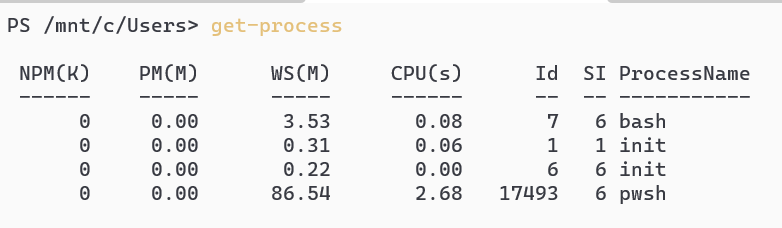
The output of Get-Process is a table with several columns of information.
Viewing the exported CSV file in Windows Notepad
Lab answers
PS C:\Scripts > "I am the walrus" | Out-File file1.txt
- If you don’t specify a filename with
Out-File, you’ll get an error. But even if you do,Out-Filewon’t do anything because the file is created byExport-CSV. Stop-Jobcan accept one or more job names as parameter values for the–Nameparameter. For example, you could run this:
get-Command | Export-CSV commands.CSV -Delimiter "|"- Use the
–IncludeTypeInformationparameter withExport-CSV. Get-Command | Export-CSV services.CSV –NoClobber
Get-Command | Export-CSV services.CSV -UseCulture
FAQ
What is the PowerShell pipeline and how do I use it?
The pipeline connects commands with the vertical bar | so the output of one becomes the input of the next. Unlike many shells, PowerShell pipes rich objects (not plain text), enabling powerful one-liners. Example:Get-Process | Export-CSV procs.csvWhen should I export to CSV, JSON, or CliXML?
- CSV: flat, tabular data; easy to share and open; loses nested object structure. - JSON: preserves nested properties (like Threads on a process); great for interop with many languages. - CliXML (Export-Clixml): PowerShell-native XML that round-trips objects (or close); bigger files, Windows may encrypt sensitive parts so only the creating user/machine can decrypt.How do I include nested properties (like process Threads) in an export?
CSV flattens complex properties, so nested data becomes type names. Use JSON or CliXML:Get-Process | ConvertTo-Json | Out-File procs.json
Get-Process | Export-Clixml procs.xmlGet-Content procs.json | ConvertFrom-Json
Import-Clixml procs.xmlWhat’s the difference between Export-* and ConvertTo-* cmdlets?
- Export-* does the conversion and writes directly to a file (no pipeline output). - ConvertTo-* only converts and emits text to the pipeline; you decide where it goes. Example:# Writes a file
Get-Process | Export-CSV procs.csv
# Emits HTML to pipeline; use Out-File to save
Get-Process | ConvertTo-Html | Out-File processes.htmlWhy does “Get-Command | Export-CSV commands.csv | Out-File” fail or do nothing useful?
Export-CSV already writes to a file and does not emit objects to the pipeline, so there’s nothing for Out-File to process. Also, Out-File requires a file path parameter. Just run:
Get-Command | Export-CSV commands.csvHow do I save the on-screen (table) output to a text file without truncation?
Use redirection or Out-File. To avoid the default 80-character width, specify -Width:Get-Process | Out-File processes.txt -Width 200
# or
Get-Process > processes.txtHow can I compare two snapshots of objects (like process lists) across machines?
Capture a reference snapshot, then compare with Compare-Object focusing on a key property (like Name):Get-Process | Export-Clixml reference.xml
Compare-Object -ReferenceObject (Import-Clixml reference.xml) `
-DifferenceObject (Get-Process) `
-Property Name<= means only in reference; => means only in difference.
Why does Get-Content show a CSV as “garbage,” and what’s the right way to read it?
Get-Content returns raw text. Use Import-CSV to parse into objects and restore headers:
Import-CSV .\processes.csvExport-CSV .\processes.csv -IncludeTypeInformationHow do I safely run cmdlets that change the system (e.g., Stop-Process)?
Target narrowly and preview or confirm:# Narrow the target
Get-Process -Name bash | Stop-Process
# Always ask
Get-Process -Name bash | Stop-Process -Confirm
# Dry run
Get-Process -Name bash | Stop-Process -WhatIf
# Check the confirmation threshold
$ConfirmPreference # typically "High"How do I control CSV overwrite behavior or change the delimiter?
- Prevent overwriting:-NoClobber
- Append instead of overwrite: -Append
- Prompt before writing: -Confirm
- Use a different delimiter (e.g., pipe): -Delimiter '|'
- Use system’s regional list separator: -UseCulture
Examples:
Get-Command | Export-CSV cmds.csv -NoClobber -UseCulture
Get-Process | Export-CSV procs.psv -Delimiter '|'
 Learn PowerShell in a Month of Lunches, Fourth Edition ebook for free
