5 Working with providers
PowerShell providers act as adapters that expose diverse data stores—such as the file system, environment variables, or directories—as drives you can navigate and manage with a common, item-centric toolset. Each provider (PSProvider) advertises capabilities like ShouldProcess, Filter, and Credentials, which control what parameters and behaviors are available. Using these providers, PSDrives surface the underlying data, and you work with generic item cmdlets (for example, Get-Item, Get-ChildItem, New-Item, Set-Item and their ItemProperty versions), keeping in mind that support for features varies by provider. Modules can add new providers and drives, extending PowerShell’s reach beyond traditional file storage.
The chapter builds intuition through the file system, explaining items, item properties, and child items, and showing navigation with Set-Location (cd). Because item cmdlets are generic, you must specify intent—such as providing -ItemType Directory when creating a folder—and recognize provider limits (for example, the file system lacks transactions and Set-Item isn’t used to modify file contents). Path handling is a key theme: -Path accepts wildcards, while -LiteralPath treats characters like * and ? as literal, which matters on platforms and providers where such characters are valid in names. Although non-Windows systems use a single root (/), PSDrives still exist for other providers and behave consistently across platforms.
To illustrate providers beyond the file system, the Environment provider is used to list and set variables, including names that require -LiteralPath (such as A?). The text underscores that not all providers expose item properties (Environment does not), and it clarifies filtering options: provider-backed -Filter versus -Include/-Exclude, which apply when recursing or addressing containers. A hands-on lab cements the concepts by creating directories and files, inspecting environment data, and comparing parameter behaviors, while also highlighting platform nuances like case sensitivity differences (PATH vs path) between Windows and Linux/macOS.
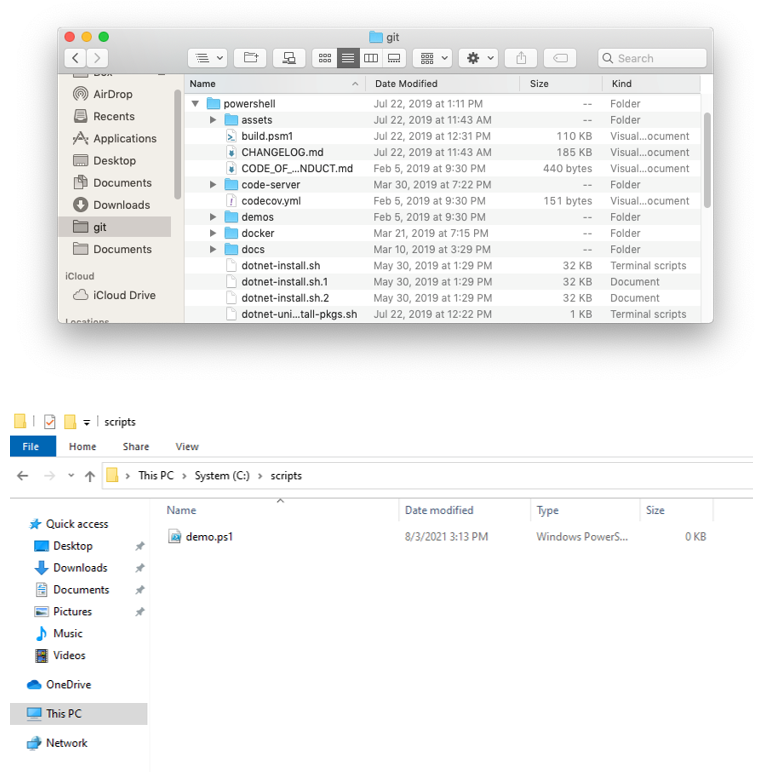
Viewing files, folders, and drives in Finder and Windows Explorer
FAQ
What is a PowerShell provider (PSProvider)?
A PSProvider is an adapter that exposes a data store (such as the file system, environment variables, aliases, functions, etc.) as a navigable drive in PowerShell. You can list installed providers withGet-PSProvider.How is a PSDrive different from a PSProvider?
The provider defines how to access a data store; a PSDrive is a specific mapping that uses a provider to expose that store, for exampleEnv:, Function:, Variable:, or a filesystem root. View current drives with Get-PSDrive.What do provider capabilities like ShouldProcess, Filter, and Credentials mean?
-ShouldProcess: Supports -WhatIf and -Confirm safety prompts.-
Filter: Enables a provider-native -Filter parameter on item cmdlets (often faster).-
Credentials: Allows -Credential for alternate identities.Not all providers implement every capability, so some parameters may be unavailable.
Which cmdlets do I use to work with provider data?
Use the Item family of cmdlets:Get-Item, Set-Item, New-Item, Remove-Item, Get-ChildItem, plus property-focused variants like *-ItemProperty. Nouns: Item (a single object), ChildItem (contents of a container), and ItemProperty (attributes of an item).Why does New-Item ask for a type, and how do I create folders or files?
New-Item is generic, so you must specify what to create. Examples: create a folder with New-Item -Path ./Test -ItemType Directory; create a file with New-Item -Path ./Test.txt -ItemType File. On non-Windows, the mkdir function isn’t provided by PowerShell Core, so use New-Item.How do I change location across providers?
UseSet-Location (alias cd). You can switch to provider drives like cd Env:\ or back to the filesystem. On macOS/Linux there’s a single filesystem root (/), but provider drives such as Env: still exist.When should I use -Path versus -LiteralPath?
-Path accepts wildcards (*, ?). -LiteralPath treats all characters literally. Use -LiteralPath when the name contains wildcard characters. Example: Set-Item -LiteralPath Env:\A? -Value 1 creates/sets a variable literally named A?.Why does Get-ItemProperty fail on Env: items?
Because the Environment provider doesn’t implement item properties. Commands likeGet-ItemProperty Env:\Name will fail there. Not every provider supports properties; behavior depends on the provider.What’s the difference between -Filter, -Include, and -Exclude in Get-ChildItem?
-Filter is implemented by the provider and usually performs faster (e.g., filesystem filtering). -Include/-Exclude are pattern filters applied by PowerShell and typically require a container path or -Recurse to take effect.Are environment variable names case-sensitive across platforms?
Windows treats environment variable names as case-insensitive (PATH equals path). On Linux and macOS they’re case-sensitive, so PATH and path are different.
 Learn PowerShell in a Month of Lunches, Fourth Edition ebook for free
