4 Running commands
PowerShell is first and foremost a shell for running commands interactively, not a programming environment you must script in from day one. The chapter emphasizes starting simple: type a command, add parameters, press Enter, and review the immediate results. When repetition becomes tedious, you can paste those working commands into a .ps1 file to create a script—an incremental, low-friction path from ad hoc commands to automation. While PowerShell can scale to deep .NET-based complexity, most users can be highly effective at a “driver” level without advanced programming. The key skill is learning to run commands accurately and confidently within the shell.
It explains how commands are structured and named so you can discover and use them consistently. Cmdlets follow a verb-noun pattern, with parameters introduced by dashes, separated by spaces, and generally case-insensitive, though spacing and punctuation matter. A standardized verb set makes command names guessable and easier to find. Aliases provide shorter nicknames for commands, but in PowerShell they do not include preset parameters (unlike some Unix shells). You can shorten parameter names if they remain unambiguous, use parameter name aliases, and rely on positional parameters—though the chapter recommends full names and explicit parameters for clarity, especially in scripts.
Beyond native cmdlets, PowerShell runs external command-line tools across Windows, Linux, and macOS, with a few caveats when complex parameters confuse the parser. When that happens, techniques like the call operator or stop-parsing can help, with notes on when variables will or won’t be passed through. The chapter normalizes error messages as part of daily work, showing how to read what went wrong, consult help, and correct common mistakes. Frequent pitfalls include omitting the dash in verb-noun cmdlet names and misplacing spaces around parameters and values. The overall guidance is to favor readable commands, lean on help and discovery tools, and use shortcuts judiciously so your commands remain clear, reliable, and easy to share.
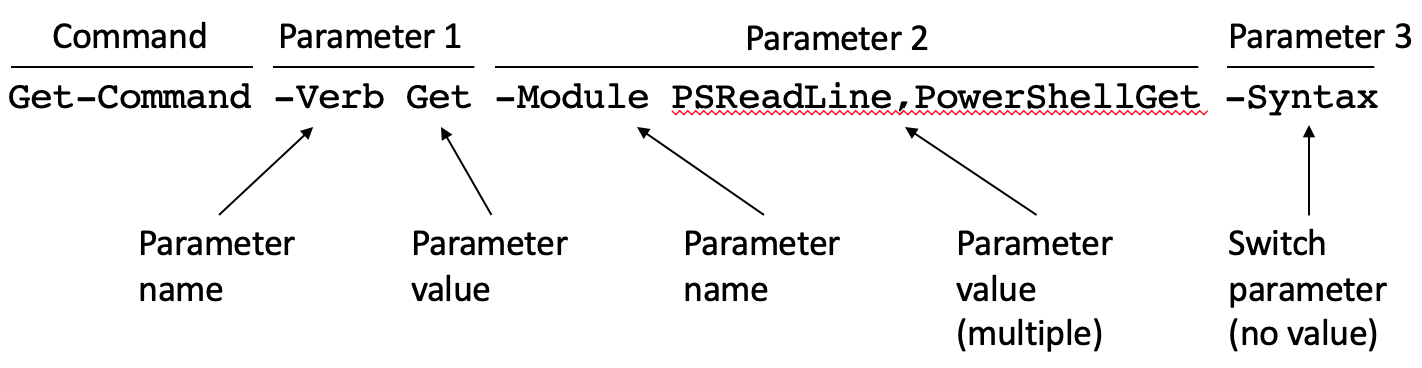
The anatomy of a PowerShell command
Interpreting a PowerShell error message

What’s a “second path fragment?”

Lab Answers
- Get-Process
- Test-Connection google.com
- Get-Command -Type cmdlet
- Get-Alias
- New-Alias -Name nsts -Value netstat
- Get-Process -Name p*
- New-Item -Name MyFolder1 -Path c:\scripts -Type Directory;
New-Item -Name MyFolder2 -Path c:\scripts -Type Directory - Remove-item C:\Scripts\MyFolder*
FAQ
Is PowerShell primarily a scripting language or an interactive shell?
PowerShell is first and foremost a shell for running commands interactively. You can later save frequently used commands into a .ps1 file to create scripts, but you don’t need to “program” to be productive.What are the parts of a PowerShell command?
A command has a cmdlet name (verb-noun), followed by parameters that start with a dash. Put a space between the command and the first parameter, and between parameters and their values. Switch parameters (like-Recurse) don’t need a value. Most things aren’t case-sensitive, but spaces and dashes matter.Why do cmdlets use a Verb-Noun name, and how can I guess a cmdlet?
The verb-noun convention (for example,Get-Process, Set-Item) keeps names consistent and guessable. Use Get-Verb to see approved verbs, then combine with a likely noun and verify with Get-Command and Get-Help (wildcards help too).What are aliases in PowerShell and how do I find or create them?
Aliases are nicknames for commands (for example,gps for Get-Process). Use Get-Alias to discover them. Create one with New-Alias, and export/import them with Export-Alias/Import-Alias. Note: aliases don’t include preset parameters and last only for the current session unless you persist them yourself.How do parameter shortcuts work?
You can shorten parameter names as long as they’re unambiguous (for example,-comp for -ComputerName), use parameter aliases (like -ea for -ErrorAction), and omit names for positional parameters. Tab completion helps confirm what PowerShell will use.What are positional parameters and when should I avoid them?
Positional parameters can be provided by order without typing their names, but you must remember the correct sequence and place positional ones first. For clarity and fewer errors—especially in scripts—prefer explicit parameter names.Can I run external utilities from PowerShell, and what if their parameters don’t work?
Yes—utilities likeping, grep, and others run as usual. If PowerShell’s parser interferes, either use the call operator (&) with variables to pass arguments, or in v3+ use the stop-parsing token --% to send the rest of the line raw (note: variables won’t expand after --%).How do I read and fix common red error messages?
Modern error messages highlight where parsing failed. Common causes are typos, missing dashes, or parameters used incorrectly. Spell out full cmdlet and parameter names, and read the full help (Get-Help <cmdlet> -Full) to verify syntax.What naming and spacing rules commonly trip people up?
Always use verb-noun with a dash (for example,Get-Content). Put a space after the cmdlet and between parameters and values. Parameters always start with a dash; there’s no space between the dash and the parameter name. Case doesn’t matter; spaces and dashes do.How can I quickly discover cmdlets, aliases, and common parameters?
UseGet-Command and filter by type to list cmdlets, Get-Alias to list aliases, and Get-Help about_CommonParameters to learn about built-in parameters like -ErrorAction and -Verbose. You can inspect parameter aliases via (Get-Command <name>).Parameters.
 Learn PowerShell in a Month of Lunches, Fourth Edition ebook for free
