3 Using the help system
PowerShell’s command-line discoverability hinges on its built-in help system, which the book positions as the single most important skill to master. Rather than relying on web searches or GUI cues, you’re encouraged to read help to find the right command for a task, learn proper syntax to avoid errors, and understand how commands connect in pipelines. Help is updatable: initial installations often show abbreviated topics until you run Update-Help. You can refresh help periodically, download it for offline machines with Save-Help, and even specify culture settings when needed. The help content spans all kinds of PowerShell commands and is open to ongoing improvements.
Using help day to day revolves around Get-Help (and the help function that provides paged output or man-style views on macOS/Linux). You can discover commands with wildcards (for example, help *event*), then drill into a specific topic for summary or full details, and use tab completion to speed discovery. Get-Command complements this by searching cmdlets directly, especially with -Verb or -Noun to narrow results. Beyond cmdlet topics, “about_” articles explain concepts such as common parameters and other fundamentals, and the -Online switch opens the most current web-based documentation when available, making it easy to read while you experiment in the shell.
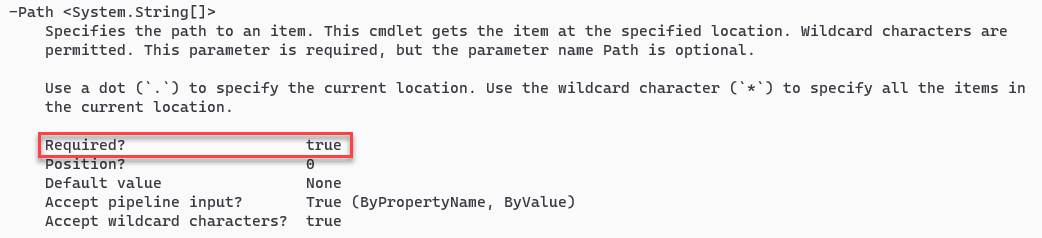
Interpreting help correctly is crucial: learn parameter sets (mutually exclusive combinations that change behavior), recognize optional versus mandatory parameters and how the shell prompts for missing required input, and make smart use of positional parameters only after you’re comfortable with a cmdlet. The documentation shows parameter types (like String, Int, DateTime), arrays (e.g., String[] for multiple values), and switches that require no value. Examples are built into most topics and can be shown alone with -Examples, while -Full reveals the comprehensive reference. The book’s guidance is to read full help when learning a command, prefer explicit parameter names for clarity, and practice regularly—because mastering the help system is the path to becoming an effective, cross-platform PowerShell practitioner.

Lab answers
Update-Help
Or if you run it more than once in a single day:
help html
Or you could try withGet-Command:
Get-Command -Noun file,printerGet-Command –Noun process
or
Get-Command -Verb set -Voun psbreakpoint
Or if you aren’t sure about the noun, use a wildcard:
Or
help *alias
or
help transcripthelp Get-Process –Parameter Namehelp Get-Process –Parameter IncludeUserName- The command to execute over SSH:
Or the command to execute over the legacy Windows protocol:
Help Out-File –Full
Or
should show you 80 characters as the default for the PowerShell console. You would use this parameter to change it as well.
- If you run
Help Out-File –Fulland look at parameters, you should see-NoClobber. Get-AliasGcm -na *process*Get-Command –Noun objecthelp about_arrays
Or you could use wildcards:
FAQ
Why is mastering PowerShell’s help system essential?
Because it’s the primary way to discover commands, learn correct syntax, avoid errors, and understand how commands connect to solve real tasks. Reading help makes you effective day-to-day and is the fastest way to advance with PowerShell across Windows, Linux, and macOS.How do I install or update local help?
RunUpdate-Help. In Windows PowerShell you typically needed elevated rights; in PowerShell 6+ you can update as the current user. If your UI culture isn’t en-US, try Update-Help -UICulture en-US. Make it a habit to update monthly.How can I update help on machines without internet access?
On a connected machine, runSave-Help -DestinationPath \\Server\Share\PSHelp. Then on offline machines run Update-Help -Source \\Server\Share\PSHelp. This lets many computers pull updated help from a central share.What’s the difference between Get-Help and Help?
Help is a function that wraps Get-Help and pipes output to a pager for page-by-page reading. On non-Windows platforms it uses the system pager (like less); press q to quit.How do I find commands when I don’t know their names?
- Use wildcards with help:Help *event*, Help *object*.- Use
Get-Command with -Verb or -Noun: Get-Command -Noun *event*, Get-Command -Verb Get.- Tab-complete after a partial name, e.g., type
Help Register- then press Tab.How do I read the “SYNTAX” section (parameter sets and common parameters)?
Each syntax block is a parameter set—mutually exclusive combinations of parameters. Using any parameter unique to a set “locks” you into that set. Every set ends with[<CommonParameters>] (shared across all cmdlets, e.g., -Verbose, -ErrorAction).How do I tell which parameters are optional, mandatory, or positional?
- Optional: the entire parameter and its value are in[ ] (e.g., [-Filter <String>]).- Mandatory: not enclosed in
[ ] (e.g., -Path <String[]>). PowerShell prompts if omitted.- Positional: the parameter name itself is in
[ ] (e.g., [-Path] <String[]>), so you can omit the name if you supply the value in the correct position.What kinds of parameter values can I pass, and how do I pass multiple values?
Types appear in angle brackets (e.g.,<String>, <Int32>, <DateTime>). An array is shown as Type[] (e.g., <String[]>), meaning you can use comma-separated values: -Path ~, ~/Downloads. Quote individual values that contain spaces. Switches (e.g., -Force) take no value.How can I quickly see examples or open the online docs?
- Examples only:Help <Cmdlet> -Examples (or -Example).- Full details:
Help <Cmdlet> -Full.- Open web docs:
Help <Cmdlet> -Online (often the most up-to-date).What are “about” topics and where can I find common parameters?
“About” topics provide conceptual docs. List them withGet-Help about_*. Common parameters are documented in about_CommonParameters. Other useful topics include about_Updatable_Help and many language/concept guides.
 Learn PowerShell in a Month of Lunches, Fourth Edition ebook for free
