26 Tips, tricks, and techniques
This chapter wraps up with a practical collection of tips to boost comfort and productivity in PowerShell across Windows, Linux, and macOS. It highlights ways to personalize the shell, work confidently with types, strings, and dates, avoid common pitfalls like confusing operators or opaque WMI time formats, and streamline repetitive tasks through default parameter values and script blocks. The unifying theme is getting more done with fewer keystrokes while making the environment feel tailored to your workflow.
On the customization front, it explains how host-specific profile scripts run at startup and where to place them so your configuration loads consistently whether you’re in the console, Windows Terminal, or VS Code—even considering 32/64-bit differences. It reminds you that profiles obey execution policy and shows simple quality-of-life tweaks: redefining the prompt function, setting the window title, and adjusting colors (both the console palette and message colors for errors, warnings, verbose, debug, and progress). Practical tips include inspecting all profile paths, opening the right profile directly from the shell, and choosing a single profile file when you want a consistent experience across hosts.
The chapter then tours handy operators and object methods: casting and type checks (-as, -is), regex-based replacement (-replace), turning arrays into delimited strings and back (-join, -split), and the difference between membership checks (-contains, -in) and wildcard matching (-like). It demonstrates common string methods (IndexOf, Replace, ToLower/ToUpper, Trim) and DateTime techniques (reading properties, adding intervals, formatting with locale-aware To* methods). For legacy scenarios, it shows converting WMI date strings with built-in conversion methods and notes that CIM typically handles this automatically. Finally, it shows how to set $PSDefaultParameterValues to enforce convenient defaults—optionally via script blocks and with scope in mind—and reinforces script blocks as first-class PowerShell building blocks used across filtering, formatting, remoting, jobs, and on-demand invocation with the call operator.
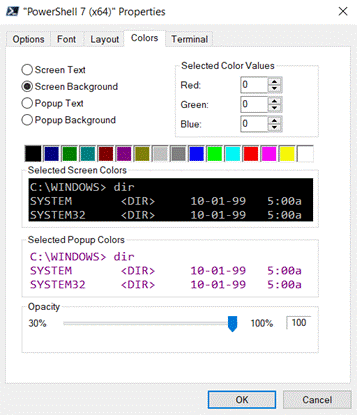
Configuring the default shell screen colors
More tips, tricks, and techniques
As we said at the outset of this chapter, this is an overview of some random little things that we want to show you, but did not fit neatly into one of the previous chapters. Of course, you’ll continue to pick up tips and tricks with the shell as you learn more about it and gain more experience with it.
You can check out our Twitter feeds too—@TylerLeonhardt, @TravisPlunk and @PSJamesP —where we routinely share tips and techniques that we discover and find useful. And don’t’ forget the forums at PowerShell.org. Sometimes, learning bit by bit can be an easy way to become more proficient in a technology, so consider these and any other sources you run across as a way to incrementally and continually improve your PowerShell expertise.
FAQ
What are PowerShell profiles and how are they loaded across hosts?
Profiles are scripts that a hosting application (Console, Windows Terminal, VS Code) runs at startup to customize your environment (load modules, set functions, etc.). Typical load order for the console host includes:$PSHOME\profile.ps1 $PSHOME\Microsoft.PowerShell_profile.ps1 $HOME\Documents\WindowsPowerShell\profile.ps1 $HOME\Documents\WindowsPowerShell\Microsoft.PowerShell_profile.ps1VS Code uses its own host-specific files (for example, Microsoft.VSCode_profile.ps1). Missing files are simply skipped. On 64-bit Windows, 32-bit and 64-bit hosts have separate profiles. Non‑Microsoft hosts may behave differently.
How do I create, edit, or list my profile(s)?
- List all profile paths:$Profile | Format-List -Force- Open the current host’s profile in VS Code:
code $profile- Open the current host’s profile in Notepad (console):
notepad $profileAfter saving, close and reopen the shell so the profile runs.
Why isn’t my profile running?
- Execution policy: Restricted blocks all profiles; AllSigned requires a signed profile. Adjust with Set-ExecutionPolicy as appropriate. - Wrong file/location: Ensure you edited the profile for the host you’re using (console vs VS Code) and the right architecture (32/64-bit). - Host specifics: Non‑Microsoft hosts might not follow the standard profile loading pattern.How do I customize the PowerShell prompt?
Define a function named Prompt (ideally in your profile). Example:function prompt {
$time = (Get-Date).ToShortTimeString()
"$time [$env:COMPUTERNAME]:> "
}
Tip: You can also set the window title in your profile:
$host.UI.RawUI.WindowTitle = "$env:USERNAME"
What is a script block and how do I run one?
A script block is code inside { }. Assign and invoke with the call operator (&):$block = { Get-Process | Sort-Object VM -Descending | Select-Object -First 10 }
& $block
Script blocks are used by Where-Object (-FilterScript), ForEach-Object (-Process), Select-Object/Format-Table calculated properties (Expression), remoting (Invoke-Command -ScriptBlock), jobs (Start-Job), and default parameter values.How can I change console colors (including errors and warnings)?
- Window foreground/background: Console window menu → Properties → Colors tab. - Message stream colors (put in your profile):(Get-Host).PrivateData.ErrorForegroundColor = 'Green' (Get-Host).PrivateData.WarningForegroundColor = 'Yellow' (Get-Host).PrivateData.VerboseForegroundColor = 'Cyan'Available properties include Error/Warning/Verbose/Debug/Progress ForegroundColor and BackgroundColor; colors include Red, Yellow, Green, Cyan, Magenta, Blue, White, Black and their Dark* variants.
What’s the difference between -as and -is?
- -as attempts to cast/convert an object to a type (returns the converted object or $null):1000 / 3 -as [int]- -is tests the type (returns True/False):
"SRV02" -is [string]
(Get-Date) -is [datetime]
How do -replace, -join, and -split work (and how do they differ from String methods)?
- -replace uses regex to substitute text:"192.168.34.12" -replace "34","15" # 192.168.15.12- -join turns an array into a delimited string:
$array = "one","two","three"; $array -join "|"- -split turns a delimited string into an array:
("a`t b`t c") -split "`t"
Note: String.Replace(), String.Split(), String.Join() are methods; -replace is regex-based while String.Replace() is literal.When should I use -contains or -in instead of -like?
- -like is for wildcard string comparison:'this' -like '*his*' # True- -contains tests membership in a collection (collection on the left):
$c = 'abc','def','ghi'
$c -contains 'abc'     # True
- -in tests membership with operands reversed (item on the left, collection on the right):
'abc' -in $c # True
How do I set default parameter values (and how does scope affect them)?
Use the $PSDefaultParameterValues hashtable (often from your profile):$cred = Get-Credential -UserName Administrator -Message 'Enter Admin credential'
$PSDefaultParameterValues.Add('*:Credential', $cred) # For any -Credential
$PSDefaultParameterValues.Add('Invoke-Command:Credential', { # Prompt each time
Get-Credential -Message 'Enter administrator credential' -UserName Administrator
})
Scope: Values set at the console affect the whole session; values set inside a script apply only within that script’s scope. Read: about_parameters_default_values and about_scope.
 Learn PowerShell in a Month of Lunches, Fourth Edition ebook for free
