Debugging Techniques focuses on dealing with bugs—the unexpected problems that slip past normal error handling—and shows how to track them down efficiently across Windows, Linux, and macOS using the PowerShell extension for Visual Studio Code. At a high level, the chapter lays out three complementary strategies: instrumenting scripts with output streams for visibility, interacting with code one line at a time using VS Code’s Run Selection (F8) workflow, and using breakpoint-driven debugging to pause execution and inspect state. Together, these methods help you understand what your code is doing, when it’s doing it, and why it misbehaves.
The “output everything” approach leverages PowerShell’s streams—especially the debug stream—to narrate script behavior. By sprinkling targeted Write-* statements and enabling the debug stream (for example by setting $DebugPreference to Continue), you can reveal control flow, data values, and decision points that surface hidden issues. A CI-oriented example highlights how this is invaluable in non-interactive environments like Azure Pipelines or GitHub Actions: the added debug output quickly exposes a subtle configuration bug (an outdated environment variable name) without needing an interactive session. This lightweight instrumentation provides immediate insight and is often the only practical option in headless automation.
For interactive sessions, the chapter presents two faster feedback loops. First, “F8 debugging” lets you run selected lines or blocks directly from the editor into the PowerShell Integrated Console, where variable state persists between runs. That means you can inspect or even modify variables, re-run specific lines, and iterate rapidly with a simple workflow: set parameters, execute a safe portion, probe state, advance, and adjust as needed—restarting the session when you want a clean slate. Second, breakpoint debugging goes a step further: set breakpoints in the editor, run with debugging (F5), and use controls like continue, step over, restart, and stop while inspecting variables and breakpoints in dedicated views. Practiced together, F8 and breakpoint debugging dramatically shorten the time to isolate, understand, and fix bugs.
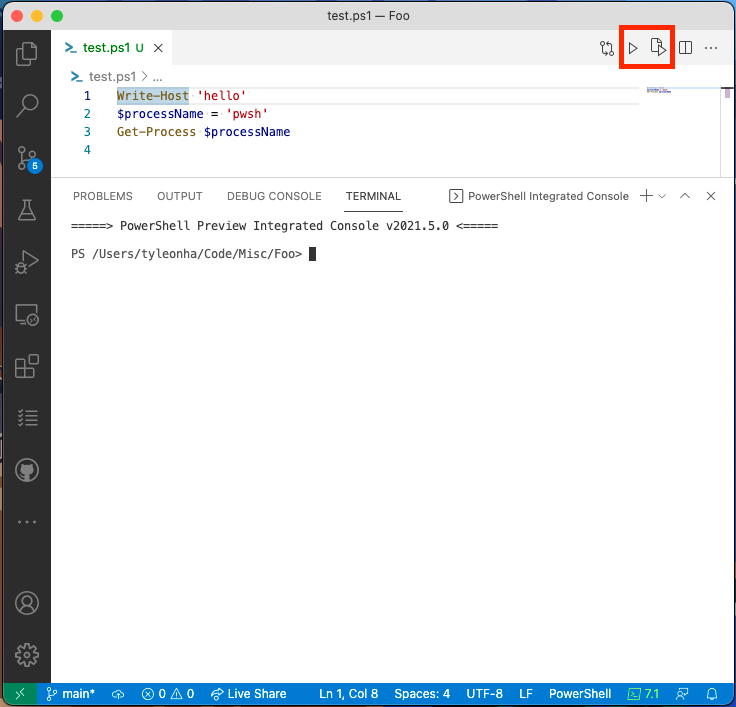
Visual Studio Code with our script. The Run and Run Selection buttons in the top right corner are highlighted.
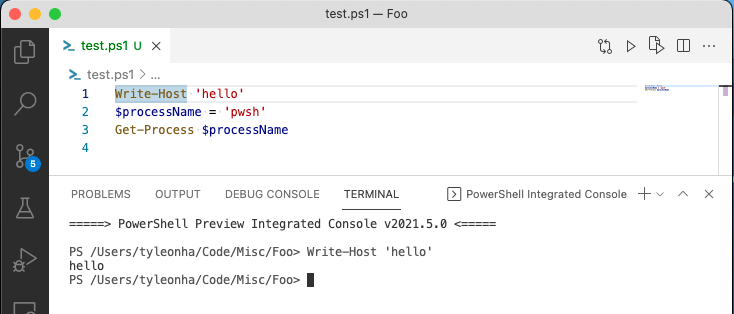
Visual Studio Code with our script. Running only what is highlighted
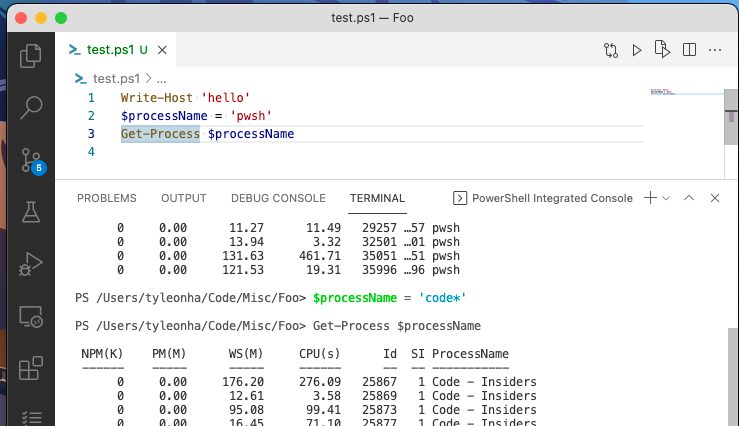
shows setting $processName to code* and then running line 3 of the script
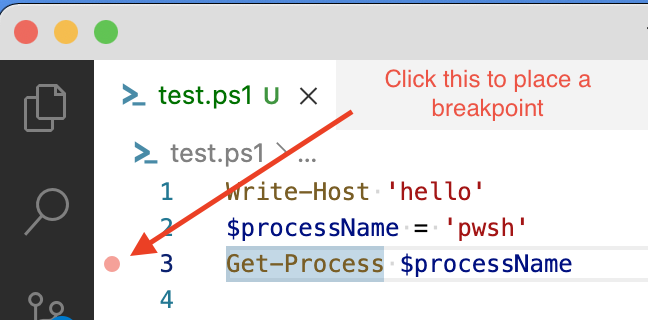
Place a breakpoint by clicking on the faded red dot next to the line number.
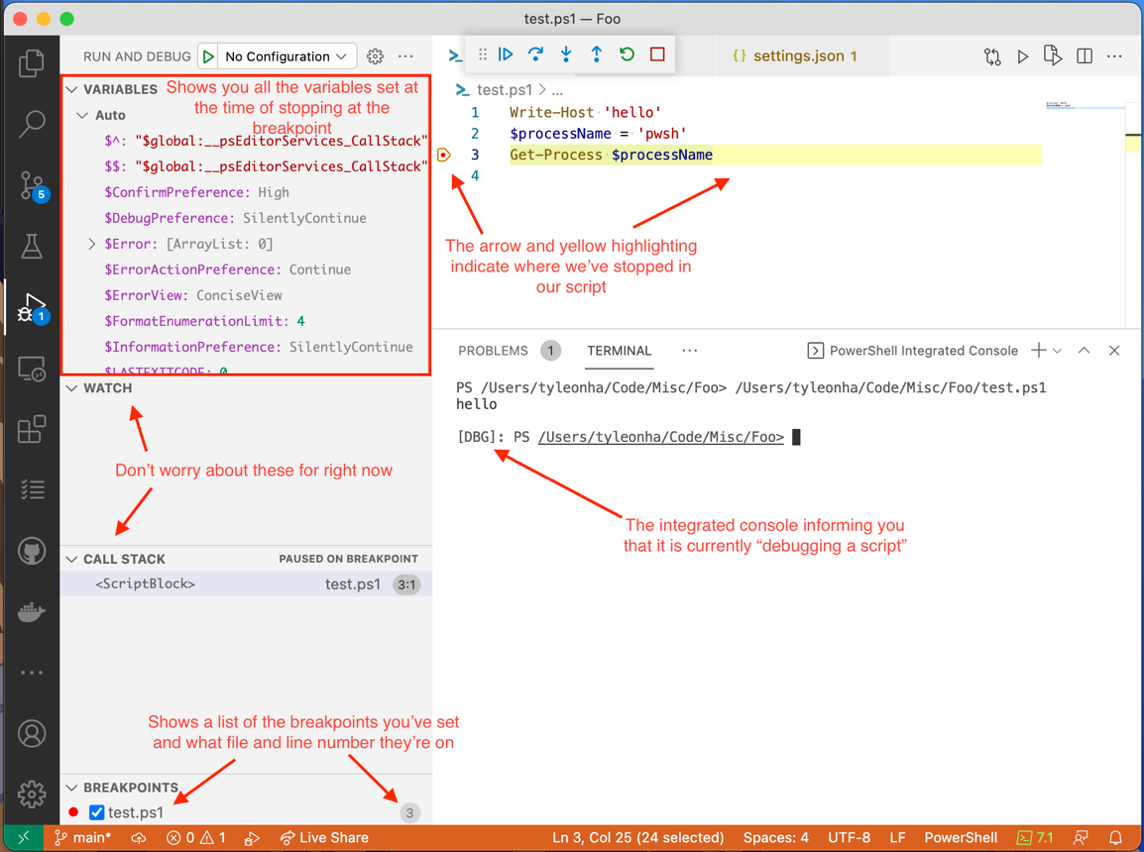
When your script stops at a breakpoint, VS Code displays useful information for debugging your script. This includes indicating where you’ve stopped in your script, a list of all your breakpoints, a list of variables that are currently set, and more.
Lab
Practice makes perfect when it comes to debugging. There are two parts of the lab for this chapter.
Go back to the script you looked at in Chapter 22’s lab. Modify it and add better logging so that you can more easily understand what the script is doing. a)Make sure that you add logging that only shows on the screen when you want to see debug logging but otherwise does not pollute the screen if don’t want to see debug logging.
Revisit every script you’ve written in this book so far. Try debugging using: a)F8 debugging b)Breakpoint debugging
FAQ
What’s the core difference between error handling and debugging “bugs” in scripts?Errors and exceptions are often anticipated conditions you can handle with try/catch and proper error handling. Bugs are unintended behaviors or logic mistakes that slip into your code. This chapter focuses on techniques to find and fix those bugs, not just handle known error conditions.How can PowerShell’s output streams help me debug?Use Write-* cmdlets (like Write-Debug and Write-Warning) to emit contextual information while the script runs. Set $DebugPreference = 'Continue' to make debug messages visible. This is especially helpful to trace what code ran, when it ran, and with which values.In the example pipeline script, why didn’t the macOS stage run?The script referenced an outdated environment variable (VSCODE_BUILD_STAGE_OSX) instead of the current VSCODE_BUILD_STAGE_MACOS. By turning on debug output, it became clear which stages were detected, leading directly to the variable name mismatch.When is output-based debugging (Write-Debug) the best choice?Use it in non-interactive environments (like Azure Pipelines or GitHub Actions) where you can’t pause and inspect state live. Emit enough context through the debug stream so you can reconstruct what happened after the run completes.What is “F8 debugging” (Run Selection) in VS Code and why is it useful?F8 debugging lets you run your script one line or selected block at a time from the editor into the PowerShell Integrated Console. It gives immediate feedback, shortens the debug loop, and lets you pinpoint where things go wrong without rerunning the entire script.Does the PowerShell Integrated Console keep my script’s state between runs?Yes. Variables and functions set by lines you run are available in the Integrated Console, so you can inspect or modify them (for example, changing a variable’s value) and then run the next lines to see how behavior changes.How do I reset the PowerShell Integrated Console to a clean state?Open the Command Palette (Ctrl+Shift+P on Windows/Linux, Cmd+Shift+P on macOS) and run “PowerShell: Restart Current Session.” This launches a fresh PowerShell instance.What are breakpoints and how do I use them in VS Code?Breakpoints are stop-points in your script for live inspection. Click the faded red dot in the gutter next to a line to set one, then run the script with debugging (F5 or the Run button). Execution will pause at breakpoints so you can inspect variables, step through code, and continue when ready.What do the main VS Code debug controls do (Resume, Step Over, Restart, Stop)?- Resume: Continue running until the next breakpoint or script end. - Step Over: Execute the current line and move to the next line. - Restart: Stop and start the script from the beginning. - Stop: End the debugging session immediately.What’s a practical workflow for iterative debugging using F8?- Pre-set parameter values in the Integrated Console. - Run trusted sections first (F8). - Inspect important variables/functions in the console. - Advance line by line (F8), inspecting as you go. - When you find an issue, fix the script and repeat from the top.
pro $24.99 per month
access to all Manning books, MEAPs, liveVideos, liveProjects, and audiobooks!

 Learn PowerShell in a Month of Lunches, Fourth Edition ebook for free
