This chapter builds on a previously parameterized script and shows how to make it more usable, robust, and pipeline-friendly. It emphasizes outputting objects rather than preformatted text, switching from Format-Table to Select-Object so the same script output can be easily formatted later or exported (for example, to CSV). Although the book covers multiple platforms, the examples here are Windows-focused and use CIM/WMI to query logical disks.
The authors turn the script into an “advanced” script by adding [CmdletBinding()], which unlocks common parameters and richer behaviors without changing how the script runs. They then improve the parameter experience: making inputs mandatory with [Parameter(Mandatory=$True)] so PowerShell prompts when omitted, adding clear types (string and int), and optionally a HelpMessage to guide users. The Param() block’s structure and readability are discussed, including using descriptive names consistent with PowerShell conventions and adding aliases (for example, an alias like host for -ComputerName) to accommodate different habits without sacrificing consistency.
To harden input, the chapter demonstrates validation with [ValidateSet()], restricting -drivetype to supported values (such as 2 or 3). It also adds user-friendly progress cues via Write-Verbose, which can be toggled at run time with -Verbose thanks to [CmdletBinding()], and shows string interpolation to include parameter values in messages. A hands-on lab reinforces the concepts: parameterizing a network adapter query into Get-PhysicalAdapters.ps1 with a mandatory -ComputerName (plus alias), comment-based help, and verbose messages—continuing the theme of producing clean objects for flexible formatting and export downstream.
Breaking down the Param() block syntax
FAQ
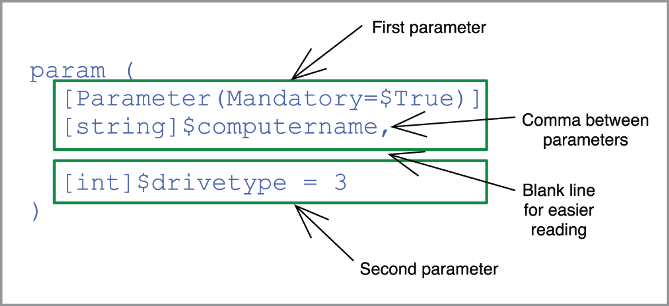
What is a parameterized script, and why should I use one?A parameterized script exposes inputs through parameters so users don’t have to edit the script’s code. This makes the script safer, easier to reuse, and simpler to automate. Users provide values via parameters (like -ComputerName), and the script consumes them internally.Why switch from Format-Table to Select-Object in scripts?Format-Table produces only on-screen formatting, not reusable objects, which limits downstream uses like exporting. Select-Object outputs objects, keeping the pipeline flexible. For example, you can still format when needed or export data: .\Get-DiskInventory | Export-Csv disks.csv.How do I make a script an “advanced script,” and what benefits do I get?Add [CmdletBinding()] as the first line after the comment-based help. This enables common parameters like -Verbose and -ErrorAction, improves parameter binding behavior, and lets PowerShell handle features (such as verbose output) automatically across your script.How do I make a parameter mandatory, and what happens at runtime?Decorate the parameter with [Parameter(Mandatory = $true)], for example: [string]$ComputerName. If the user omits it, PowerShell prompts for a value before running the script.Can I customize the prompt when a mandatory parameter is missing?Yes. Add HelpMessage to the parameter attribute, for example: [Parameter(Mandatory = $true, HelpMessage = "Enter a computer name")]. Some hosts display this message in the prompt, but not all; still, it’s a good practice.How do parameter aliases work, and when should I use them?Use [Alias('shortName')] above the parameter, e.g., [Alias('host')] [string]$ComputerName. Aliases provide familiar or shorter alternative names for users. Avoid aliases that could be confusing (for example, -hostname can imply SSH remoting in some contexts).How can I validate parameter input (for example, limit DriveType to certain values)?Use validation attributes like [ValidateSet()]. For example: [ValidateSet(2, 3)] [int]$DriveType = 3 restricts input to 2 or 3. If a disallowed value is provided, PowerShell throws a validation error before running your command.What’s the right way to add verbose output, and how do I enable it?Use Write-Verbose "message" in the script and add [CmdletBinding()]. Users can turn messages on with -Verbose when calling the script. You can include variable values inside double quotes for clarity, e.g., "Connecting to $ComputerName".How should I structure the Param() block for clarity and correctness?Place all parameters inside Param( ... ). Put decorators (like [Parameter()], [Alias()], [ValidateSet()], and the type) immediately above the parameter they modify. Separate parameters with commas, consider one parameter per line, and optionally add blank lines for readability.Why are the examples Windows-focused, and what does that mean for other platforms?The examples query Windows-specific CIM/WMI classes such as Win32_LogicalDisk. The parameterization, validation, and advanced script techniques are cross-platform, but the specific data-gathering commands and classes shown target Windows endpoints.
pro $24.99 per month
access to all Manning books, MEAPs, liveVideos, liveProjects, and audiobooks!

 Learn PowerShell in a Month of Lunches, Fourth Edition ebook for free
