2 Meet PowerShell
This chapter orients you to PowerShell across Windows, macOS, and Ubuntu 18.04, helping you choose how you want to interact with it. It clarifies the difference between a shell and a terminal, distinguishes Windows PowerShell 5.1 from PowerShell 7, and sets expectations that you’ll use PowerShell 7 throughout. The authors emphasize comfort and productivity from day one—getting the right tools installed, understanding the available interfaces, and adopting habits that make typing and learning more efficient.
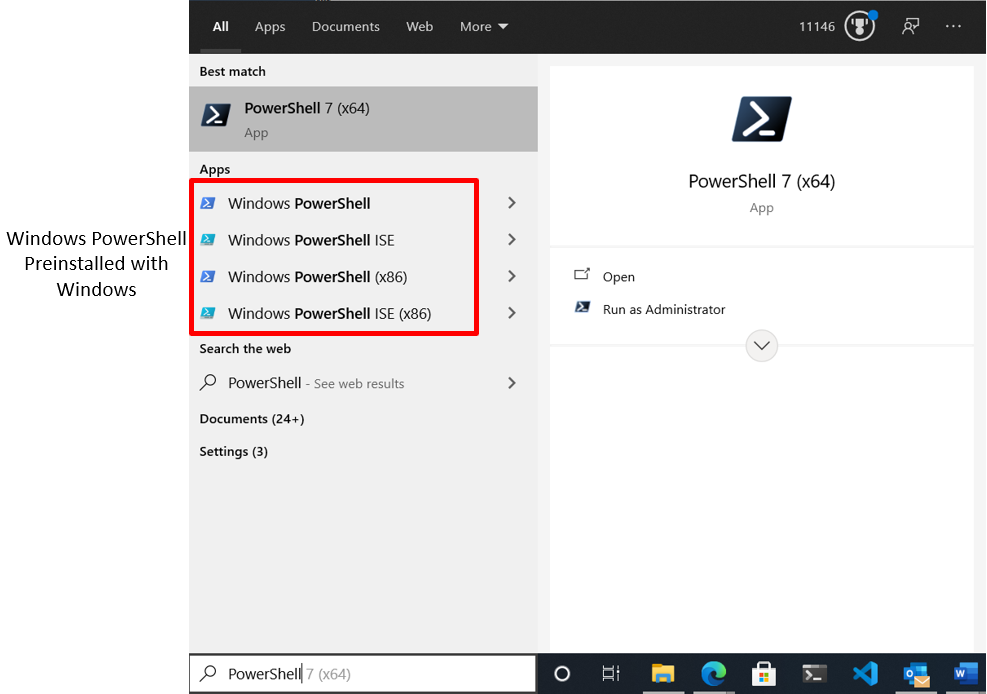
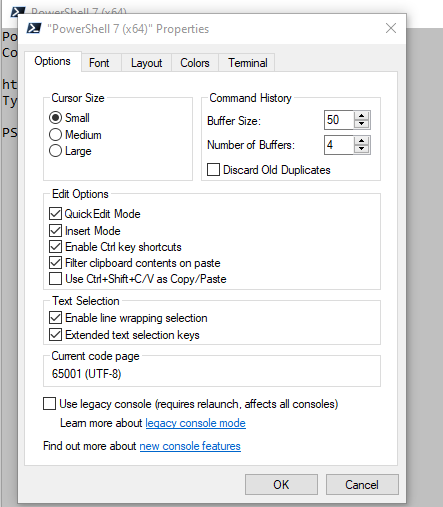
On Windows, PowerShell 7 installs side by side with Windows PowerShell and runs as pwsh.exe; after installation you can launch it like any other app. The console host is lightweight and configurable: increase command history, enlarge the font to distinguish characters like ' and `, align screen and buffer widths to prevent clipped output, and keep colors high contrast; remember the console is just the host, not PowerShell itself. On macOS you can install via Homebrew and start PowerShell with pwsh in Terminal; on Ubuntu 18.04 you can install via snap with classic confinement and also start with pwsh. Across platforms, you can run PowerShell in any terminal, and on GUI-less servers the console is your only option.
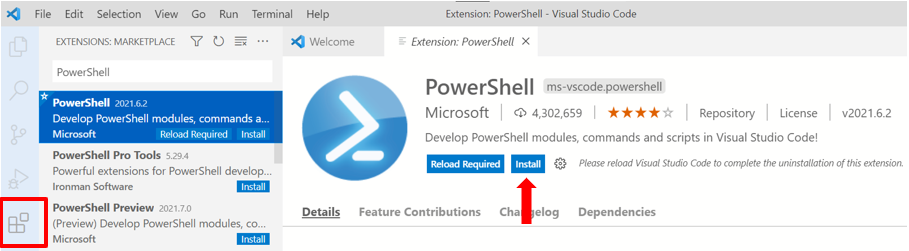
Visual Studio Code with the PowerShell extension is the recommended editor, offering a cross‑platform, extensible experience with an Integrated Console that powers features like Command Explorer and IntelliSense—don’t close the Integrated Console since many features depend on it. You can tailor VS Code and the extension with settings such as making pwsh the default terminal shell, setting PowerShell as the default language for new files, enabling tab-completion behaviors, and choosing color themes; you can also spawn additional terminals when needed. Both the console and the editor reduce typos via Tab completion and IntelliSense, but accurate typing remains critical. Finally, confirm your setup with $PSVersionTable (target at least 7.1) and complete the opening lab to tune fonts, panes, and symbol legibility so your environment is ready for the rest of the book.
Configuring the console application’s properties
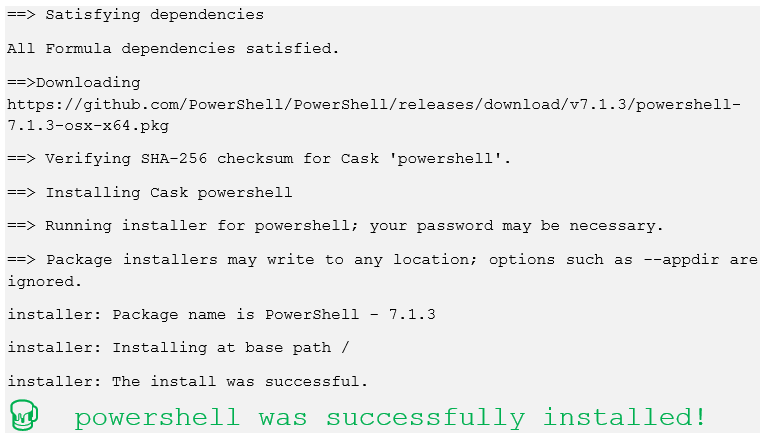
Homebrew installing PowerShell.
Visual Studio Code start up screen.
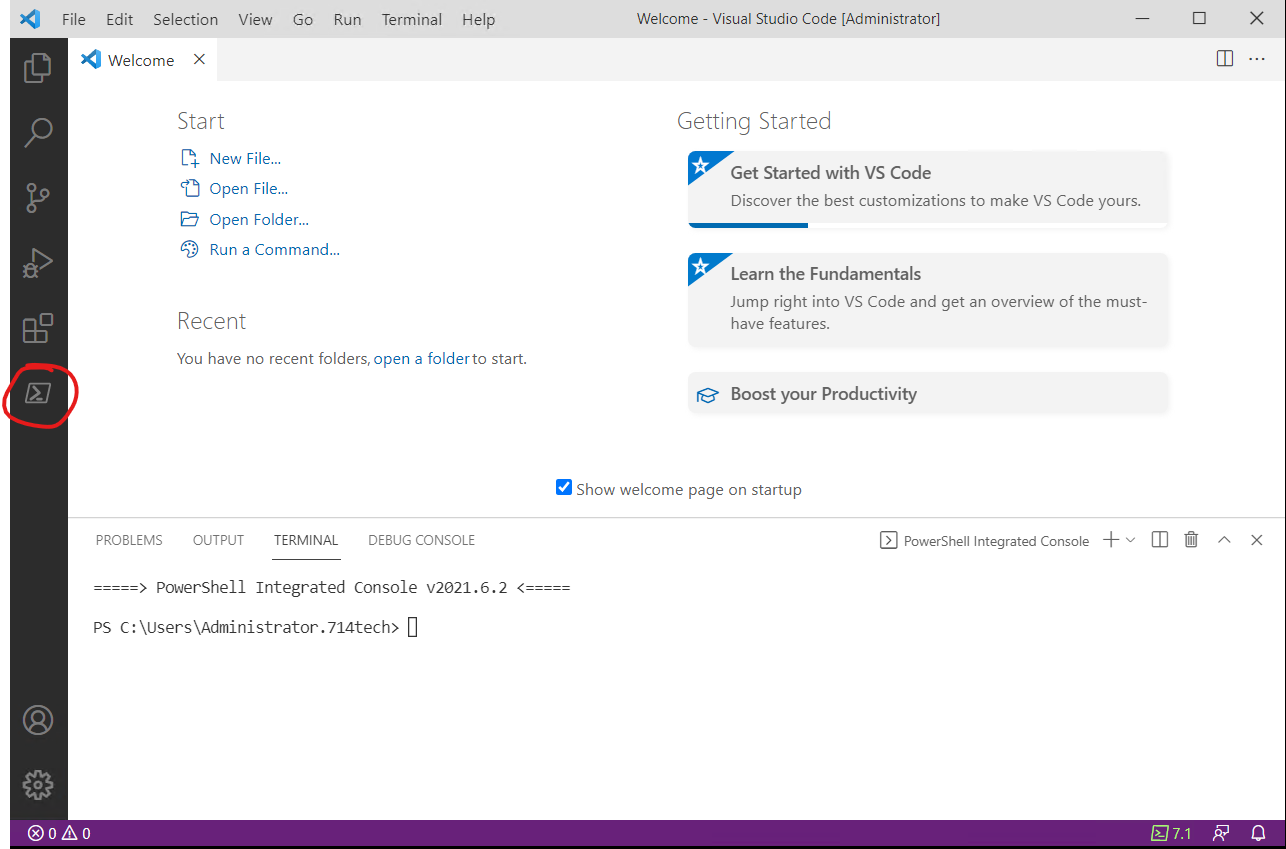
Visual Studio Code with the PowerShell extension breakdown.
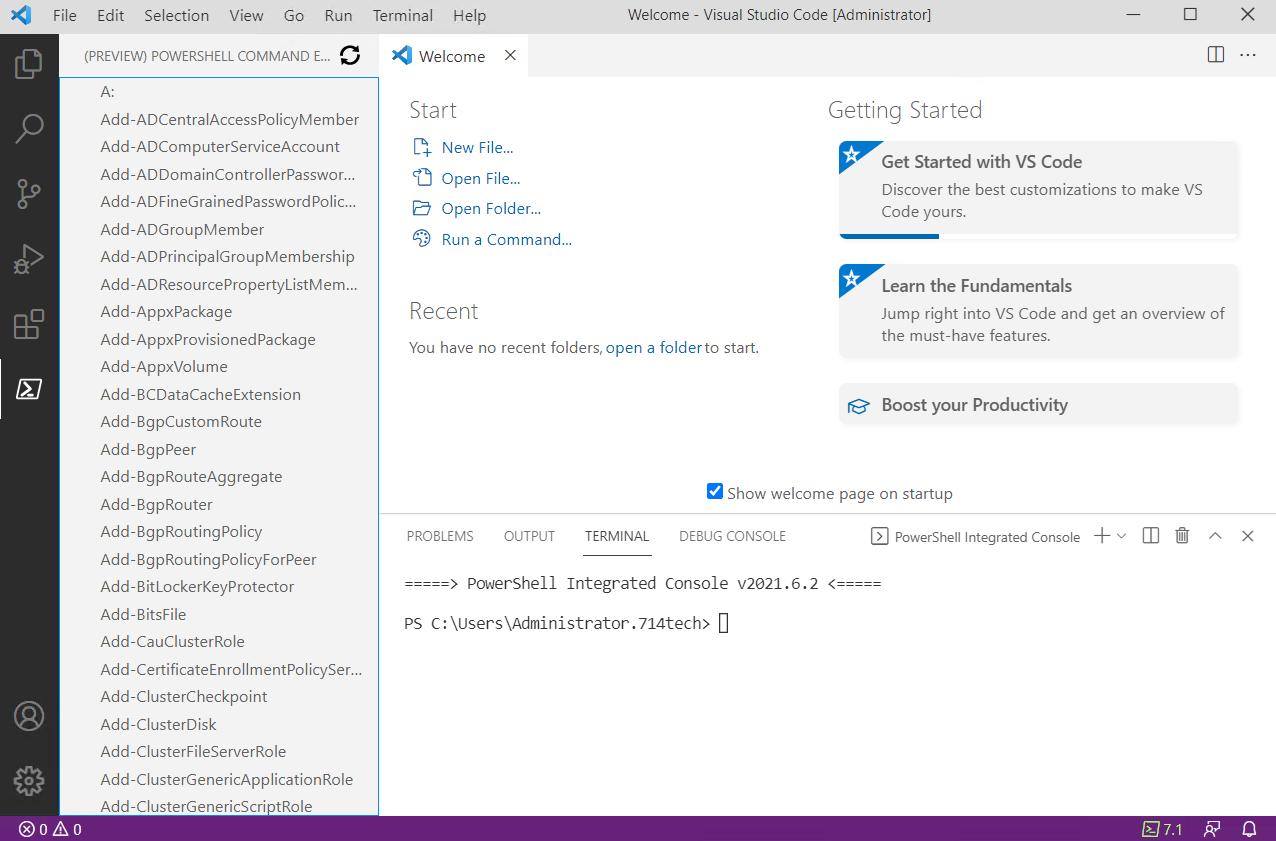
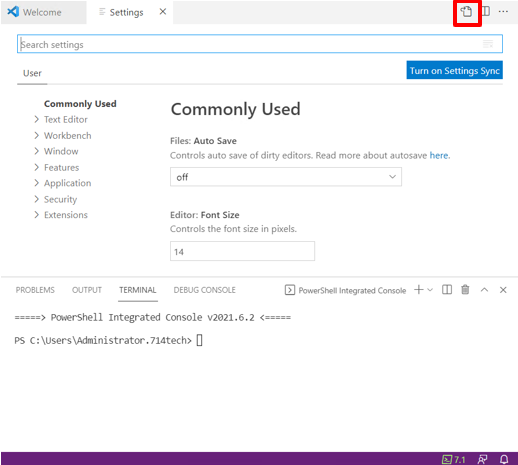
Visual Studio Code’s Settings page. Circled is how to see the JSON version of the settings
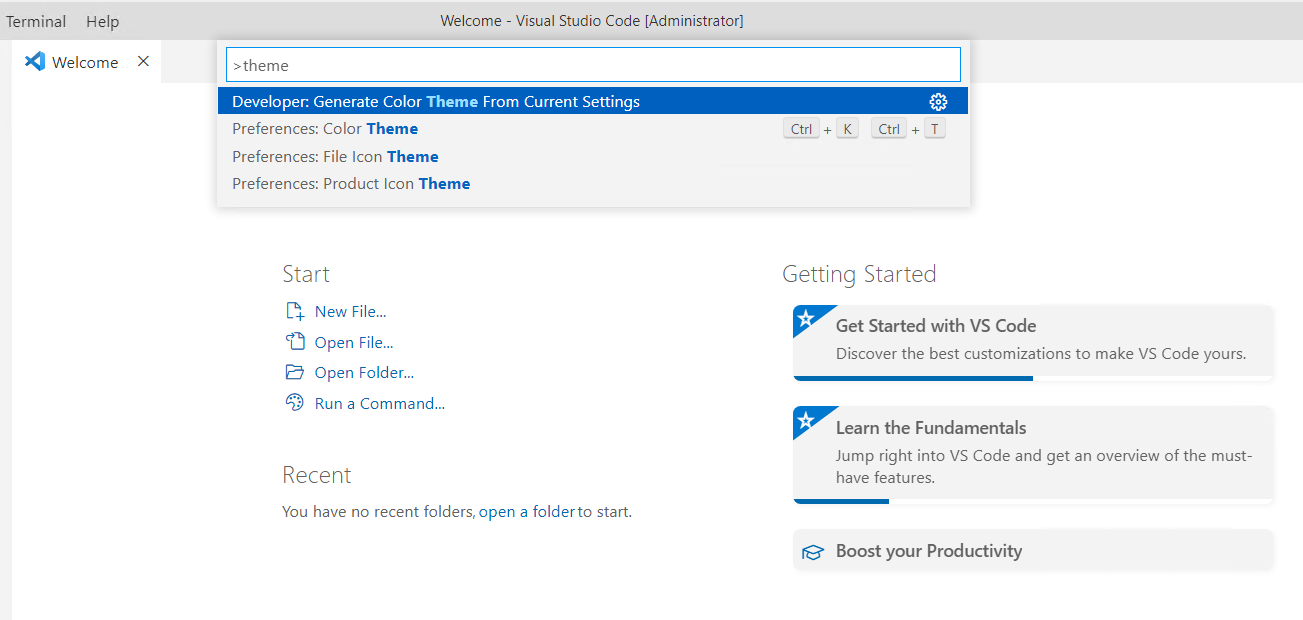
Visual Studio Code’s Command Palette. Search for actions you want to take.
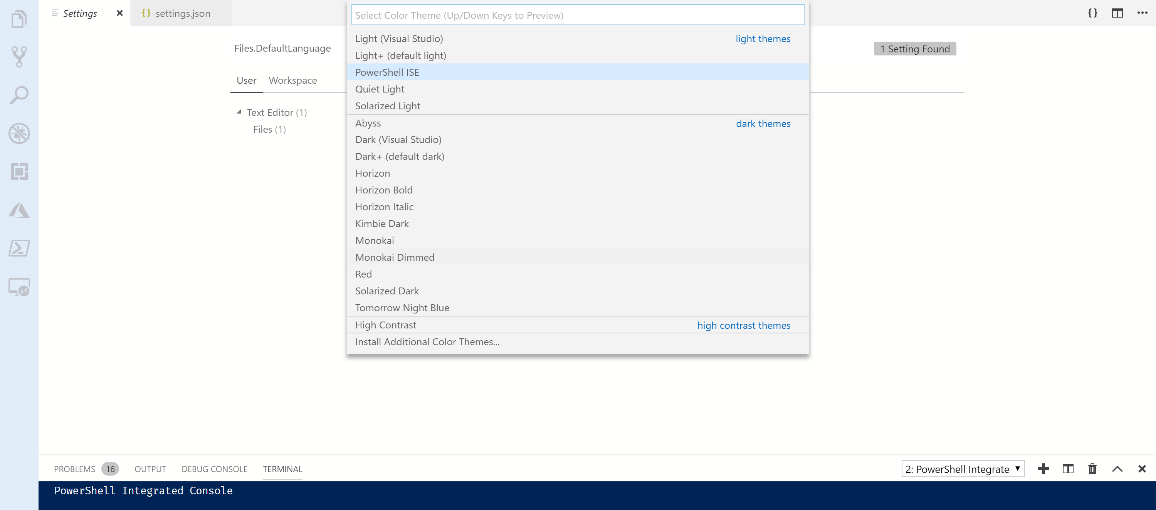
Theme selection in Visual Studio Code.
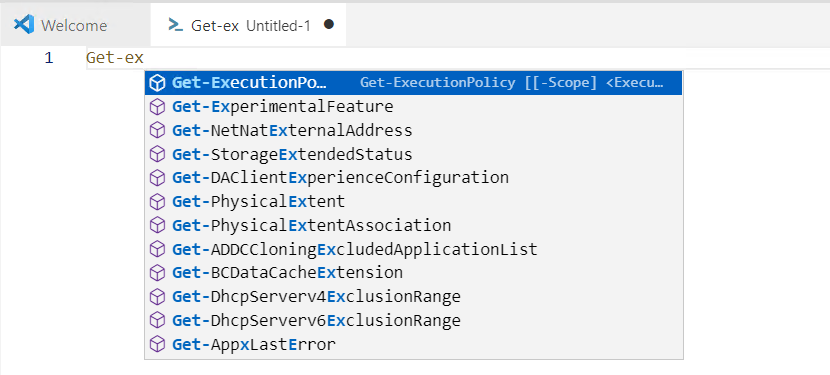
IntelliSense works like Tab completion in Visual Studio Code with the PowerShell extension. It also shows you information about the item you’re completing if it’s available.
FAQ
What’s the difference between a shell and a terminal?
A shell accepts text commands and runs them (examples: Bash, Fish, PowerShell). A terminal is the app that hosts a shell so you can interact with it visually. Terminals are shell-agnostic—you can run any shell inside them.What do “Windows PowerShell” and “PowerShell” mean in this book?
“Windows PowerShell” refers to version 5.1 that ships with Windows 10. “PowerShell” refers to the cross‑platform 7.x versions you install separately.How do I install PowerShell 7 on Windows, and what’s its process name?
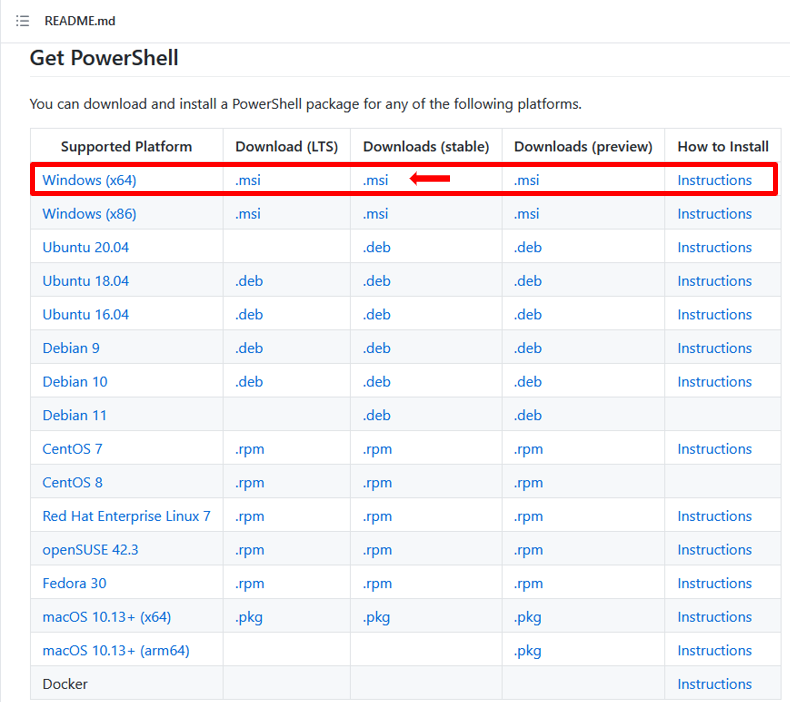
Download the stable MSI from the PowerShell GitHub page (Get PowerShell) and accept the defaults. PowerShell 7 installs side-by-side with Windows PowerShell 5.1. Its process/executable is pwsh.exe (not powershell.exe).How can PowerShell help prevent typing errors?
In the console, Tab completion helps with command names, file paths, parameter names, and enumerated parameter values. In Visual Studio Code, the PowerShell extension adds IntelliSense pop‑ups for the same scenarios, letting you select completions with Enter/Tab.How do I install and start PowerShell on macOS?
Install via Homebrew:brew cask install powershell. Start it by running pwsh in Terminal.How do I install and start PowerShell on Ubuntu 18.04, and why add --classic?
Install via Snap:snap install powershell --classic (you may need sudo). Start it with pwsh. The --classic flag is required because PowerShell is a “classic” snap that needs full OS access.What’s the recommended editor for PowerShell 7, and what about the PowerShell ISE?
Use Visual Studio Code with the PowerShell extension. The PowerShell ISE doesn’t support PowerShell 7 and is in support mode only; new investment is in VS Code.How do I install Visual Studio Code and the PowerShell extension?
- GUI: Download VS Code fromhttps://code.visualstudio.com/Download, then install the “PowerShell” extension from the marketplace. - CLI: macOS brew cask install vscode; Ubuntu 18.04 snap install code --classic; then run code --install-extension ms-vscode.powershell.What is the PowerShell Integrated Console in VS Code, and why shouldn’t I kill it?
It’s the PowerShell session that powers the extension’s features (like the Command Explorer and IntelliSense). Don’t click the trash can on it—killing it disables those features. You can toggle the terminal with Ctrl+` and open extra terminals if needed.How do I check my PowerShell version, and what version do I need for this book?
Run$PSVersionTable and look at PSVersion. You should be on PowerShell 7.1 or later. If not, install the latest stable PowerShell 7.
 Learn PowerShell in a Month of Lunches, Fourth Edition ebook for free
