Overview
19 You call this scripting?
This chapter reassures administrators that you can get far in PowerShell without “programming,” then shows how lightweight scripting mainly saves keystrokes and makes repeat tasks consistent. Before writing scripts, it squarely addresses security: PowerShell honors existing user permissions and isn’t a bypass mechanism; its execution policy is about reducing accidental script execution, not stopping a determined user. You learn the defaults and trade-offs (for example, Restricted on Windows 10, RemoteSigned on Windows Server, and no enforcement on non-Windows), ways to set or override policy (Set-ExecutionPolicy, Group Policy, or the PowerShell.exe switch), and why Microsoft commonly recommends RemoteSigned as a balance of safety and convenience.
From there, the chapter treats scripts like enhanced batch files: capture a command you already run, format it for readability, and save it—ideally using VS Code for easy editing, testing (Run/F5, selective F8), and discoverability. It demonstrates turning a multi-line pipeline (such as a disk inventory built with CIM, sorting, and custom formatting) into a reusable script with a clear, verb-noun name. To make commands repeatable and shareable, you first replace changeable values with variables, then upgrade them to input parameters via a Param() block and sensible defaults. You also see how PowerShell supports both positional and named parameters, tips for multi-line pipelines, and how to embed comment-based help (.SYNOPSIS, .DESCRIPTION, .PARAMETER, .EXAMPLE) so users can call Help on your script just like a built-in cmdlet.
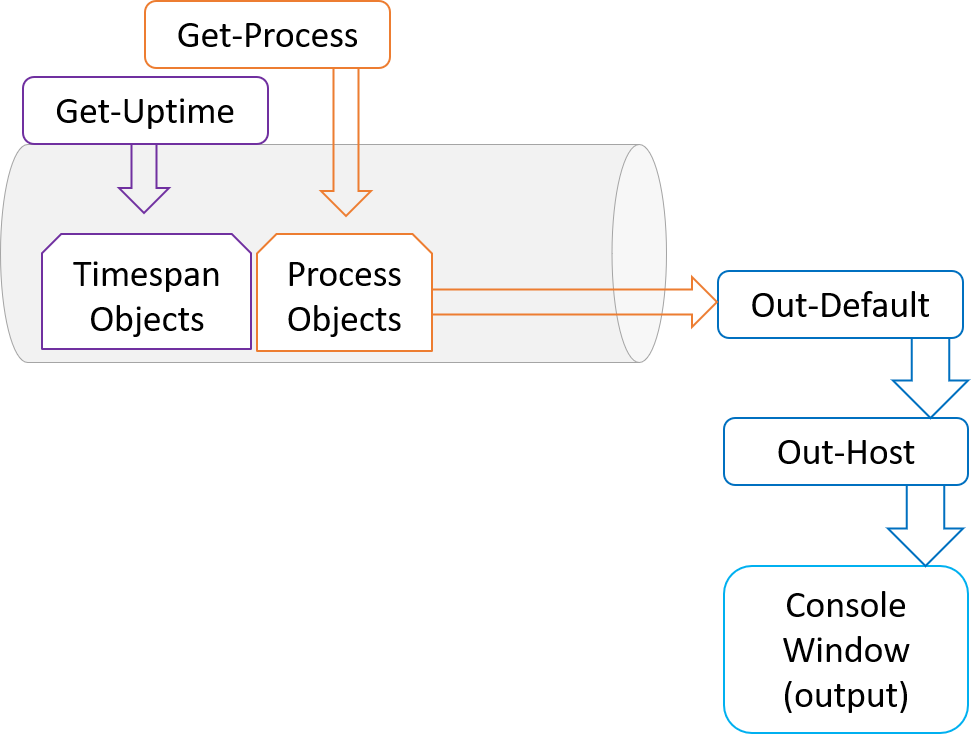
The chapter closes with two essential mental models for reliable scripts. First, “one script, one pipeline”: when multiple commands run inside a script, their outputs flow into a single pipeline and formatter—so mixing object types can yield unexpected displays; aim to output one object type or explicitly format. Second, scope: variables, aliases, and functions live in scopes (global, script, function), are short-lived with their scope, and local definitions shadow parents. Don’t depend on parent scope state inside your scripts; define what you need (often via parameters) to keep behavior predictable. The overall takeaway is pragmatic: keep scripts simple, parameterize what varies, document them, and understand execution policy, pipelines, and scope so your automation is safe, readable, and repeatable.
Lab answer
FAQ
Why start scripting if I can already run everything at the PowerShell prompt?
Scripting saves you from retyping complex commands, makes repeatable tasks easy, and lets you share reliable, tested command sequences with others. The goal here isn’t “programming,” but packaging the commands you already run into reusable scripts.Does PowerShell let me bypass security or gain extra permissions?
No. PowerShell only lets you do what your current account already has permission to do. It’s another interface to existing permissions; it doesn’t grant or bypass rights.What is the execution policy and what are the common settings?
The execution policy controls which scripts PowerShell will run. Common settings:
- Restricted: no scripts run (Windows 10 default).
- RemoteSigned: local scripts run; scripts from remote/internet sources must be signed (Windows Server default).
- AllSigned: all scripts must be signed.
- Unrestricted: all scripts run.
- Bypass: no checks (intended for hosting scenarios).
On non-Windows, the policy isn’t enforced.How do I change the execution policy, and can it be overridden?
You can change it via:
- Set-ExecutionPolicy (writes to the machine; typically requires admin).
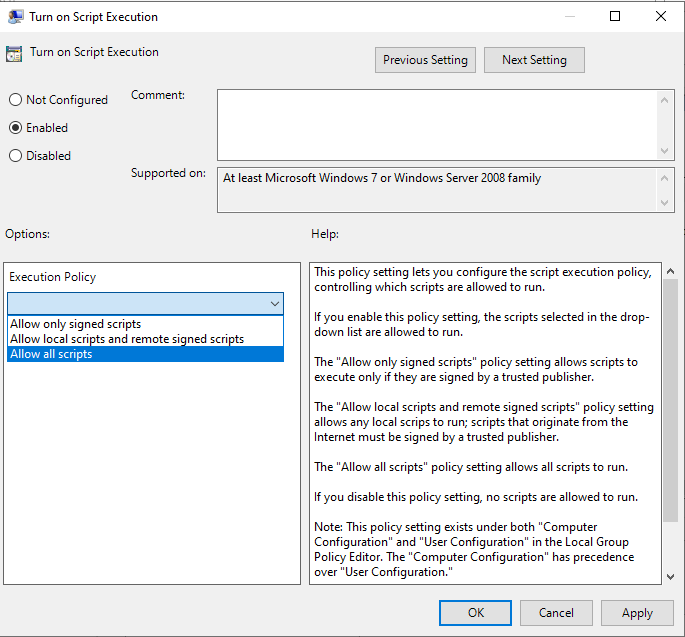
- Group Policy (Computer Configuration > Administrative Templates > Windows Components > Windows PowerShell).
- The PowerShell.exe -ExecutionPolicy switch (overrides local and GPO for that process).
Important: Execution policy is not a security boundary; it’s meant to prevent unintentional script execution, not determined users.How do I turn a long command into a reusable script (e.g., in VS Code)?
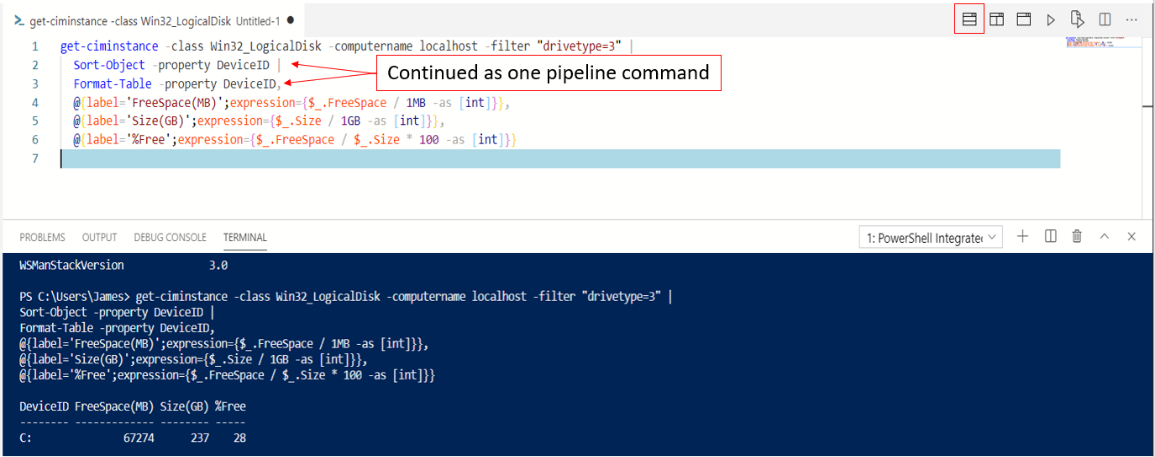
Paste or type your pipeline into VS Code, test it (Run/F5 or highlight + F8), then save as a .ps1 file. Prefer full cmdlet and parameter names, and break long pipelines across lines to enhance readability.What’s the right way to break long lines and make scripts readable?
- Break after pipeline (|) or comma (,) so PowerShell knows the command continues.
- If you must break elsewhere, use the backtick (`) and ensure it’s the last character on the line.
- Use full cmdlet/parameter names and consistent formatting.
- Test after each change to catch typos early.How do I add parameters to a script?
Identify values that may change (for example, computer name or filter values). Start by using a variable, then elevate it to a parameter with a param() block, optionally giving it a default. Parameters can be used positionally or by name, and names can be abbreviated following PowerShell’s rules.Why does a script sometimes format output differently than the same commands typed manually?
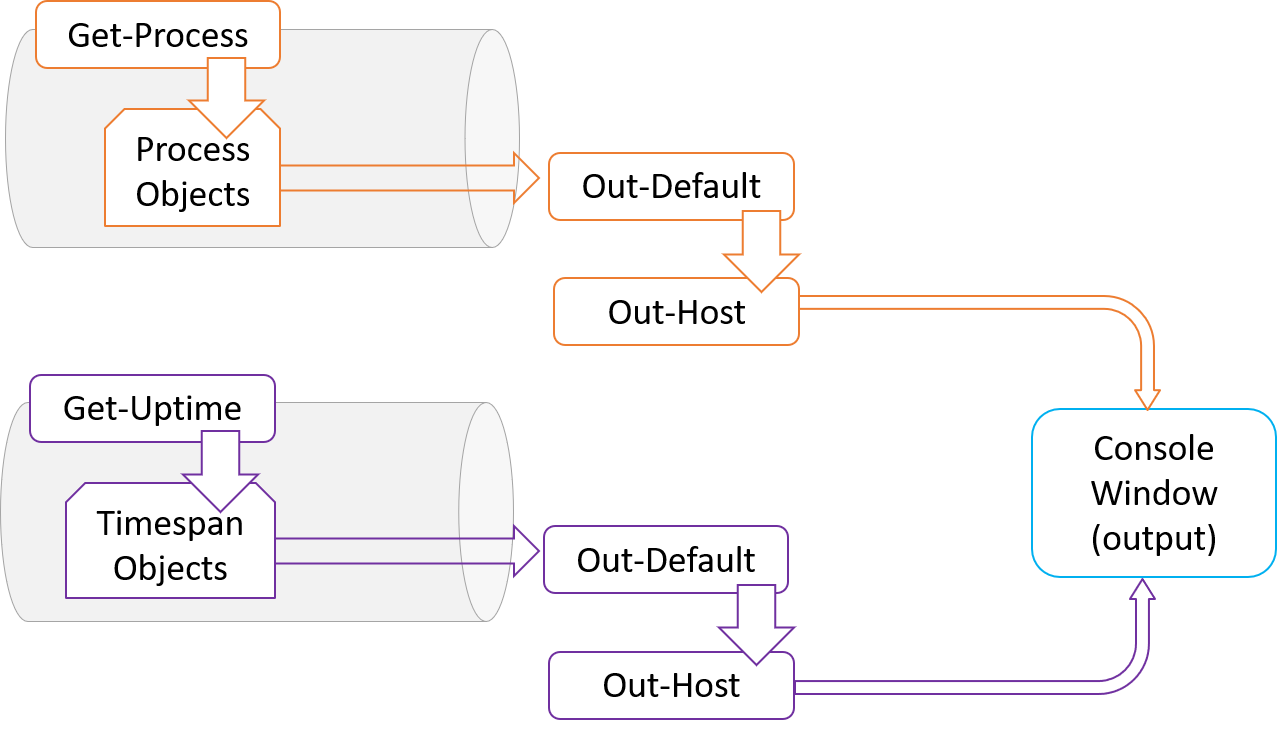
Inside a script, all commands share a single pipeline. If a script outputs different object types in sequence, the formatting system chooses a view based on the first type and may render later types as lists. Aim to output one object type per script, or explicitly handle formatting/output for each command if you need separate displays.How do I document a script with help that shows up in the Help system?
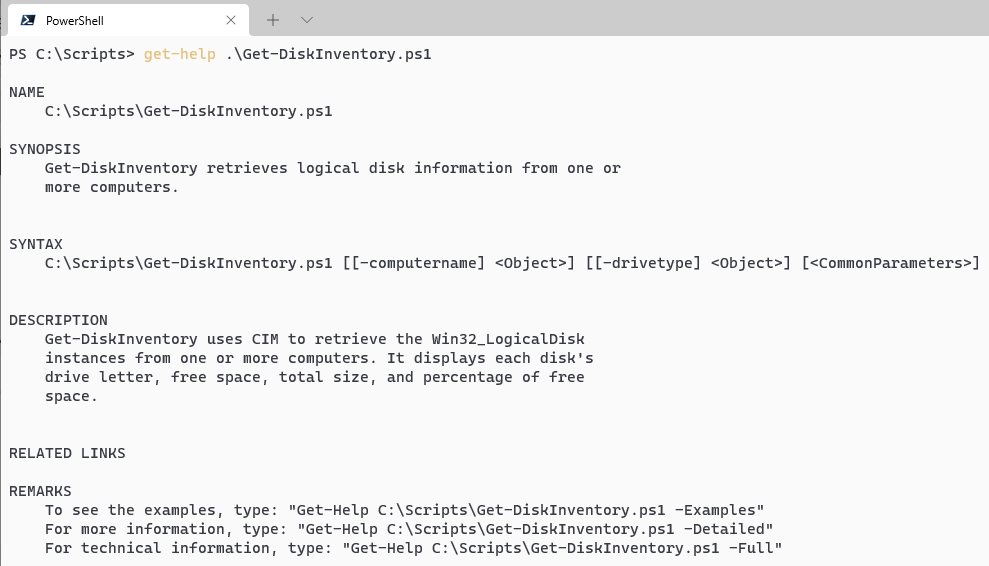
Add comment-based help at the top using a block comment with keywords like .SYNOPSIS, .DESCRIPTION, .PARAMETER, and .EXAMPLE. Users can then run help .\YourScript.ps1 or help .\YourScript.ps1 -Full to see your documentation.What is scope, and how can it affect my scripts?
PowerShell has global, script, and function (private) scopes. Variables, aliases, and functions are resolved from the current scope up to the parent. A name defined in a scope hides the same name in a parent. To avoid surprises, don’t rely on global values—set variables in your script or pass them in as parameters.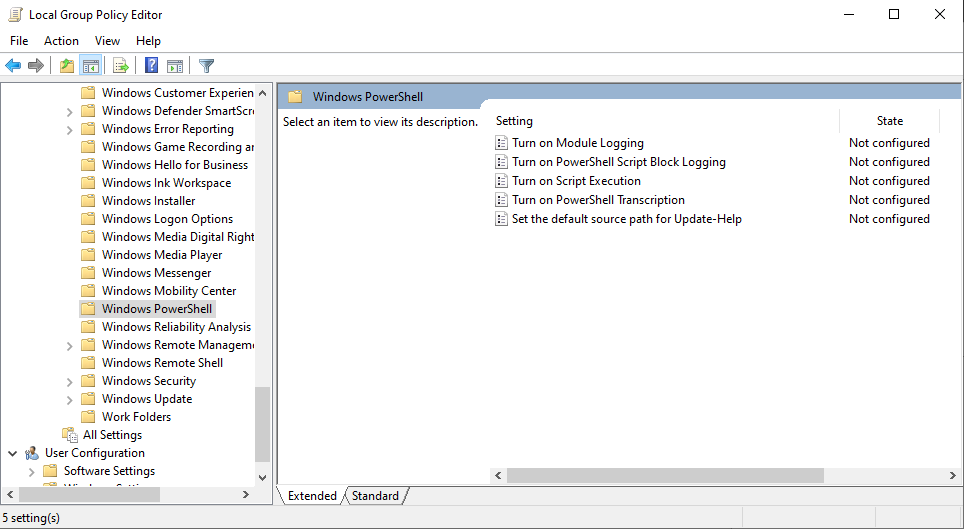


 Learn PowerShell in a Month of Lunches, Fourth Edition ebook for free
