17 Input and Output
This chapter introduces how to build interactive PowerShell scripts by collecting user input and precisely controlling output. It emphasizes that interactivity depends on the host application (for example, the console, the VS Code integrated console, or a serverless host like Azure Functions). Because hosts are responsible for displaying output and gathering input, the same commands can behave differently across environments, and techniques shown here are meant for scripts that run with a person at the keyboard rather than unattended jobs.
The chapter explains key cmdlets for interaction. Read-Host displays a prompt and returns the user’s text, often stored in a variable. Write-Host writes directly to the host’s display and, since PowerShell 5, also to the Information stream; it supports foreground/background colors but bypasses the pipeline, making it unsuitable for data output, table formatting, or structured messaging. Write-Output, by contrast, sends objects into the pipeline, allowing them to be filtered, formatted, and routed to Out-Host via the usual formatting system; it’s effectively the shell’s default behavior when evaluating expressions. The guidance is to reserve Write-Host for simple, cosmetic messages and prefer pipeline-friendly output and purpose-built messaging cmdlets for everything else.
PowerShell provides additional “write” cmdlets whose visibility can be toggled via preference variables: Write-Verbose ($VerbosePreference), Write-Debug ($DebugPreference), Write-Warning ($WarningPreference), Write-Error ($ErrorActionPreference), and Write-Information ($InformationPreference). Because Write-Host uses Write-Information under the hood, its behavior can also be influenced by information-stream settings. Hosts may route these streams differently (for example, to logs in cloud scenarios). A short lab reinforces the concepts by practicing prompts, colored host messages, pipeline-friendly output, and simple filtering, encouraging further experimentation with preferences and help to become comfortable using these tools in interactive scripts.
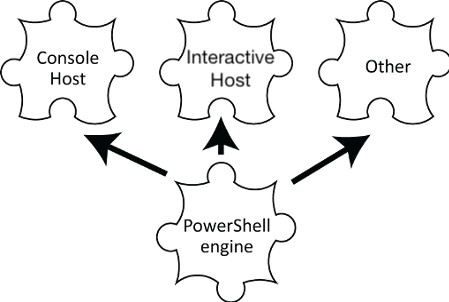
Various applications are capable of hosting the PowerShell engine.
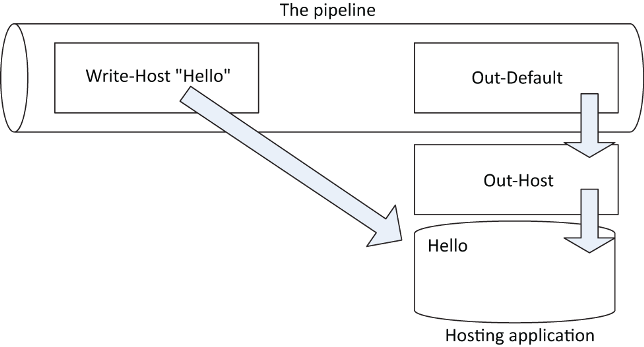
Write-Host bypasses the pipeline and writes directly to the hosting application's display.
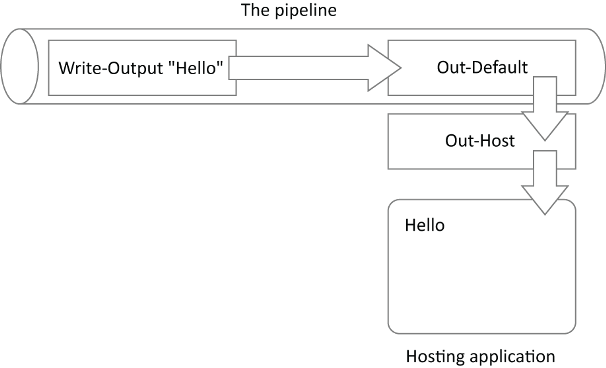
Write-Output puts objects into the pipeline, which in some cases eventually results in those objects being displayed.
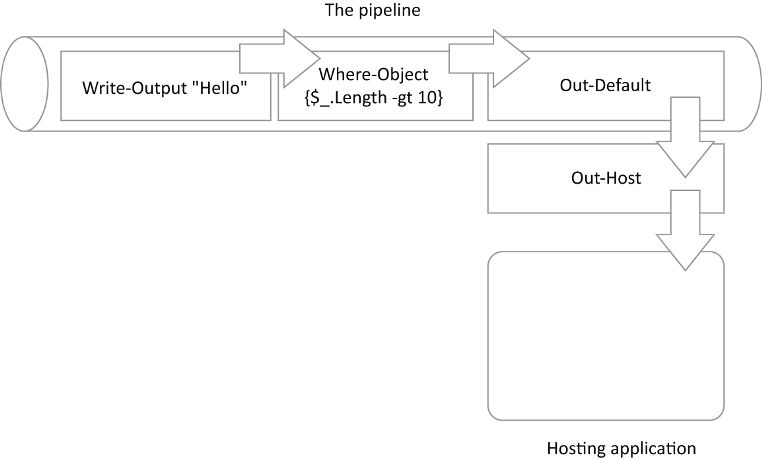
Placing objects into the pipeline means they can be filtered out before they're displayed.
Lab answers
write-output (100*10)
or simply type the formula:100*10- Any of these approaches work:
$name = Read-Host"Enteraname"
Read-Host "Enter a name" | where {$_.length -gt 5}
FAQ
What is a PowerShell “host,” and why can the same command behave differently in different places?
A host is the application that embeds the PowerShell engine and handles how input and output are collected and displayed. Examples include the console host (pwsh in a terminal), the VS Code Integrated Console, and cloud hosts like Azure Functions. Because the host controls the user interface, features like colors, prompts, and where messages appear can differ from one host to another.
When should I use Read-Host, and what does it return?
Use Read-Host to interactively prompt a human for input. It displays a prompt and returns the user’s response as a string, which you typically store in a variable (for example, $name = Read-Host "Enter your name"). Avoid it in unattended scenarios (scheduled jobs, CI/CD, Azure Functions) where no one can respond.
What’s the difference between Write-Host and Write-Output?
Write-Host writes directly to the host’s display and also emits to the Information stream; it bypasses the pipeline, and can set text colors. Write-Output places objects into the pipeline so they can be filtered, formatted, redirected, or captured. If you’re producing data for further processing, prefer Write-Output; use Write-Host for cosmetic, on-screen messages.
Why might Write-Output show nothing while Write-Host shows text?
Write-Output sends objects into the pipeline, where they can be filtered out before reaching the screen. For example, Write-Output "Hello" | Where-Object { $_.Length -gt 10 } produces no output because the string is filtered out. Write-Host writes directly to the screen, so it appears regardless of pipeline filtering.
Is Write-Host still considered “bad” practice?
Earlier guidance discouraged Write-Host, but it was redesigned in PowerShell 5+ to wrap Write-Information. It’s fine for simple, cosmetic messages (especially with color), but it still bypasses the pipeline and isn’t ideal for errors, warnings, or diagnostic text. Prefer the specialized cmdlets (Write-Verbose, Write-Warning, Write-Debug, Write-Error) and pipeline output for data.
How do I control whether verbose, warning, debug, or information messages appear?
Use preference variables: $VerbosePreference, $WarningPreference, $DebugPreference, $InformationPreference, and $ErrorActionPreference. Set them to 'Continue' to show or 'SilentlyContinue' to suppress. For example, $VerbosePreference = 'Continue' enables Write-Verbose output.
When should I avoid interactive input like Read-Host?
Avoid it in unattended environments (scheduled tasks, automation pipelines, Azure Functions). There’s no human to respond, so prompts will block or fail. Instead, use parameters, environment variables, configuration files, or secure stores (for secrets) to supply values non-interactively.
How do I change text colors with Write-Host, and what are the caveats?
Use -ForegroundColor and -BackgroundColor (for example, Write-Host "Hi" -ForegroundColor Yellow -BackgroundColor Magenta). Not every host supports color, and some support only a subset. Don’t rely on color for critical information or behavior.
What’s the right way to show status or “warm and fuzzy” messages?
Prefer Write-Verbose for optional status messages so users can enable or suppress them via $VerbosePreference or the -Verbose common parameter. Use Write-Progress for progress bars. Reserve Write-Host for purely cosmetic output that doesn’t need to flow through the pipeline.
Which streams do the Write-* cmdlets use, and why does that matter?
Write-Output uses the success/pipeline stream. Write-Error writes to the error stream. Write-Warning, Write-Verbose, Write-Debug, and Write-Information write to their respective streams, which can be redirected or suppressed with preference variables. Some hosts route these streams differently (for example, Azure Functions may send debug/information to logs), so choosing the right stream gives you better control over where messages go.

 Learn PowerShell in a Month of Lunches, Fourth Edition ebook for free
