16 Variables: a place to store your stuff
This chapter introduces PowerShell variables as named containers you can use to store and reuse objects during interactive work and scripting. Because everything in PowerShell is an object, variables can hold anything—from a single string or process to collections of items—and you can reassign them freely without prior declaration. You set a value with the assignment operator (=) and access it by prefixing the name with $, where the dollar sign signals “give me the contents.” The chapter emphasizes sensible, concise names, notes that variables don’t persist across sessions, and explains that although variable names can include spaces when wrapped in braces, this is discouraged for readability.
Beyond simple assignment, the chapter focuses on practical manipulation. It explains the difference between single quotes (literal text) and double quotes (string expansion), shows how the backtick escape character affects interpolation and special sequences like new lines, and introduces subexpressions $() to evaluate more complex expressions inside double-quoted strings. You learn to store multiple values by creating arrays (for example, via comma-separated lists), access elements with zero-based and negative indexing, and use properties and methods directly on objects. For multi-item variables, you can target individual elements, enumerate with ForEach-Object, select properties with Select-Object, and rely on PowerShell’s implicit “unrolling” behavior to expand a collection when accessing a shared property or method.
The chapter also shows when and how to constrain a variable’s type (for example, [int], [double], [string], [char], [xml]) to prevent subtle bugs and force conversions, using Read-Host examples to illustrate the difference between treating input as a string versus a number. It covers retyping, conversion errors when the value can’t be coerced, and briefly surveys variable-related cmdlets (New/Set/Get/Clear/Remove-Variable), noting that ad hoc assignment is usually sufficient except when explicitly removing variables. Best practices include clear naming, avoiding spaces, and declaring a type when appropriate, and the chapter closes by clarifying common parsing pitfalls—most importantly that $ isn’t part of the variable’s name and how ${...} helps disambiguate names—followed by hands-on exercises to reinforce the concepts.
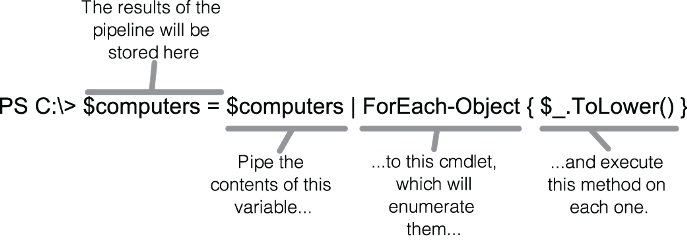
Using ForEach-Object to execute a method against each object contained within a variable
Lab answers
Invoke-Command {Get-Process pwsh} –computername localhost,$env:computername –asjob$results = Receive-Job 4 –Keep$results$results |Export-CliXmlprocesses.xml$processs = get-service$processs = get-service -name bits,spooler$processs$processs | export-csv -path c:\services.csv
FAQ
What is a variable in PowerShell, and how do I create and read one?
A variable is a named box in memory that holds an object (string, number, process, etc.). Create or change it with the assignment operator:$server = 'SRV-02'. Retrieve its contents by using the dollar sign before the name: $server. Note: the $ is not part of the name—it’s how you access the variable’s value.Do I have to declare variables or their types before using them?
No. PowerShell lets you use variables without prior declaration and their contents can change type. If you want to enforce a type, prefix the first assignment with a type accelerator, for example[int]$n = 5. Variables are per-session; when you close the shell, they’re gone. PowerShell doesn’t have “Option Explicit”; Set-StrictMode exists but isn’t the same.What characters can I use in variable names? Can I use spaces?
Use letters, numbers, and underscores. Avoid spaces; if you must, wrap the name in braces:${My Variable}. Remember: $ signals a variable; the name is what follows. Parsing rules: after $, PowerShell reads letters/numbers/underscores until whitespace, or reads everything inside ${ ... }.How do single and double quotes affect variables in strings?
Single quotes are literal:'$name' stays $name. Double quotes expand variables once, when the string is parsed: "Hello $name" inserts the current value of $name. If you later change $name, the existing string doesn’t auto-update.How do I escape special characters or add newlines/tabs in strings?
Use the backtick (`) escape character. Examples: show a literal dollar sign with "`$name"; newline with "Line1`nLine2"; tab with "Col1`tCol2"; beep with "`a". The backtick removes or adds special meaning to the character that follows it.How do I store multiple items in a variable and access them?
Create an array with a comma-separated list:$computers = 'SRV-02','SERVER1','localhost'. Access items by index starting at 0: $computers[0], or from the end with negatives: $computers[-1]. Get the number of items with $computers.Count.How do I change elements or apply methods/properties to items in a collection?
Change a specific item by assigning to its index:$computers[1] = $computers[1].Replace('SERVER','CLIENT'). Apply an operation to all items via the pipeline: $computers = $computers | ForEach-Object { $_.ToLower() }. Get properties from each item with Select-Object or by implicit enumeration, e.g., $processes.Name. You can even call a method across a collection, e.g., $files.Refresh().Why does "$processes[0].Name" not work as expected in double quotes, and what fixes it?
Inside double quotes, PowerShell expands $processes first and treats [0].Name as plain text. Use a subexpression to evaluate the whole expression: "$($processes[0].Name)". Subexpressions ($()) run a PowerShell expression and insert its result into the string (works only in double quotes). You can also enumerate properties inside quotes: "Names: $processes.Name".Why did Read-Host input behave like text in math, and how do I enforce numbers?
Read-Host returns a string, so '100' * 10 repeats the string instead of multiplying. Enforce a numeric type: [int]$number = Read-Host 'Enter a number'. Now arithmetic works, and nonnumeric input throws a conversion error. You can retype a variable by prefixing it with another type, e.g., [string]$number.Which cmdlets manage variables, and when should I use them?
Variable cmdlets includeGet-Variable, New-Variable, Set-Variable, Clear-Variable, and Remove-Variable. Day to day, assignment ($x = ...) is enough; Remove-Variable (or Remove-Item Variable:Name) is handy to delete a variable. Be careful with scope-related tricks; see help about_Scope for details.
 Learn PowerShell in a Month of Lunches, Fourth Edition ebook for free
