15 Working with many objects, one at a time
This chapter tackles one of PowerShell’s core promises—automating administration across many targets—by showing how to act on multiple objects reliably and efficiently. It frames two primary strategies that work across platforms: using cmdlets that natively process collections (“batch” cmdlets) and enumerating objects to apply actions one at a time. The authors set expectations that the material is challenging, but emphasize that mastering these patterns unlocks practical scenarios such as starting services on many machines, copying many files, or configuring many resources, with guidance on choosing the simplest approach first and escalating only when needed.
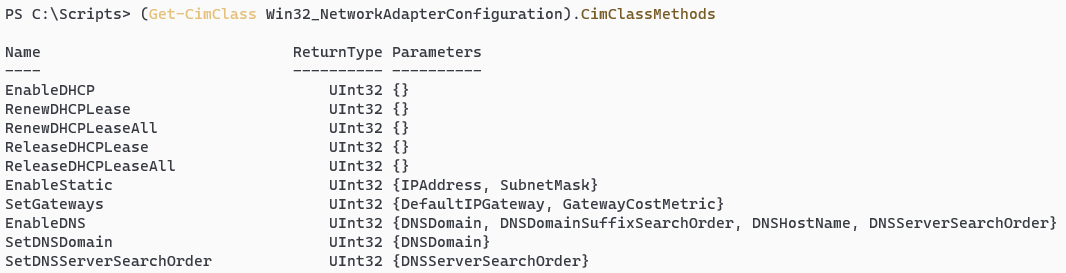
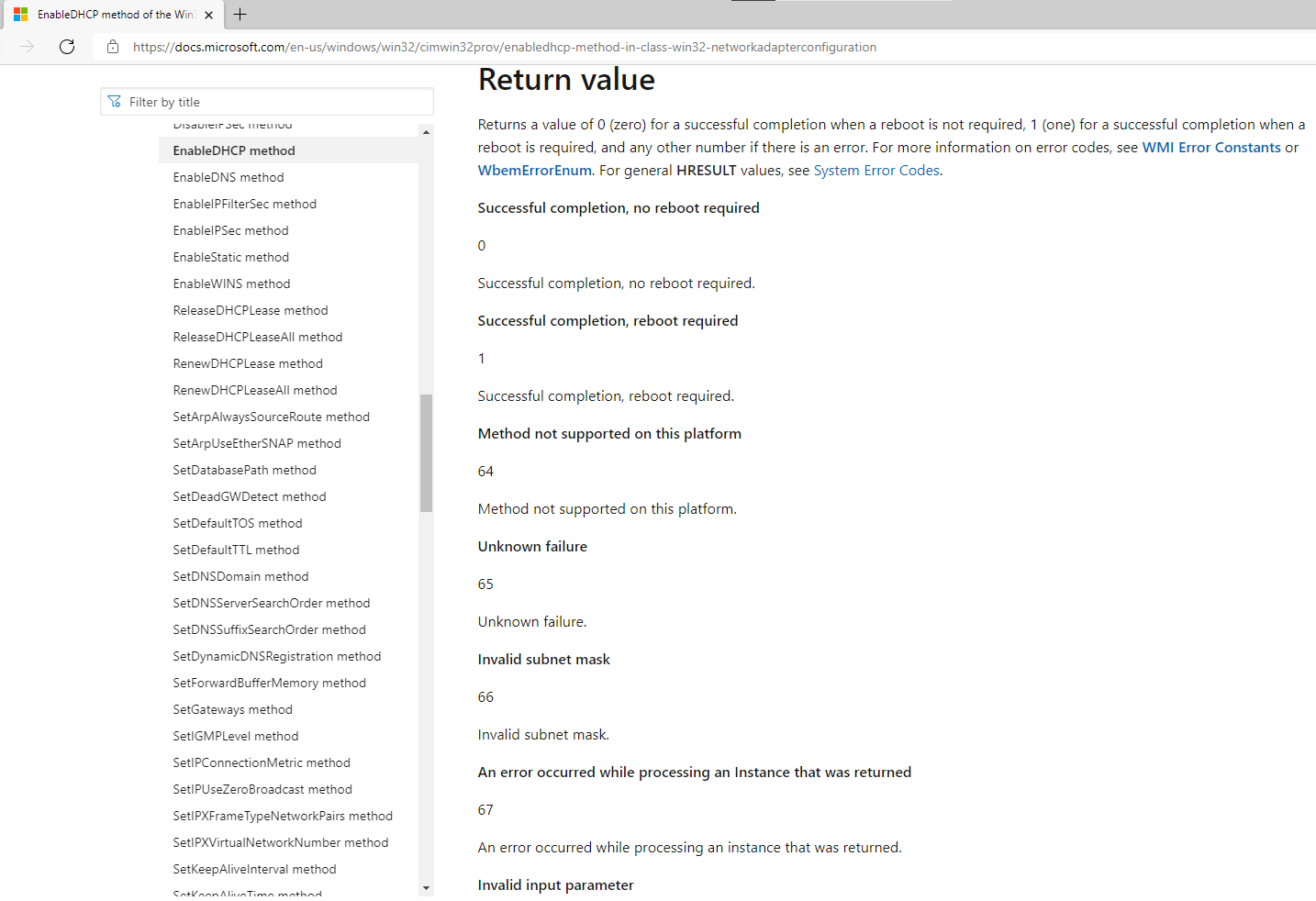
The preferred technique is to use action cmdlets that accept pipeline input and operate on collections, keeping syntax concise and readable. Examples include piping service or file objects into cmdlets like Set-Service or Copy-Item, and using -PassThru when you want confirmation of what changed. When no action cmdlet exists—especially with CIM/WMI objects on Windows—the chapter shows how to discover available methods with Get-CimClass and then invoke them in bulk with Invoke-CimMethod (for example, calling EnableDHCP on Win32_NetworkAdapterConfiguration instances). Key points include that you can’t pipe to methods directly, Invoke-CimMethod requires same-type objects, supports -WhatIf/-Confirm, and returns status codes you must interpret from documentation.
When a cmdlet won’t accept the input you have or lacks a batch form, the backup is enumeration with ForEach-Object, processing each piped item through a script block and referencing the current object via $_. The chapter demonstrates turning a list (such as vault names) into repeated calls to a cmdlet that only accepts one item at a time, then shows how PowerShell 7’s -Parallel parameter can speed these loops, tempered by throttle limits and the reality of diminishing returns. It closes by clarifying common pitfalls: there are multiple valid ways to achieve the same outcome (batch cmdlet, method call, serial or parallel enumeration); use Get-Member to discover object methods; and favor readability and built-in batch cmdlets first, resorting to enumeration and parallelism when the situation demands.
Looking up return values for a WMI method’s results
Lab answers
- Find the methods like this:
get-childitem | Get-Member -MemberType Methodand you should see aDelete()method. - Find the methods like this:
get-process|Get-Member-MemberType Methodand you should see aKill()method. You could verify by checking the MSDN documentation for this process object type. Of course you shouldn’t need to invoke the method because there is a cmdlet,Stop-Process, that will do the work for you. get-childitem *deleteme* | Remove-Item -Recurse -Force
Get-content computers.txt | foreach {$_.ToUpper()}
FAQ
What are “batch cmdlets” and why are they the preferred way to work with many objects?
Batch cmdlets accept a collection of input objects from the pipeline and perform an action on each, saving you from writing explicit loops. Examples include Stop-Service, Set-Service, Move-Item, and Stop-Process. They’re concise and efficient. Note that many action cmdlets produce no output unless you add -PassThru.How can I confirm what an action cmdlet did if it doesn’t output anything?
Use the -PassThru switch so the cmdlet emits the objects it modified. For example:Get-Service BITS,Spooler | Set-Service -StartupType Automatic -PassThru
Get-ChildItem .\ | Copy-Item -Destination C:\Drivers -PassThru
How do I invoke a CIM/WMI method (like enabling DHCP) against many objects?
Pipe the CIM instances to Invoke-CimMethod with the method name:Get-CimInstance -ClassName Win32_NetworkAdapterConfiguration `
-Filter "description like '%intel%'" |
Invoke-CimMethod -MethodName EnableDHCP
Why can’t I pipe objects directly to a method name (e.g., | EnableDHCP)?
Methods aren’t cmdlets, and the pipeline connects cmdlets. You can’t pipe to a method. Use Invoke-CimMethod or enumerate with ForEach-Object and call the method on each object (for non-CIM .NET objects, e.g. $_.Kill()).How do I discover what methods a CIM class exposes?
Query the class metadata:(Get-CimClass Win32_NetworkAdapterConfiguration).CimClassMethods
How do I interpret the ReturnValue from Invoke-CimMethod?
Invoke-CimMethod returns a numeric ReturnValue plus PSComputerName. Look up the method’s documentation (for the specific CIM class and method) to map codes to meanings. Typically 0 means success; other values indicate specific conditions/errors.What if a cmdlet doesn’t accept the pipeline input I have?
Enumerate the input and call the cmdlet once per item using ForEach-Object:Get-Content -Path vaultsToCreate.txt |
ForEach-Object {
New-AzKeyVault -ResourceGroupName manning -Location 'UK South' -Name $_
}
What’s the difference between pipeline binding ByValue and ByPropertyName?
ByValue binds when the piped object’s type matches the parameter type. ByPropertyName binds when a property on the piped object matches the parameter name. Check parameter help for “Accept pipeline input?” to see which is supported.How do I speed up per-item work with ForEach-Object -Parallel, and what’s the default parallelism?
-Parallel (PowerShell 7+) runs script blocks concurrently. Default ThrottleLimit is 5, meaning up to five items run at once. Increase it as needed:Get-Content vaultsToCreate.txt |
ForEach-Object -Parallel {
# work per item
} -ThrottleLimit 10
Any tips to avoid confusion when using ForEach-Object and methods?
- Prefer the full name ForEach-Object (instead of %). - The script block runs once per piped object; $_ is the current object. - Use $_.Property or $_.Method() to access members; methods require parentheses. Example:Get-Process -Name *B* | ForEach-Object { $_.Kill() }
# or using a batch cmdlet:
Get-Process -Name *B* | Stop-Process

 Learn PowerShell in a Month of Lunches, Fourth Edition ebook for free
