11 Formatting—and why it’s done on the right
PowerShell’s output is object-based, and what you see on screen is the result of a formatting subsystem that kicks in at the end of the pipeline. Out-Default hands objects to Out-Host, which relies on formatting instructions derived from predefined views in .format.ps1xml files and, when absent, from default display property sets in types.ps1xml. If no custom view exists, PowerShell chooses properties heuristically, then applies the “rule of four”: four or fewer properties render as a table, five or more as a list. A key takeaway is that headers in formatted output may not match actual property names, so Get-Member remains the authoritative way to discover properties.
You control the display with three primary cmdlets: Format-Table (ft), Format-List (fl), and Format-Wide (fw). Format-Table supports choosing properties, grouping, and wrapping to avoid truncation; Format-List is ideal when you need to show many properties and their values; Format-Wide lays out a single property across multiple columns. All support calculated properties via hash tables to rename columns, derive values (for example, converting bytes to MB), and tune visuals using keys such as FormatString, Width, Alignment, and options like -AutoSize. These tools let you turn raw object data into compact, readable reports without changing the underlying objects.
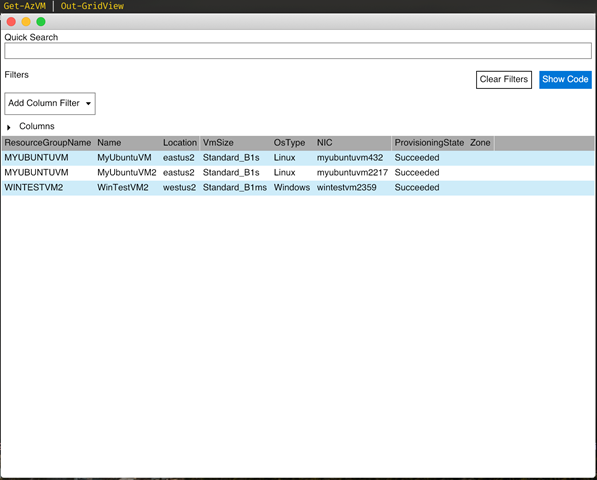
Once formatted, output typically goes to the host, or you can send it to a file (mind the default width, adjustable with a parameter). Out-GridView provides a GUI view and deliberately bypasses the formatting subsystem, accepting only raw objects. The big gotchas: always “format right” by placing Format-* at the end of the pipeline (the only valid follower is an Out-* cmdlet like Out-File or Out-Host), and avoid mixing different object types in one pipeline, which confuses the formatter and degrades output. While there are advanced custom views (for example, Format-Custom for certain types), the chapter’s guidance focuses on mastering the core formatting rules and cmdlets to produce clear, intention-revealing output across platforms.
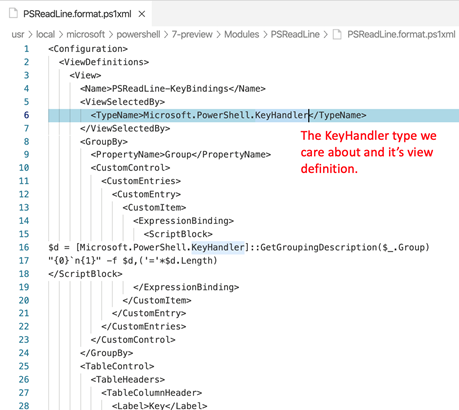
Locating the key handler view in Visual Studio Code
The results of the Out-GridView cmdlet
Lab answers
Get-Process | Format-Table Name,ID,Responding -WrapGet-Process | Format-Table Name,ID,
Get-Module| Format-Table @{l='ModuleName';e={$_.Name }},
Get-AzStorageAccount | Get-AzStorageContainer | ft -GroupBy PublicAccessgci ~ -Directory | format-wide –column 4gci $pshome/*.dll |
FAQ
What does “formatting on the right” mean in PowerShell?
It means any Format- cmdlet should be at the end of your pipeline. Format- cmdlets output formatting instructions, which only Out- cmdlets can consume. Typically, those instructions go to Out-Default, then Out-Host for screen display. The only valid thing after a Format- cmdlet is an Out- cmdlet like Out-File (or Out-Host). Example of what NOT to do:Get-History | Format-Table | ConvertTo-Html feeds formatting data (not objects) into ConvertTo-Html and produces nonsense.How does PowerShell decide the default display for objects?
PowerShell follows three rules: 1) If a predefined view exists in a .format.ps1xml for the object type, use it. 2) Else, if a DefaultDisplayPropertySet is defined in types.ps1xml, use those properties. 3) Else, choose shape: up to 4 properties -> table; 5 or more -> list.Where are the default formatting rules stored and how can I inspect them?
They’re in .format.ps1xml files loaded at startup (for example, DotNetTypes.format.ps1xml, PSReadLine.format.ps1xml). Inspect with an editor (read-only) or via PowerShell:Get-FormatData -TypeName Microsoft.PowerShell.KeyHandler. Don’t save edits to signed, built-in files.Which formatting cmdlet should I use: Format-Table, Format-List, or Format-Wide?
- Format-Table (ft): tabular output; supports -Property, -GroupBy, -Wrap, -AutoSize. - Format-List (fl): show many properties vertically; good for inspecting property values. - Format-Wide (fw): multi-column display of a single property (defaults to Name); supports -Columns.How do I avoid truncated columns and control width?
Use -Wrap on Format-Table to wrap long values instead of truncating with ellipses. Use -AutoSize to optimize column widths. For files, Out-File defaults to a fixed width; adjust with-Width to accommodate wider tables.How can I add custom columns or rename headers in formatted output?
Use a calculated property (hash table) in -Property:@{Name='VM(MB)'; Expression = { $_.VM / 1MB -as [int] }}. You can also control display with keys like FormatString, Width, and Alignment, e.g. @{N='VM(MB)';E={$_.VM/1MB};FormatString='F2';Alignment='Right'}.Why don’t column headers always match actual property names?
Headers are just formatting labels. For example, a column labeledPM(K) formats the PM property; the object doesn’t have a PM(K) property. Use Get-Member to see real property names.Why can’t I pipe formatted output to Out-GridView or ConvertTo-Html?
Format-* outputs formatting instructions, not the original objects. Out-GridView and ConvertTo-Html expect objects. Do one of the following: - Send objects directly: Get-Process | Out-GridView - Or format then send to a terminal/file only: Get-Process | Format-Table | Out-File procs.txt.What happens if different object types are in the same pipeline?
The formatting system bases its decision on the first object’s type. Mixing types often produces inconsistent or degraded output (for example, a table followed by lists). Avoid mixing types, or use predefined/custom views designed for multiple types.How can I change the default properties shown for a type (e.g., System.Uri)?
Create a types.ps1xml that defines aDefaultDisplayPropertySet for the type, then load it with Update-TypeData -Path. Example picks: Scheme, Host, Port, AbsoluteUri, IsFile for System.Uri. After loading, casting with [Uri]"https://github.com" shows only those properties by default.
 Learn PowerShell in a Month of Lunches, Fourth Edition ebook for free
