10 The pipeline, deeper
This chapter deepens your understanding of how PowerShell’s pipeline lets you accomplish more with less typing by passing objects between commands through parameters. It explains how the shell decides where piped output goes using pipeline parameter binding: first attempting ByValue (matching the incoming object’s type to a parameter that accepts that type) and, if that fails, trying ByPropertyName (matching property names on the incoming object to parameter names). You’re encouraged to verify types and bindings with Get-Member and full help, so you can predict whether a pipeline will work and why.
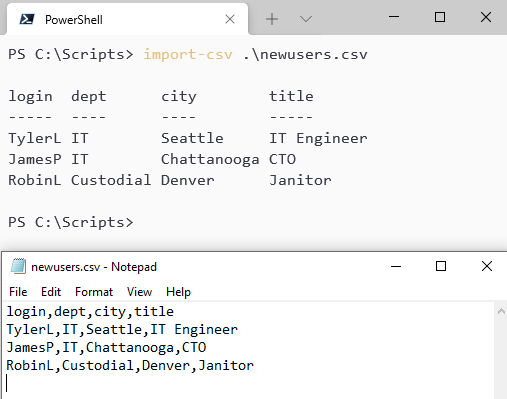
Through practical examples, the chapter shows both successes and pitfalls. Piping strings from Get-Content to Get-Command binds to -Name (not what you want for module names), whereas piping those same strings to Get-Module works because its -Name parameter is designed for that input. ByPropertyName is illustrated by mapping matching property/parameter names, such as importing a CSV whose columns align with New-Alias parameters to create aliases in one line. When names or shapes don’t align, you can adapt the stream using Select-Object with calculated properties to add or rename properties on the fly—turning imperfect input (like HR-provided CSV fields) into exactly what a command such as New-ADUser expects.
When pipeline binding can’t be made to fit, the chapter introduces parenthetical commands to run something first and place its results directly into a parameter, emphasizing that types must still match. It then shows how to extract scalar values with Select-Object -ExpandProperty (versus -Property, which returns objects) so you can pass plain strings like ResourceGroupName to parameters that require them. The material is rounded out with Azure PowerShell context examples (installing modules, connecting, selecting subscriptions) and guided lab prompts that reinforce recognizing object types, choosing the right binding mode, reshaping data, and mixing pipeline input with parentheses to compose reliable one-liners.
Creating a text file containing module names, with one name per line in vscode
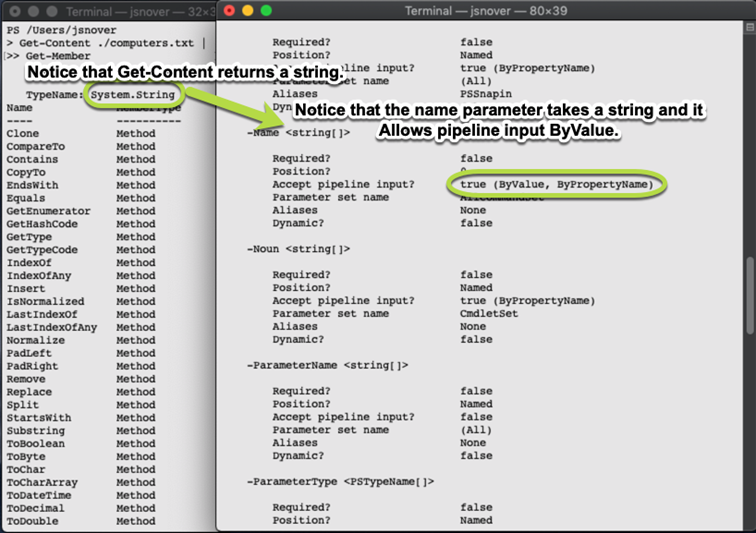
Comparing the output of Get-Content to the input parameters of Get-Command
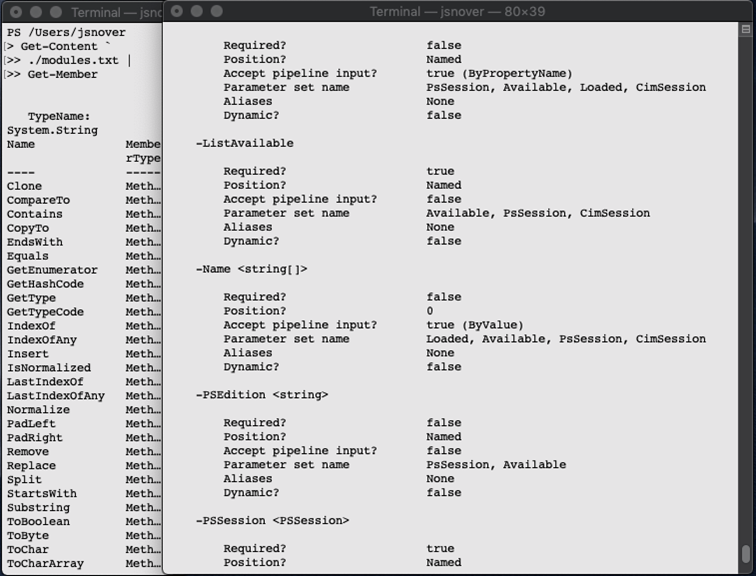
Binding the output of Get-Content to a parameter of Get-Module
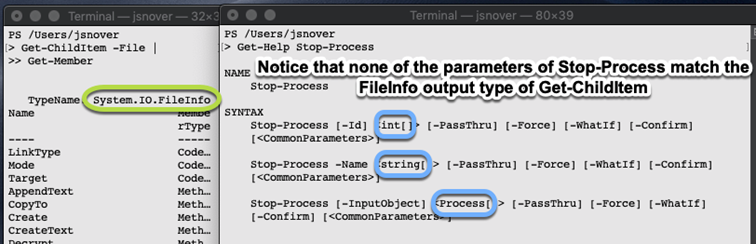
Examining the output of Get-ChildItem and the input parameters of Stop-Process
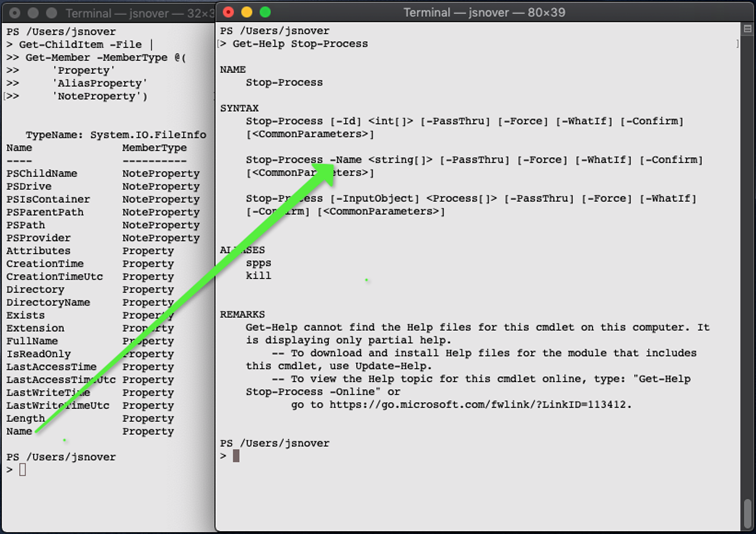
Mapping properties to parameters
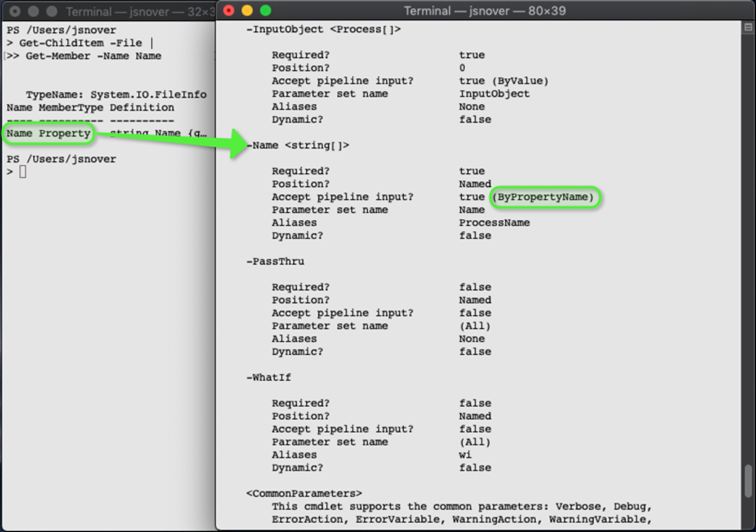
Checking to see whether the Stop-Process command’s -Name parameter accepts pipeline input ByPropertyName
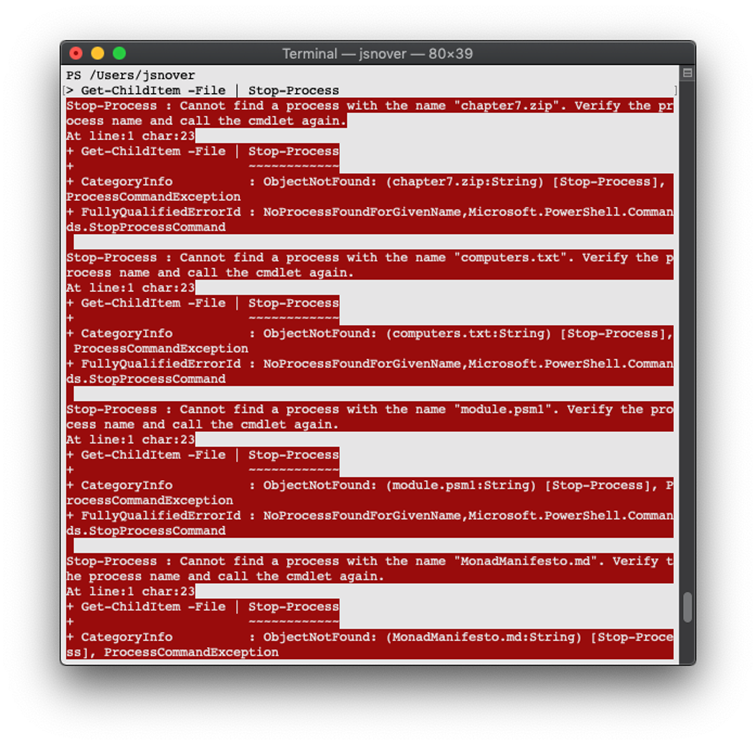
Attempting to pipe Get-ChildItem to Stop-Process
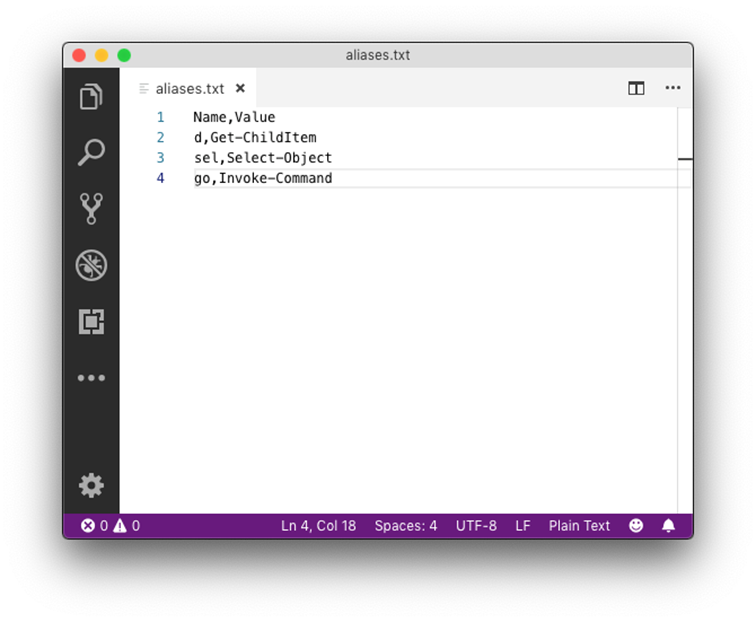
Create this CSV file in Visual Studio Code.
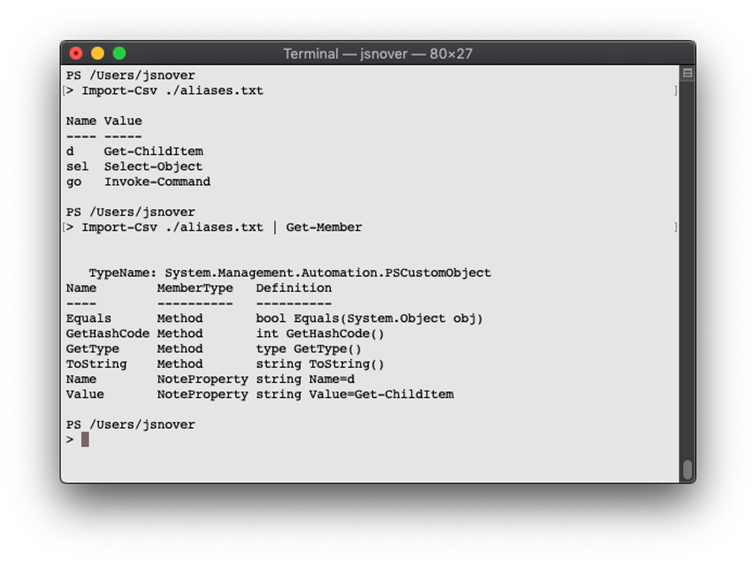
Importing the CSV file and checking its members
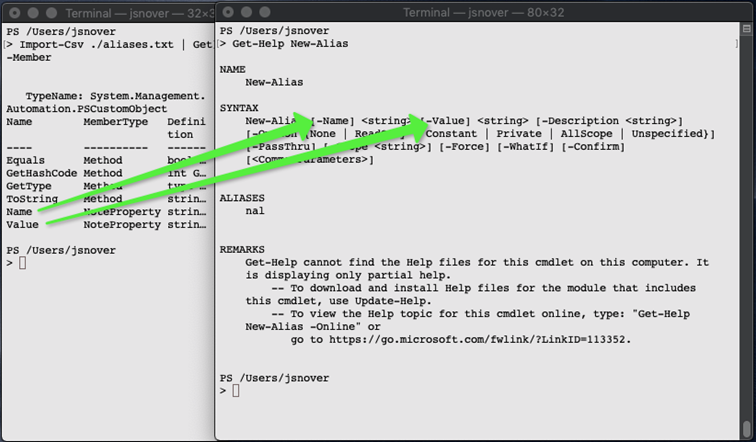
Matching properties to parameter names
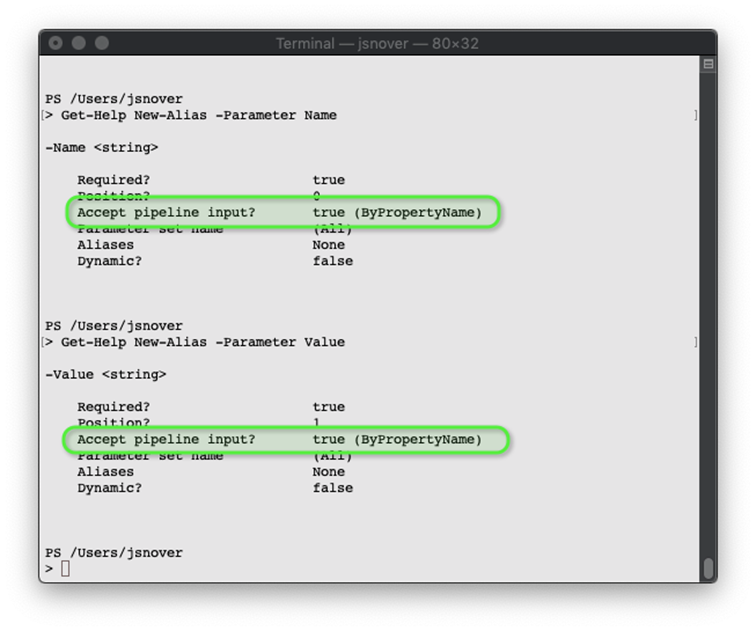
Looking if Name and Value are parameters that accept pipeline input ByPropertyName
Working with the CSV file provided by Human Resources
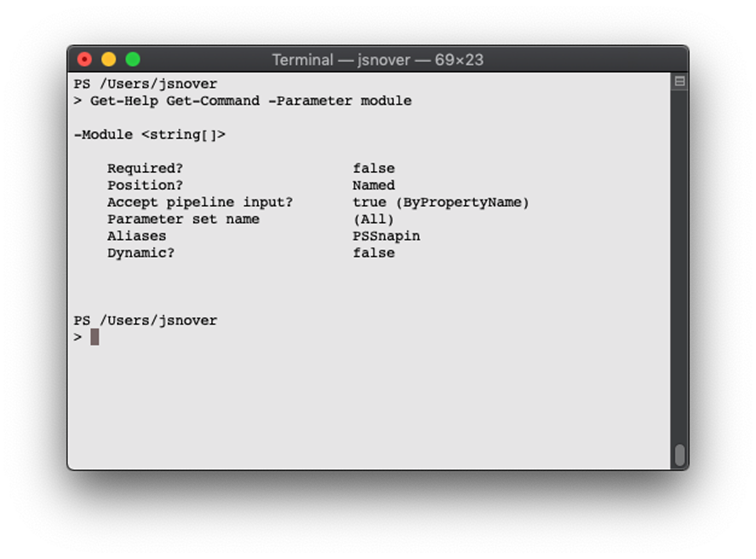
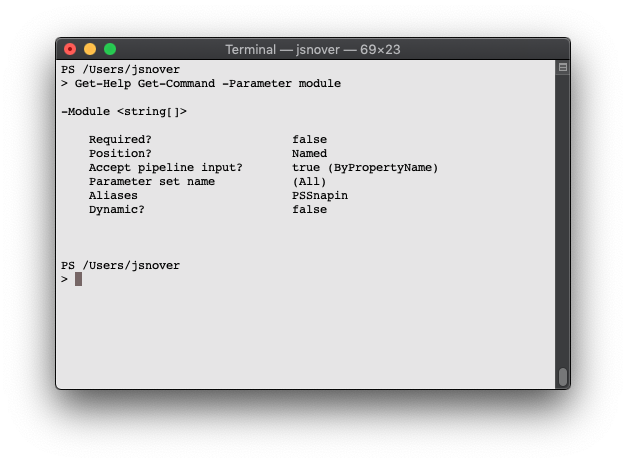
Reading the Module parameter help for Get-Command
Lab answers
- This should work, because the nested
Get-Moduleexpression will return a collection of module names and the–Moduleparameter can accept an array of values. - This won’t work, because
Get-Commanddoesn’t accept the module parameter by value. It will accept–Nameby value, but this is the command name not the module object. - Technically this does set the subscription, but if there are multiple accounts, which ever one is processed last is the one set. It works because the first cmdlet returns a
PSAzureSubscriptionandSelect-AzSubscriptionhas-SubscriptionObjectwhich accepts that type from the pipelineByValue. Get-AzSubscription | Select-Object -First 1 | Select-AzSubscriptionSelect-AzSubscription -SubscriptionObject (Get-AzSubscription | Select-Object -First 1)- This will not work. The
Subscriptionparameter inSelect-AzSubscriptiondoesn’t take any pipeline binding.

 Learn PowerShell in a Month of Lunches, Fourth Edition ebook for free
