Appendix A. Installing Python, Jupyter Notebook, and PyTorch
This appendix explains how to prepare a reliable, isolated development setup for the book’s projects. It adopts Anaconda as the primary tool for Python distribution, package management, and environment isolation, emphasizing its ease of use and broad compatibility with libraries that can otherwise be difficult to install. The chapter then guides you through installing Jupyter Notebook as the working interface and concludes with installing PyTorch in configurations suited to your hardware, whether CPU-only or GPU-accelerated.
The instructions begin with installing Anaconda on Windows, macOS, or Linux and verifying the installation with Anaconda Navigator. You then create and activate a dedicated virtual environment (for example, named dgai) to keep the book’s dependencies separate from other projects, minimizing conflicts. Within this environment, you install Jupyter Notebook and launch it to ensure everything is ready for running the book’s examples.
Next, the appendix covers installing PyTorch. It shows how to check for a CUDA-enabled GPU (available on Windows and Linux) and provides guidance for both CPU-only and CUDA-enabled setups, including installing Torchvision and Torchaudio alongside PyTorch. It notes that Apple silicon users on recent macOS versions can leverage the MPS backend for GPU acceleration. Finally, it recommends verifying the installation by importing the libraries, printing their versions, and confirming whether the runtime is using the CPU or CUDA.
Figure A.1 Checking if your computer has a CUDA-enabled GPU.
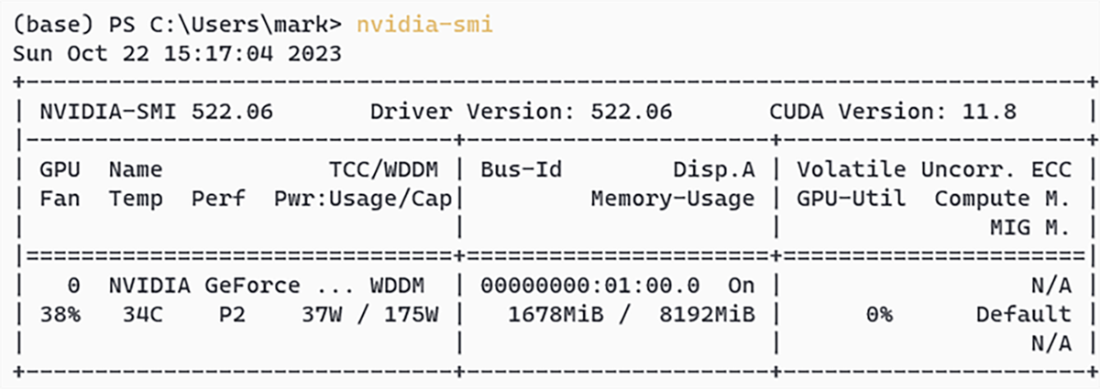
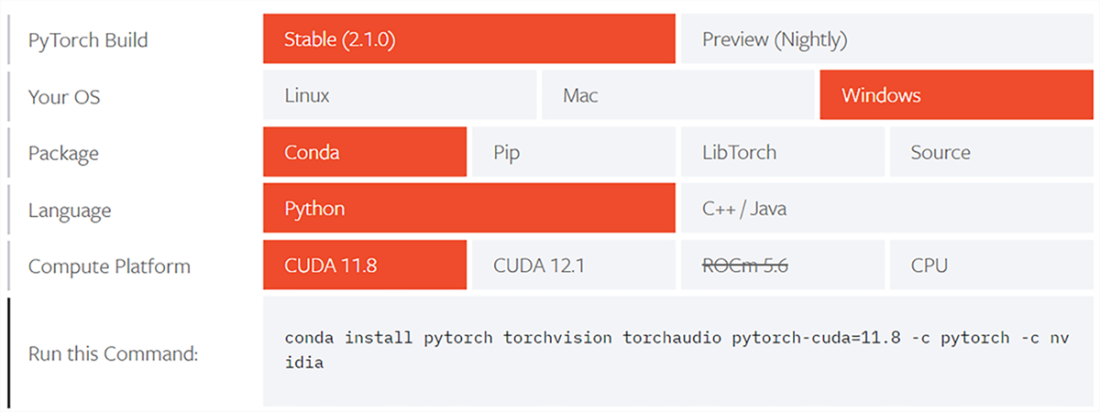
Figure A.2 The interactive interface on how to install PyTorch
FAQ
What is Anaconda and why is it recommended in this book?
Anaconda is an open-source Python distribution that includes a package manager (conda) and environment management. It simplifies installing and managing libraries (via both conda and pip) and makes it easy to isolate project dependencies in separate virtual environments.How do I install Anaconda on Windows, macOS, or Linux?
- Go to https://www.anaconda.com/download/success and download the latest Python 3 installer for your OS.
- Windows: Run the graphical installer and follow prompts.
- macOS: Use the graphical installer (or command-line installer) and follow prompts.
- Linux: Download the bash installer, run it in a terminal, then activate with
source ~/.bashrc.
How can I verify that Anaconda installed correctly?
- Windows/macOS: Search for and launch “Anaconda Navigator”.
- Linux: In a terminal, run
anaconda-navigator. If it opens, Anaconda is installed.
How do I create and activate the book’s virtual environment?
In an Anaconda Prompt (Windows) or terminal (macOS/Linux):
conda create -n dgai
conda activate dgai
Press y when prompted during creation. You should see (dgai) in your prompt after activation.
Why use a separate virtual environment for this book?
The environment isolates the packages used in this book from other projects, preventing version conflicts and unintended interference.How do I install and launch Jupyter Notebook in the dgai environment?
conda activate dgai
conda install notebook
jupyter notebook
Jupyter Notebook will open in your default browser.
How do I check if I have a CUDA‑enabled GPU and find its CUDA version?
CUDA is available on Windows and Linux (not on macOS). In Windows PowerShell or a Linux terminal, run:
nvidia-smi
If you see GPU details, note the CUDA version shown. If you get an error, you don’t have a CUDA‑enabled GPU.
How do I install PyTorch, Torchvision, and Torchaudio without CUDA?
conda activate dgai
conda install pytorch torchvision torchaudio cpuonly -c pytorch
Verify the install:
import torch, torchvision, torchaudio
print(torch.__version__)
print(torchvision.__version__)
print(torchaudio.__version__)
How do I install PyTorch with CUDA using conda?
- Determine your CUDA version via
nvidia-smi. - Visit https://pytorch.org/get-started/locally/, select your OS, Package = Conda, Language = Python, and the matching CUDA version.
- Activate the environment and run the suggested command (example for CUDA 11.8):
conda activate dgai
conda install pytorch torchvision torchaudio pytorch-cuda=11.8 -c pytorch -c nvidia
Verify and check device:
import torch, torchvision, torchaudio
print(torch.__version__)
print(torchvision.__version__)
print(torchaudio.__version__)
print("cuda" if torch.cuda.is_available() else "cpu")
 Learn Generative AI with PyTorch ebook for free
