Overview

6 Using Docker volumes for persistent storage

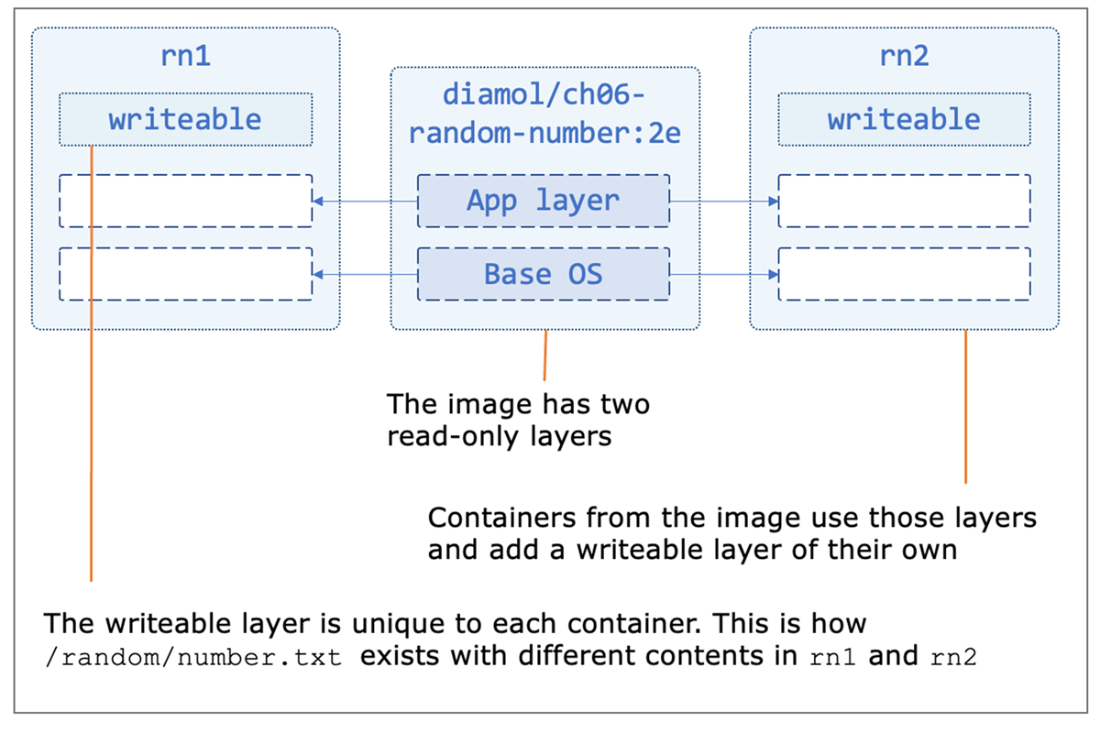
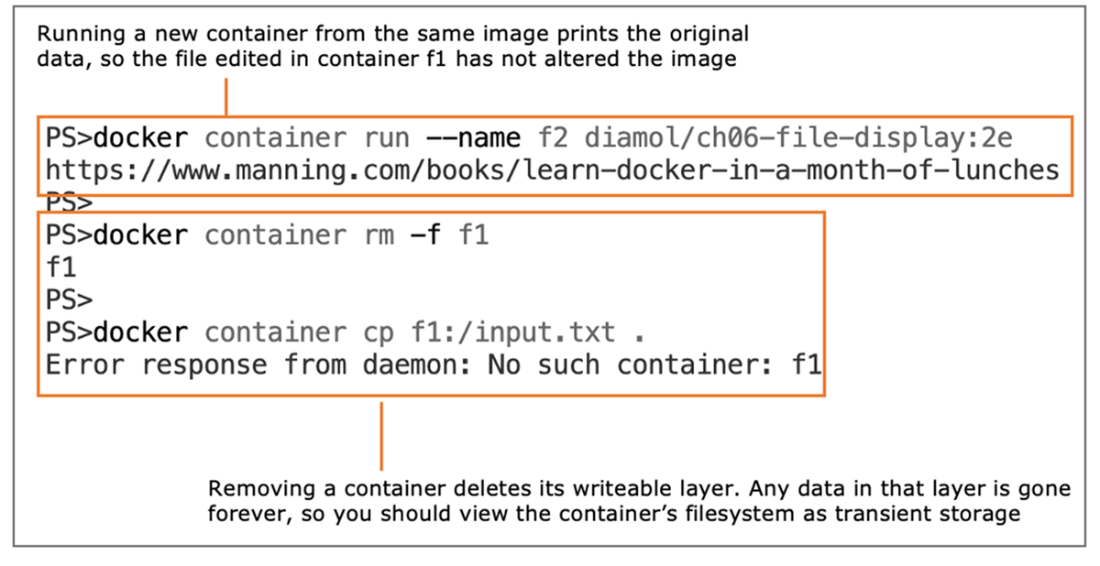
Containers excel at running stateless workloads because every instance starts from the same image and can be replaced with zero-downtime rolling updates. However, many applications include stateful components that read and write data. Inside a container, the filesystem is composed of read-only image layers plus a per‑container writable layer using copy‑on‑write. Edits made at runtime live only in that writable layer and vanish when the container is removed, so any state stored there is transient. To persist data beyond a container’s lifecycle, Docker provides volumes and filesystem mounts that sit outside the container’s ephemeral writable layer.

Docker volumes are storage units managed by Docker and attached to containers as directories. They persist independently of containers, making them ideal for application data that must survive upgrades. Volumes can be created explicitly and attached with run-time flags, or declared in images with the VOLUME instruction so containers default to writing to persistent storage. Although volumes can be shared between containers (for example via the volumes-from flag), many stateful apps expect exclusive access to files, so sharing can introduce correctness issues. Best practice is to use named volumes and reattach them across application versions to preserve data; image authors can include VOLUME as a fail-safe, while operators should explicitly specify named volumes to control where data lives.

Bind mounts map host paths directly into containers, enabling scenarios like using host-backed SSDs/RAID, live-editing source code during development, or injecting configuration via read-only mounts. They are transparent to the app but require careful handling: a mounted directory replaces the target path’s contents (it doesn’t merge with files from the image), single-file mounts merge on Linux but aren’t supported on Windows, and path conventions differ between OSes. Using distributed storage (NFS/SMB/cloud shares) may also limit filesystem features and impact performance. In practice: use the writable layer only for ephemeral caches; prefer Docker volumes for persistent application state; use local bind mounts for development and config overlays; treat distributed bind mounts with caution; and rely on image layers for read-only application content.

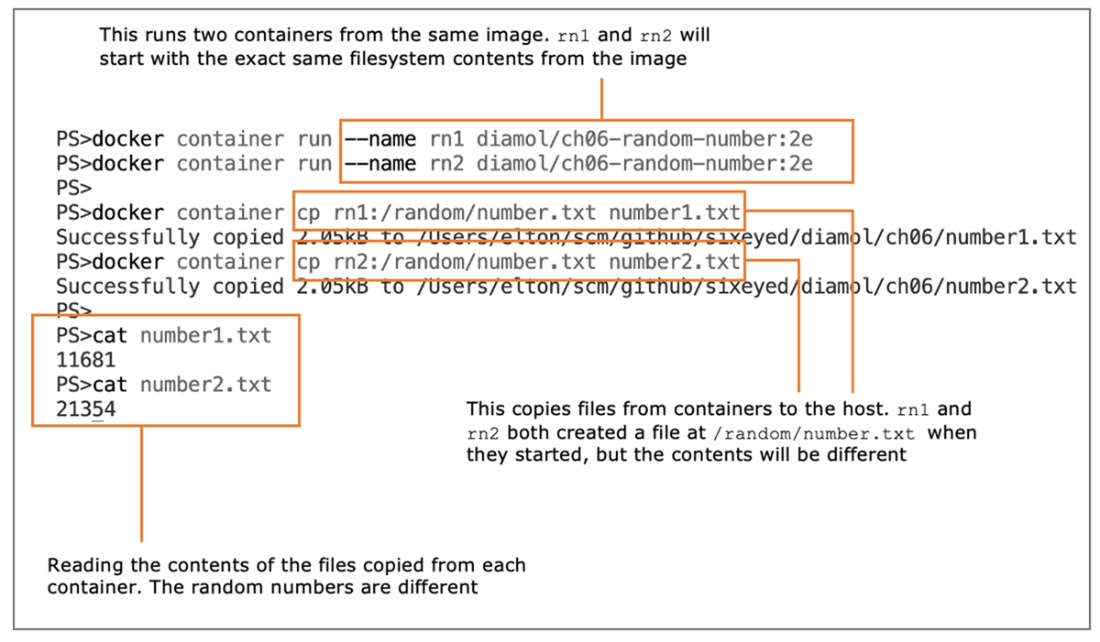
Running containers that write data, and checking the data
The container filesystem is built from image layers and a writeable layer.
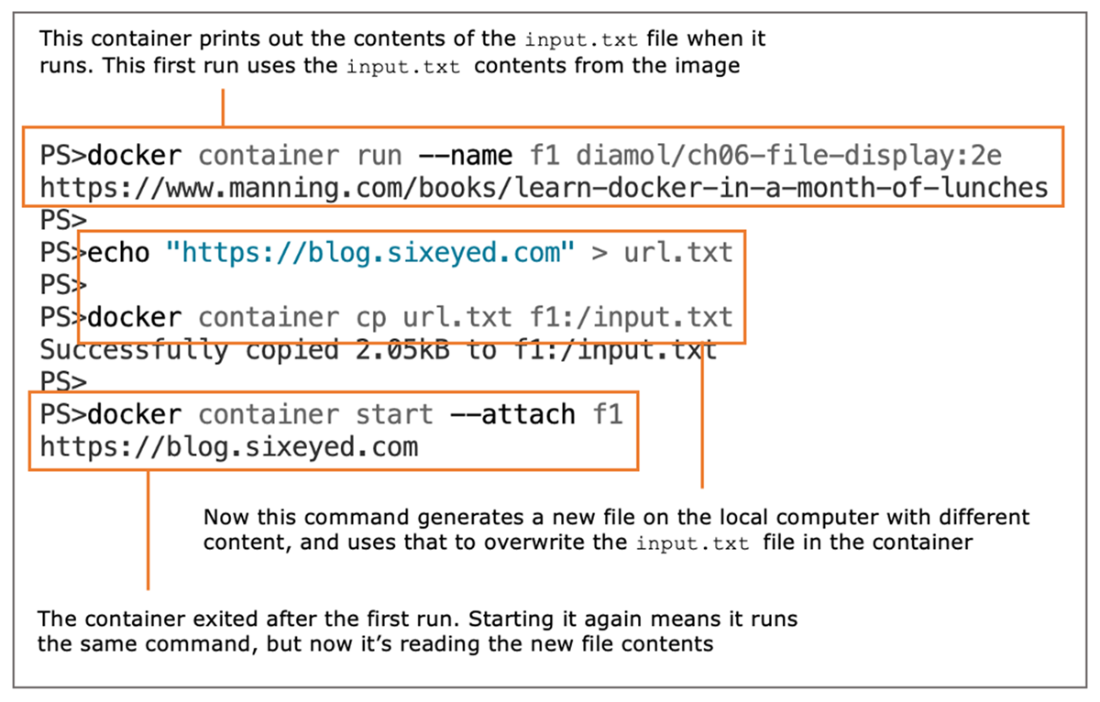
Modifying a container’s state and running it again
Modifying files in a container does not affect the image, and the container’s data is transient.
Running a container with a volume declared in the Dockerfile
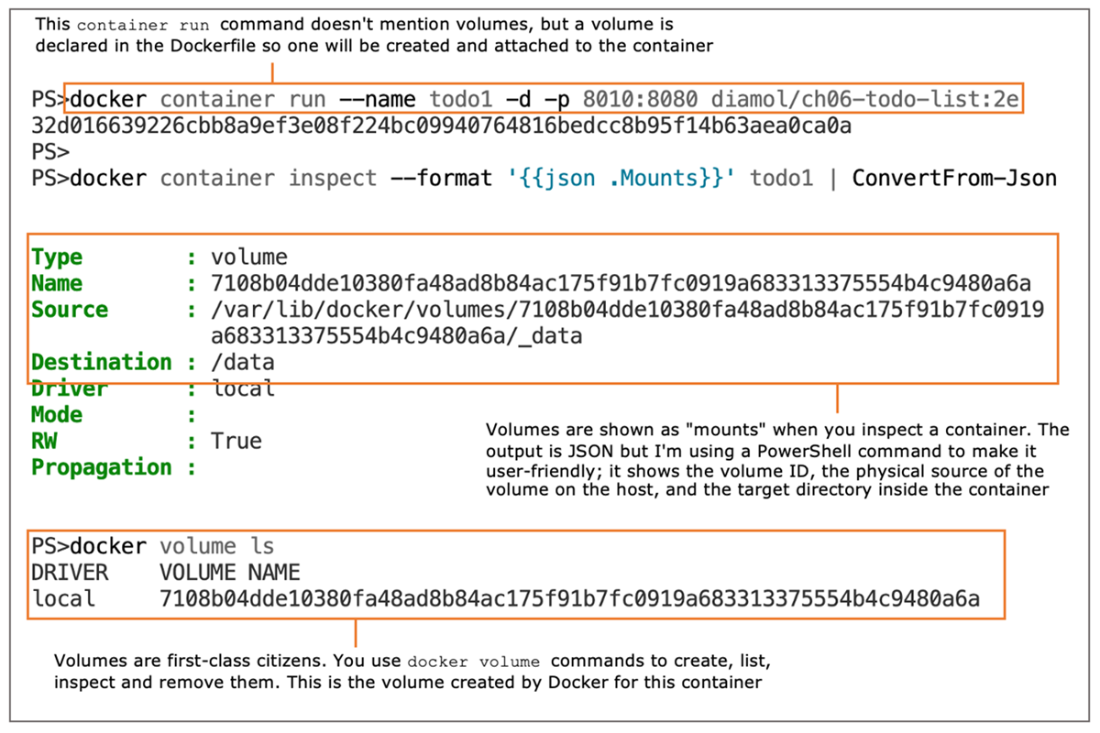
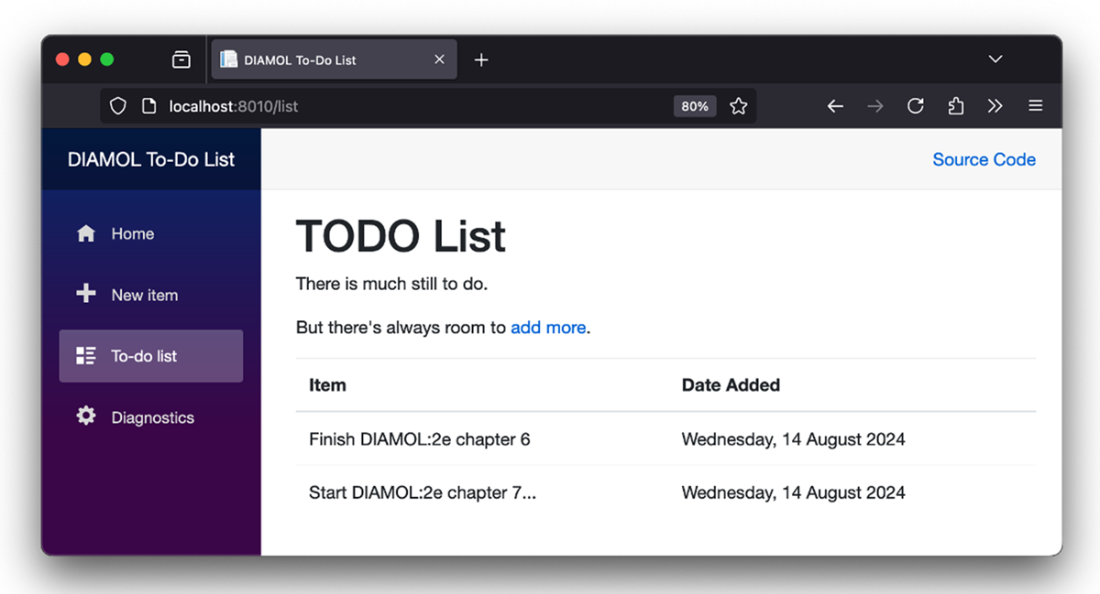
The never-ending to-do list, running in a container using a Docker volume
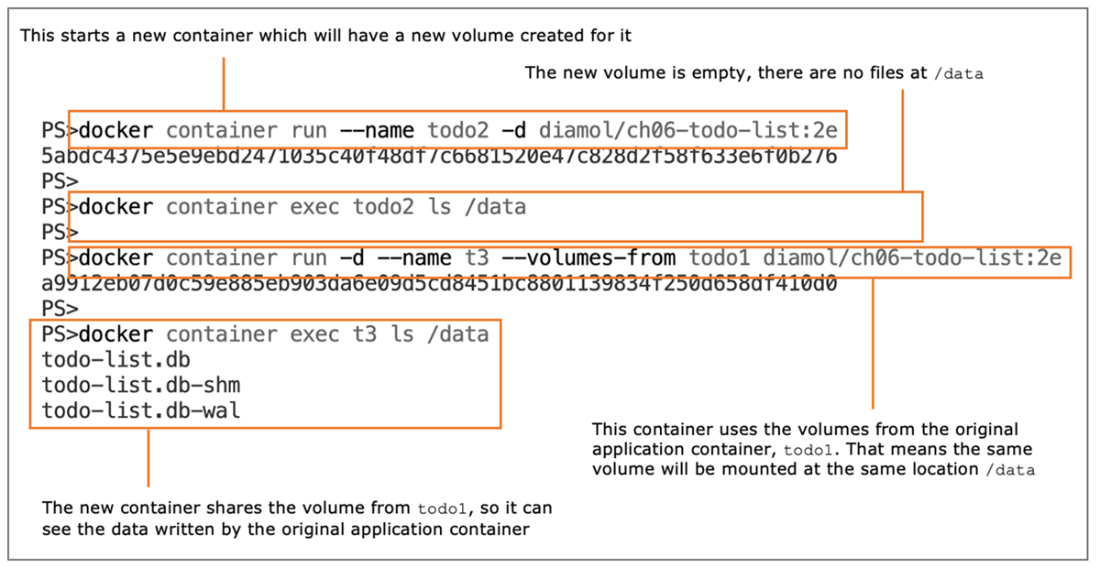
Running containers with dedicated and shared volumes
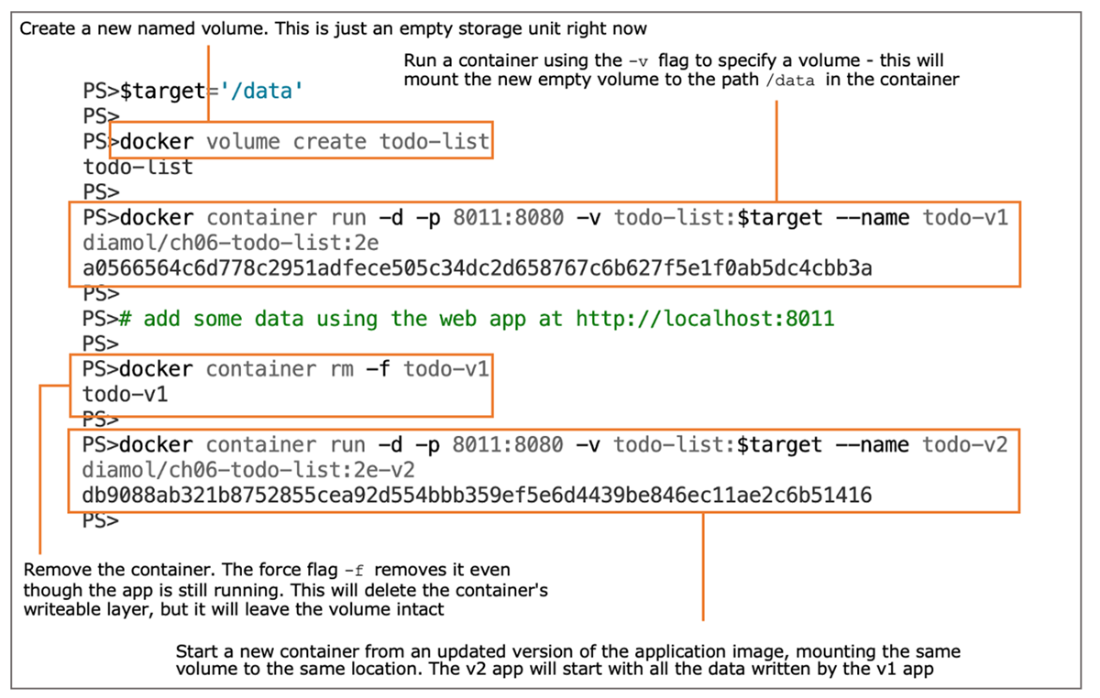
Creating a named volume and using it to persist data between container updates
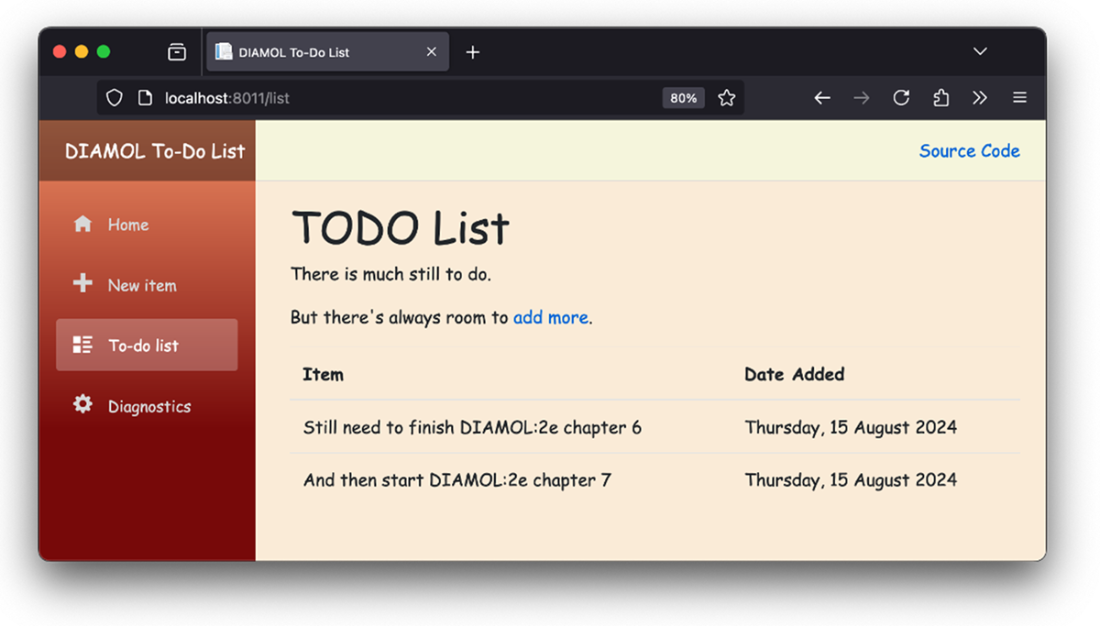
The all-new to-do app UI
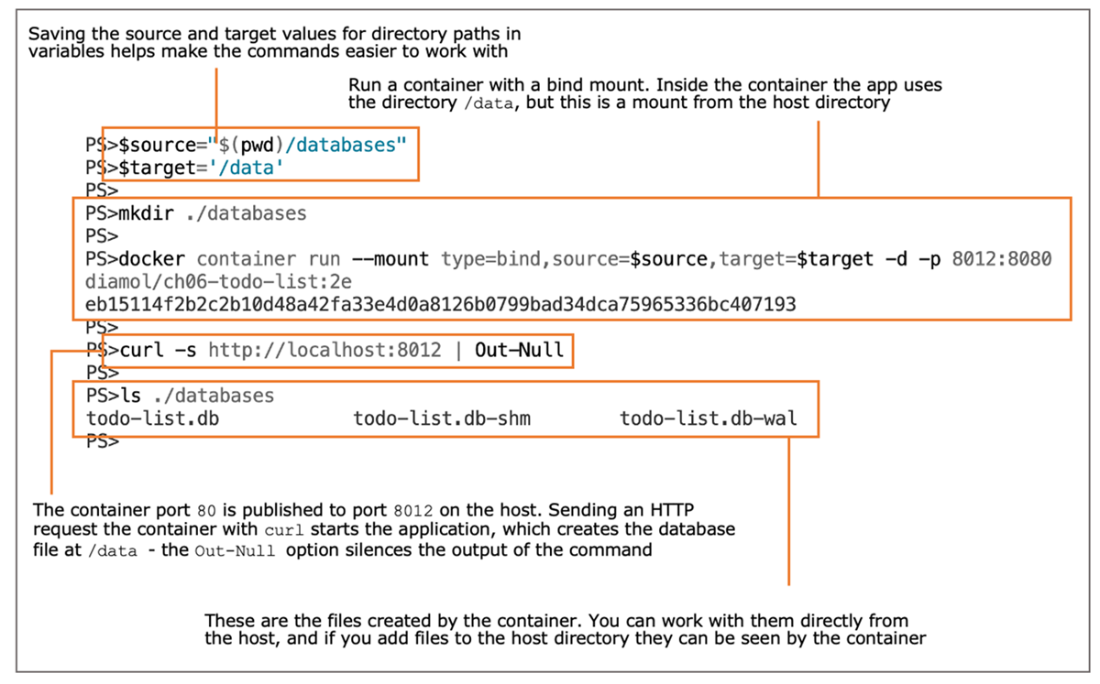
Sharing a directory on the host with a container using a bind mount
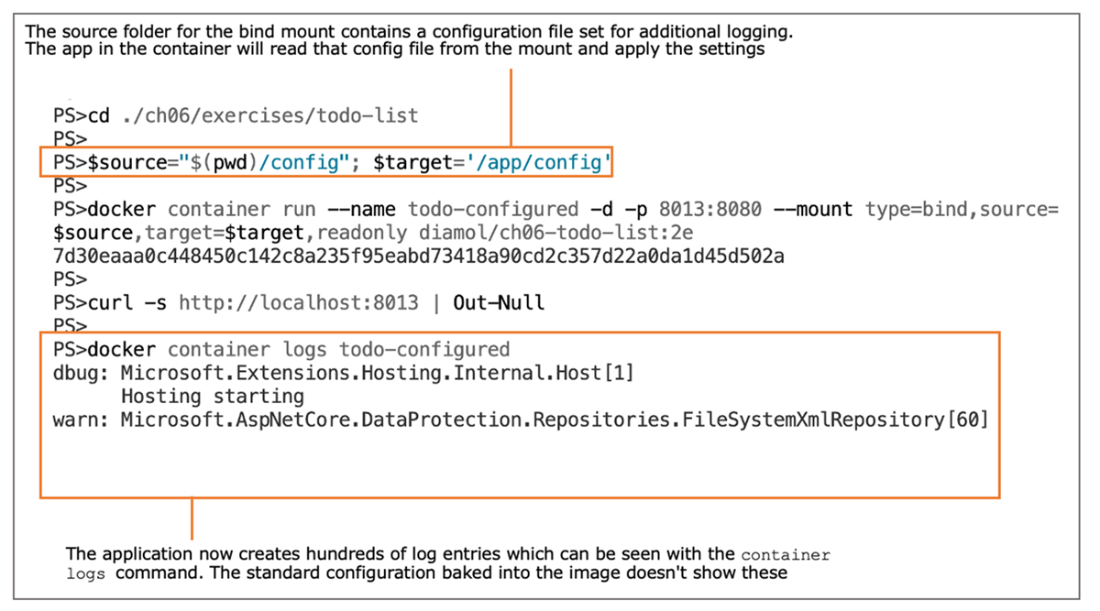
Using bind mounts to load read-only configuration files into containers
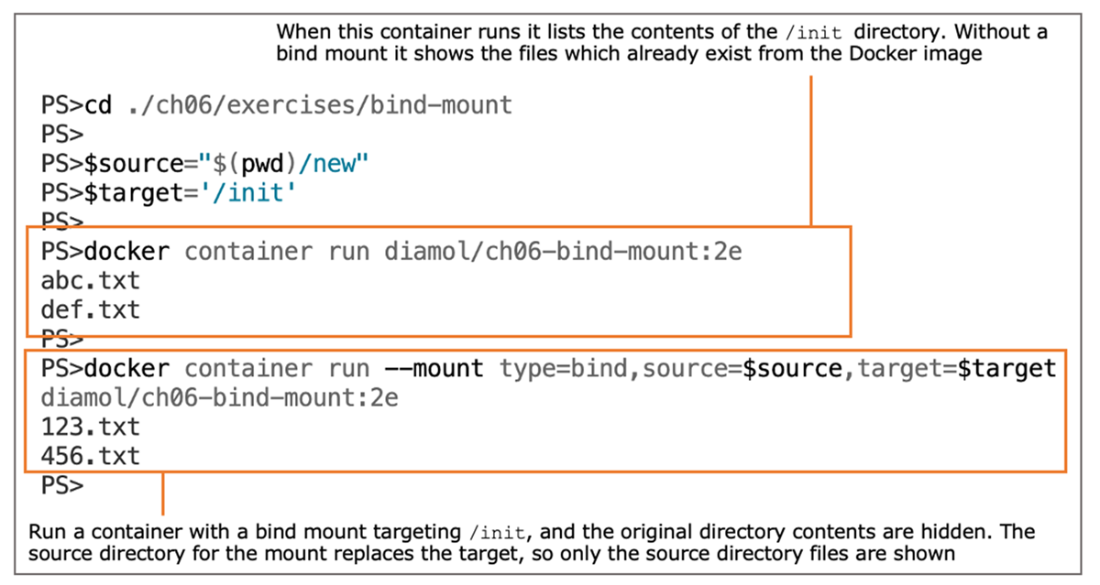
Bind mount directories shadow the target directory if it exists.
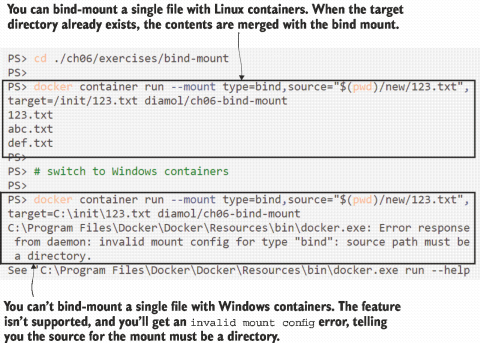
Bind mounts with a single file as the source work on Linux but not on Windows.
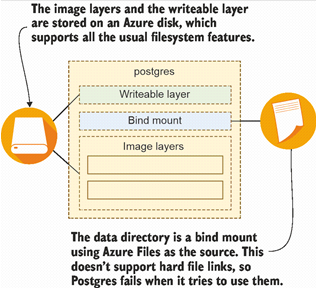
Distributed storage systems may not provide all the usual filesystem features.
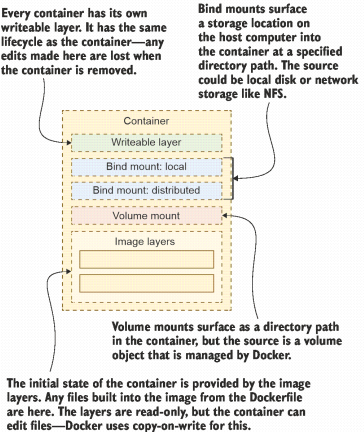
The container filesystem is created from the union of multiple sources.
Lab

We’ll put those pieces together in this lab. It’s back to the good old to-do list app, but this time with a twist. The app will run in a container and start with a set of tasks already created. Your job is to run the app using the same image but with different storage options, so that the to-do list starts off empty, and when you save items they get stored to a Docker volume. The exercises from this chapter should get you there, but here are some hints:

  • Remember it’s docker rm -f $(docker ps -aq) to remove all your existing containers.
  • Start by running the app from diamol/ch06-lab:2e to check out the tasks.
  • Then you’ll need to run a container from the same image with some mounts.
  • The app uses a configuration file—there’s more in there than settings for the log level.

My sample solution is on the book’s GitHub repository if you need it, but you should try to work through this one because container storage can trip you up if you haven’t had much experience. There are a few ways to solve this. My solution is here: https://github.com/sixeyed/diamol/blob/2e/ch06/lab/README.md.

FAQ

Why isn’t data inside a Docker container permanent?Because a container’s filesystem is built from read-only image layers plus a per-container writable layer. The writable layer is created when the container starts and is deleted when the container is removed, so any changes stored there are lost on removal. Docker uses copy-on-write, so edits to files from image layers are actually stored in that writable layer.
How do I persist application data across container restarts and upgrades?Use a Docker volume. Create a named volume (e.g., docker volume create mydata) and run the container with -v mydata:/data (or --mount type=volume,source=mydata,target=/data). Start new versions of the container with the same volume to keep the data.
What’s the difference between a Dockerfile VOLUME instruction and the -v/--mount flags?VOLUME in the Dockerfile ensures the container gets a persistent (anonymous) volume if you don’t specify one at runtime. The -v/--mount flags at docker run explicitly attach a named volume or bind mount and can override any VOLUME declared in the image. Image authors add VOLUME as a fail-safe; operators should prefer named volumes explicitly.
When should I use a bind mount instead of a volume?Use bind mounts to map a host directory into a container (e.g., for live-editing code or injecting configuration), or to leverage existing host/storage arrays. Use volumes for application data you want Docker to manage and persist independent of the container lifecycle.
Can multiple containers share the same data?Yes. You can attach the same named volume to multiple containers or use --volumes-from to inherit another container’s volumes. Be cautious with apps (like databases) that expect exclusive access; concurrent writers can corrupt data or fail.
What happens if I mount over a directory that already has files from the image?The mount shadows the directory. The source of the mount replaces the target path, so files from the image at that location are hidden while the mount is active (they’re not merged).
Are there OS-specific differences for mounts I should know about?Yes. Use OS-appropriate paths (/data on Linux, C:\data on Windows). Single-file bind mounts into a directory work on Linux but aren’t supported on Windows Server containers. Also, Dockerfile paths like /data map to C:\data on Windows only for image contents—not for mounts.
How can I mount a host directory as read-only for configuration?Use a read-only bind mount, for example: --mount type=bind,source=/host/config,target=/app/config,readonly. This lets the container read config from the host without being able to modify it.
What are the risks or limitations of using network/distributed storage with bind mounts?Feature gaps and performance. Some filesystems (NFS/SMB, cloud file shares) may lack operations your app needs (e.g., hard links), causing failures, and network latency can severely degrade I/O-heavy apps. Test your app with the target storage.
What are best practices for container storage?- Writable layer: use for transient cache only; it’s deleted with the container. - Volumes: use for persistent app data; attach the same named volume across upgrades. - Local bind mounts: great for development and host–container file sharing. - Distributed bind mounts: use cautiously; prefer read-only for configs or shared caches. - Image layers: keep data out of images; layers are read-only and provide initial filesystem state.

pro $24.99 per month

  • access to all Manning books, MEAPs, liveVideos, liveProjects, and audiobooks!
  • choose one free eBook per month to keep
  • exclusive 50% discount on all purchases
  • renews monthly, pause or cancel renewal anytime

lite $19.99 per month

  • access to all Manning books, including MEAPs!

team

5, 10 or 20 seats+ for your team - learn more


choose your plan

team

monthly
annual
$49.99
$499.99
only $41.67 per month
  • five seats for your team
  • access to all Manning books, MEAPs, liveVideos, liveProjects, and audiobooks!
  • choose another free product every time you renew
  • choose twelve free products per year
  • exclusive 50% discount on all purchases
  • renews monthly, pause or cancel renewal anytime
  • renews annually, pause or cancel renewal anytime
  • Learn Docker in a Month of Lunches, Second Edition ebook for free

choose your plan

team

monthly
annual
$49.99
$499.99
only $41.67 per month
  • five seats for your team
  • access to all Manning books, MEAPs, liveVideos, liveProjects, and audiobooks!
  • choose another free product every time you renew
  • choose twelve free products per year
  • exclusive 50% discount on all purchases
  • renews monthly, pause or cancel renewal anytime
  • renews annually, pause or cancel renewal anytime
  • Learn Docker in a Month of Lunches, Second Edition ebook for free
choose your plan

team

monthly
annual
$49.99
$499.99
only $41.67 per month
  • five seats for your team
  • access to all Manning books, MEAPs, liveVideos, liveProjects, and audiobooks!
  • choose another free product every time you renew
  • choose twelve free products per year
  • exclusive 50% discount on all purchases
  • renews monthly, pause or cancel renewal anytime
  • renews annually, pause or cancel renewal anytime
  • Learn Docker in a Month of Lunches, Second Edition ebook for free