3 Building your own Docker images
This chapter moves from running existing containers to building your own Docker images, introducing the essentials of Dockerfile syntax and repeatable patterns you’ll use to containerize applications. It frames images as portable, configurable units that run consistently across environments, and emphasizes how Docker stores images as layers that can be reused and cached. The overarching goal is to create images that are easy to configure at runtime and efficient to build, ship, and run.
The chapter begins with a simple “web-ping” app to demonstrate pulling images from a registry and running containers, inspecting logs, and using environment variables for configuration. It then walks through writing a first Dockerfile using core instructions—FROM, ENV, WORKDIR, COPY, and CMD—setting sensible defaults while allowing overrides at runtime with --env. You learn how to build an image with docker image build, understand the build context, tag and list images, and run containers from your own image with different configuration values, confirming that the same binaries can behave differently based on environment variables.
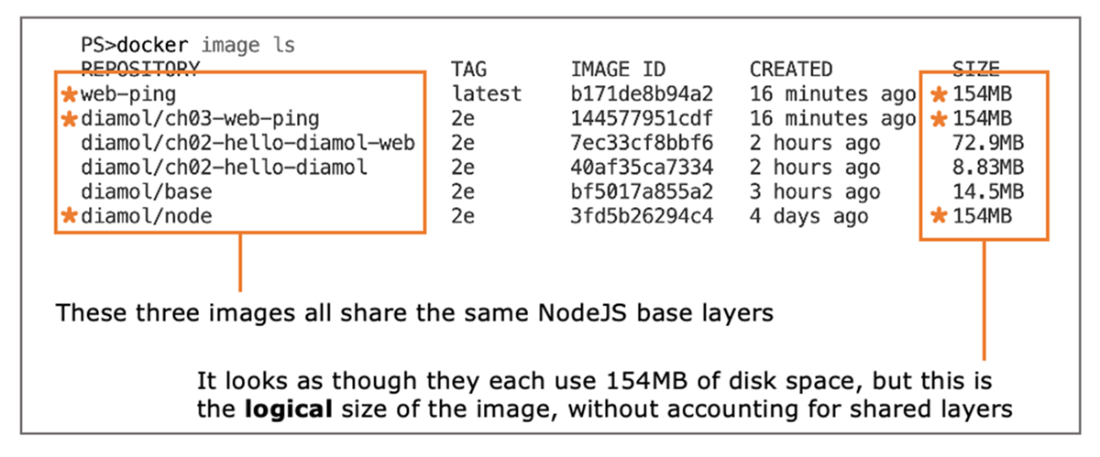
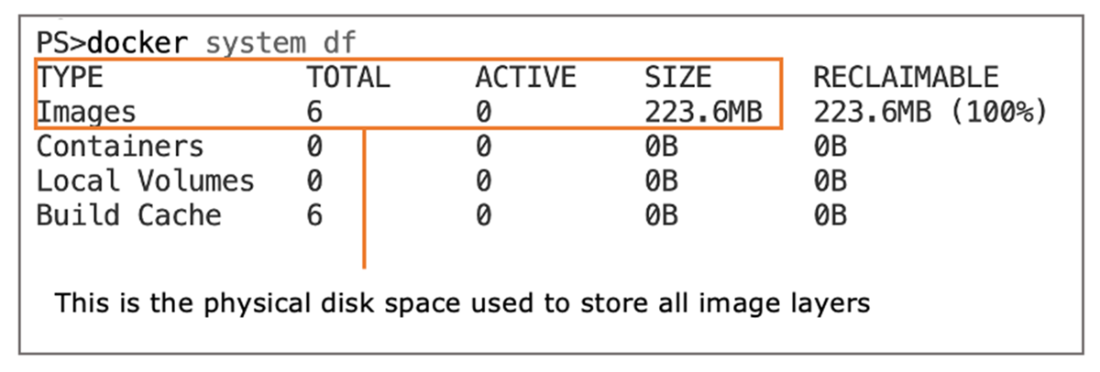
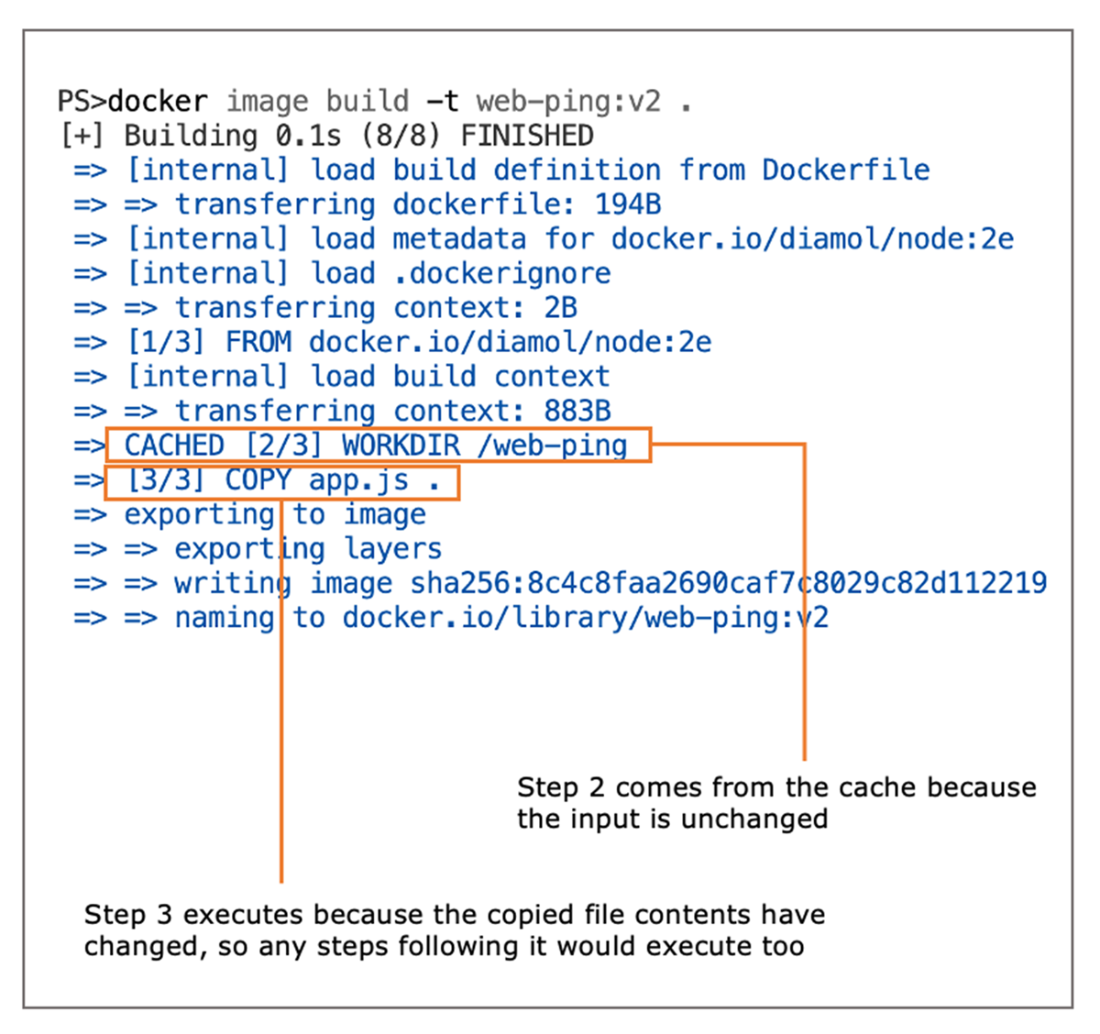
With the fundamentals in place, the chapter explains how images are composed of read-only layers, how layers are shared across images and containers, and why the “size” shown in image listings is logical rather than actual on-disk usage (which you can inspect with system commands). It details the layer cache, how hashes determine cache hits, and how changes break the cache for subsequent steps. To optimize builds, you reorder instructions so rarely changing steps come first, combine ENV settings, and place CMD early, which drives faster, smaller, and more network-efficient builds. The key takeaways are to externalize configuration for portability and to structure Dockerfiles to maximize cache reuse so the same, tested image can be promoted unchanged from development to production.
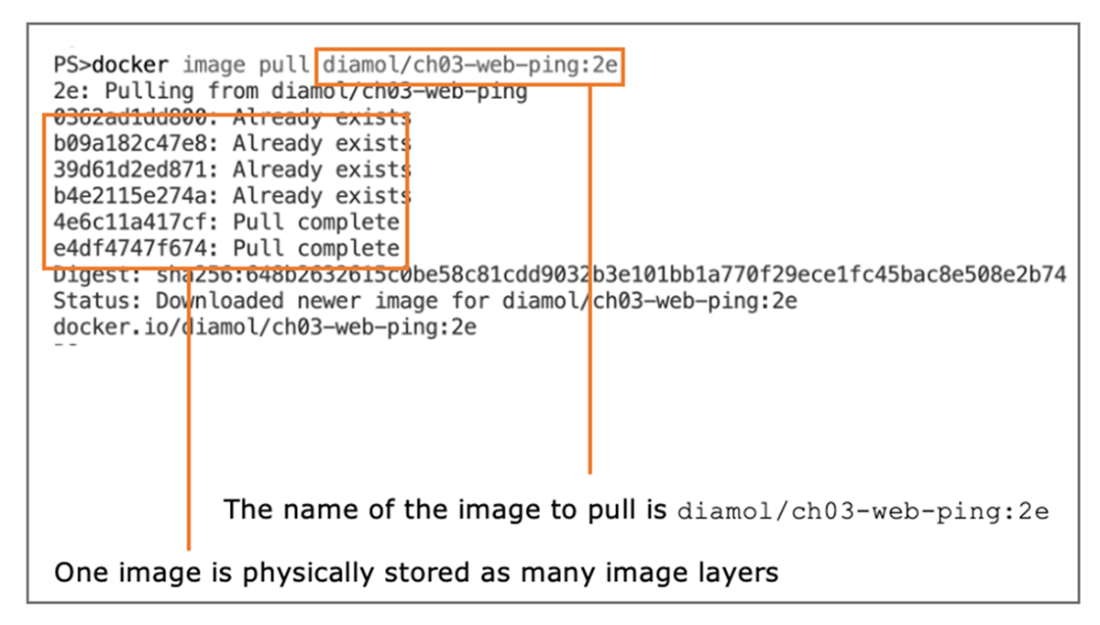
Pulling an image from Docker Hub
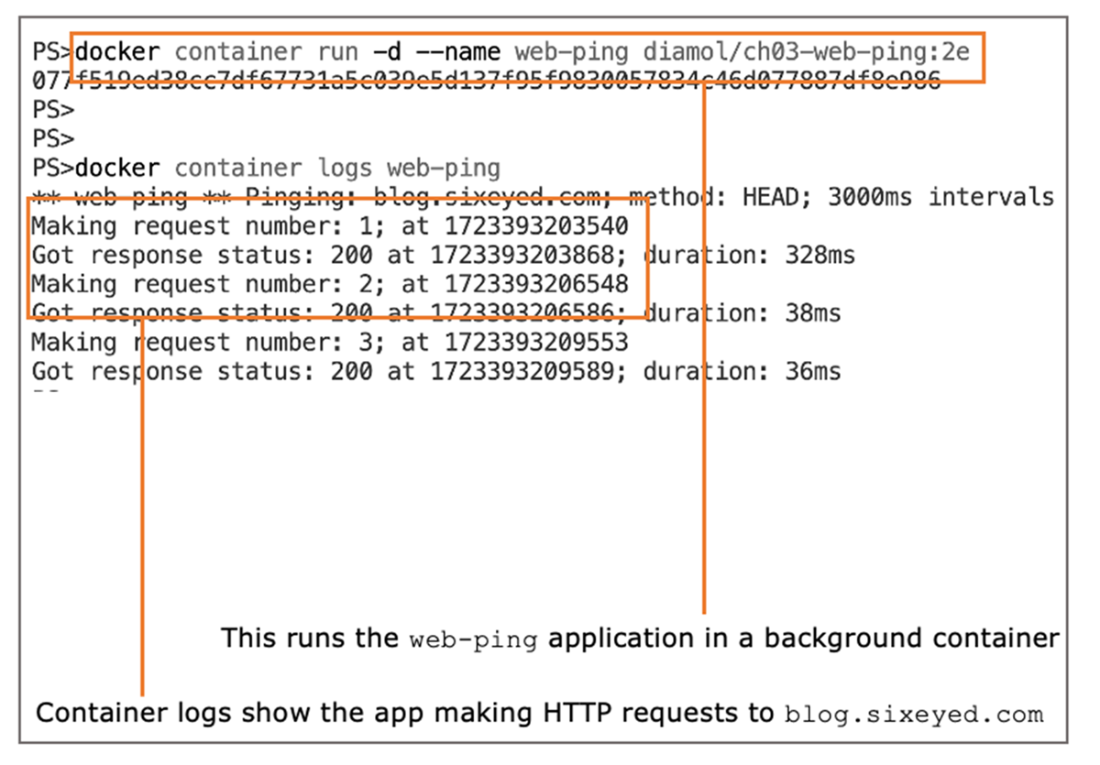
The web-ping container in action, sending constant traffic to my blog
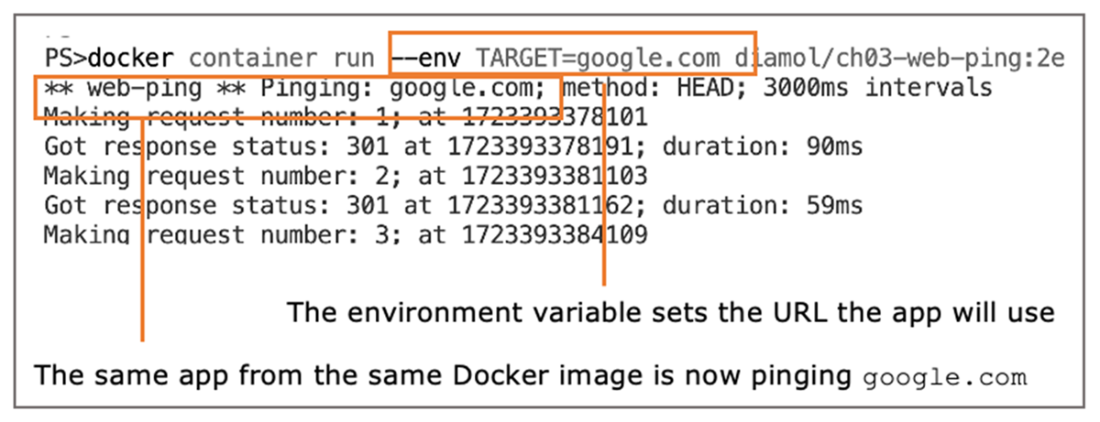
A container from the same image, sending traffic to Google
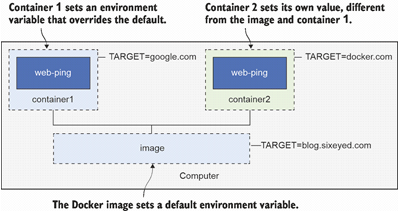
Environment variables in Docker images and containers
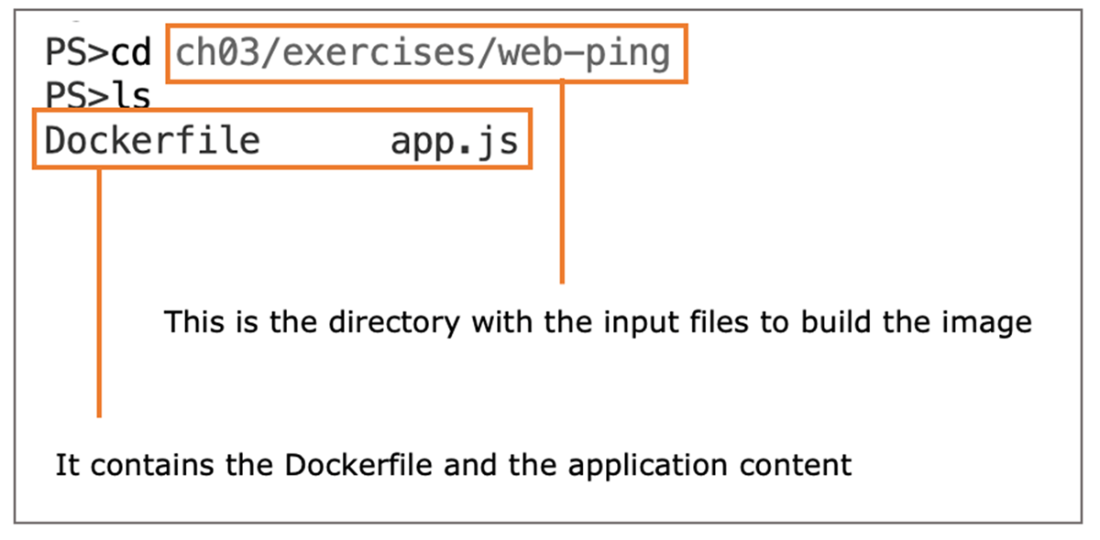
The content you need to build the Docker image
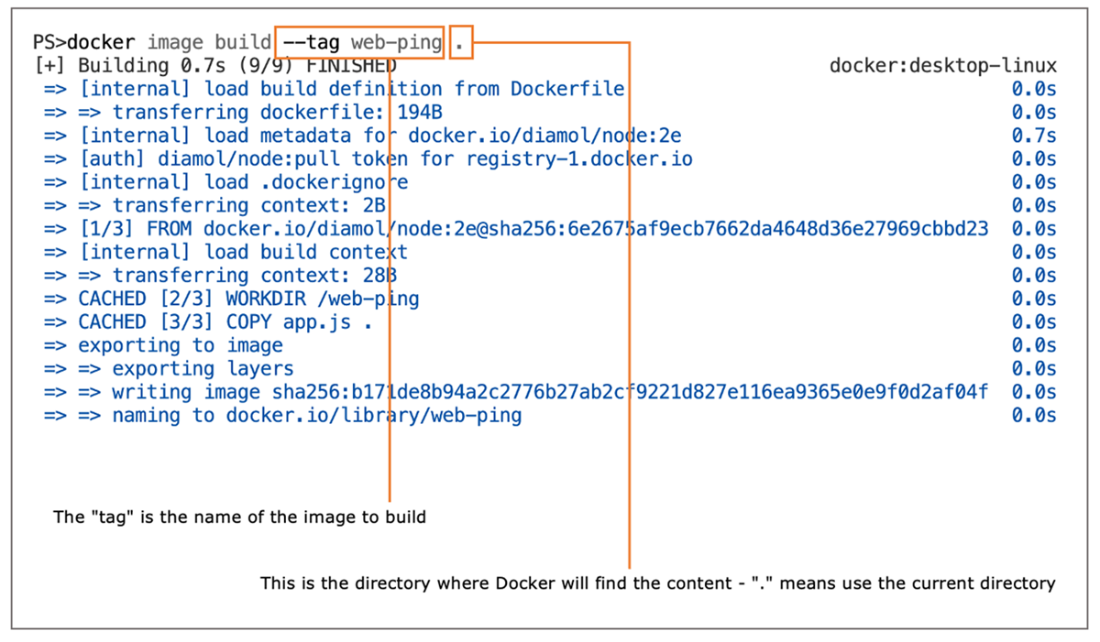
Output from building the web-ping Docker image
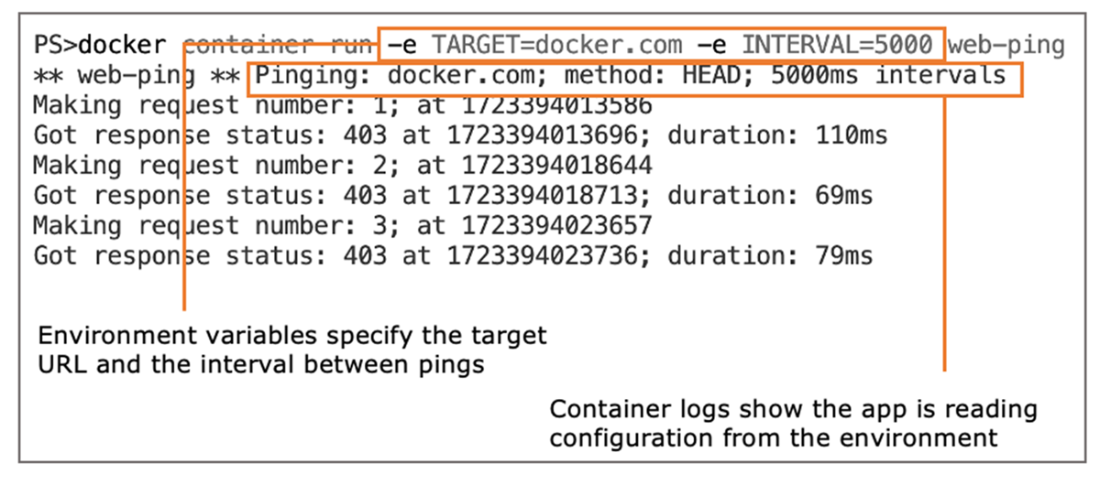
Running the web-ping container from your own image
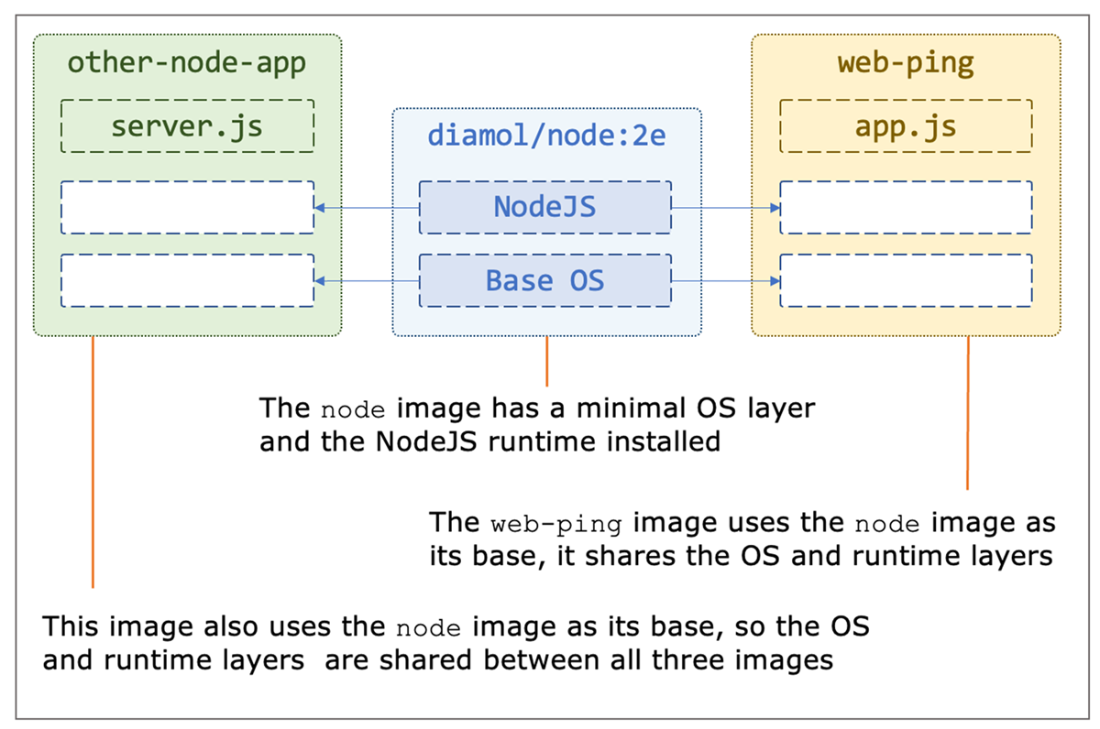
How image layers are logically built into Docker images
Listing images to see their sizes
Checking Docker’s disk space usage
Building an image where layers can be used from the cache
Lab
Okay, it’s lab time. The goal here is to answer this question: how do you produce a Docker image without a Dockerfile? The Dockerfile is there to automate the deployment of your app, but you can’t always automate everything. Sometimes you need to run the application and finish off some steps manually, and those steps can’t be scripted.
This lab is a much simpler version of that. You’re going to start with an image on Docker Hub: diamol/ch03-lab:2e. That image has a file at the path /diamol/ch03.txt. You need to update that text file and add your name at the end. Then produce your own image with your changed file. You’re not allowed to use a Dockerfile.
There’s a sample solution on the book’s GitHub repository if you need it. You’ll find it here: https://github.com/sixeyed/diamol/tree/2e/ch03/lab.
Here are some hints to get you going:
- Remember that the -it flags let you run to a container interactively.
- The filesystem for a container still exists when it is exited.
- There are lots of commands you haven’t used yet. docker container --help will show you two that could help you solve the lab.
FAQ
What is a Dockerfile and which core instructions are used in this chapter?
A Dockerfile is a script of instructions that Docker executes to produce an image. In this chapter you use these core instructions:
- FROM — sets the base image (e.g., diamol/node:2e)
- ENV — defines default environment variables
- WORKDIR — sets/creates the working directory inside the image
- COPY — copies files from your host into the image
- CMD — command that runs when a container starts
How do I pull and run the sample web-ping image from Docker Hub?
Pull the image and run a container:
docker image pull diamol/ch03-web-ping:2e
docker container run -d --name web-ping diamol/ch03-web-ping:2e
docker container logs web-ping
Docker Hub is the default public registry where the image is stored.
How do environment variables configure the app, and how do I override defaults?
The image sets default ENV values (e.g., TARGET, METHOD, INTERVAL). You can override them at run time:
docker container run -e TARGET=google.com -e INTERVAL=5000 web-ping
Each container gets its own environment values, independent of the host and other containers.
How do I build my own web-ping image?
From the folder that contains Dockerfile and app.js, run:
docker image build --tag web-ping .
Then start a container from your image:
docker container run -e TARGET=docker.com -e INTERVAL=5000 web-ping
What is the build context, and why is the trailing dot important?
The build context is the directory Docker can read files from during build. The trailing dot (.) tells Docker to use the current directory as the context. Without it, Docker won’t know where to find Dockerfile and files you COPY.
What are image layers, and how can I see them?
Docker stores images as a stack of read-only layers. Layers can be shared across images and containers. Inspect layers and the commands that created them with:
docker image history web-ping
Why does docker image ls show large sizes even when layers are shared?
docker image ls shows logical sizes (as if no sharing). Actual disk use is smaller because shared layers are stored once. See real usage with:
docker system df
How does the build cache work, and how can I optimize my Dockerfile?
Docker caches each instruction’s output keyed by the instruction and file contents. If those are unchanged, the cached layer is reused. To optimize:
- Put rarely changing instructions (e.g., CMD, base ENV) earlier
- Put frequently changing steps (e.g., COPY app code) last
- Combine related ENV settings into one instruction
This keeps most steps cached when app code changes.
Why are image layers read-only, and what benefit does that provide?
Layers are immutable so they can be safely shared across images and containers without side effects. This enables significant disk savings and faster pulls/builds because unchanged layers are reused.
Build/run troubleshooting for this chapter
- Ensure Docker Engine/Desktop is running
- Run build from the directory with Dockerfile and app.js
- Include the trailing dot in build: docker image build -t web-ping .
- Windows to Linux builds may show file permission warnings—these can be ignored
- If a container exits immediately, check logs: docker container logs NAME

 Learn Docker in a Month of Lunches, Second Edition ebook for free
