2 Understanding Docker and running Hello World
This chapter eases you into Docker with a hands-on, cross-platform tour of containers. You begin by running a simple “Hello World” application to see Docker fetch an image, start a container, and print output, introducing the core build, share, run workflow. Along the way, you observe how images are reused on subsequent runs, why outputs differ by host OS and CPU, and how Docker delivers portability so the same packaged app behaves consistently on any machine that supports Docker.
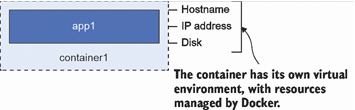
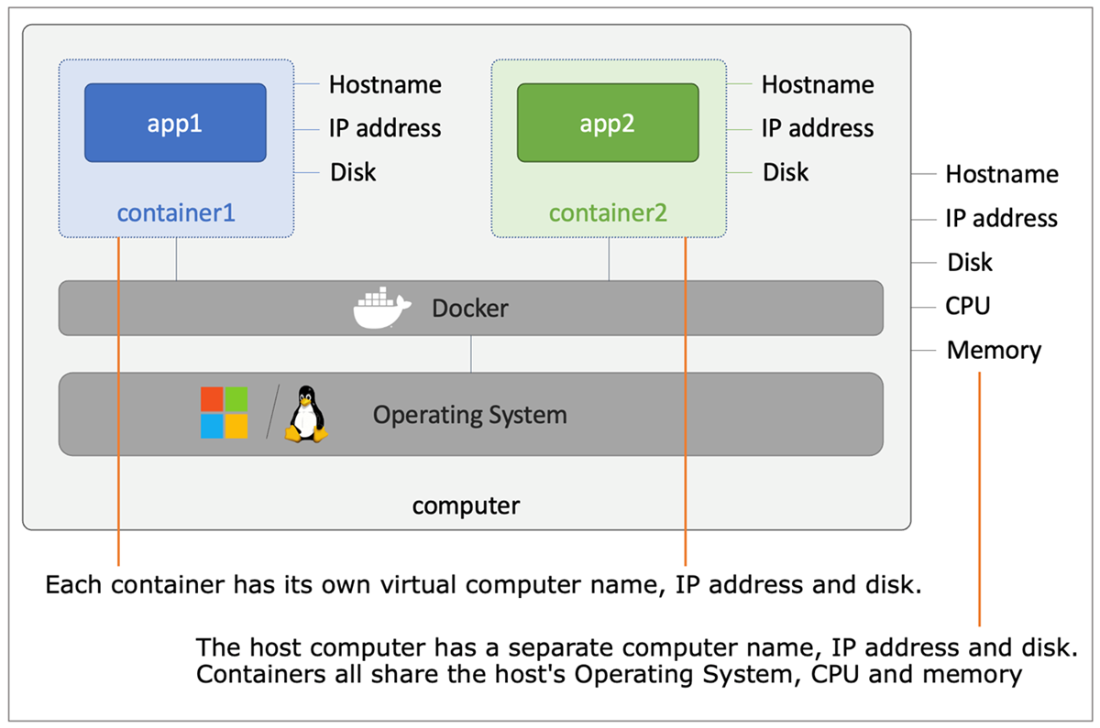
The chapter then clarifies what a container is: a boxed environment with its own virtual hostname, IP, and filesystem, all managed by Docker while sharing the underlying OS, CPU, and memory of the host. This design solves the traditional tension between isolation and density—unlike VMs that each carry a full OS, containers are lightweight, start fast, and let you run many more workloads on the same hardware. You also learn key lifecycle truths (containers run only while their process runs; exited containers persist on disk) and practice day-to-day operations such as connecting to an interactive shell, listing and inspecting containers, viewing logs, and checking running processes—using the same commands regardless of what app or OS is inside the container.
Finally, you host a simple website in a detached container and publish ports so host traffic is forwarded into the container, highlighting Docker’s virtual networking model and how to monitor and clean up containers. The chapter closes with a clear view of Docker’s architecture: the always-on Engine exposes a REST API, the CLI is a client of that API, and both local and remote engines can be managed uniformly. Under the hood Docker relies on containerd and adheres to open OCI standards, reinforcing that containers are portable, efficient, and not tied to a single vendor’s platform.
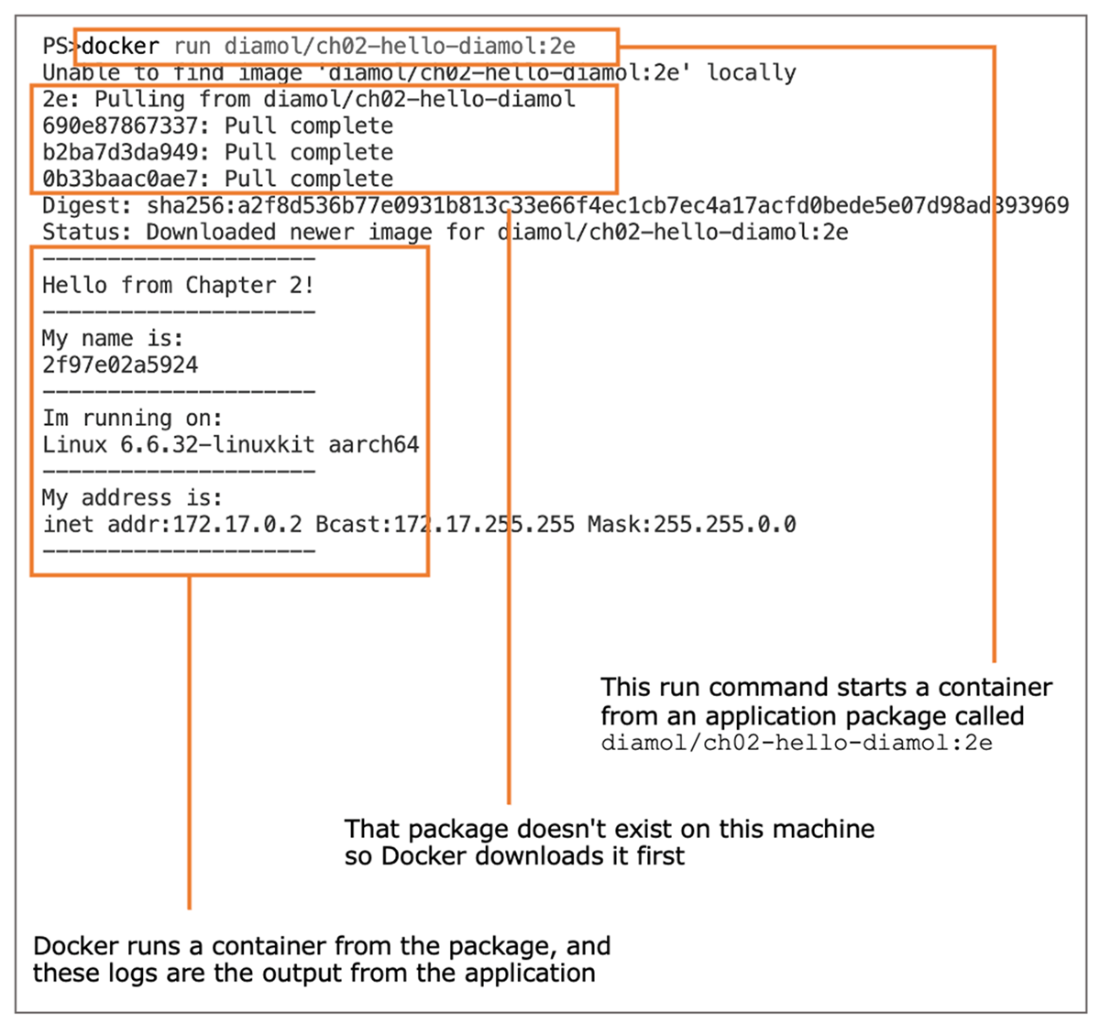
The output from running the Hello World container. You can see Docker downloading the application package (called an image), running the app in a container, and showing the output.
An app inside the container environment
Multiple containers on one computer share the same OS, CPU, and memory.
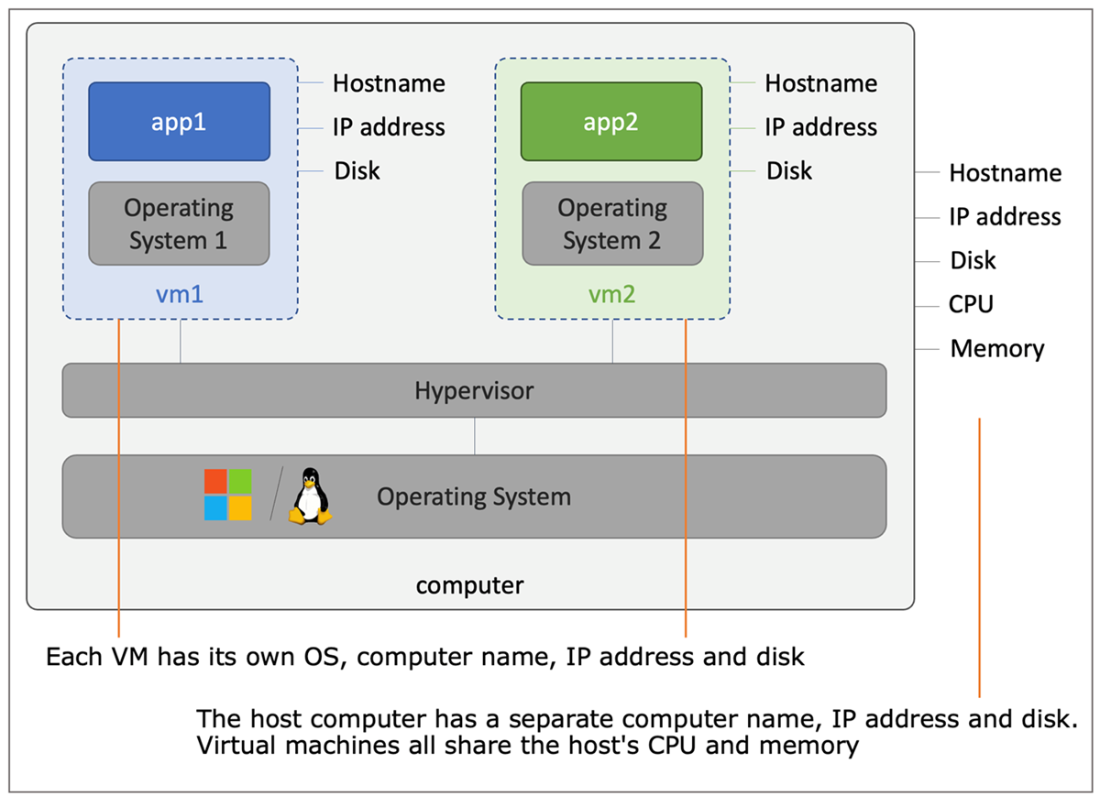
Multiple VMs on one computer each have their own OS.
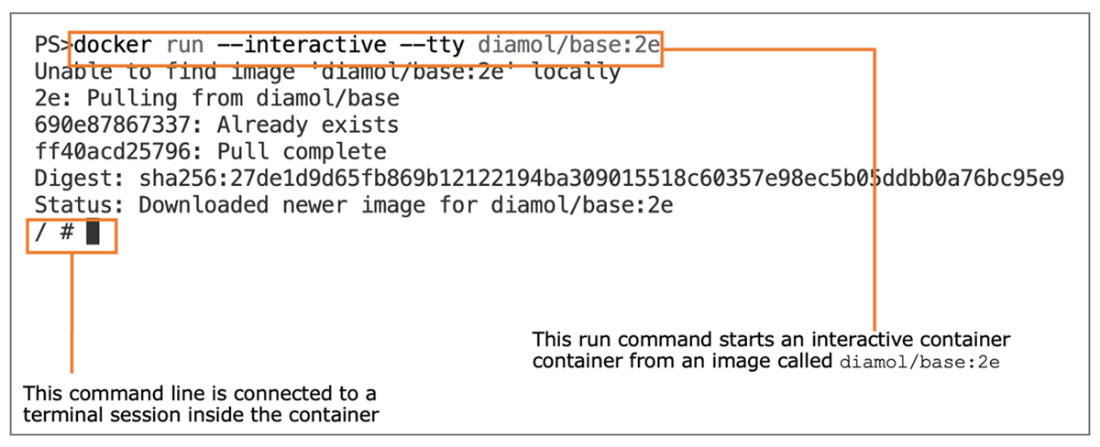
Running an interactive container and connecting to the container’s terminal.
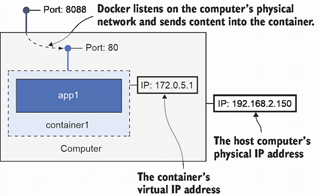
The physical and virtual networks for computers and containers
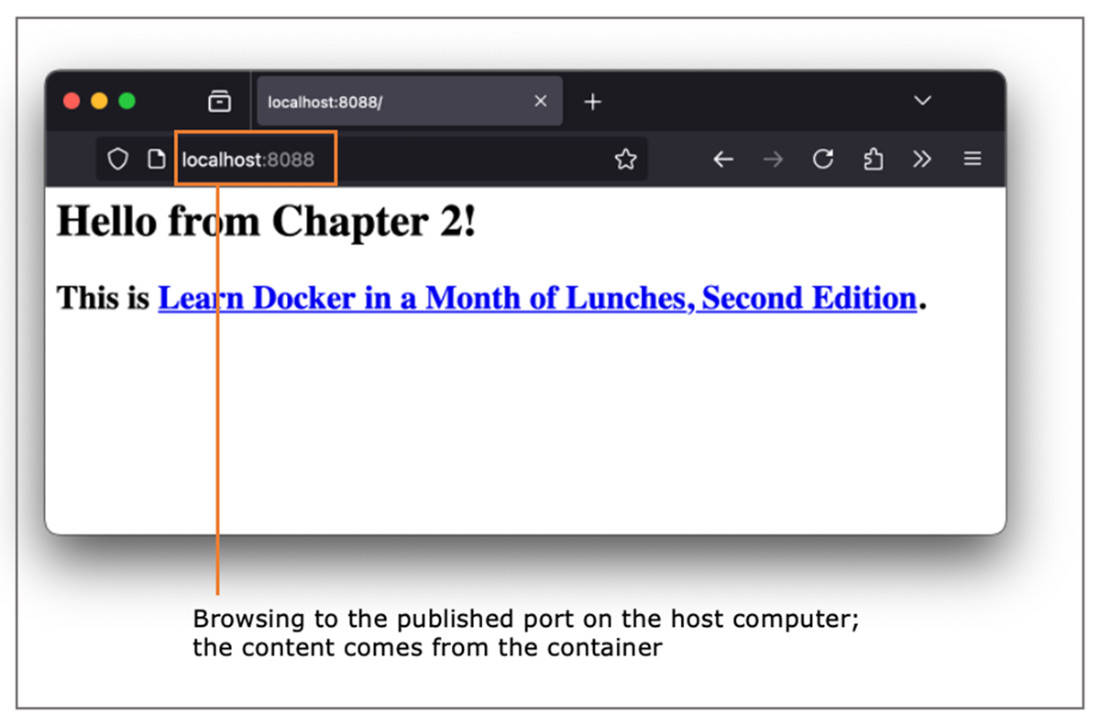
The web application, served from a container on the local machine
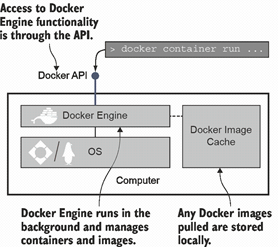
The components of Docker
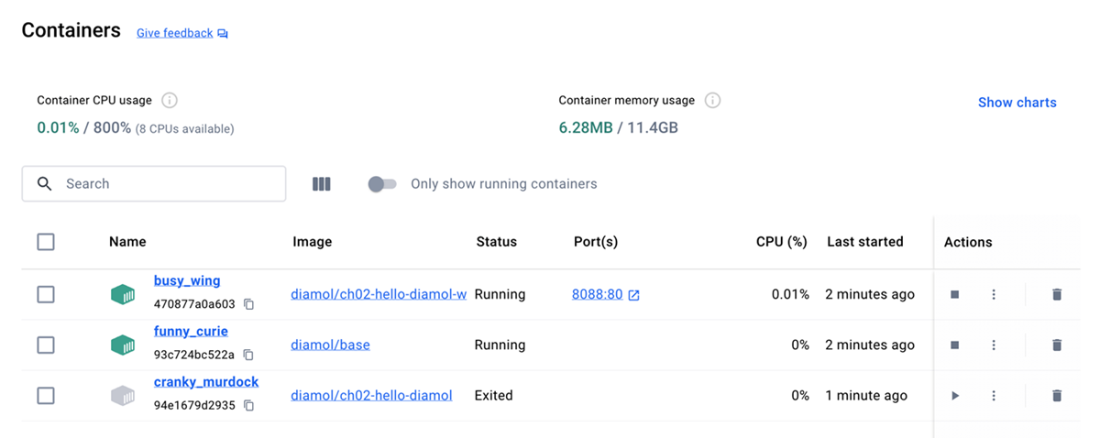
The container dashboard in Docker Desktop
Lab: Exploring the container filesystem
This is the first lab in the book, so here’s what it’s all about. The lab sets you a task to achieve by yourself, which will help you cement what you’ve learned in the chapter. I will give you some guidance and a few hints, but mostly, this is about you going further than the prescriptive Try It Now exercises and finding your own way to solve the problem.
Every lab has a sample solution on the book’s GitHub repository. It’s worth spending some time trying it out yourself, but if you want to check my solution, you can find it here: https://github.com/sixeyed/diamol/tree/2e/ch02/lab.
Here we go: your task is to run the website container from this chapter but replace the index.html file so that when you browse to the container, you see a different home page (you can use any content you like). Remember that the container has its own filesystem and that, in this application, the website is serving files that are on the container’s filesystem.
Here are some hints to get you going:
- You can run docker container to get a list of all the actions you can perform on a container.
- Add --help to any docker command, and you’ll see more detailed help text.
- In the diamol/ch02-hello-diamol-web:2e Docker image, the content from the website is served from the directory /usr/local/apache2/htdocs (that’s C:\usr\local\apache2\htdocs on Windows).
Good luck :)
FAQ
What happens when I run: docker run diamol/ch02-hello-diamol:2e?
Docker checks its local image cache. If the image isn’t present, it pulls (downloads) it, then creates a container from that image and runs the image’s default command. You’ll see output like “Hello from Chapter 2!” plus details such as the container’s hostname, the OS/architecture, and an IP address. On subsequent runs, Docker reuses the local image and starts the container immediately.What is a Docker image and why does it have a tag like :2e?
An image is a packaged application with everything it needs to run (binaries, scripts, config). The name is repository/image:tag. For example, diamol/ch02-hello-diamol:2e uses the “2e” tag to identify a specific version (second edition). Tags let you control exactly which version you run.Why do the container hostname and IP address change between runs?
Each container gets a unique ID and a virtual network identity when it starts. Docker assigns a new hostname (derived from the container ID) and an IP on a Docker-managed virtual network. These values are independent per run, so they can differ each time.What exactly is a container?
A container is a lightweight, isolated runtime environment. Docker gives it virtual resources (hostname, IP, filesystem) but the container shares the host’s OS kernel, CPU, and memory. That isolation lets multiple apps run side by side without conflicts while staying efficient.How are containers different from virtual machines (VMs)?
VMs include a full guest OS for each VM, which adds CPU, memory, and maintenance overhead. Containers share the host OS, so they start faster, use fewer resources, and you can run many more containers on the same hardware—typically 5–10x more than VMs—while still keeping apps isolated.How do I open a shell inside a container?
Use an interactive run: docker run --interactive --tty diamol/base:2e (or docker run -it ...). You’ll drop into the container’s shell and can run normal OS commands (e.g., hostname, date). When you type exit, the shell process ends and the container stops.Which Docker commands help me see what a container is doing?
- docker container ls shows running containers (use --all for exited ones)- docker container top
- docker container logs
- docker container inspect
- docker container stats
Tip: The container’s hostname usually matches the start of its container ID, and you can use short ID prefixes.

 Learn Docker in a Month of Lunches, Second Edition ebook for free
