19 Writing and managing application logs with Docker
Docker’s logging model centers on sending application output to stdout/stderr so the Engine can capture it uniformly as container logs. Those streams are collected and stored as JSON per container, remain available even for detached or stopped containers, and are managed with the container’s lifecycle. You can tailor retention and disk usage with rolling log options (such as file count and max size) set globally or per container, which helps balance verbosity with storage constraints while keeping a consistent way to view logs through the platform.
Not all applications naturally emit to stdout—some run as background services or write to files or OS-specific sinks. To normalize these, the chapter shows a relay pattern: start the app in the background and run a foreground utility that tails the app’s log sink and echoes lines to stdout, making them visible as container logs. This approach adds overhead (extra process, duplicate storage, potential latency) and requires attention to health checks, but it preserves a consistent operational model and avoids code changes; direct stdout is still preferred whenever feasible.
With logs flowing as container output, Docker’s pluggable drivers enable centralized collection. Using the Fluentd driver, containers forward logs to a Fluentd instance that can enrich records with metadata (container name/ID, custom tags), filter them, and route them to different targets such as Elasticsearch for storage and Kibana for search. The chapter demonstrates tagging to identify app/service/version, selective routing (e.g., verbose components to stdout while core logs go to Elasticsearch), and tuning collection by swapping Fluentd configs without touching app containers. It also notes brief log-loss risk during collector restarts, shows how the EFK stack scales across nodes, and cautions against hardwiring apps to write directly to back-end stores—keeping logs on stdout preserves flexibility and portability.
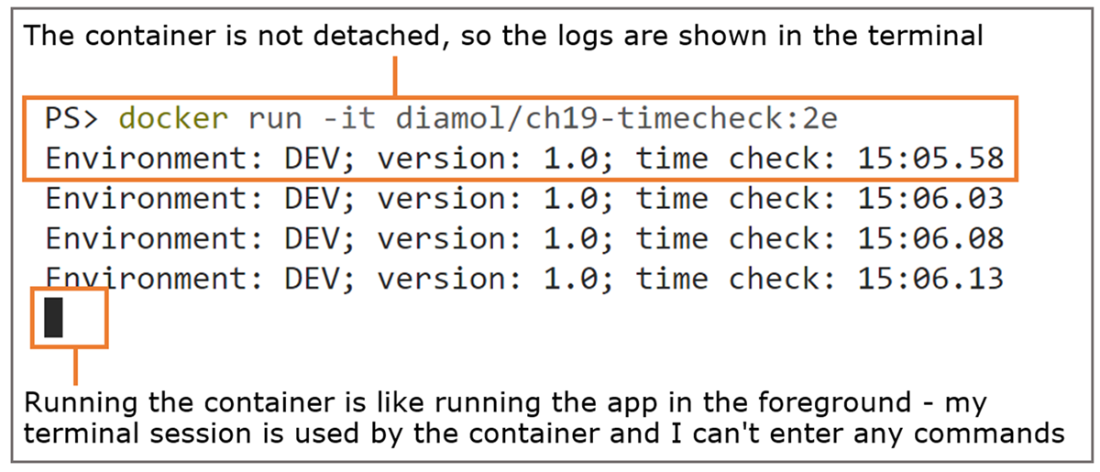
A container in the foreground takes over the terminal session until it exits.
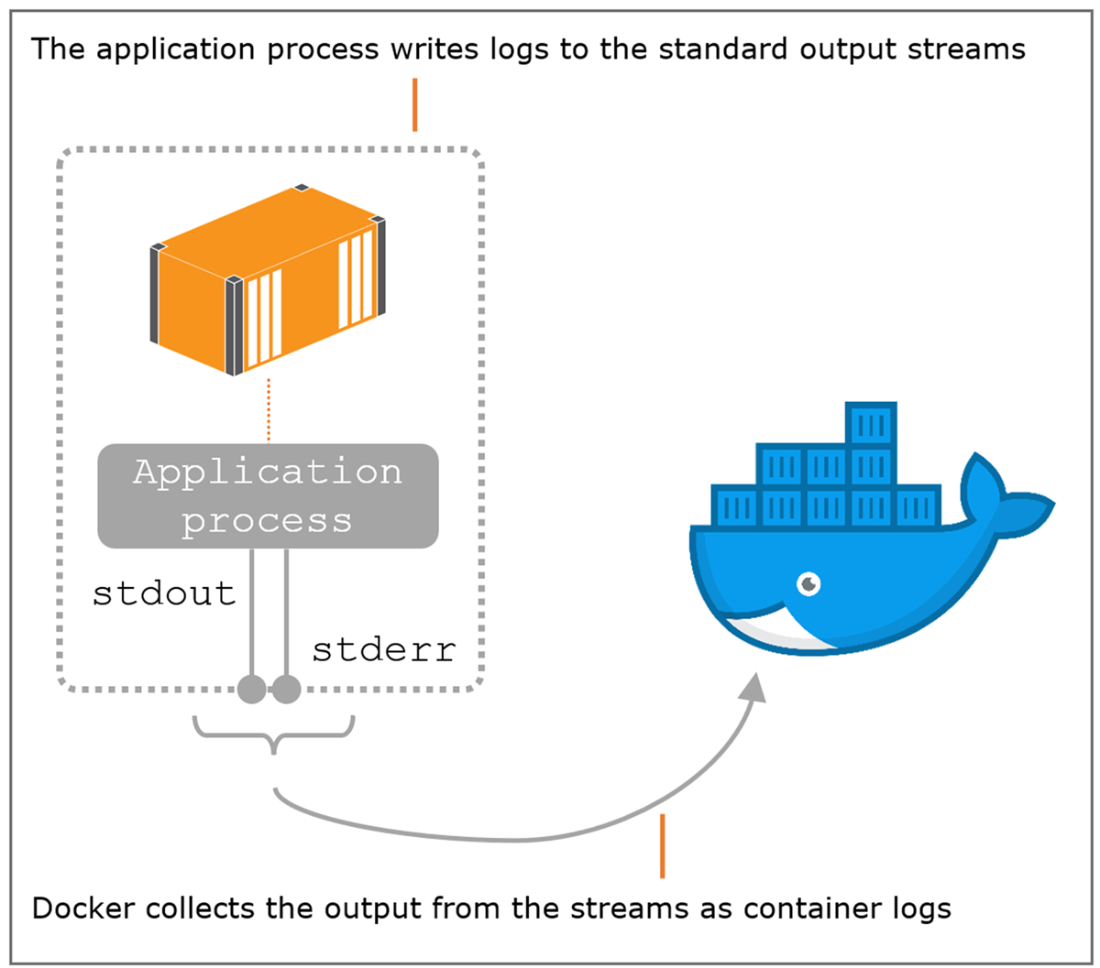
Docker watches the application process in the container and collects its output streams.
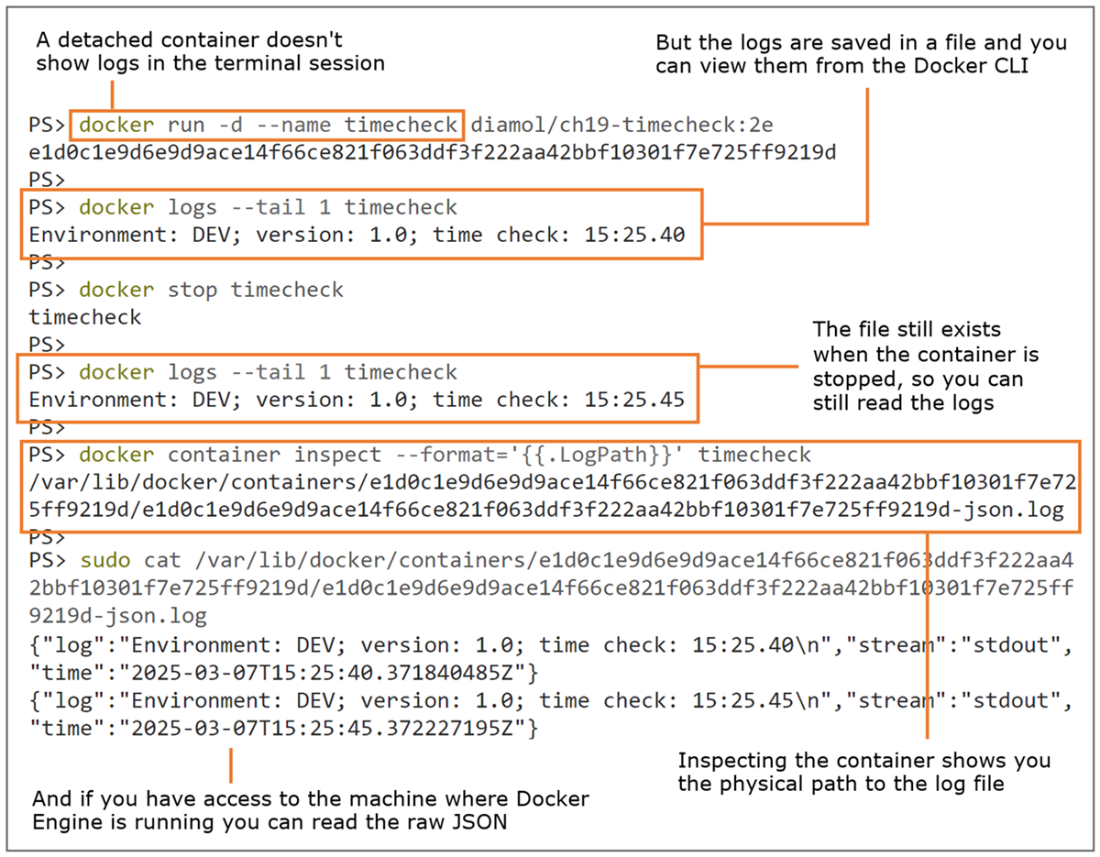
Docker stores container logs in a JSON file and manages the lifetime of that file.
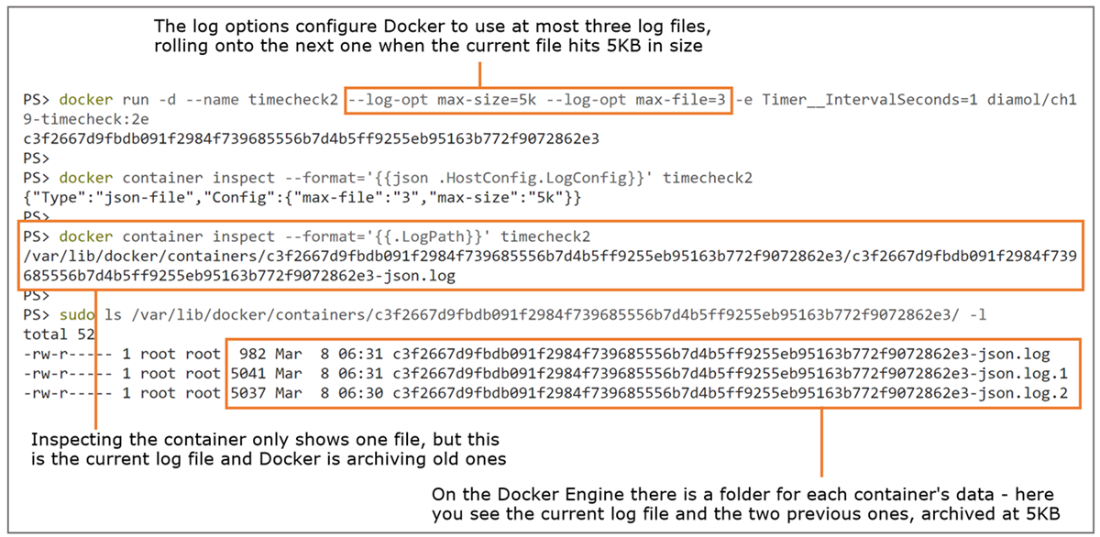
Rolling log files let you keep a known amount of log data per container.
If the app doesn’t write anything to the output streams, you won’t see any container logs.
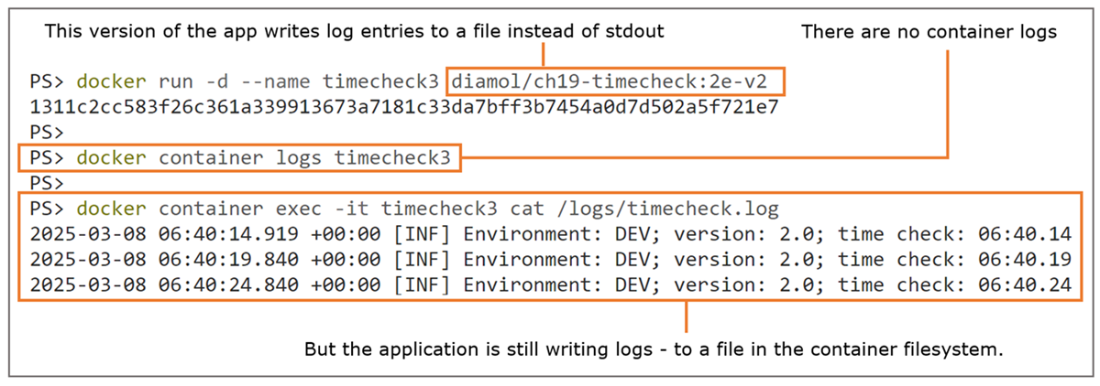
You need to package a utility in your container image to relay logs from a file.
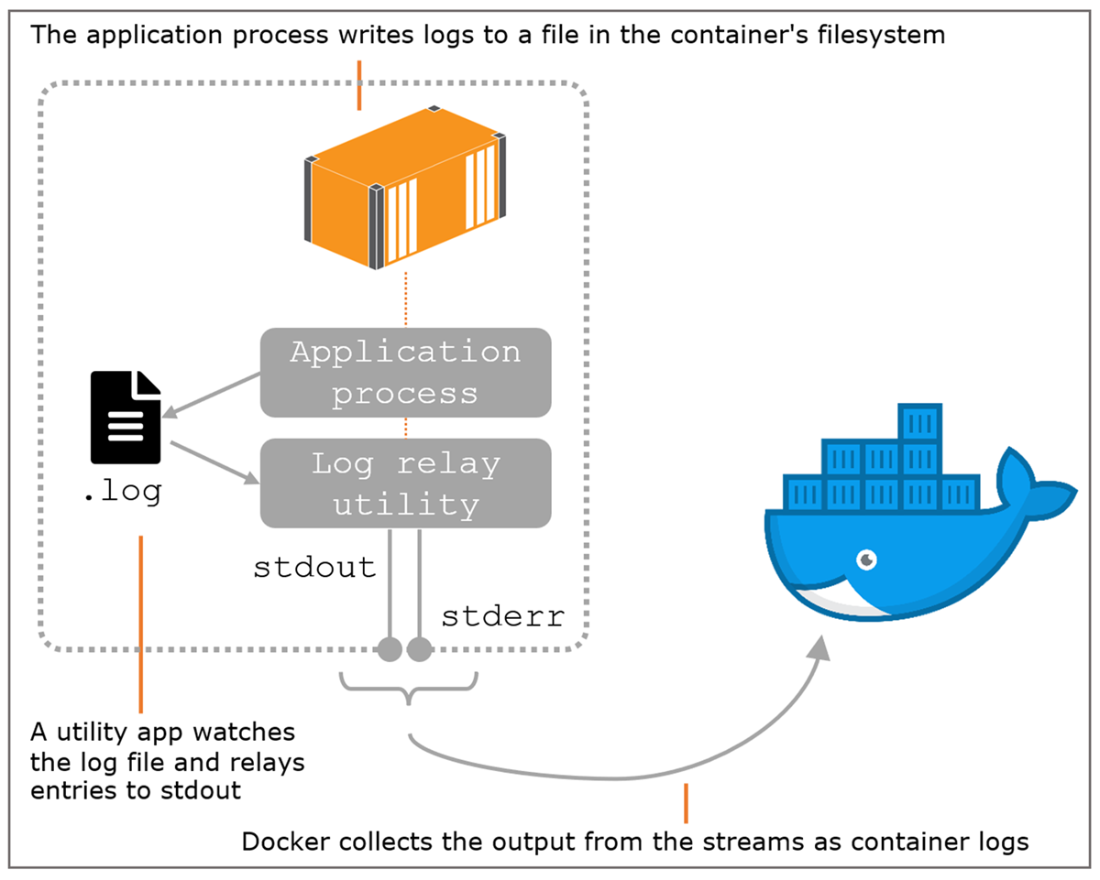
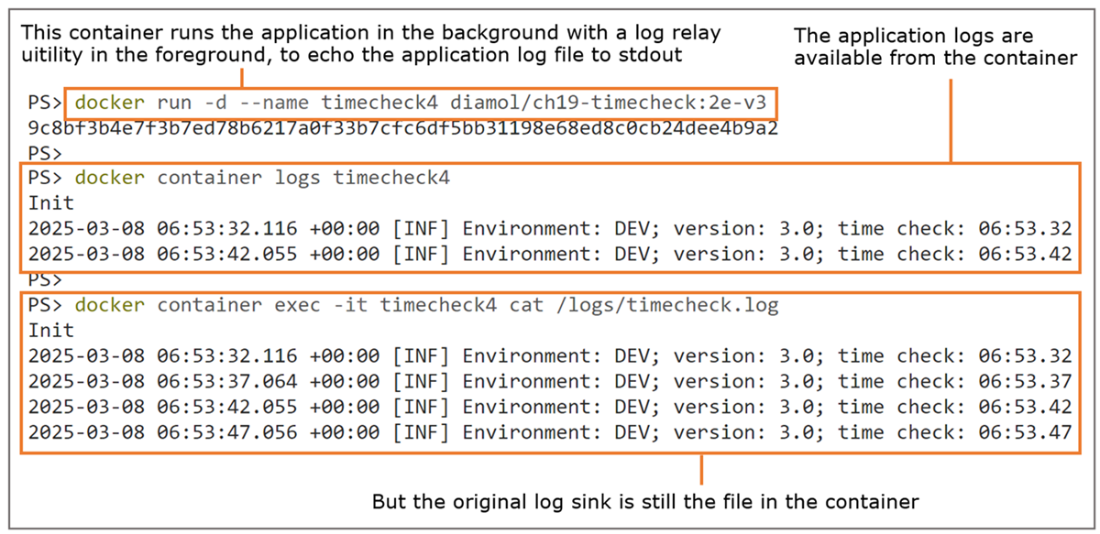
A log relay utility gets the application logs out to Docker, but uses twice as much disk space.
Fluentd collects logs from other containers and it can store them or write to stdout.
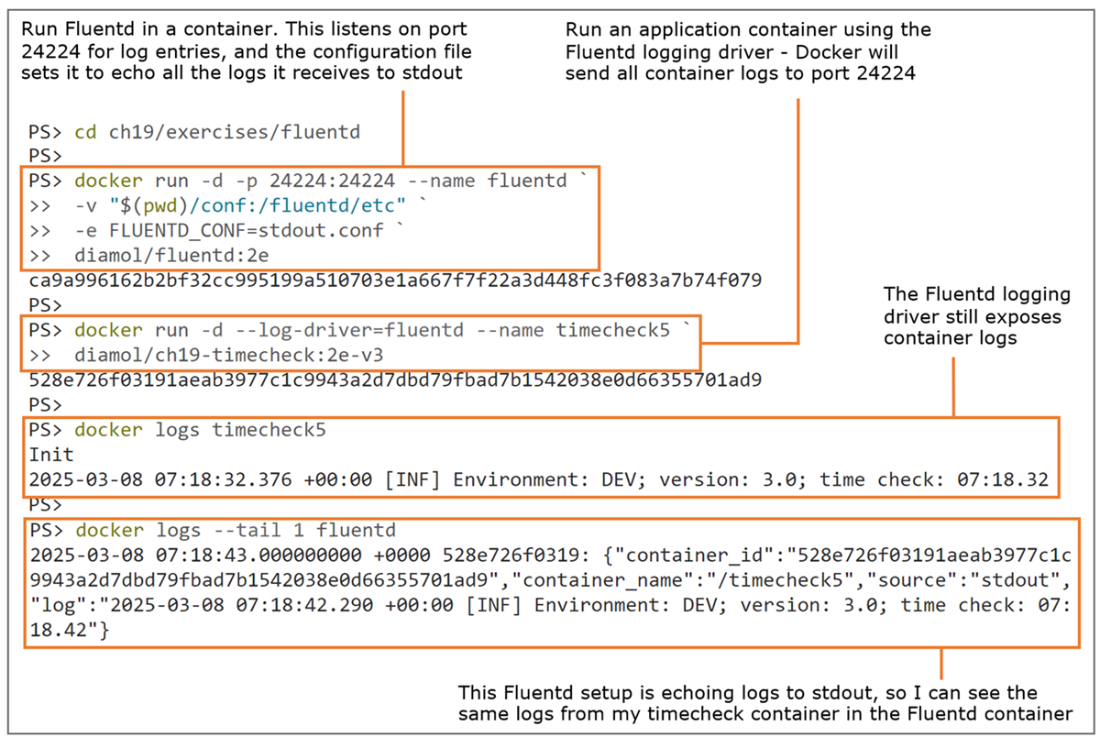
A centralized logging model sends all container logs to Fluentd for processing and storage.
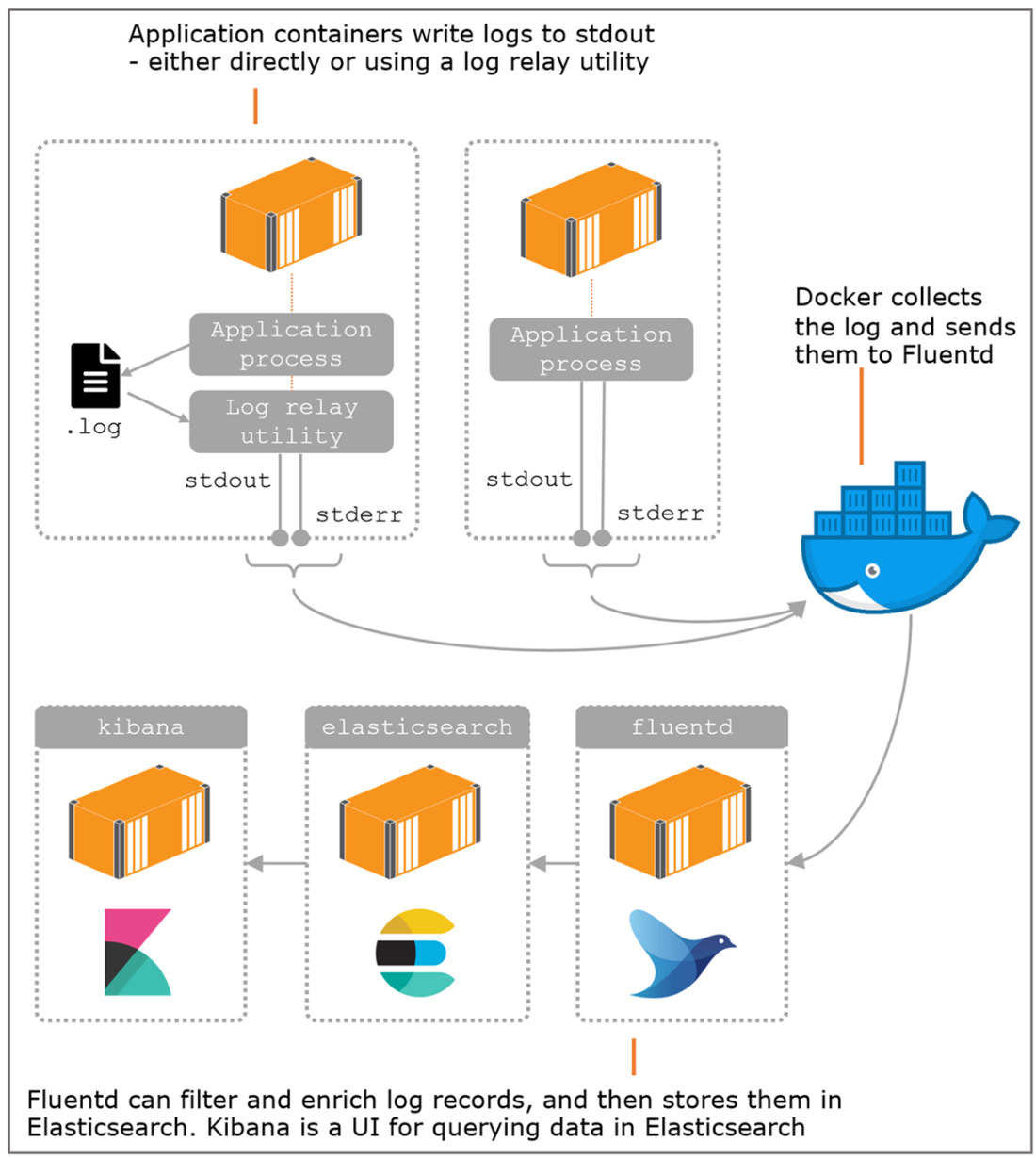
Elasticsearch stores documents in collections called indexes—Fluentd creates one per day.
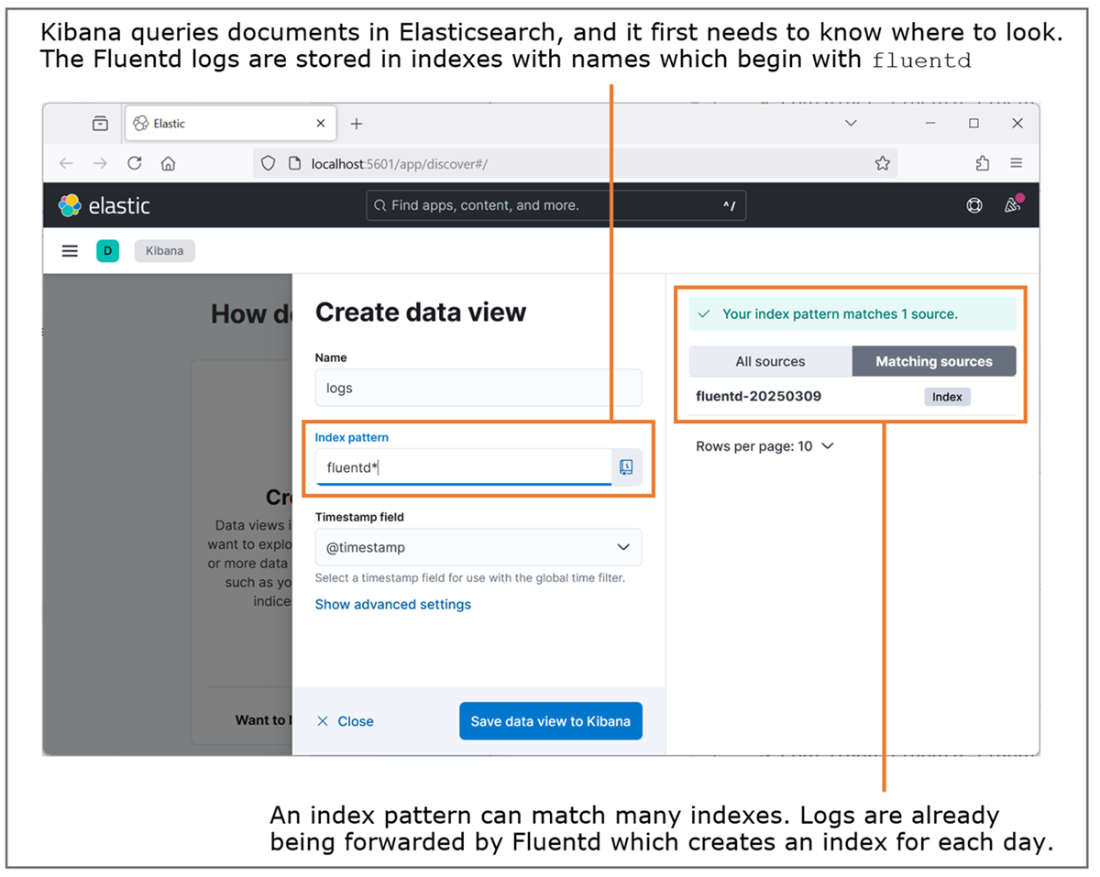
Fluentd has already saved data in Elasticsearch, so Kibana can see the field names.
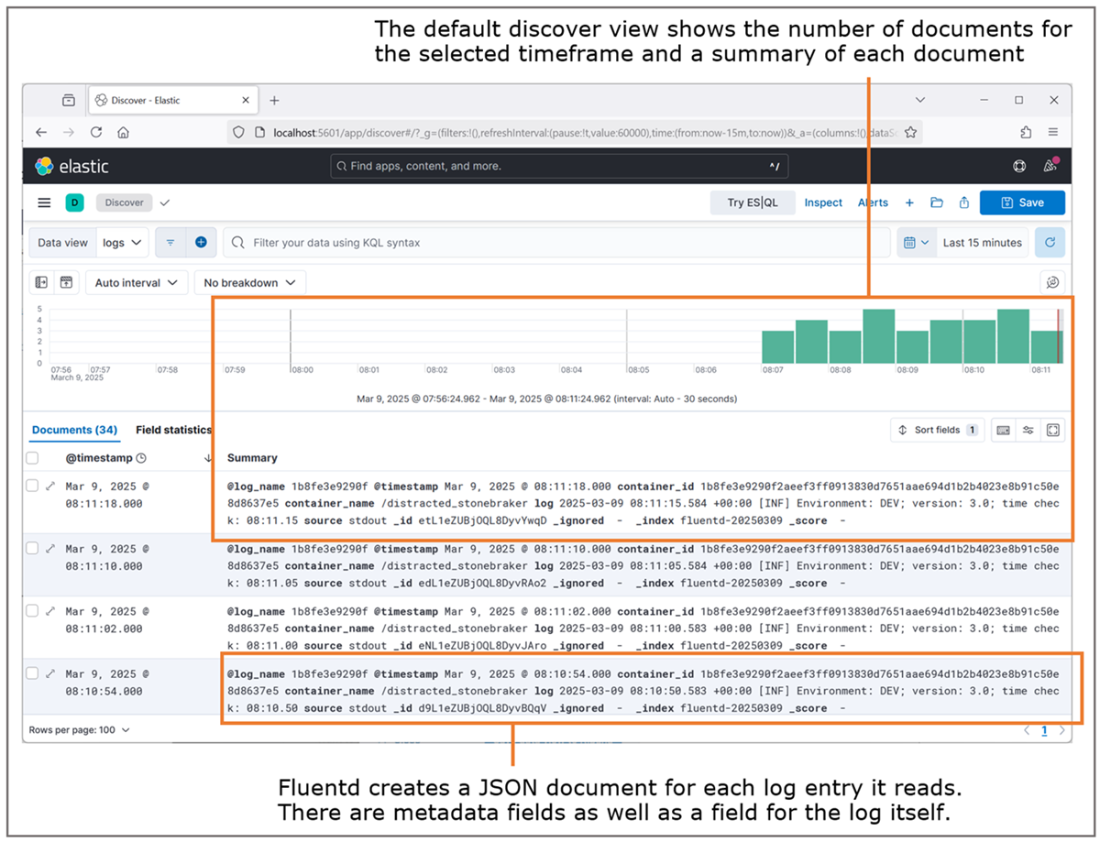
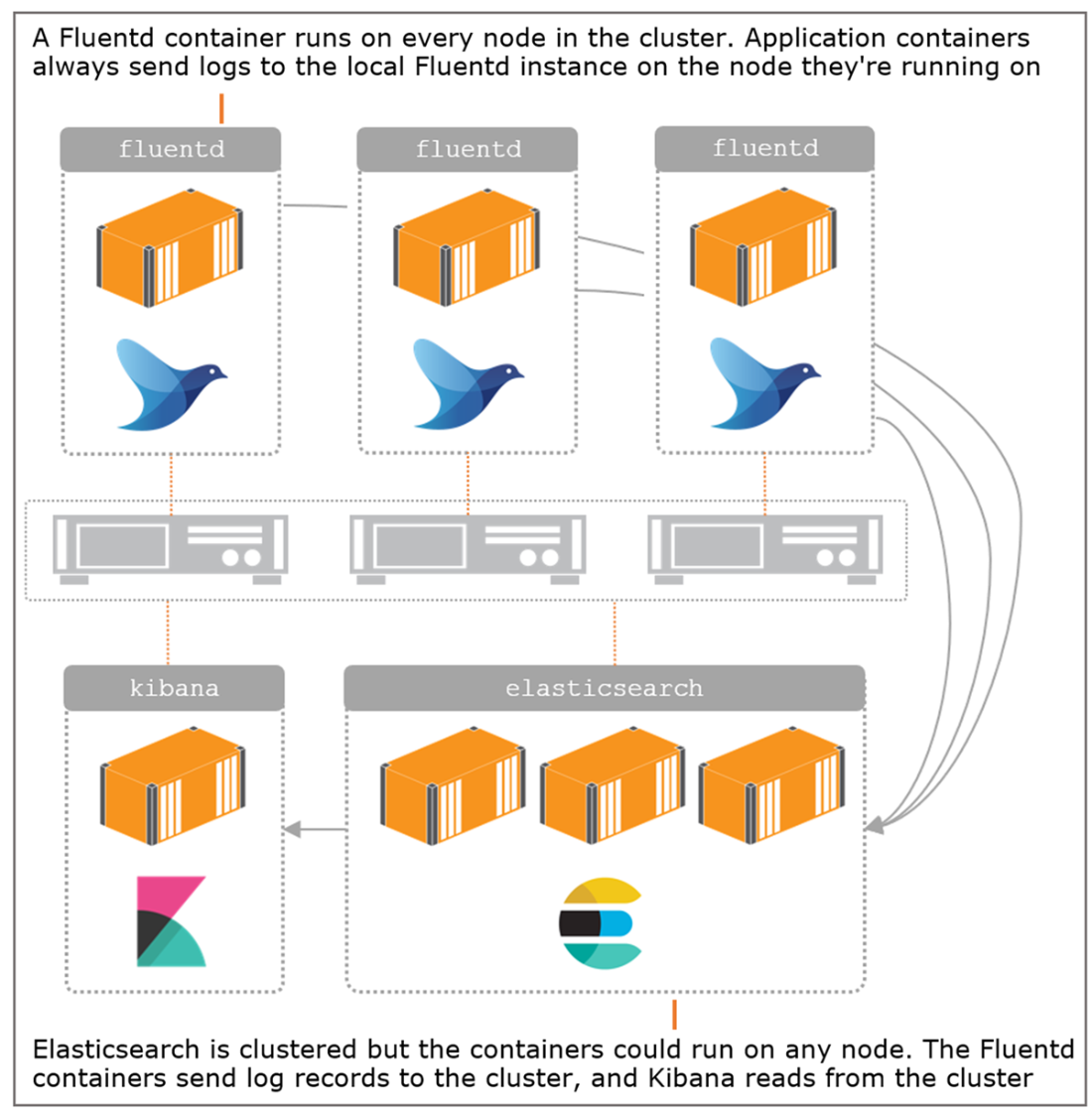
The EFK stack in all its glory—container logs collected and stored for simple searching
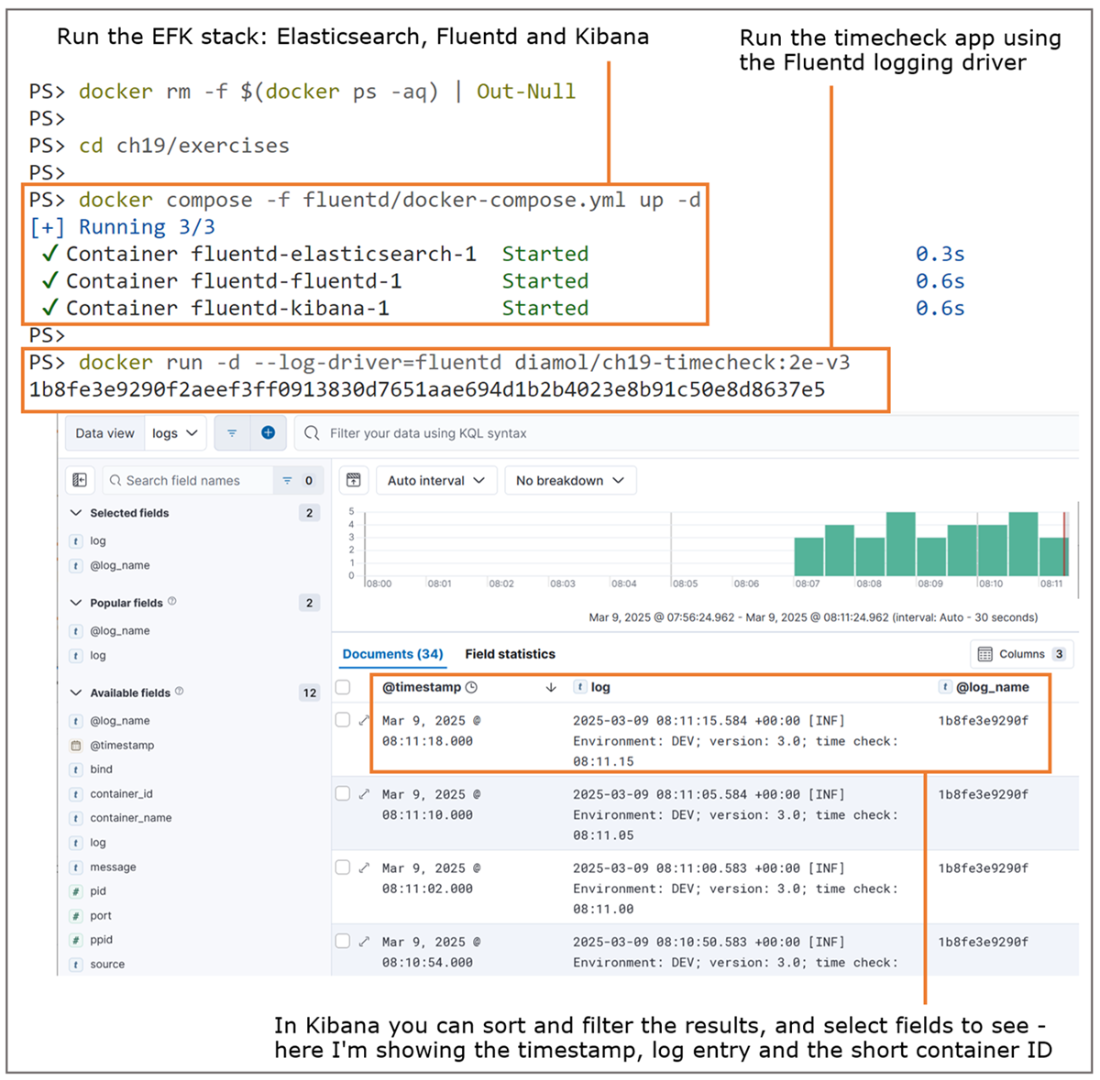
Logs are being collected in Elasticsearch for the image gallery and the timecheck container.
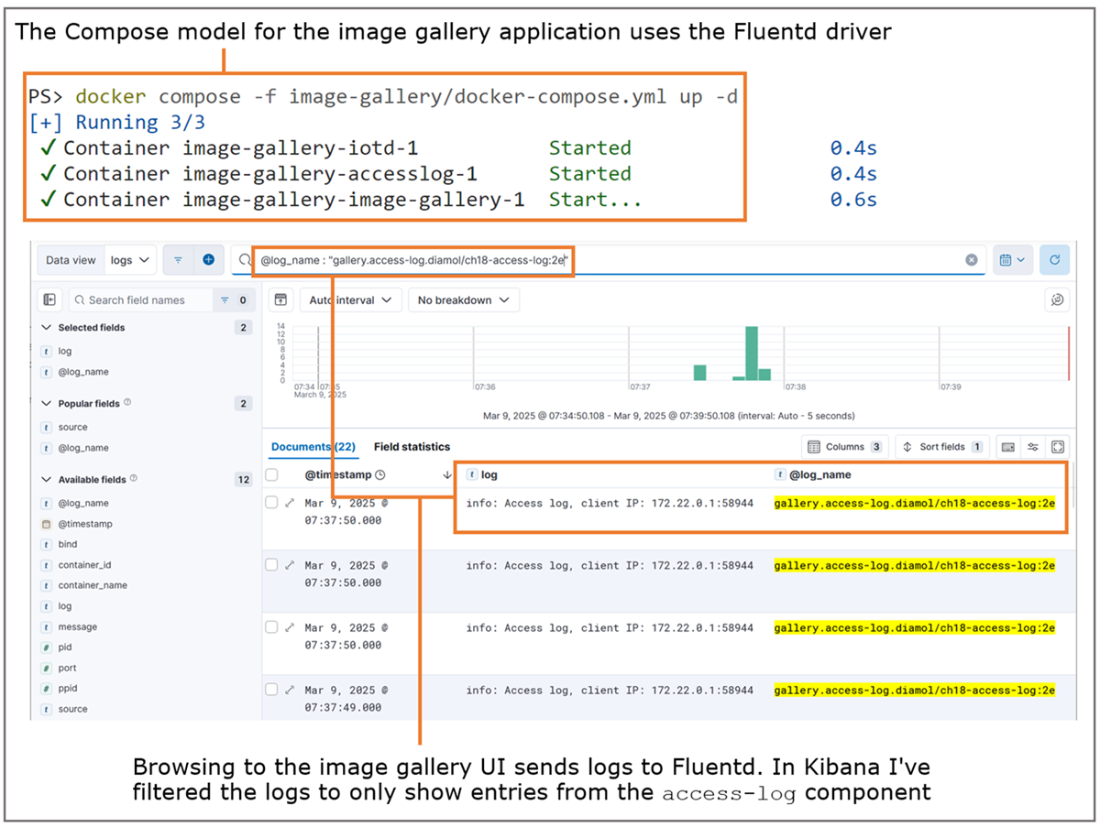
Fluentd uses the tag in the log to filter out records and to generate new fields.
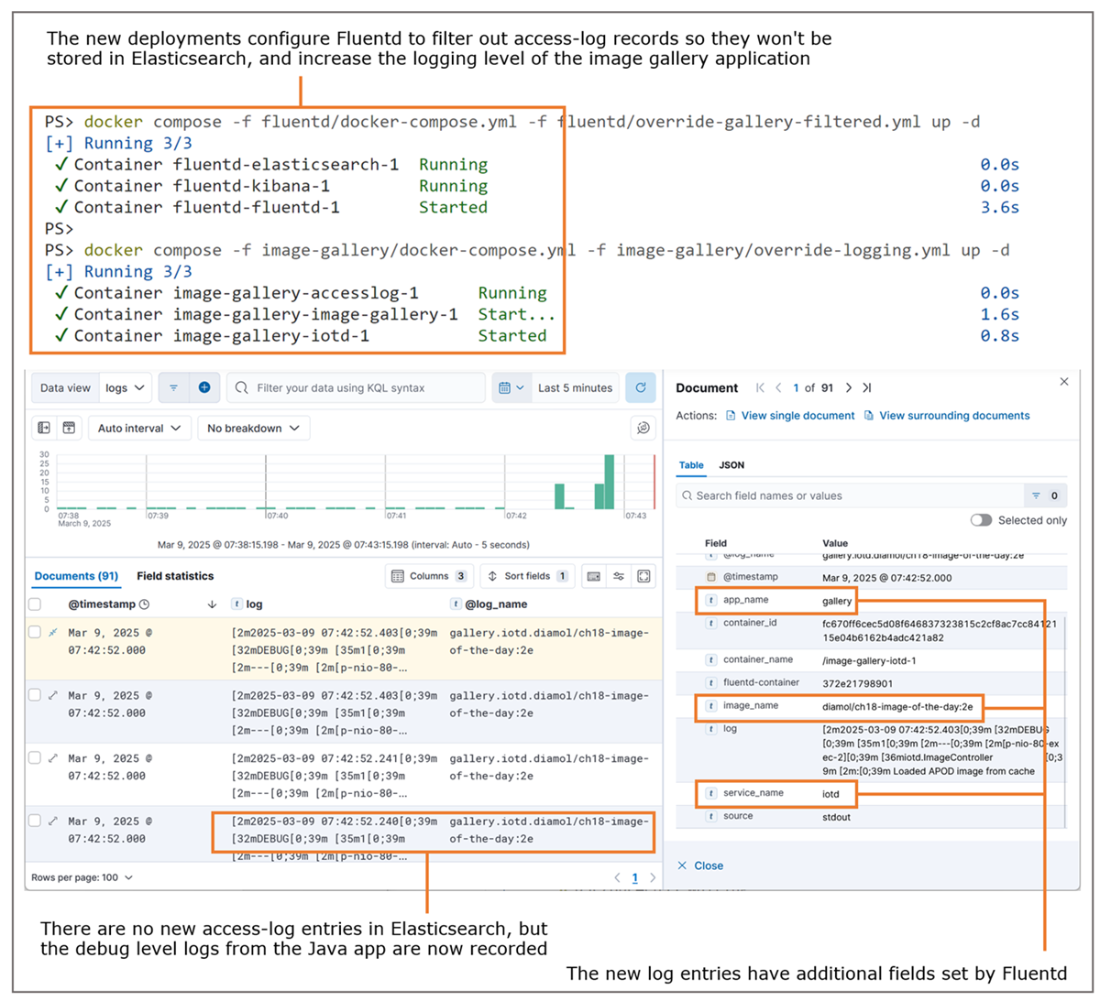
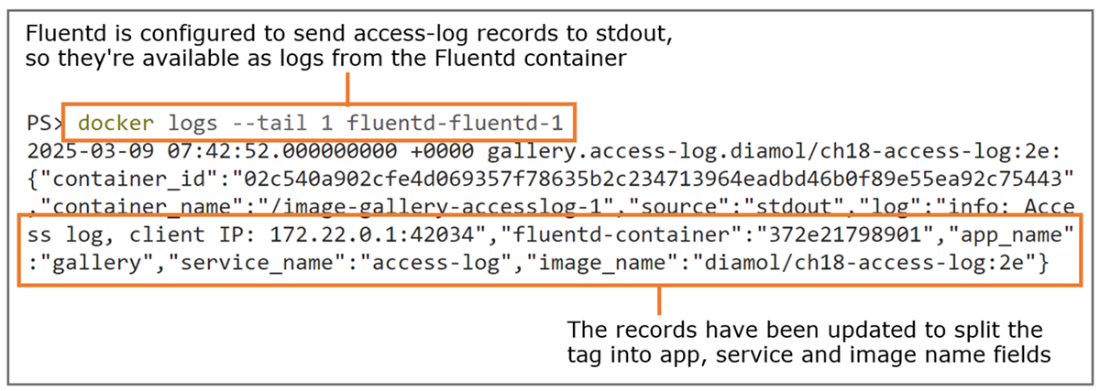
These logs are filtered, so they’re not stored in Elasticsearch but are echoed to stdout.
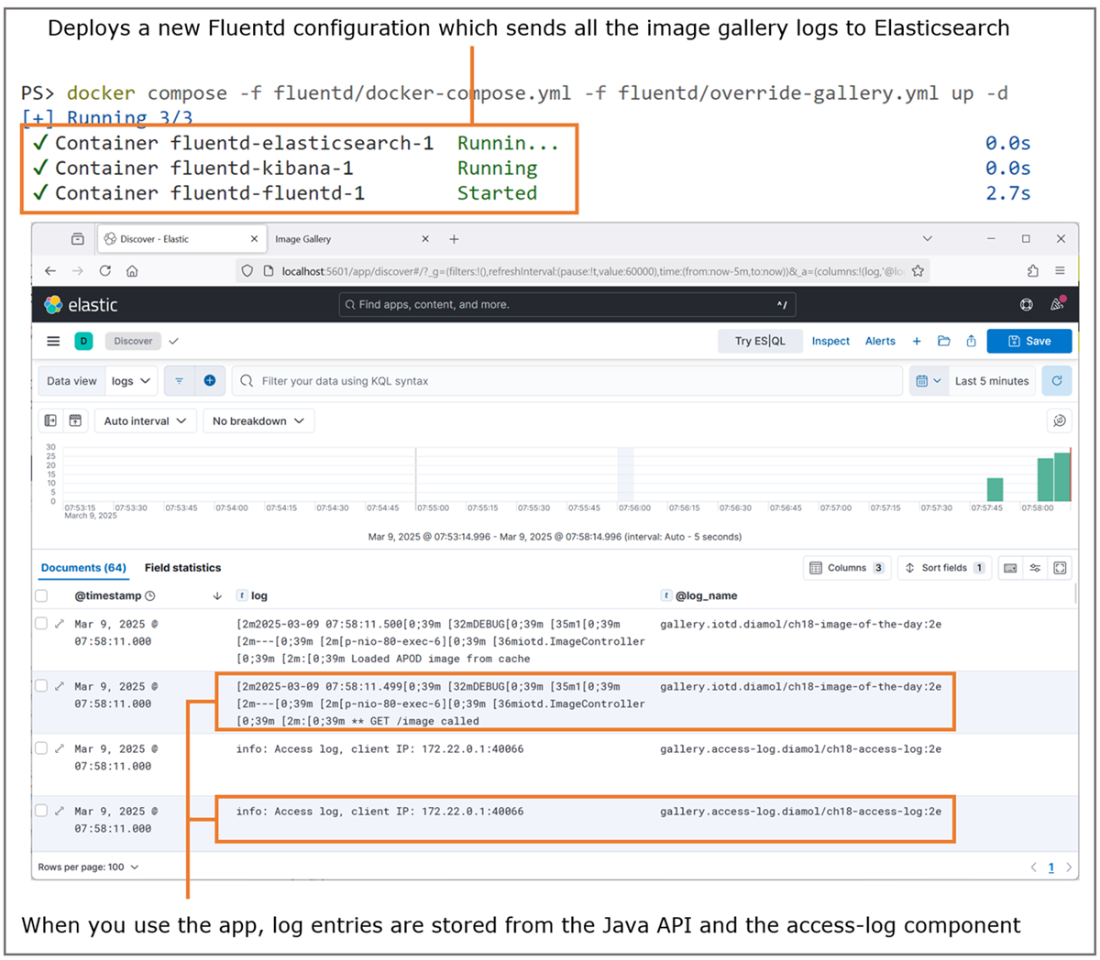
A change to the Fluentd config adds logs back into Elasticsearch without any app changes.
The EFK stack works in production with clustered storage and multiple Fluentd instances.
Lab
I didn’t focus too much on configuring Fluentd in this chapter, but it’s worth getting some experience setting that up, so I’m going to ask you to do it in the lab. In the lab folder for this chapter is a Docker Compose file for the random number app and a Docker Compose file for the EFK stack. The app containers aren’t configured to use Fluentd, and the Fluentd setup doesn’t do any enrichment, so you have three tasks:
- Extend the Compose file for the numbers app so that all the components use the Fluentd logging driver, and set a tag with the app name, service name, and image.
- Extend the Fluentd configuration file, elasticsearch.conf, to split the tag into app name, service name, and image name fields for all records from the numbers app.
- Add a failsafe match block to the Fluentd configuration so that any records that aren’t from the numbers app get forwarded to stdout.
No hints for this one, because this is a case of working through the config setup for the image gallery app and seeing which pieces you need to add for the numbers app. As always, my solution is up on GitHub for you to check: https://github.com/sixeyed/diamol/blob/2e/ch19/lab/README.md.
FAQ
Why should my application write logs to stdout and stderr in Docker?
Docker collects a container’s standard output and error streams and treats them as the container logs. If your app writes to stdout/stderr, you get consistent log collection with docker logs, pluggable forwarding to other systems, and no app-specific log scraping inside the container.Where does Docker store container logs, and how long are they kept?
By default, Docker writes logs to a JSON file per container on the host. The file persists while the container exists (even if it’s stopped) and is deleted when the container is removed. You can see the path with: docker inspect --format='{{.LogPath}}'How do I view logs for running or stopped containers?
- docker logs- Use flags like --tail 100 or --since to filter output.
- For detached containers, docker logs is the primary way; opening the JSON file directly is usually unnecessary (and on Docker Desktop’s Linux VM you won’t have direct file access).
How do I prevent container logs from filling the disk?
Enable log rotation for the JSON log driver. Per container example: docker run -d --log-opt max-size=5k --log-opt max-file=3My app runs as a daemon or writes to a file, so docker logs is empty. What can I do?
Use a log relay pattern: start your real app in the background and run a small utility as the final foreground process that tails the app’s log file and writes lines to stdout. For example, on Linux: CMD myapp & tail -F /path/to/app.log. This surfaces logs to Docker without changing app code.What are the trade-offs of the log relay approach?
- Container lifecycle mismatch: if the relay dies, the container exits even if the app is still running; if the app dies but the relay lives, the container looks healthy. Use health checks to mitigate.- Extra I/O and storage: logs are written to the app’s file and to Docker’s JSON file.
- Slight latency: the relay tails the file, so logs appear with a small delay.
How do I forward container logs to Fluentd?
Run a Fluentd container and configure your app containers to use the Fluentd log driver: docker run -d --log-driver=fluentdHow do I build a centralized logging stack with Elasticsearch and Kibana (EFK)?
- Run Fluentd, Elasticsearch, and Kibana in containers (e.g., with Docker Compose).- Point app containers at Fluentd using --log-driver=fluentd.
- In Kibana, create a data view with index pattern fluentd* and timestamp field @timestamp to search logs. This gives a searchable, scalable store with a friendly UI.
How can I tag and filter logs with Fluentd?
- Set a tag per container in logging options (Compose or docker run), for example: tag: gallery.api.{{.ImageName}}.- In Fluentd config, use match blocks (e.g., <match gallery.access-log.**>) to route logs to different outputs (stdout, Elasticsearch, Kafka, S3, etc.). You can also parse tags into fields to simplify filtering in Kibana.
What are best practices and caveats for managing logs in production?
- Prefer apps writing to stdout/stderr; avoid hardcoding direct writes to the final store (e.g., Elasticsearch) to maintain flexibility.- Use Engine or app-level logging configs for rotation and drivers; centralize with Fluentd (or alternatives like Graylog, Splunk).
- Tune verbosity by changing Fluentd filters rather than redeploying apps.
- Be aware of potential log loss during Fluentd restarts—Docker doesn’t buffer to Fluentd—so plan for redundancy in production.

 Learn Docker in a Month of Lunches, Second Edition ebook for free
