Overview

13 Replatforming the legacy: Packaging and running Windows apps in Docker

This chapter makes the case for replatforming legacy Windows applications into Docker as a fast, low-risk path to the cloud that avoids costly rewrites while unifying build, deployment, and operations with modern tooling. It explains the key differences of Windows Server Containers versus Linux: they run only on Windows and require an exact OS version match between host and image; base images are much larger (Server Core vs Nano Server); and containers tend to start more slowly with many background services. Despite these quirks, the core Docker workflows are the same: write a Dockerfile, build images, push to a registry, and run containers with consistent commands and practices.

Practically, the chapter shows how to package Windows apps by choosing appropriate Microsoft base images (IIS, .NET Framework, ASP.NET, Server Core, Nano Server) and automating deployment via two main patterns: installing MSI packages in a multi-stage build or extracting file archives with PowerShell, curl, and tar. Because many Windows platforms run as Services, it introduces Service Monitor and Log Monitor to align service lifecycles and logging with Docker’s single-process model. It demonstrates building and running an unchanged, decade-old ASP.NET app (Nerd Dinner) using .NET Framework SDK and runtime images, then models the full stack with Docker Compose, including startup ordering via healthchecks. For data, it uses SQL Server in containers and packages the database schema as a DACPAC, enabling both clean deployments and in-place upgrades through the same immutable artifact—bringing CI/CD discipline to database changes.

Strategically, the chapter situates Windows containers within a broader migration framework: retire, rehost, replatform, refactor, and rewrite. It argues that replatforming is often the best first step for complex or low-change legacy systems—delivering cloud portability, operational consistency, and a foundation for later refactoring—while avoiding the risk, cost, and time of a full rewrite. It also cautions to plan for OS version compatibility and image size, and to weigh when a modernization to cross‑platform .NET and Linux containers makes sense. The result is a pragmatic path: use Windows containers to lift valuable legacy apps into modern, observable, reproducible workflows today, and evolve them iteratively based on business value tomorrow.

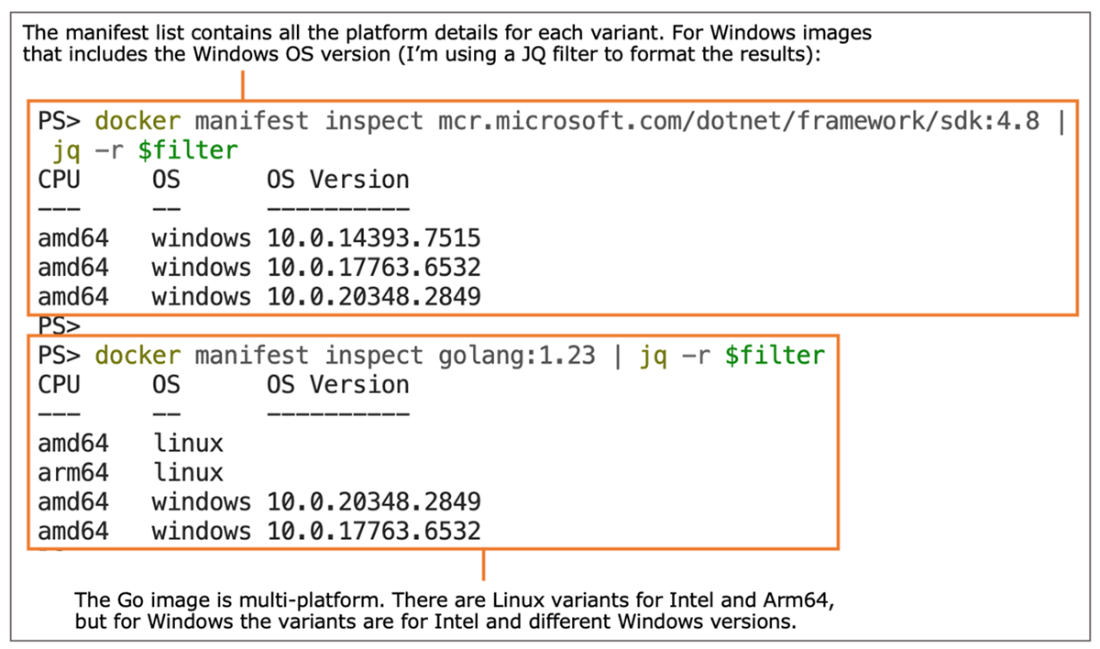
Multi-platform image variants include an OS version for Windows images.
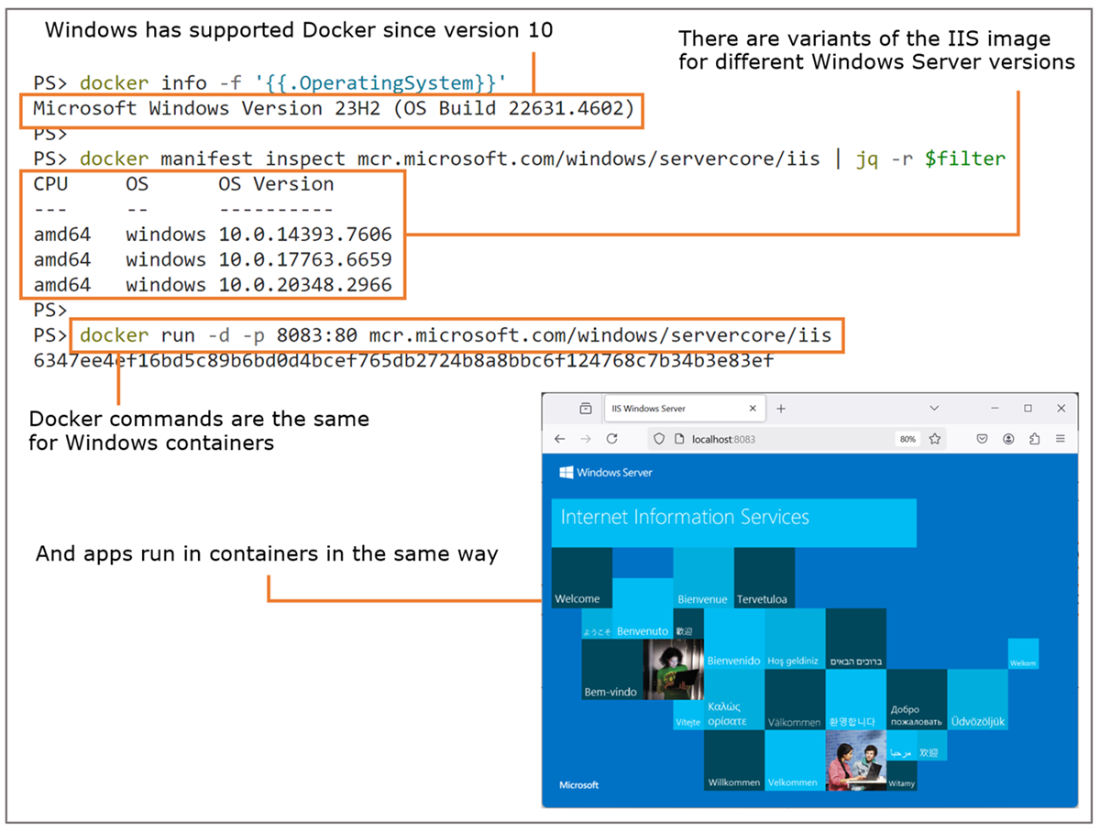
Running the Windows web server (IIS) in a Windows Server Container
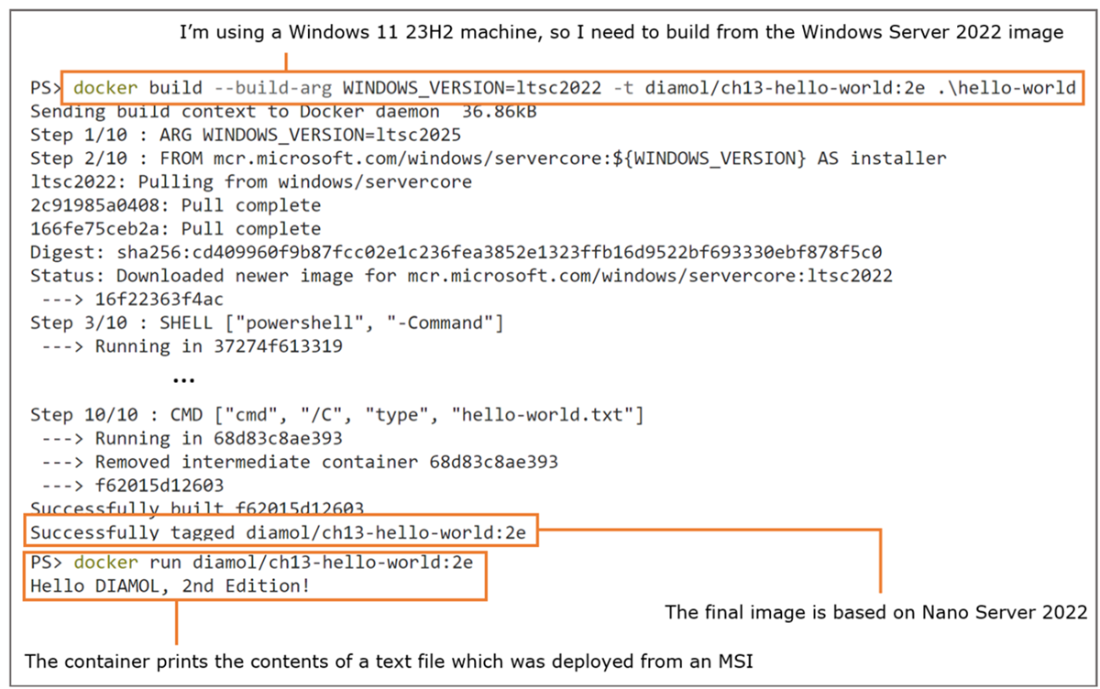
Packaging a Windows Docker image by installing an MSI in the Dockerfile
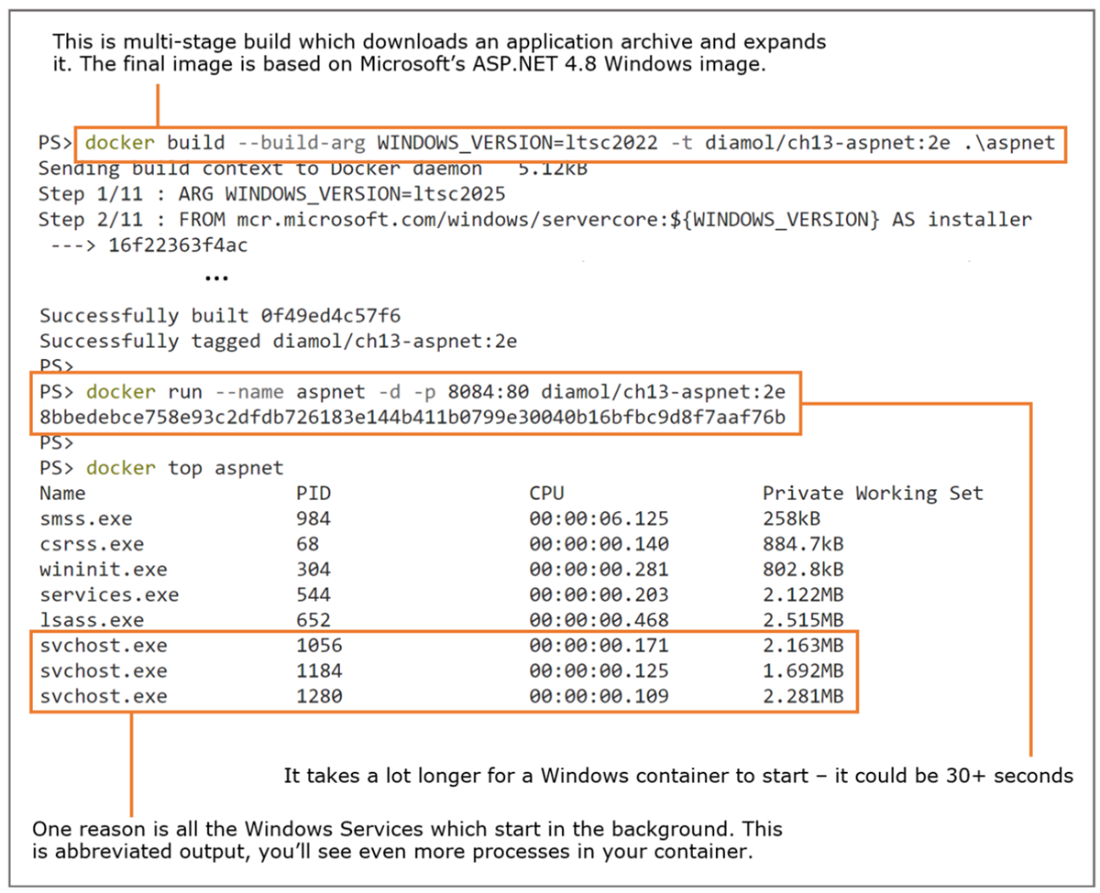
Looking at the processes in a Windows container shows a lot more than in Linux.
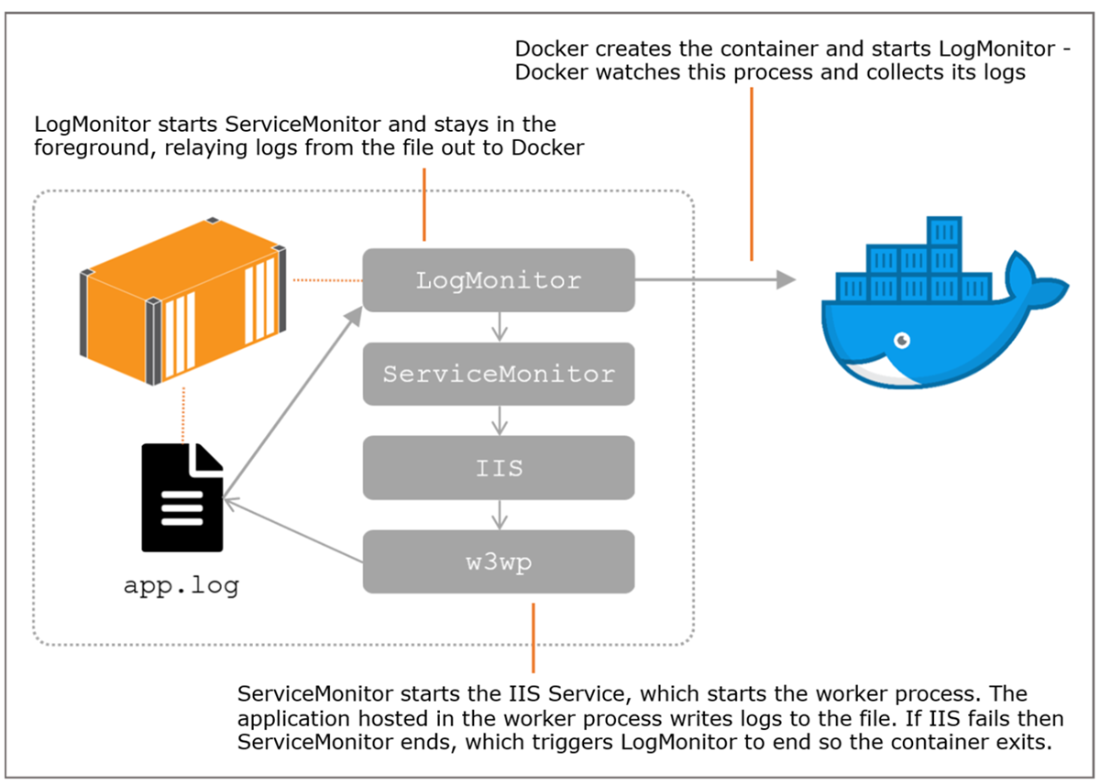
Monitor tools run a legacy application the way it was designed, but behaving like an ordinary container.
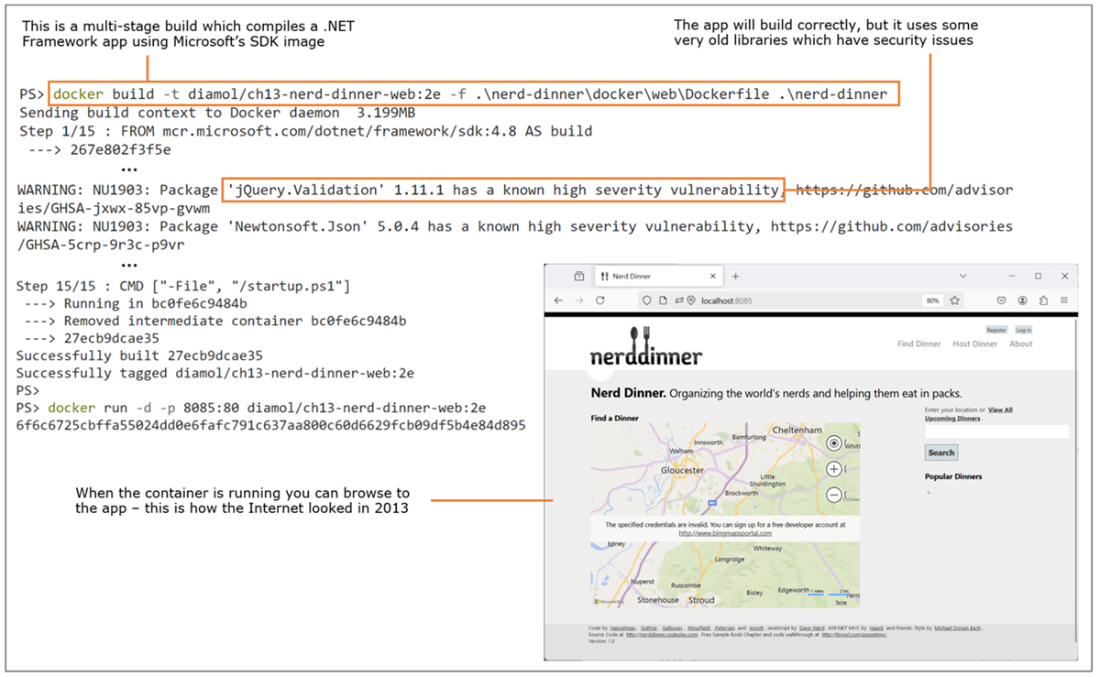
Welcome to 2013! Nerd Dinner running in an ASP.NET Windows container
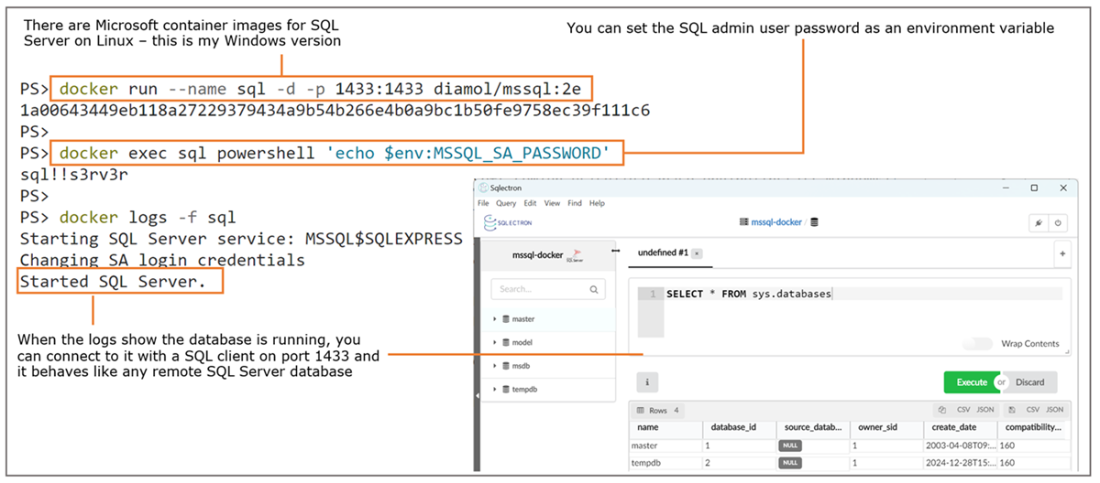
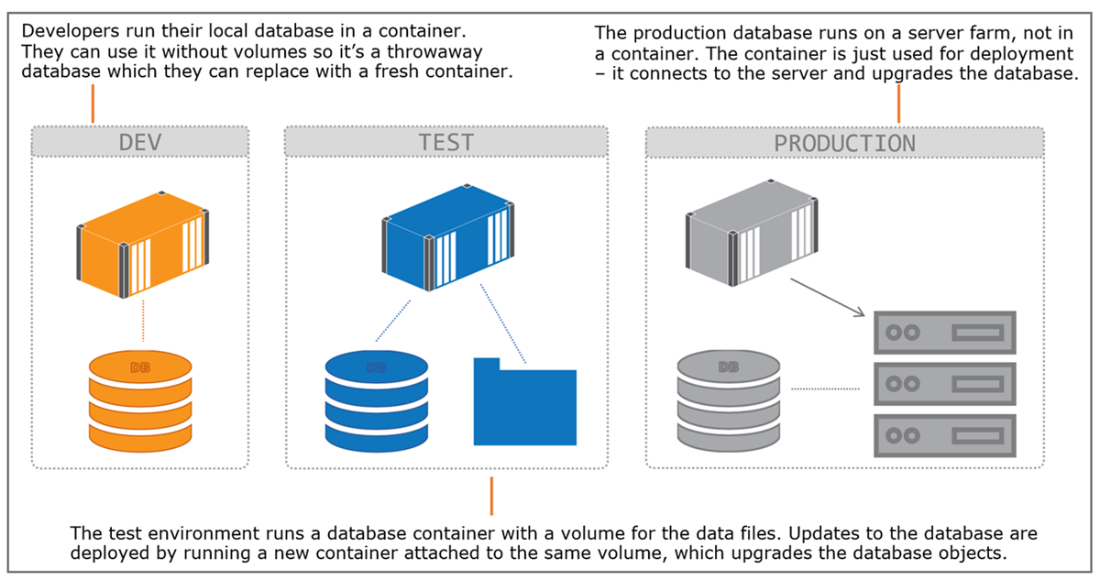
Packaging a SQL database in a Docker image lets you run a containerized database, or use a container to upgrade an existing database server.
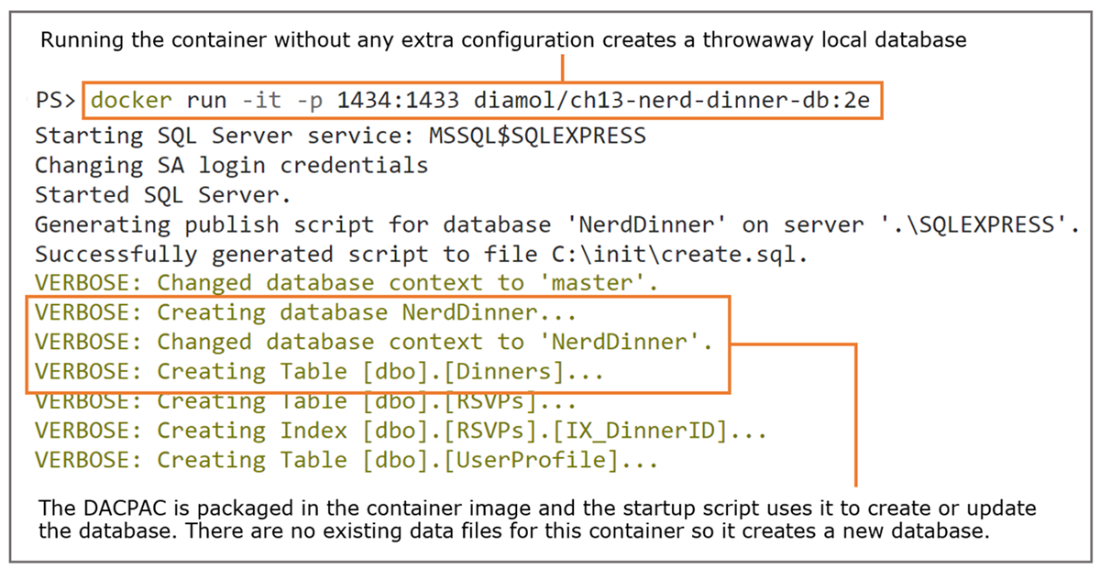
Running the database container deploys the DACPAC, which creates all the objects.
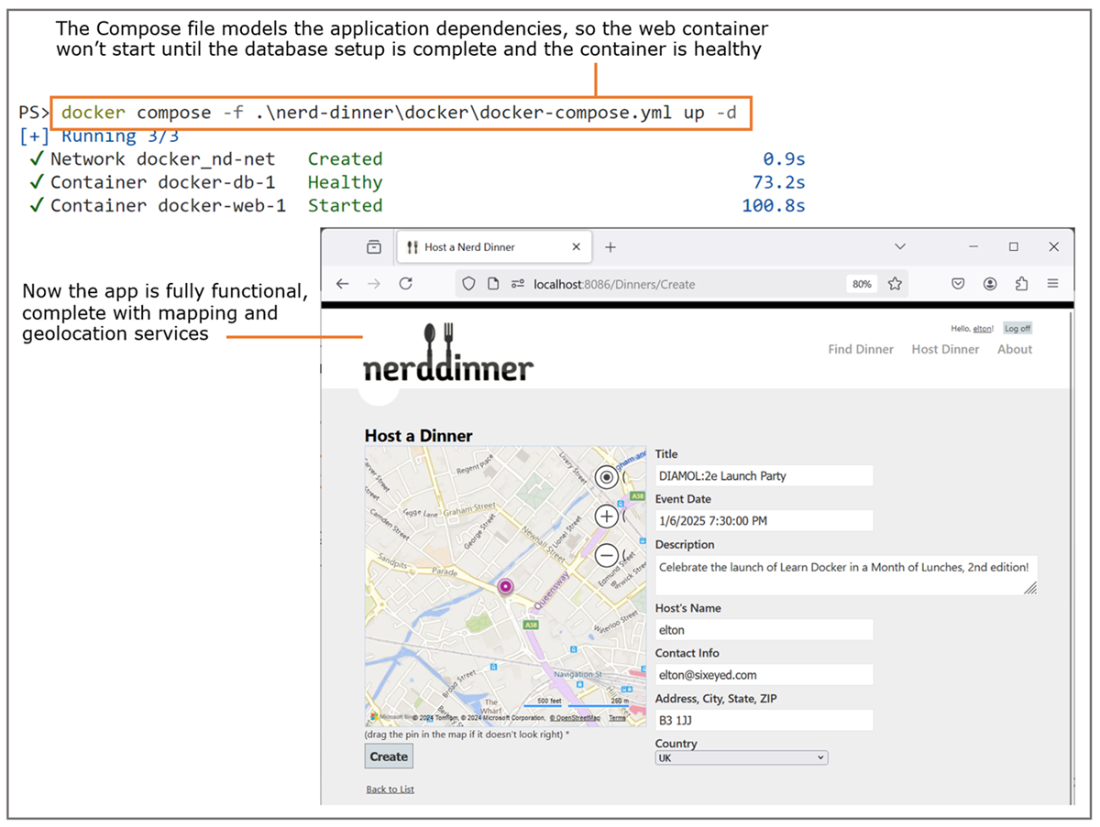
The full Nerd Dinner experience, running in the latest Windows Server Containers
Lab

Nice replatforming lab for you here—it’s going to take a bit of investigation, but that’s always the way for legacy app migration. An MSI installer file in the lab directory for this chapter deploys an ASP.NET web application. Your goal is to get this app running correctly in Docker with Windows Server Containers. You’ll need to write a Dockerfile for the web app and a Compose spec to run the app and the database. Here are a few things you’ll need to know:

  • The app connects to a SQL Server database. An empty database is fine, but the app configuration is fixed in the MSI. It expects to find a database at the DNS address SIGNUP-DB-DEV01, and it uses the sa user account with the password DockerCon!!!
  • It’s a web application that will run with the IIS Windows Service (which is called w3svc), but it needs .NET Framework 4.8 installed.
  • The app writes logs to a file at C:\logs\SignUp.log. We want those published as container logs—you’ll need to install the LogMonitor tool as part of your deployment. There’s a LogMonitorConfig.json in the lab folder, which is correctly configured, and you’ll need to copy that into the Docker image and set the correct entry point.
  • Deploying the MSI is the easiest part—it doesn’t need any configuration settings passed in; you can just install it with the msiexec tool.
  • When you have everything running, you should be able to browse to the app at http://localhost:8088/signup and see a newsletter sign-up page. If you click the Sign Up button and fill in the details, you should see logs in the web container, and the data will be stored in the SQL Server container.

As always, there are solution files in the lab folder, and a bit more detail in the README file: https://github.com/sixeyed/diamol/blob/2e/ch13/lab/README.md.

FAQ

How are Windows Server Containers different from Linux containers?They only run on Windows, and the OS version of the image must match the host’s Windows version (including CPU arch, OS, and OS build). Windows base images are much larger, containers start slower, and you’ll see many background processes (Windows Services) running inside the container compared to a single-process Linux container.
What does “no matching manifest” mean when pulling or building Windows images?It indicates a Windows version mismatch between the image and your host. Check image variants with: docker manifest inspect IMAGE. Match your host by choosing the correct tag (e.g., ltsc2019, ltsc2022, ltsc2025) or pass a build arg (e.g., --build-arg WINDOWS_VERSION=ltsc2022) so the image OS aligns with your machine’s Windows version.
Should I use Server Core or Nano Server as my Windows base image?Use Server Core when you need broad Windows compatibility (it includes many features; larger ~5+ GB). Use Nano Server when your app needs a minimal footprint and its dependencies are supported (much smaller ~hundreds of MB), but it’s more limited. Pick the smallest image that satisfies your app’s requirements.
How do I install an MSI inside a Windows container?Use a multi-stage Dockerfile with Server Core to run msiexec silently, then copy only what you need to the final image. Example steps: SHELL ["powershell","-Command"]; COPY app.msi .; RUN Start-Process msiexec.exe -ArgumentList '/i','app.msi','/quiet','/norestart' -NoNewWindow -Wait; in the final stage, COPY the installed files to your runtime image.
What’s the best way to package a Windows app delivered as a ZIP?Use PowerShell in a build stage to download, verify, and extract: curl.exe to fetch the ZIP and its hash; Get-FileHash to validate; Expand-Archive to extract to a staging folder. Then base the final image on the appropriate runtime (e.g., ASP.NET 4.8) and COPY the extracted app into the correct path (for IIS, /inetpub/wwwroot).
How do I run IIS-hosted apps in containers while following Docker’s single-process model?Use Microsoft’s Service Monitor to start and watch the Windows Service (e.g., IIS) as the container entry point so container health reflects service health. Use Log Monitor to collect logs from files/Event Log and emit them to stdout/stderr so Docker captures them. Together, they make legacy services behave like ordinary containers.
Can I build legacy .NET Framework apps (e.g., ASP.NET 4.x) in Docker?Yes. Use mcr.microsoft.com/dotnet/framework/sdk:4.8 in a build stage to run nuget restore and msbuild, then use mcr.microsoft.com/dotnet/framework/aspnet:4.8 as the runtime stage and COPY the build output into /inetpub/wwwroot. You can add container-specific config and startup scripts without changing the legacy source.
How can I run SQL Server for a legacy Windows app in containers and set up the schema?Run a SQL Server container (e.g., diamol/mssql:2e) and expose port 1433; read the sa password from MSSQL_SA_PASSWORD. Package your database schema as a DACPAC and use a startup script to deploy it on container start. The same artifact can create a new DB or upgrade an existing one, enabling fast, consistent DB provisioning.
How do I ensure a Windows web app waits for the database before starting?Use Docker Compose with depends_on and a healthcheck. Make the DB service write a marker file (e.g., /init.done) when ready, and define a healthcheck that tests for it. Then set depends_on: db: { condition: service_healthy } for the web service so it starts only after the DB is healthy.
When should I replatform a legacy Windows app instead of refactoring or rewriting?Choose replatforming when you want faster cloud adoption with minimal code change, consistent tooling, and improved deployment/operations. It’s often a great first step in a broader strategy (the “5 Rs”): Retire, Rehost, Replatform, Refactor, Rewrite. Replatforming delivers quick wins and can pave the way for later refactoring based on business value.

pro $24.99 per month

  • access to all Manning books, MEAPs, liveVideos, liveProjects, and audiobooks!
  • choose one free eBook per month to keep
  • exclusive 50% discount on all purchases
  • renews monthly, pause or cancel renewal anytime

lite $19.99 per month

  • access to all Manning books, including MEAPs!

team

5, 10 or 20 seats+ for your team - learn more


choose your plan

team

monthly
annual
$49.99
$499.99
only $41.67 per month
  • five seats for your team
  • access to all Manning books, MEAPs, liveVideos, liveProjects, and audiobooks!
  • choose another free product every time you renew
  • choose twelve free products per year
  • exclusive 50% discount on all purchases
  • renews monthly, pause or cancel renewal anytime
  • renews annually, pause or cancel renewal anytime
  • Learn Docker in a Month of Lunches, Second Edition ebook for free

choose your plan

team

monthly
annual
$49.99
$499.99
only $41.67 per month
  • five seats for your team
  • access to all Manning books, MEAPs, liveVideos, liveProjects, and audiobooks!
  • choose another free product every time you renew
  • choose twelve free products per year
  • exclusive 50% discount on all purchases
  • renews monthly, pause or cancel renewal anytime
  • renews annually, pause or cancel renewal anytime
  • Learn Docker in a Month of Lunches, Second Edition ebook for free
choose your plan

team

monthly
annual
$49.99
$499.99
only $41.67 per month
  • five seats for your team
  • access to all Manning books, MEAPs, liveVideos, liveProjects, and audiobooks!
  • choose another free product every time you renew
  • choose twelve free products per year
  • exclusive 50% discount on all purchases
  • renews monthly, pause or cancel renewal anytime
  • renews annually, pause or cancel renewal anytime
  • Learn Docker in a Month of Lunches, Second Edition ebook for free