Overview

10 Running multiple environments with Docker Compose

This chapter revisits Docker Compose as the glue for running many environments—dev, test, UAT, and more—on a single Docker Engine while avoiding the drift that plagues manual deployments. It explains how Compose’s project concept (with default names derived from the folder, or overridden with a project name) lets you run multiple copies of the same app side by side, each isolated with its own network and non-conflicting ports. The aim is portability and consistency: the same container images behave appropriately in each environment through configuration, not code changes.

The core technique is using Compose override files to layer environment-specific settings onto a shared, minimal docker-compose.yml. Overrides merge from left to right, and the docker compose config command shows the effective result before deployment. Practical patterns include per-environment ports and networks, health checks tailored to non-production needs, and careful use of project names so up and down manage the correct resources. The chapter then covers configuration injection: direct environment properties, env_file for shared key-value sets, secrets for sensitive or file-based settings, and host-level variables substituted into Compose (including a .env file to define default ports, COMPOSE_FILE, and COMPOSE_PROJECT_NAME) so teams can spin up targeted environments without editing YAML.

To reduce duplication, the chapter introduces YAML extension fields (anchors and merges) that centralize common blocks—such as logging options or shared labels—and reuse them across services, with the caveat that extensions don’t span multiple files. The closing workflow emphasizes promoting the same tested image through every environment and only changing configuration, enabling reliable reproduction and faster feedback. Compose excels at running many isolated environments on one machine, but it demands disciplined naming, consistent file usage, and automation for deployment and teardown to keep management overhead low.

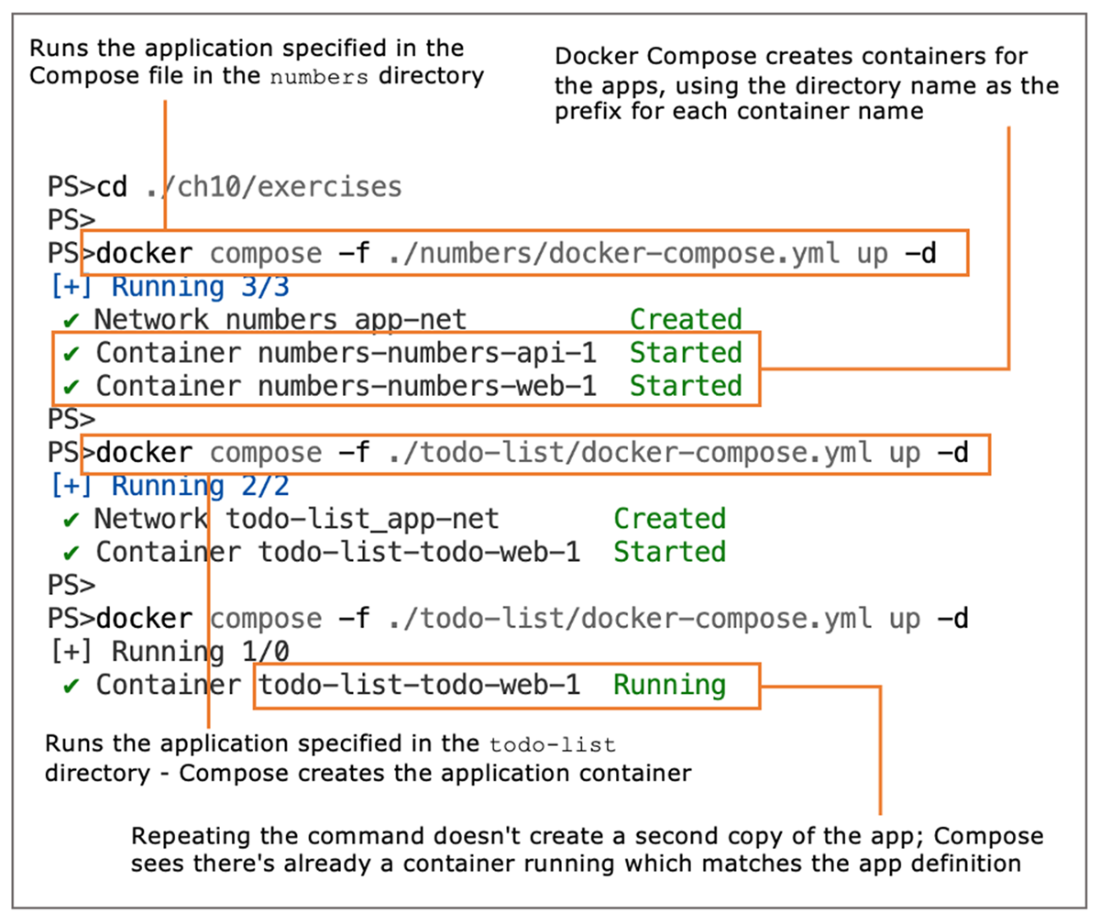
Repeating a Docker Compose command to start an app doesn’t run a second copy of the app.
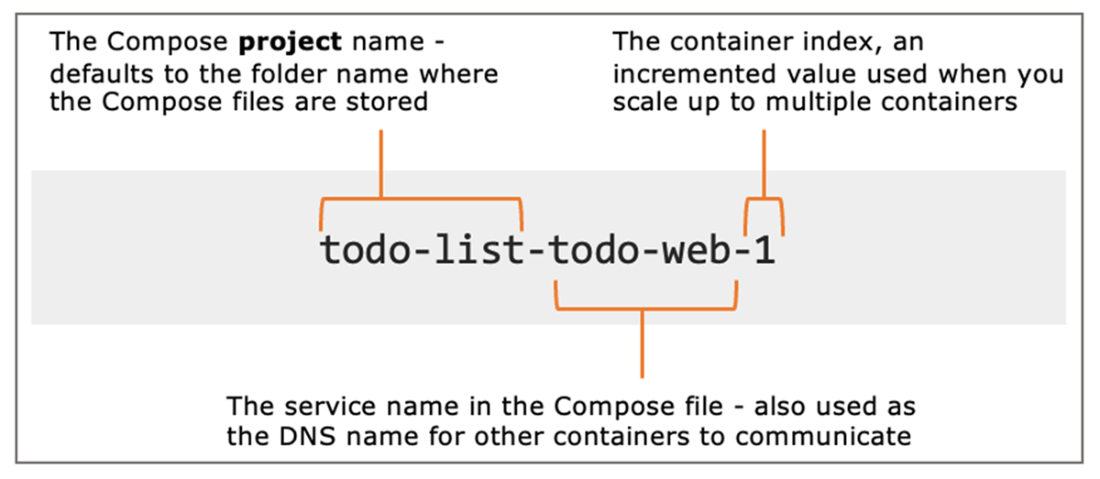
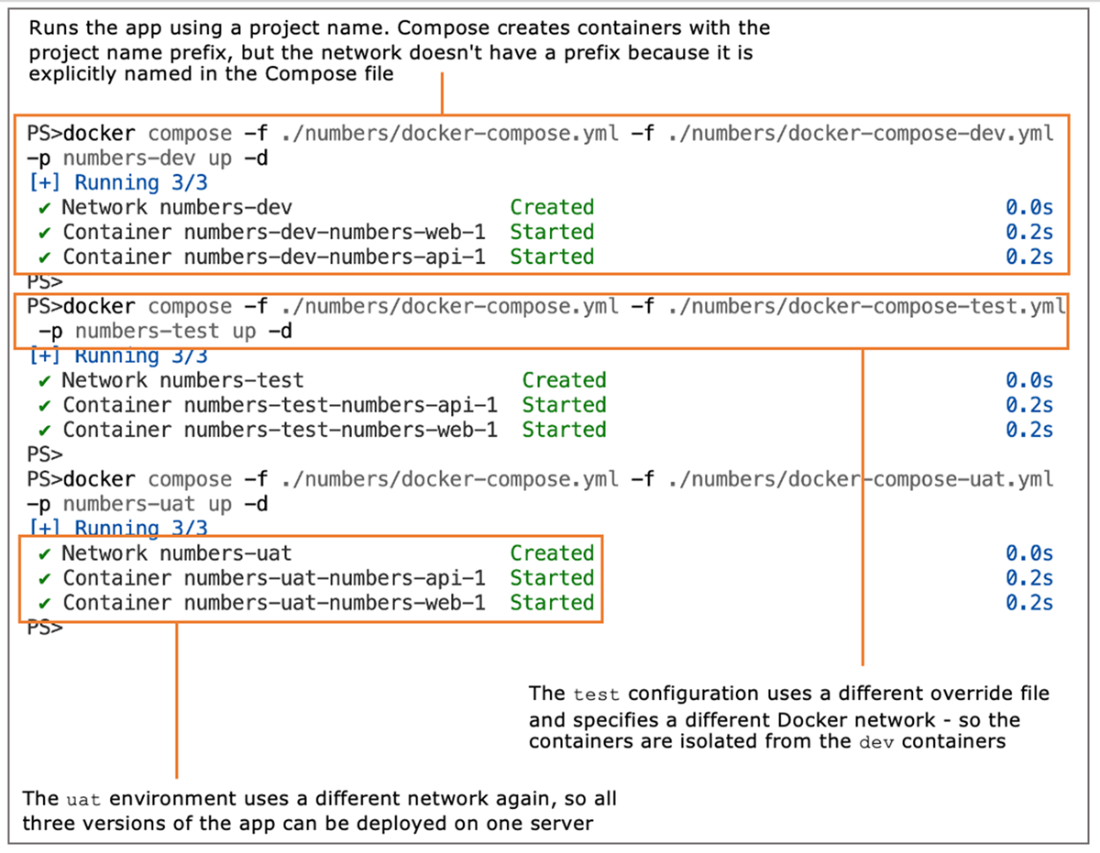
Docker Compose builds names for the resources it manages by including the project name.
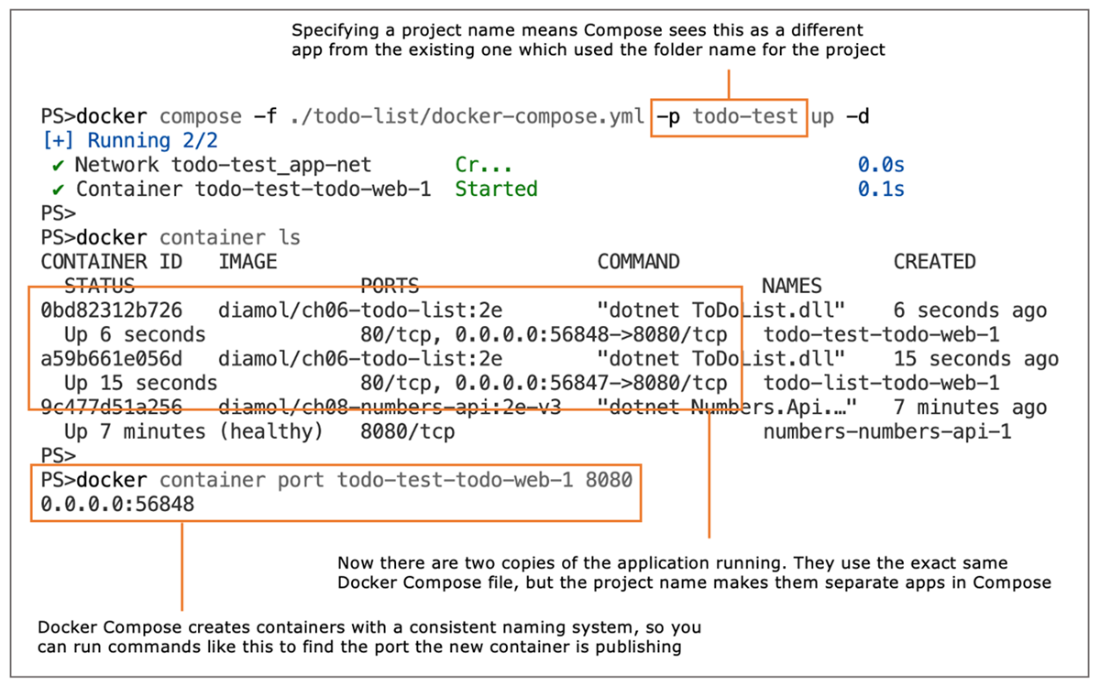
Specifying a project name lets you run multiple copies of the same app with one Compose file.
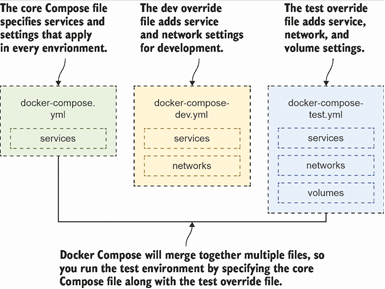
Removing duplication with override files that add environment-specific settings
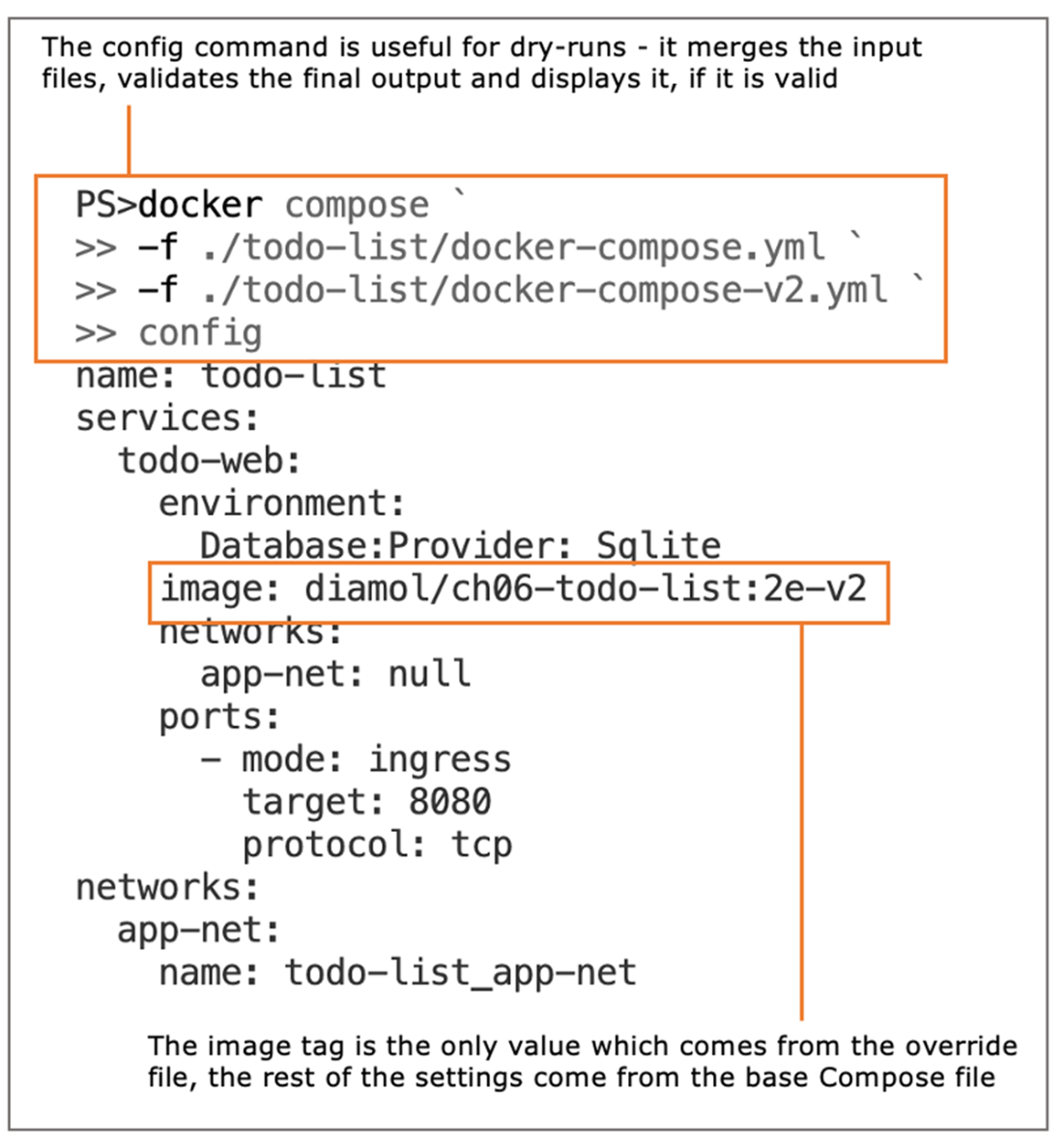
Merging a Compose file with an override file and displaying the output
Running multiple isolated application environments in containers on a single machine
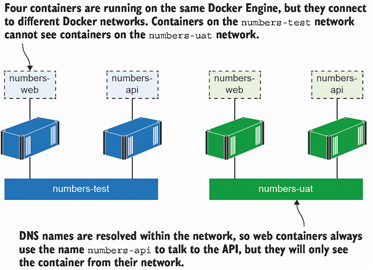
Running multiple environments on one Docker Engine, using networks for isolation
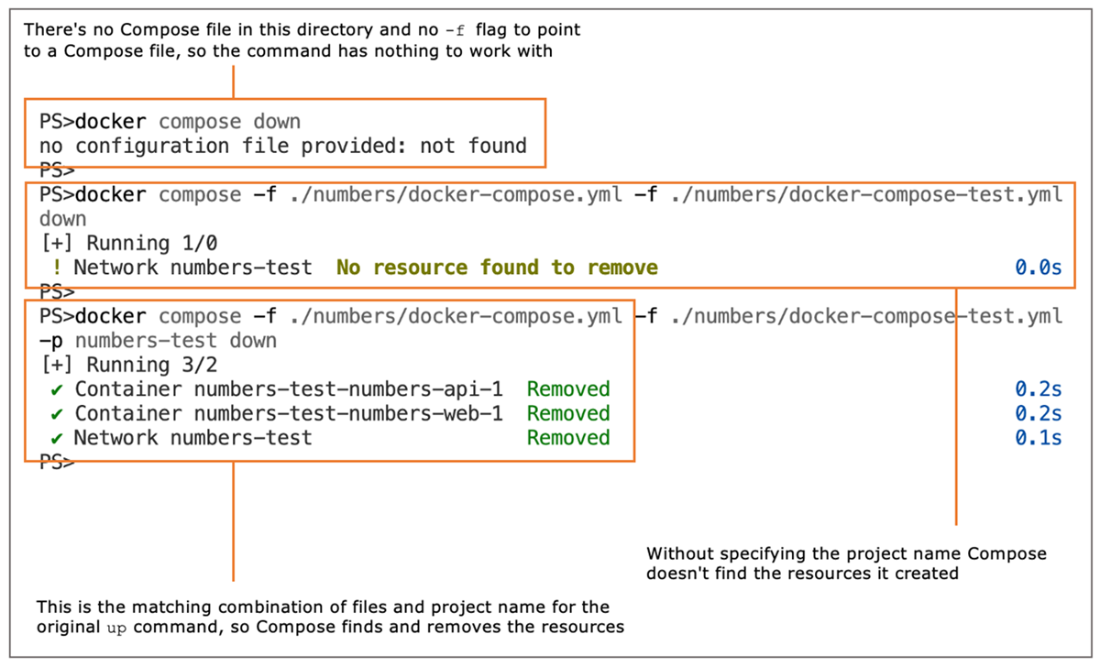
You need to use the same files and project name to manage an application with Compose.
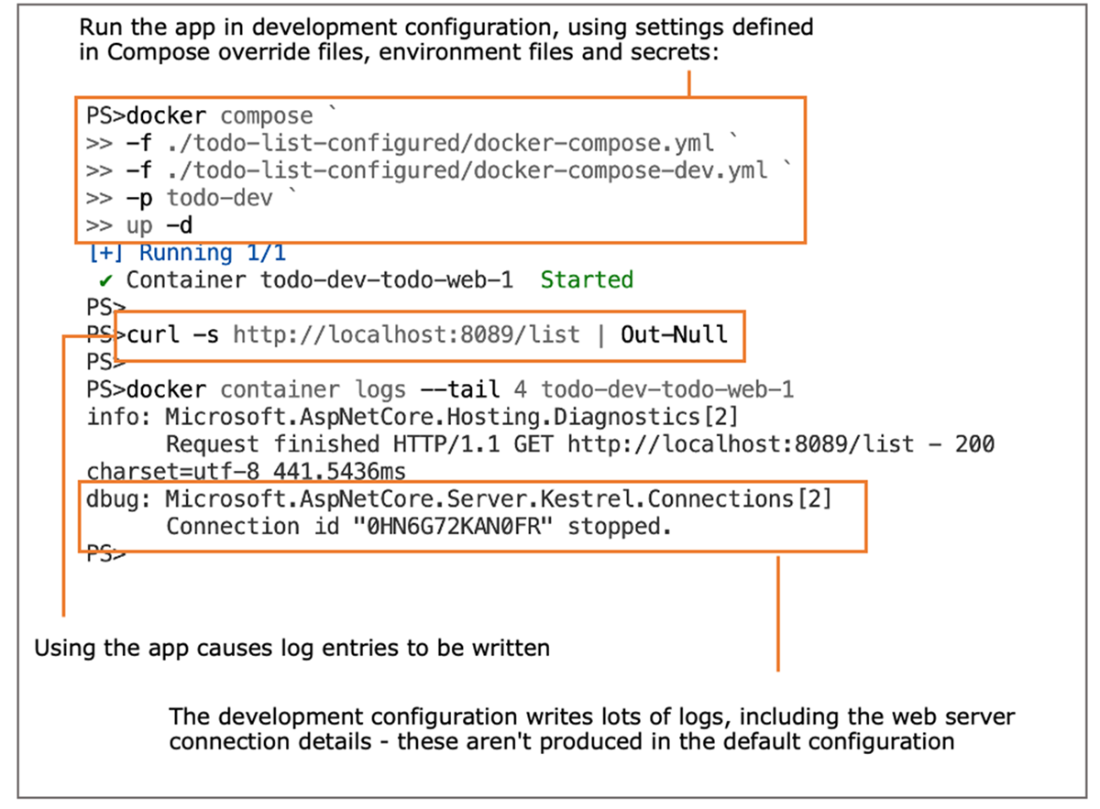
Changing application behavior by applying configuration settings in Docker Compose
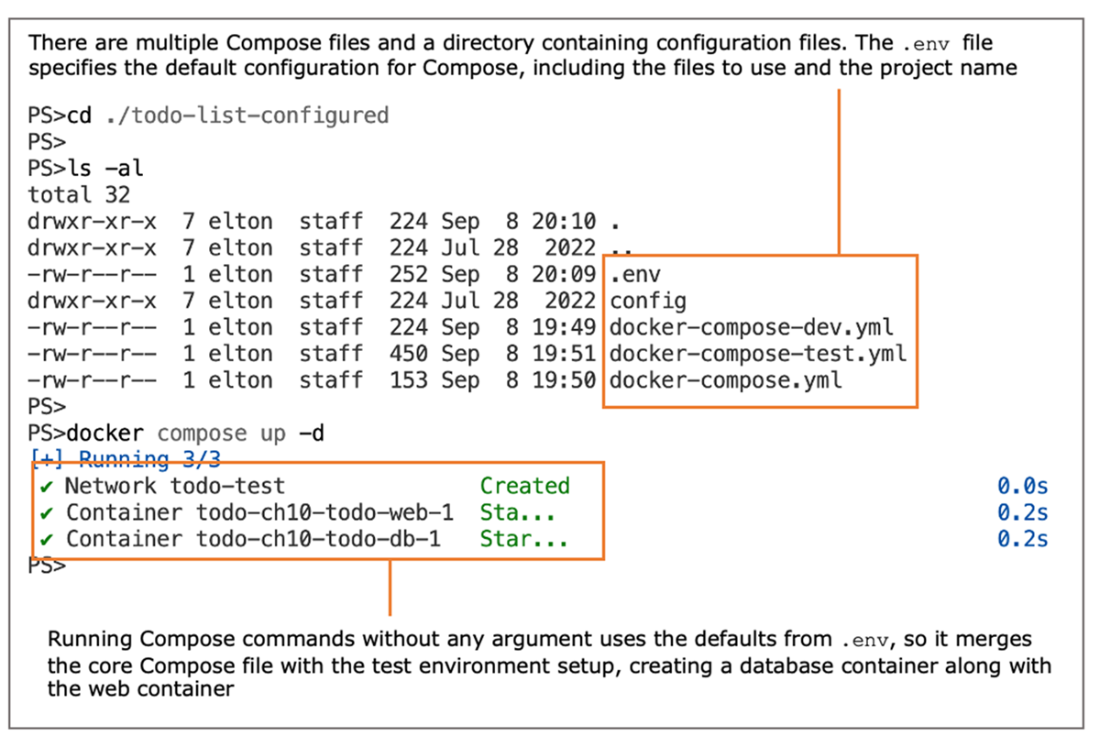
Using an environment file to specify the default for Docker Compose files and project names
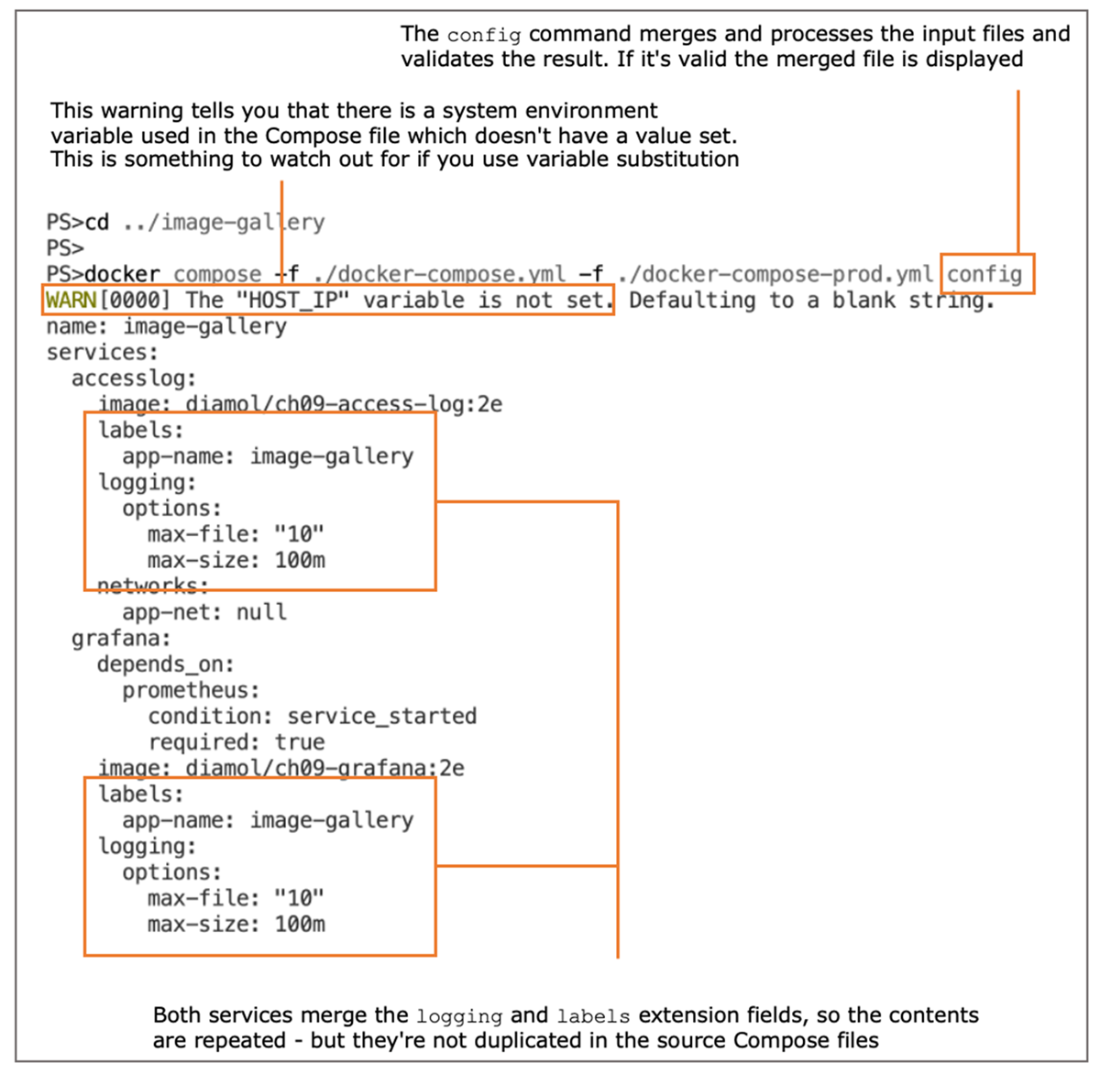
Using the config command to process files with extension fields and check the result
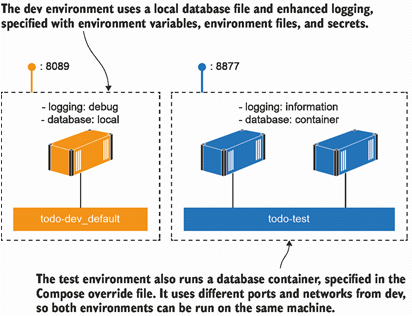
Defining very different environments for the same app using Docker Compose
Lab

In this lab I’d like you to build your own set of environment definitions for the to-do app. You’re going to put together a development environment and a test environment and make sure they can both run on the same machine.

The development environment should be the default, which you can run with docker compose up. The setup should

  • Use a local database file
  • Publish to port 8089
  • Run v2 of the to-do application

The test environment will need to be run with specific Docker Compose files and a project name. Its setup should

  • Use a separate database container
  • Use a volume for the database storage
  • Publish to port 8080
  • Use the latest to-do application image

There are similarities here to the Compose files in the todo-list-configured exercises for the chapter. The main difference is the volume—the database container uses an environment variable called PGDATA to set where the data files should be written. You can use that along with a volume specification in your Compose files.

As you’ve seen in this chapter, there are lots of ways you can solve this. My solution is on GitHub here: https://github.com/sixeyed/diamol/blob/2e/ch10/lab/README.md.

FAQ

What is a Docker Compose “project” and how does it affect resource names?Compose groups everything in a directory into a project. By default the project name is the folder name, and it’s used to prefix resources. For example, service containers are named like {project}-{service}-1 (e.g., app1-web-1), and volumes/networks are prefixed with the project name. This convention lets Compose identify which resources belong to the same app.
How can I run multiple instances of the same Compose app at the same time?Use a different project name for each instance. Run docker compose up with -p to set the project name (e.g., -p todo-test). Pair this with per-environment overrides to assign unique ports and networks so instances don’t clash.
Why doesn’t re-running “docker compose up” from the same folder start another copy?Because Compose treats it as the same project and sees the app as already running. It will reconcile rather than create a second set of containers. To create another copy, change the project name (-p) or run from a different directory (resulting in a different default project name).
What are Compose override files and how does merge order work?Override files let you layer environment-specific changes on top of a core docker-compose.yml. You pass multiple -f flags, and files to the right override keys from files to the left. Keep the same structure (services, networks, etc.) so keys can be matched. The order matters.
How can I preview the final merged Compose configuration before deploying?Use the config command. Example: docker compose -f docker-compose.yml -f docker-compose-uat.yml config. It validates inputs and prints the fully merged output so you can confirm exactly what will be applied.
How do I avoid port and data collisions when running multiple environments?Publish different host ports per environment (via overrides), and give each environment its own network. This isolates traffic and prevents clashes. Don’t have multiple containers bind the same host port, and avoid writing to the same host paths unless intended.
How do I tear down a specific environment created with overrides and a custom project name?Run docker compose down with the exact same file list and project name used for up. Example: docker compose -f ./numbers/docker-compose.yml -f ./numbers/docker-compose-test.yml -p numbers-test down. If you omit -p or change files, Compose won’t match the running resources. Be careful with explicitly named networks (they don’t get a project prefix).
What are the main ways to inject configuration into containers with Compose?- environment: inline variables; simplest, but not for secrets. - env_file: load many env vars from a file; good for shared settings. - secrets: mount sensitive config (e.g., connection strings) as files inside the container; safest for confidential data. You can mix these as needed per environment.
How do host environment variables and the .env file influence Compose?You can reference host env vars in Compose using ${VAR}. Compose also auto-loads a .env file in the working directory to set variables. Besides app settings (e.g., TODO_WEB_PORT), you can configure Compose itself with COMPOSE_FILE (list of files), COMPOSE_PROJECT_NAME (default project), and COMPOSE_PATH_SEPARATOR. Note: Compose only auto-reads a file named .env.
What are extension fields (YAML anchors) in Compose, and what’s their limitation?Extension fields (x- blocks) let you define reusable YAML snippets and merge them into services using the YAML merge key (<<: *anchor). They’re great for shared logging options or labels. Limitation: they don’t work across multiple files—anchors must be defined and used within the same Compose file.

pro $24.99 per month

  • access to all Manning books, MEAPs, liveVideos, liveProjects, and audiobooks!
  • choose one free eBook per month to keep
  • exclusive 50% discount on all purchases
  • renews monthly, pause or cancel renewal anytime

lite $19.99 per month

  • access to all Manning books, including MEAPs!

team

5, 10 or 20 seats+ for your team - learn more


choose your plan

team

monthly
annual
$49.99
$499.99
only $41.67 per month
  • five seats for your team
  • access to all Manning books, MEAPs, liveVideos, liveProjects, and audiobooks!
  • choose another free product every time you renew
  • choose twelve free products per year
  • exclusive 50% discount on all purchases
  • renews monthly, pause or cancel renewal anytime
  • renews annually, pause or cancel renewal anytime
  • Learn Docker in a Month of Lunches, Second Edition ebook for free

choose your plan

team

monthly
annual
$49.99
$499.99
only $41.67 per month
  • five seats for your team
  • access to all Manning books, MEAPs, liveVideos, liveProjects, and audiobooks!
  • choose another free product every time you renew
  • choose twelve free products per year
  • exclusive 50% discount on all purchases
  • renews monthly, pause or cancel renewal anytime
  • renews annually, pause or cancel renewal anytime
  • Learn Docker in a Month of Lunches, Second Edition ebook for free
choose your plan

team

monthly
annual
$49.99
$499.99
only $41.67 per month
  • five seats for your team
  • access to all Manning books, MEAPs, liveVideos, liveProjects, and audiobooks!
  • choose another free product every time you renew
  • choose twelve free products per year
  • exclusive 50% discount on all purchases
  • renews monthly, pause or cancel renewal anytime
  • renews annually, pause or cancel renewal anytime
  • Learn Docker in a Month of Lunches, Second Edition ebook for free